
Comment se connecter à MYOB ?
Cet article explique comment autoriser SINC à accéder à MYOB.

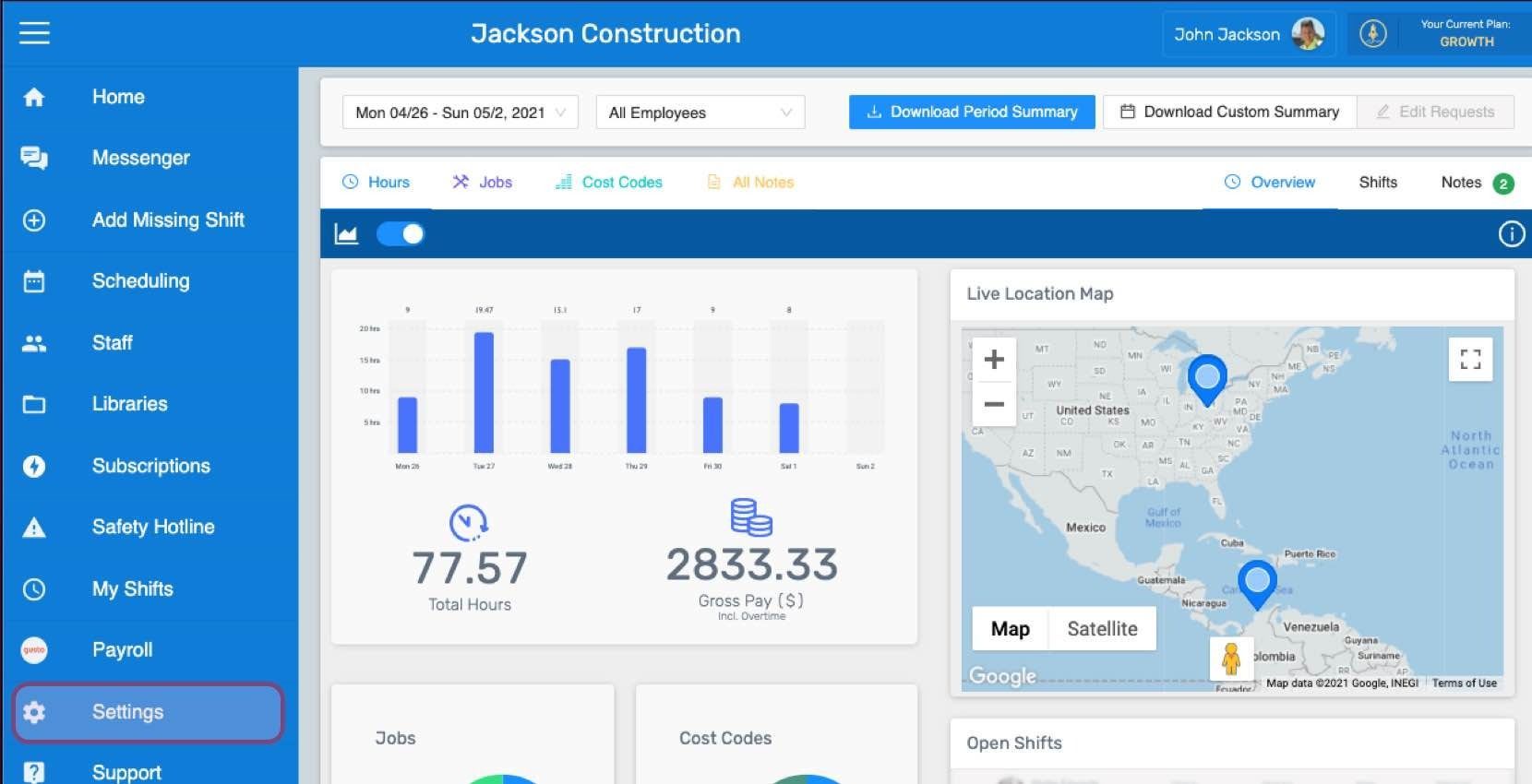
Voici comment authentifier l’intégration MYOB dans SINC. Connectez-vous à SINC, puis cliquez sur l’icône d’engrenage dans le volet de gauche pour accéder aux paramètres.
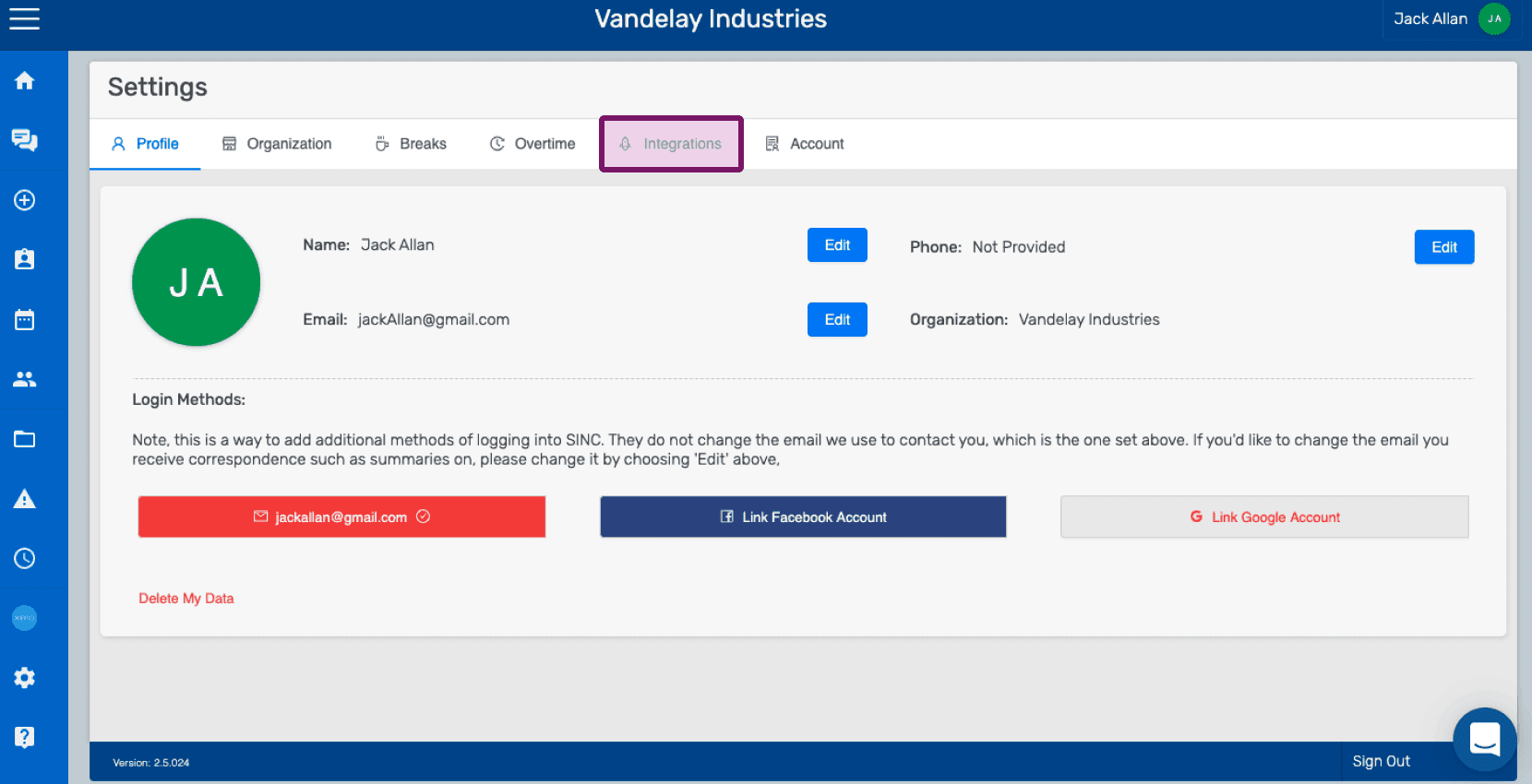
Cliquez sur l’onglet Intégrations pour afficher la liste des applications intégrées à SINC.
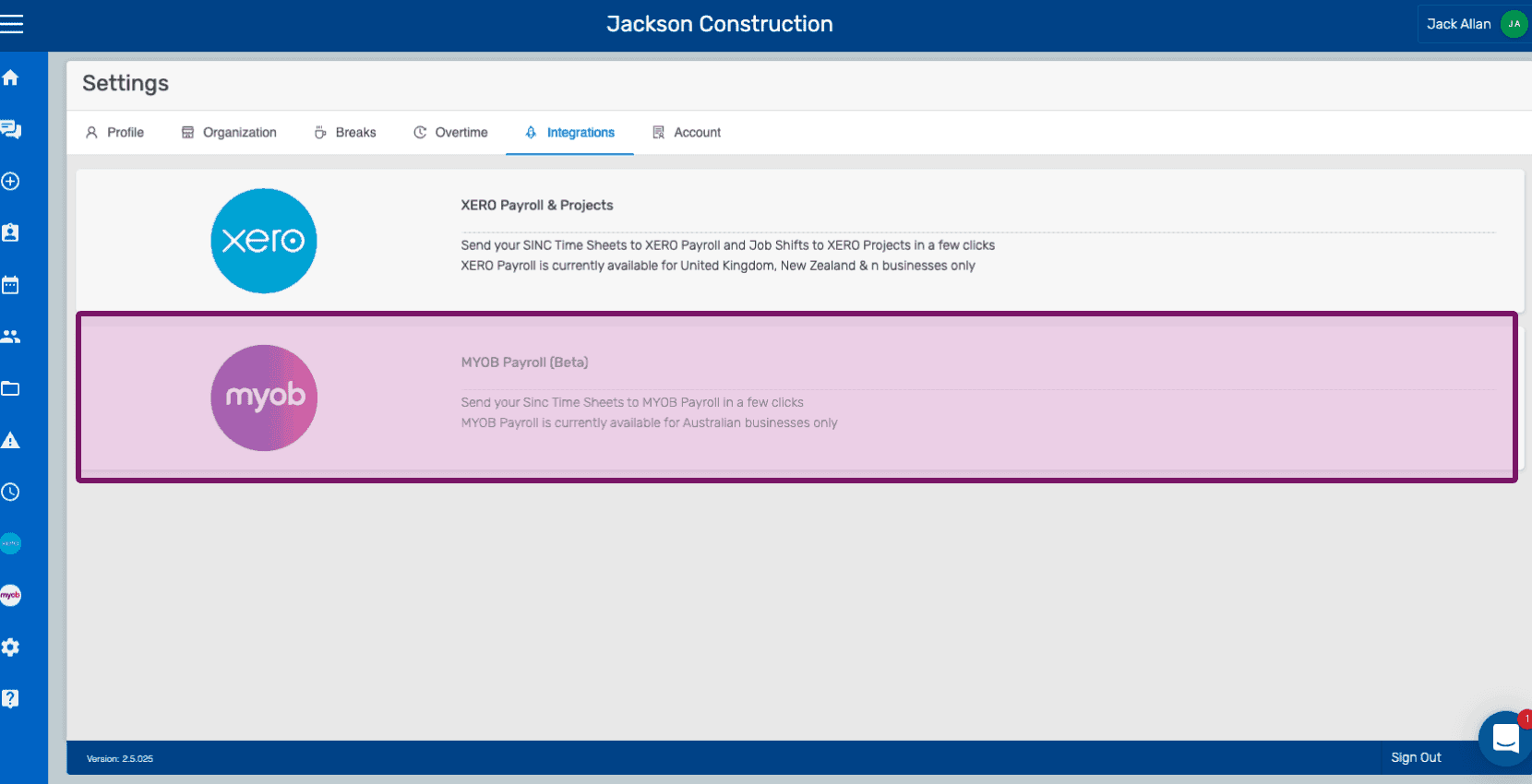
Cliquez sur MYOB Payroll (bêta)
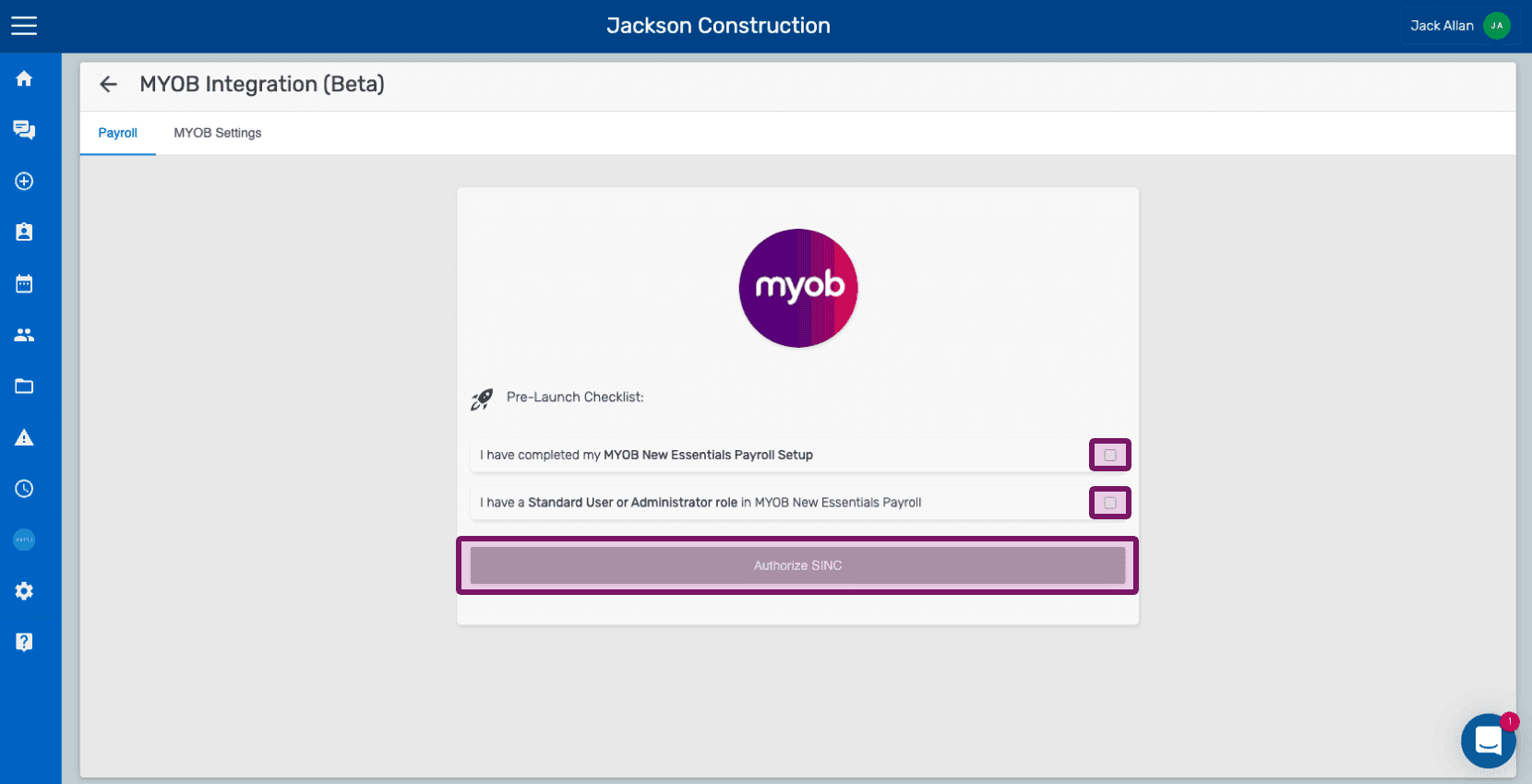
Vous êtes maintenant dans l’onglet MYOB Payroll. À ce stade, il est essentiel que les conditions requises indiquées dans le guide MYOB Payroll : Premiers pas soient remplies.
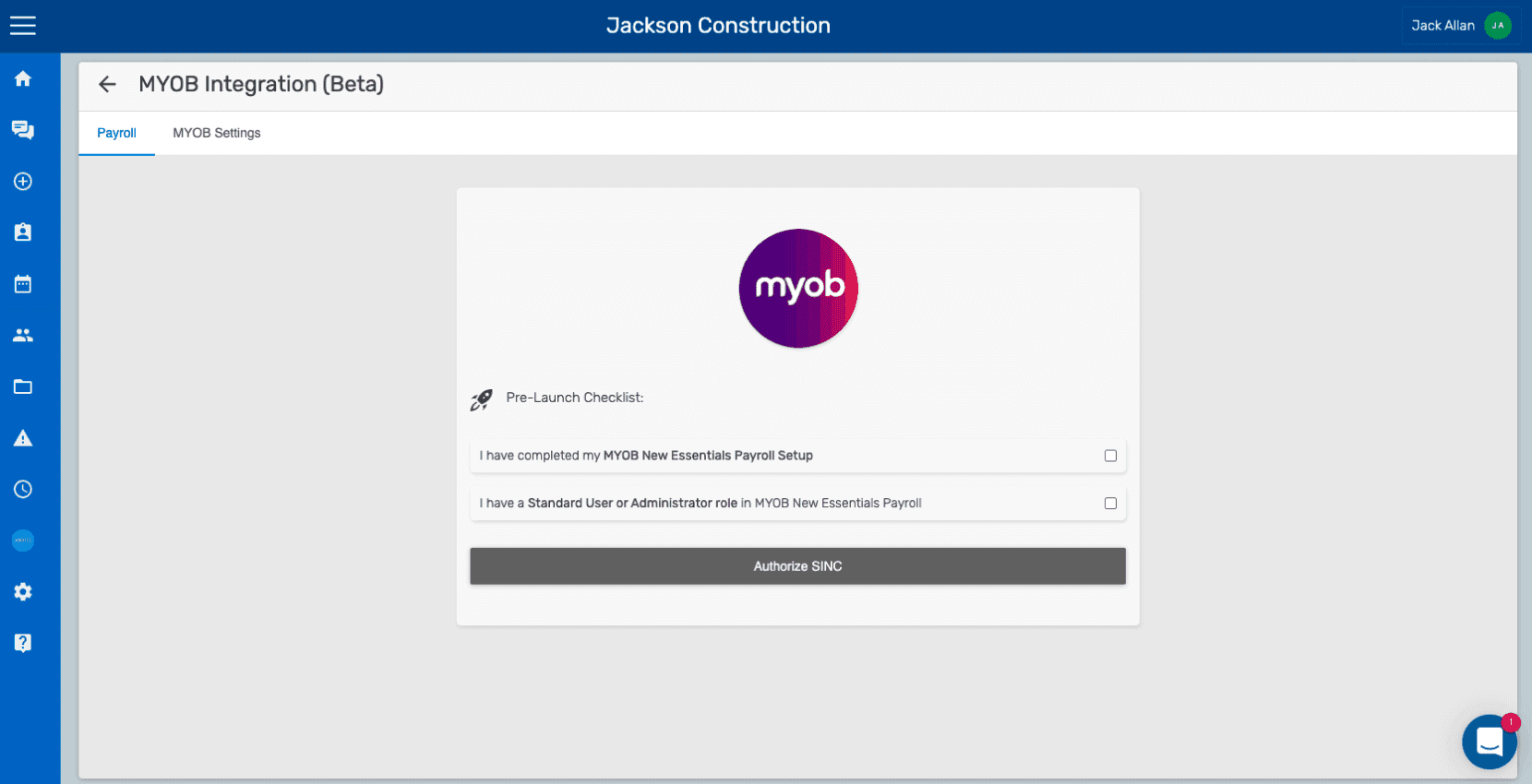
Après vous être assuré que les exigences de configuration de votre organisation MYOB sont respectées, cochez les cases, puis procédez à l’autorisation en cliquant sur le bouton Authorize SINC.
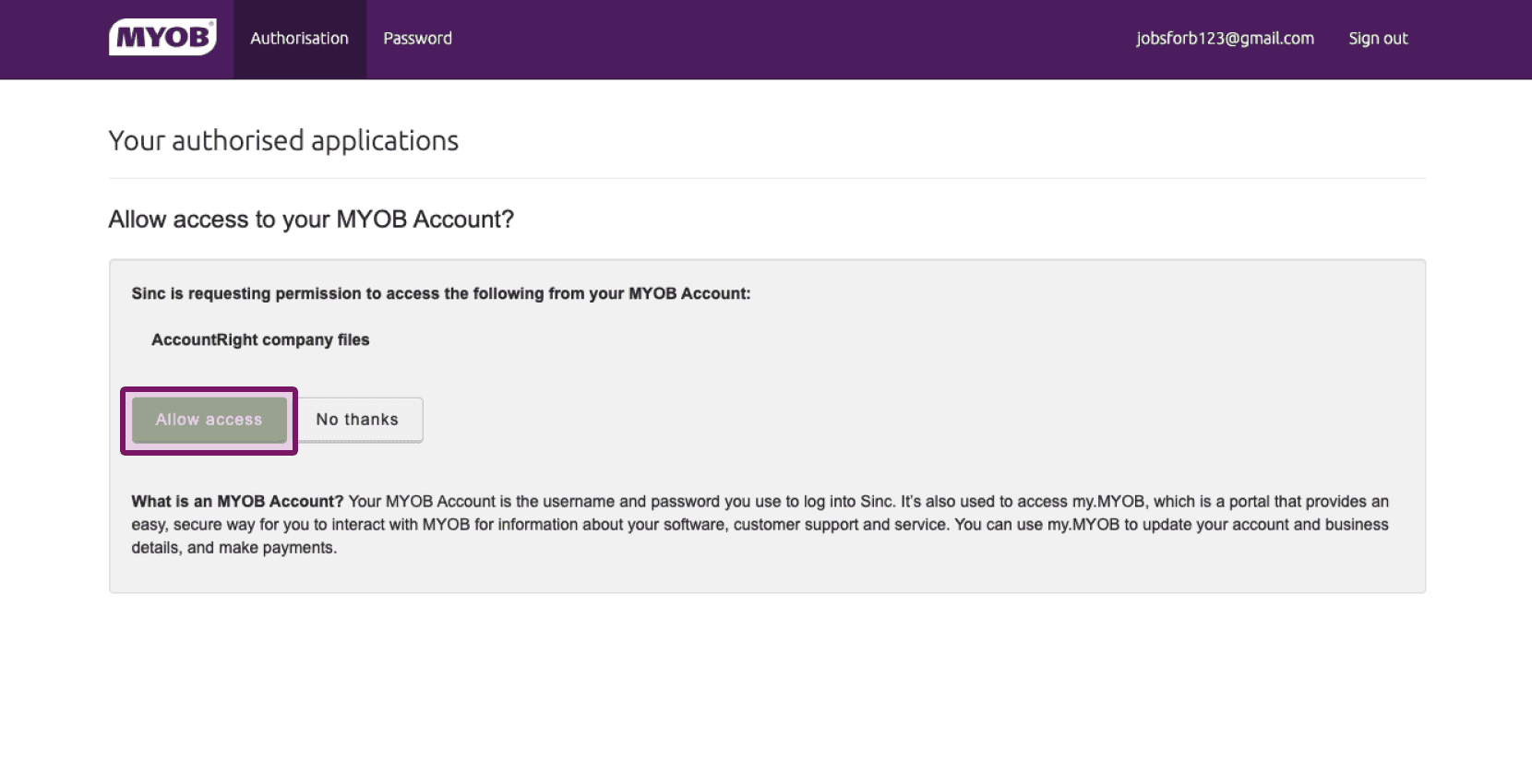
Cliquez sur le bouton Autoriser l’accès. (Si vous n’êtes pas encore connecté à MYOB, vous serez redirigé vers l’écran de connexion à MYOB.)
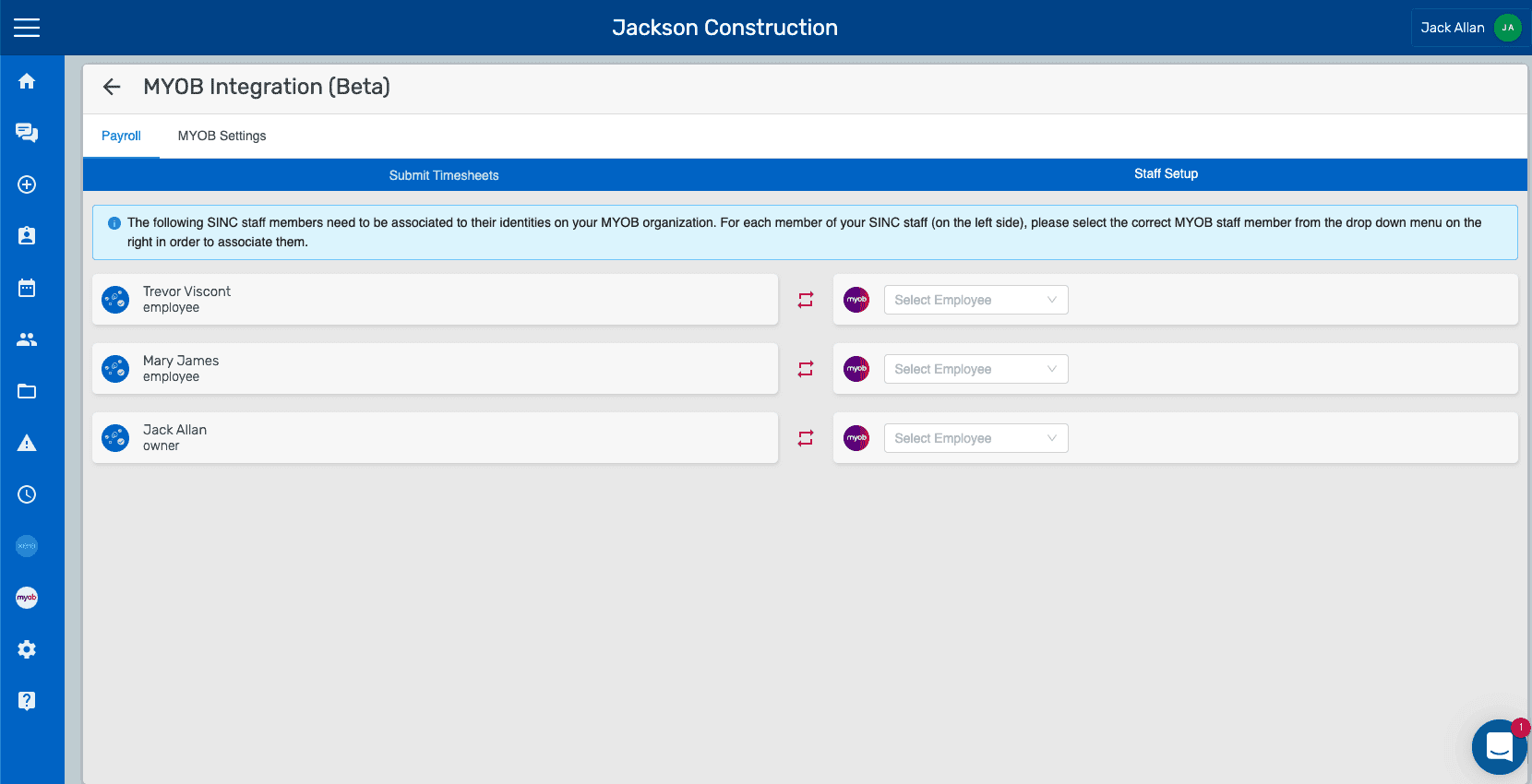
Une fois l’autorisation réussie, l’écran suivant s’affichera. À noter : vous devrez autoriser SINC à accéder aux données de l’organisation dans MYOB afin de traiter les feuilles de temps des employés. Si le processus d’authentification génère une erreur ou échoue, les messages d’erreur s’afficheront sur un écran de pré-authentification.
Cela a-t-il répondu à votre question ?