Calcul du salaire brut

Dans ce tutoriel, nous expliquons comment activer la fonctionnalité de calcul du salaire brut dans SINC.

Sam Dolbel
Sam Dolbel
Mar 9th, 2023

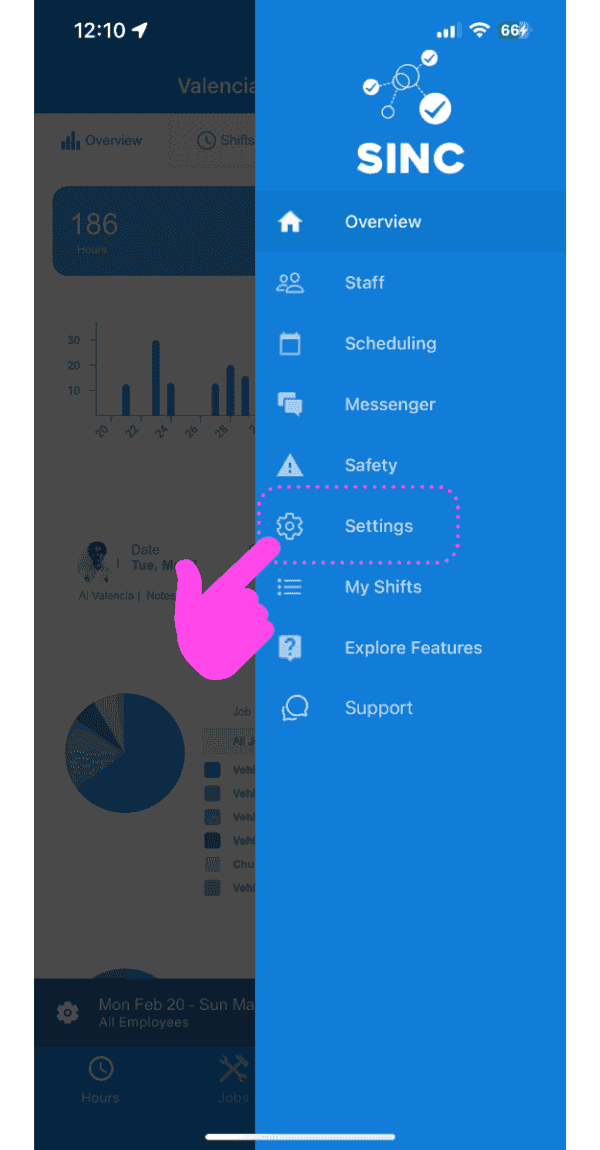
Appuyez sur Paramètres

SINC mobile app side menu with a pink hand pointing to the Settings option

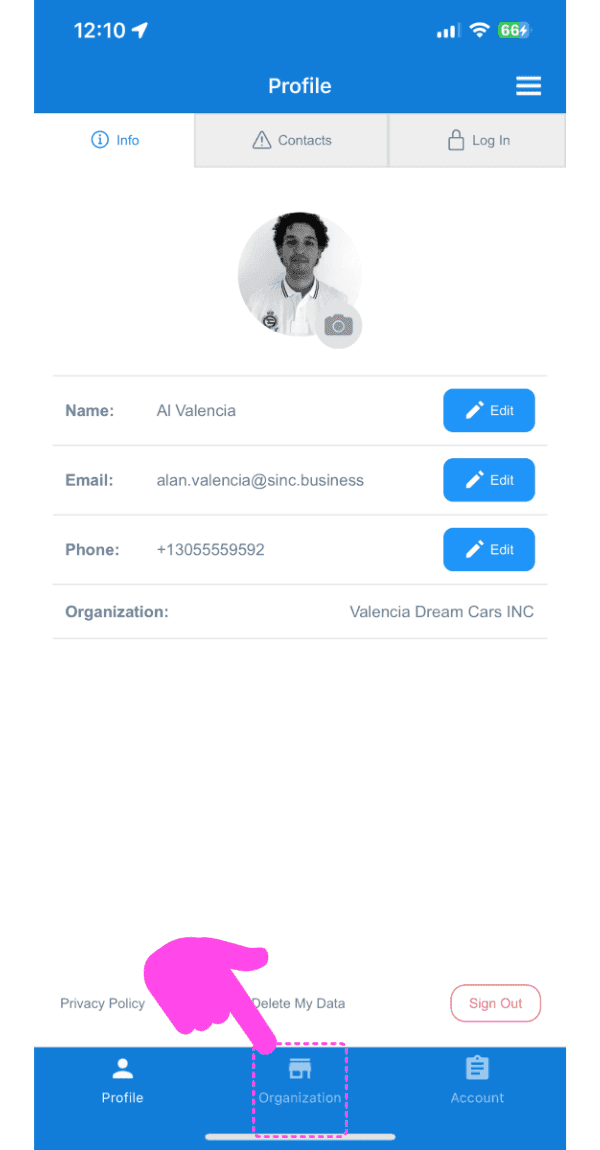
Appuyez sur Organisation

SINC mobile Profile screen with a pink arrow pointing to the Organization tab at the bottom

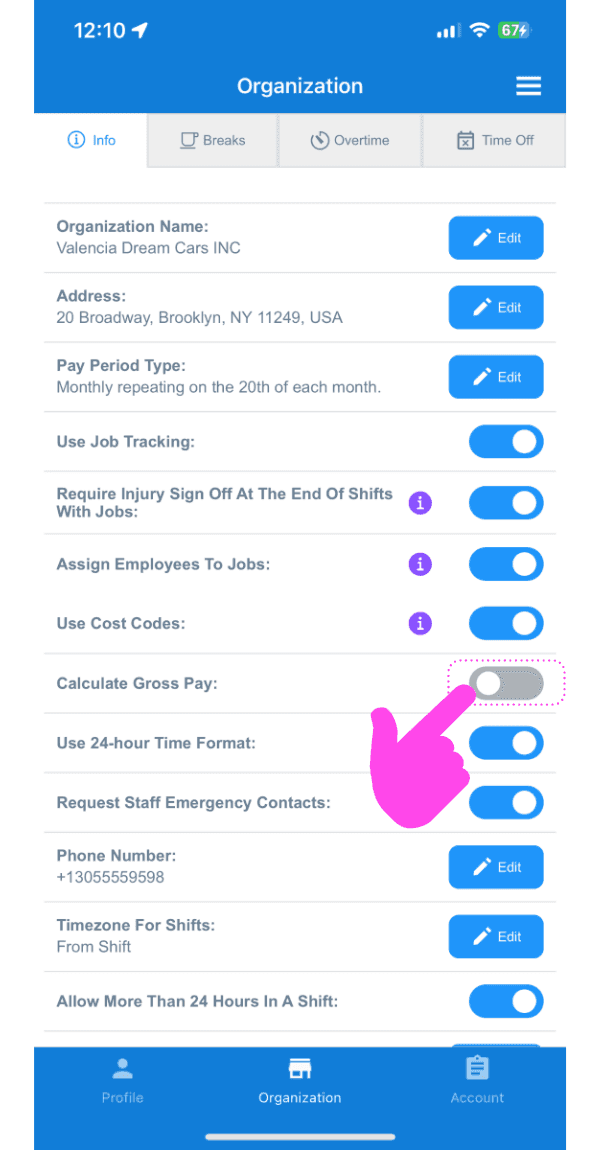
Appuyez sur Calculer le salaire brut

Organization Info screen with a pink arrow pointing to the Calculate Gross Pay toggle switch

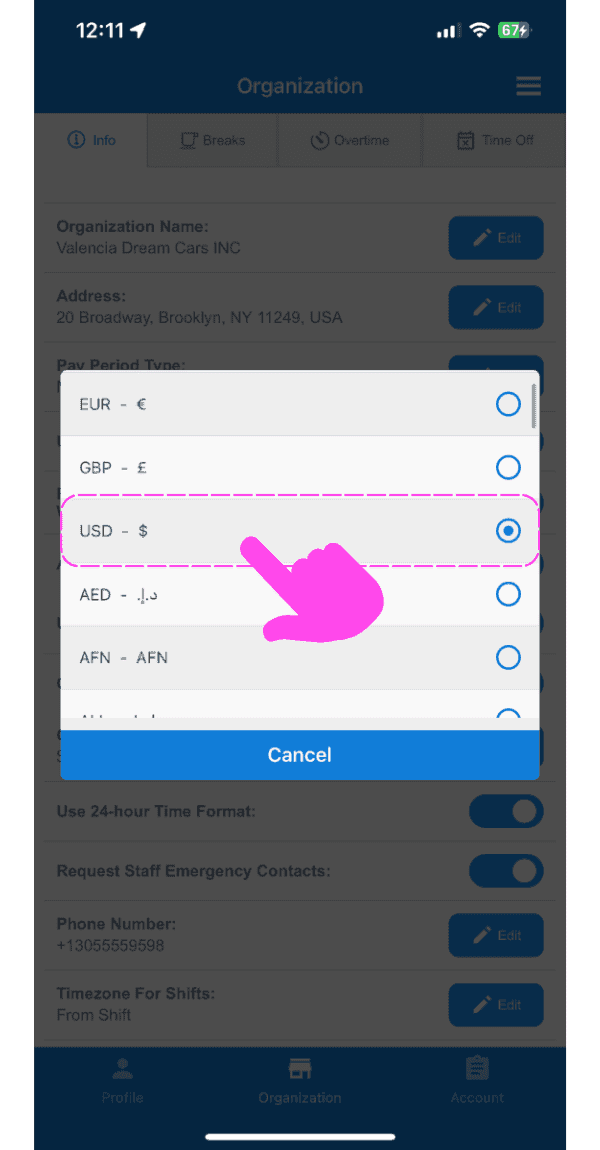
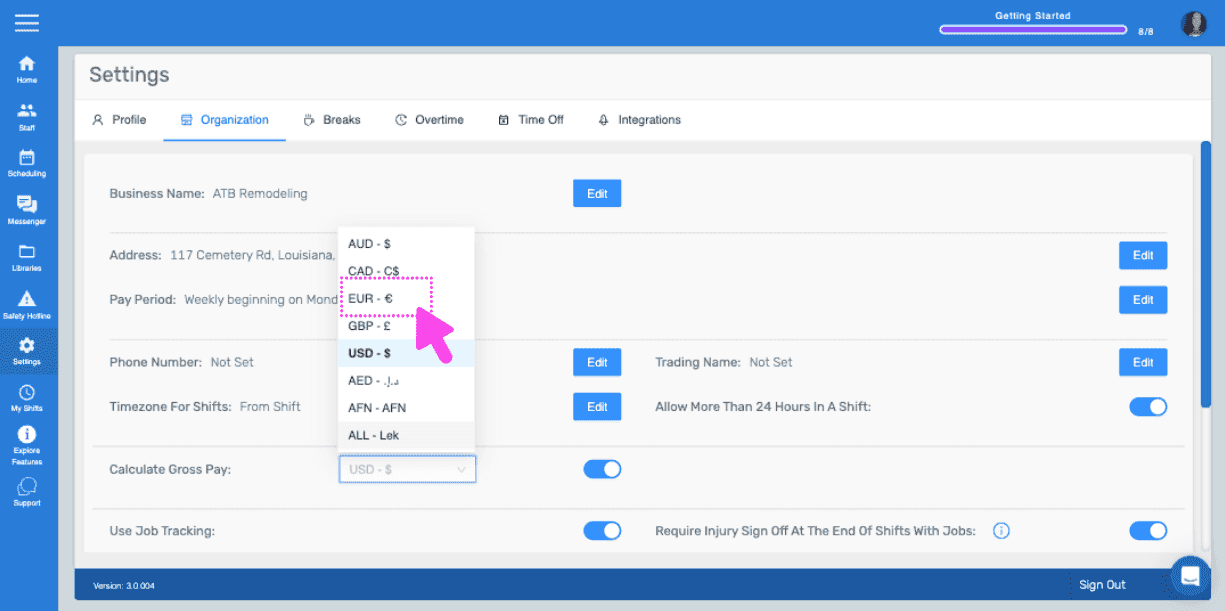
Appuyez sur Devise préférée

SINC mobile app currency selection popup with USD highlighted in a pink dashed box and arrow

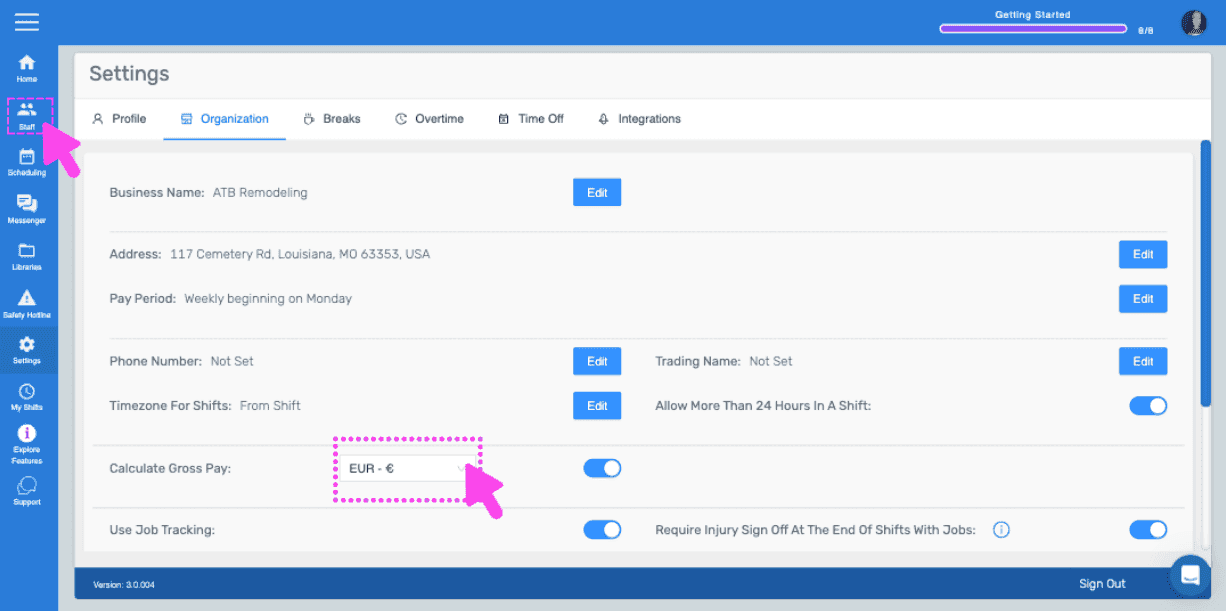
À présent, ouvrez les paramètres de chaque membre de l’équipe et sélectionnez un taux de rémunération. Appuyez sur Équipe
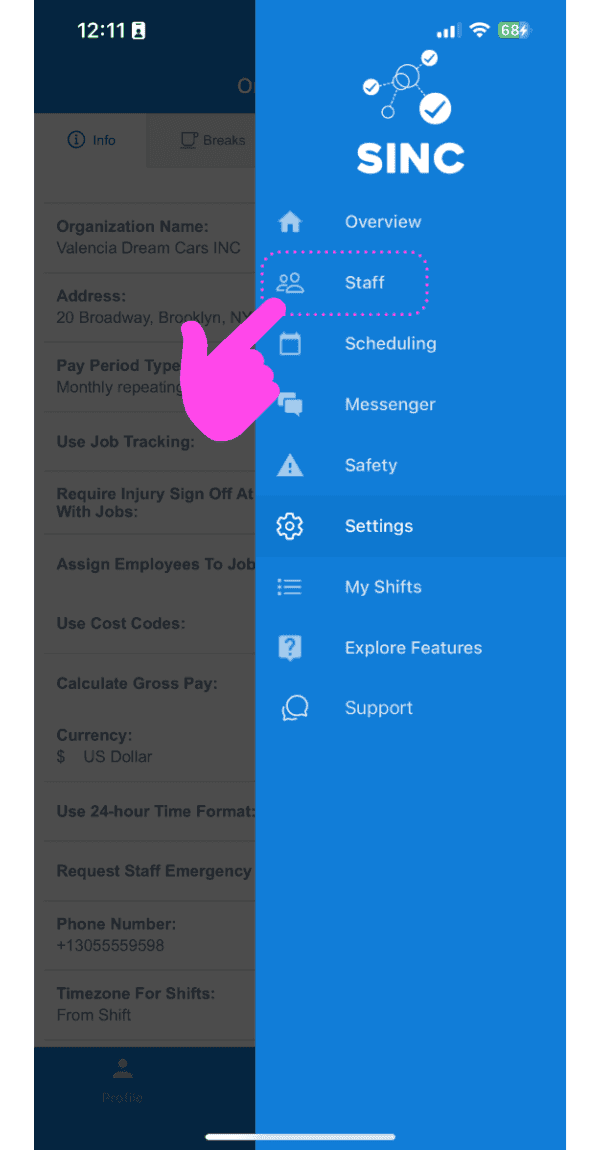
SINC mobile app menu with a pink arrow pointing to the Staff option

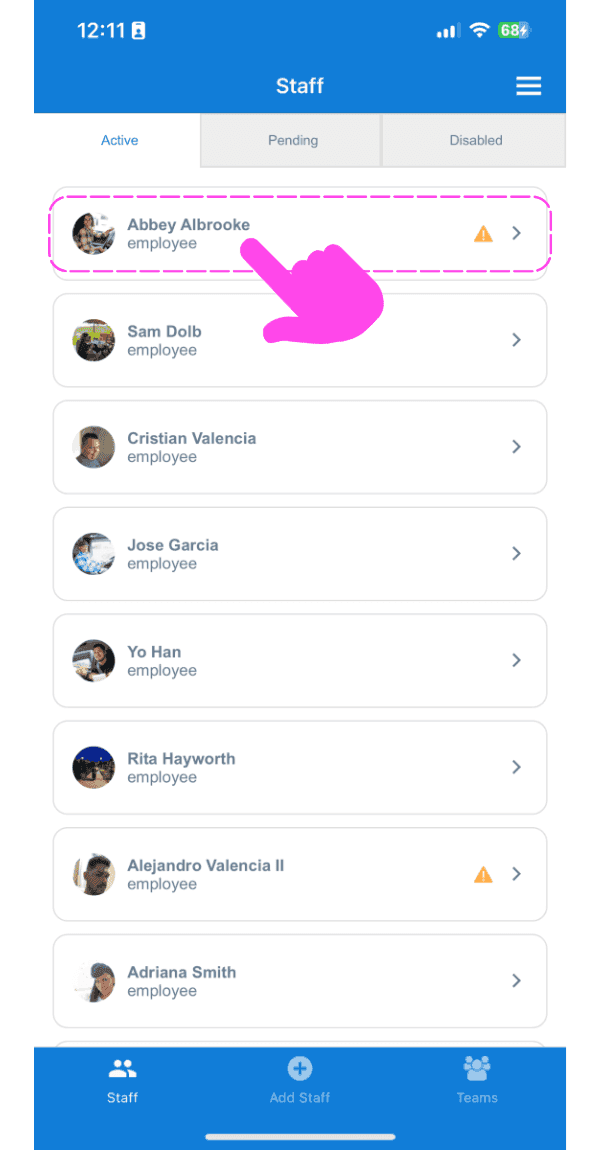
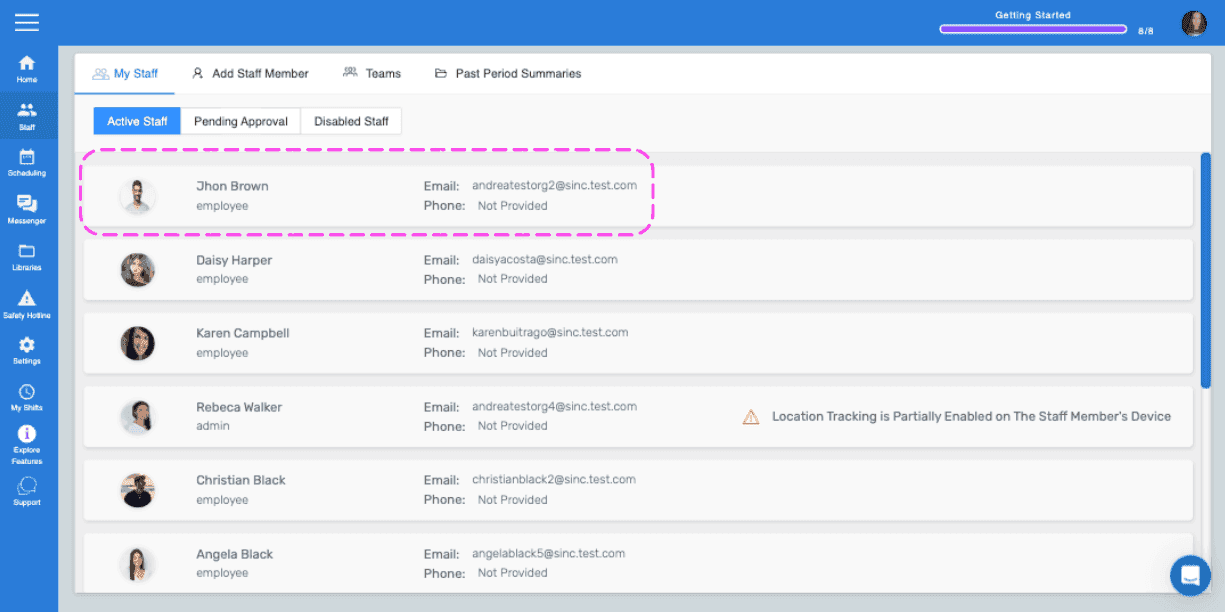
Appuyez sur Nom de l’employé

SINC mobile Staff list with a pink arrow pointing to Abbey Albrooke's name at the top

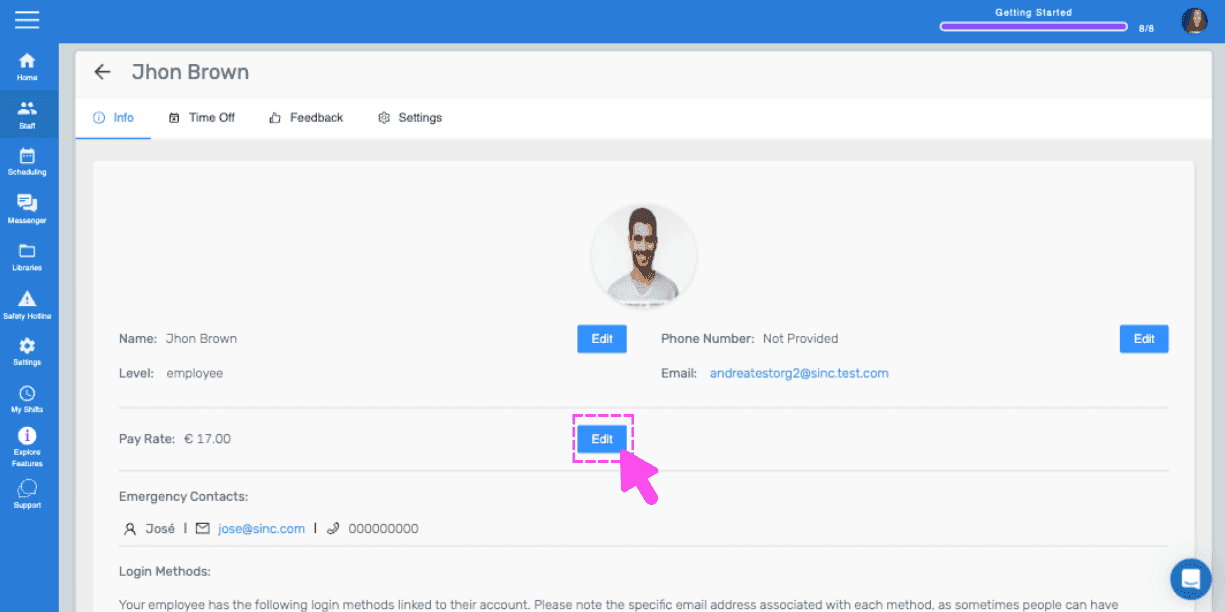
Appuyez sur Modifier (à côté de Taux de rémunération)
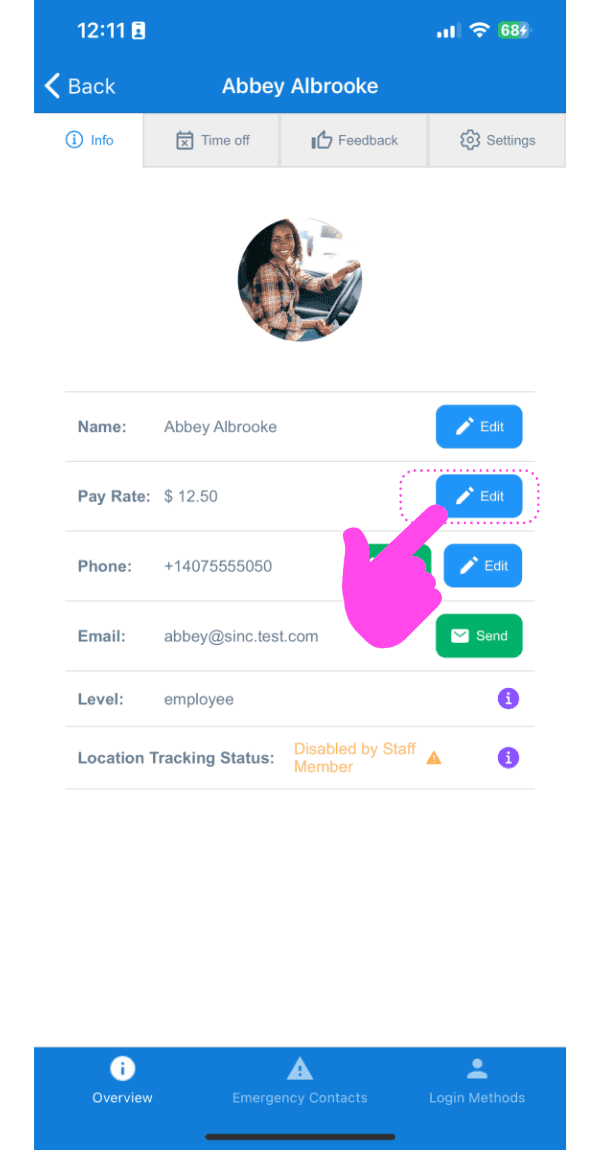
SINC mobile staff profile screen with a pink hand pointing to the Edit button next to Pay Rate

Sélectionnez le taux horaire correct pour cet employé, puis appuyez sur Confirmer. Répétez l’opération pour tous les autres employés dont vous souhaitez calculer la paie brute.
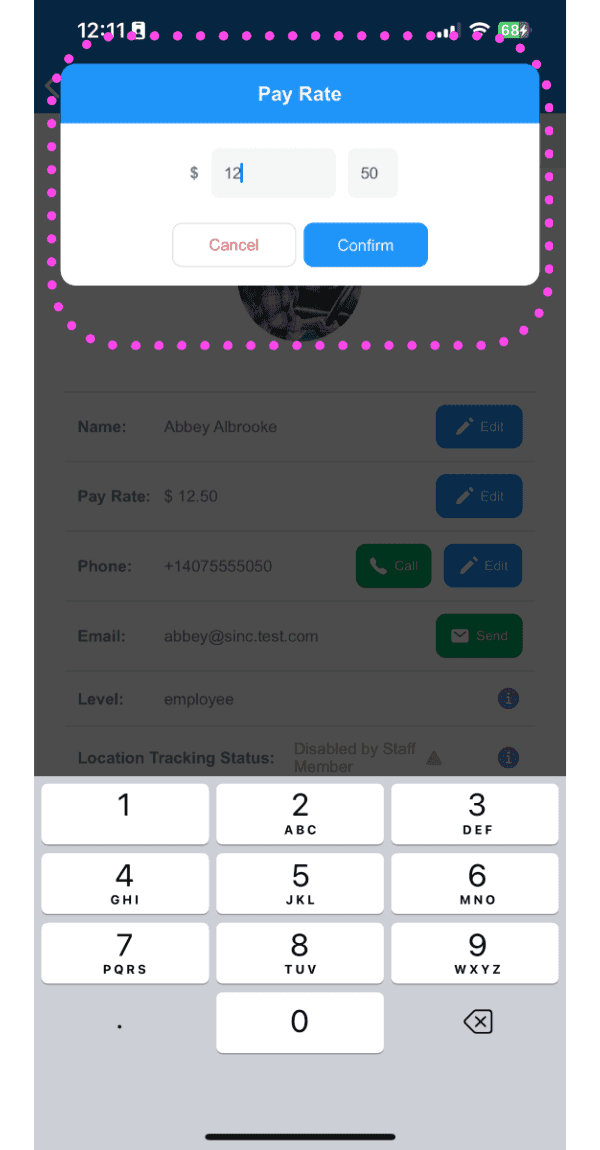
Pay Rate entry popup with a numeric keypad outlined in pink, showing the dollar amount field and Confirm button

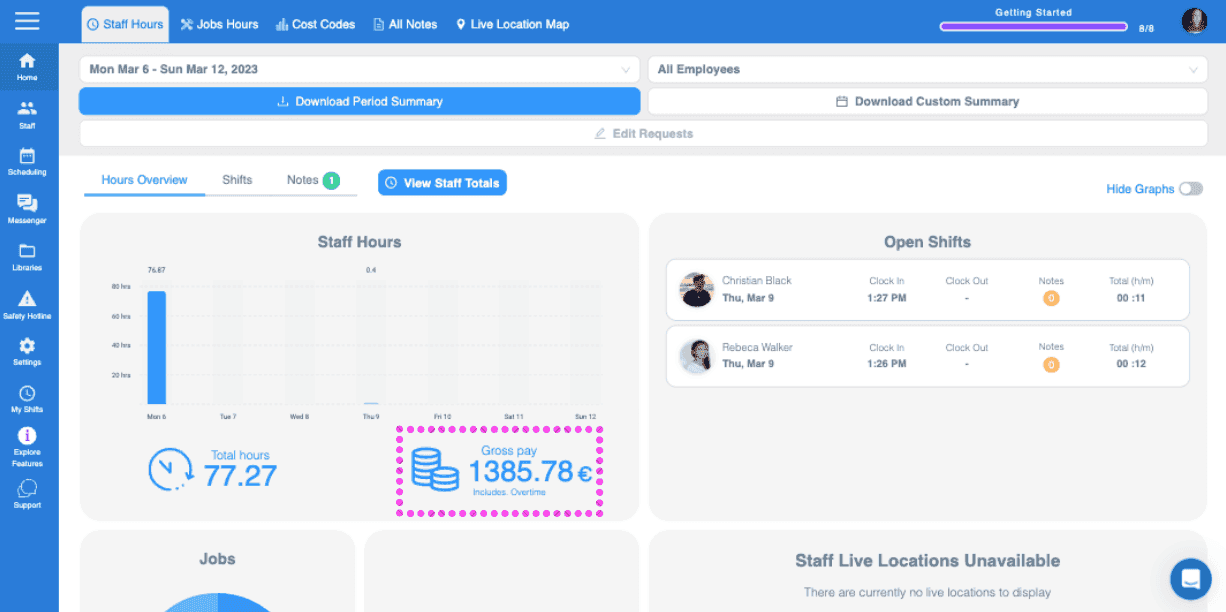
Le montant total brut de la paie pour la période concernée s’affiche désormais sur l’écran d’accueil de l’espace administrateur.
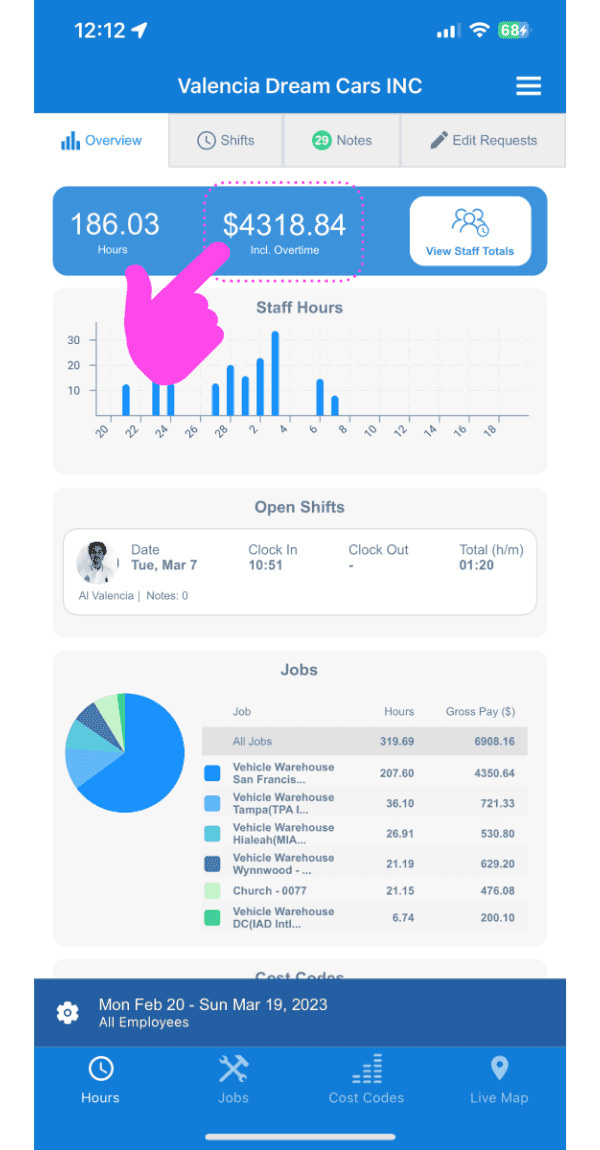
SINC mobile Overview dashboard with a pink arrow pointing to the total hours and gross pay figures

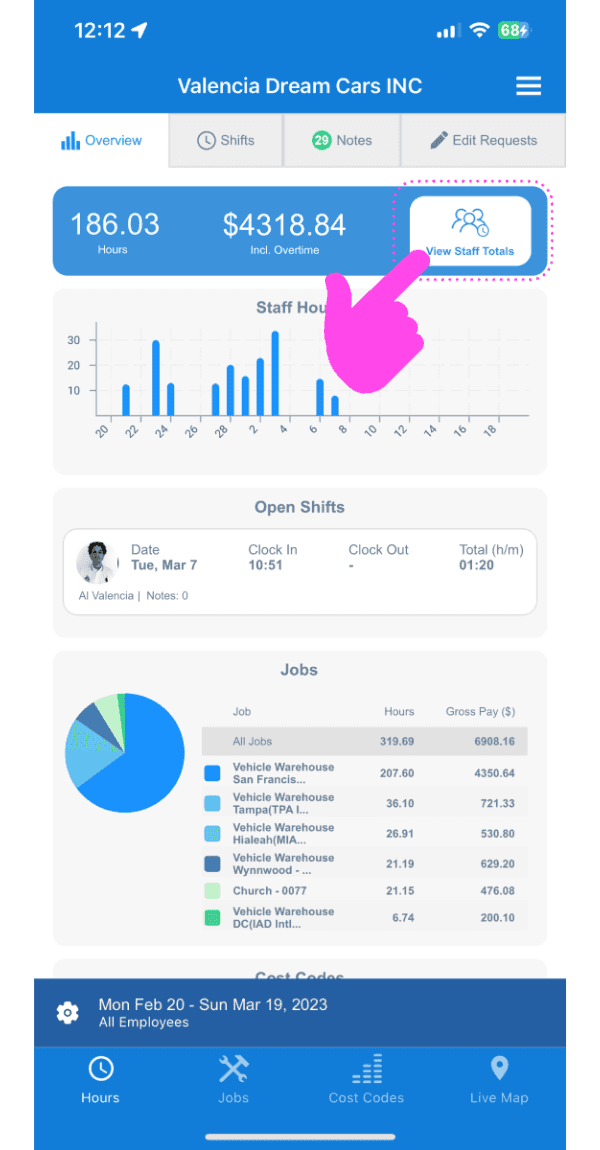
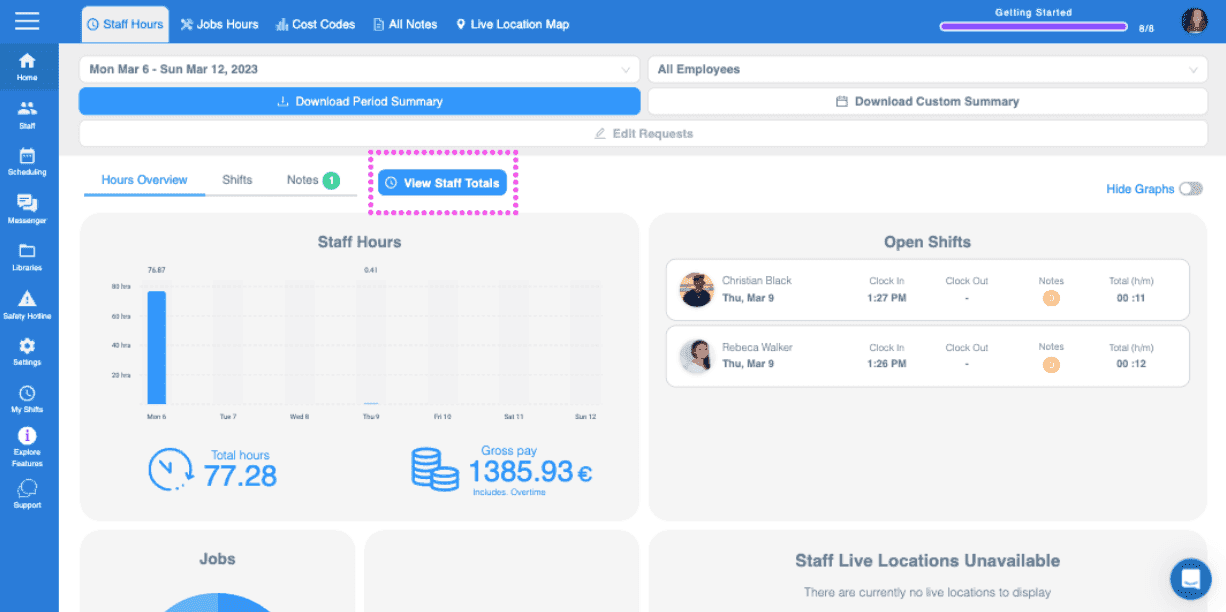
Appuyez sur l’icône Info

SINC mobile app Overview screen with a pink arrow pointing to the View Staff Totals button

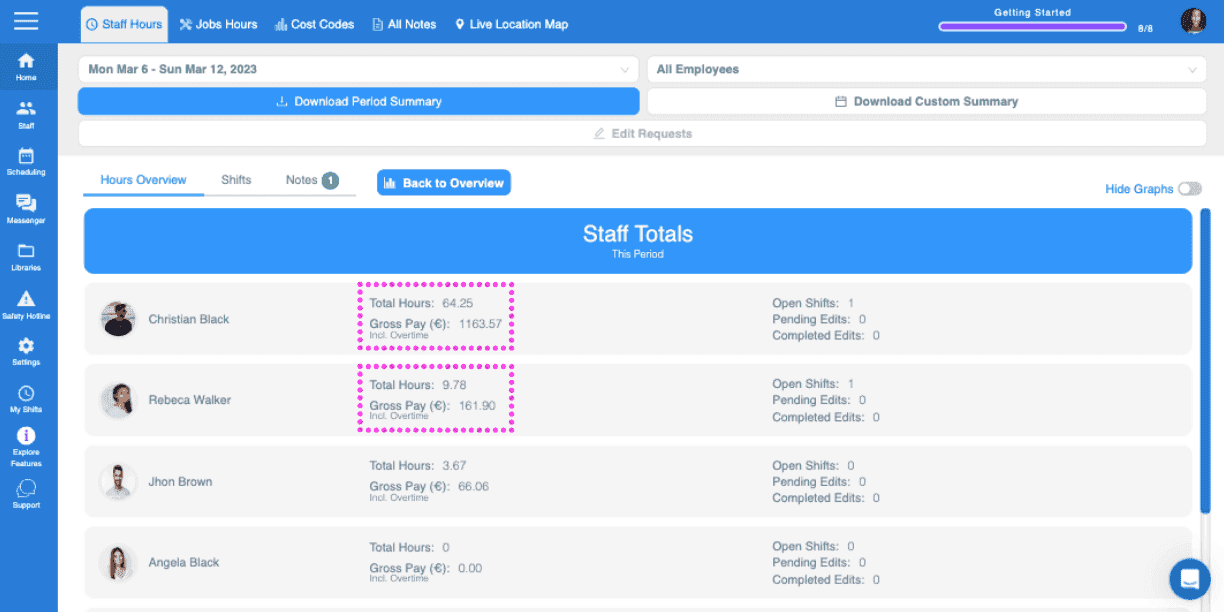
Vous allez maintenant voir le total de la paie brute de chaque salarié pour la période de paie sélectionnée.
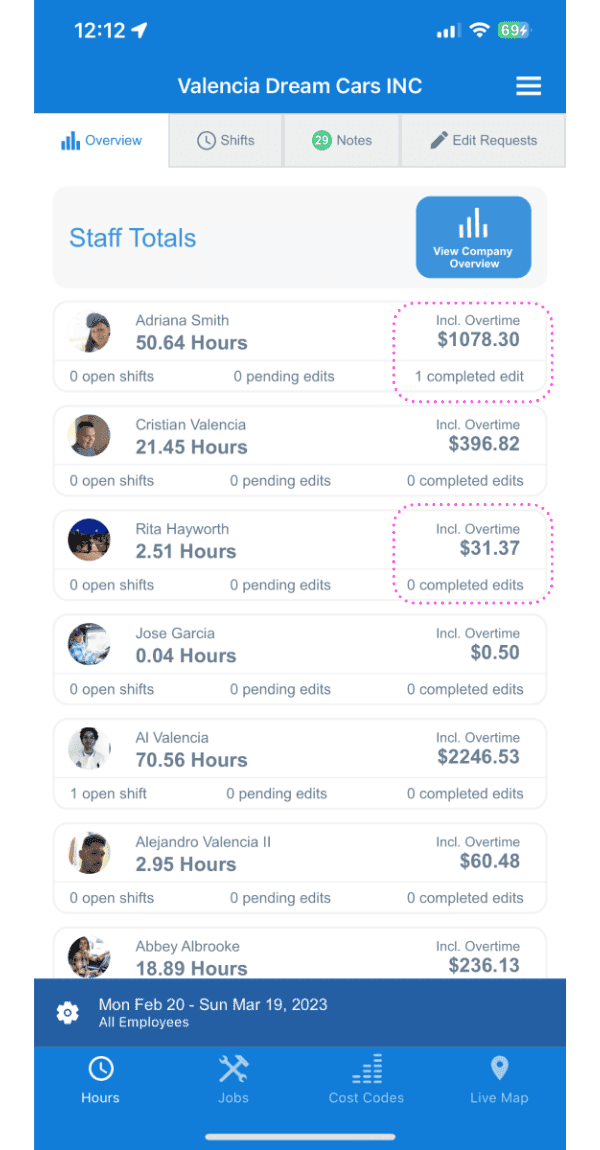
SINC mobile Staff Totals list showing hours and overtime pay, with some pay amounts circled

Si vous utilisez la version web, voici à quoi elle ressemble :
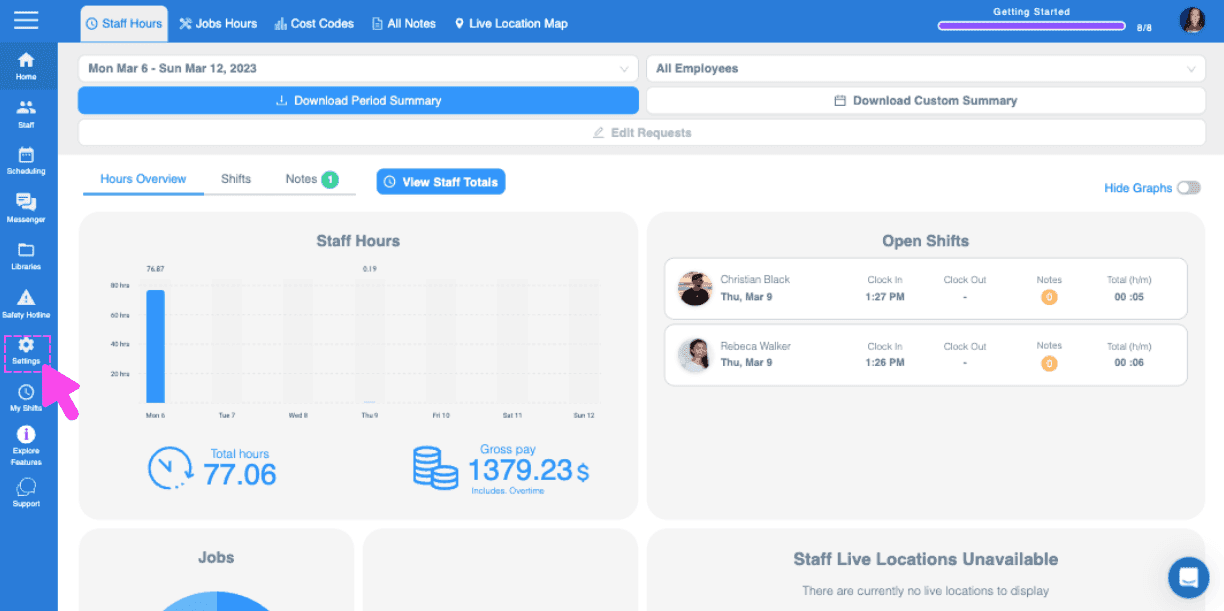
Web Staff Hours Overview dashboard with a pink arrow pointing to the side menu Settings icon
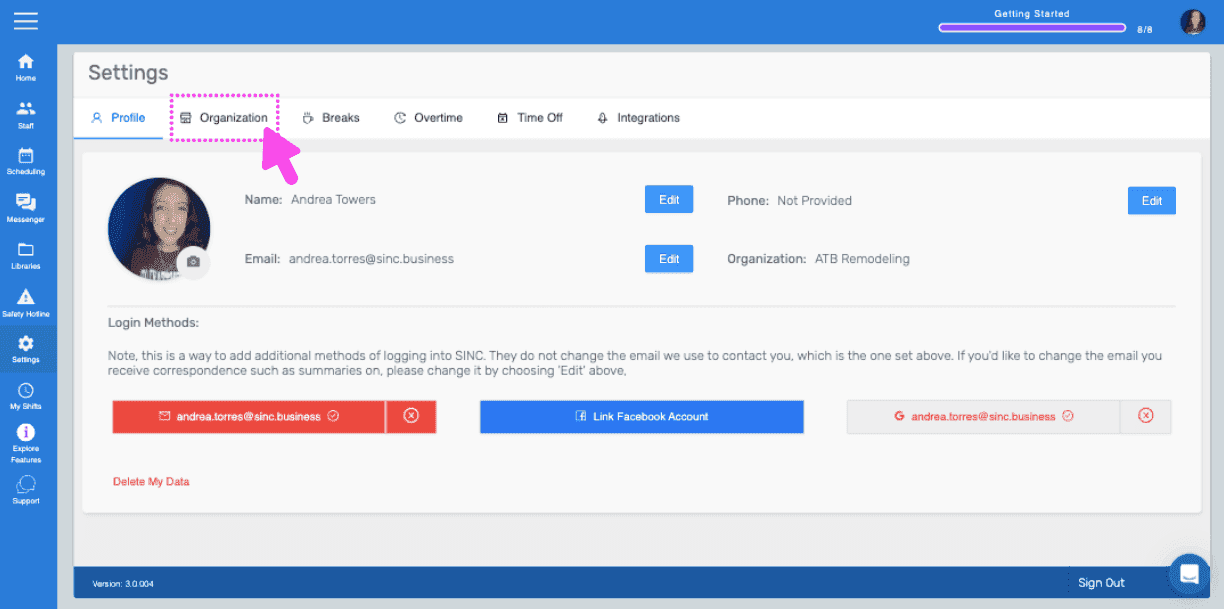
SINC web Settings Profile tab with a pink arrow pointing to the Organization tab
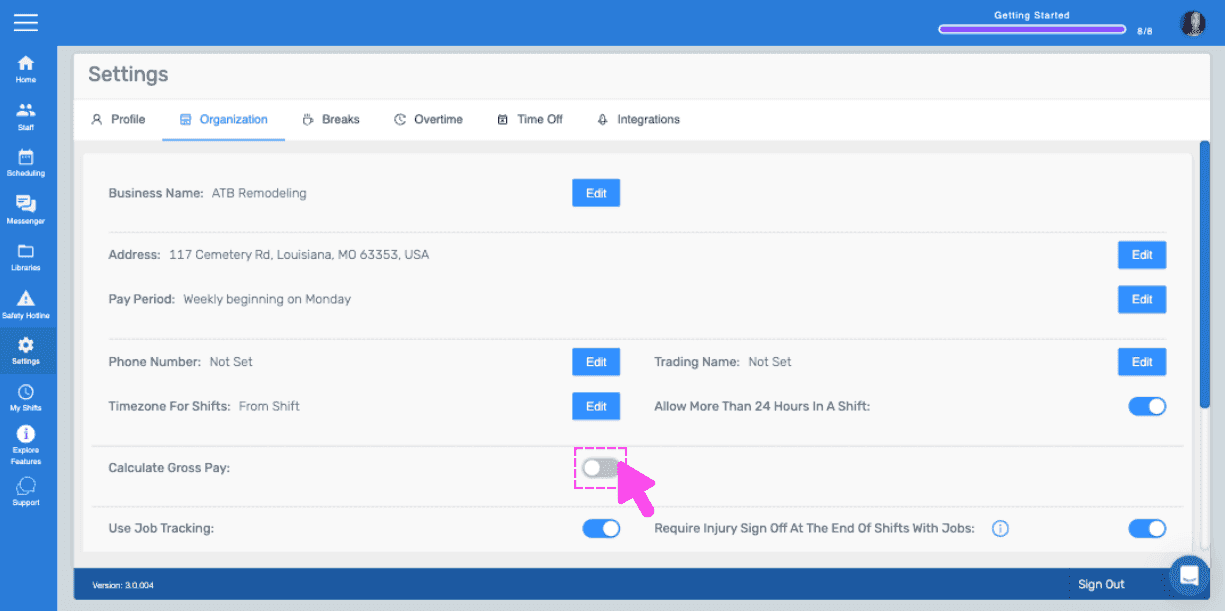
Organization settings screen with a pink arrow pointing to the Calculate Gross Pay toggle
Web Organization settings screen with a pink arrow pointing to the currency dropdown for Calculate Gross Pay
SINC web Settings Organization tab with a pink arrow pointing to the Calculate Gross Pay field
SINC web Staff list with an employee's row outlined in pink
Employee profile screen with a pink arrow pointing to the Edit button next to Pay Rate
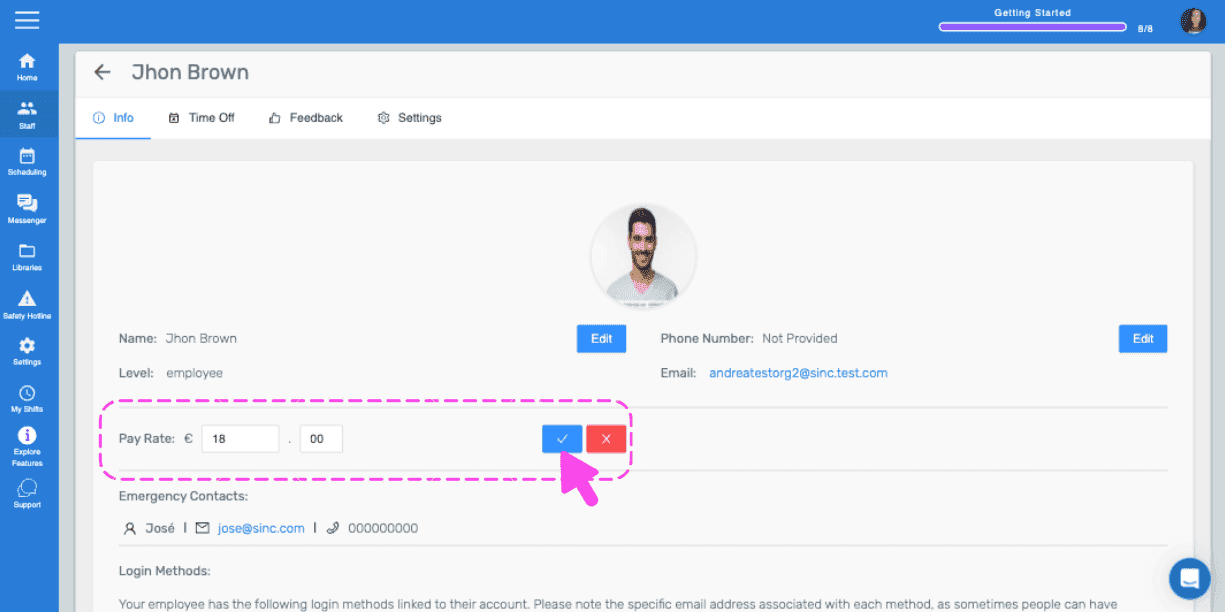
SINC web staff profile Info tab with the Pay Rate field outlined in pink and a hand pointing to the confirm checkmark
Web dashboard Staff Hours overview with the total gross pay figure outlined in pink
SINC web dashboard Overview tab with the View Staff Totals button circled in pink
SINC web Staff Totals screen listing each employee's total hours and gross pay for the period

Cela a-t-il répondu à votre question ?