
Comment modifier votre organisation
Dans ce guide, nous vous expliquerons comment mettre à jour les informations de votre organisation.

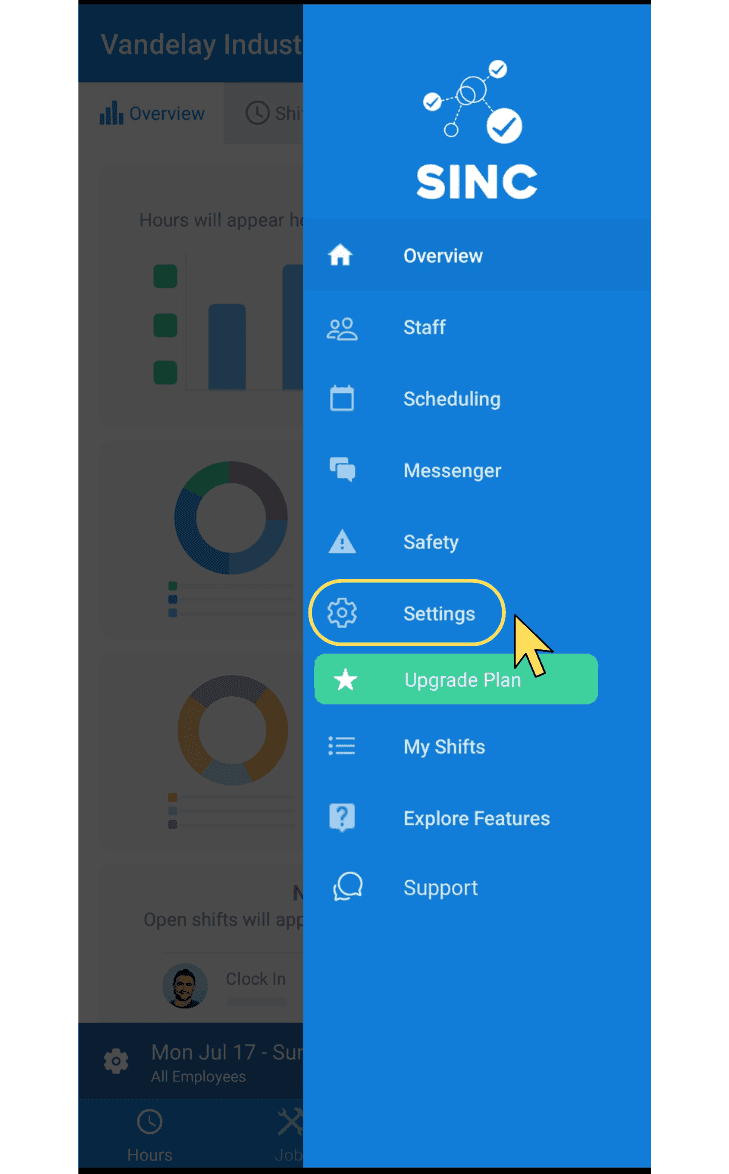
Sur mobile : appuyez sur Paramètres
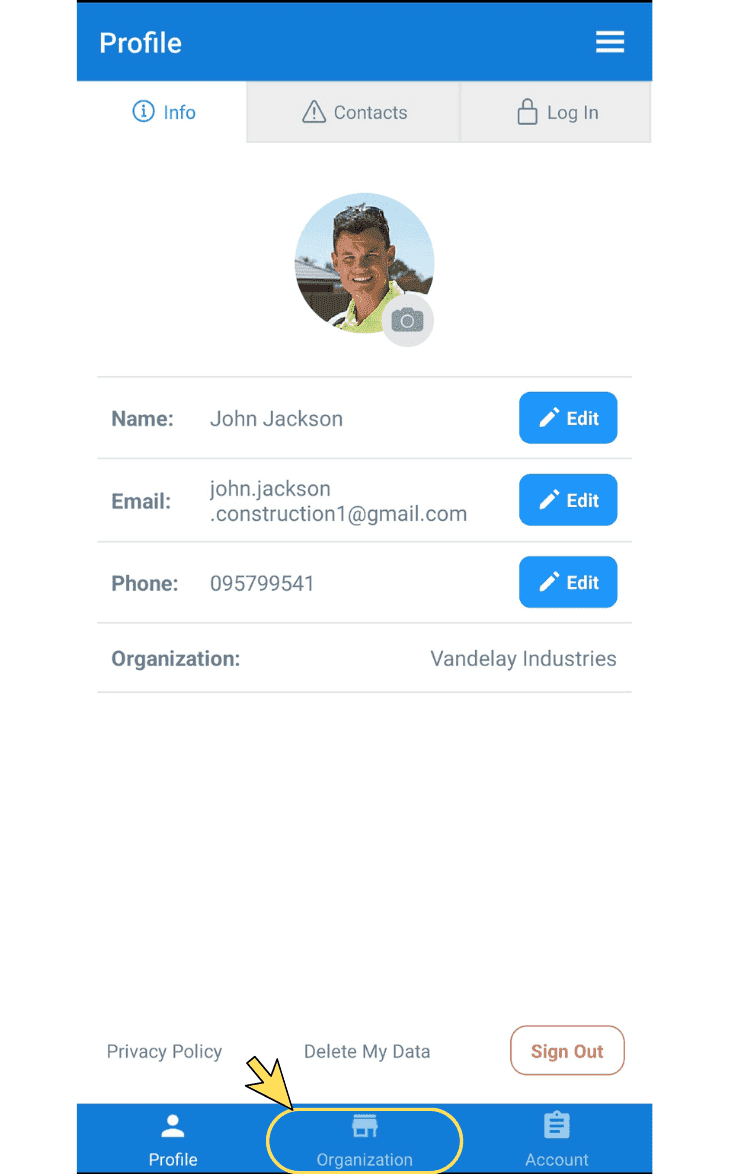
Appuyez sur Organisation
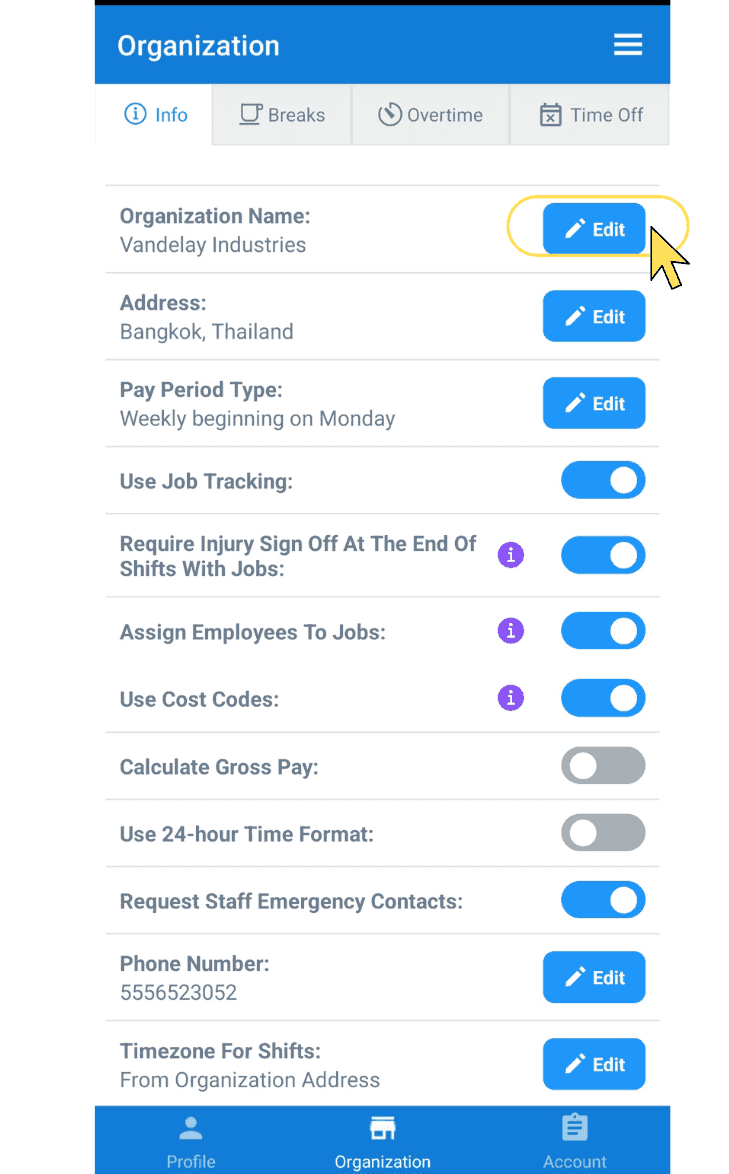
Pour modifier le nom de votre entreprise, appuyez sur Modifier (à côté de Nom de l’organisation)
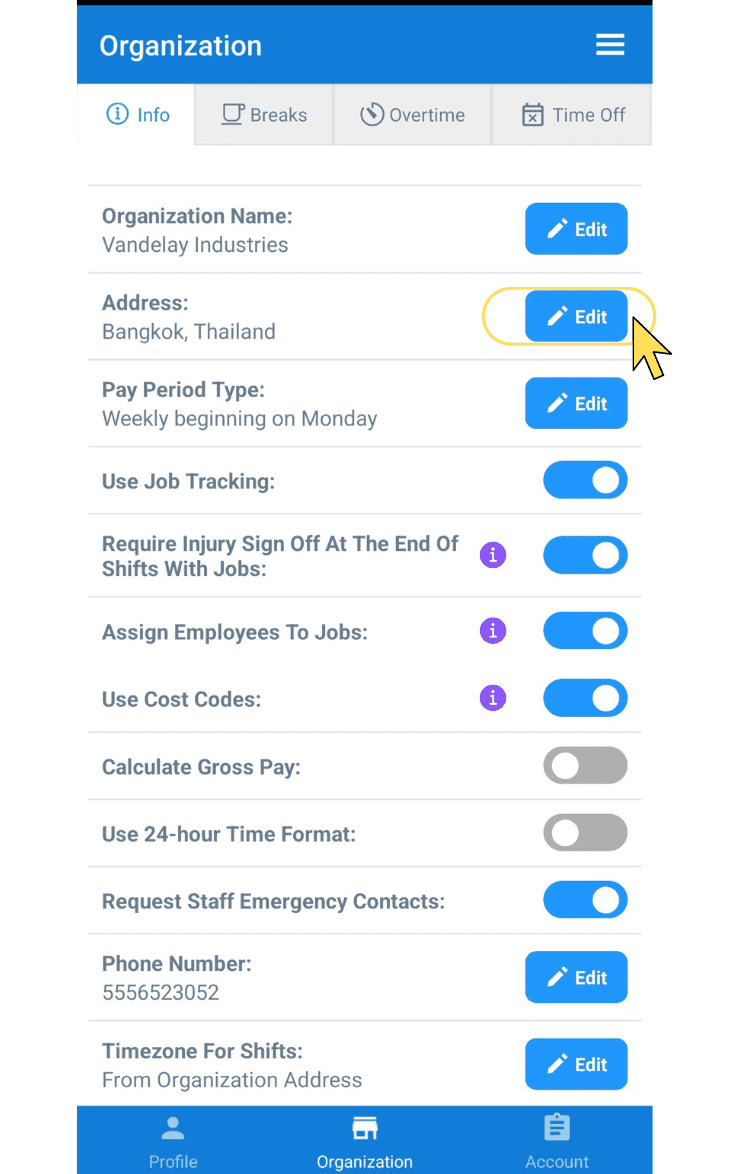
Pour modifier l’adresse de votre entreprise, appuyez sur Modifier (à côté de Adresse).
Pour modifier les détails de votre période de paie, appuyez sur Modifier (à côté de Type de période de paie)
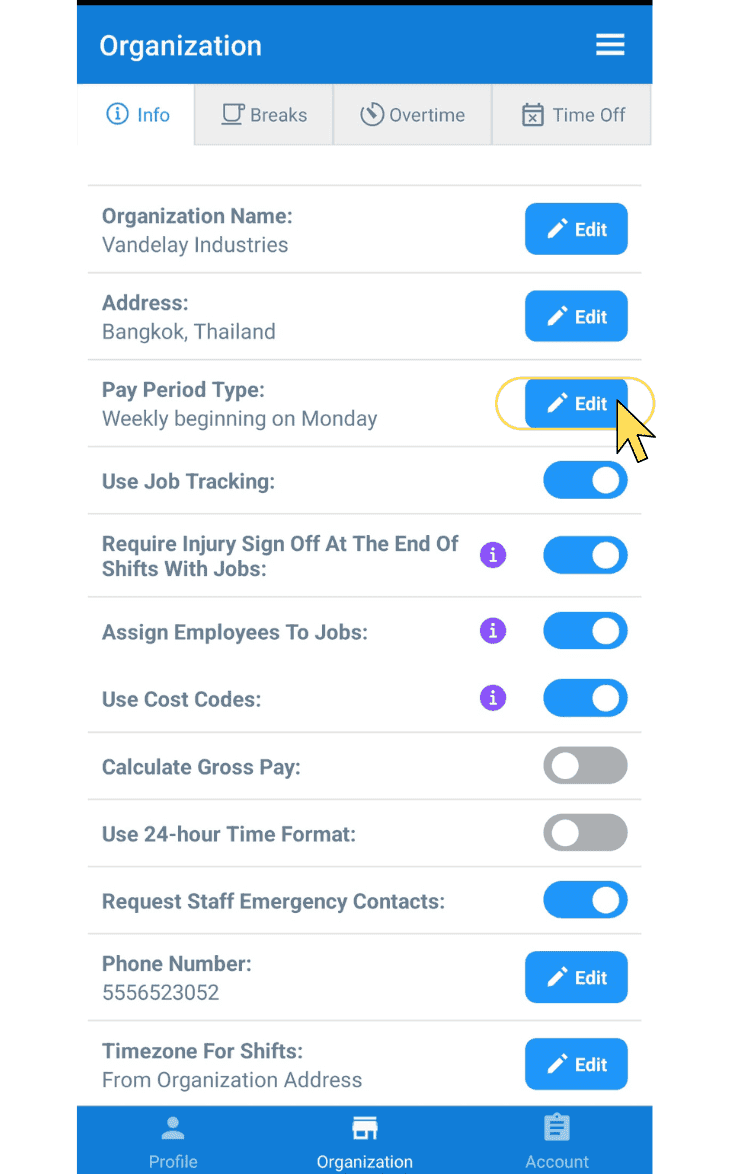
Pour activer ou désactiver le suivi des tâches, basculez l’interrupteur (à côté de Utiliser le suivi des tâches)
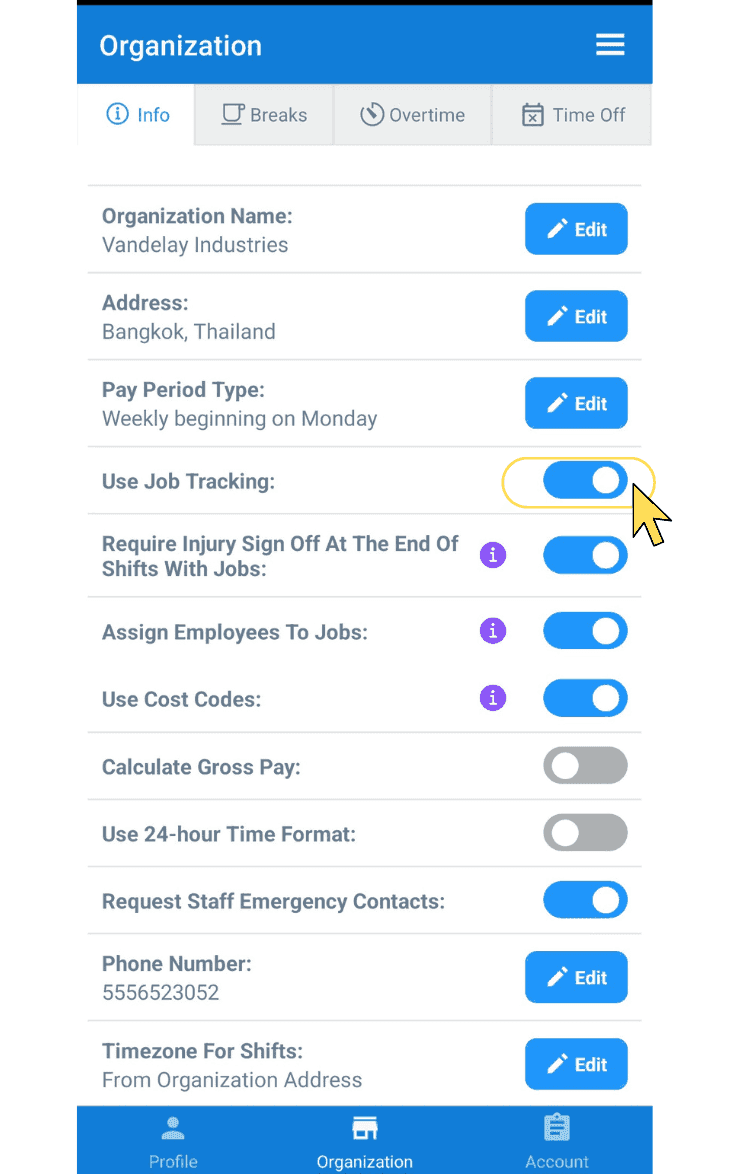
Pour activer ou désactiver la validation des blessures, utilisez l’interrupteur (situé à côté de « Exiger la validation des blessures à la fin des shifts avec tâches »).
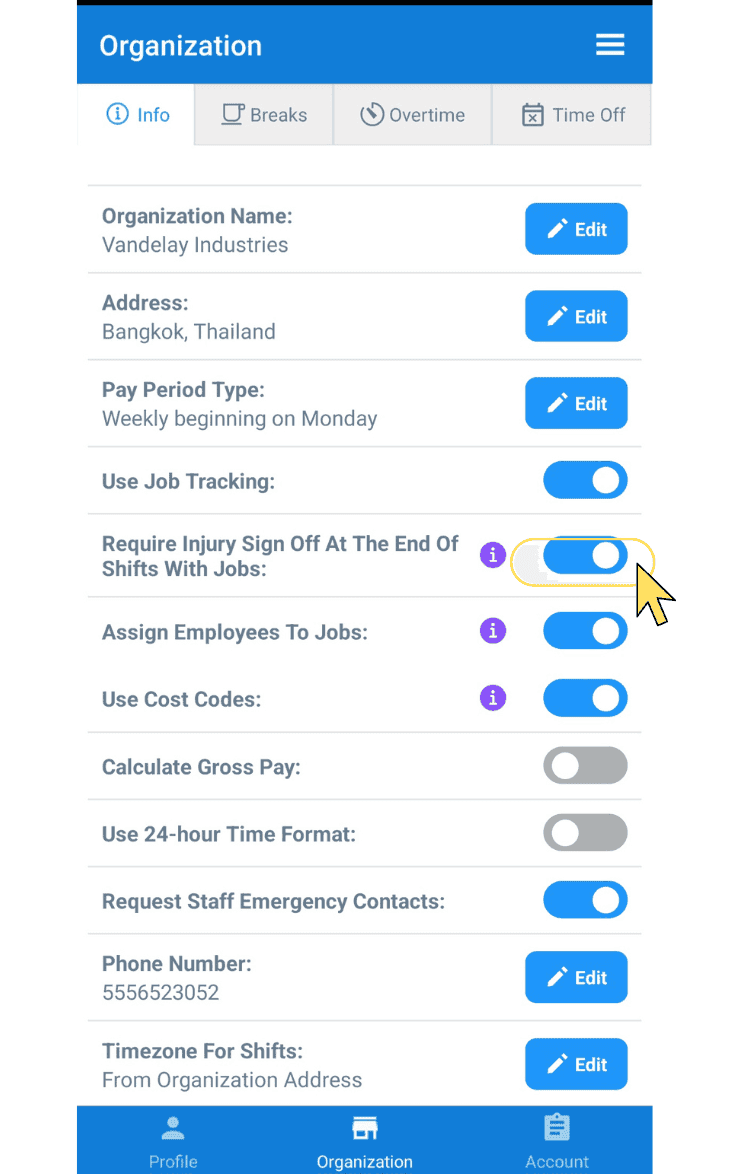
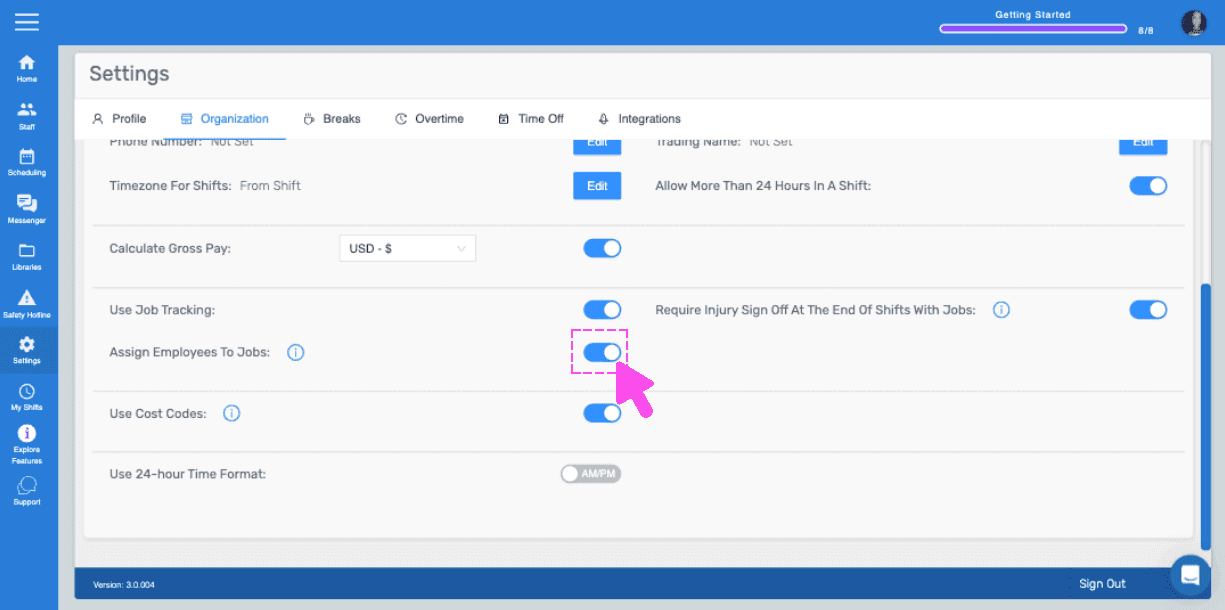
Pour affecter des employés à des missions, activez l’interrupteur à côté de Affecter des employés à des missions.
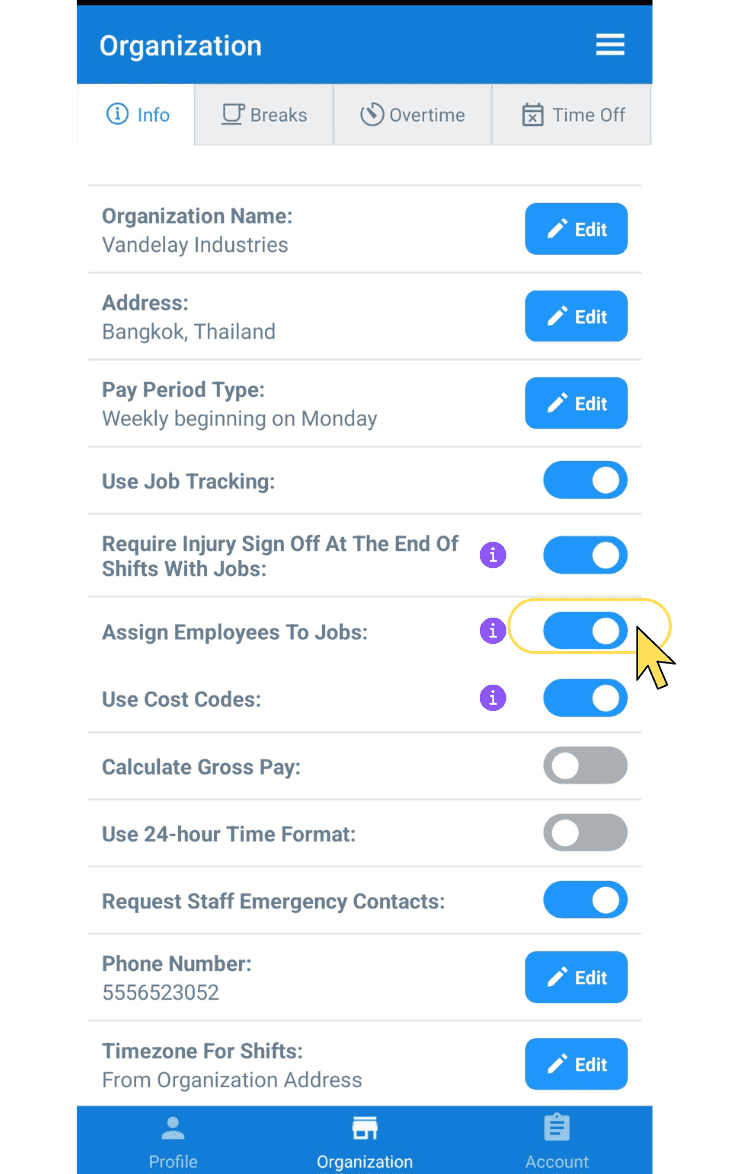
Pour activer ou désactiver les codes de coûts, utilisez le bouton bascule (à côté de Utiliser les codes de coûts).
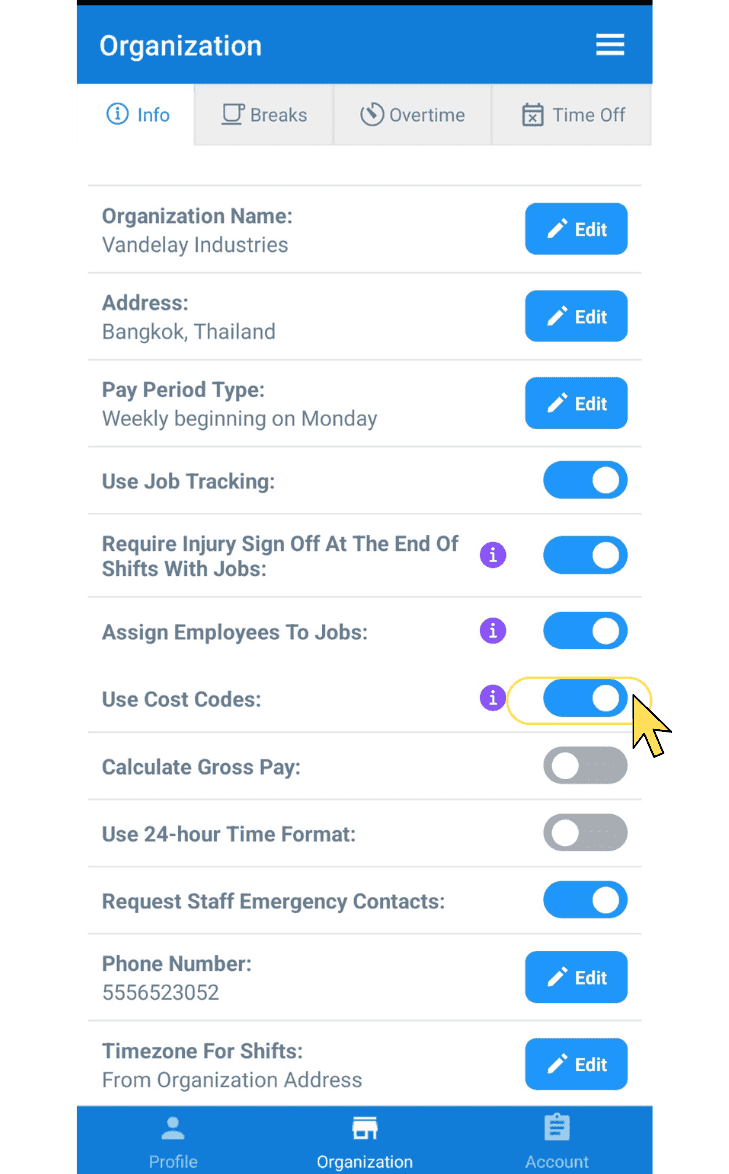
Pour activer ou désactiver le calcul du salaire brut, utilisez le bouton à bascule (à côté de Calculer le salaire brut), puis appuyez sur Modifier (à côté de Devise) pour sélectionner votre devise.
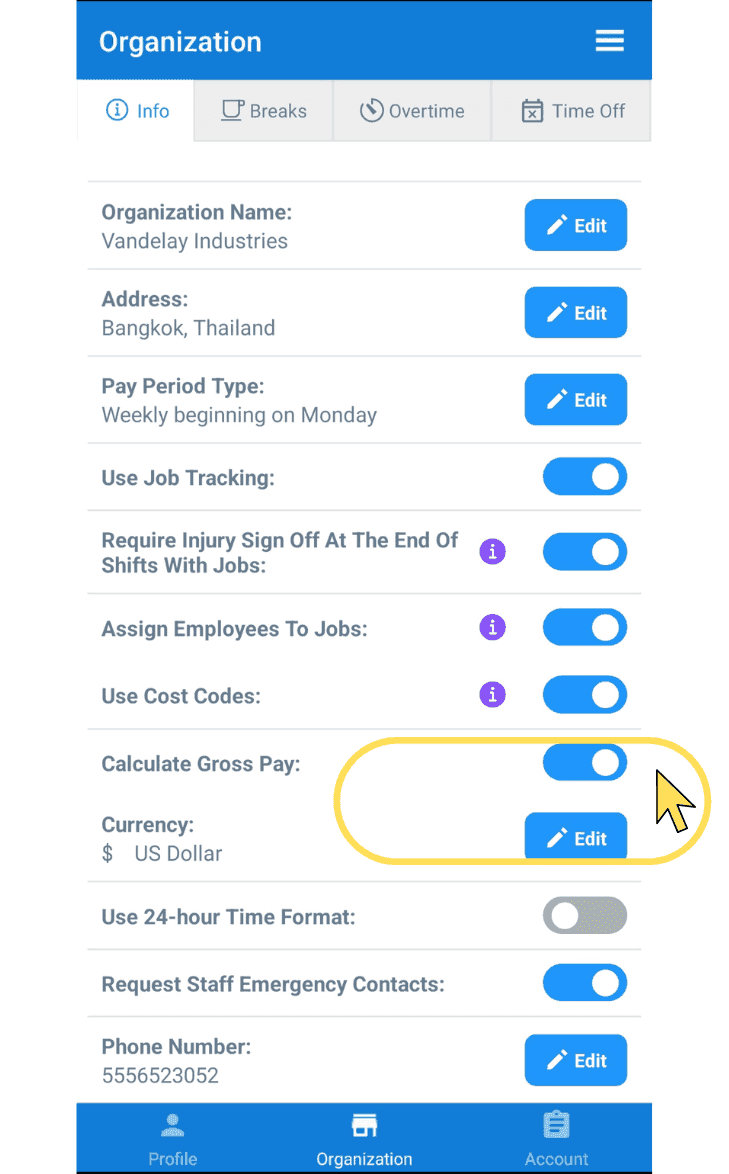
Pour activer ou désactiver le format horaire sur 24 heures, utilisez le bouton bascule situé à côté de « Utiliser le format horaire sur 24 heures ».
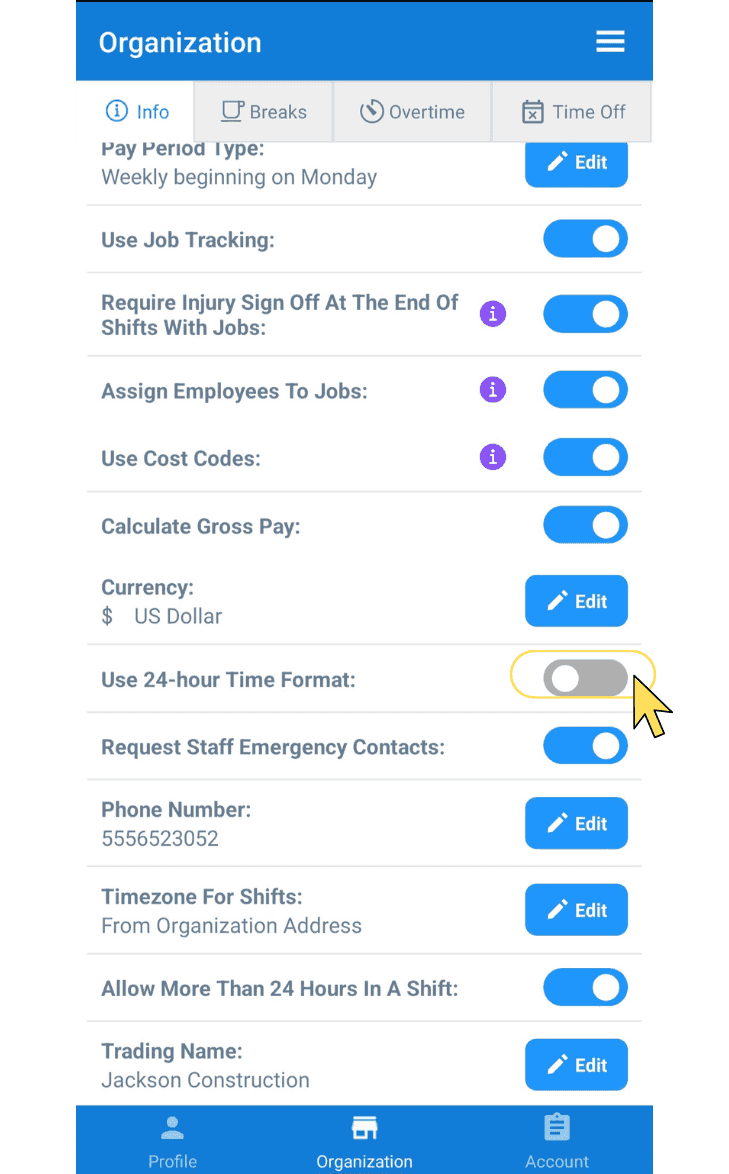
Pour obliger le personnel à renseigner un contact à prévenir en cas d’urgence, activez ou désactivez l’interrupteur situé à côté de Demander les contacts d’urgence du personnel.
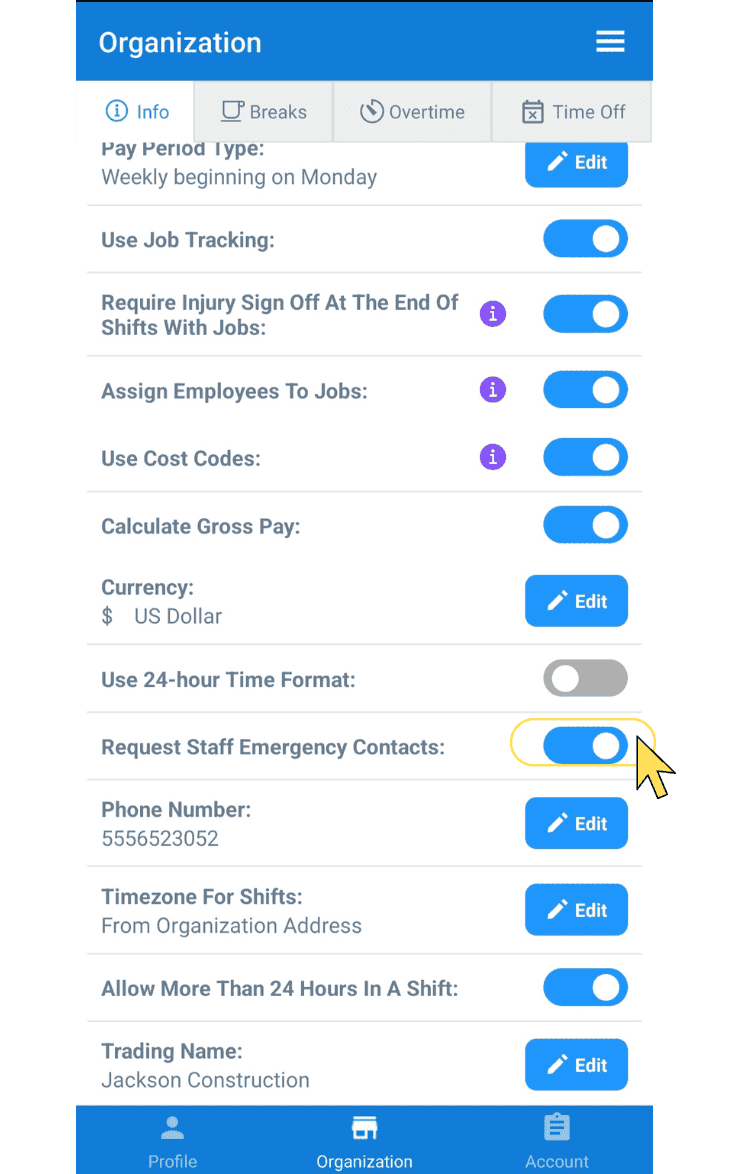
Pour modifier le numéro de téléphone de votre entreprise, appuyez sur Modifier (à côté de Numéro de téléphone)
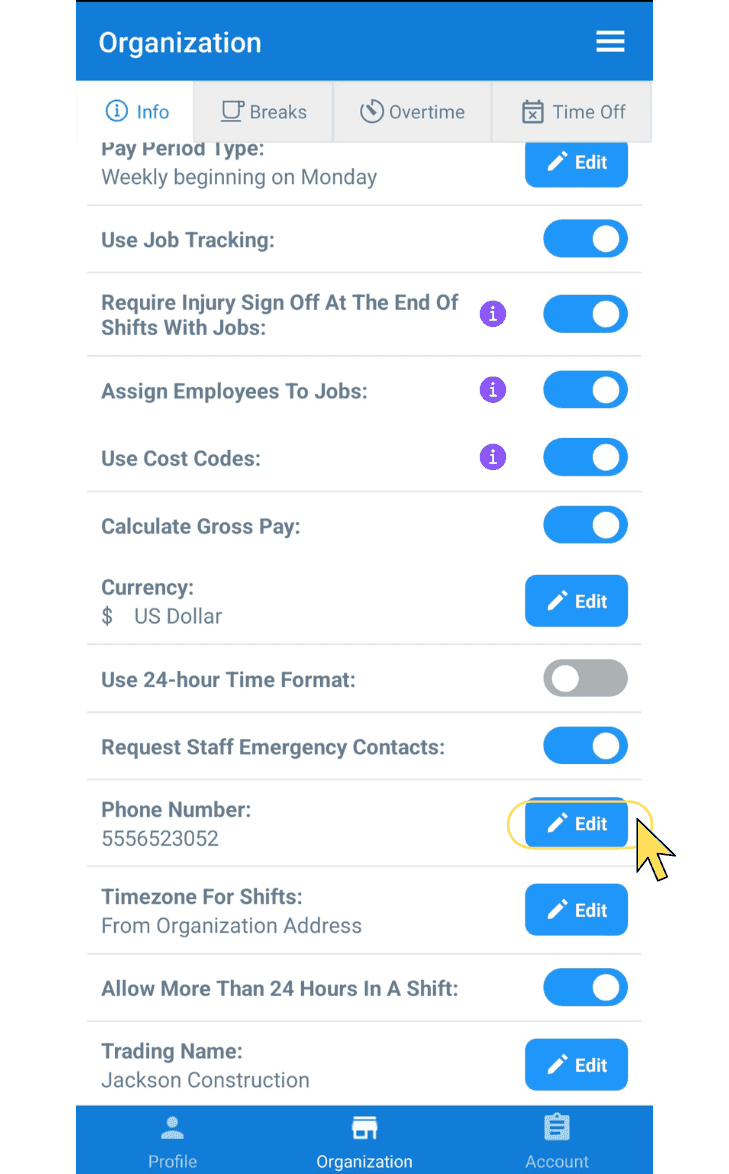
Pour modifier le fuseau horaire de vos shifts, appuyez sur Modifier (à côté de Fuseau horaire des shifts)
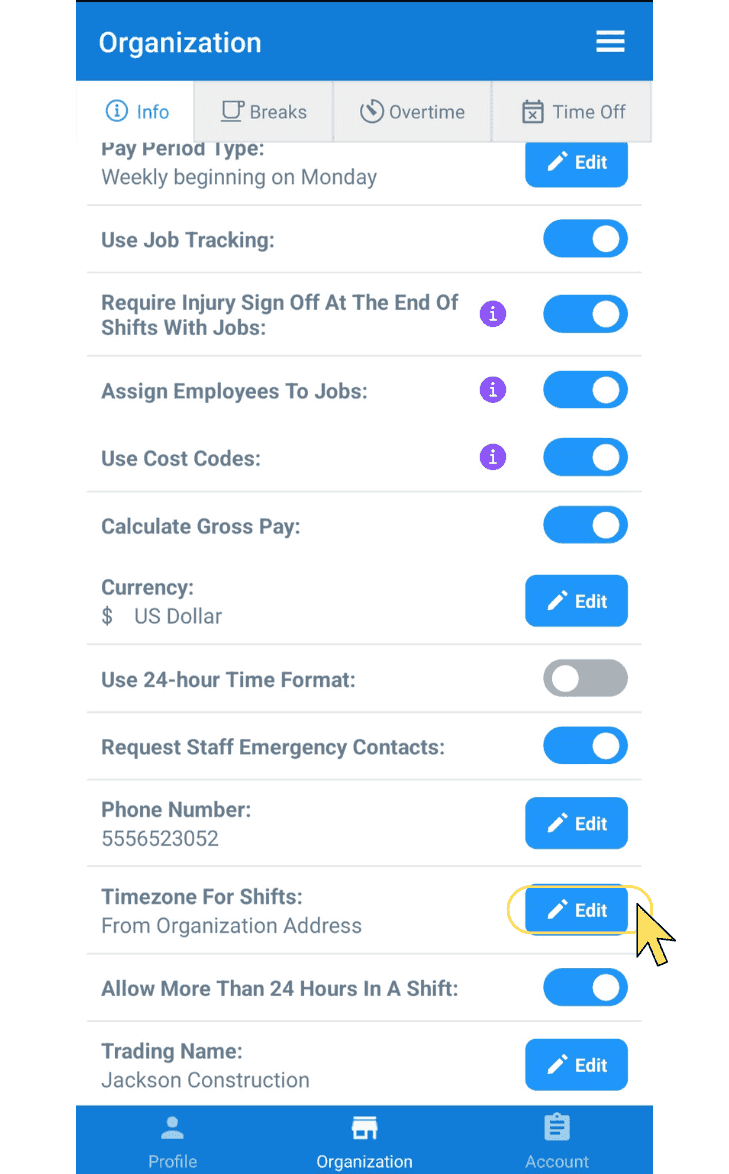
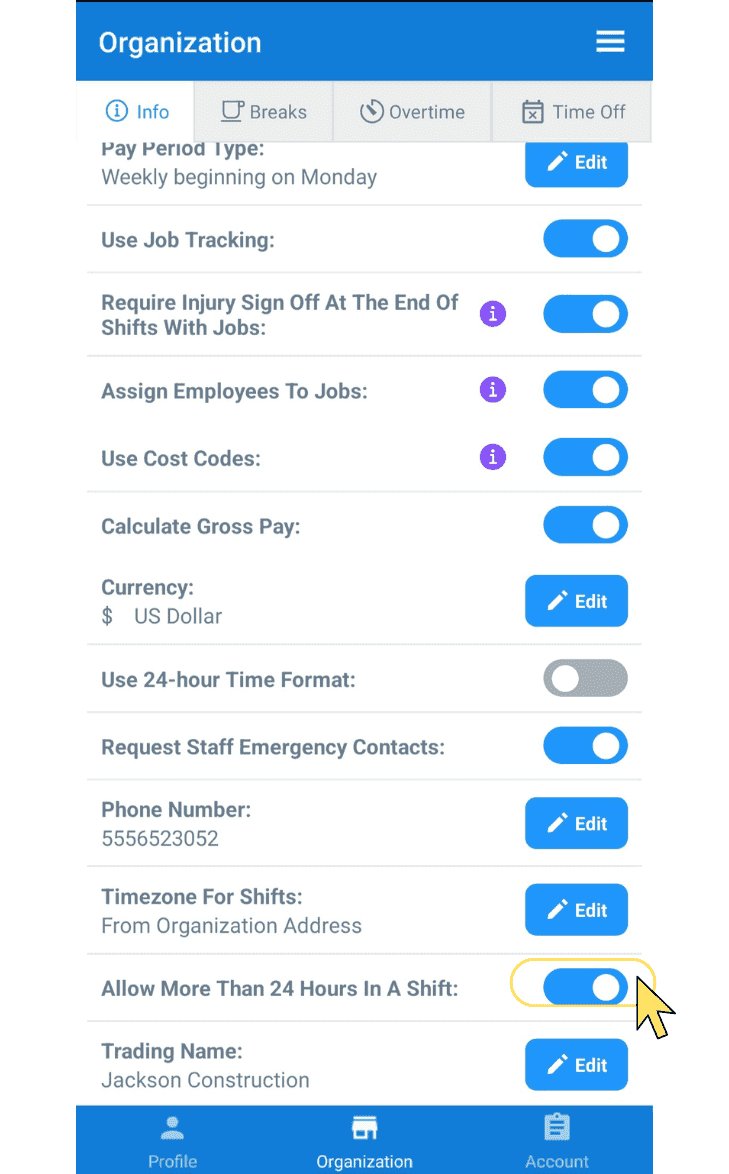
Pour autoriser ou non des postes de plus de 24 heures, activez ou désactivez le bouton bascule à côté de « Autoriser plus de 24 heures dans un poste ».
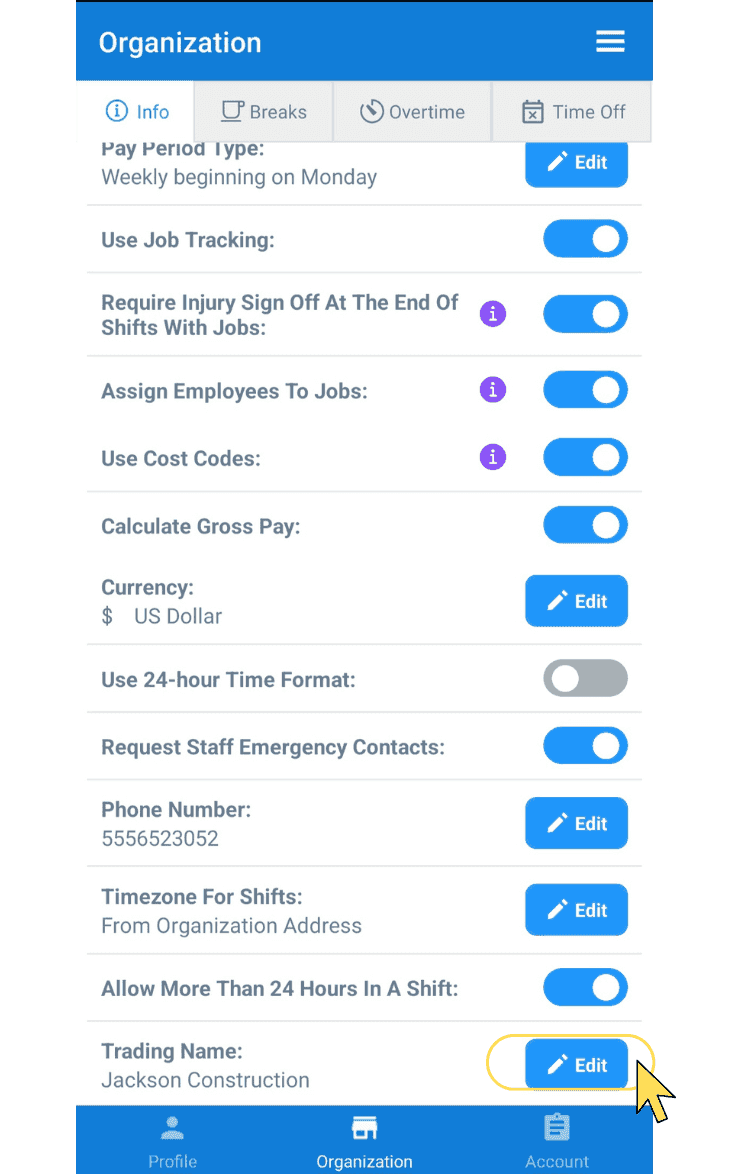
Pour modifier le nom commercial de votre entreprise, appuyez sur Modifier (à côté de Nom commercial)
Sur le Web : cliquez sur Paramètres
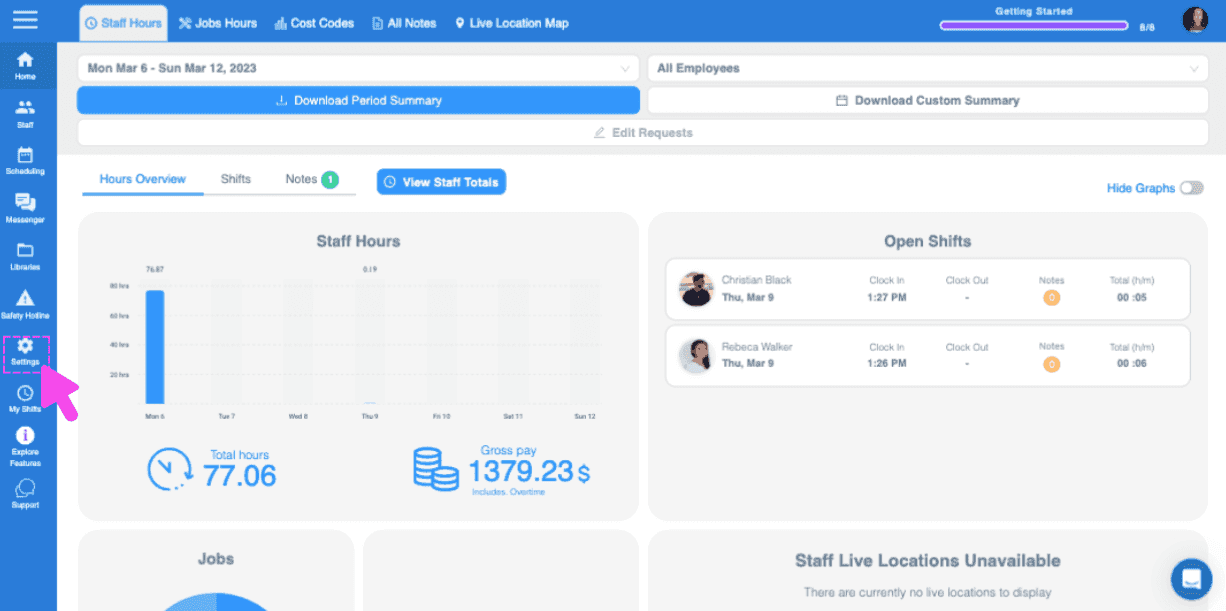
Cliquez sur Organisation
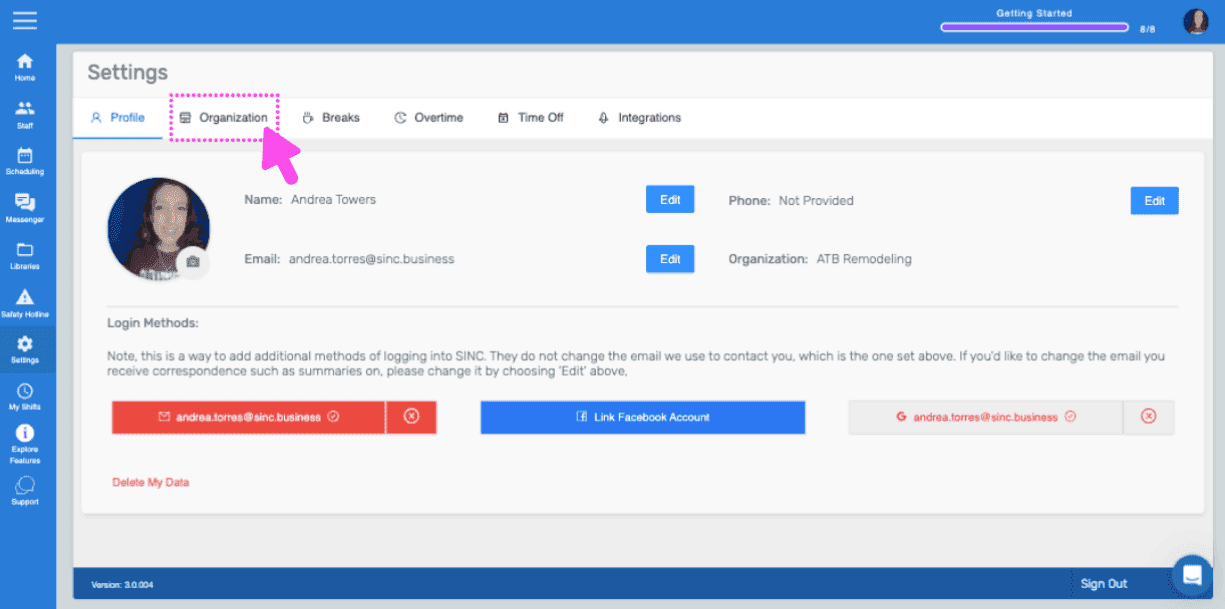
Pour modifier le nom de votre entreprise, cliquez sur Modifier (à côté de Nom de l’entreprise)
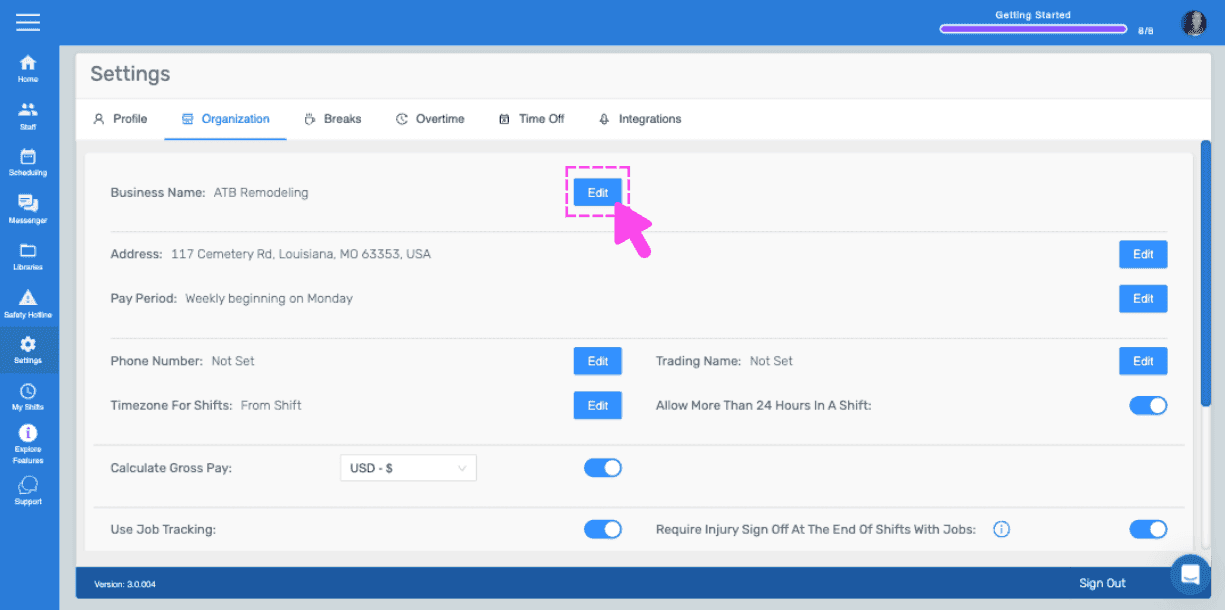
Pour modifier l’adresse de votre entreprise, cliquez sur Modifier (à côté de Adresse)
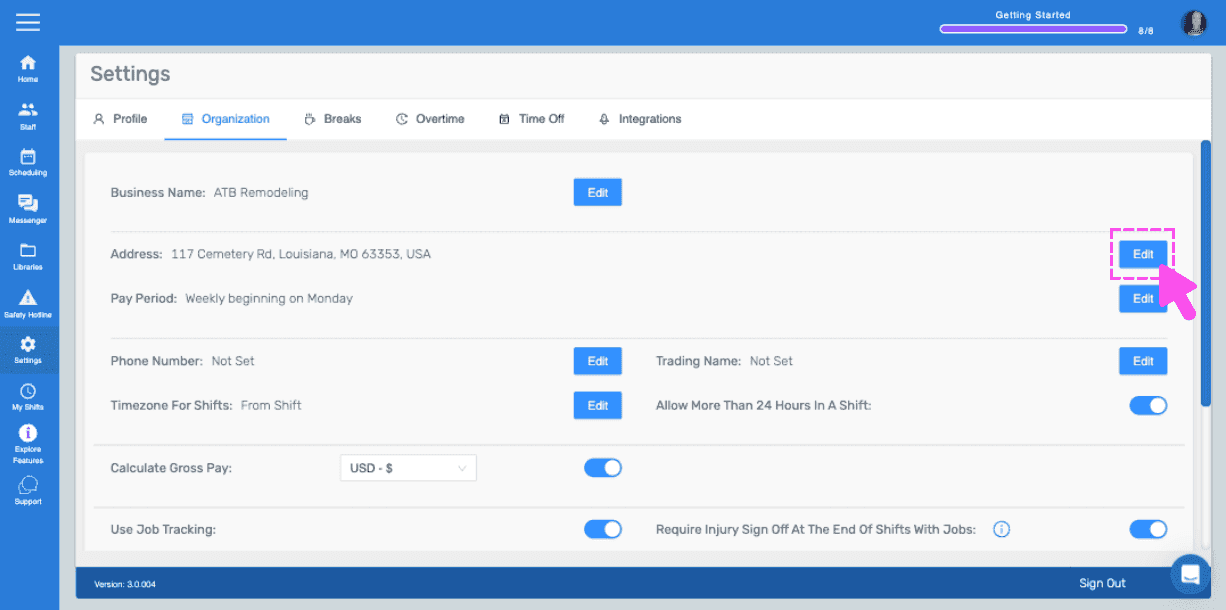
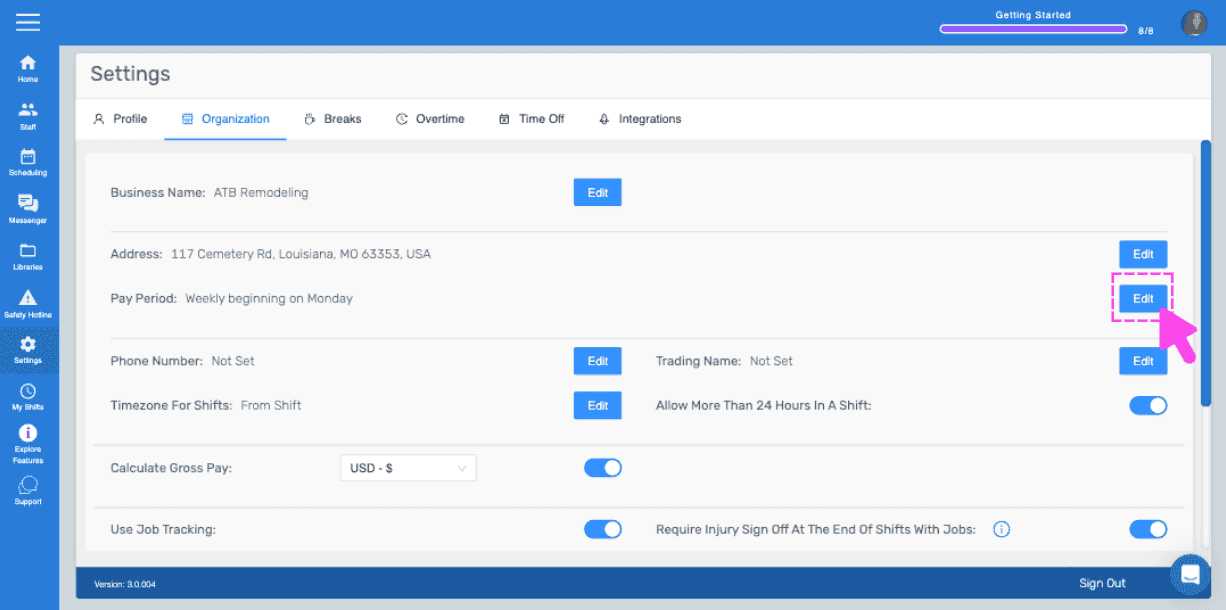
Pour modifier les détails de votre période de paie, cliquez sur Modifier (à côté de Période de paie)
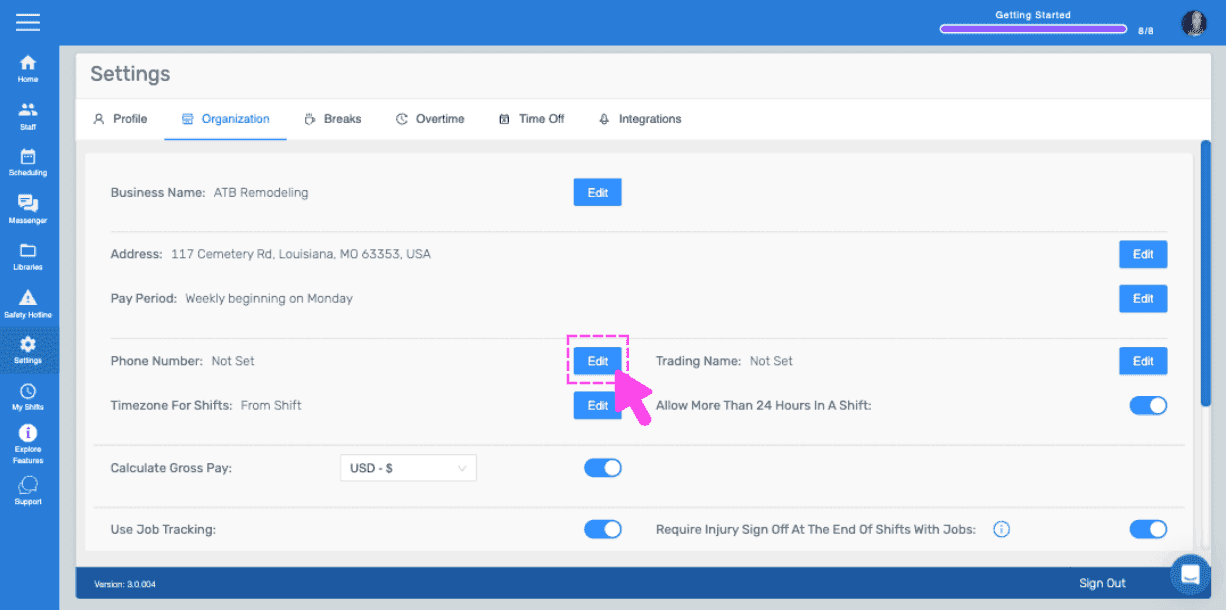
Pour modifier le numéro de téléphone de votre entreprise, cliquez sur Modifier (à côté de Numéro de téléphone)
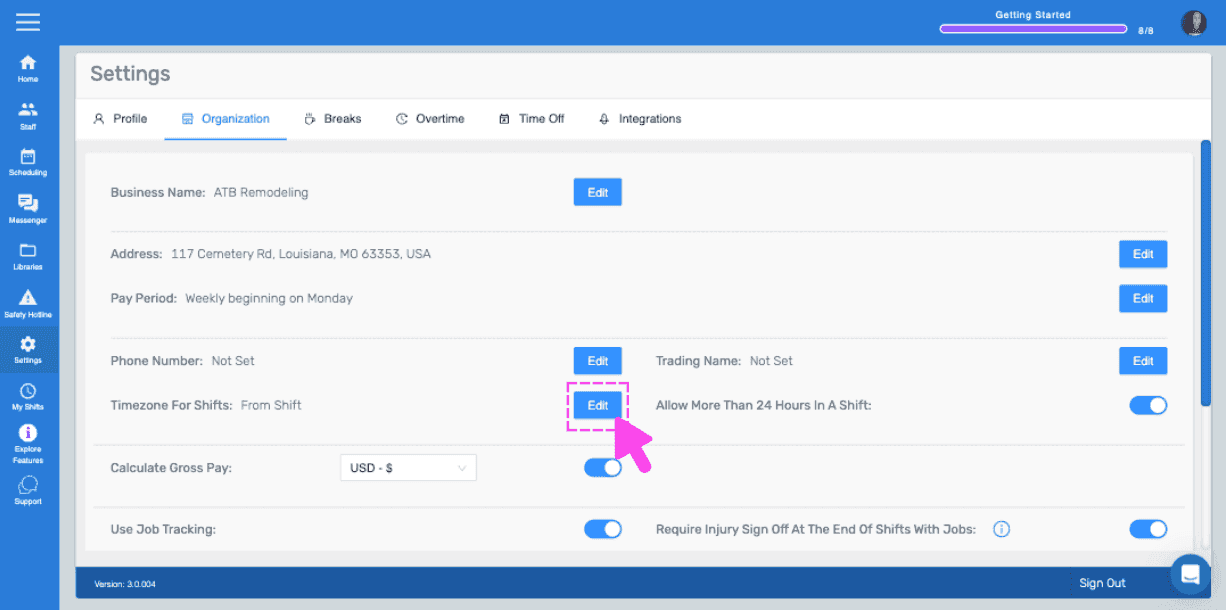
Pour modifier votre fuseau horaire pour les shifts, cliquez sur Modifier (à côté de Fuseau horaire pour les shifts)
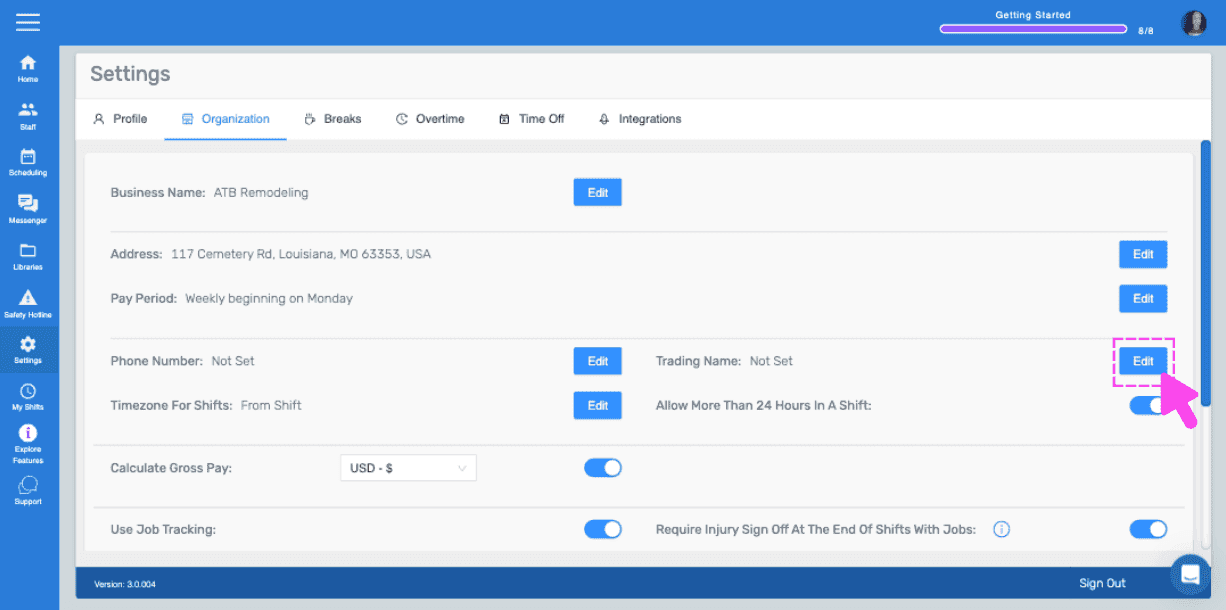
Pour modifier le nom commercial de votre entreprise, cliquez sur Modifier (à côté de Nom commercial).
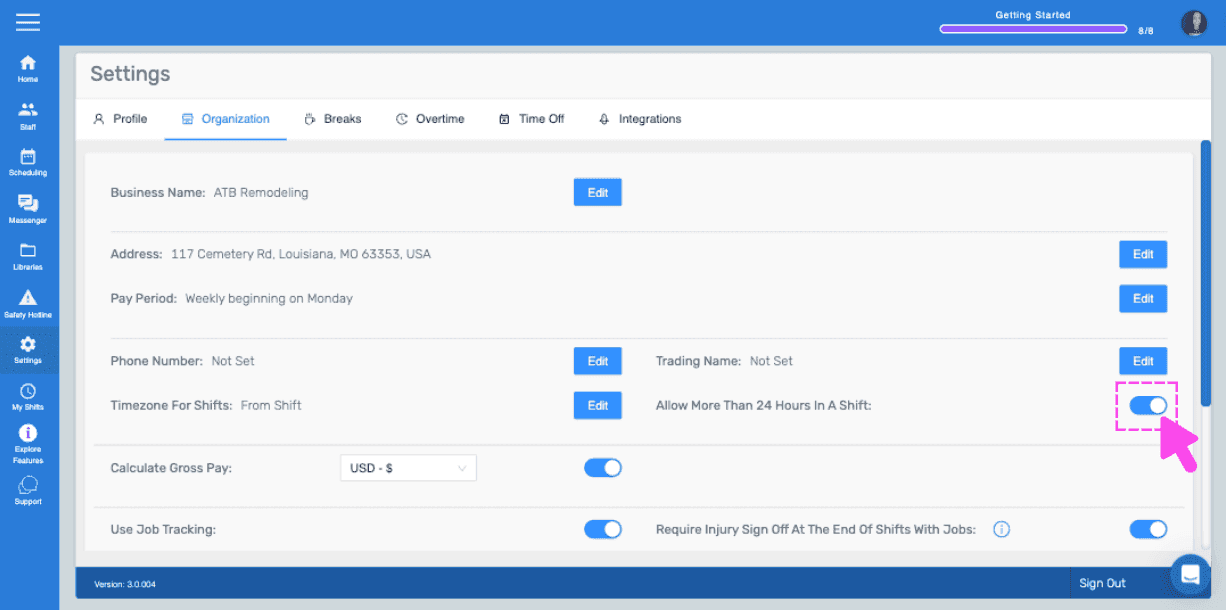
Pour activer ou désactiver la possibilité de dépasser 24 heures sur un poste, utilisez le bouton bascule situé à côté de « Autoriser plus de 24 heures sur un poste ».
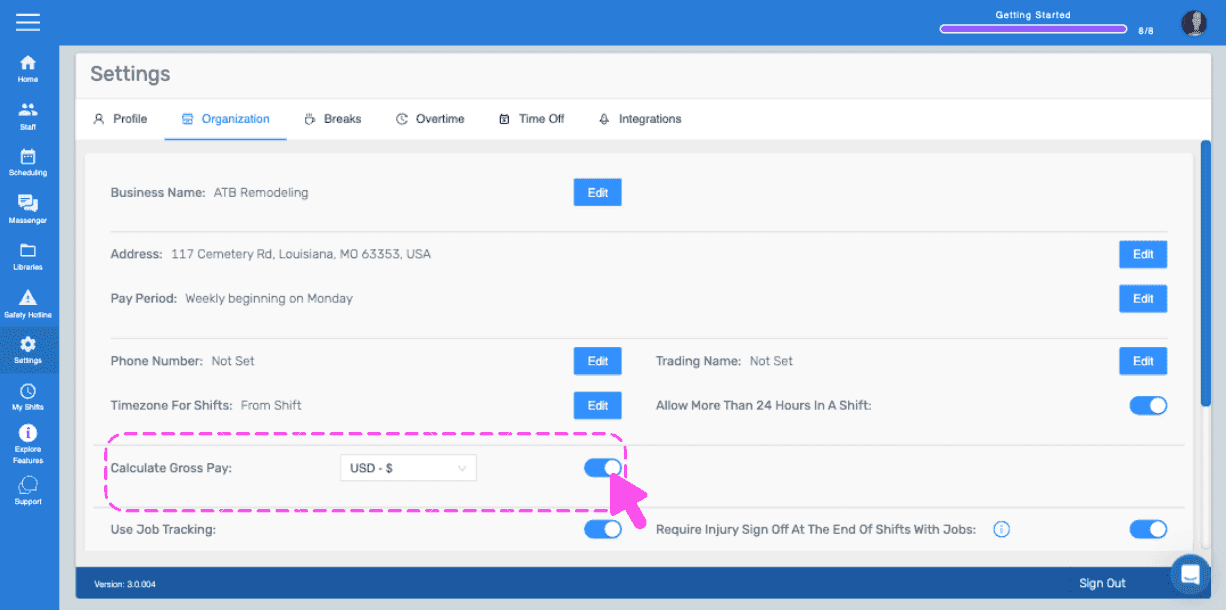
Pour activer ou désactiver le calcul du salaire brut, utilisez le bouton bascule situé à côté de Calculer le salaire brut, puis sélectionnez votre devise
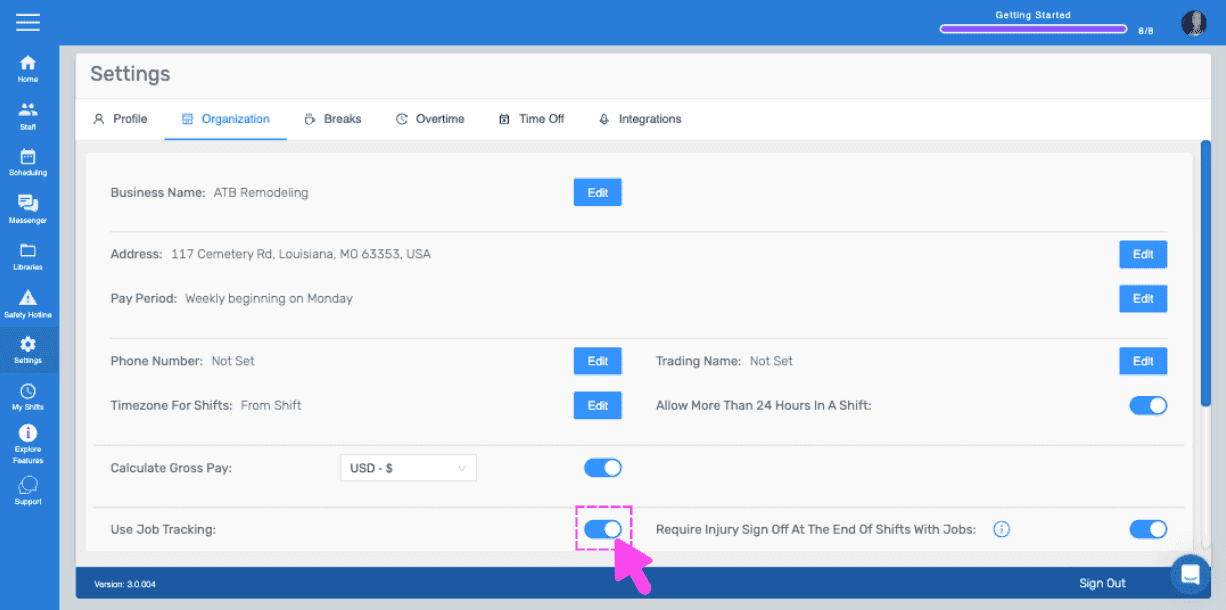
Pour activer ou désactiver le suivi des tâches, utilisez le bouton bascule situé à côté de Utiliser le suivi des tâches.
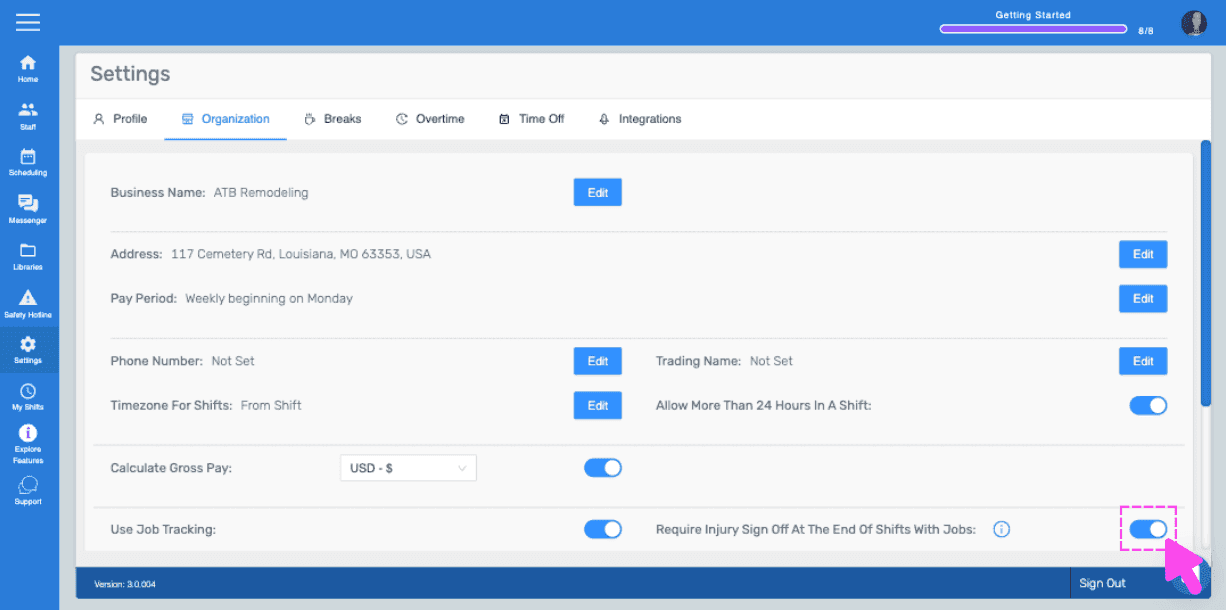
Pour activer ou désactiver la validation des blessures, utilisez l’interrupteur situé à côté de « Exiger la validation des blessures à la fin des quarts comportant des tâches ».
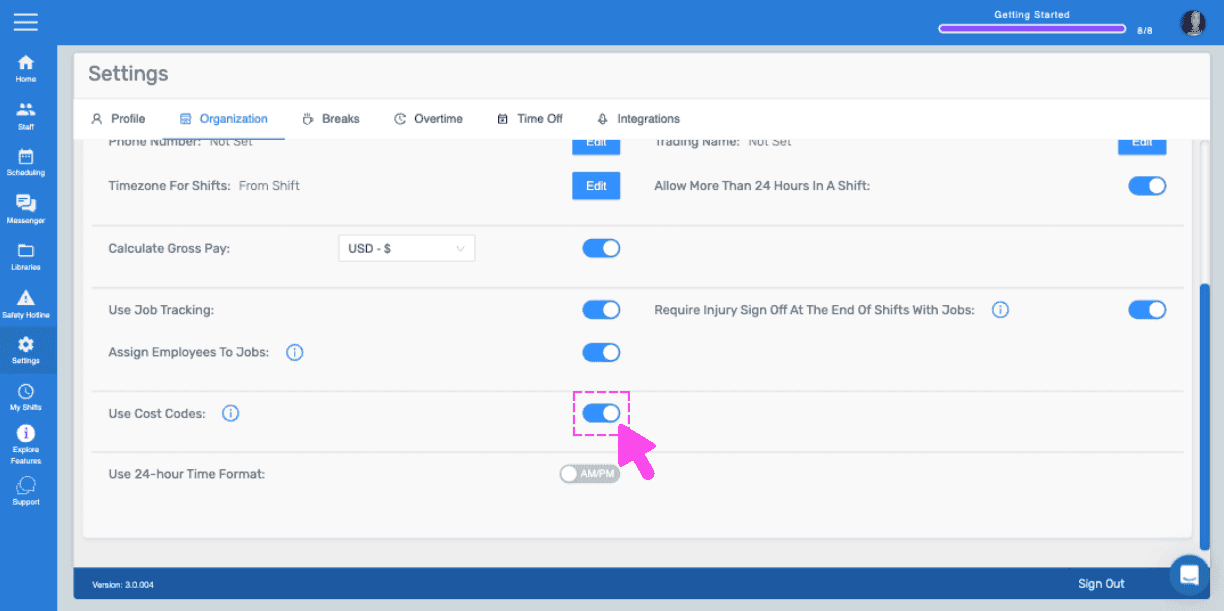
Pour activer ou désactiver les codes de coûts, utilisez le bouton bascule (à côté de Utiliser les codes de coûts).
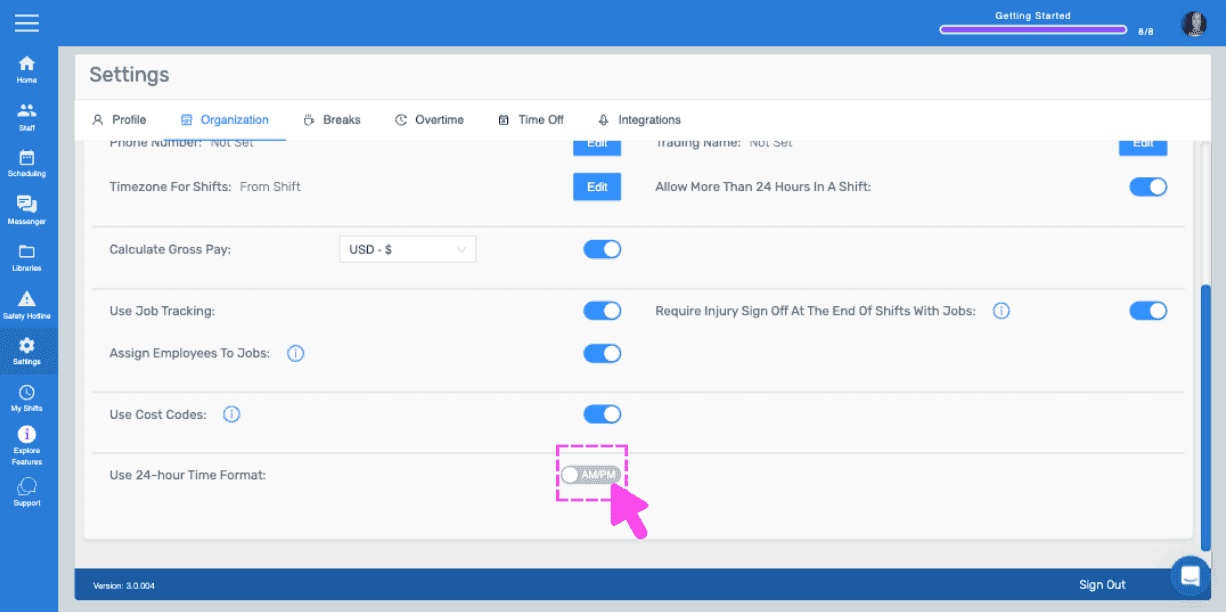
Pour activer ou désactiver le format 24 heures, basculez l’interrupteur (à côté de Utiliser le format 24 heures).
Cela a-t-il répondu à votre question ?