
Ajouter des horaires aux plannings de vos employés
Ce tutoriel vous explique comment ajouter des shifts aux plannings de vos employés.

Sur le Web : cliquez sur l’icône ronde + correspondant à l’employé et au jour pour lesquels vous souhaitez ajouter un service.
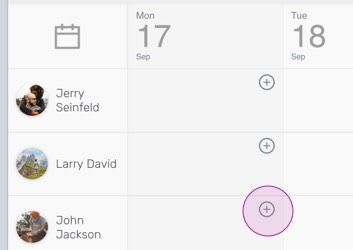
Choisissez les heures de début et de fin du changement d’horaire.
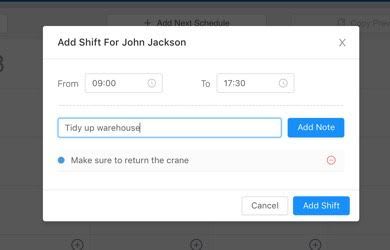
Ajoutez des notes si nécessaire, puis cliquez sur Ajouter un service.
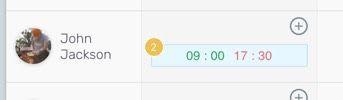
Vous pouvez maintenant voir le service ajouté sur le planning.

Sur mobile : appuyez sur l’icône plus pour ajouter un shift planifié.
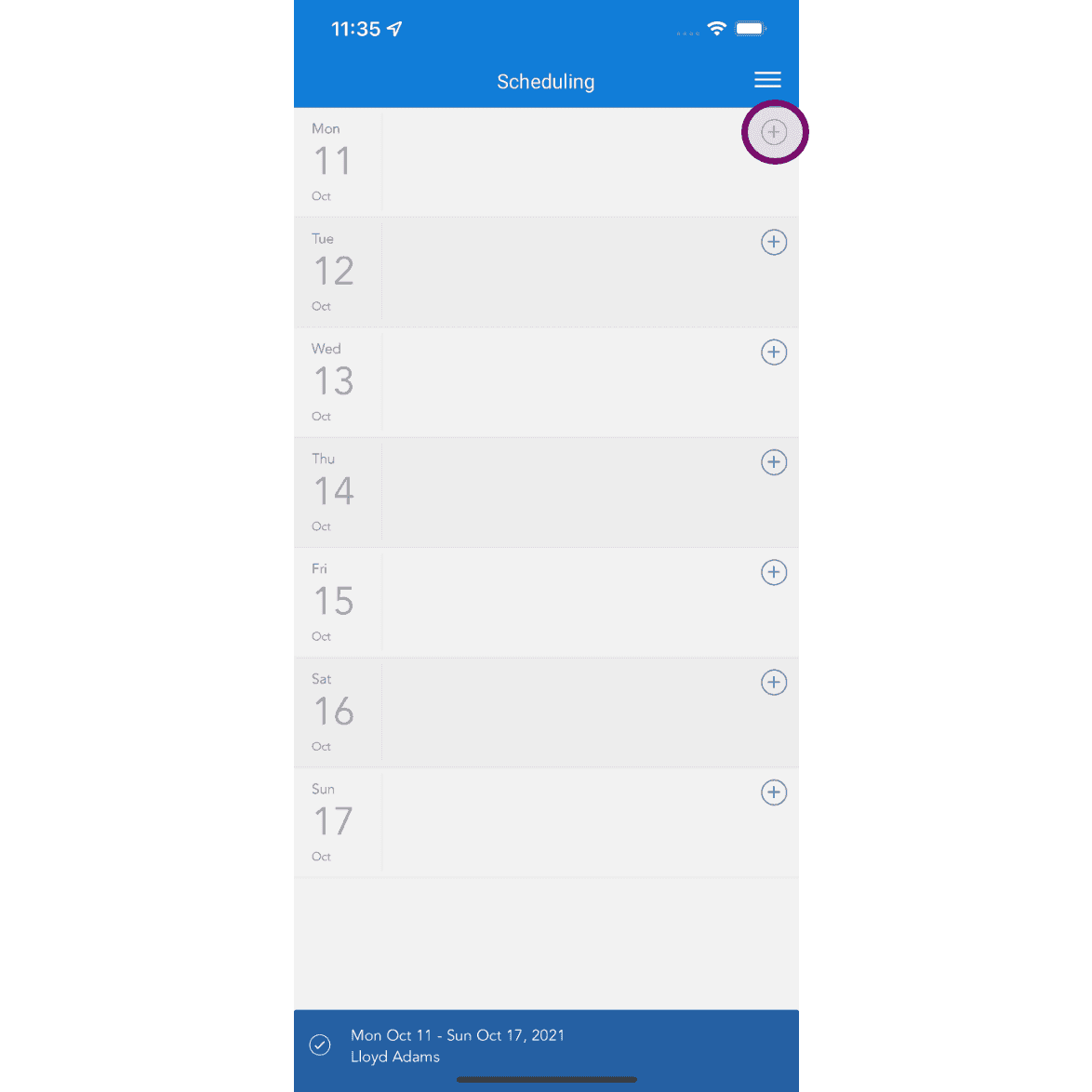
Choisissez les heures de début et de fin du changement d’horaire.
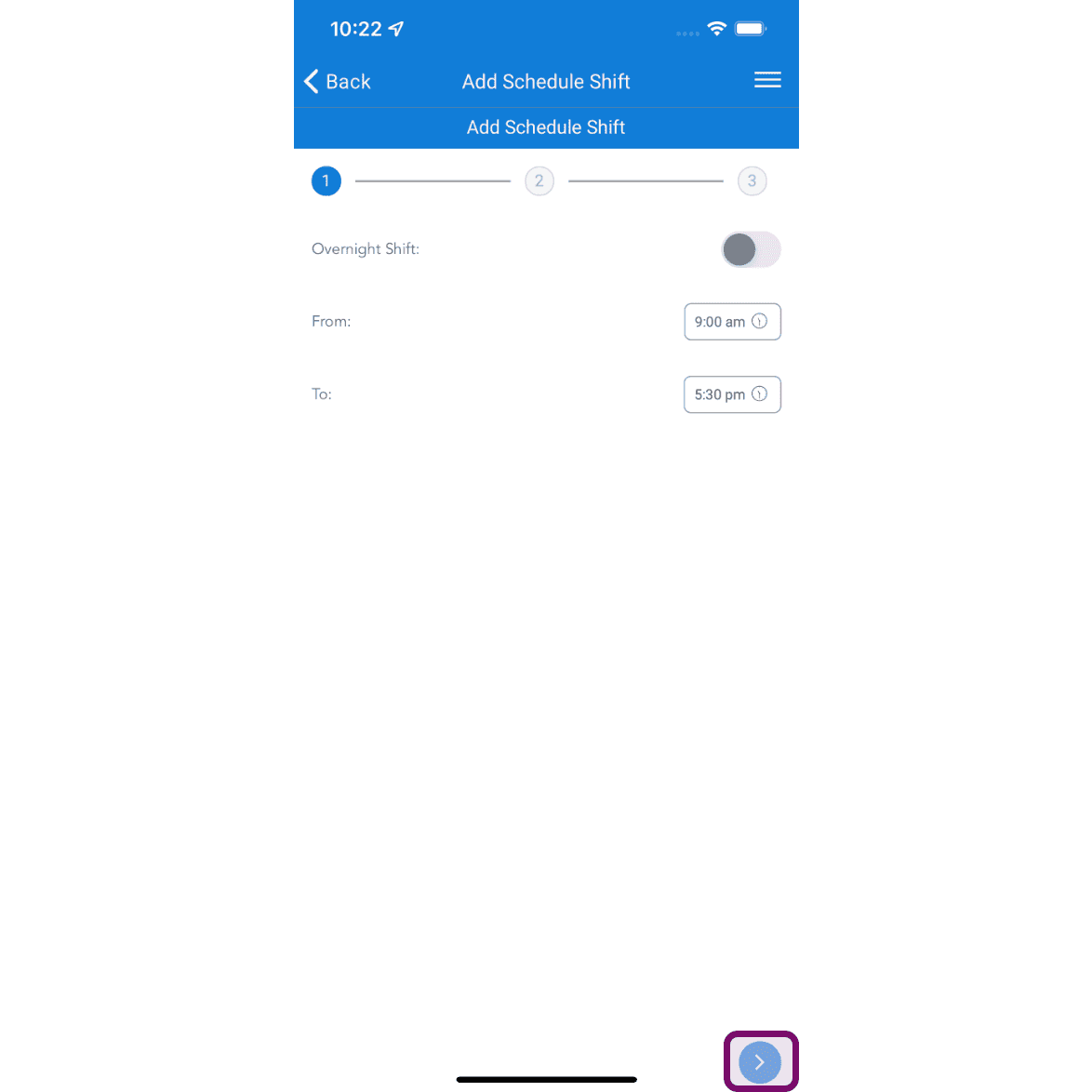
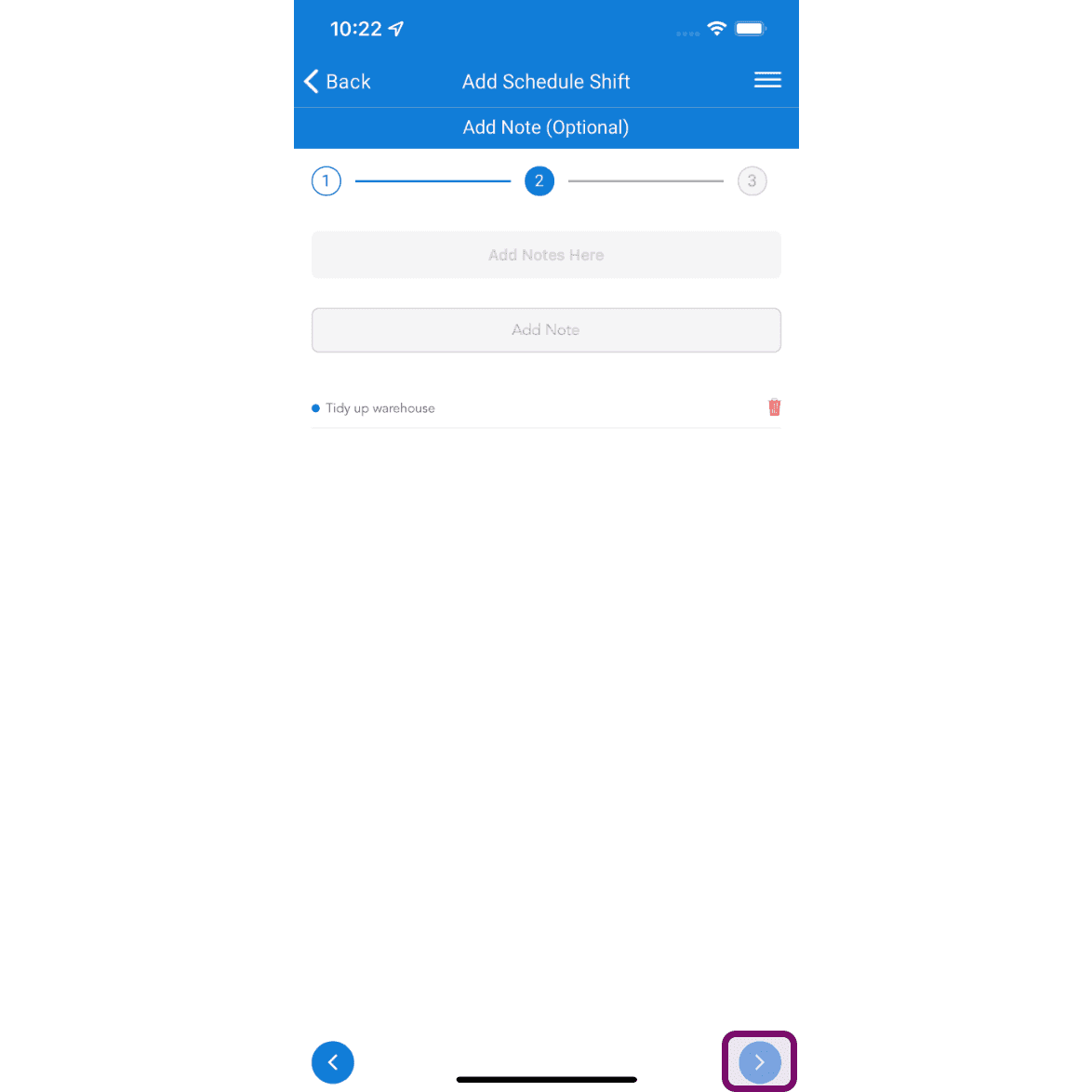
Ajoutez des notes si nécessaire, puis appuyez sur le bouton Suivant.
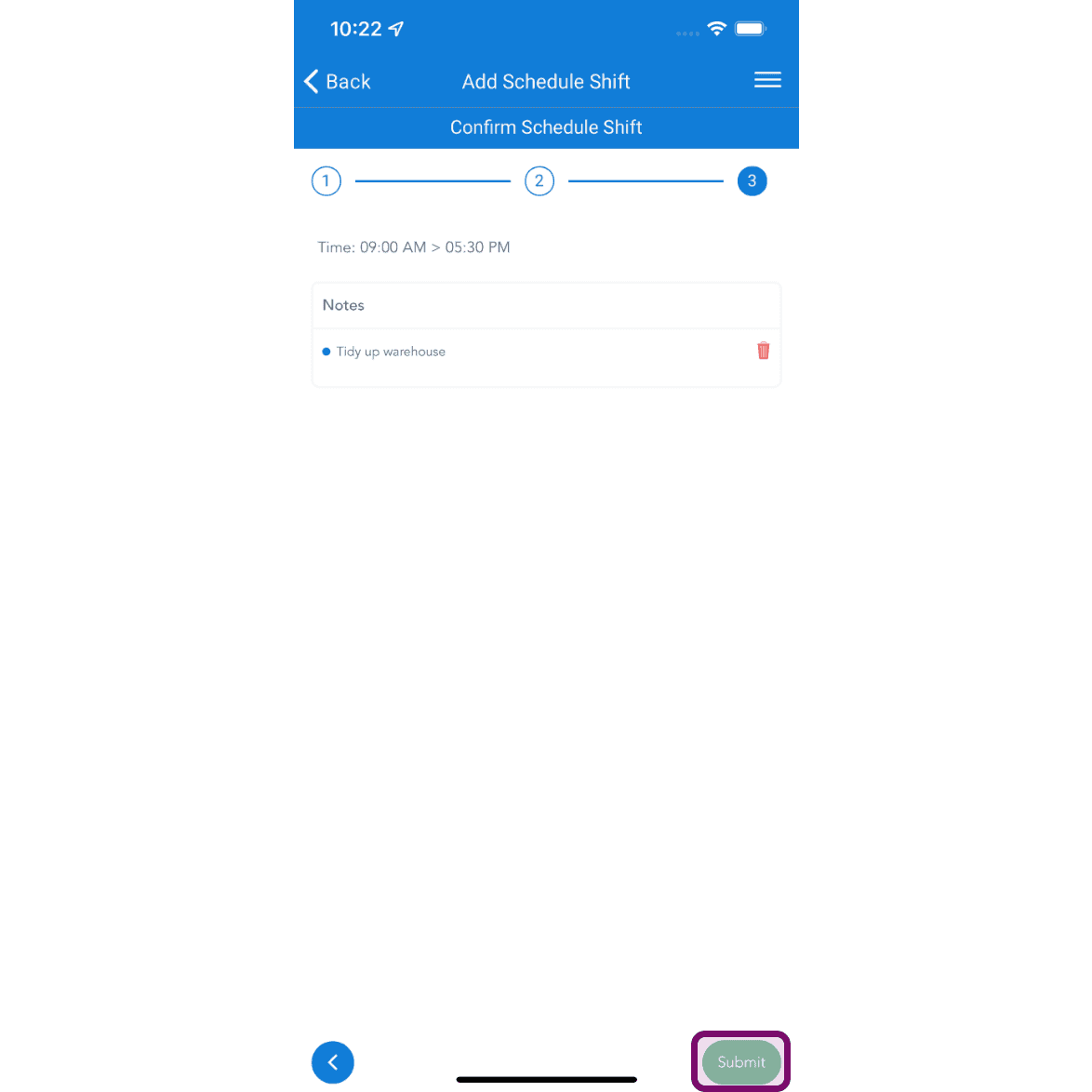
Appuyez sur le bouton Soumettre pour ajouter le shift.
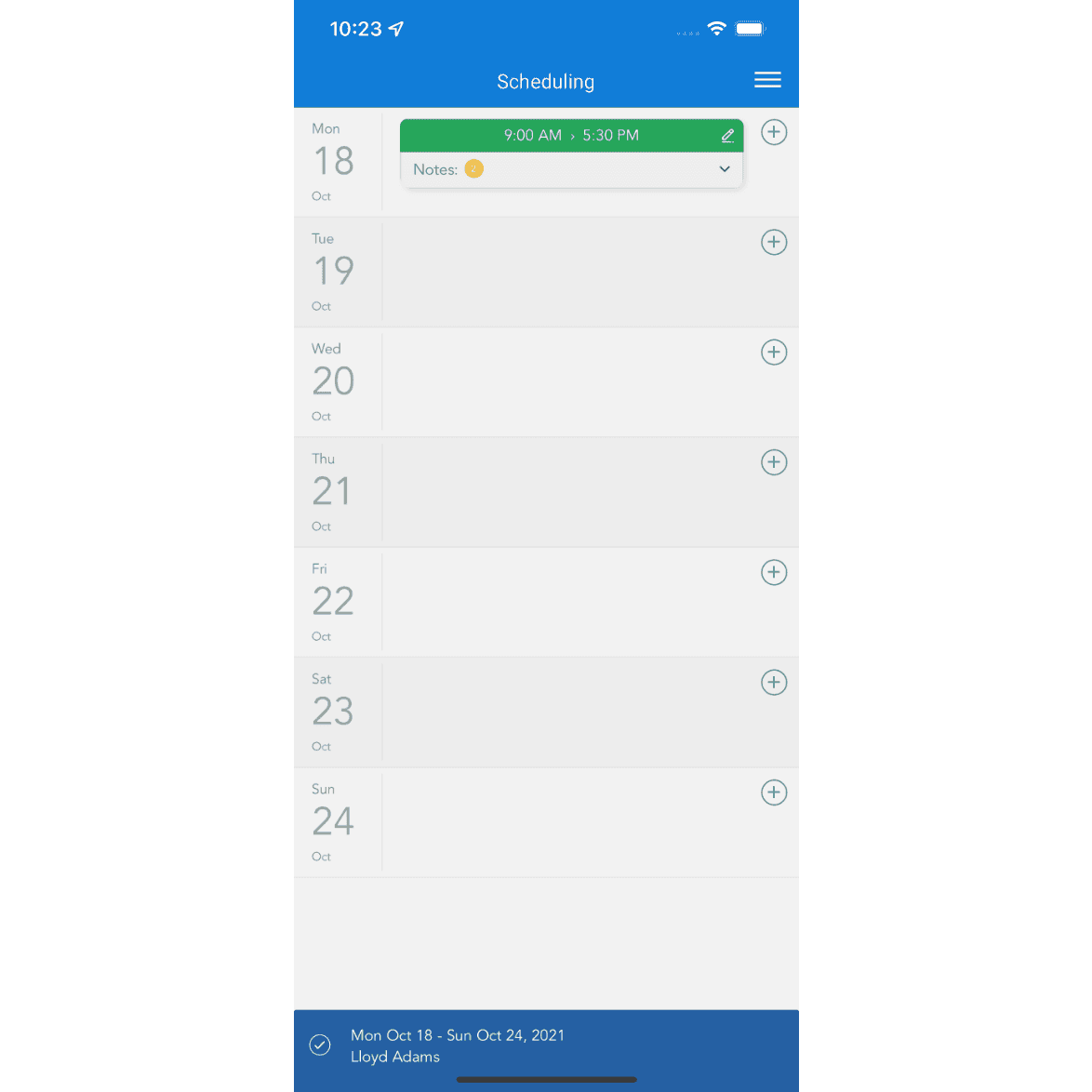
Vous pouvez ajouter plusieurs créneaux par jour et attribuer des modèles prédéfinis pour planifier plus rapidement les employés réguliers.
Cela a-t-il répondu à votre question ?