Suppression des feuilles de temps des employés

Dans ce guide, nous verrons comment un administrateur peut supprimer un shift.

Sam Dolbel
Sam Dolbel
Mar 3rd, 2023

Sur mobile : appuyez sur Vue d’ensemble Horaires
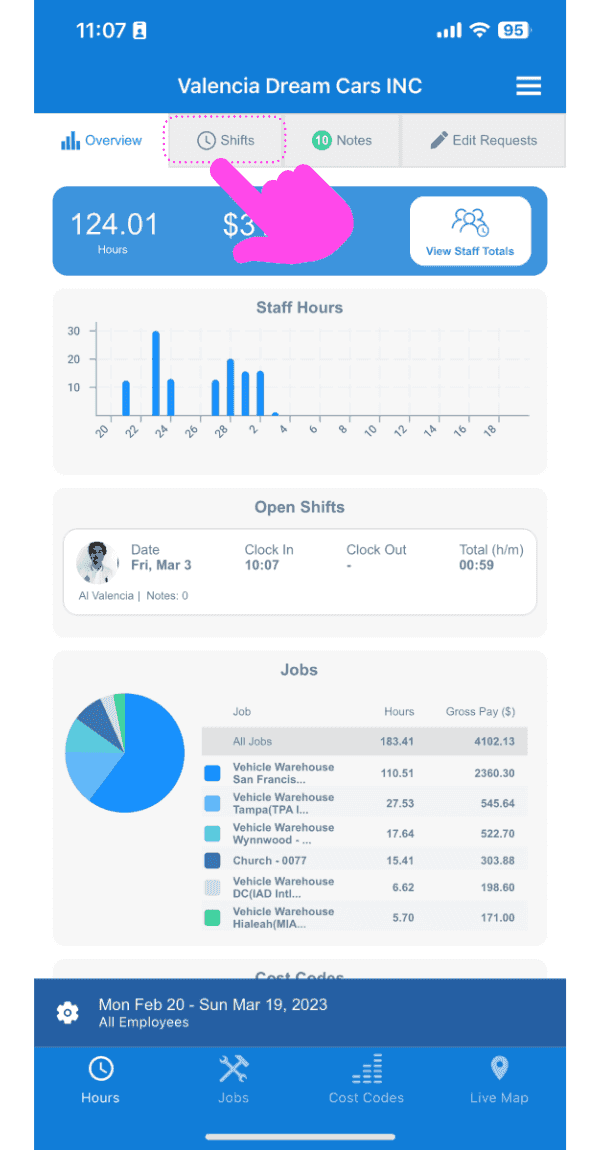
SINC mobile app Overview screen with a pink arrow pointing to the Shifts tab at the top

Appuyez sur le poste que vous souhaitez supprimer
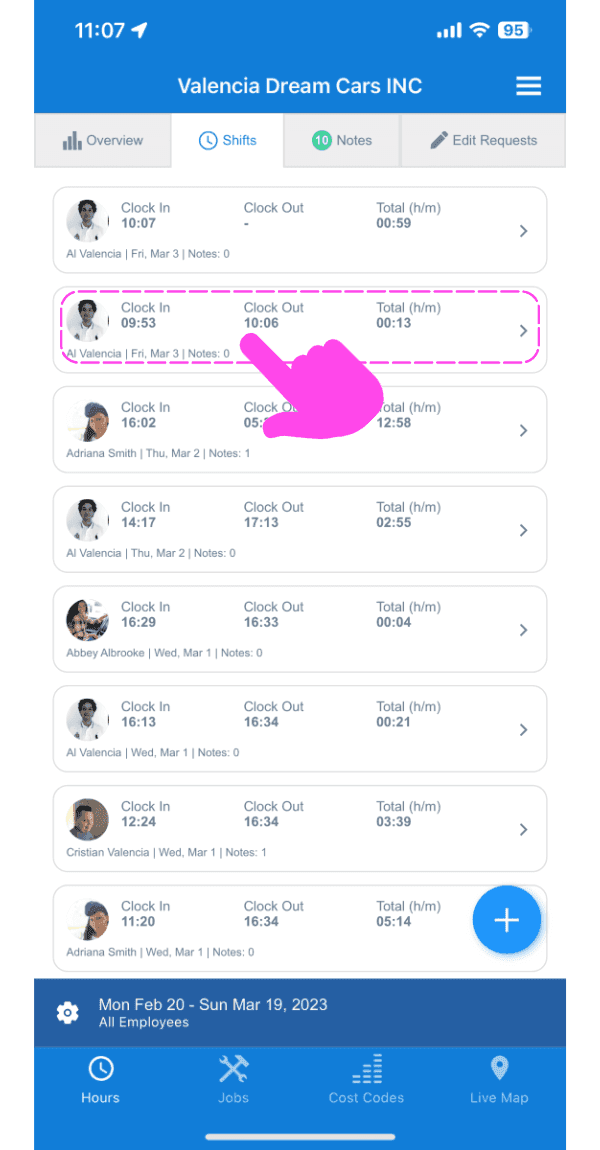
SINC mobile Shifts list with a pink arrow pointing to the shift row to be deleted

Appuyez sur la corbeille en bas à gauche de l’écran
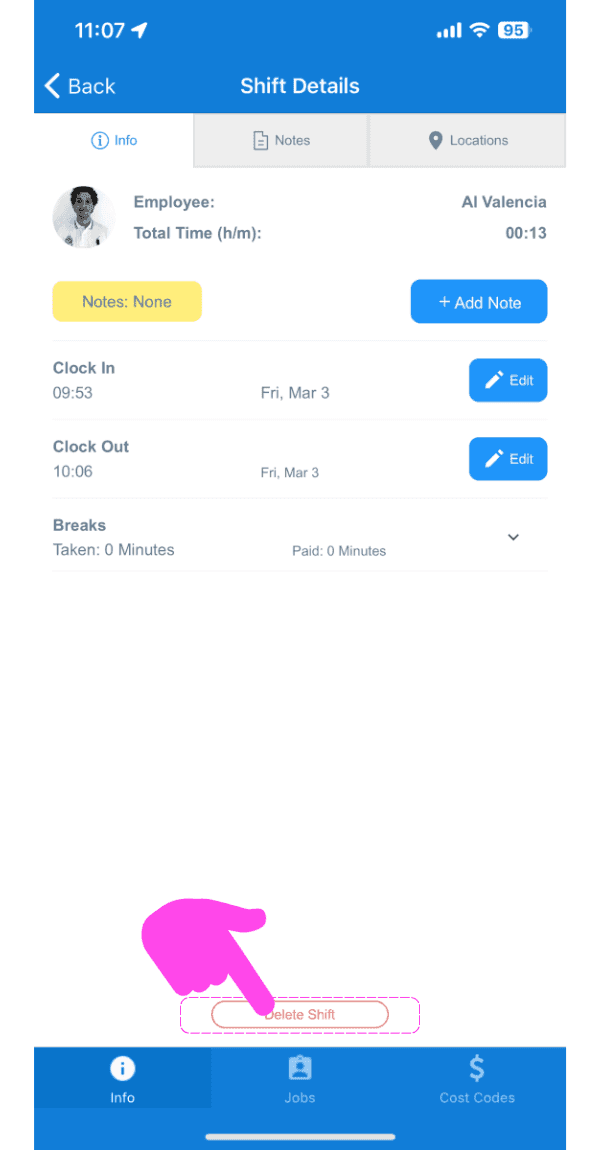
Mobile Shift Details screen with a pink arrow pointing to the trash can icon at the bottom left

Ajoutez un motif pour supprimer le créneau, puis confirmez.
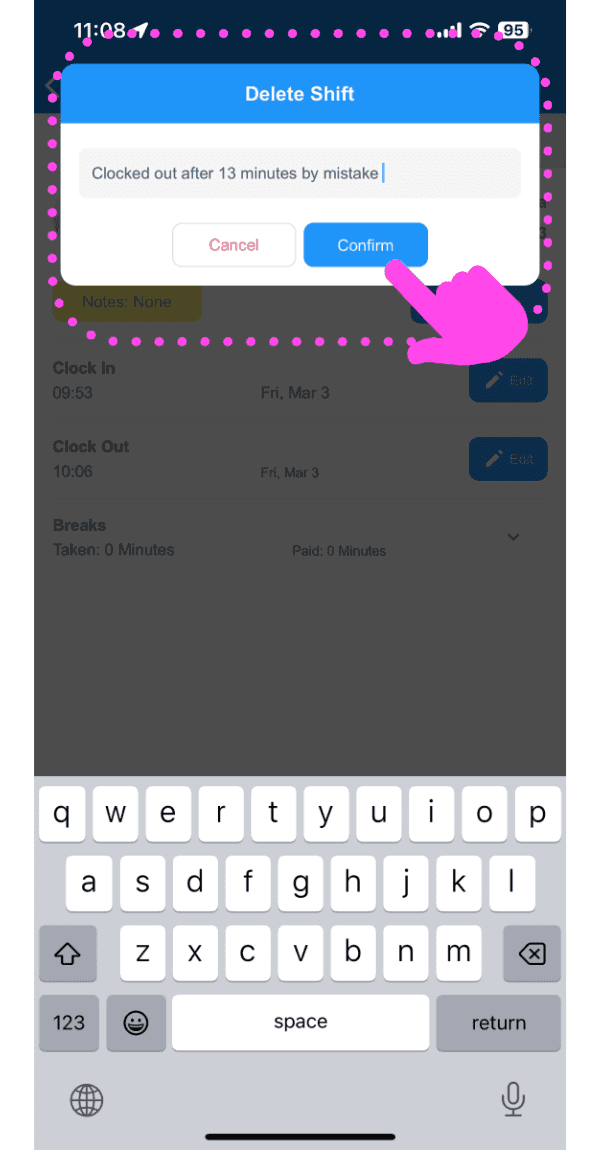
SINC mobile Delete Shift dialog with a typed reason and a pink hand pointing to the Confirm button

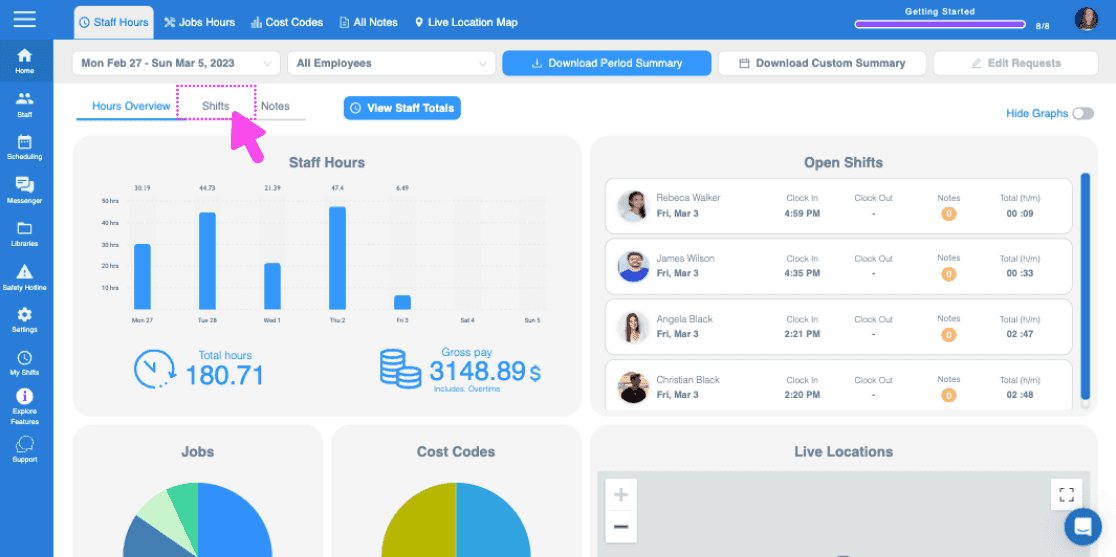
Sur le Web : cliquez sur Shifts

Staff Hours dashboard with a pink arrow pointing to the Shifts tab above staff hours charts

Cliquez sur Nom du membre du personnel
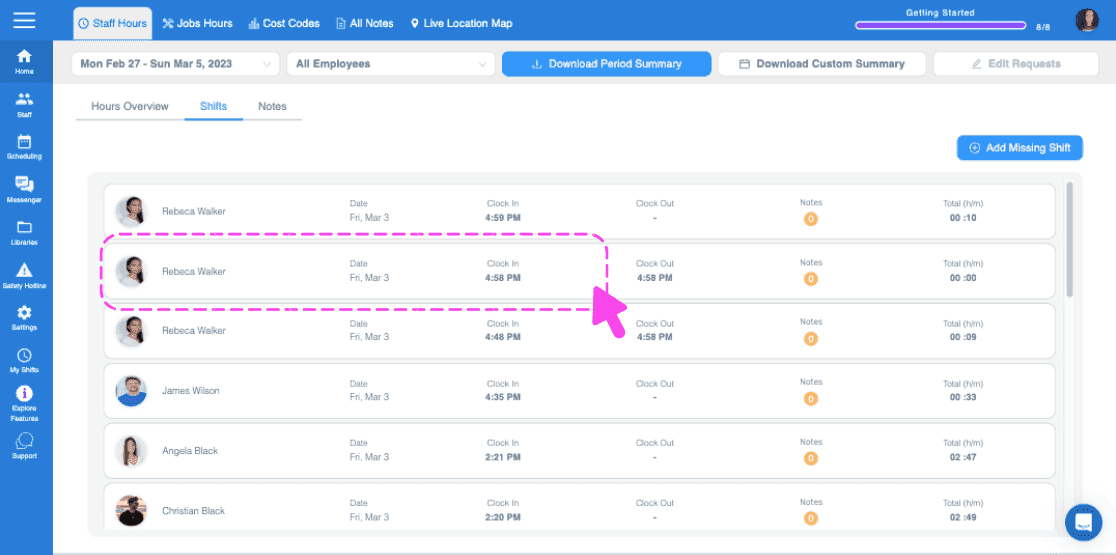
Web Shifts tab with a pink arrow pointing to a staff member's row showing clock in and out times

Dans l’onglet Shift, cliquez sur Supprimer le shift
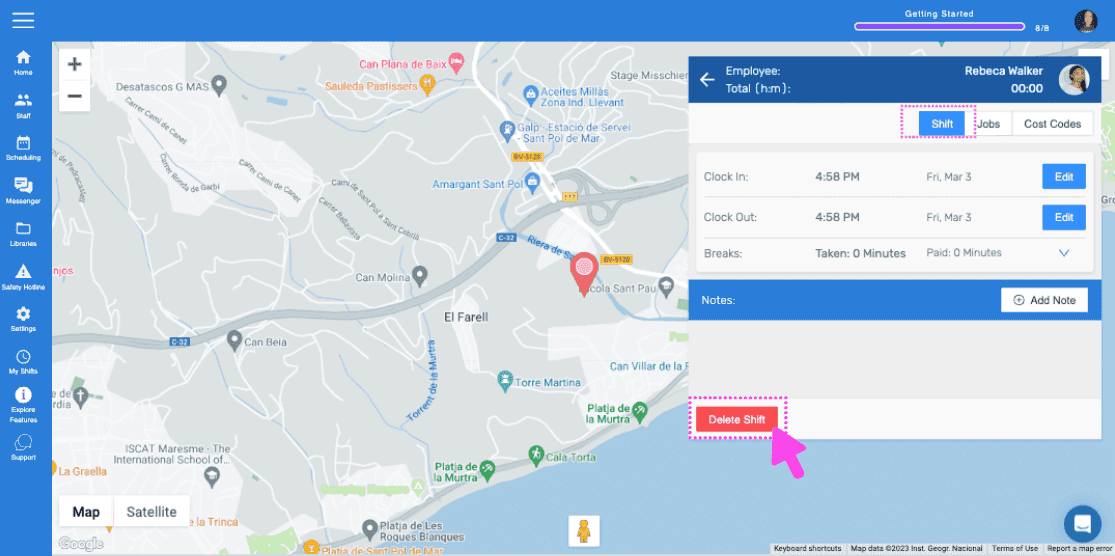
SINC web employee shift detail screen with a pink arrow pointing to the Delete Shift button

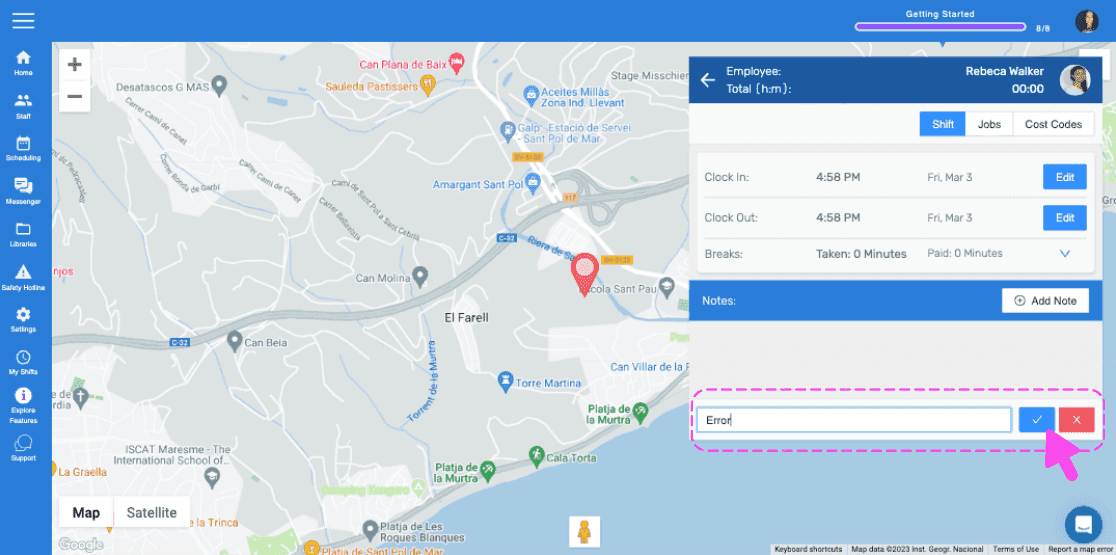
Saisissez la raison de la suppression du créneau (elle sera envoyée à l’employé sous forme de notification)
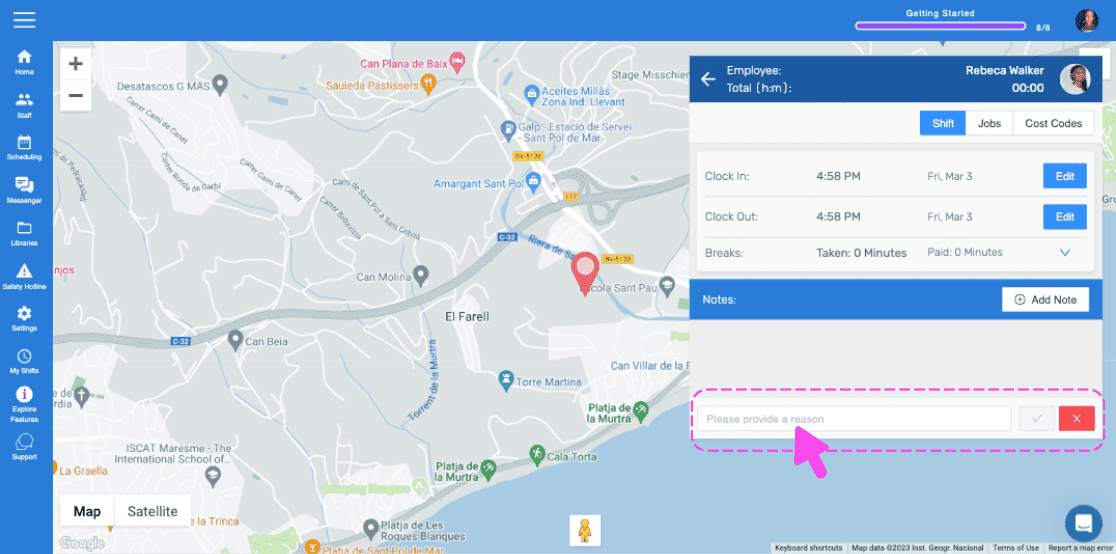
SINC web employee shift detail screen with a map and a pink arrow pointing to the reason text field for deleting a shift

Appuyez sur Confirmer

Live location map with an employee shift details panel and an editable timesheet notes field outlined in pink

Cela a-t-il répondu à votre question ?