Modifier les feuilles de temps dans SINC

Dans ce guide, nous verrons comment modifier un quart de travail en tant qu’administrateur.

Sam Dolbel
Sam Dolbel
Mar 3rd, 2023

Sur mobile : appuyez sur Menu Vue d’ensemble Shifts
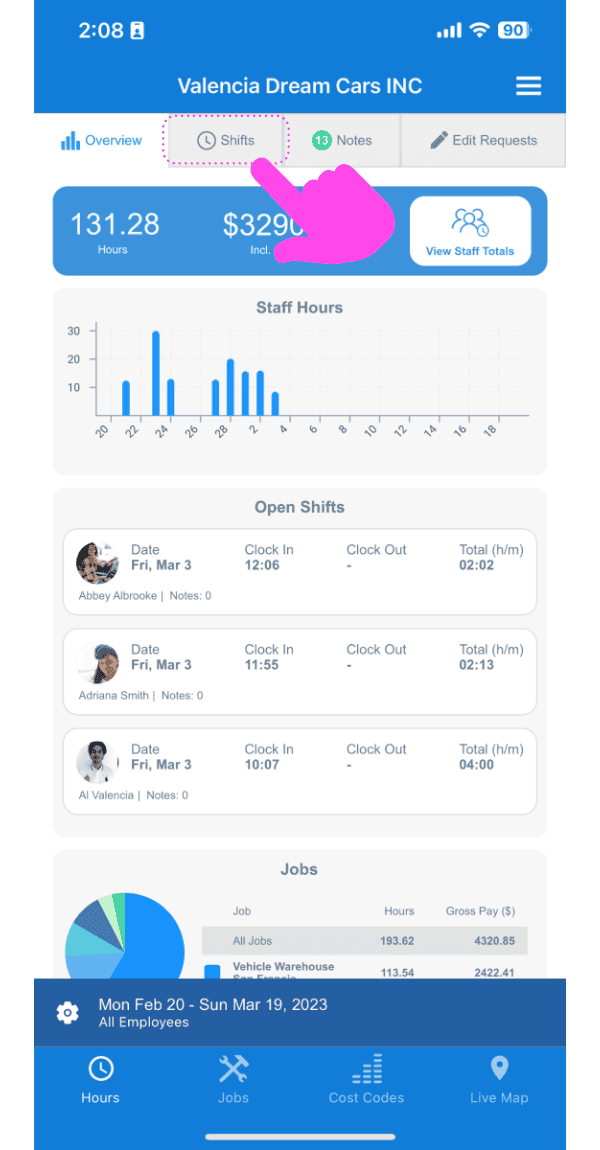
SINC web dashboard with a pink arrow pointing to the Shifts tab above the open shifts list

Appuyez sur Le service que vous souhaitez modifier
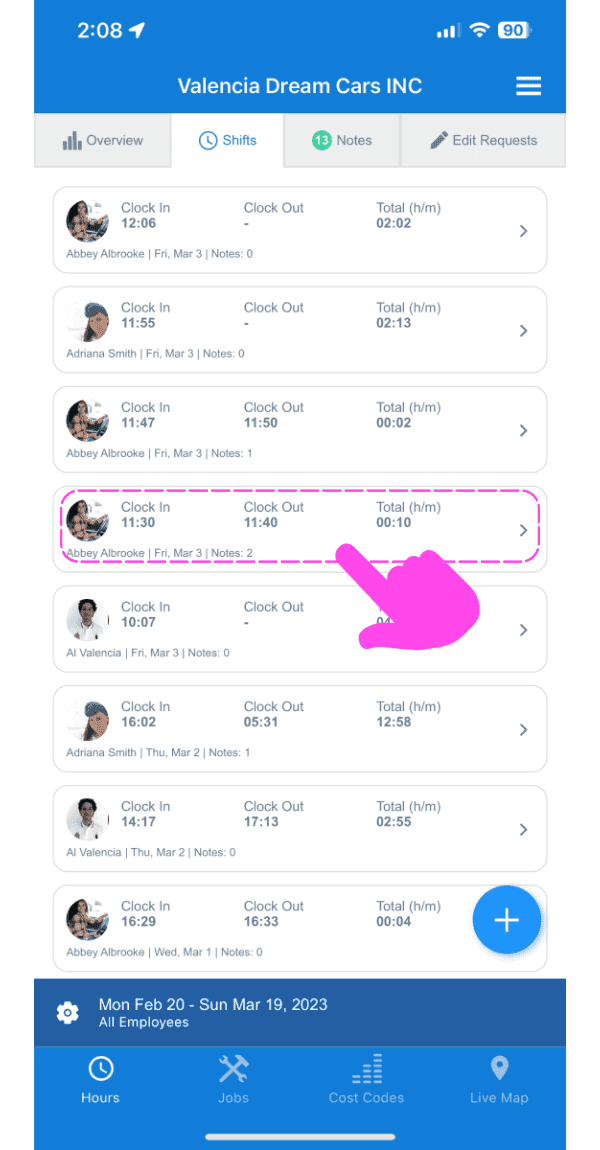
SINC mobile Shifts list with a pink arrow pointing to a specific shift entry outlined in pink

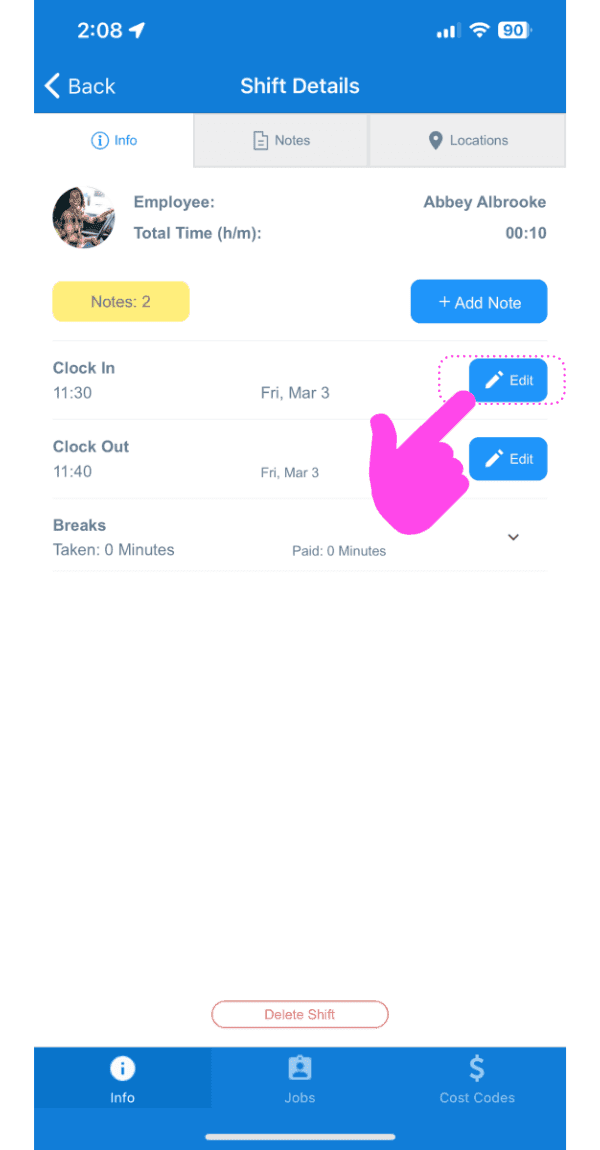
Appuyez sur Modifier

Shift Details screen with a pink arrow pointing to the Edit button next to Clock In

Saisissez le motif de la modification. Cette information, communiquée au membre du personnel par notification push, contribue à garantir la transparence.
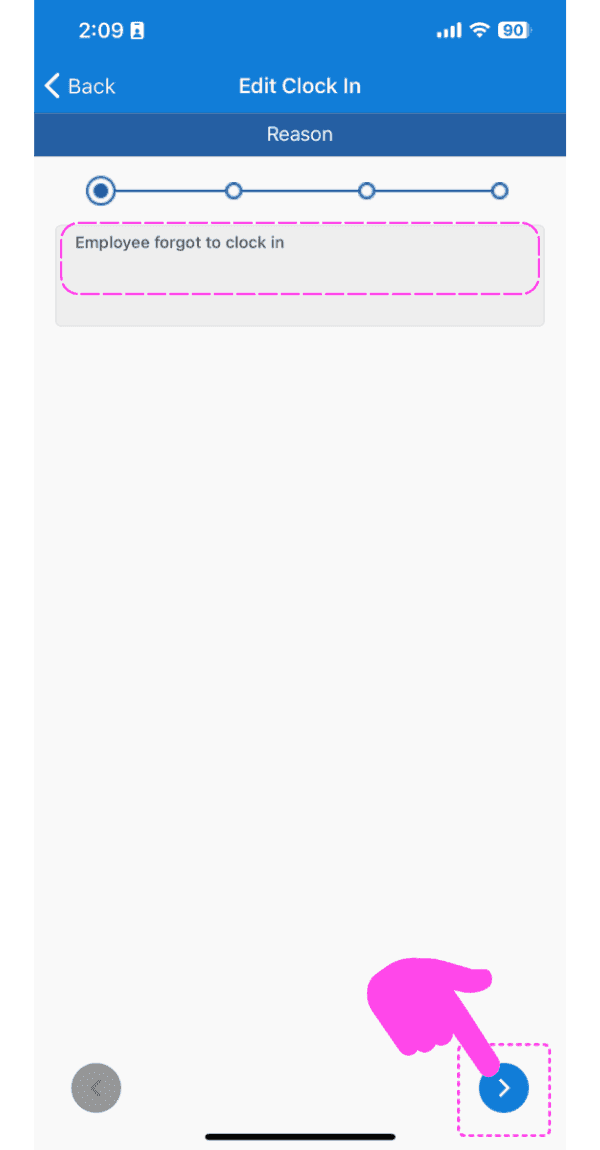
SINC mobile app Edit Clock In screen with the reason text field outlined in pink and an arrow pointing to the next button

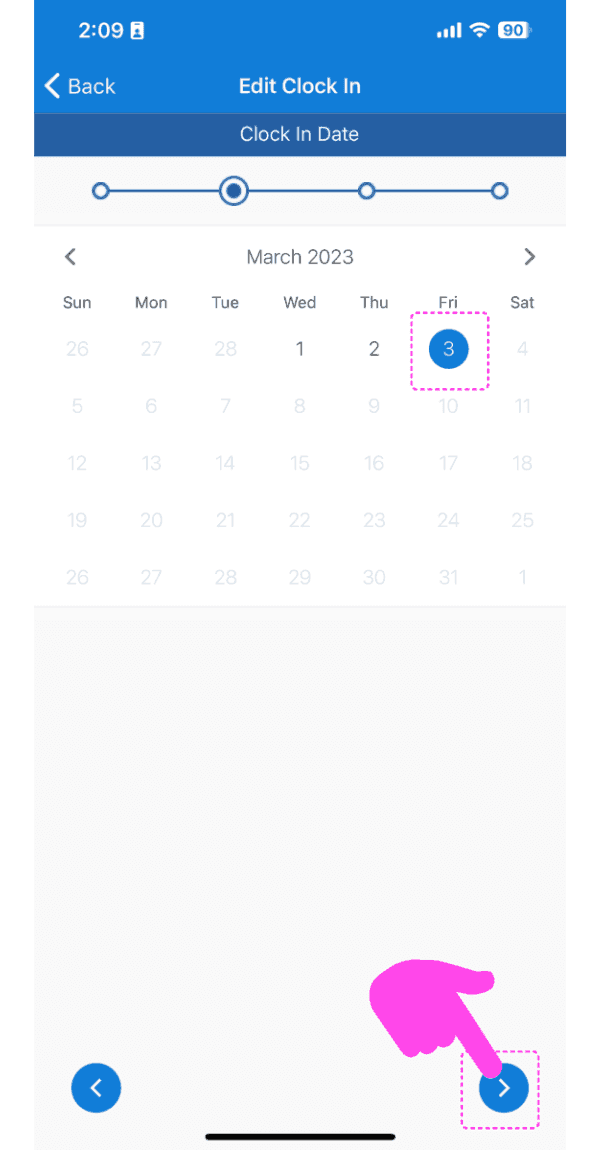
Sélectionnez la date

Edit Clock In calendar screen with a selected date and the next-arrow button highlighted in pink

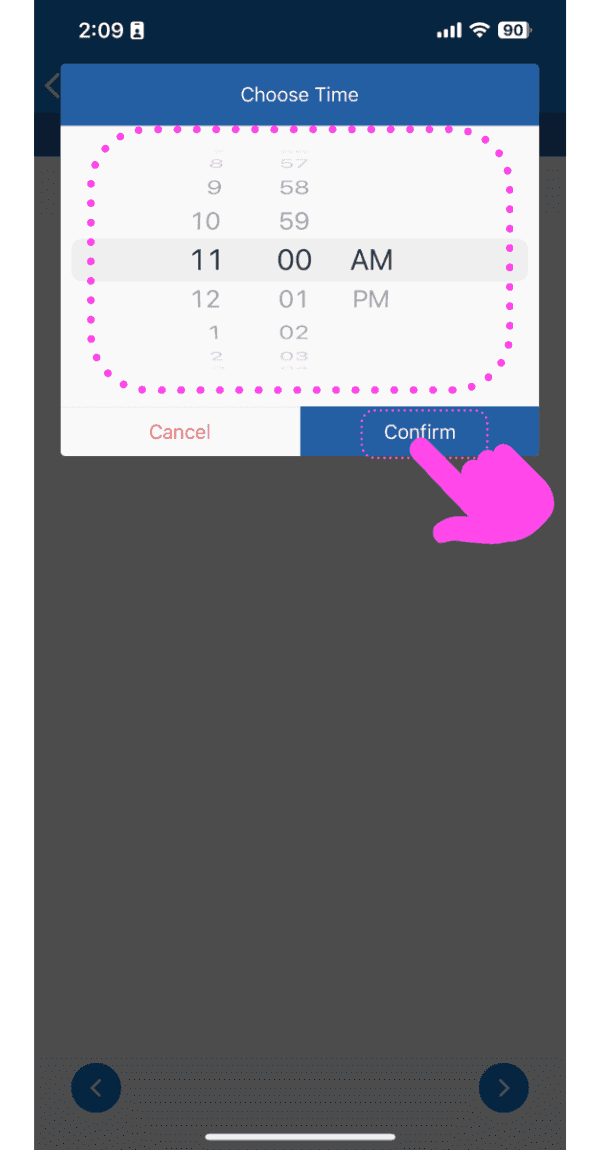
Sélectionnez la nouvelle heure

Choose Time picker set to 11:00 AM with the Confirm button highlighted by a pink arrow

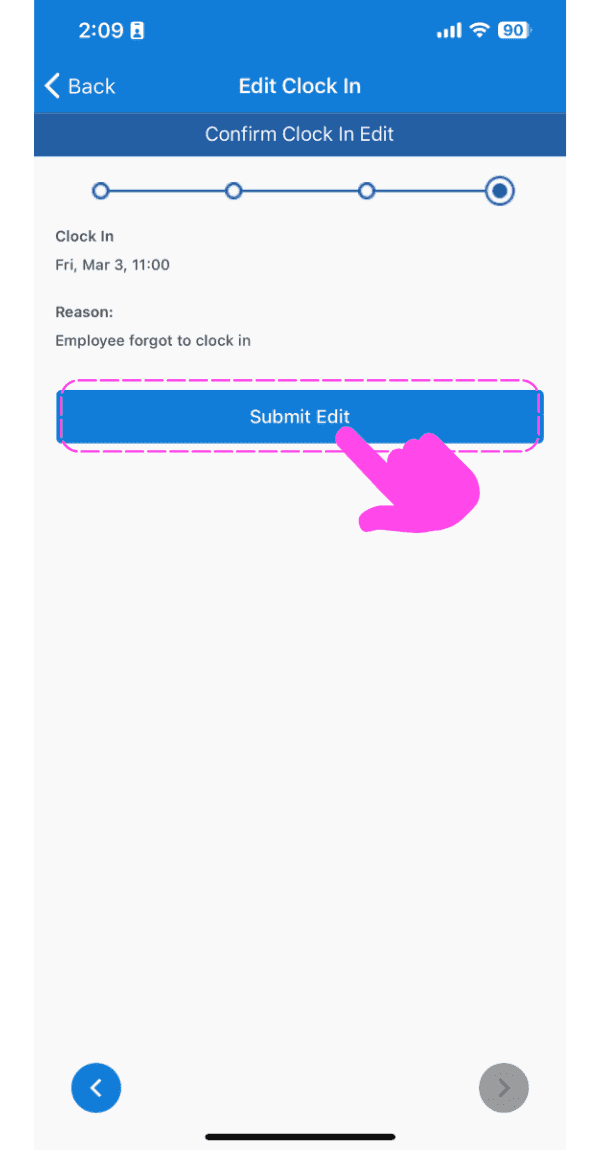
Valider la modification

SINC mobile Edit Clock In confirmation screen with the Submit Edit button highlighted in pink

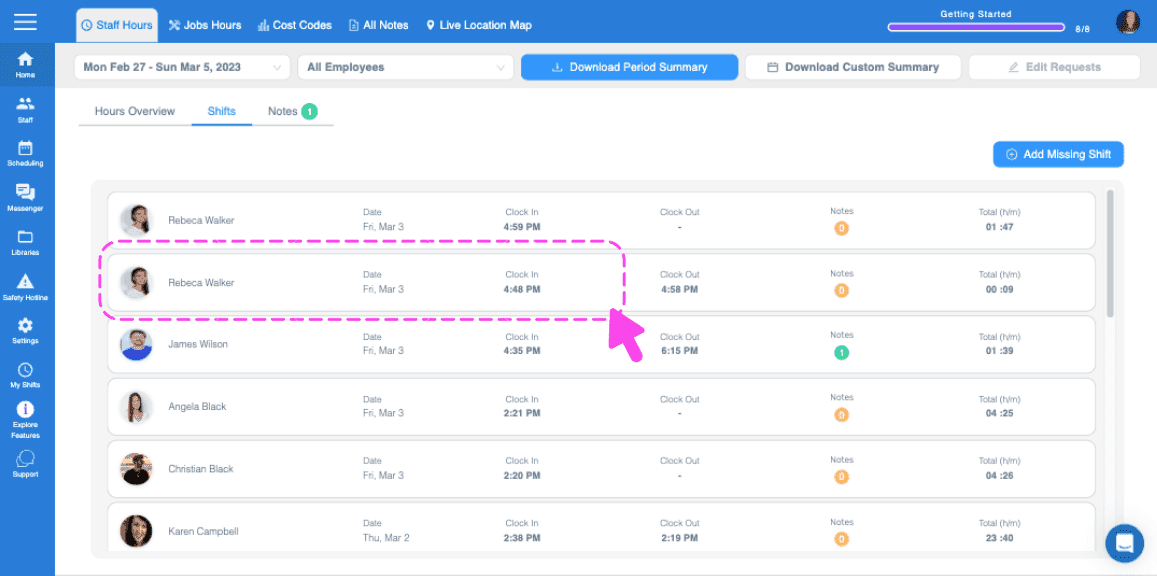
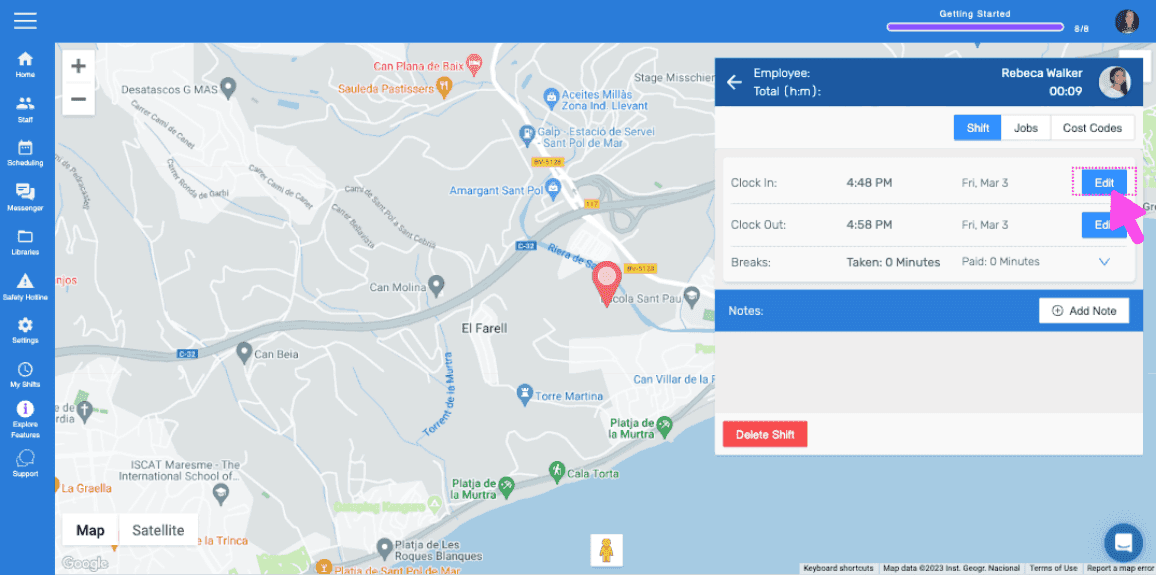
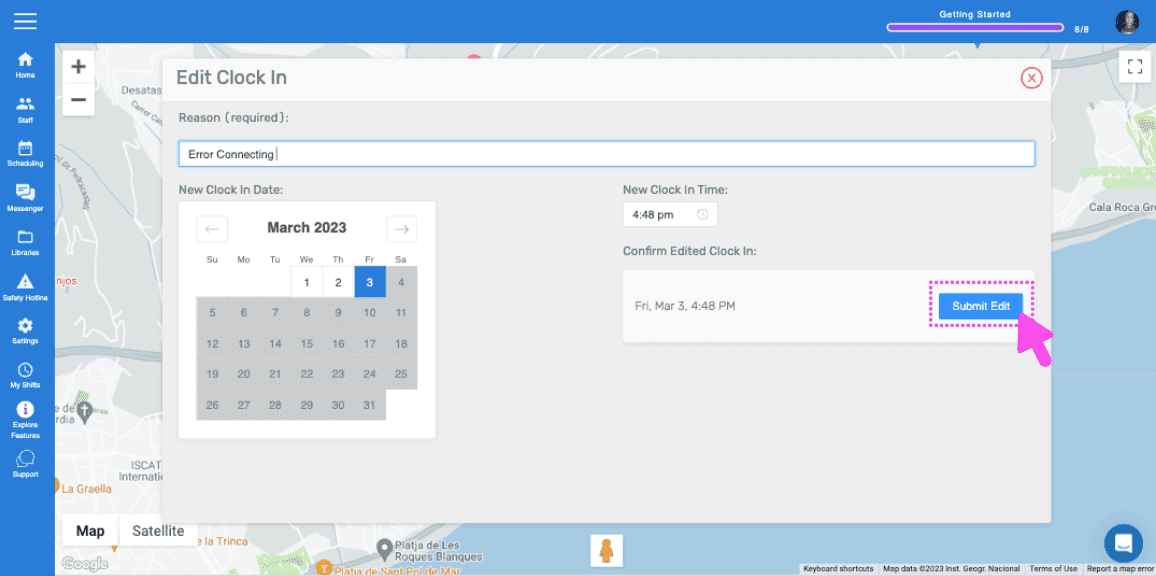
Sur la version web, cela ressemble à ceci :
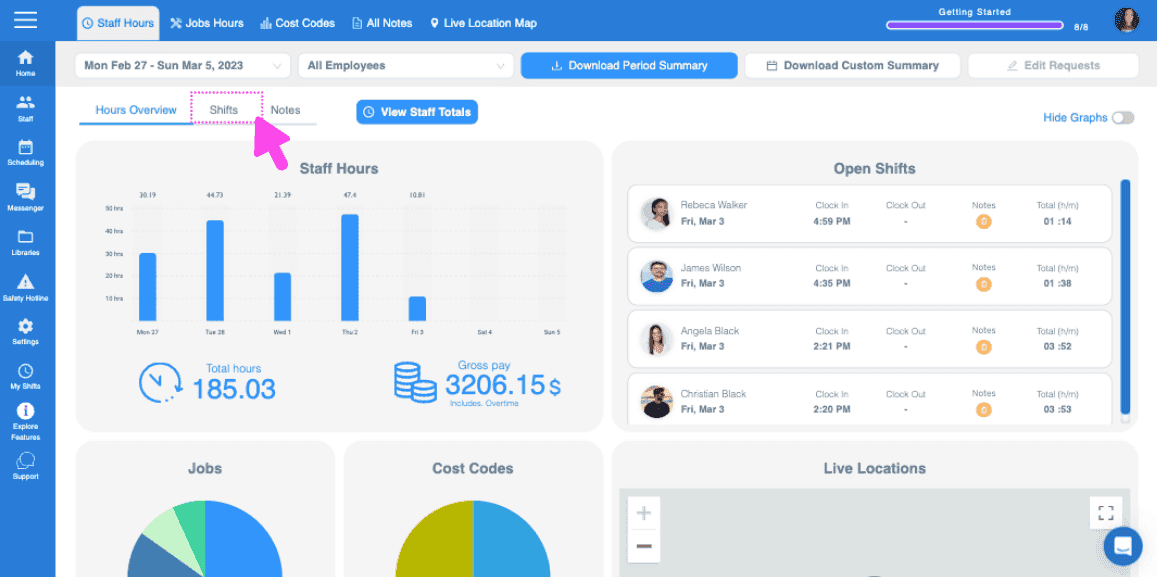
Web dashboard Hours Overview screen with the Shifts tab highlighted by a pink arrow
SINC web Shifts list with two employee shift rows outlined in pink
Web dashboard map view of an employee's shift location with a pink arrow pointing to the Edit button next to Clock In
SINC web Edit Clock In screen with a date picker and the Submit Edit button

Cela a-t-il répondu à votre question ?