
Forcer le pointage de sortie d’un service en cours
Utilisez cette fonctionnalité avec prudence ! Elle est conçue comme solution de dernier recours lorsqu’un employé n’a pas de connexion Internet pour synchroniser ses shifts.

Si un employé ne parvient pas à se connecter à Internet à temps pour que vous puissiez générer un récapitulatif, ou s’il n’a pas encore pu pointer sa sortie, vous pouvez forcer la clôture de son poste. Cette option ne doit être utilisée qu’en dernier recours : il est préférable et plus fiable que l’employé pointe lui-même sa sortie.
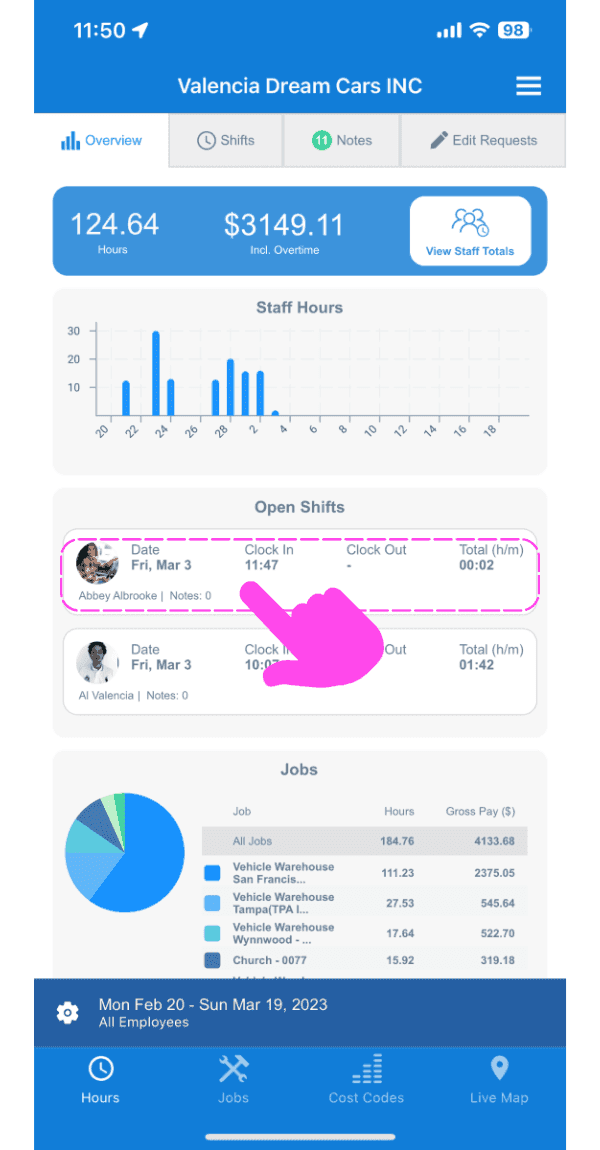
Sur mobile : appuyez sur le créneau ouvert concerné
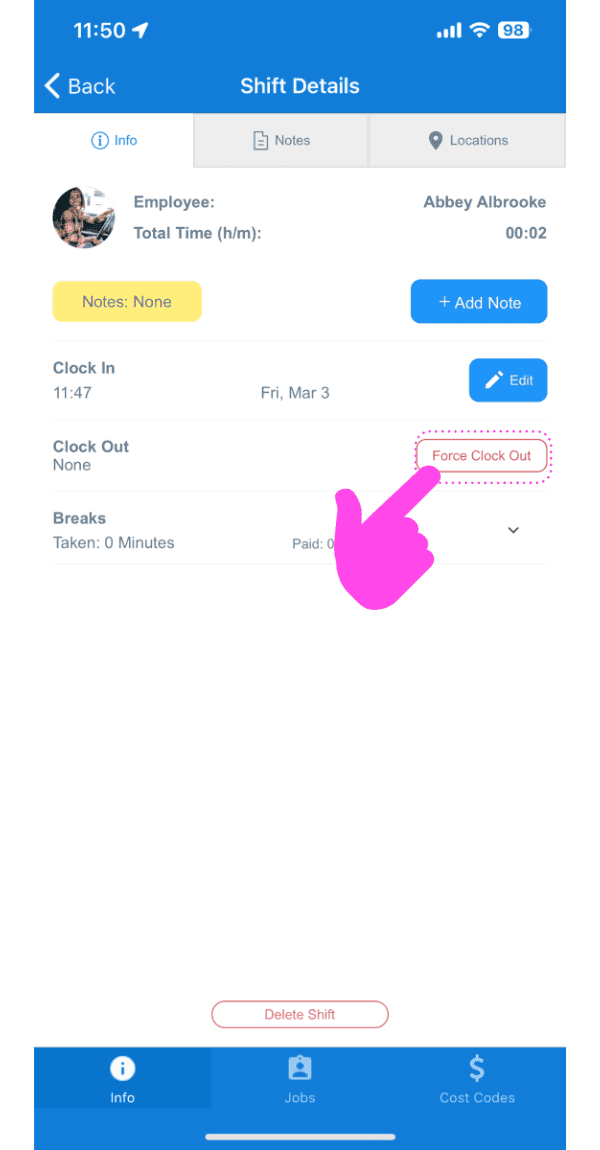
Dans l’onglet Infos, appuyez sur Forcer le pointage de sortie
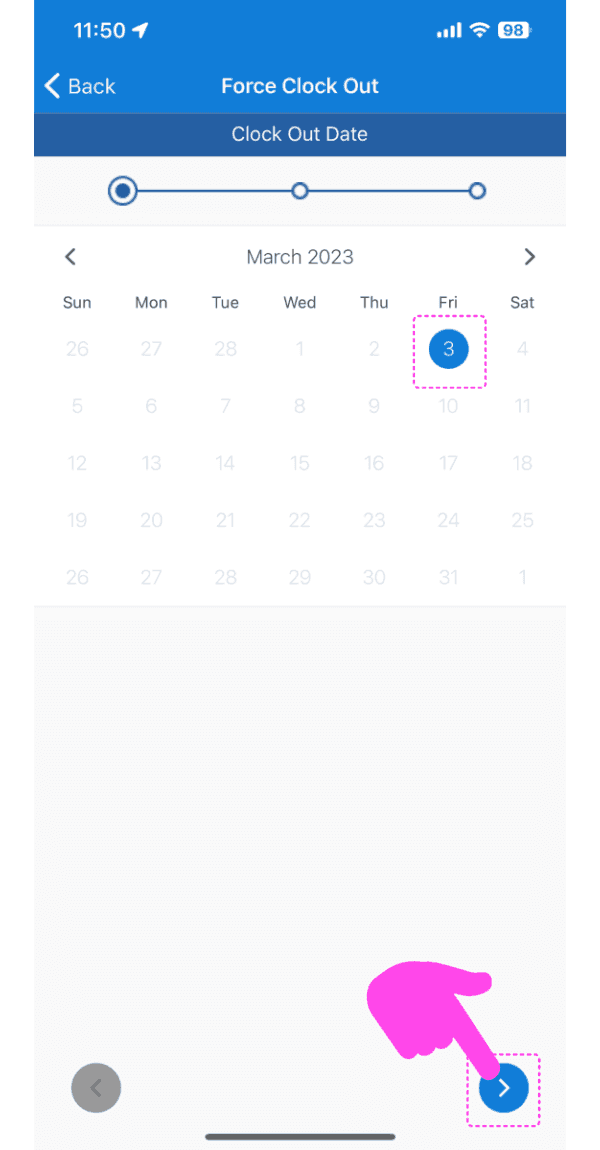
Sélectionnez la date du nouveau pointage de sortie
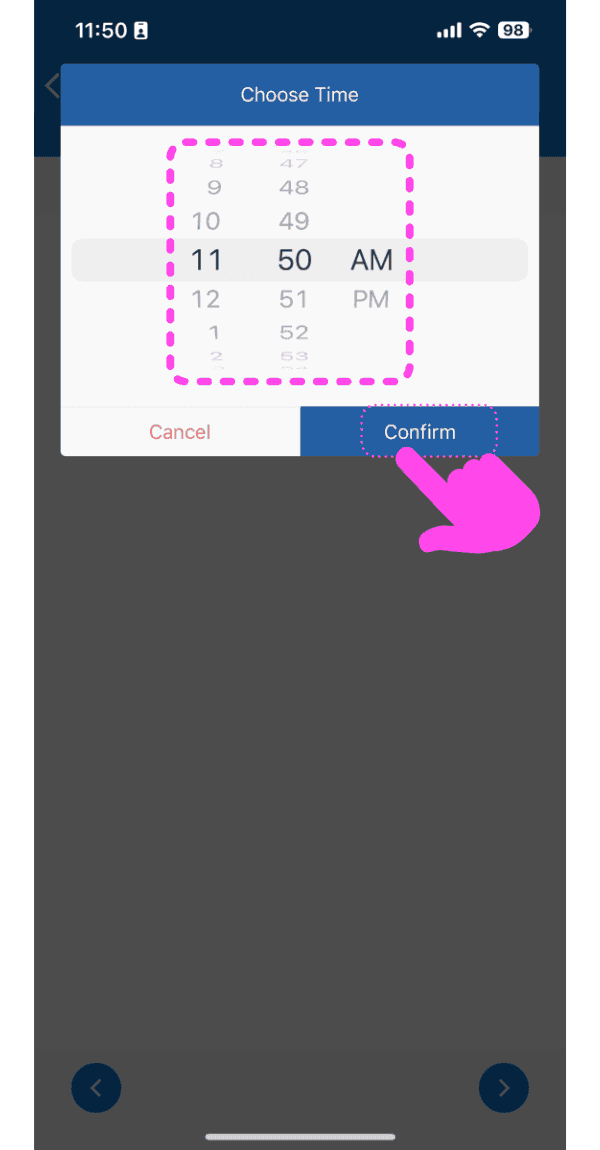
Sélectionnez l’heure de la nouvelle fin de service
Appuyez sur Ajouter un pointage de sortie
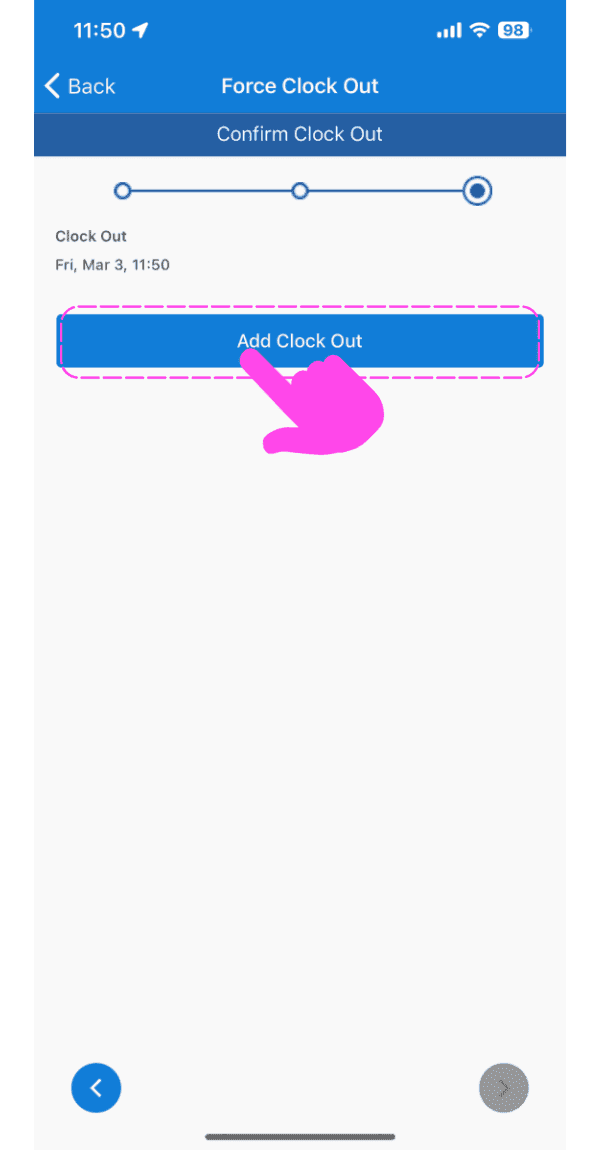
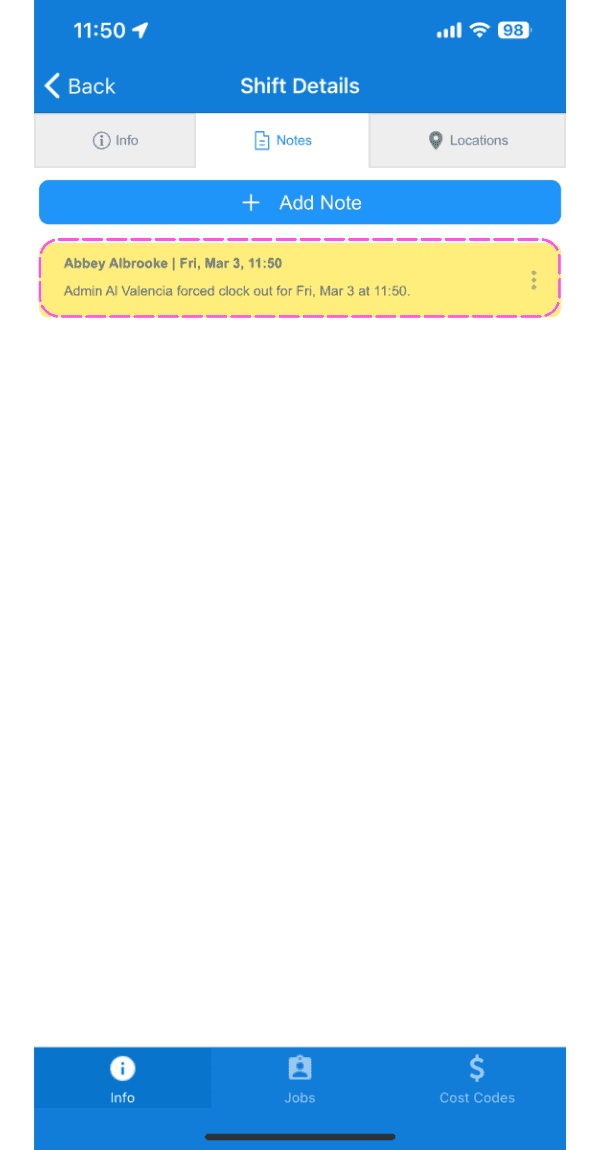
Une nouvelle note indiquant les détails du pointage de sortie forcé s’affiche désormais.
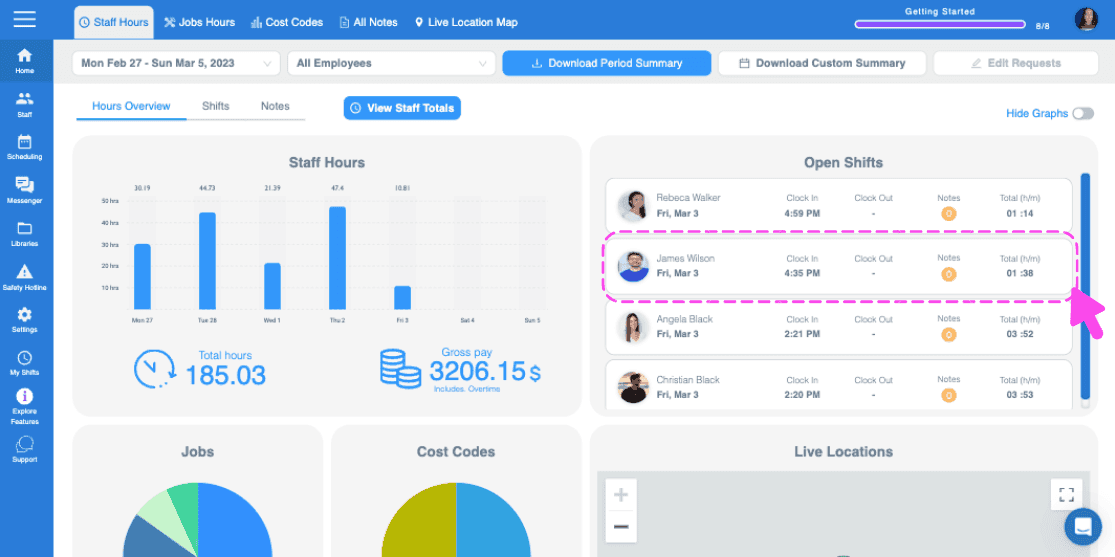
Sur le Web : cliquez sur le shift ouvert concerné
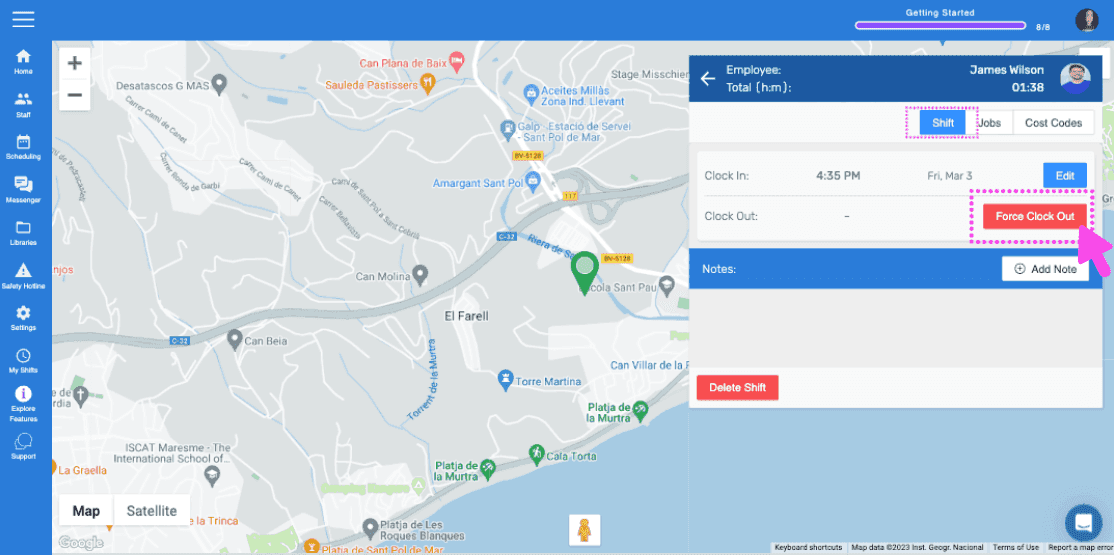
Dans l’onglet Shift, cliquez sur Forcer le pointage de sortie
Sélectionnez la date du nouveau pointage de sortie
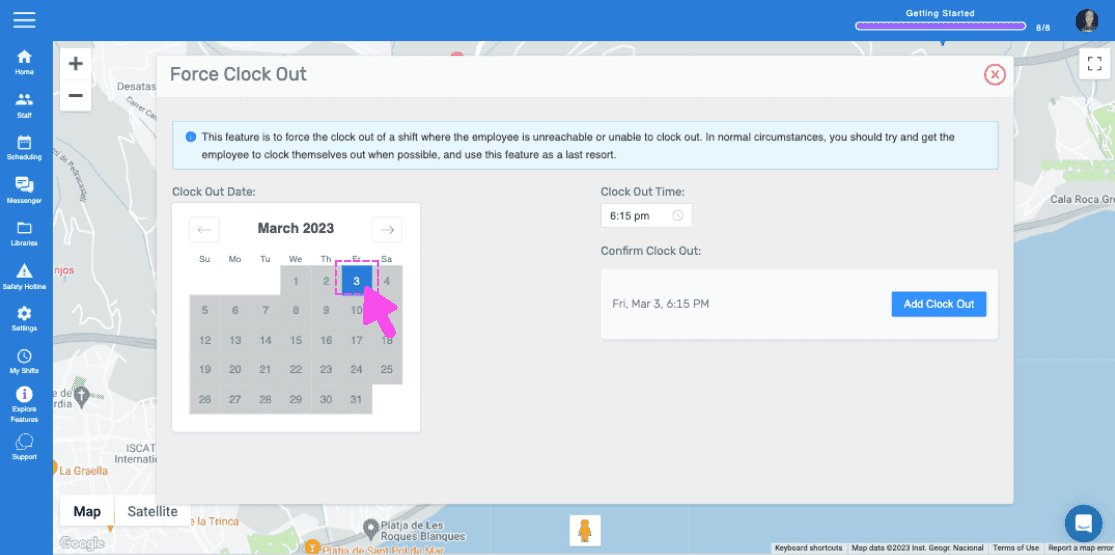
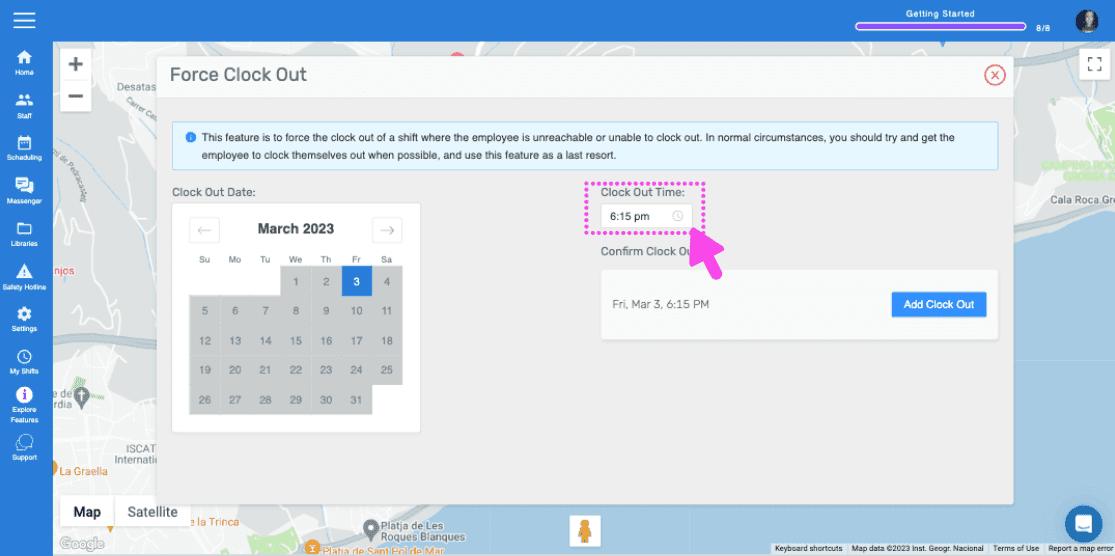
Sélectionnez l’heure du nouveau pointage de sortie
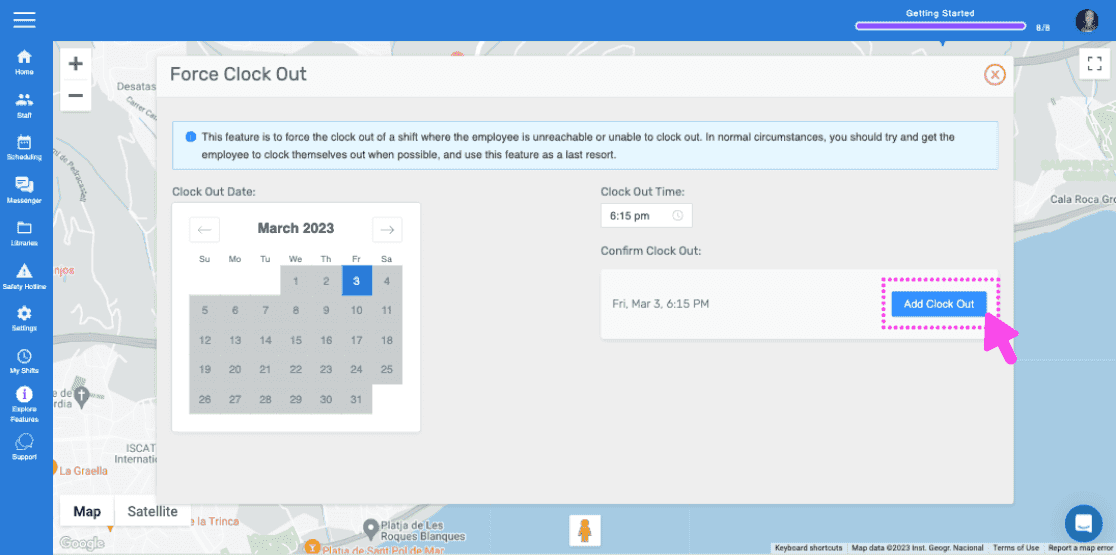
Appuyez sur Ajouter une heure de sortie
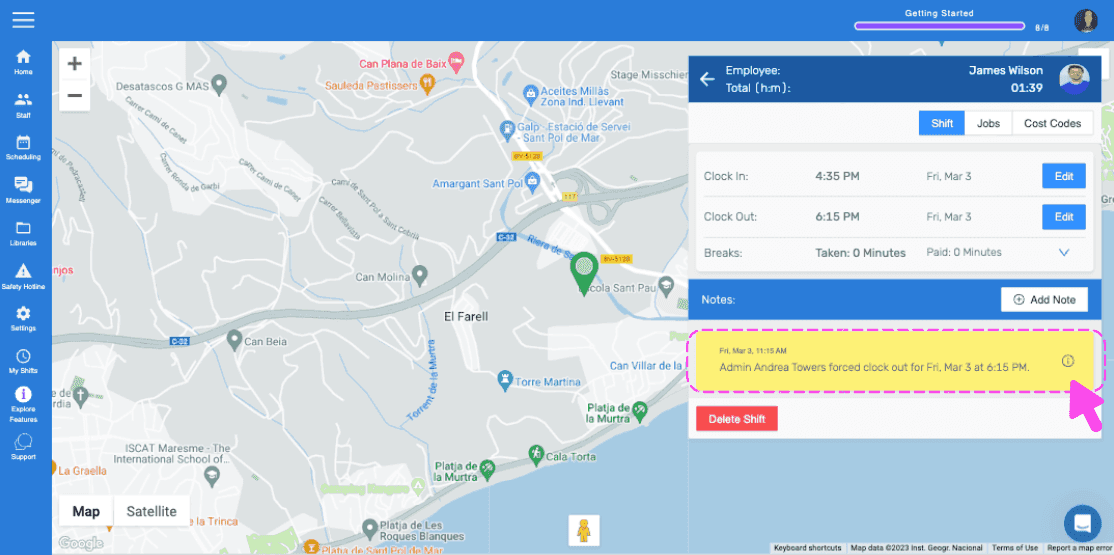
Vous verrez désormais une nouvelle note indiquant les détails du pointage de sortie forcé.
Cela a-t-il répondu à votre question ?