Comment ajouter un shift manquant

Ce guide explique comment un administrateur peut ajouter un service pour un membre du personnel ou pour lui-même dans SINC.

SINC Support Team
SINC Support Team
Oct 19th, 2021

Parfois, vous devrez ajouter manuellement un créneau de travail. Accédez à Menu Vue d’ensemble, puis appuyez sur Créneaux.
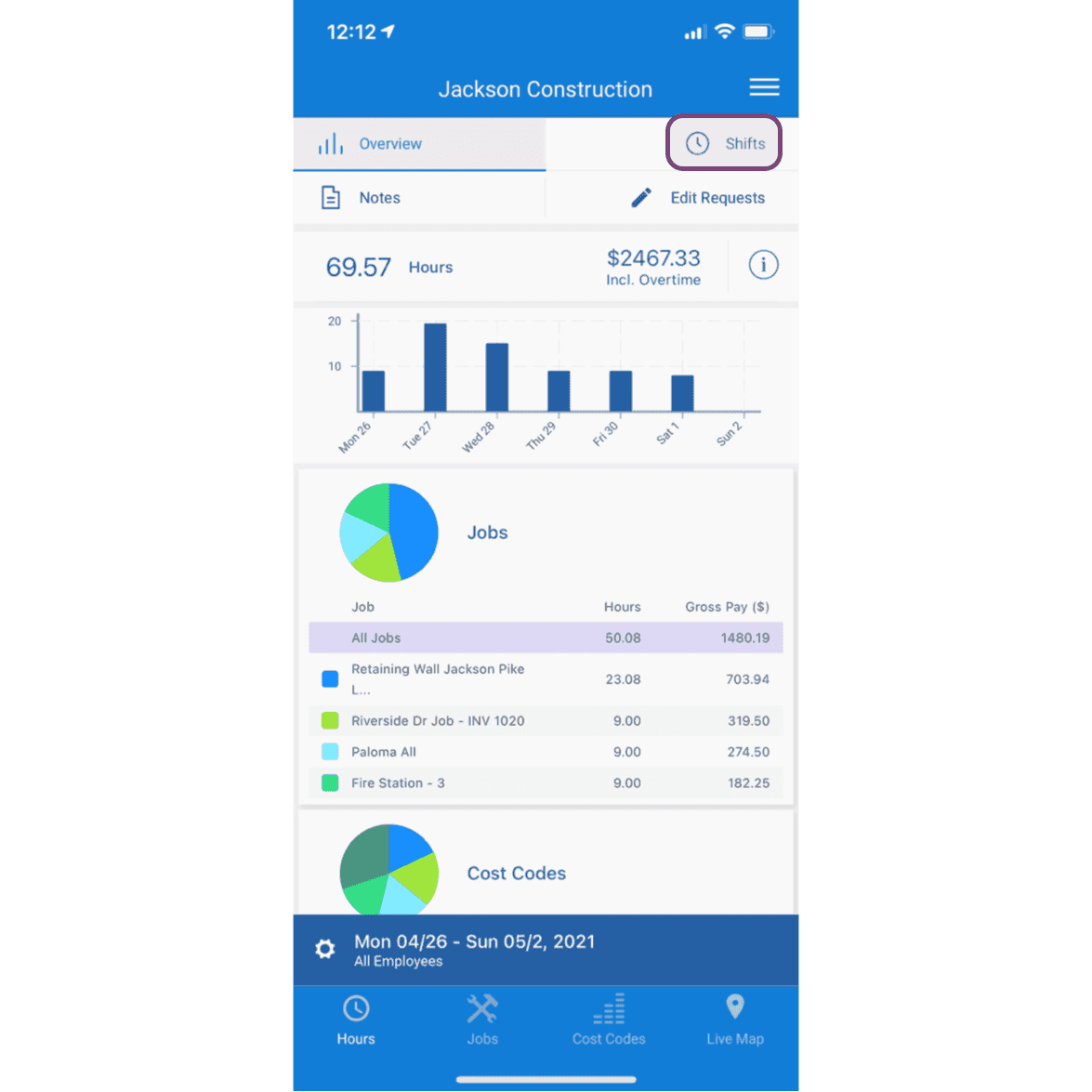
SINC mobile app Overview screen with the Shifts tab circled at the top of the page

Appuyez sur le créneau auquel vous souhaitez ajouter un horaire de travail
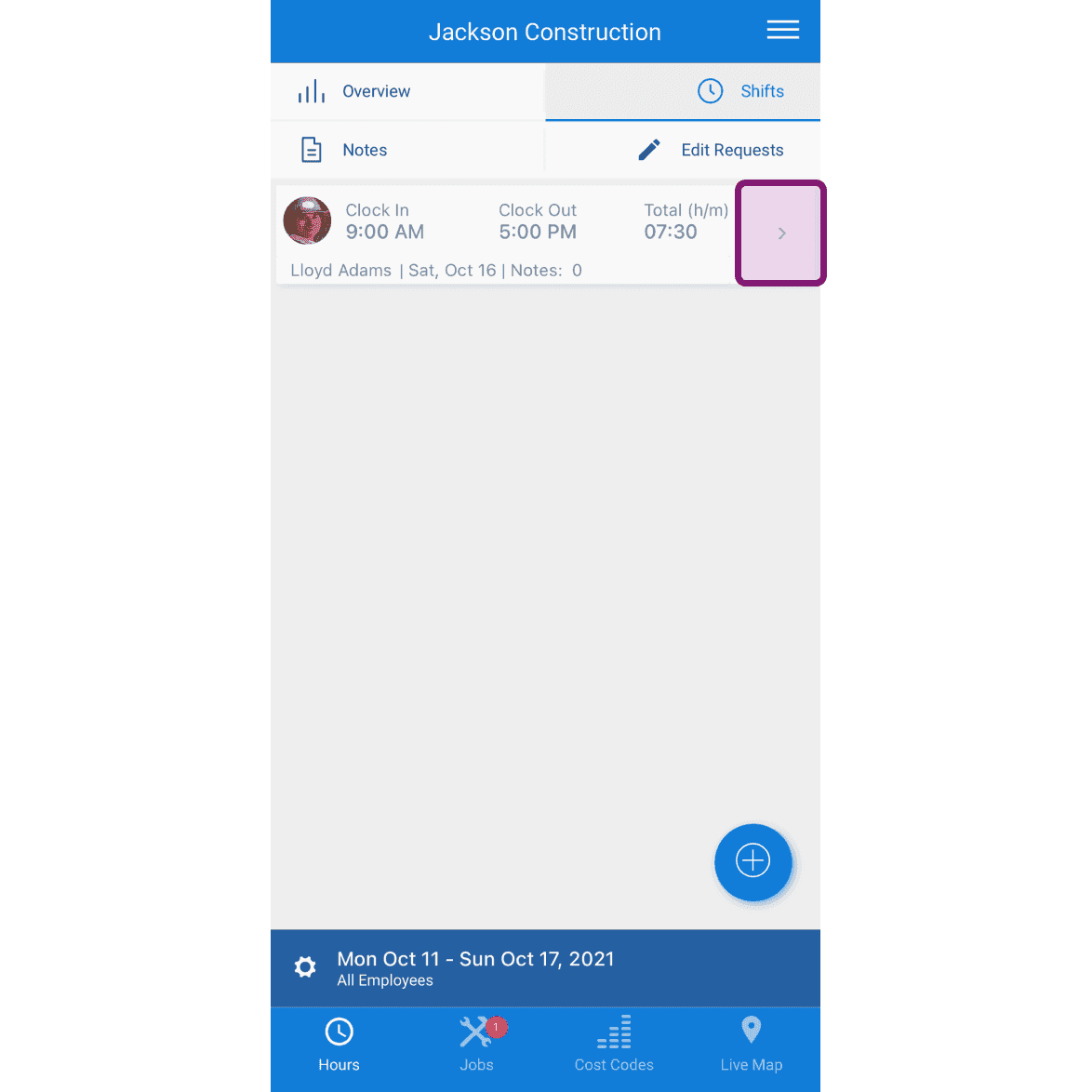
SINC mobile Shifts list with a pink-highlighted row showing the shift to add a job shift to

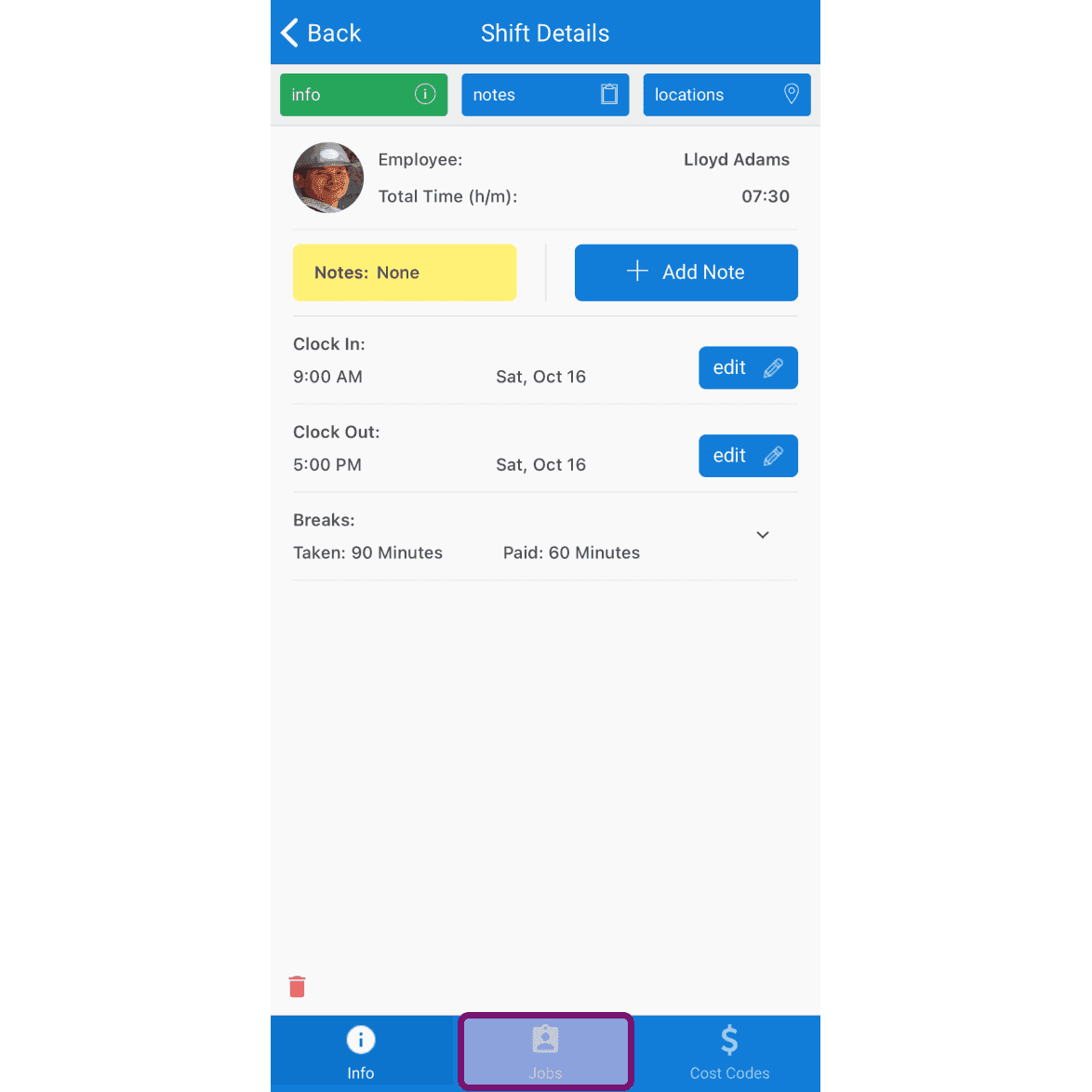
Appuyez sur l’onglet « Jobs »

Mobile Shift Details screen with the Jobs tab at the bottom outlined in pink

Appuyez sur Le bouton + en bas à droite de l’écran
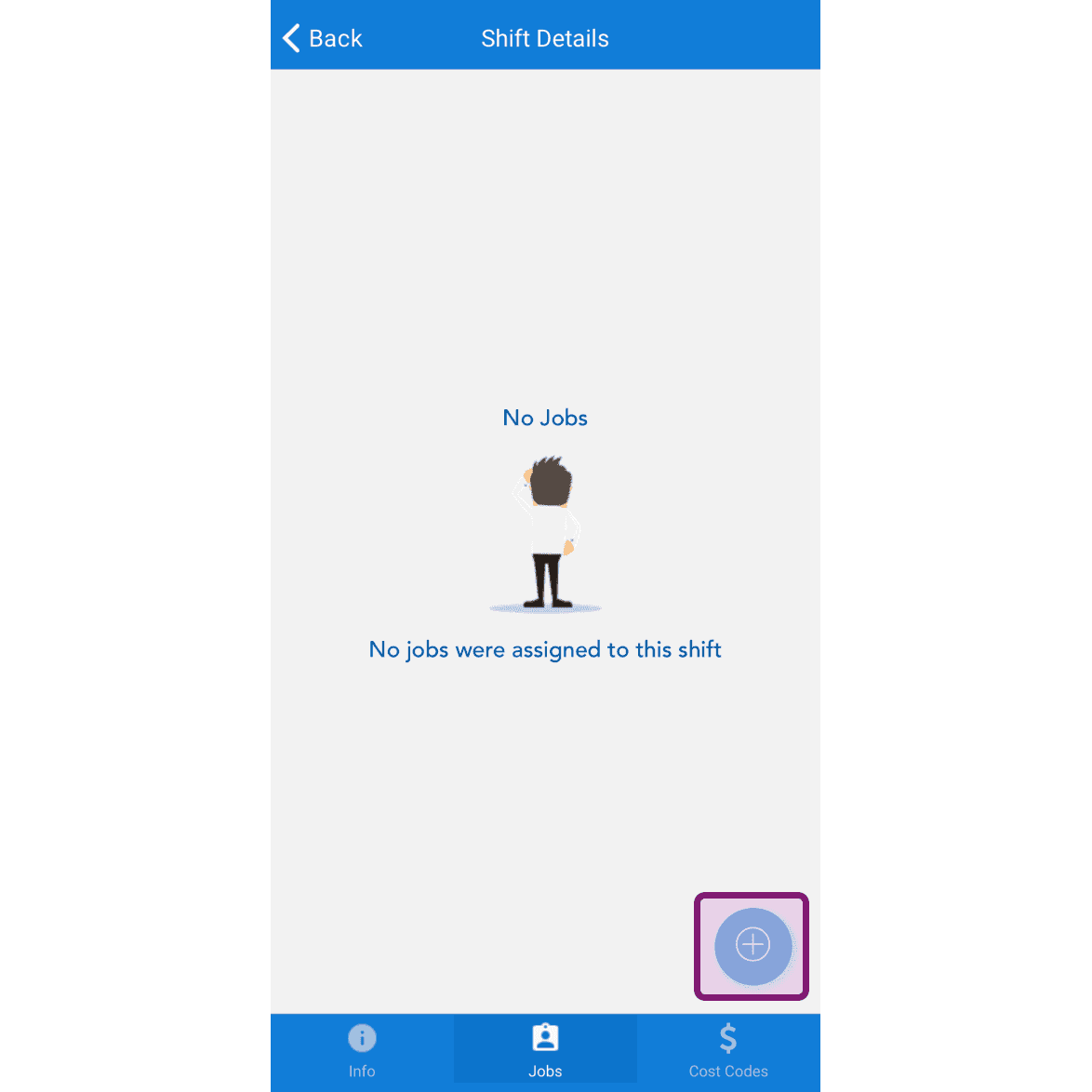
SINC mobile Shift Details Jobs tab showing a No Jobs message with the plus button circled in the bottom right

Sélectionnez le poste, puis appuyez sur Confirmer.
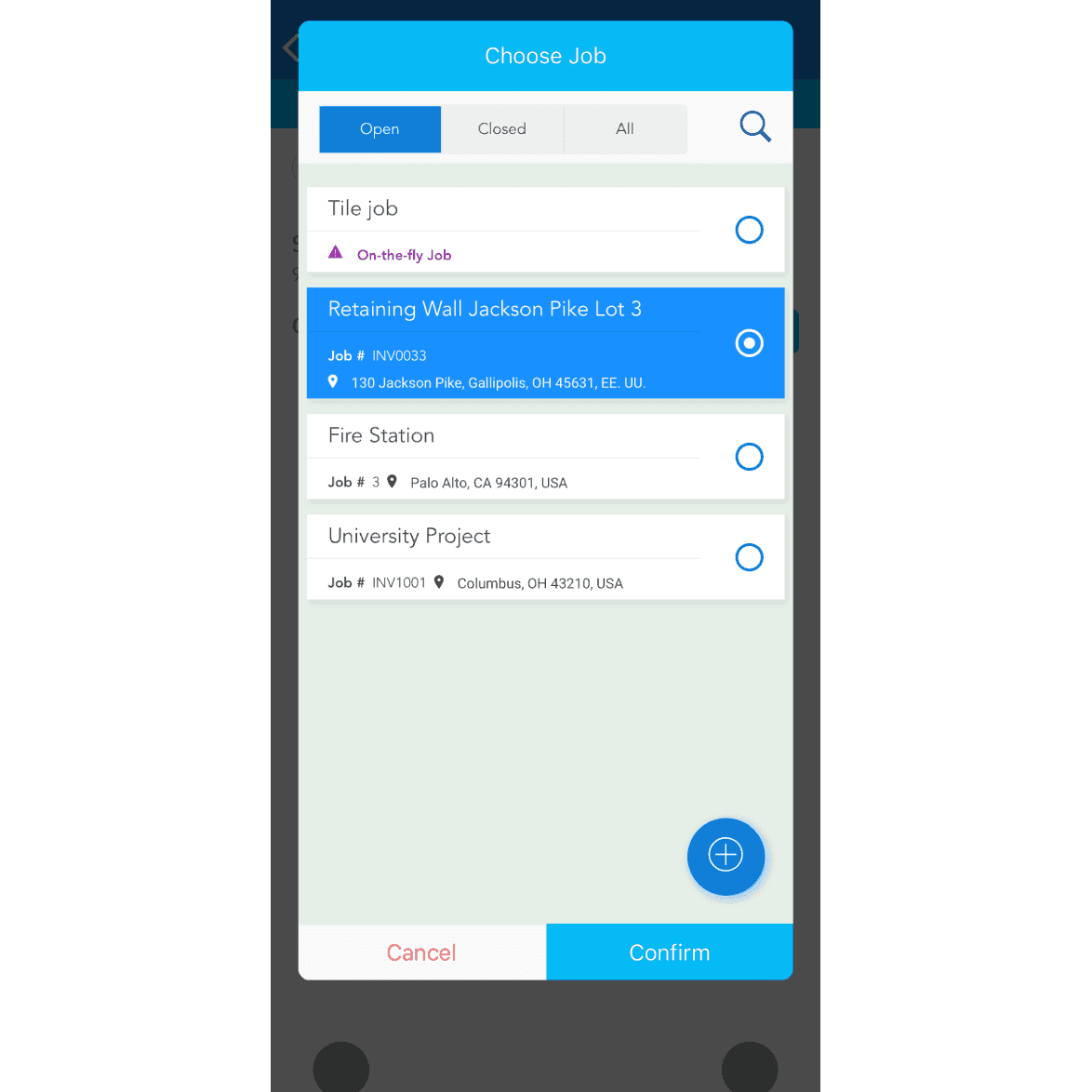
Choose Job screen listing open jobs with the Retaining Wall job selected and a Confirm button

Si le chantier n’existe pas, appuyez sur le bouton + en bas à droite de l’écran pour en ajouter un.
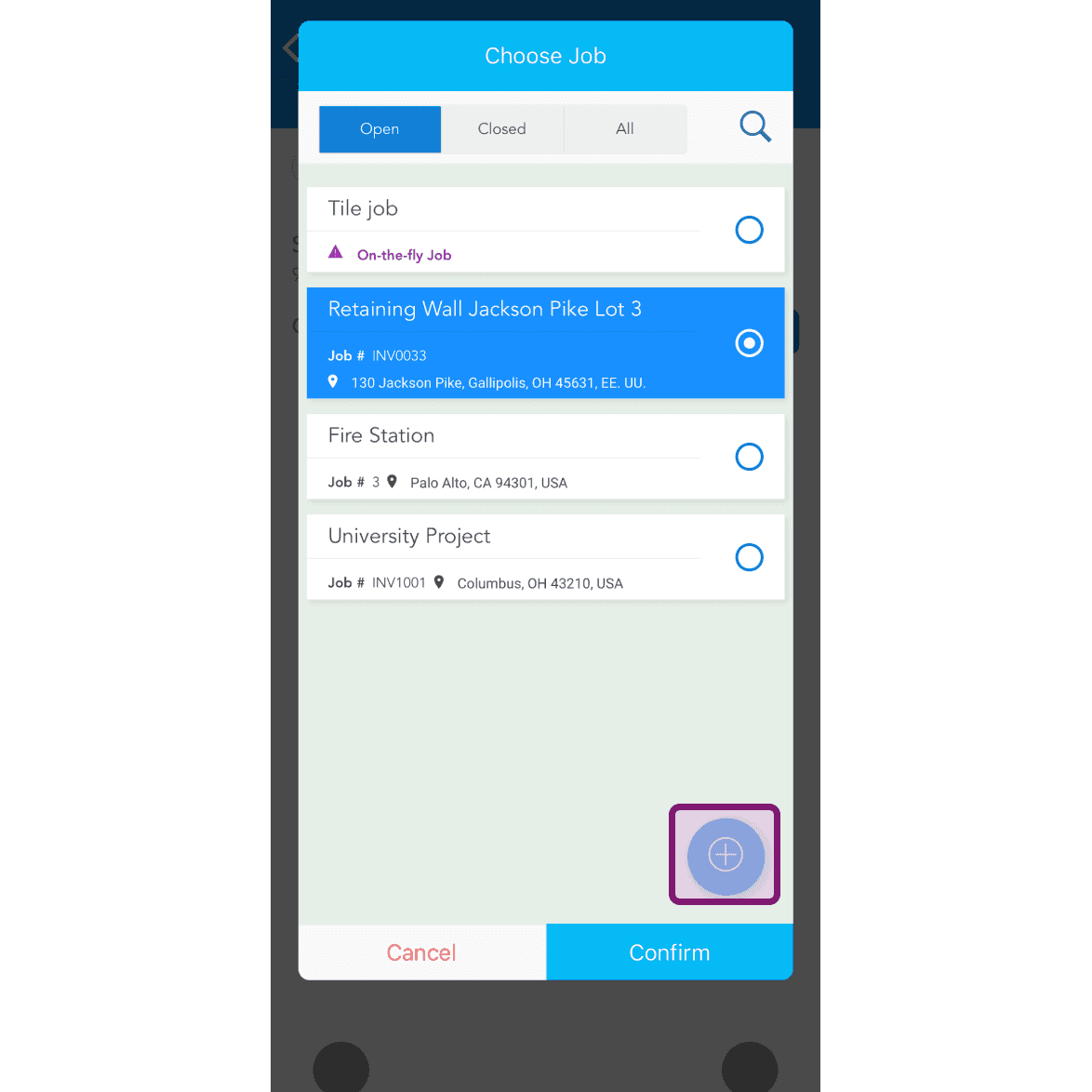
Mobile Choose Job popup listing open jobs with the add button circled in purple in the bottom right

L’heure de travail par défaut sera définie en fonction des horaires du poste. Pour la modifier, appuyez sur Sélecteur d’heure.
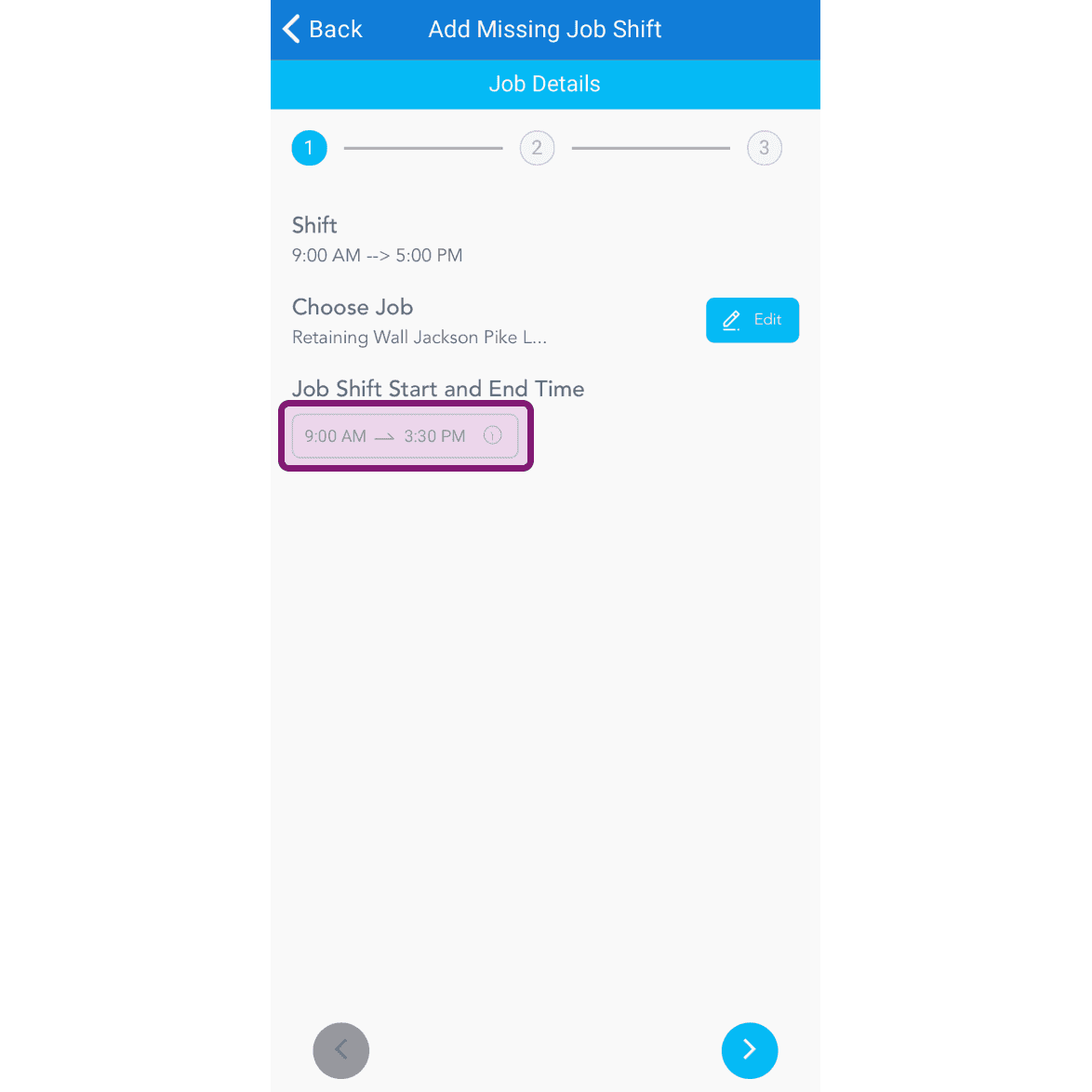
SINC mobile Add Missing Job Shift screen with the Job Shift Start and End Time field outlined in purple

Le créneau de travail n’était associé à aucun code de coût.
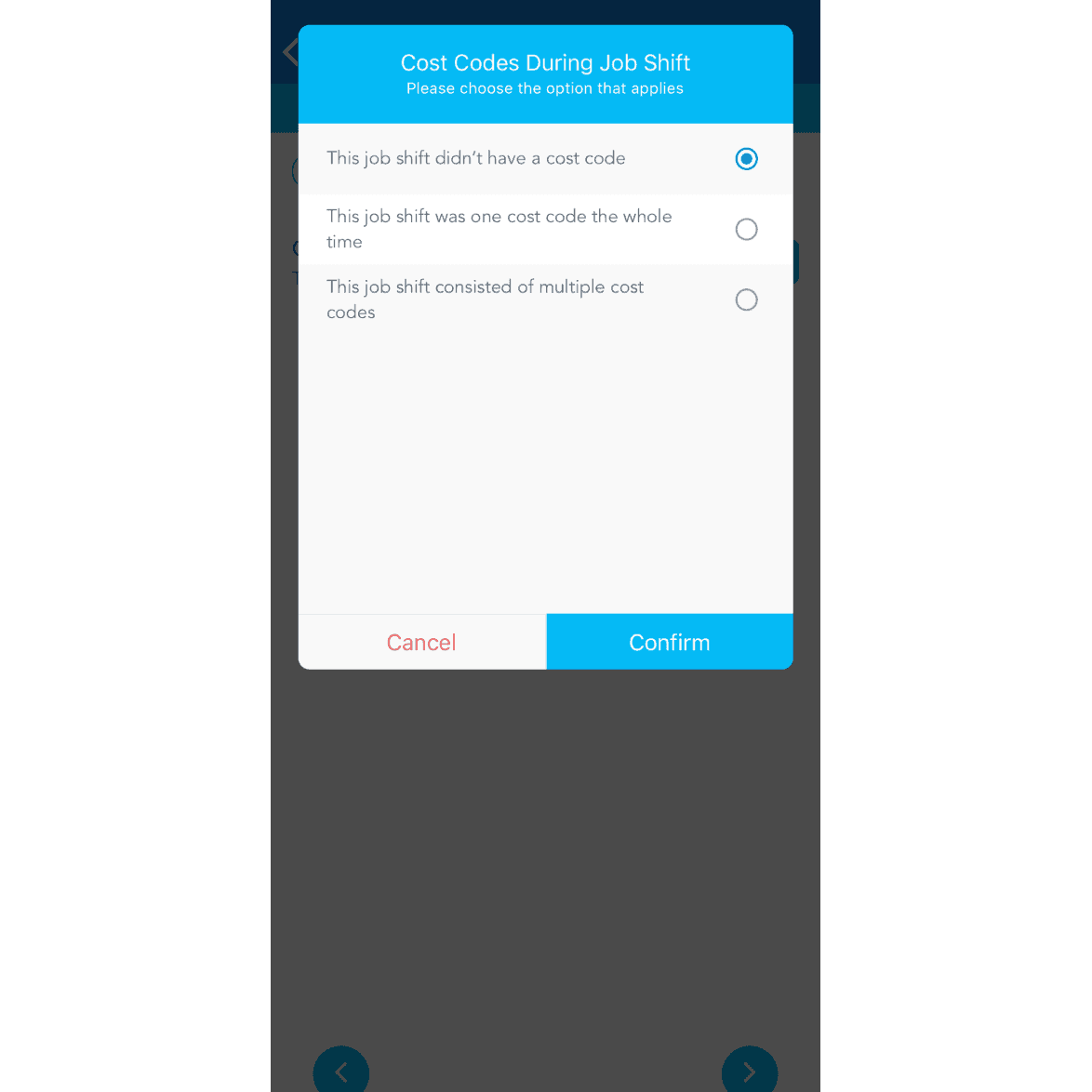
SINC mobile dialog asking about cost codes during a job shift, with 'This job shift didn't have a cost code' selected

Le changement de poste correspondait en fait à un seul et même code de coût depuis le début.
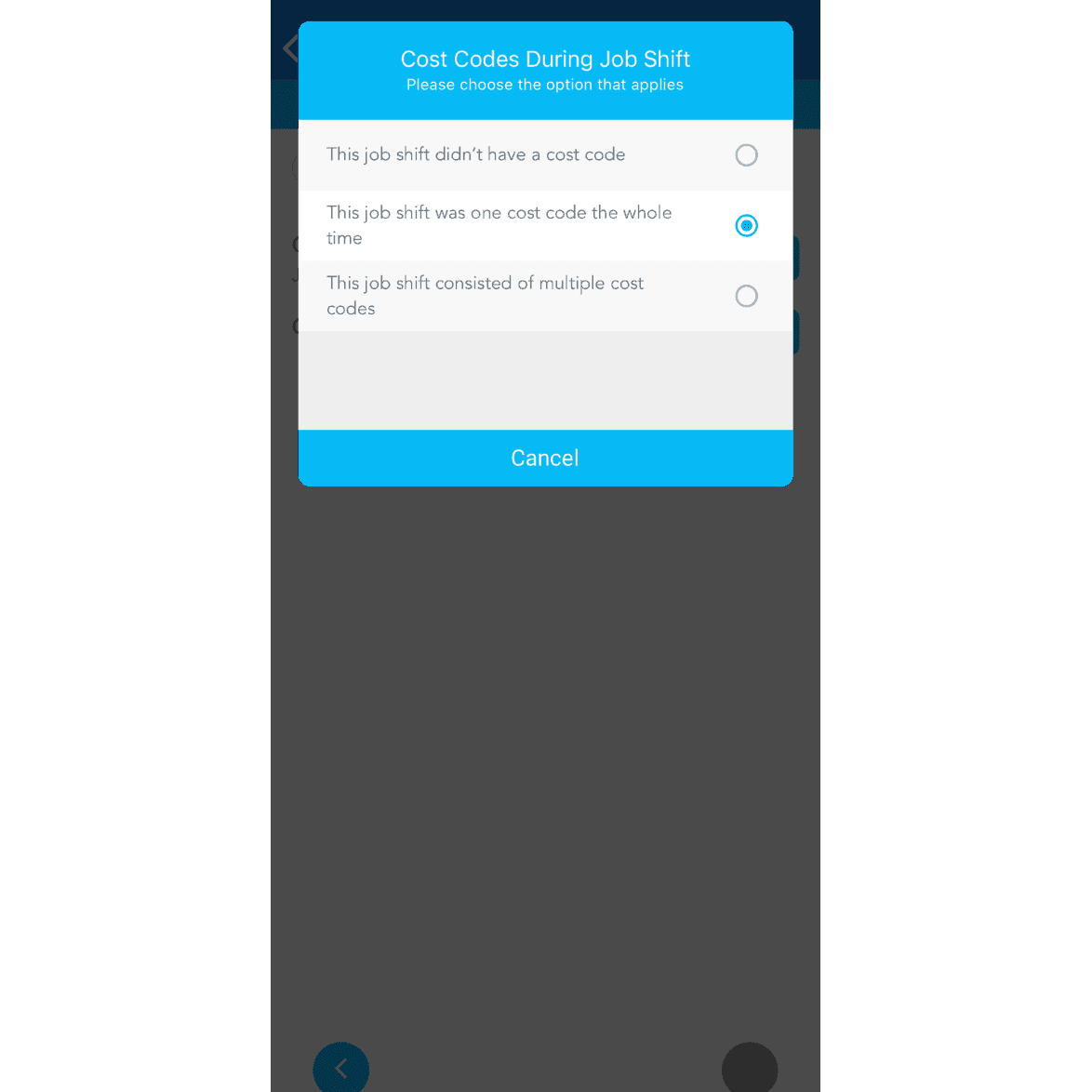
Cost Codes During Job Shift dialog with the option "This job shift was one cost code the whole time" selected

Si plusieurs codes de coût ont été attribués au chantier, appuyez sur Le chantier comprenait plusieurs codes de coût
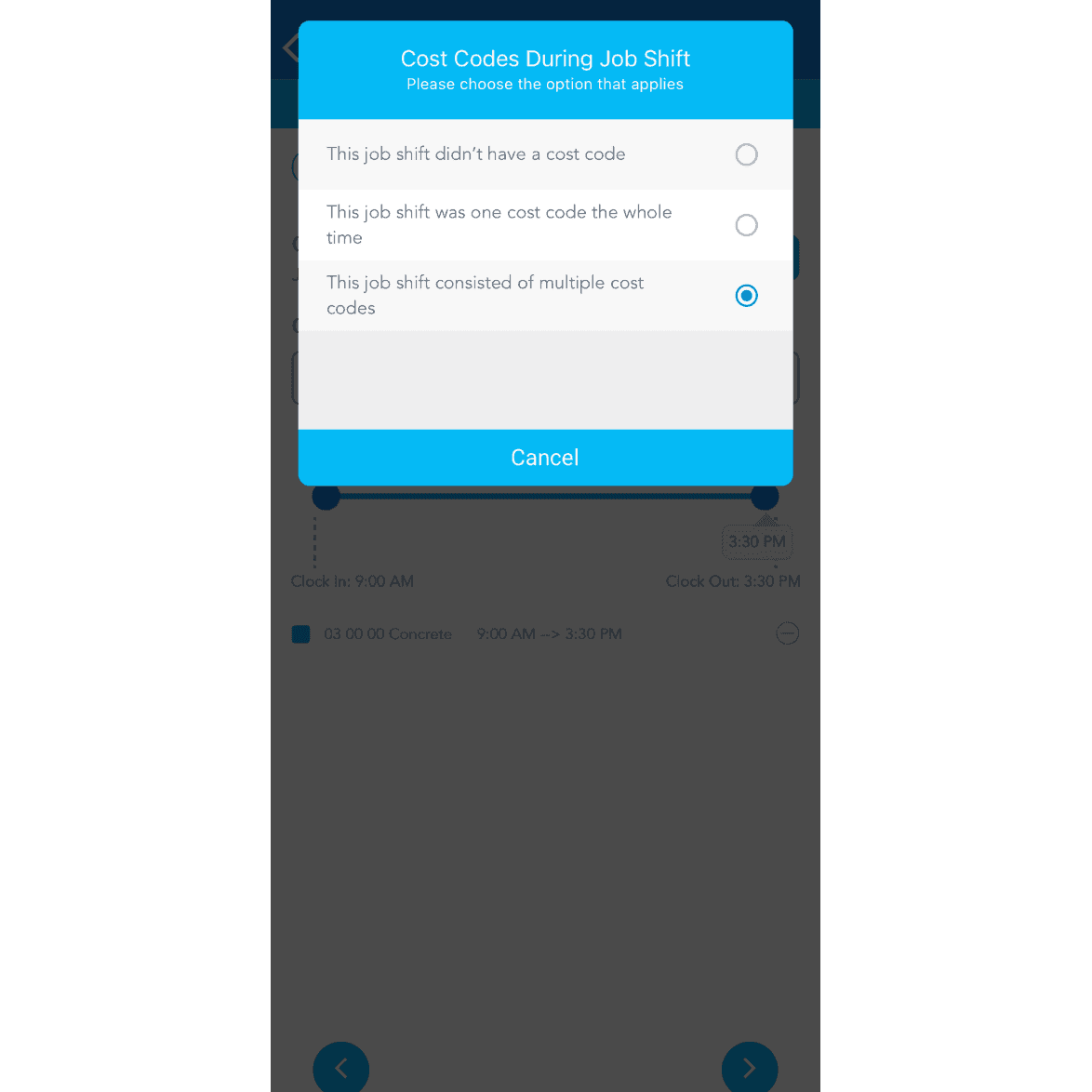
SINC mobile app popup asking which cost code option applies to a job shift, with 'consisted of multiple cost codes' selected

Pour ajouter d’autres codes de coûts, appuyez sur Ajouter un autre code
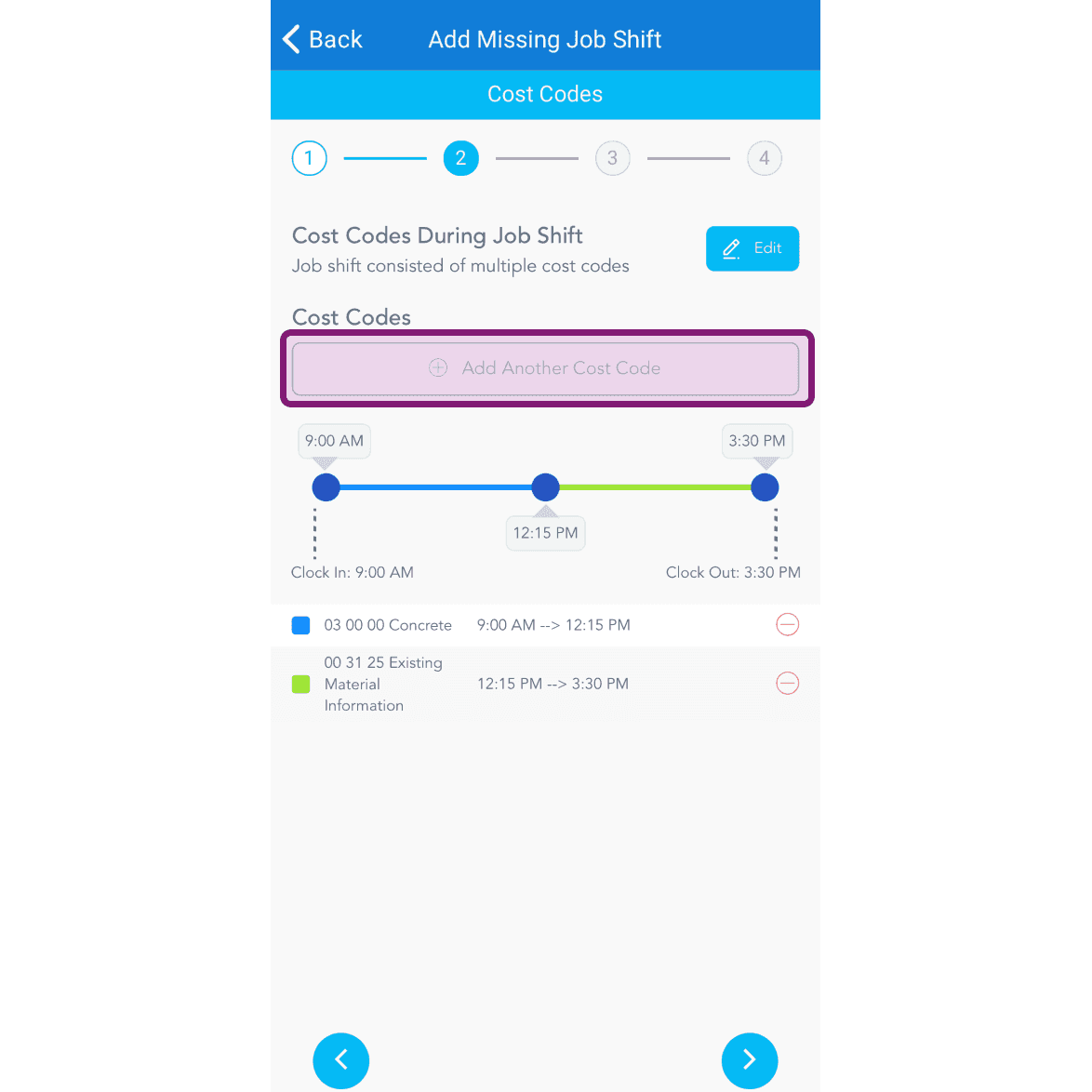
Add Missing Job Shift screen, Cost Codes step, with the Add Another Cost Code button outlined in pink

Pour régler l’heure, faites glisser le curseur sur la barre.
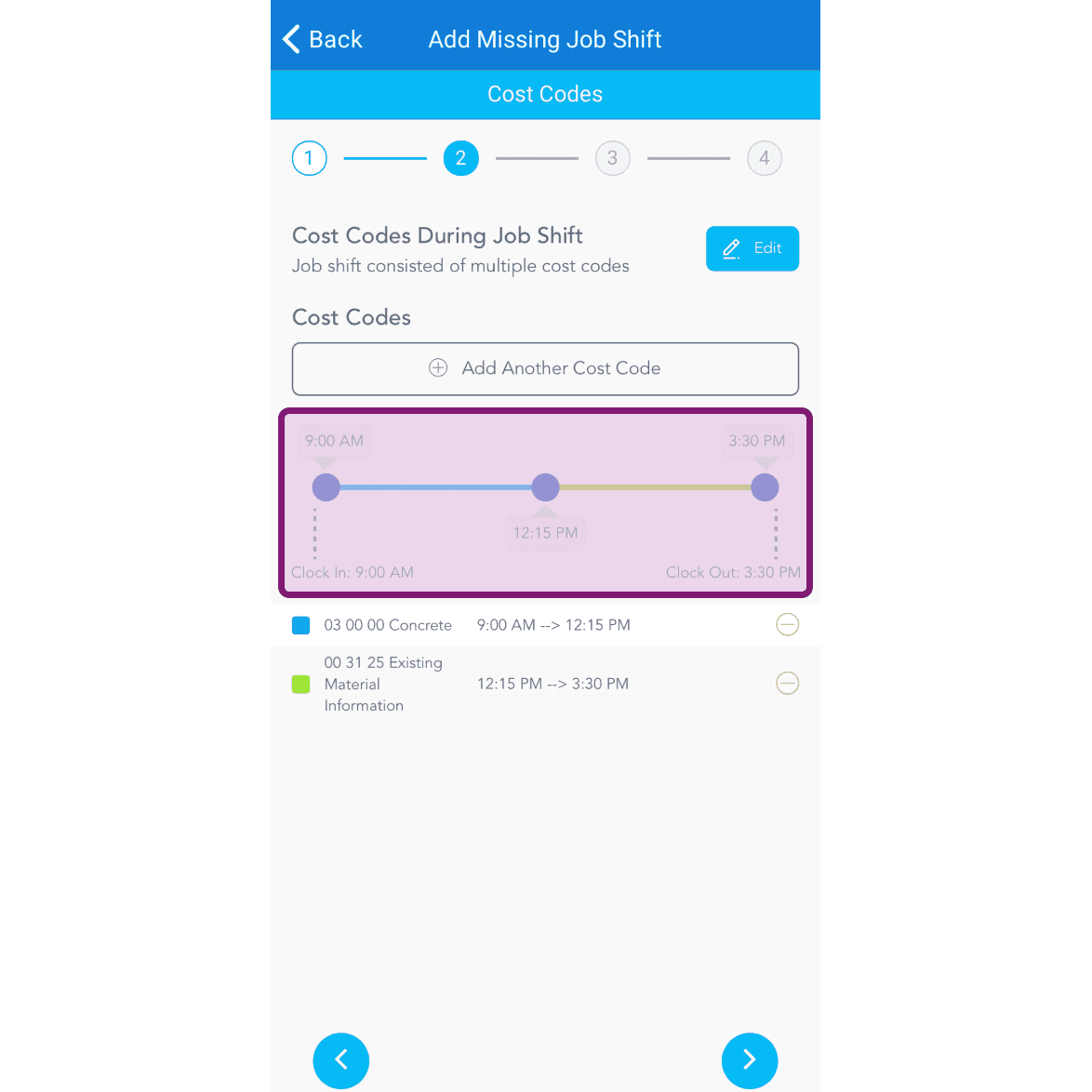
Add Missing Job Shift Cost Codes screen with a purple-highlighted time slider showing two cost code segments

Si l’intervention ne contient aucune note, appuyez sur Suivant. Sinon, saisissez la note. Pour ajouter une image (facultatif), appuyez sur Prendre une photo ou Choisir parmi les photos.
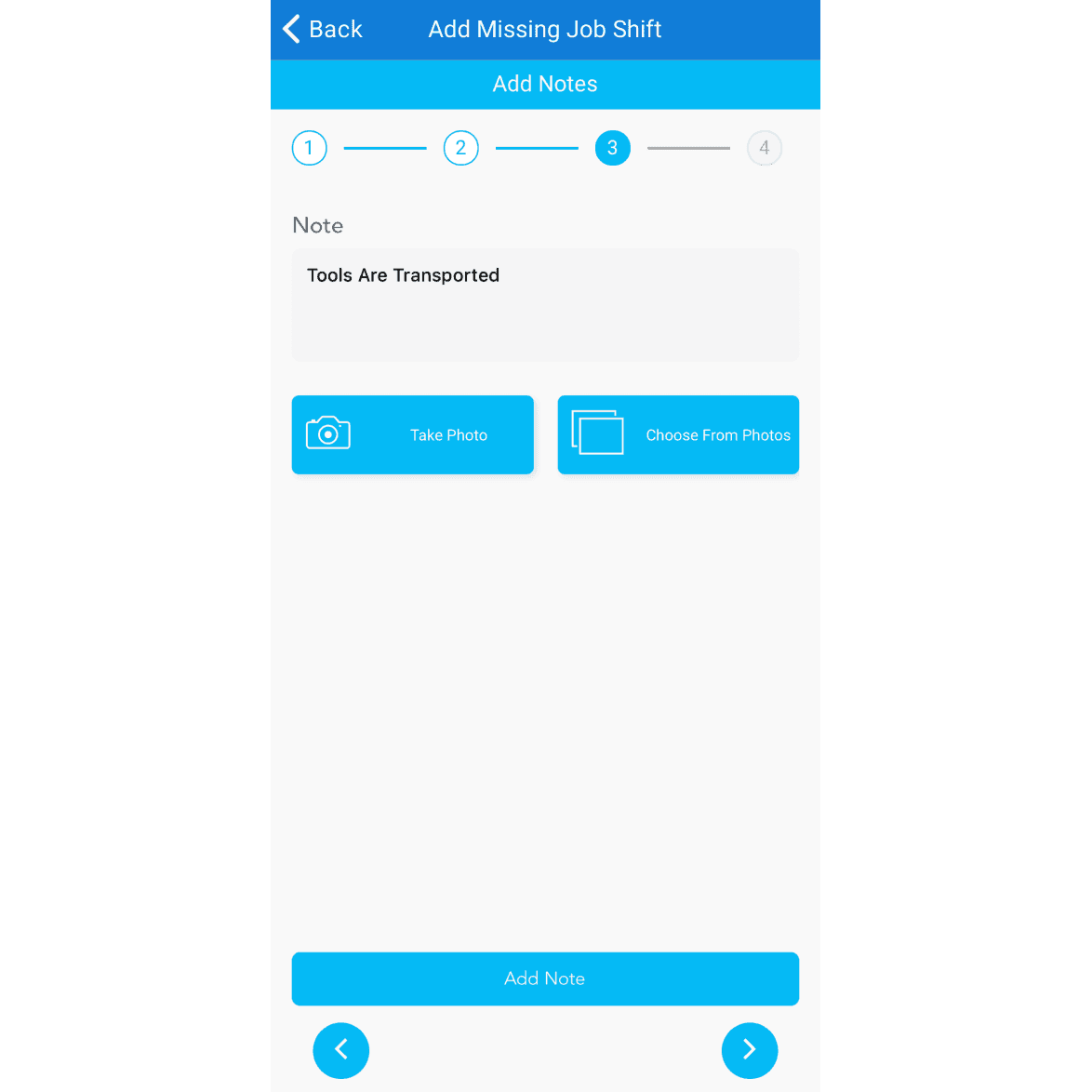
SINC mobile Add Missing Job Shift notes step showing a note field with Take Photo and Choose From Photos buttons

Pour ajouter une autre note, appuyez sur Ajouter une autre note
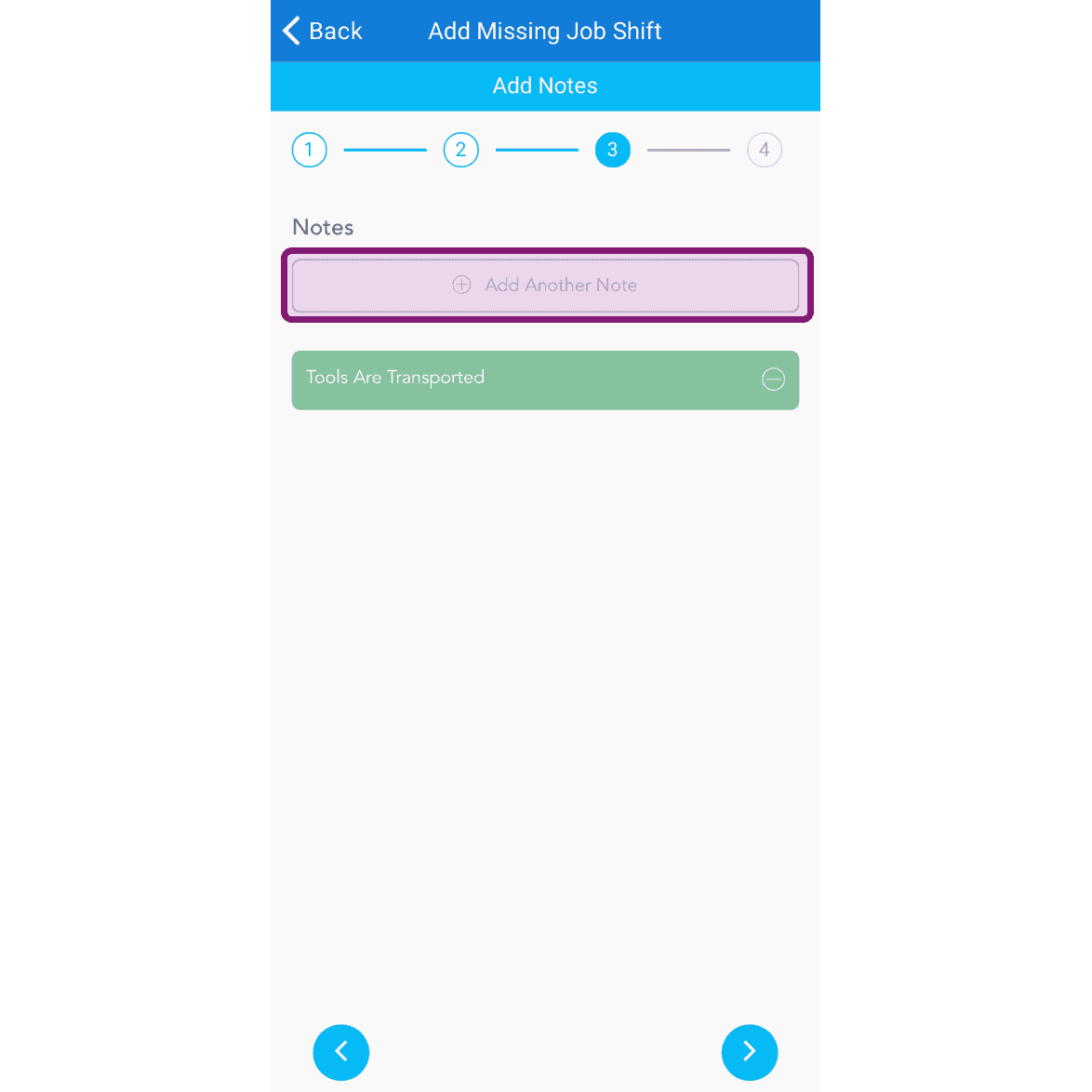
Add Missing Job Shift Notes step with the Add Another Note field outlined in purple

Consultez les détails de la tâche manquante, puis appuyez sur Confirmer
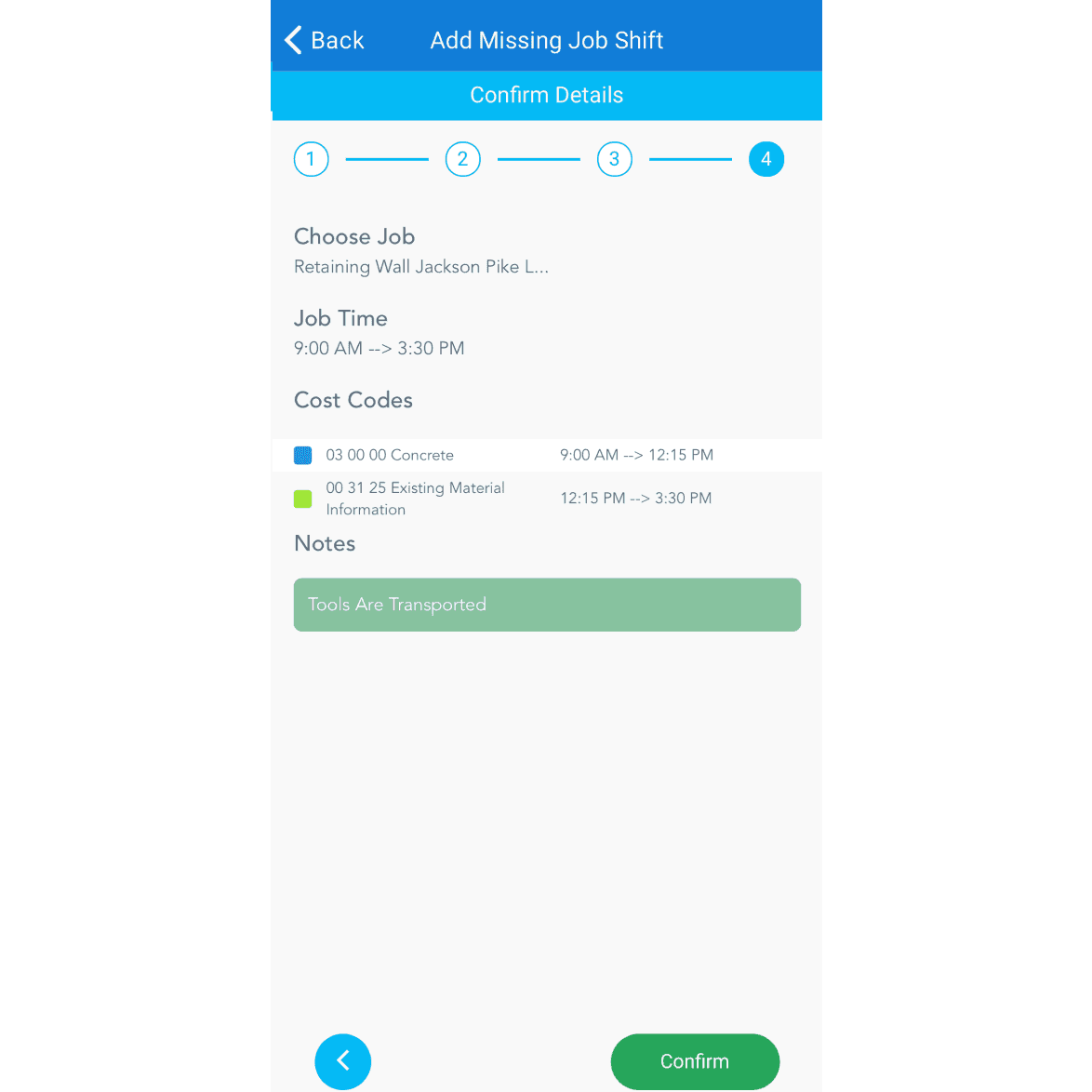
SINC mobile Add Missing Job Shift confirmation screen showing job, time, cost codes, and notes

Si vous utilisez la version web, voici à quoi elle ressemble :
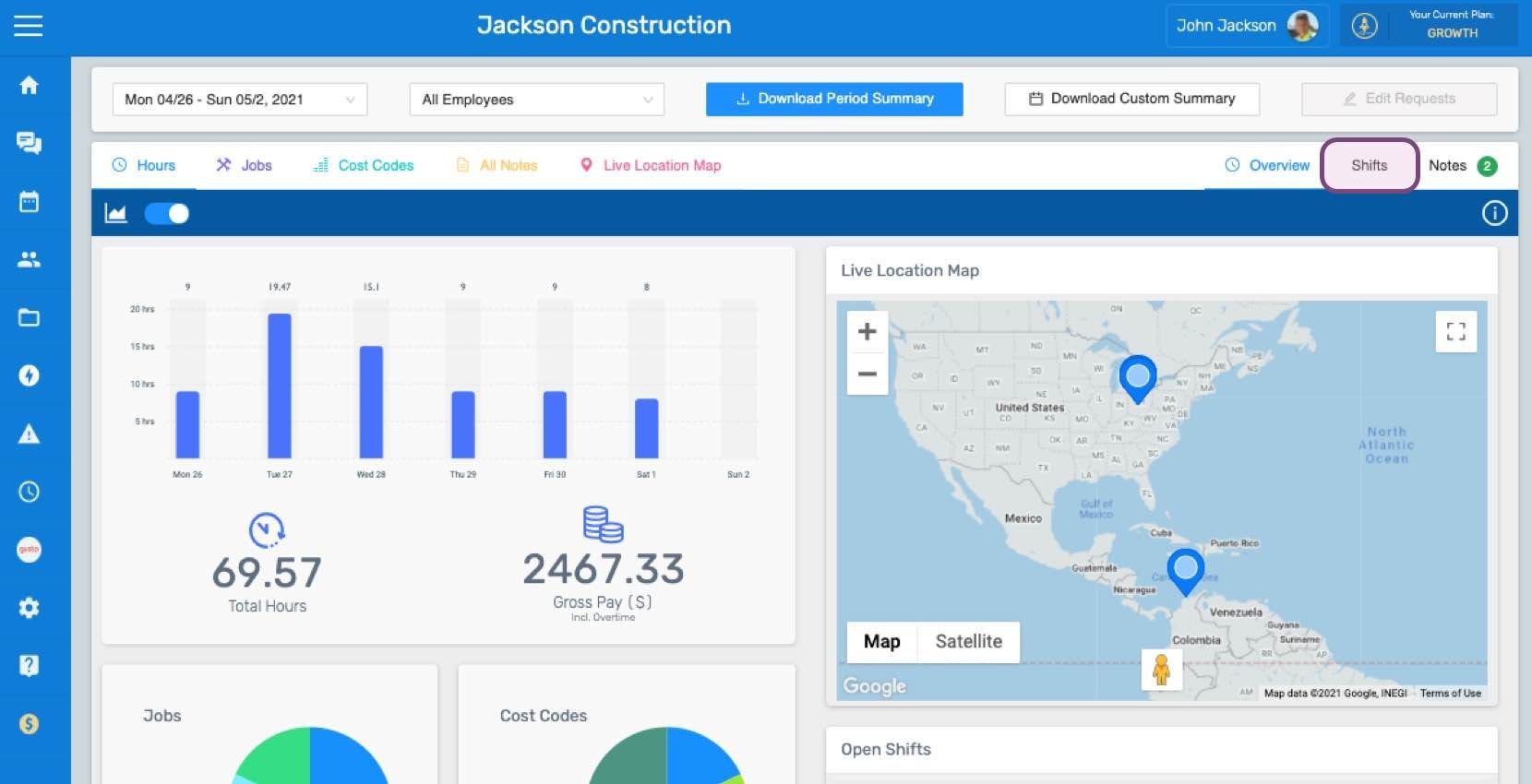
SINC web dashboard Overview page showing a staff hours bar chart and a Live Location Map with staff location pins
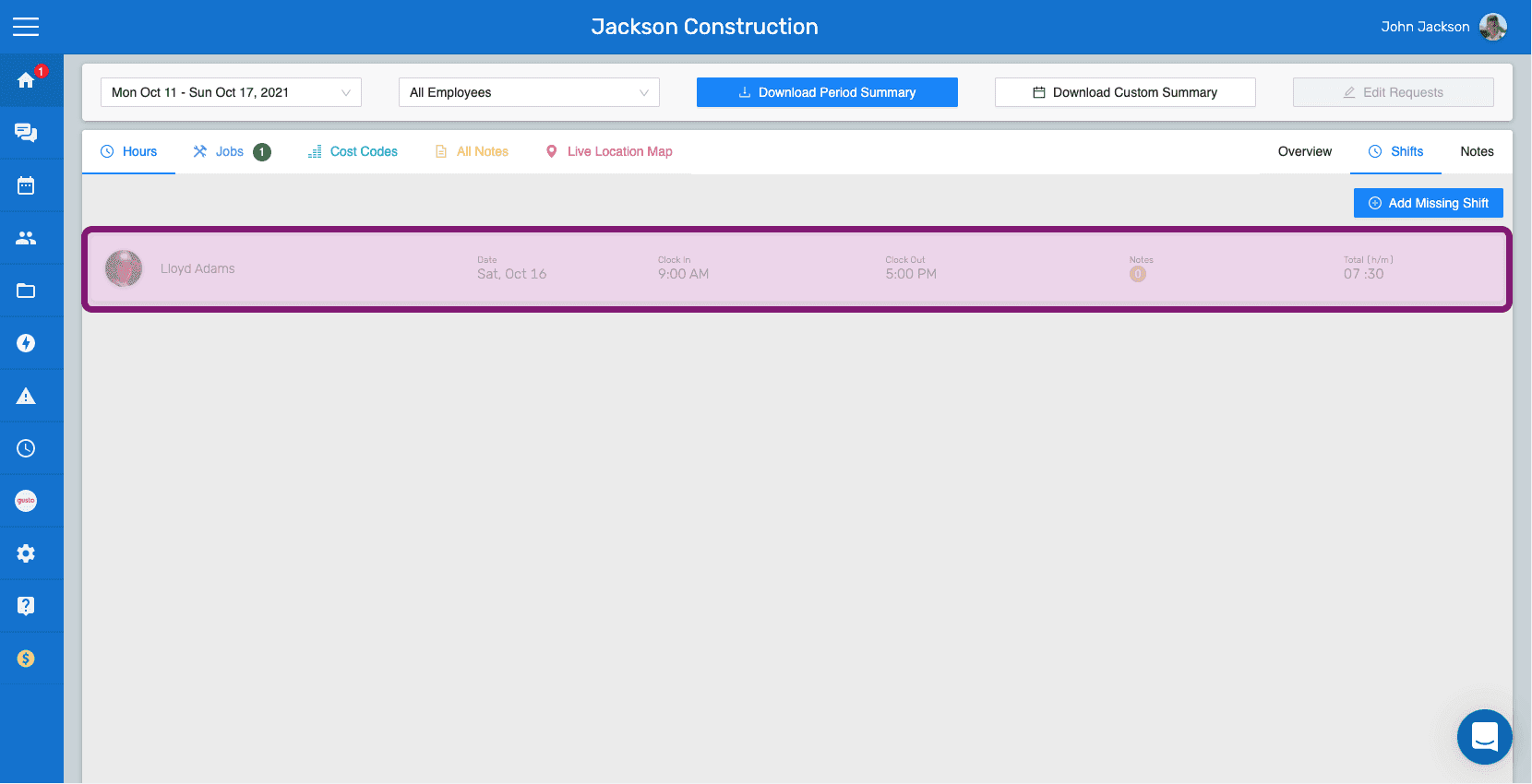
SINC web Shifts tab with the Add Missing Shift button and a highlighted shift row
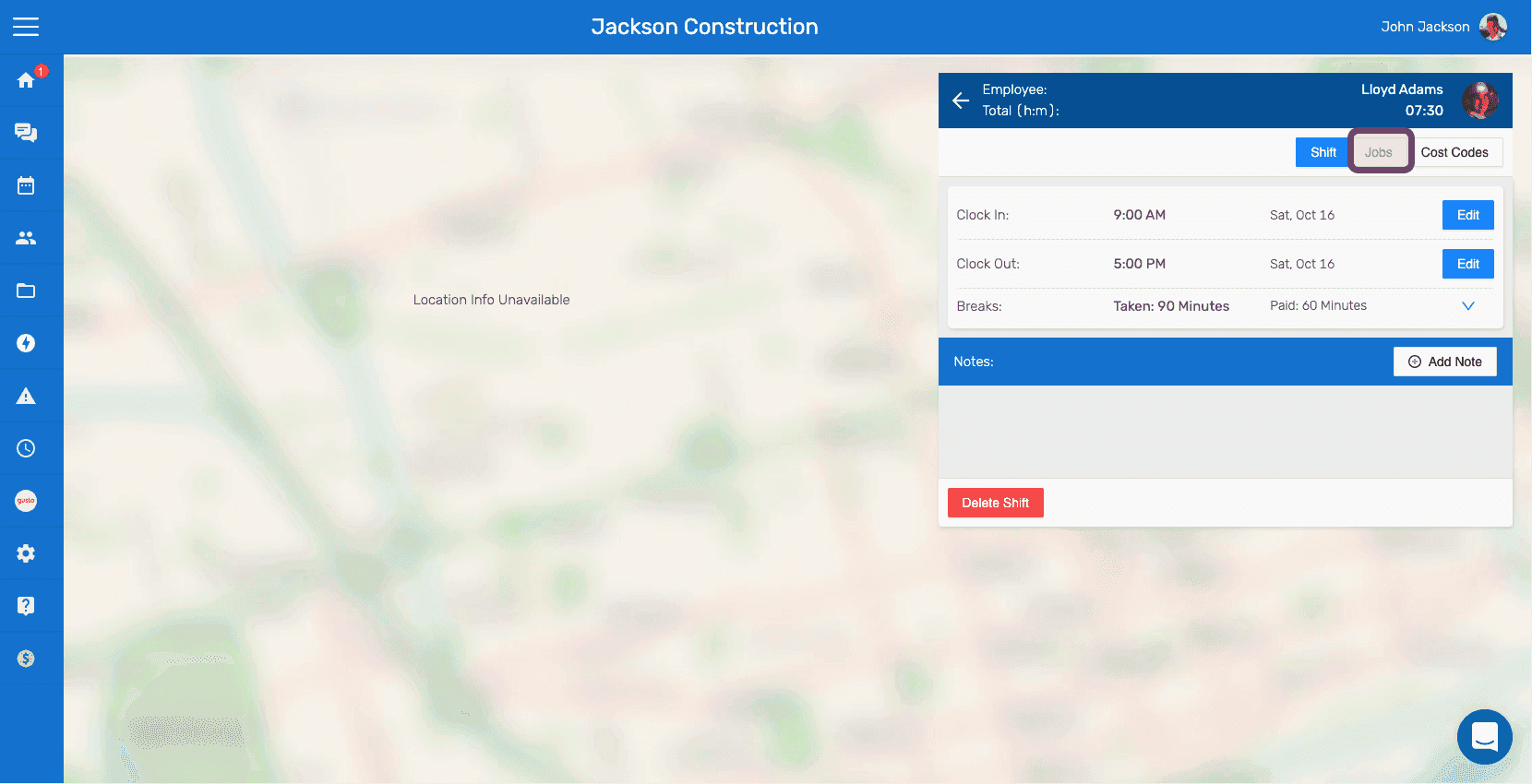
Web shift details panel next to a map with the Jobs tab outlined in pink
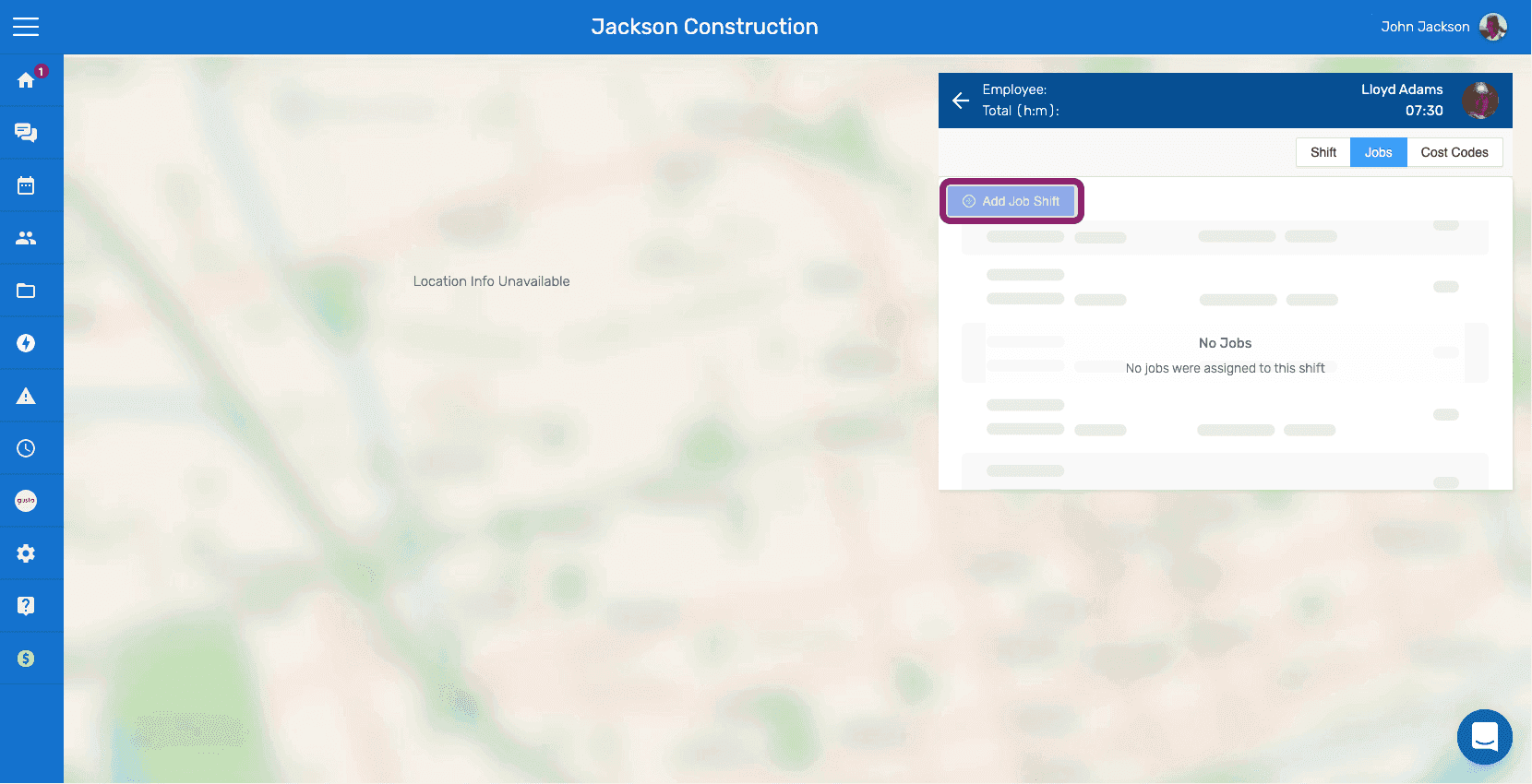
SINC web employee shift detail panel with the Add Job Shift button circled under the Jobs tab
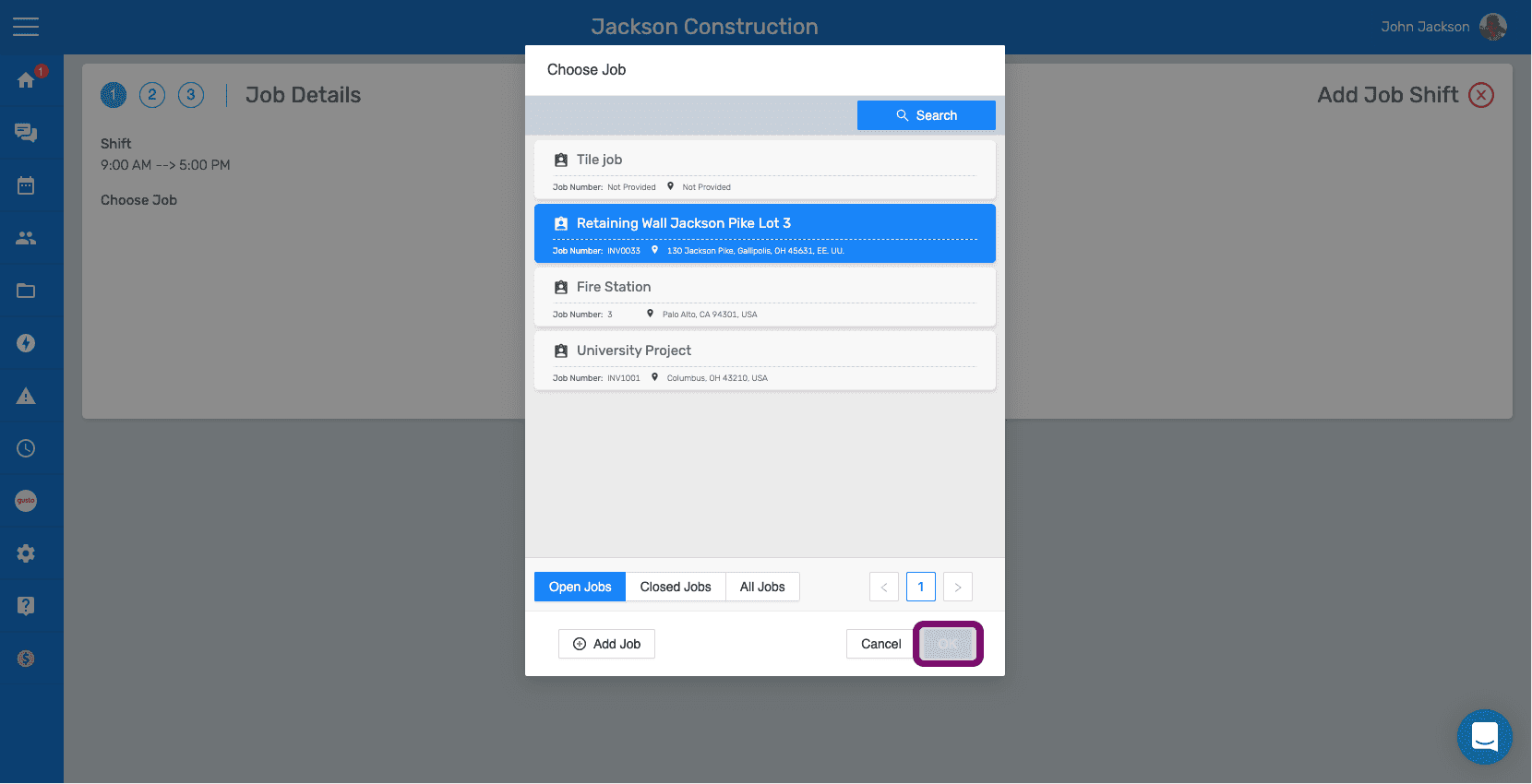
Job Details Choose Job popup with the Retaining Wall job selected and the Confirm button highlighted
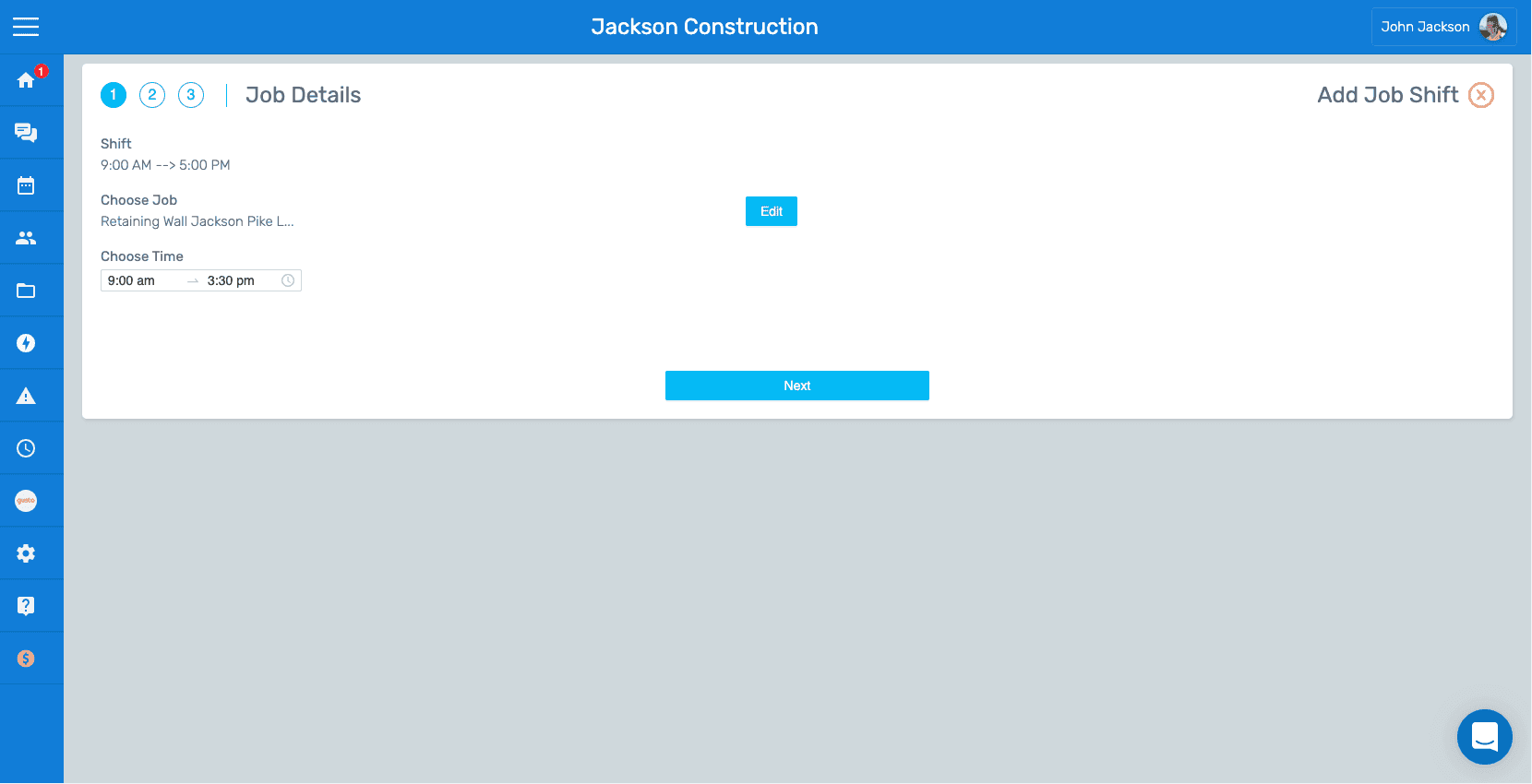
SINC app Job Details step showing the selected job and time range with an Edit button
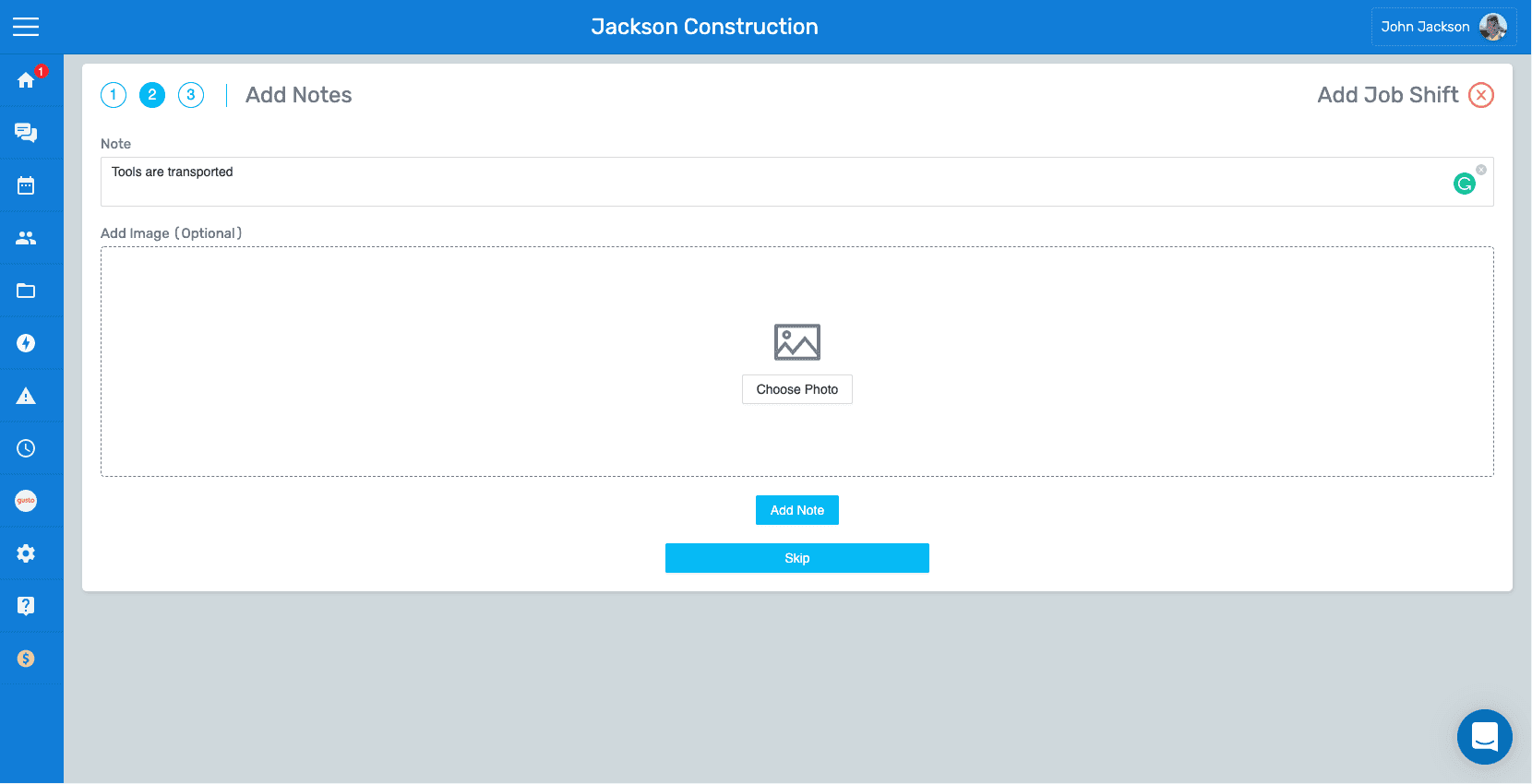
SINC web Add Notes screen showing a note text field and Choose Photo image upload area
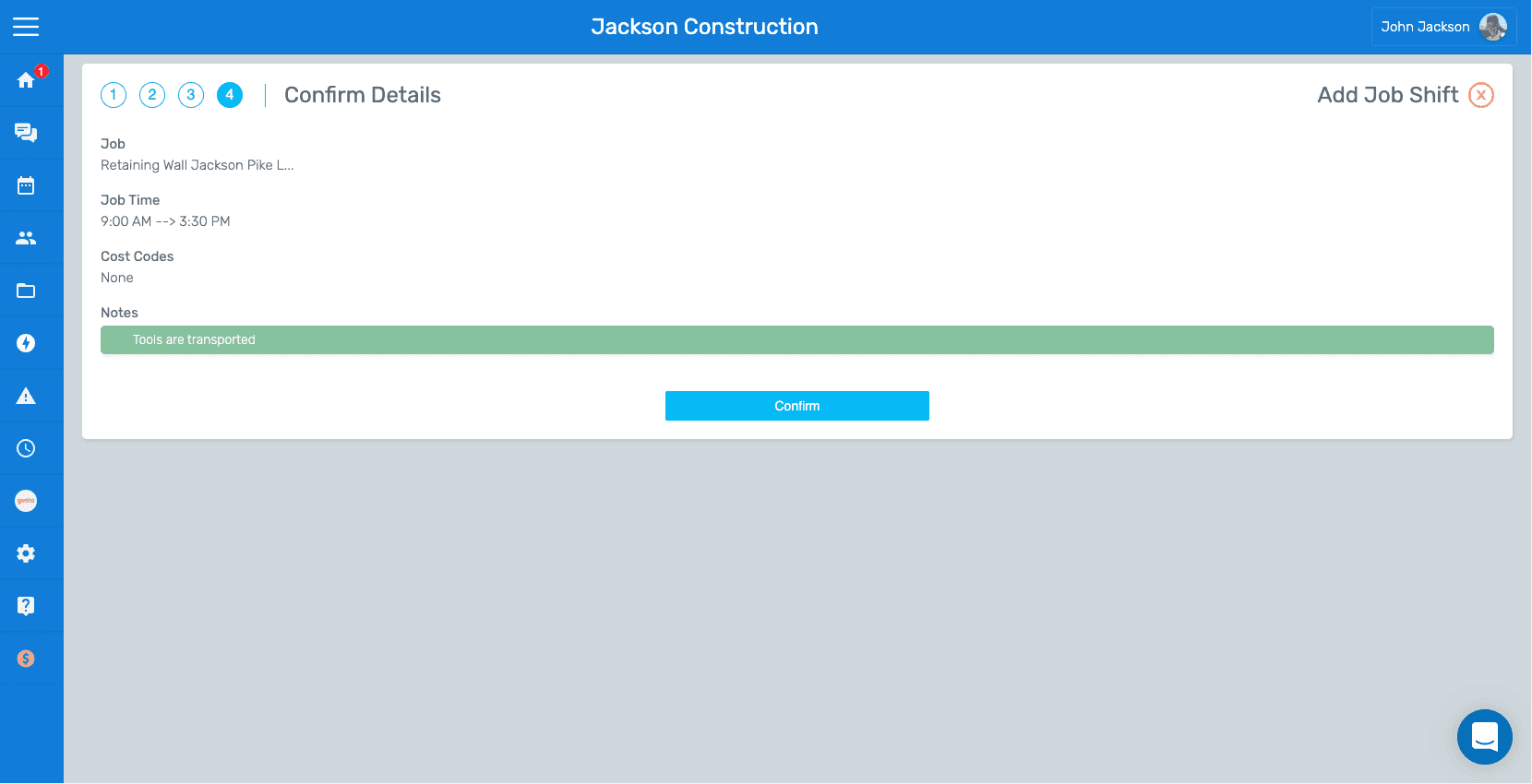
SINC web Add Job Shift wizard on the Confirm Details step showing job time and notes with the Confirm button

Cela a-t-il répondu à votre question ?