Comment ajouter un poste manquant

Ce guide explique comment un administrateur peut ajouter un service pour un membre du personnel ou pour lui-même dans SINC.

Sam Dolbel
Sam Dolbel
Mar 6th, 2023

Il vous faudra parfois ajouter manuellement une feuille de temps pour un membre du personnel. Accédez à Menu Vue d’ensemble, puis appuyez sur Shifts
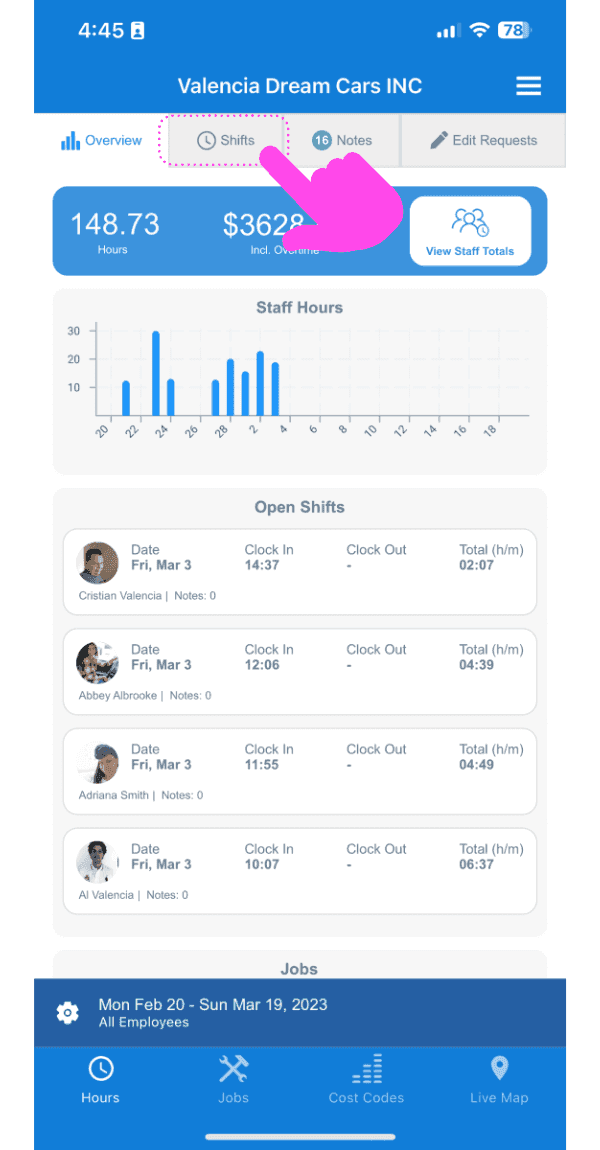
SINC web dashboard with a pink arrow pointing to the Shifts tab showing staff hours and open shifts

Appuyez sur le bouton + en bas à droite de l’écran
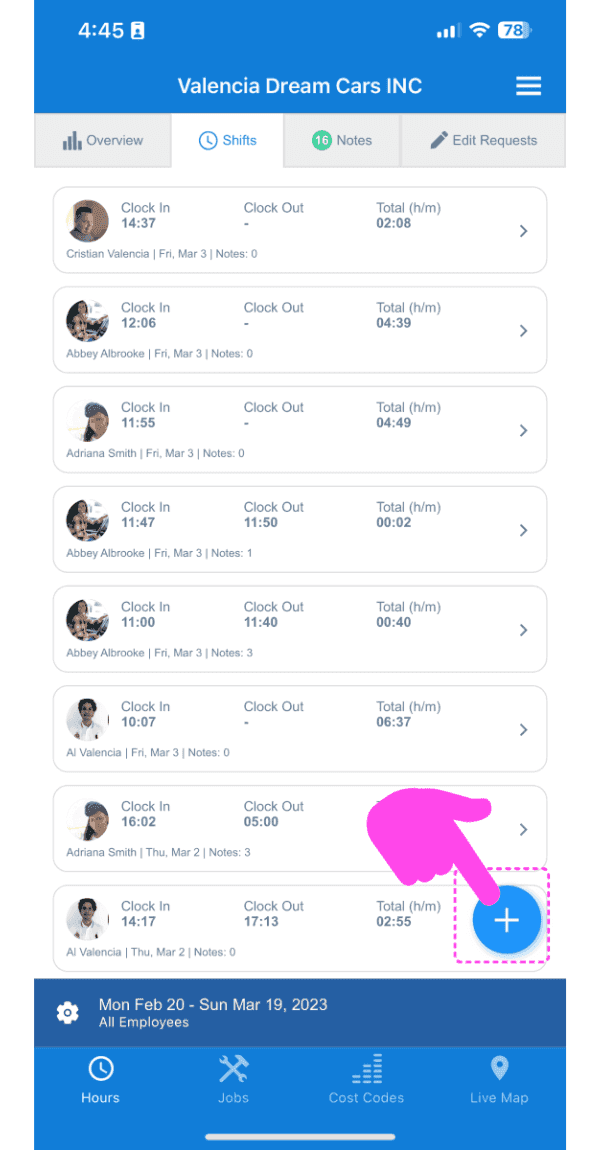
SINC mobile Shifts list with a pink arrow pointing to the plus button in the bottom right corner

Sélectionnez l’employé pour lequel vous souhaitez ajouter une feuille de temps, puis appuyez sur Confirmer.
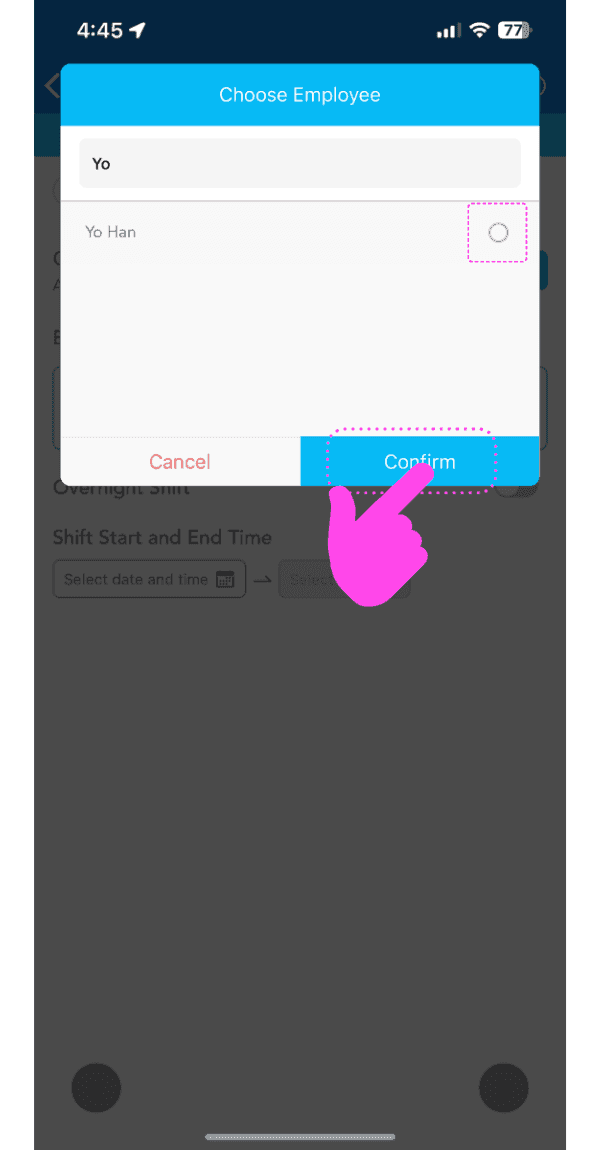
Choose Employee popup with an employee selected and a pink arrow pointing to the Confirm button

Suivez l’assistant pour ajouter la date et les horaires du service manquant. Remarque : la date et l’heure par défaut seront déjà sélectionnées en fonction du dernier service de l’employé.
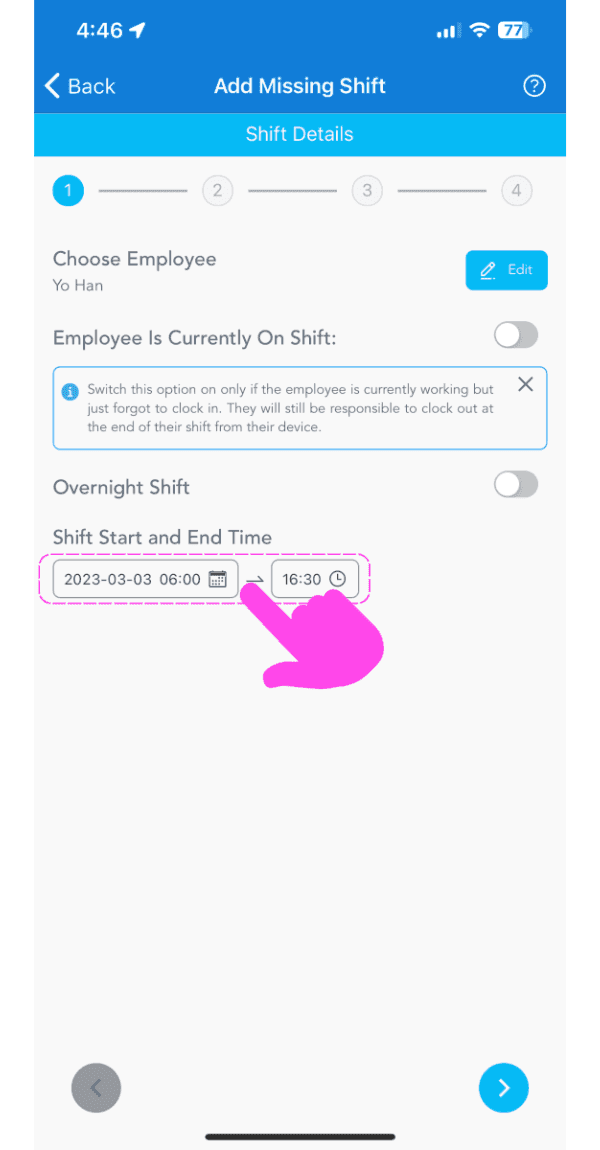
SINC mobile app Add Missing Shift wizard with the shift start and end time fields highlighted in pink

Si un employé est déjà en poste et ne s’est pas encore pointé, activez l’option L’employé est actuellement en poste. Une fois cette option activée, vous devrez uniquement sélectionner l’heure de début du poste.
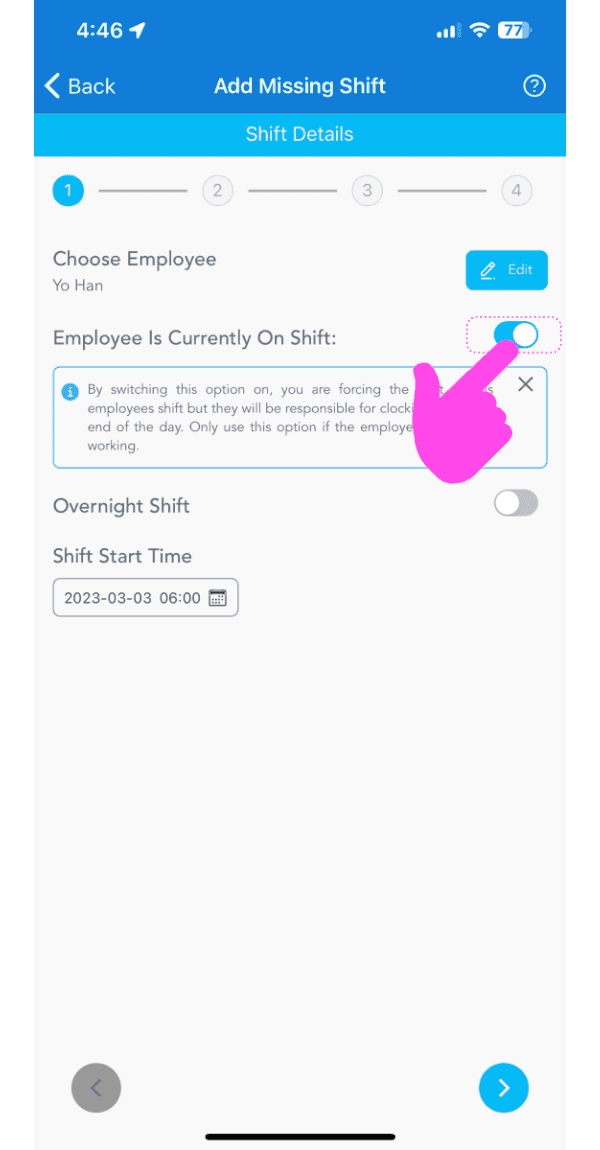
Add Missing Shift screen with the Employee Is Currently On Shift toggle highlighted by a pink arrow

Ajoutez toutes les pauses auxquelles ils avaient droit : selon les paramètres de pauses de l’organisation, une durée par défaut sera présélectionnée. Si l’employé n’a pas pris la pause correspondante, appuyez sur Aucune pause. Pour modifier l’heure de début de la pause, appuyez sur le sélecteur d’heure, et pour modifier sa durée, appuyez sur le bouton de durée.
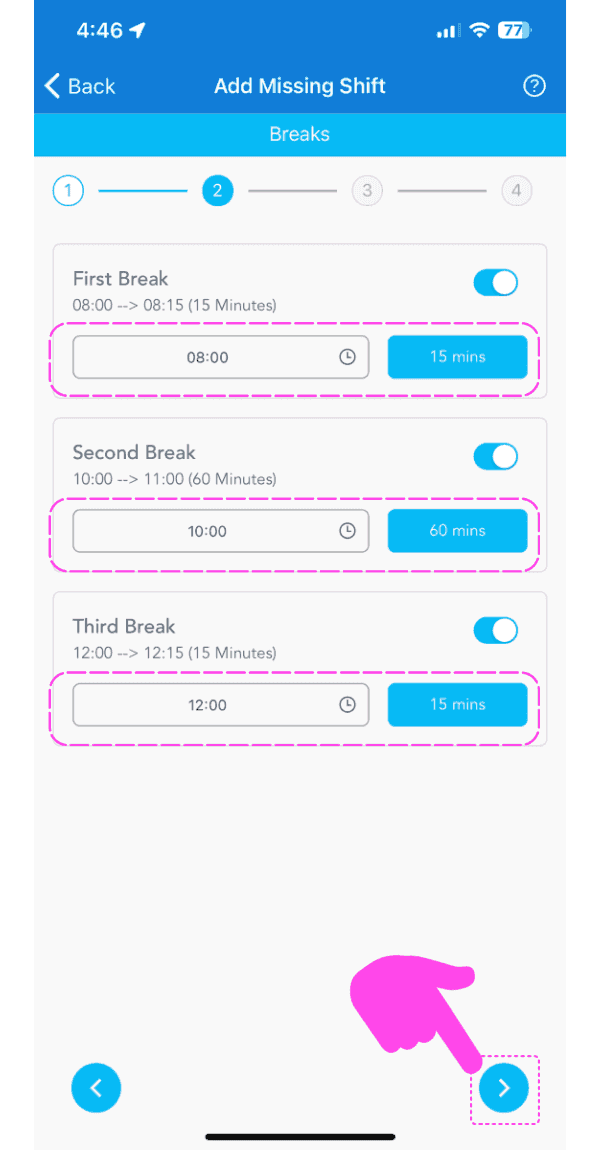
Add Missing Shift Breaks screen showing three break toggles and times highlighted in pink dashed boxes

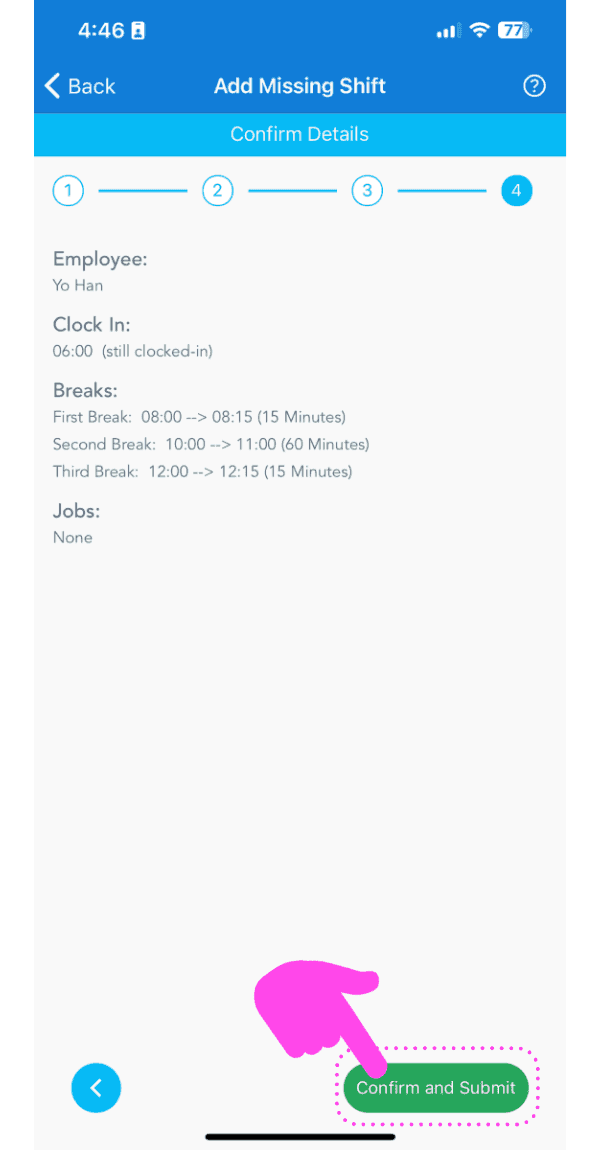
Consultez les détails du shift manquant, puis appuyez sur Confirmer
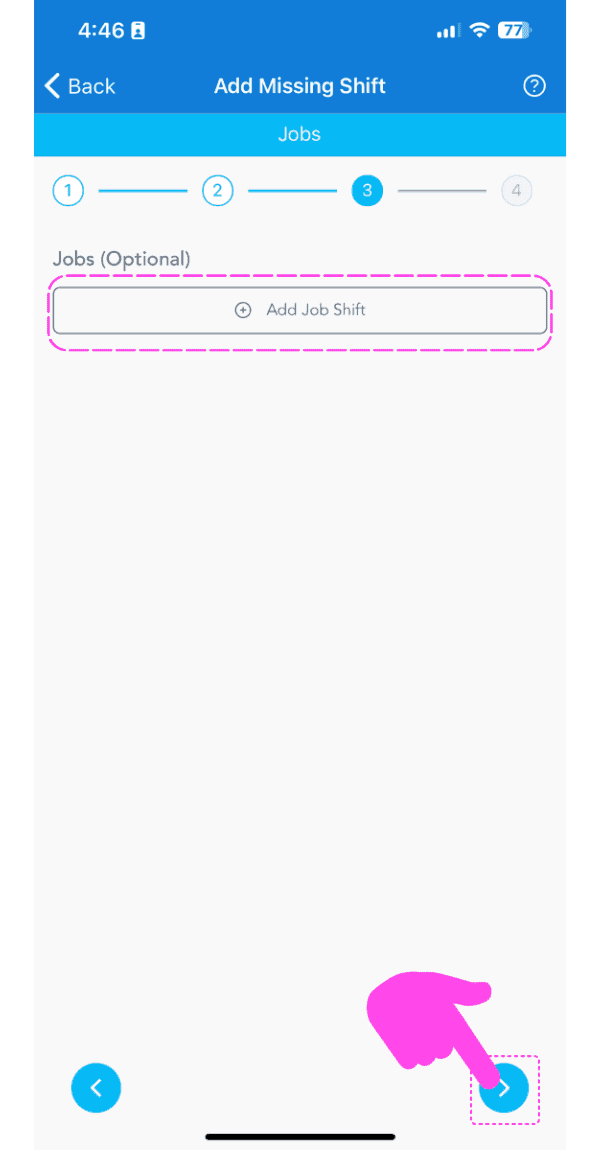
SINC mobile Add Missing Shift wizard on the optional Jobs step, with a pink hand pointing to the next arrow button
Add Missing Shift Confirm Details screen with the Confirm and Submit button highlighted by a pink arrow

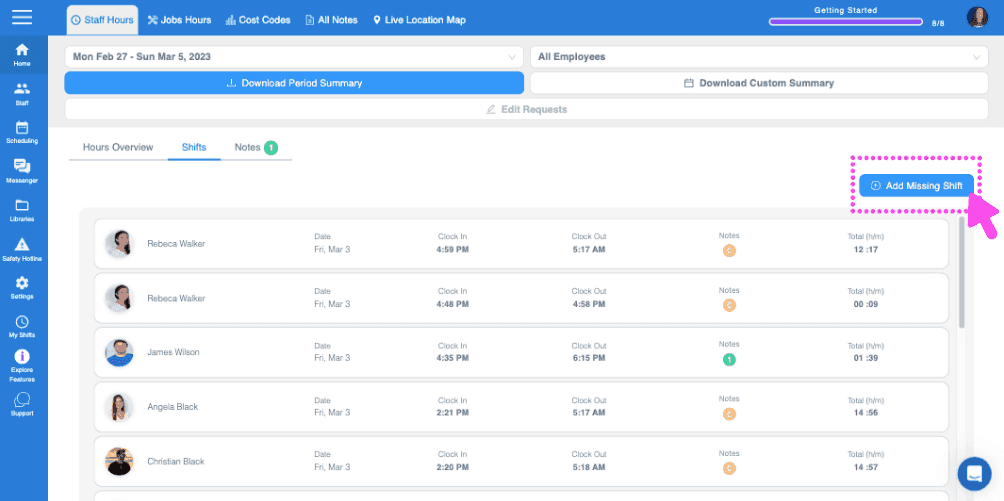
Si vous utilisez la version web, voici à quoi elle ressemblera :
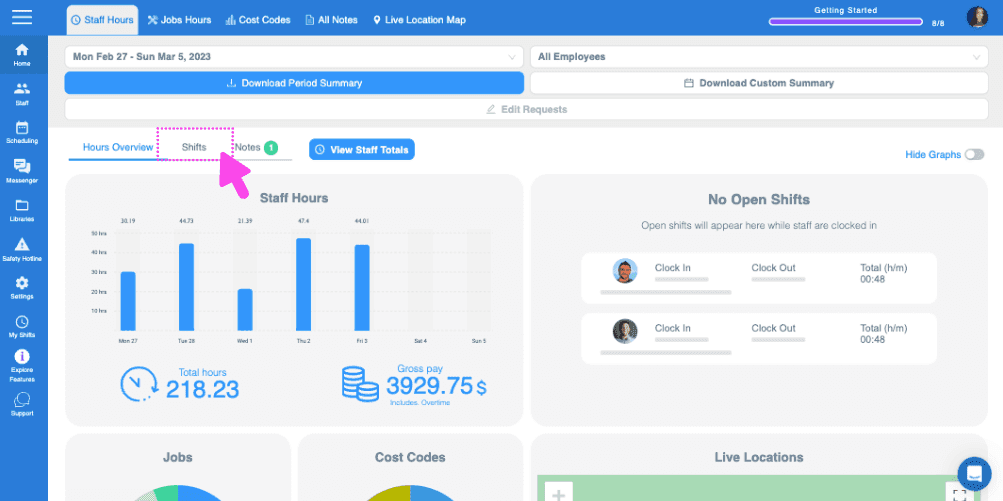
SINC web timekeeping dashboard with the Hours Overview tab highlighted above the staff hours graph
Web dashboard Shifts tab with a pink arrow pointing to the Add Missing Shift button in the top right
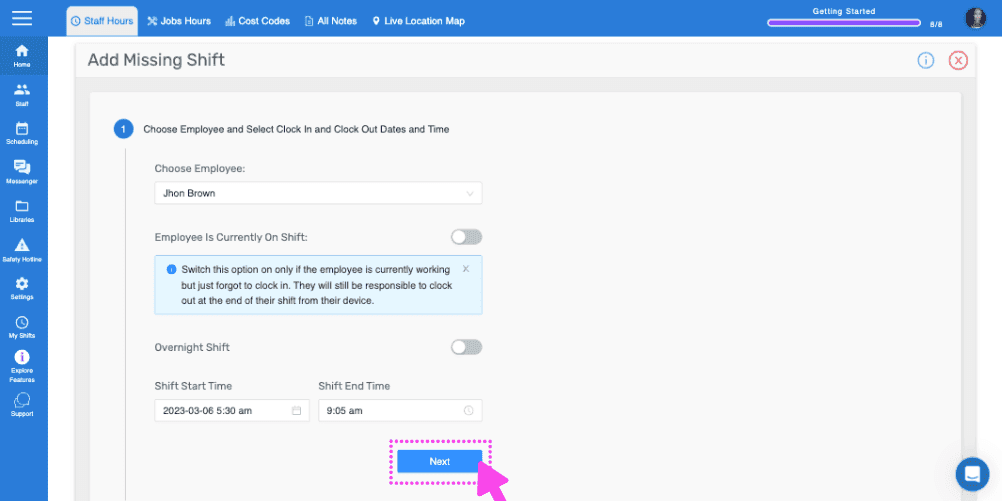
SINC web Add Missing Shift wizard with the Choose Employee field and the Next button highlighted
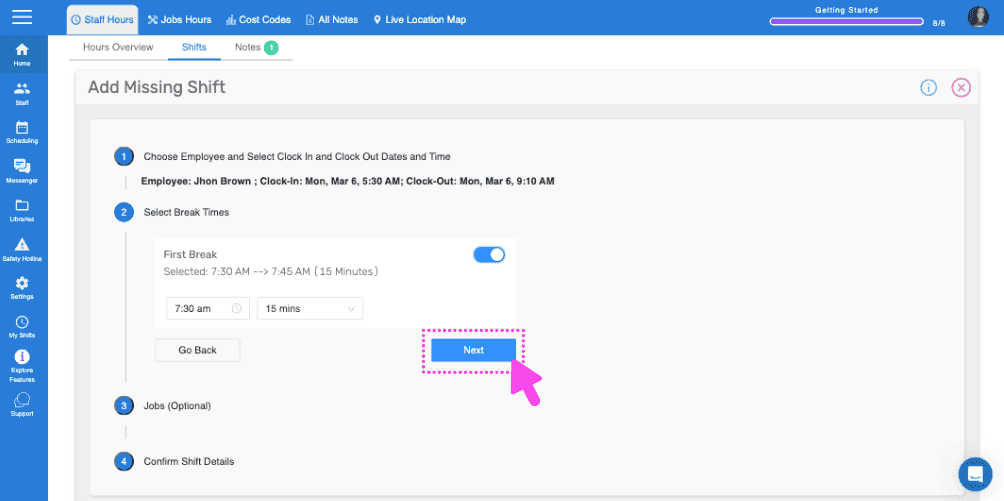
Web Add Missing Shift wizard showing break time selection with the Next button outlined in pink
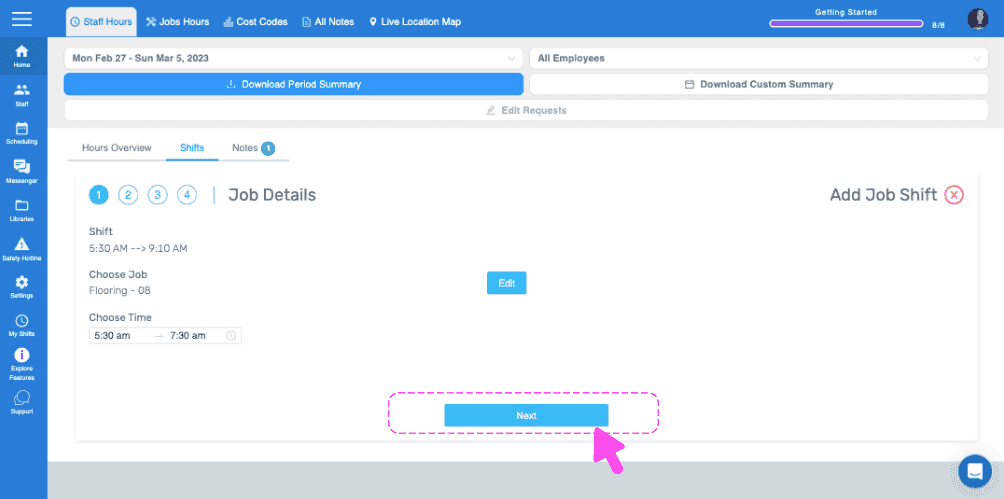
SINC web Job Details wizard showing the chosen job and time with a pink arrow pointing to the Next button
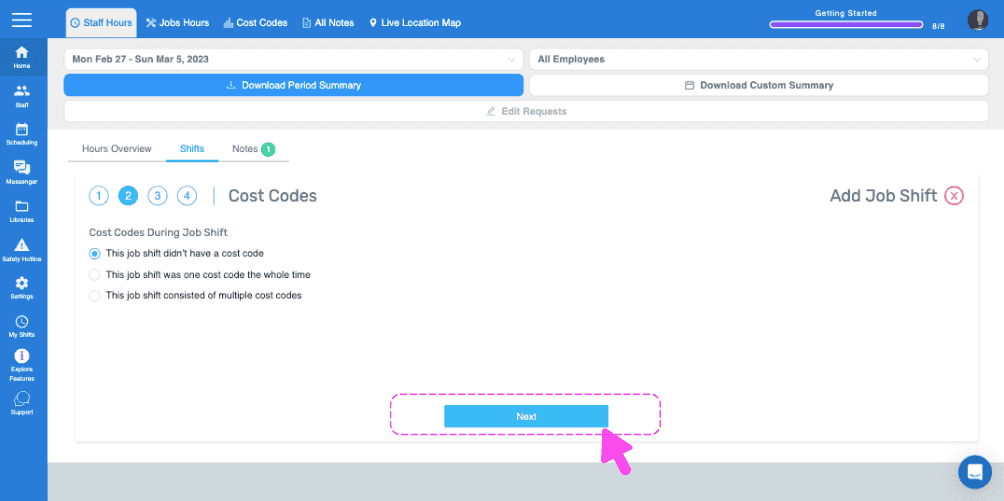
Add Job Shift wizard Cost Codes step with a pink arrow pointing to the Next button
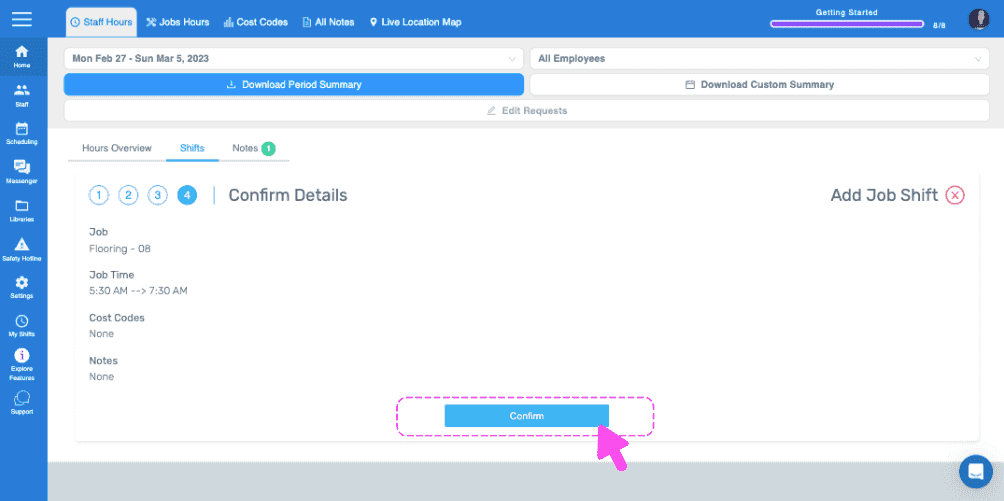
Web Confirm Details step for a job shift with the Confirm button circled in pink
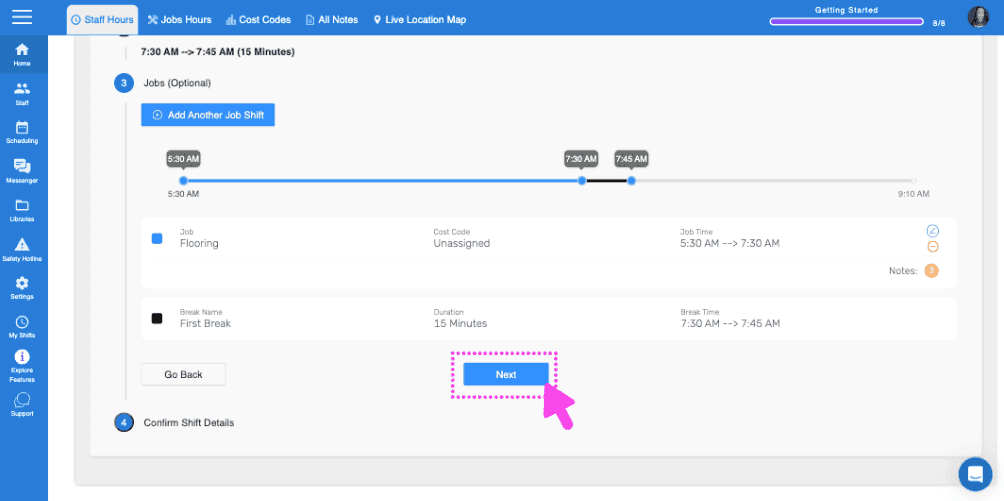
SINC web Add Job Shift wizard with a pink arrow pointing to the Next button on the shift timeline step
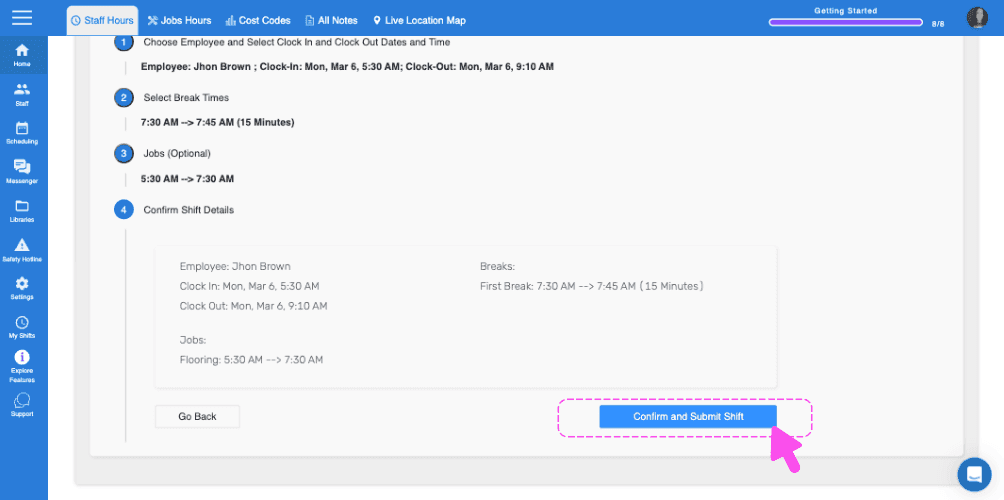
SINC web Add Missing Shift wizard Confirm Shift Details step with a pink arrow pointing to the Confirm and Submit Shift button
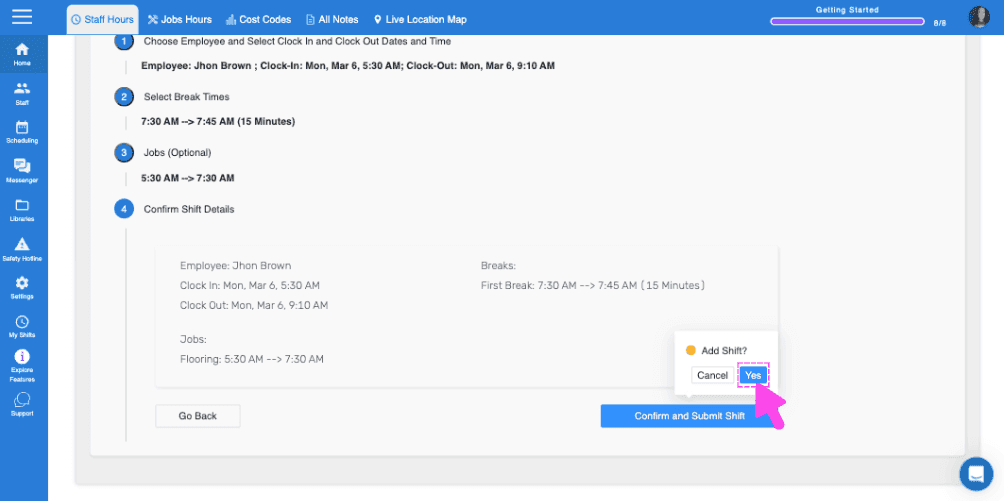
Web add-shift confirmation screen showing shift and break details with a pink arrow pointing to the Yes button

Cela a-t-il répondu à votre question ?