Invia un messaggio di testo o un’immagine in chat

Questa guida mostra come inviare un testo o un’immagine come messaggio.

SINC Support Team
SINC Support Team
Mar 10th, 2023

Per prima cosa, seleziona una chat dall’elenco delle chat. Nell’app mobile: tocca una chat nell’elenco per aprire la stanza.

SINC mobile Chats list with a pink arrow pointing to the Everyone group chat

Tocca il campo di testo per inserire del testo
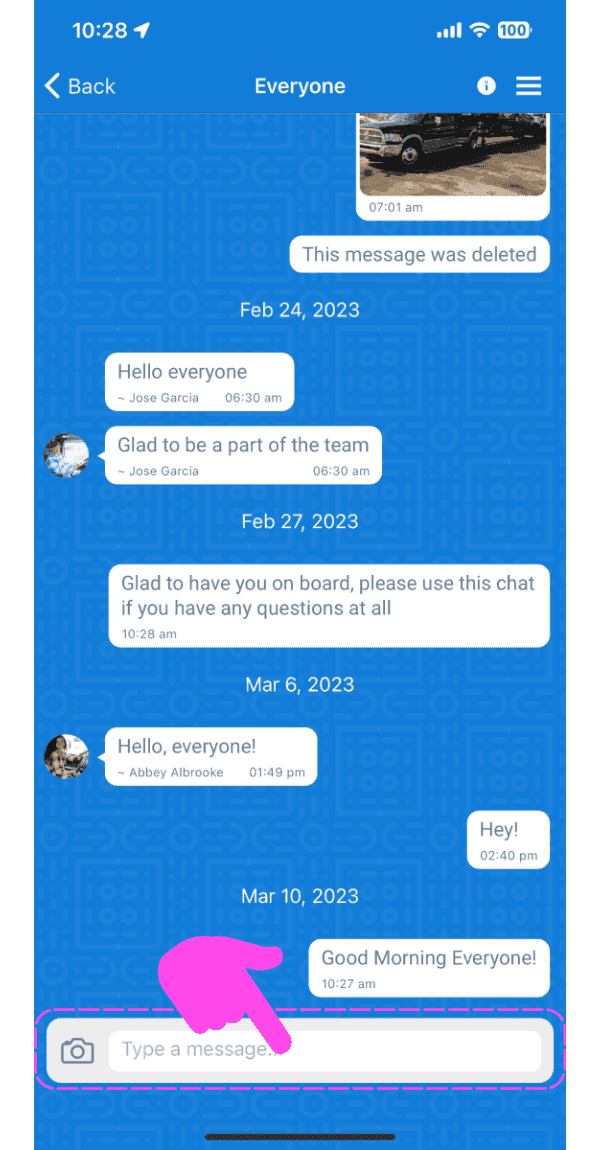
SINC mobile group chat screen with a pink hand pointing to the message input box

Inserisci un messaggio e tocca il pulsante «Invia». Il messaggio verrà inviato.
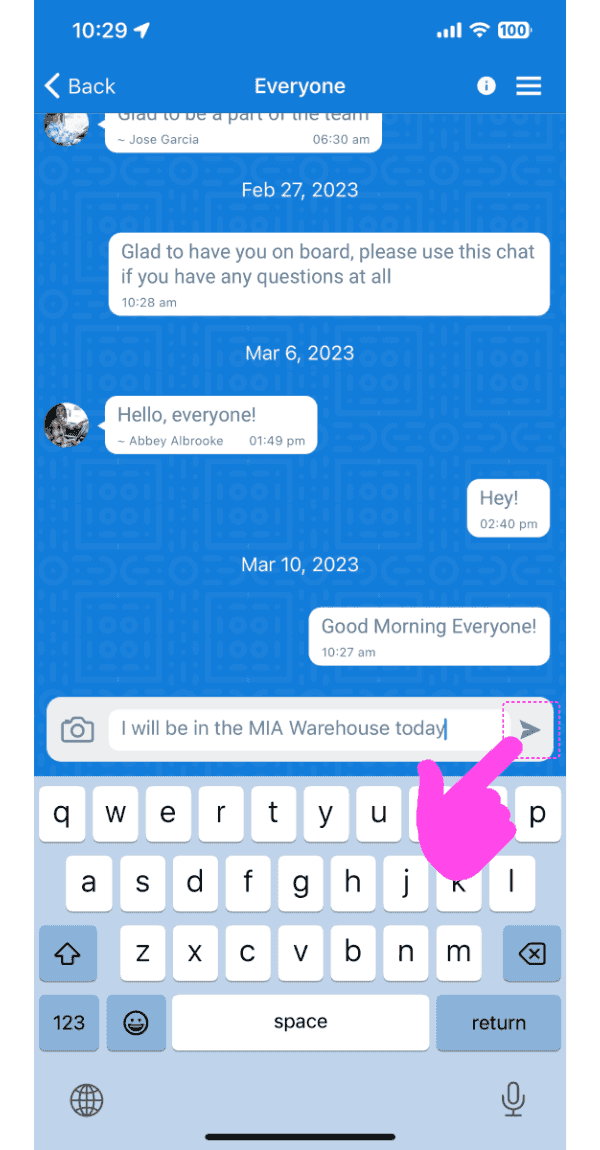
Mobile app chat conversation with a typed message and the Send arrow button highlighted by a pink arrow

Per inviare un’immagine come messaggio, tocca il pulsante “Fotocamera”
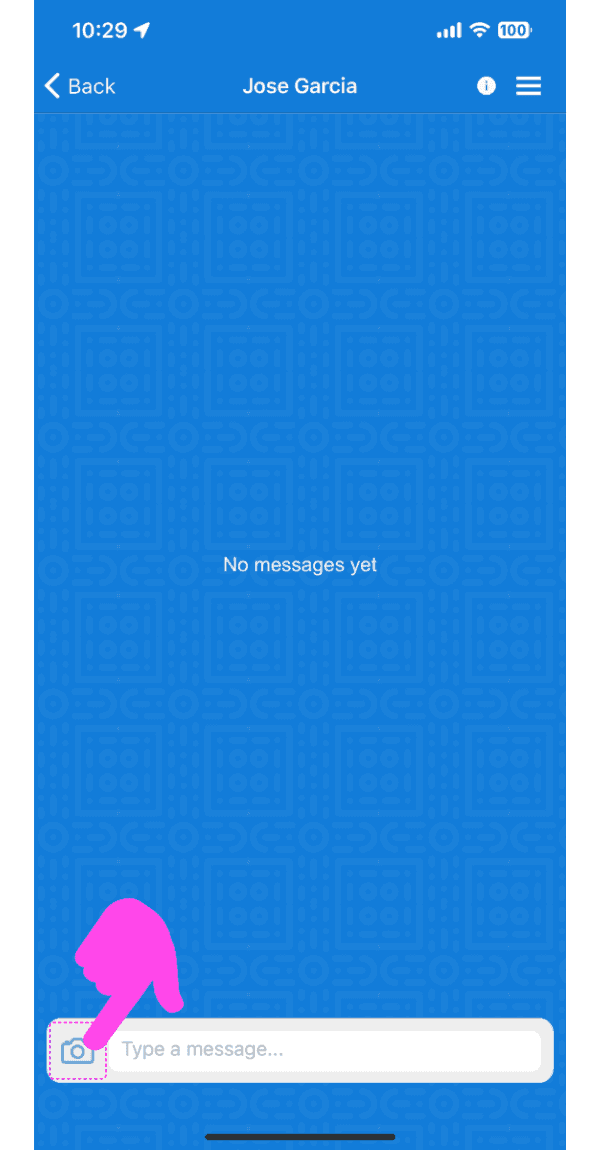
SINC mobile chat conversation screen with a pink arrow pointing to the camera icon by the message field

Seleziona un’opzione: scatta una foto o scegline una dalla galleria.

Send Photo screen with dashed-highlighted Take Photo and Choose From Photos options above the Send Photo button

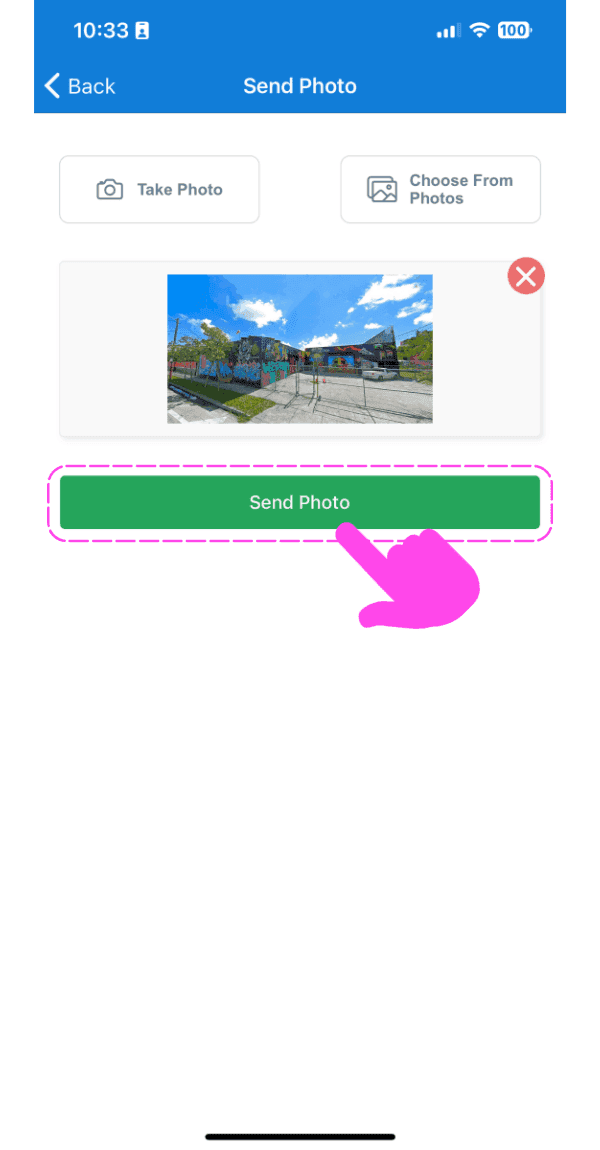
Tocca il pulsante «Invia foto»

SINC mobile Send Photo screen with an image preview and a pink arrow pointing to the Send Photo button

Il messaggio con l’immagine verrà inviato dopo aver mostrato l’avanzamento del caricamento.
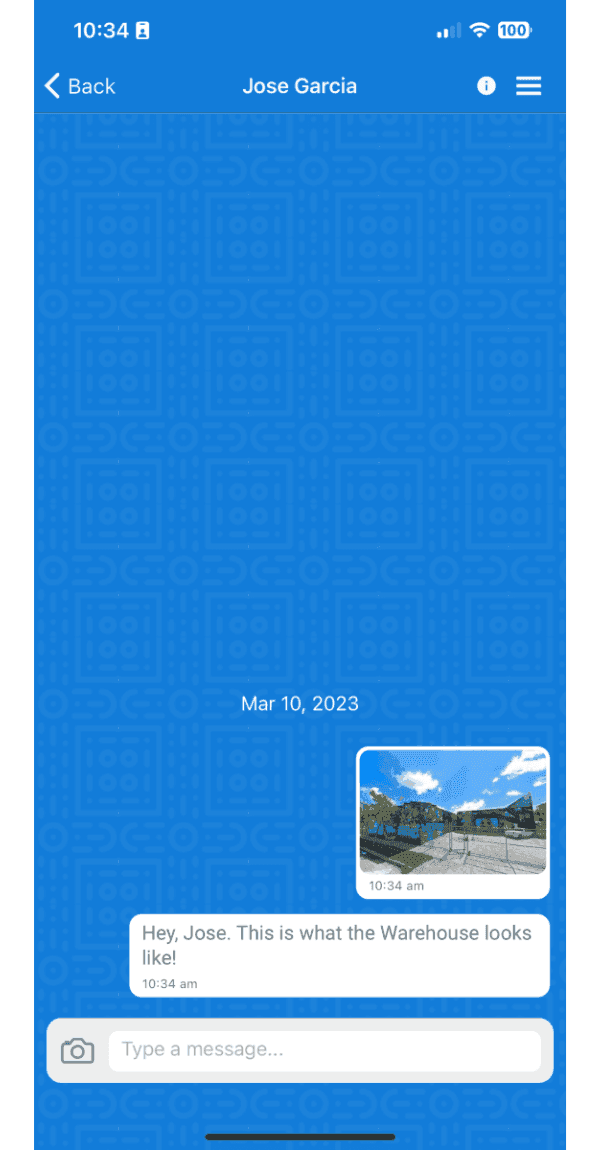
Mobile chat conversation showing a sent photo of a warehouse with an accompanying text message

Nella versione web: clicca su una chat nell’elenco
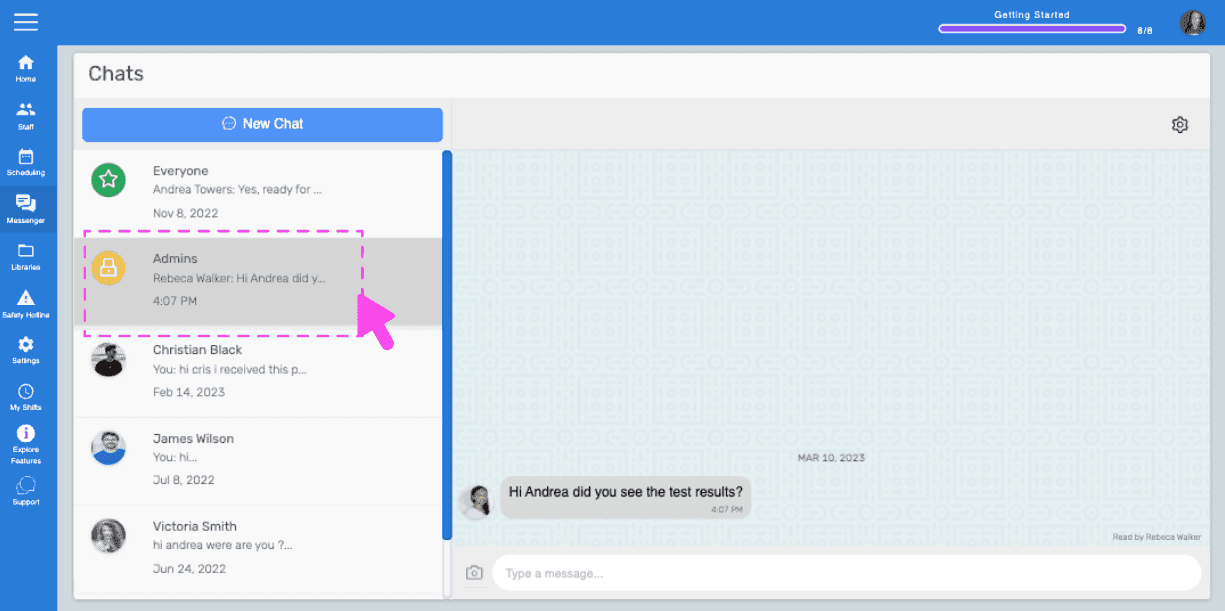
SINC web Chats screen with a pink arrow pointing to a conversation selected from the list on the left

Fai clic sulla casella di input e inizia a digitare per inviare un messaggio di testo
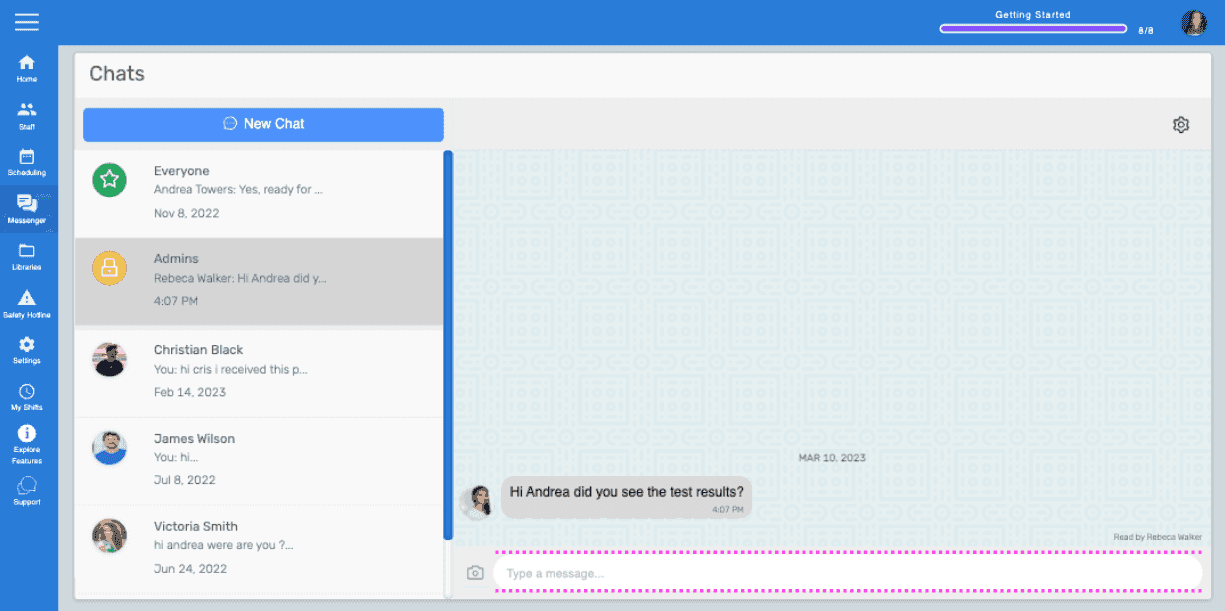
Chats screen with a message thread open and the text input box highlighted at the bottom

Clicca sull’icona Invia oppure premi il tasto Invio per inviare il messaggio di testo. Il messaggio verrà recapitato.
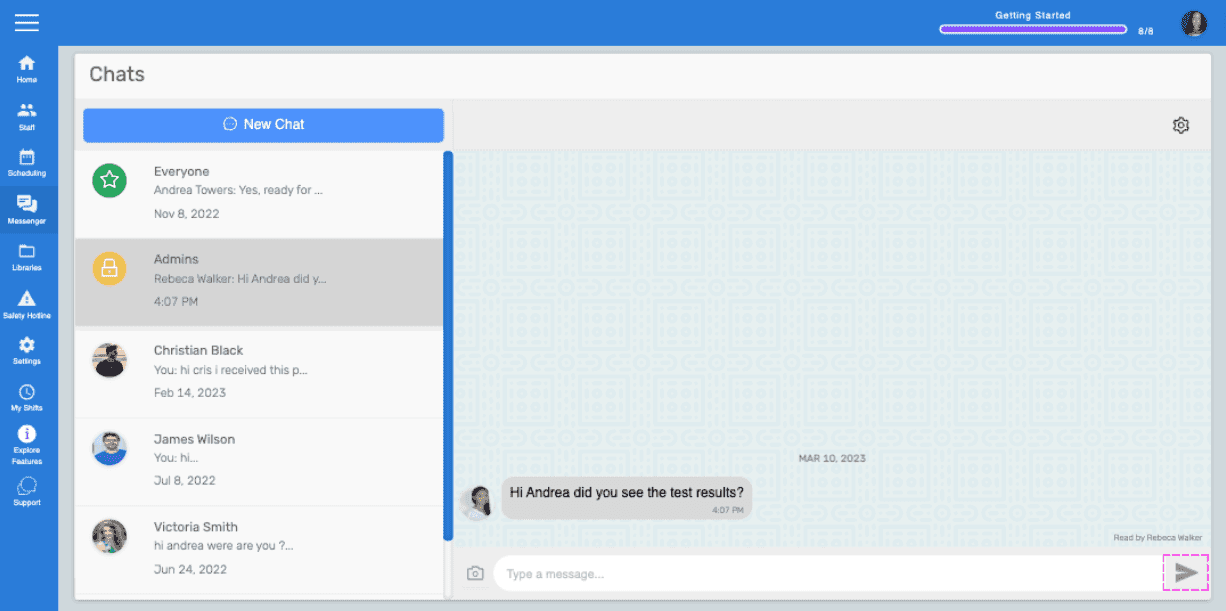
Web Chats screen showing a message thread with a pink arrow pointing to the Send icon

Per inviare un’immagine come messaggio, clicca sull’icona «Fotocamera»
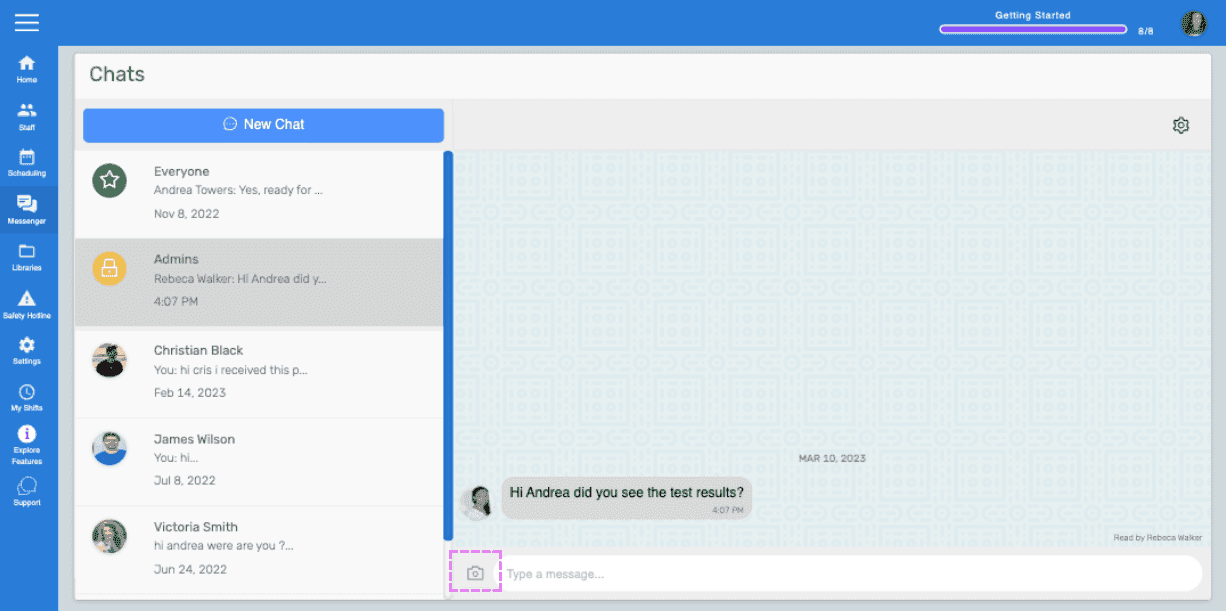
SINC web Chats screen with the camera icon highlighted next to the message input box

Seleziona un’immagine nel browser dei file/Finder, quindi fai clic sul pulsante «Invia immagine»
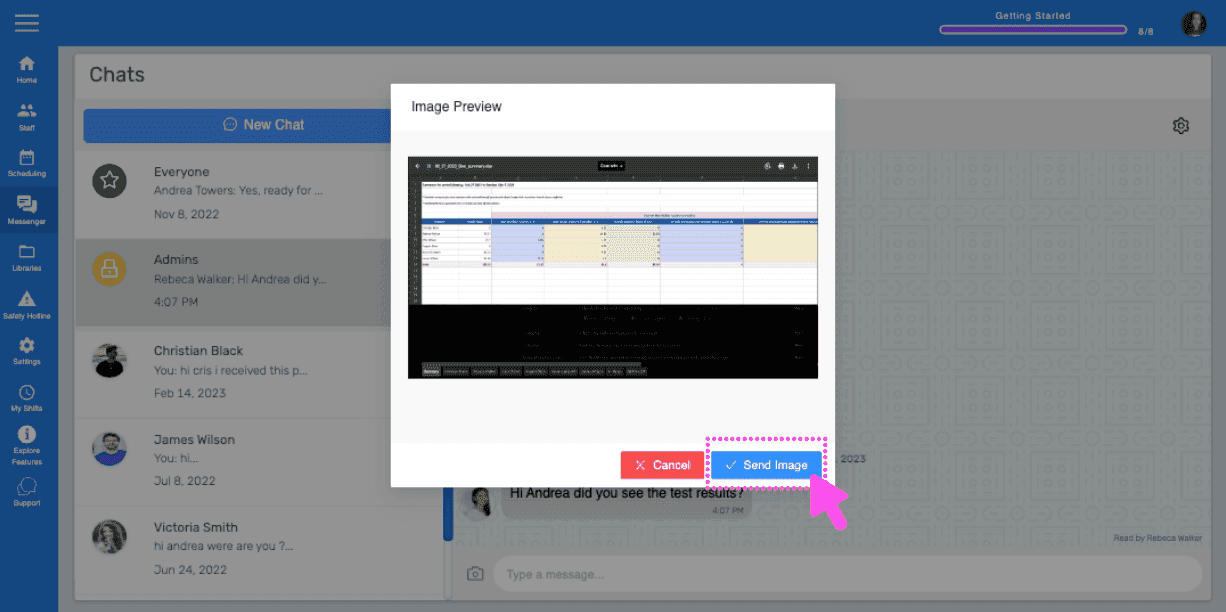
SINC web Chat Image Preview dialog with a pink arrow pointing to the Send Image button

Il messaggio con l’immagine verrà inviato al termine del caricamento.
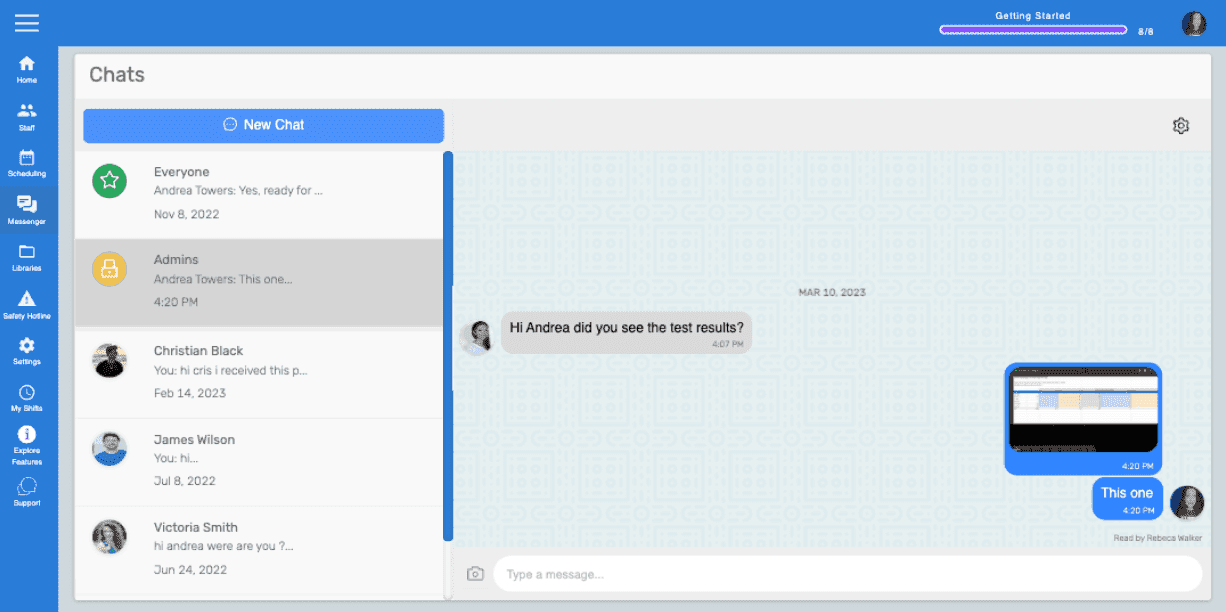
Web chat conversation window showing a text message and an uploaded image thumbnail being sent

Questa risposta ti è stata utile?