Aggiungi note al tuo timesheet

In questa guida vedremo come aggiungere note ai tuoi turni in Sinc.

Sam Dolbel
Sam Dolbel
May 26th, 2023

Esistono due modi per aggiungere note a un turno: mentre stai svolgendo il turno oppure a un turno già terminato. Su dispositivo mobile, per aggiungere una nota a un turno aperto: tocca Aggiungi nota
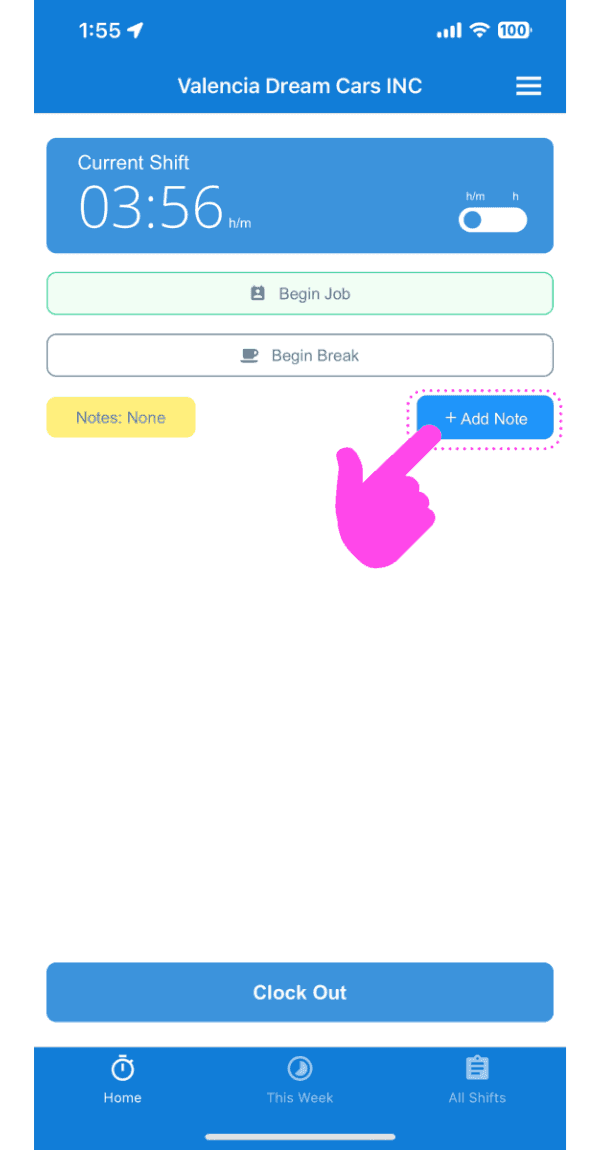
SINC mobile app current shift screen with a pink hand pointing to the Add Note button

Inserisci una descrizione della nota.
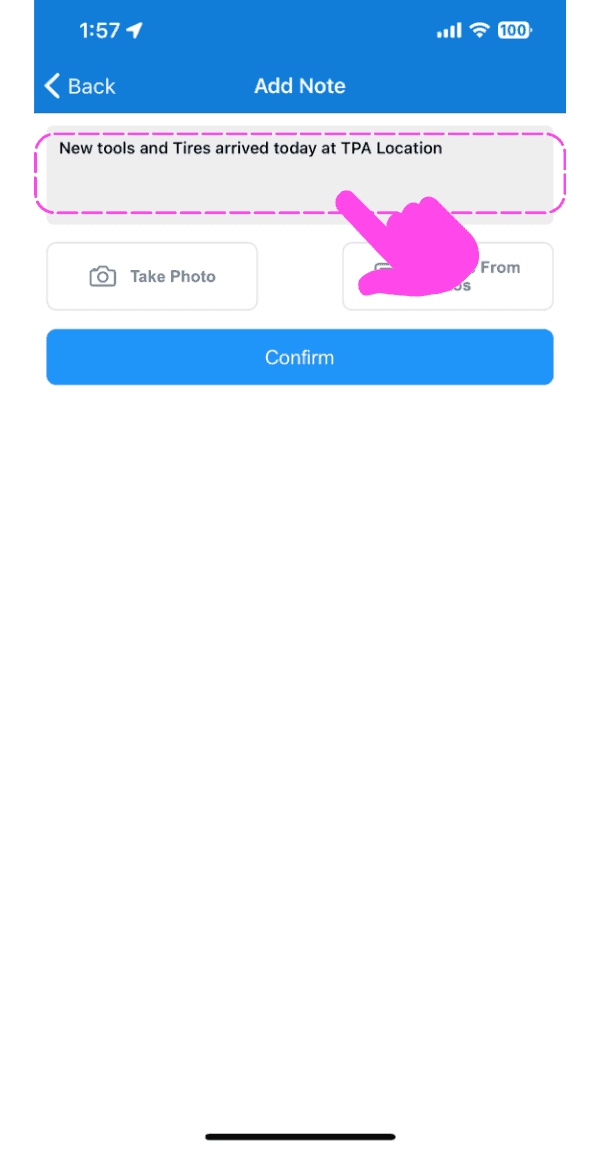
Add Note screen with a text field containing a note, pointed out by a pink arrow

Se vuoi, carica un’immagine relativa alla nota.
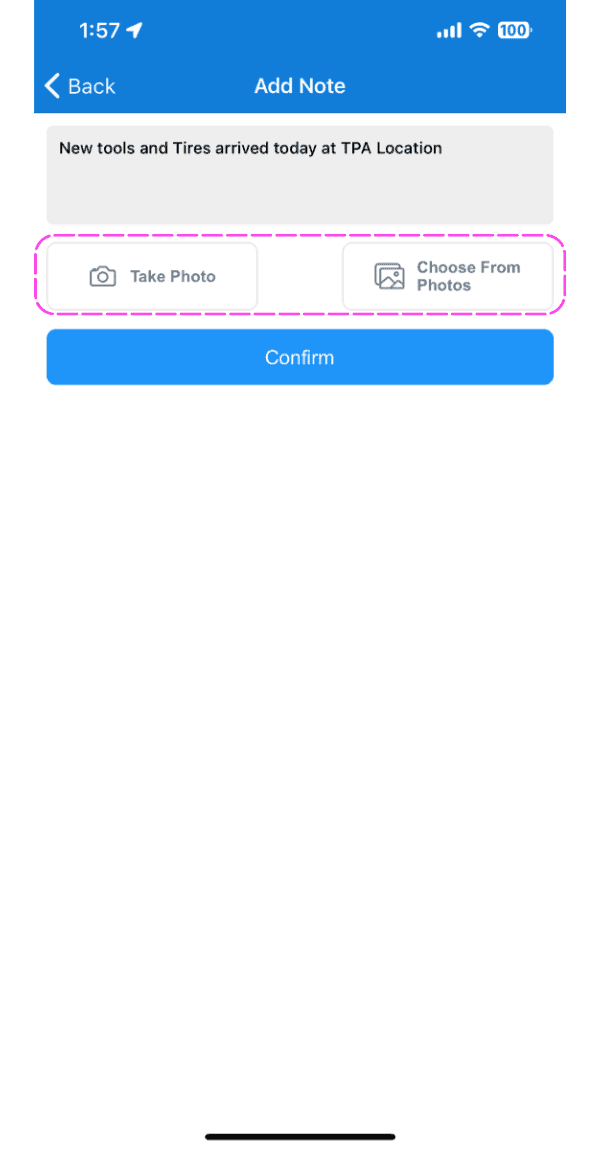
Add Note screen with Take Photo and Choose From Photos buttons highlighted by a pink dashed box

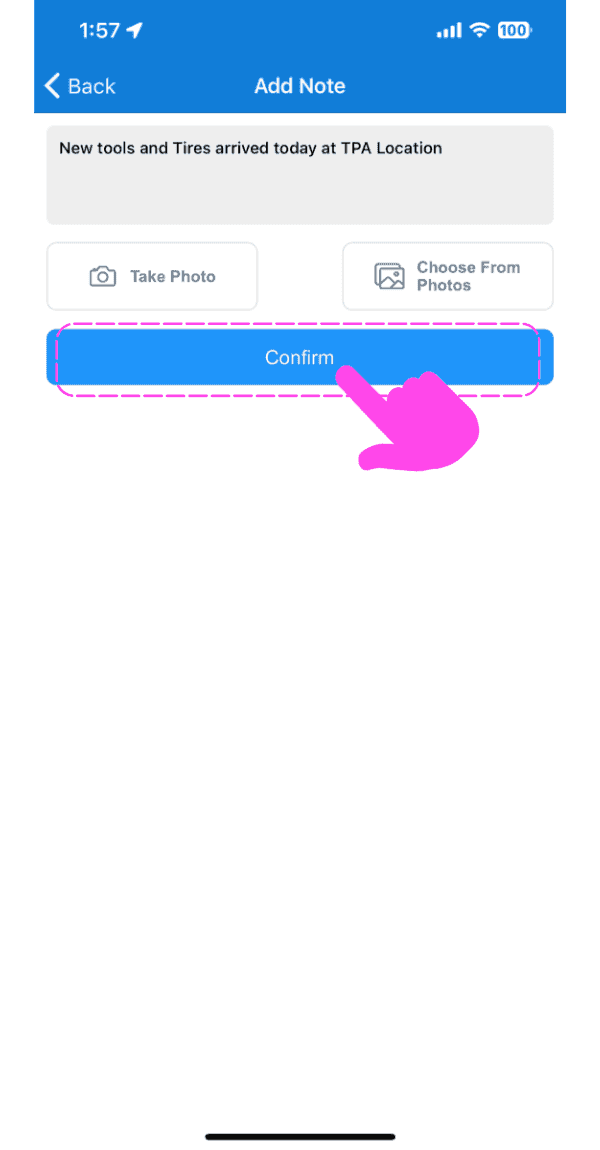
Tocca Conferma

SINC mobile Add Note screen with a pink hand pointing to the Confirm button

Per aggiungere una nota a un vecchio turno: tocca Menu I miei turni
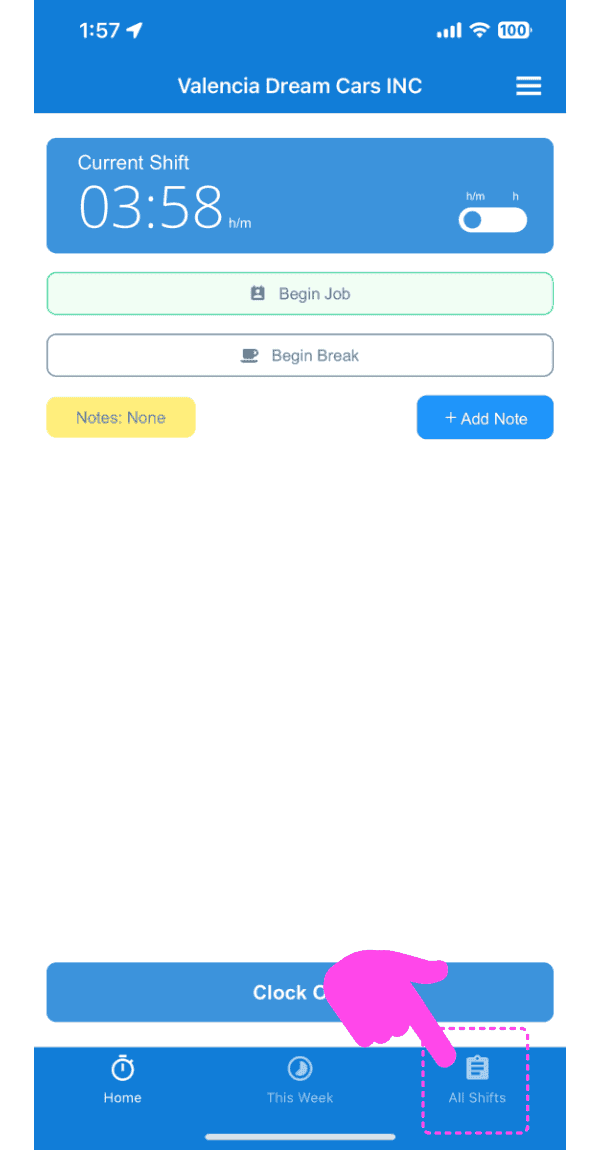
Mobile app Current Shift screen with the All Shifts tab highlighted by a pink arrow

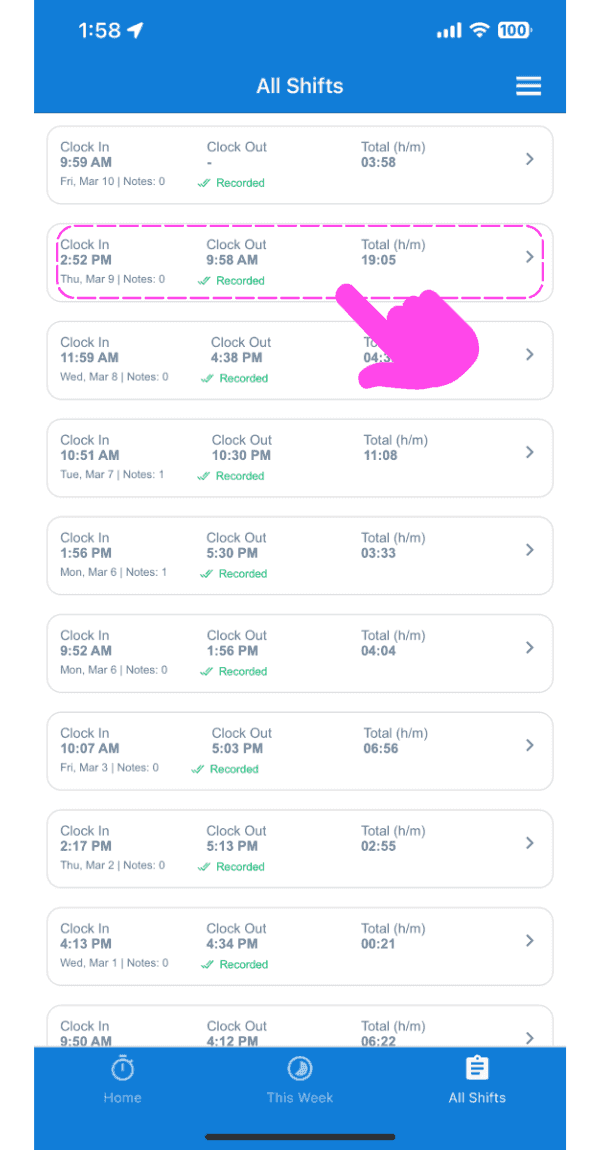
Tocca Il cambiamento in questione

SINC mobile All Shifts list with a pink arrow pointing to a highlighted shift entry

Nella scheda Info, tocca Aggiungi nota
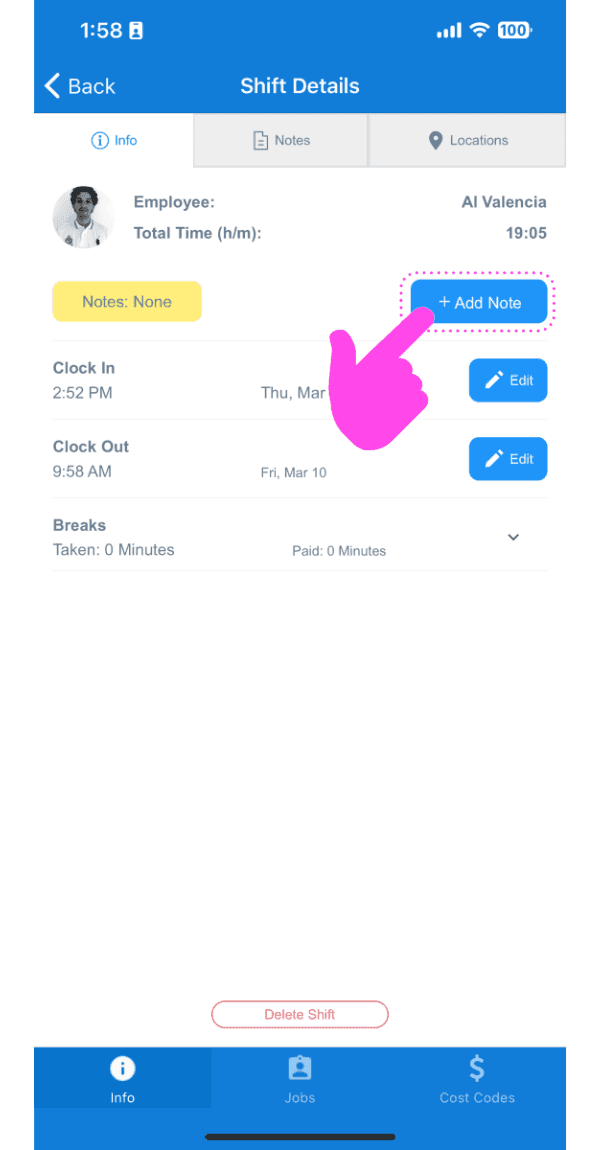
Shift Details Info tab with a pink arrow pointing to the Add Note button

Inserisci una descrizione della nota.
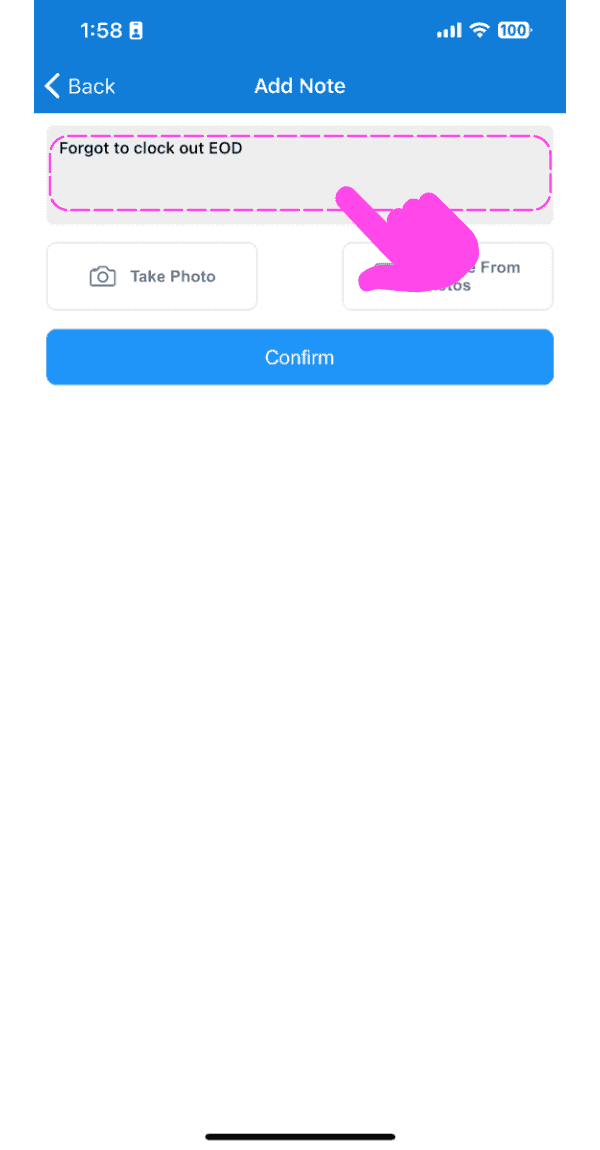
SINC mobile Add Note screen for a time sheet with a description entered and the Confirm button below

Se vuoi, carica un’immagine relativa alla nota.
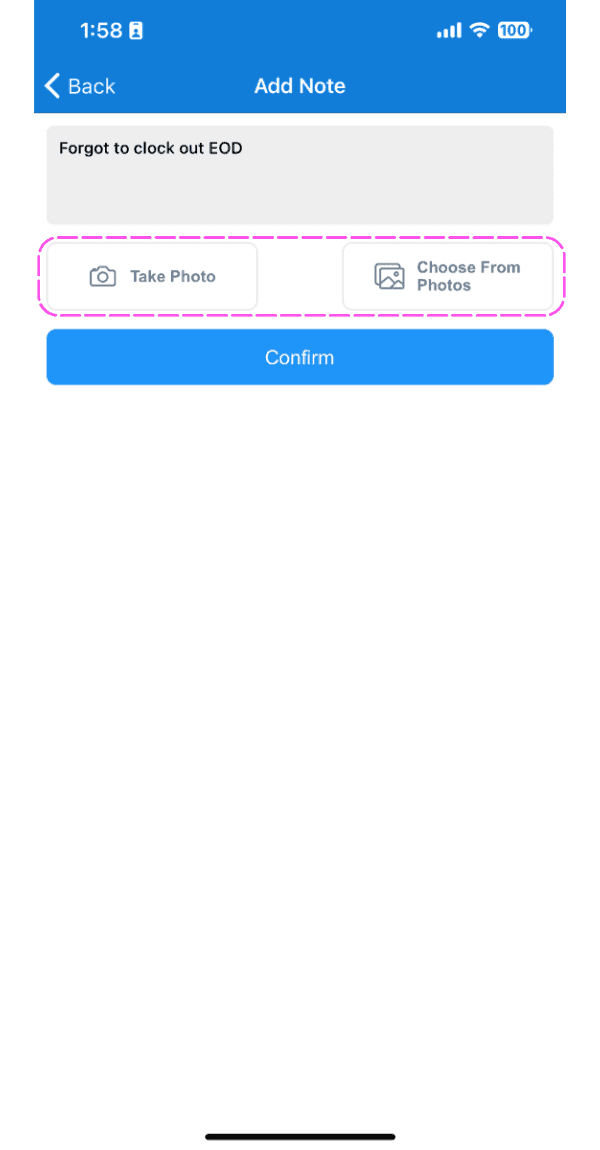
Mobile Add Note screen for a timesheet note with photo upload options outlined in pink

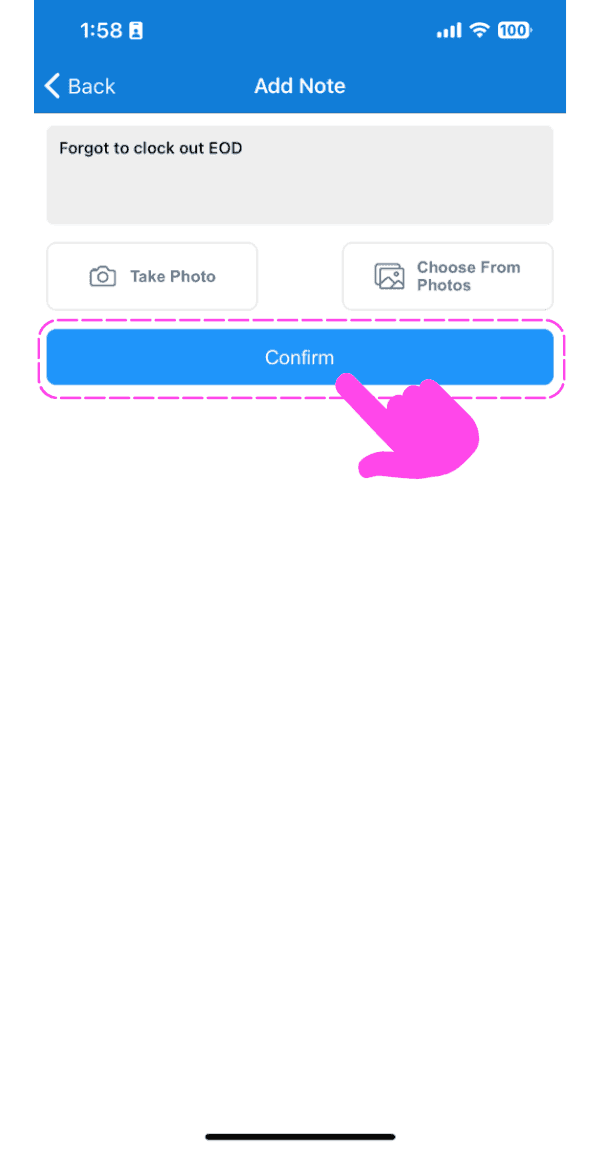
Tocca Conferma

SINC mobile Add Note screen with typed note text and a pink hand pointing to the Confirm button

Sul Web, per aggiungere una nota a un turno aperto: clicca su Aggiungi nota
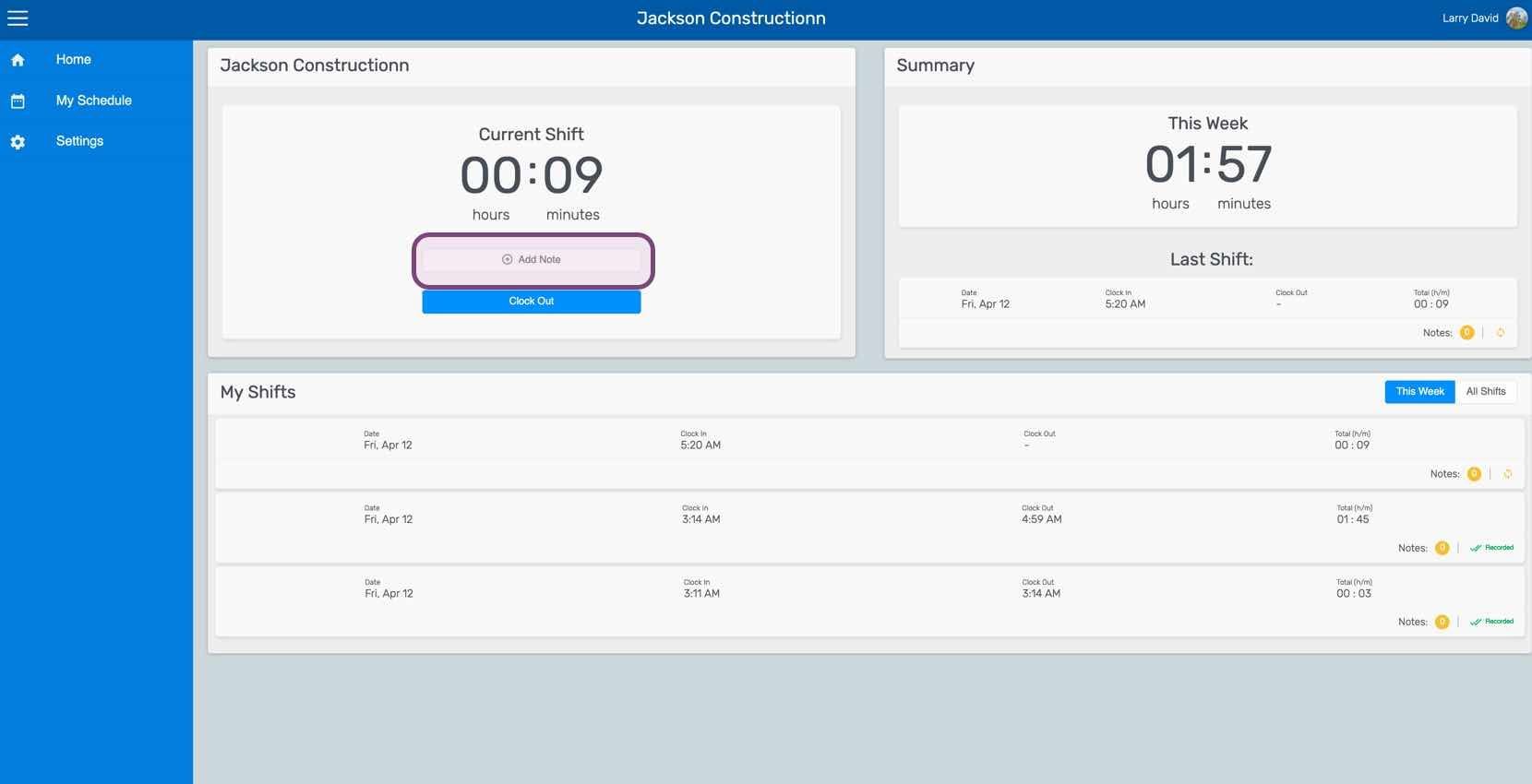
Web dashboard Current Shift panel with the Add Note button highlighted

Inserisci una descrizione della nota.
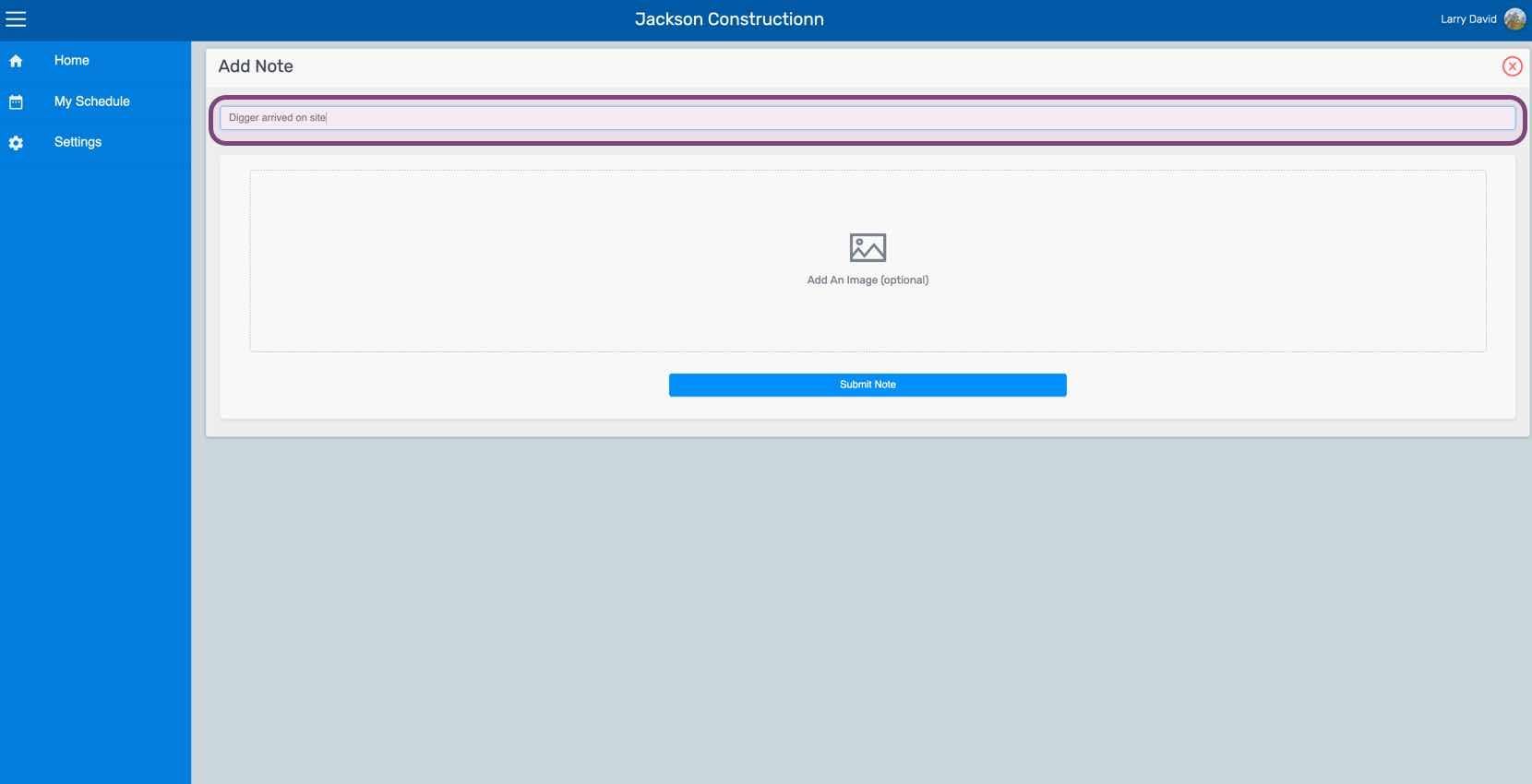
Web Add Note screen with the note text field outlined in purple and an optional image upload area

Carica, se vuoi, un’immagine relativa alla nota.
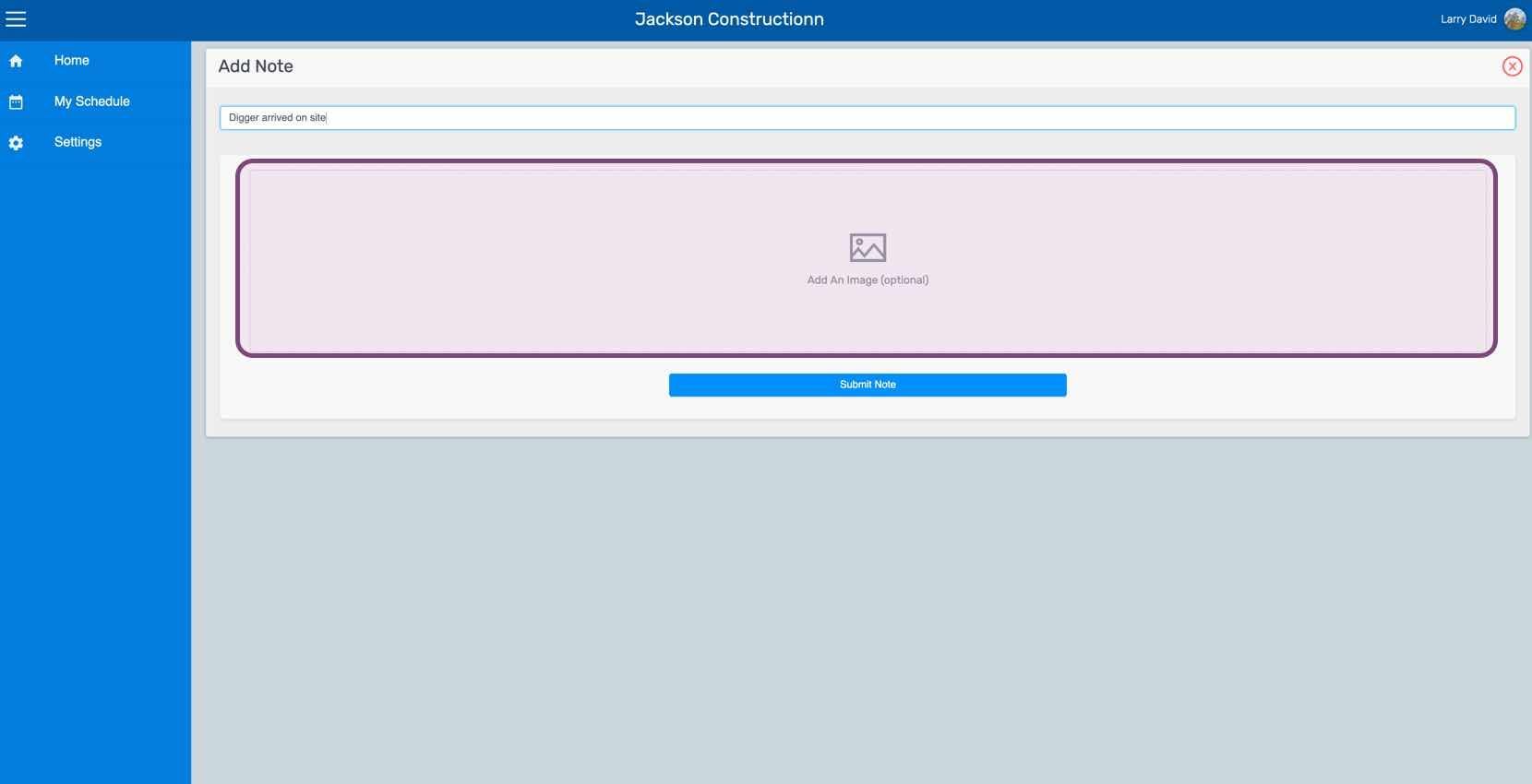
SINC web Add Note screen with the note text field and image upload area outlined

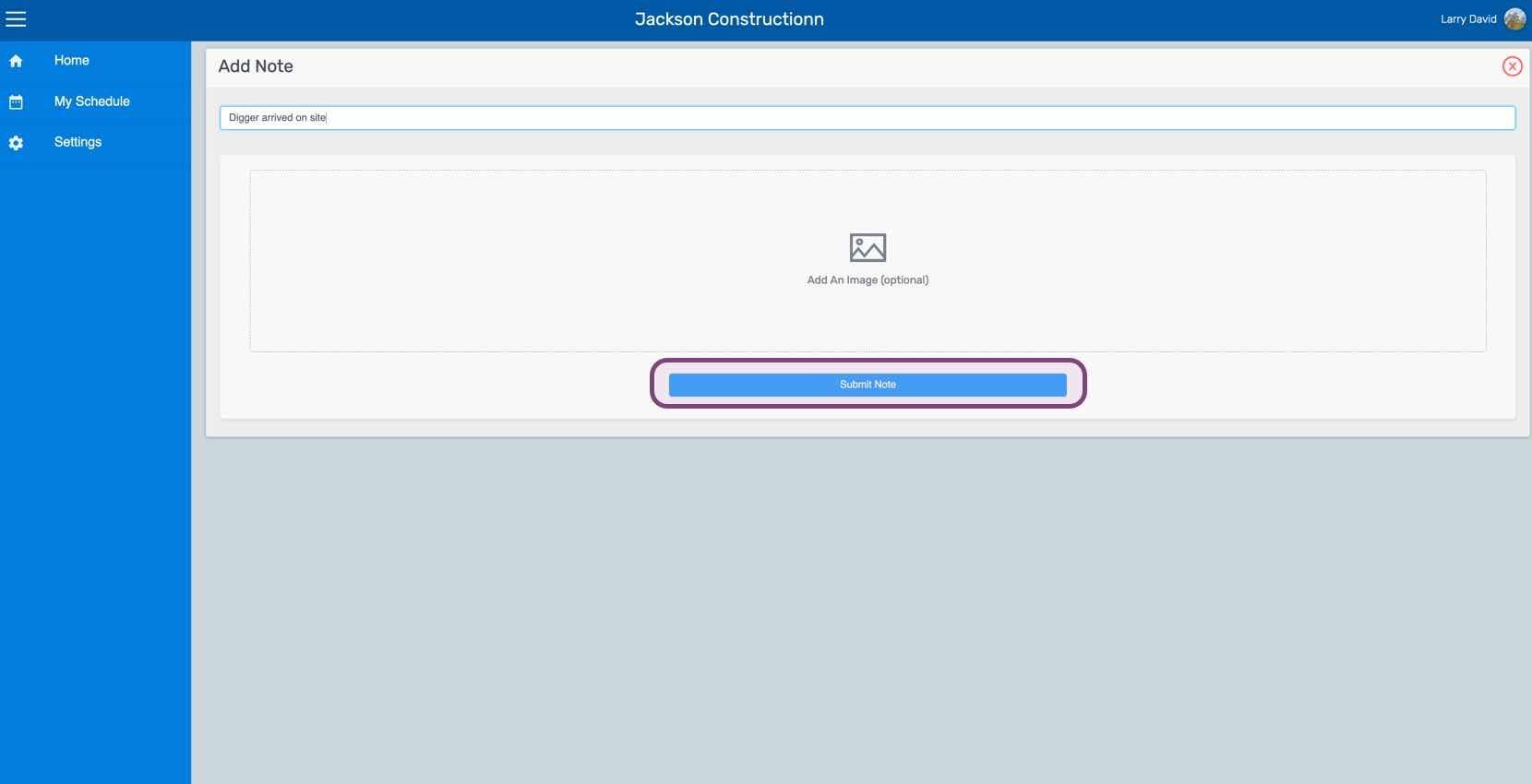
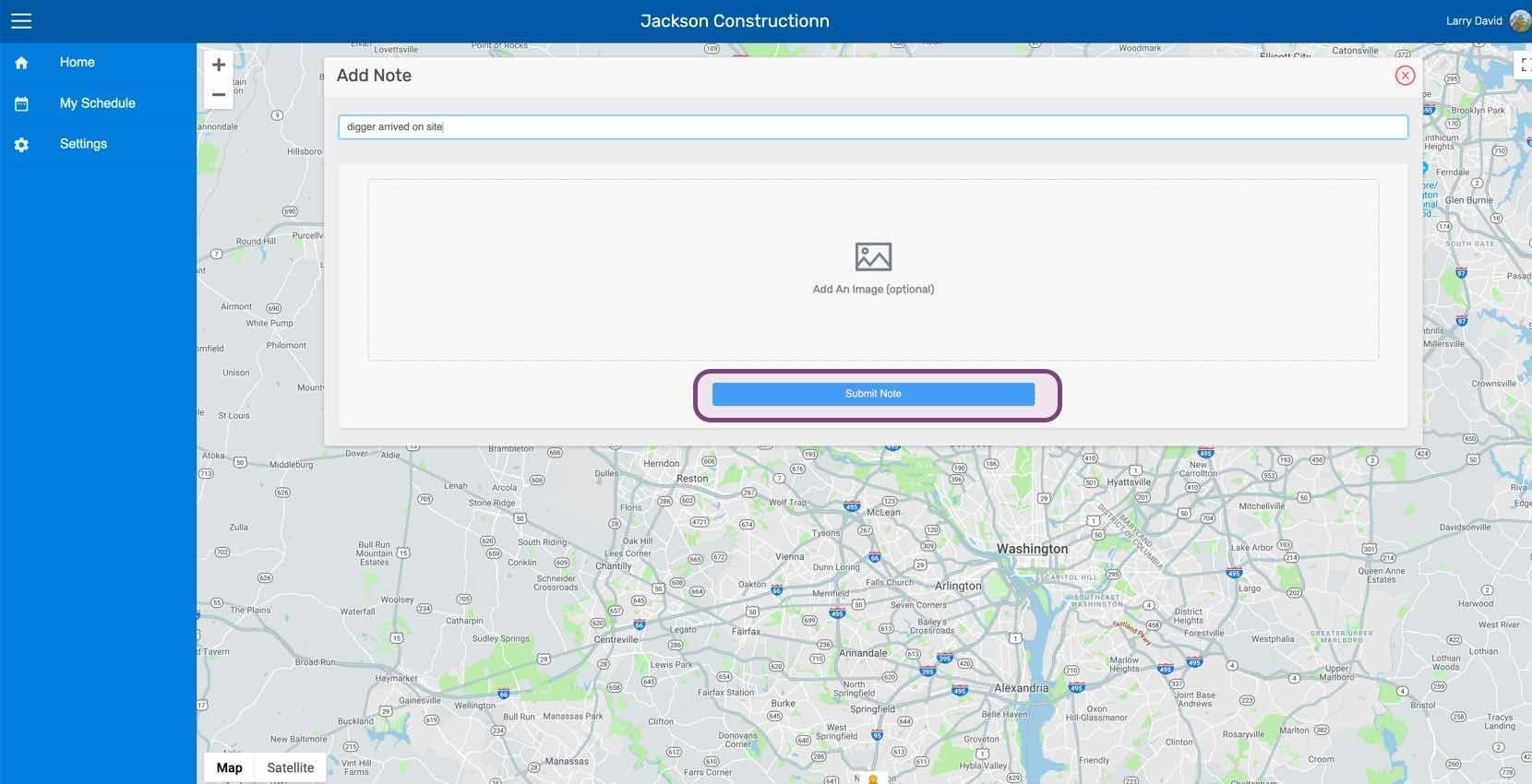
Clicca su Invia nota

SINC web Add Note screen with the Submit Note button circled in pink

Per aggiungere una nota a un turno precedente: clicca su I miei turni
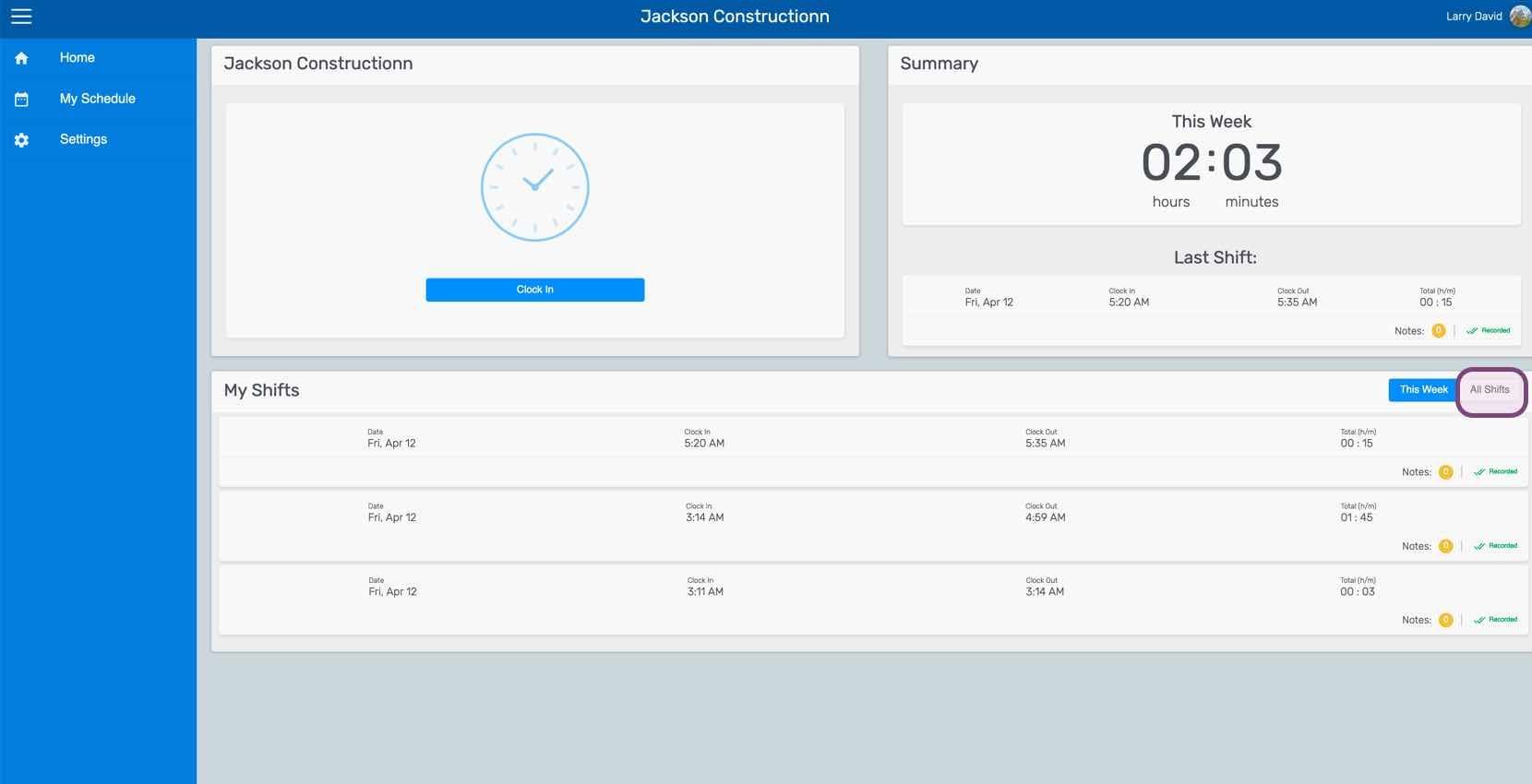
Employee home dashboard showing the Clock In button, weekly summary, and My Shifts list with This Week tab circled

Clicca su Il cambiamento in questione
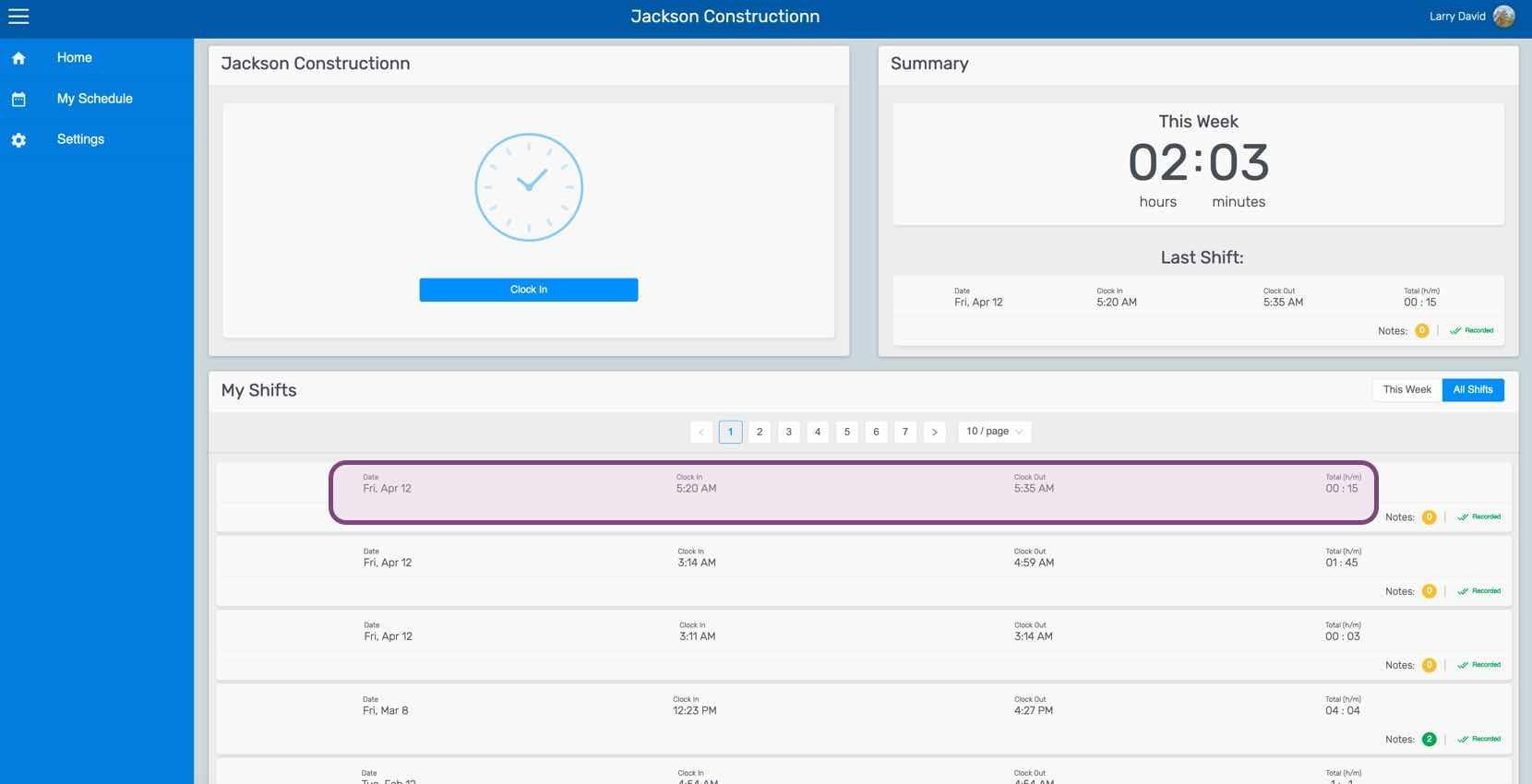
SINC web My Shifts list with a specific shift row circled in pink

Nella scheda Shift, fai clic su Aggiungi nota
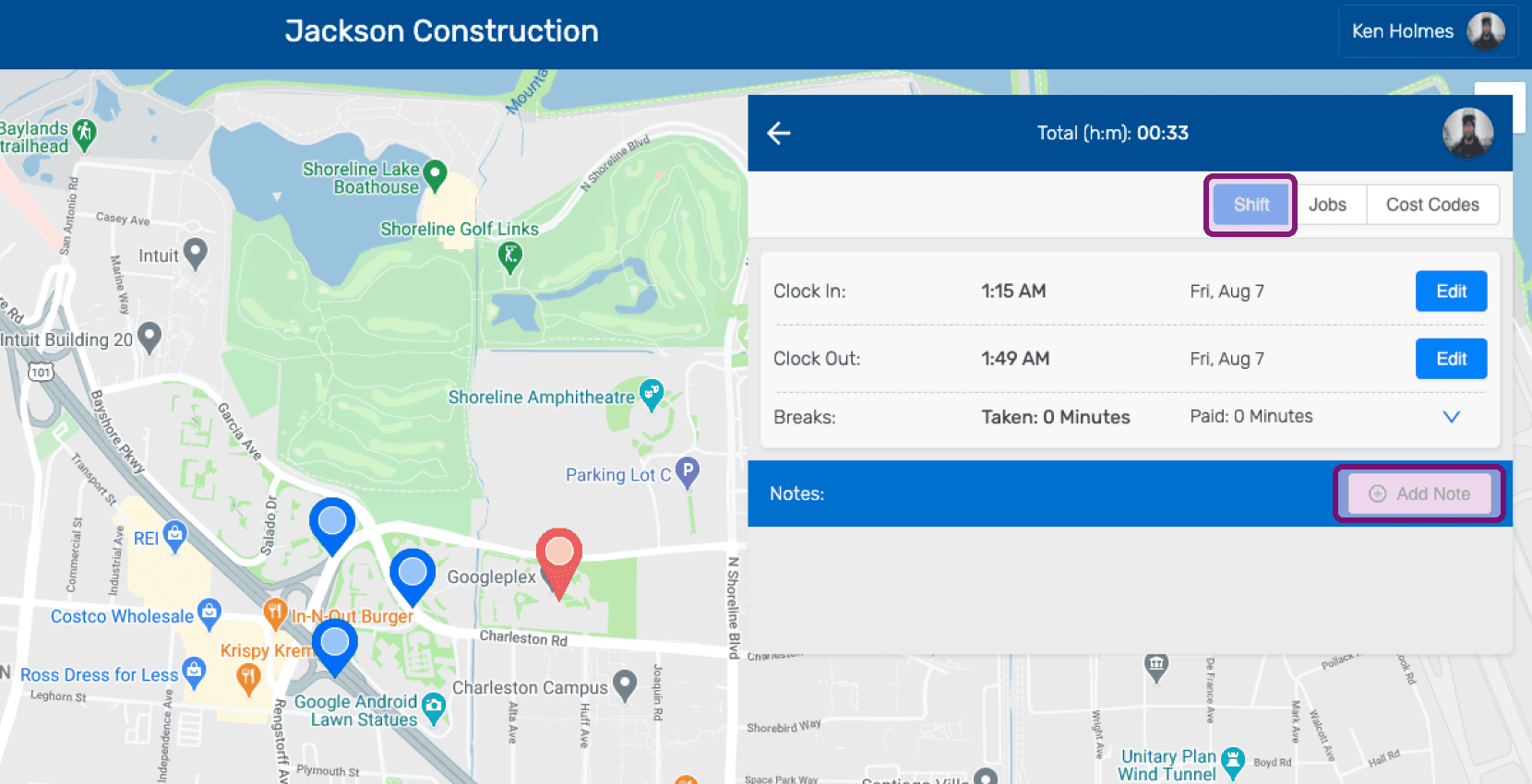
Shift details screen with the Add Note button outlined in pink

Inserisci una descrizione della nota.
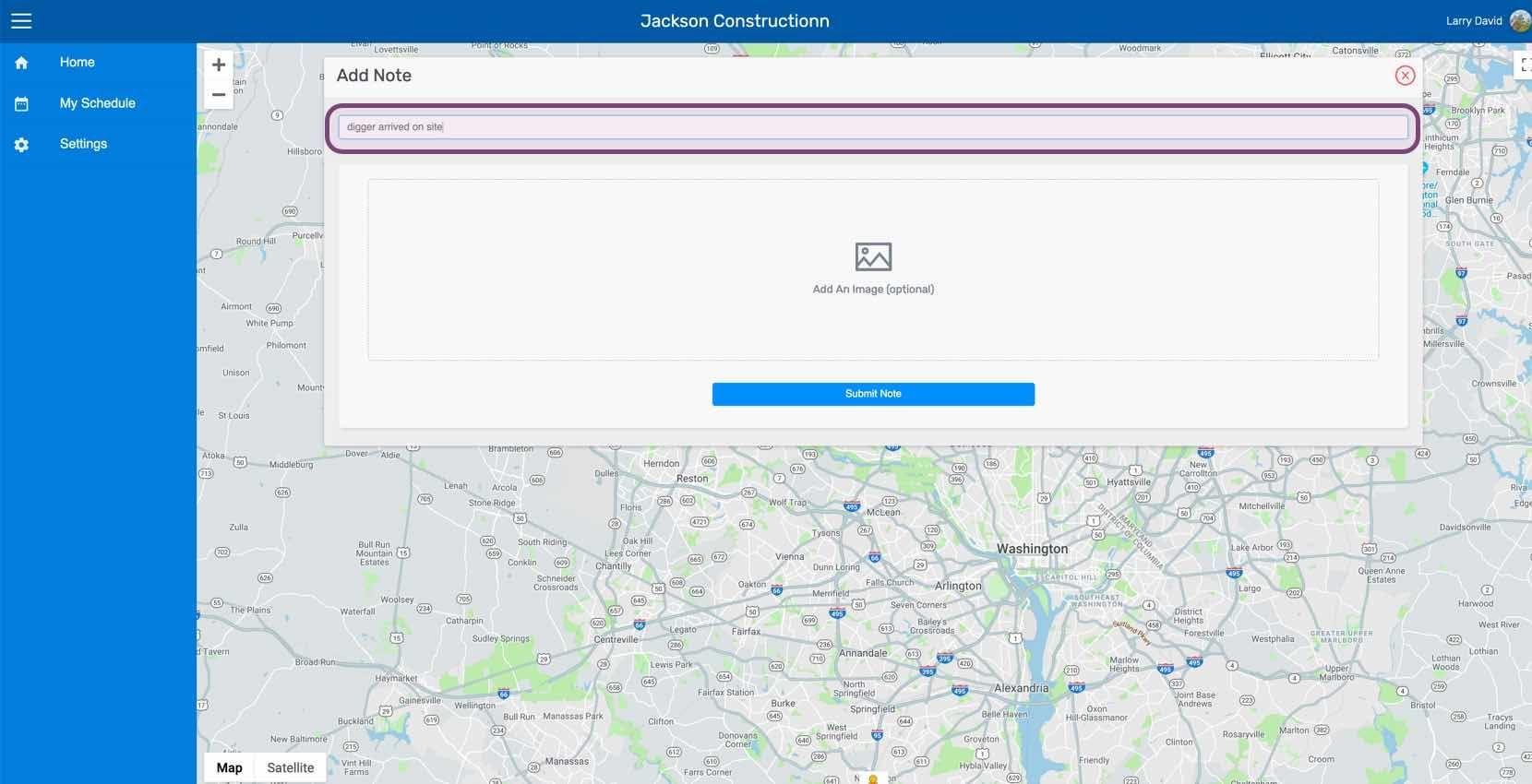
Web Add Note form with the description text field circled and an optional Add An Image area below

Carica un’immagine relativa alla nota, se lo desideri.
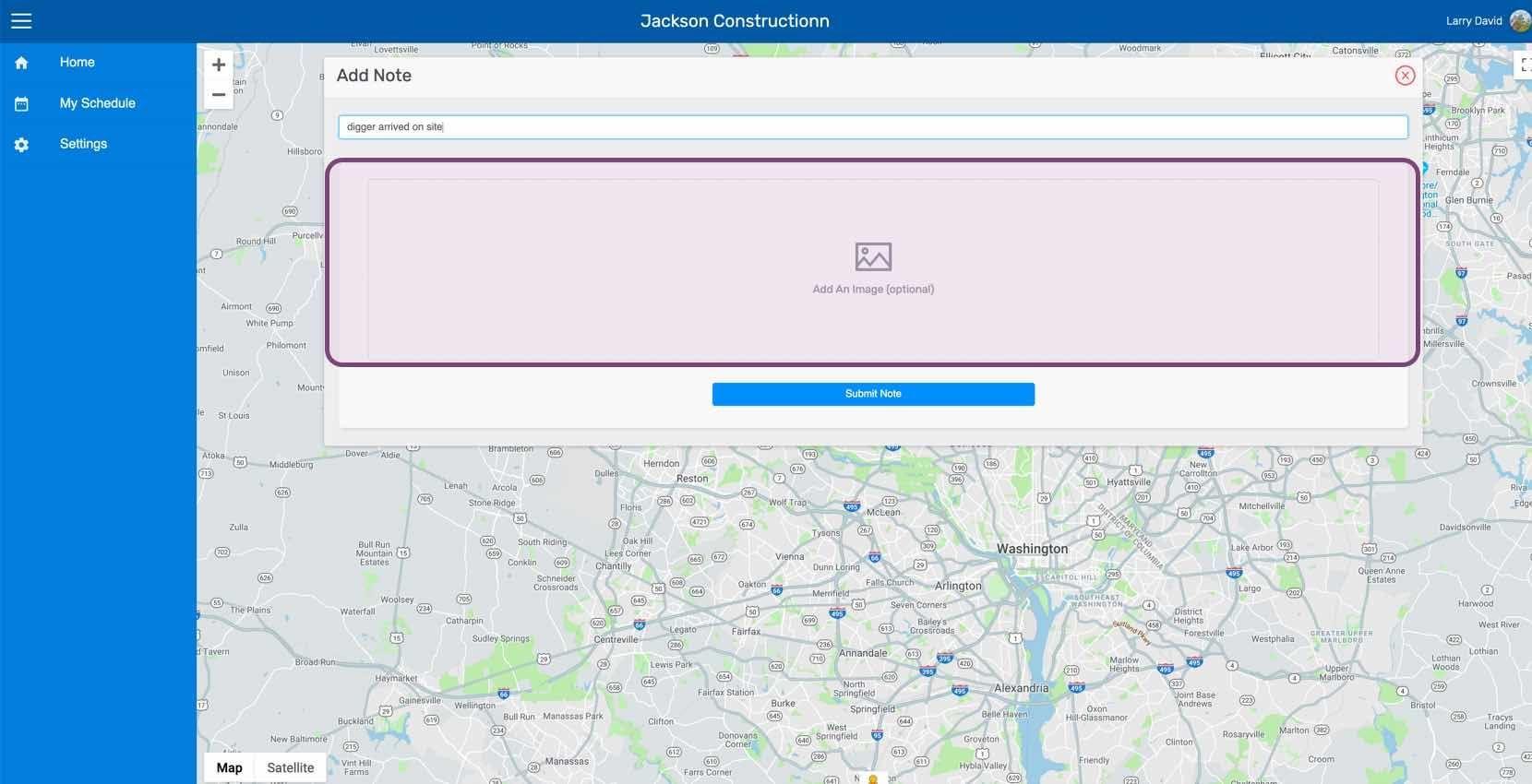
SINC web Add Note screen with the image upload area highlighted above a location map

Fai clic su Invia nota

Web Add Note screen with a map background and the Submit Note button outlined in pink

Questa risposta ti è stata utile?