Come modificare la foto del mio profilo

Questa guida spiega come modificare o caricare la propria foto del profilo come dipendente.

SINC Support Team
SINC Support Team
Mar 14th, 2023

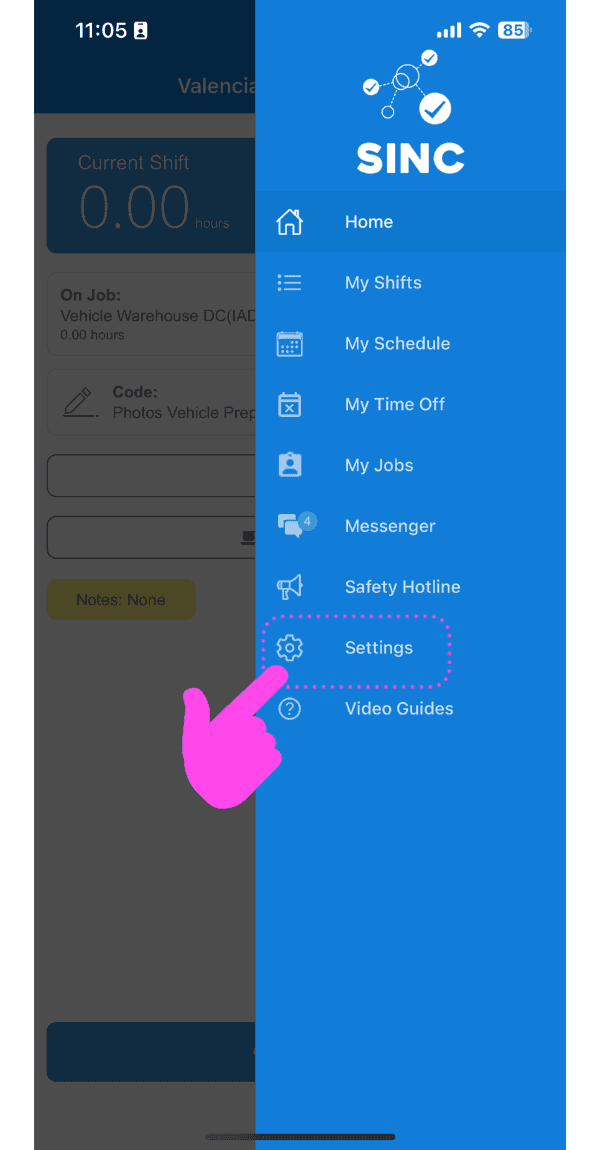
Su mobile: tocca Menu Impostazioni

SINC mobile app side menu with a pink hand pointing to the Settings menu item

Nella scheda Profilo Info, tocca l’icona della fotocamera in alto a destra.
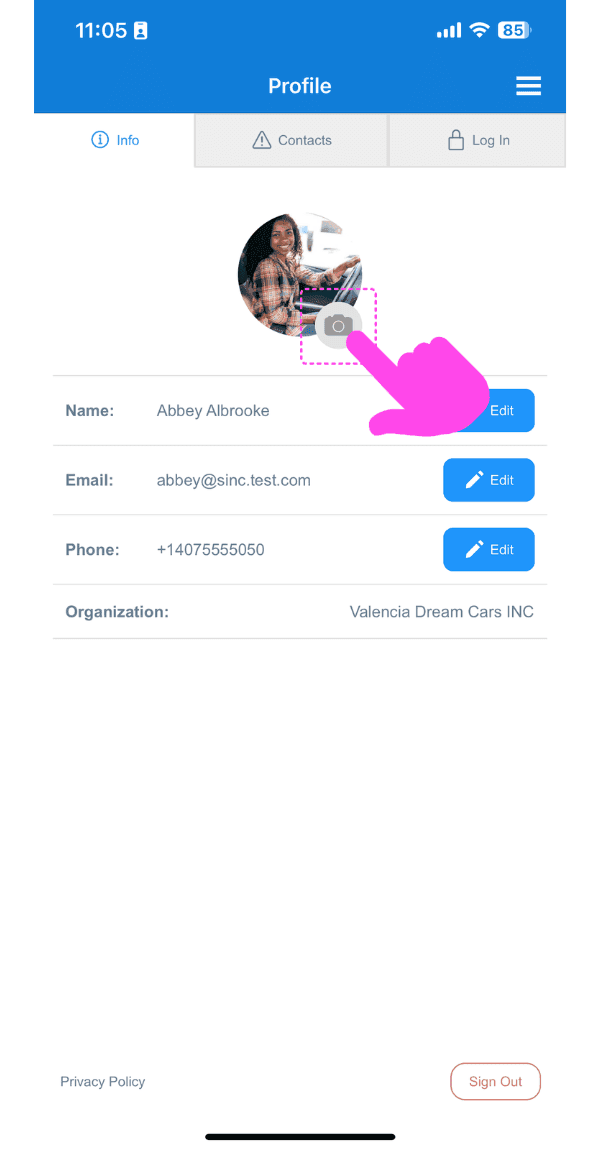
Profile Info screen with the camera icon on the profile photo highlighted by a pink arrow

Tocca su Carica foto

Profile Picture screen showing an uploaded photo with edit and delete icons highlighted by a pink arrow

Tocca Concedi autorizzazione e consenti a SINC di accedere alle tue foto, se richiesto. Quindi seleziona l’immagine da caricare.
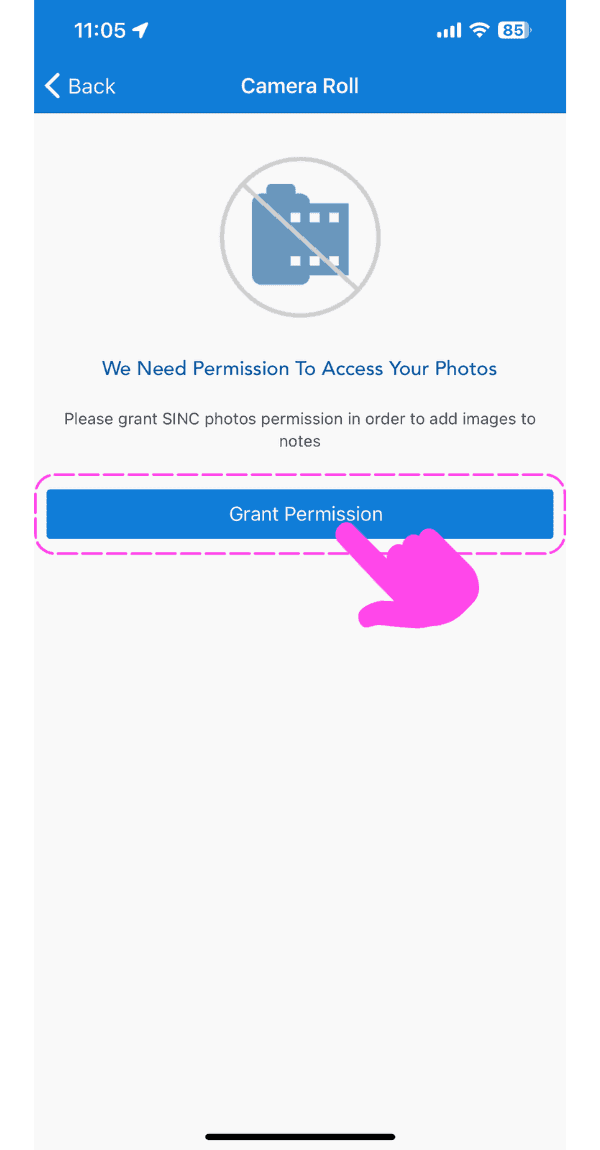
SINC mobile photo access permission screen with a pink hand pointing to the Grant Permission button

Per tornare alla scheda dei tuoi profili, tocca la freccia a sinistra in alto.

Profile Picture screen showing an uploaded photo with the Back button highlighted by a pink arrow

Per modificare l’immagine caricata: fai clic sull’icona della fotocamera.
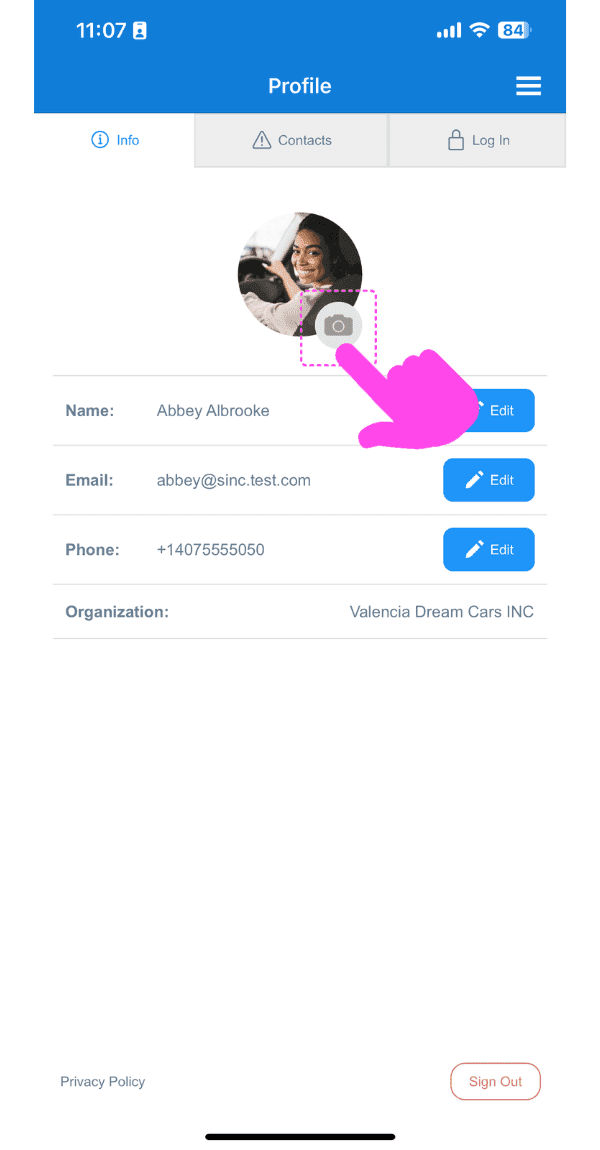
SINC mobile Profile screen with a pink arrow pointing to the camera icon on the profile photo

Per modificare la foto caricata: tocca Cambia foto

Profile Picture screen with a pink arrow pointing to the edit icon on the profile photo, next to the delete icon

Per eliminare la foto caricata: tocca Elimina foto

SINC mobile Profile Picture screen with a pink arrow pointing to the delete photo icon on the avatar

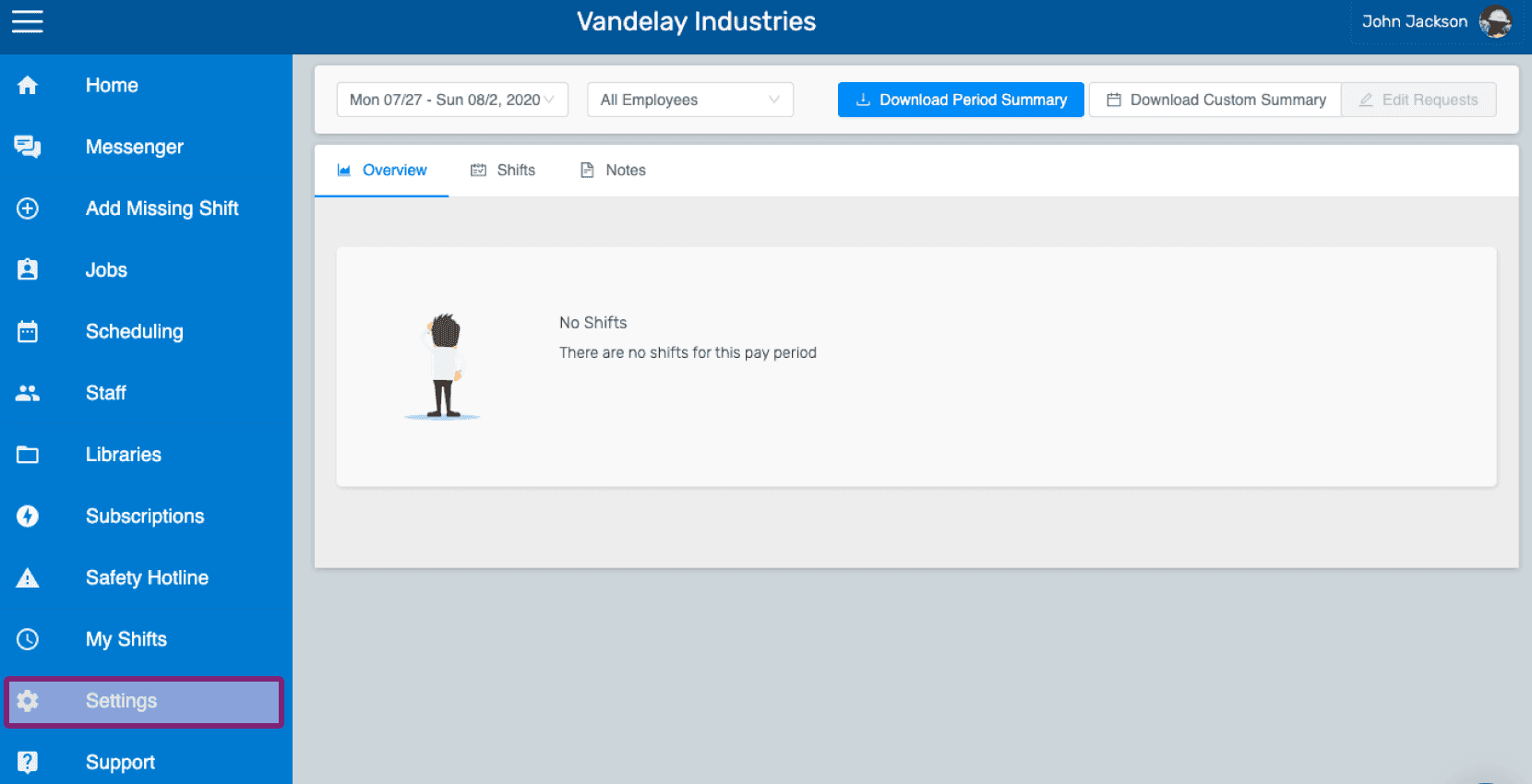
Sul Web: vai su Menu Impostazioni

Web employee dashboard with the Settings icon highlighted in the left side menu

Nella scheda del profilo, clicca sull’icona della fotocamera.
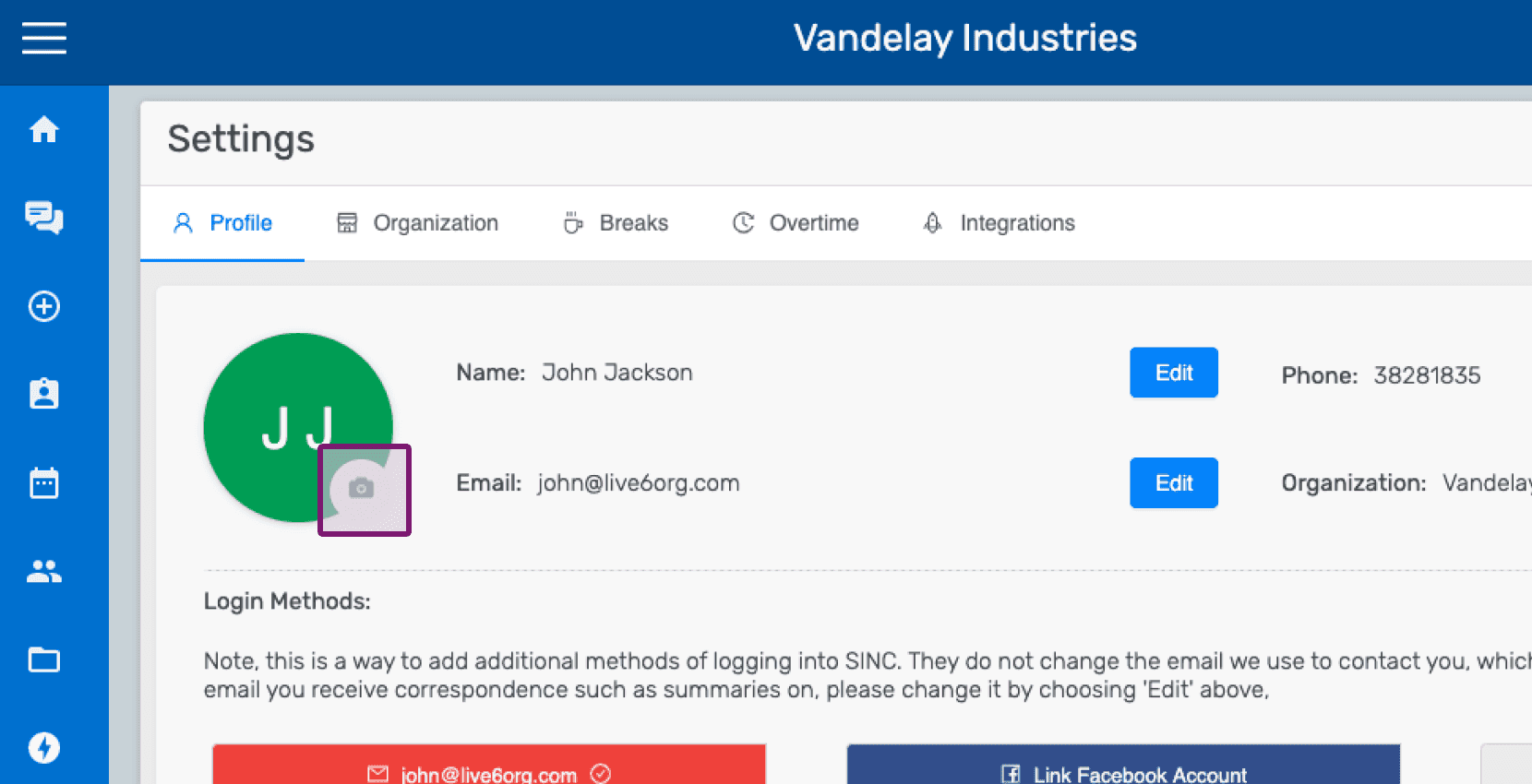
SINC web Settings Profile tab with the camera icon circled on the profile picture

Clicca su Scegli foto e seleziona la foto da caricare.
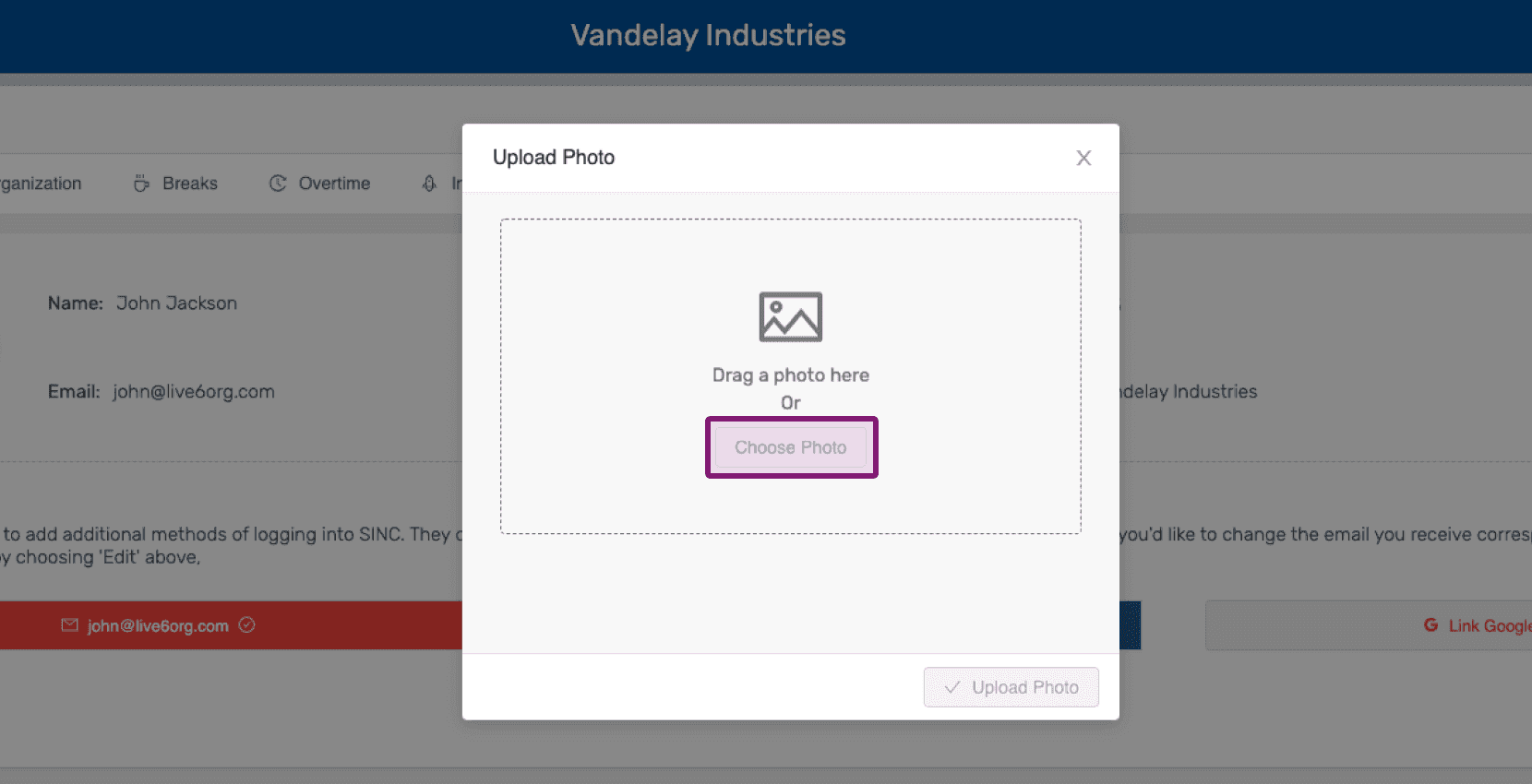
Upload Photo popup with the Choose Photo button highlighted

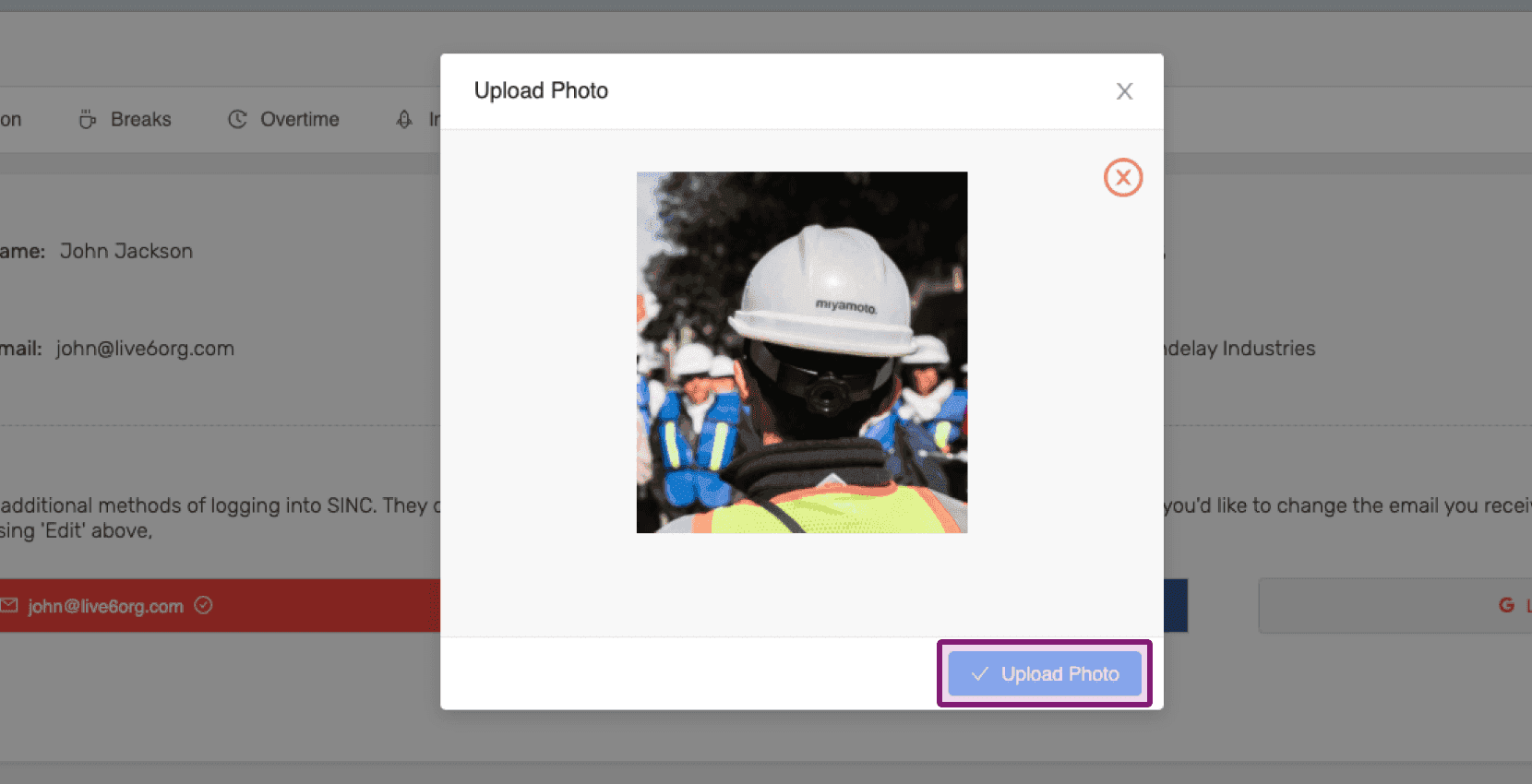
Clicca su Carica foto

Web Upload Photo popup showing a preview image with the Upload Photo button outlined in purple

Per modificare l’immagine caricata: fai clic sull’icona della fotocamera.
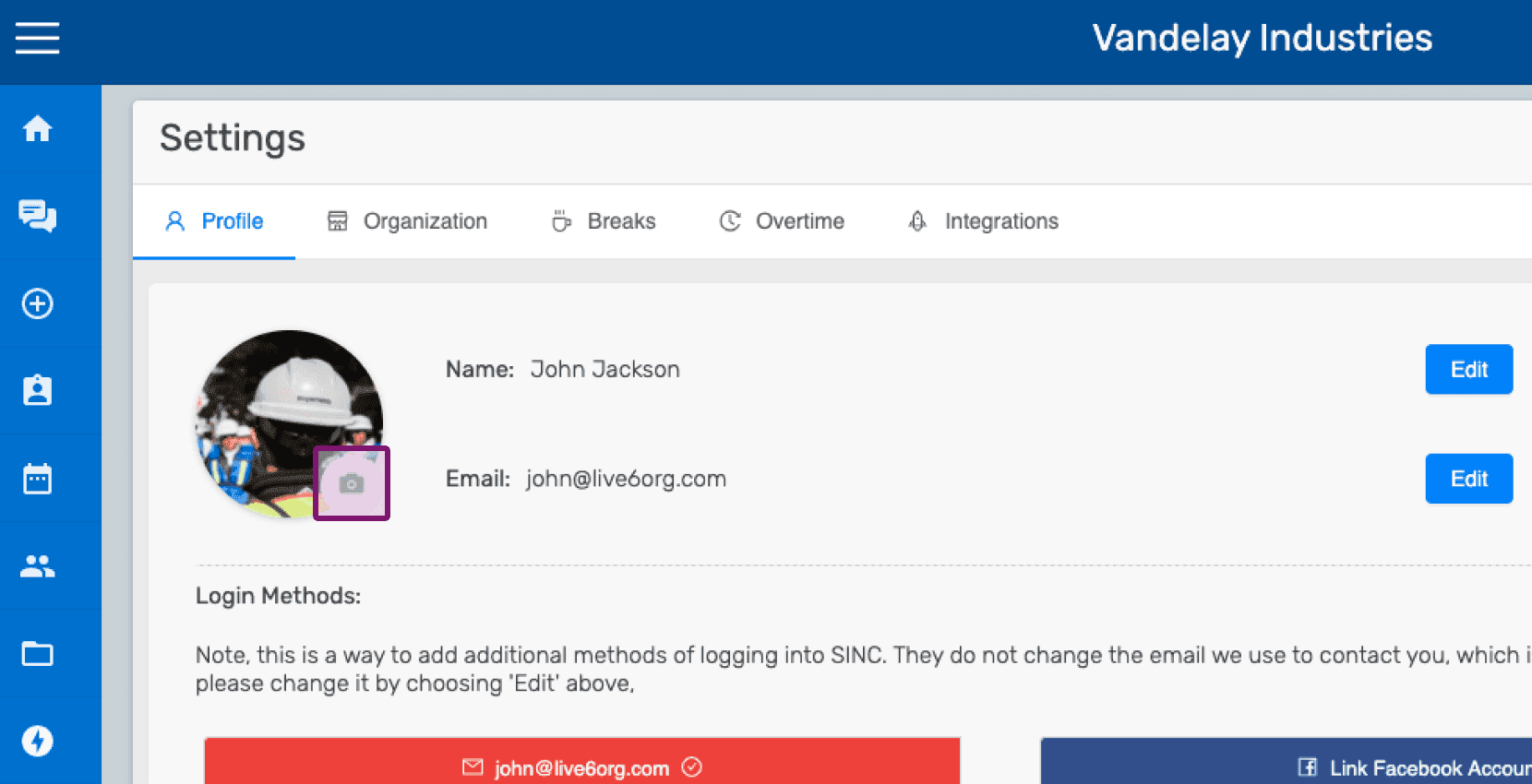
SINC web Settings Profile screen with the camera icon outlined for uploading a profile picture

Per modificare la foto caricata, fai clic sull’icona di modifica in basso a destra dell’immagine del profilo.
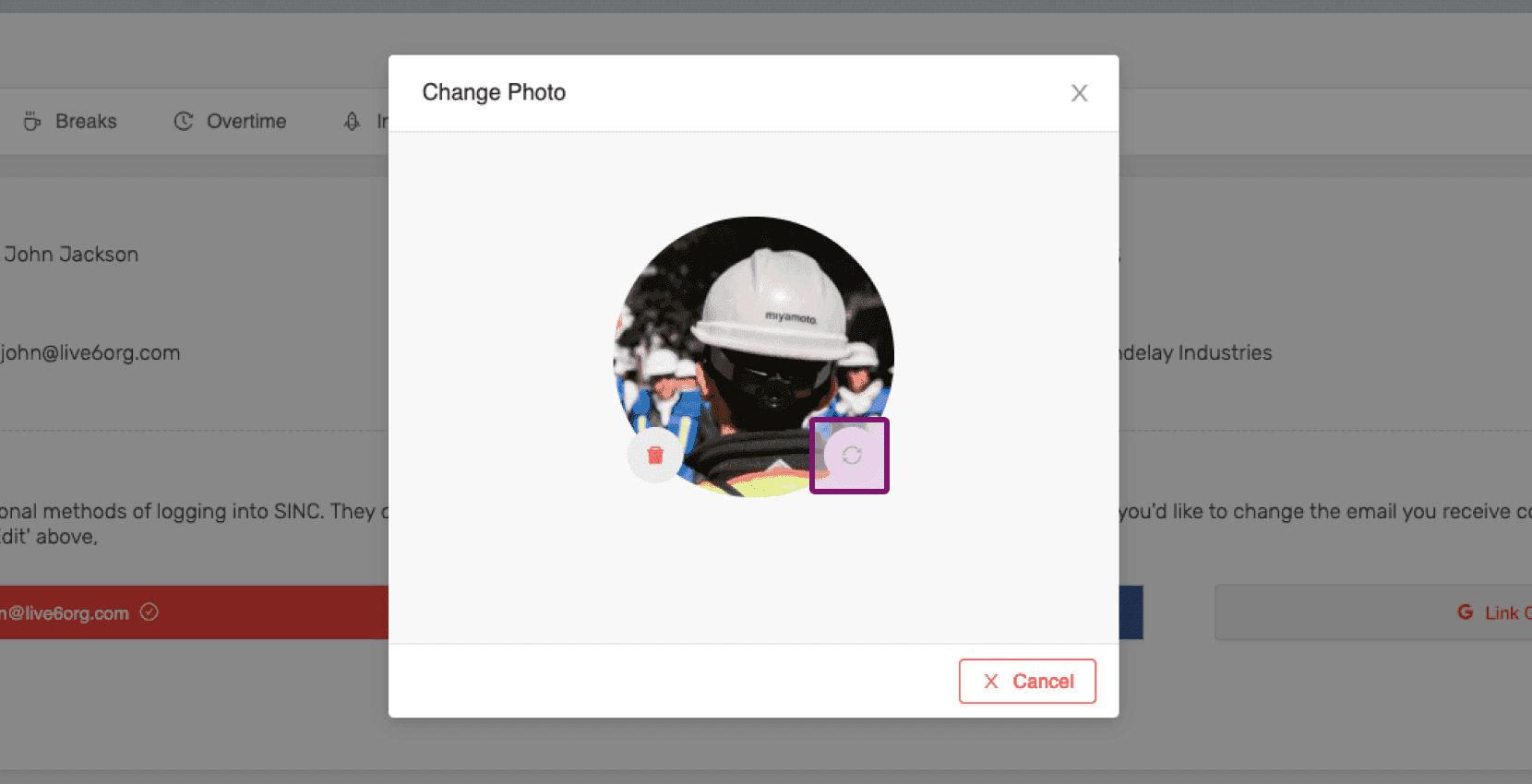
SINC web Change Photo dialog with the picture change icon on the profile photo circled in purple

Per eliminare la foto caricata: fai clic sull’icona del cestino in basso a sinistra dell’immagine del profilo.
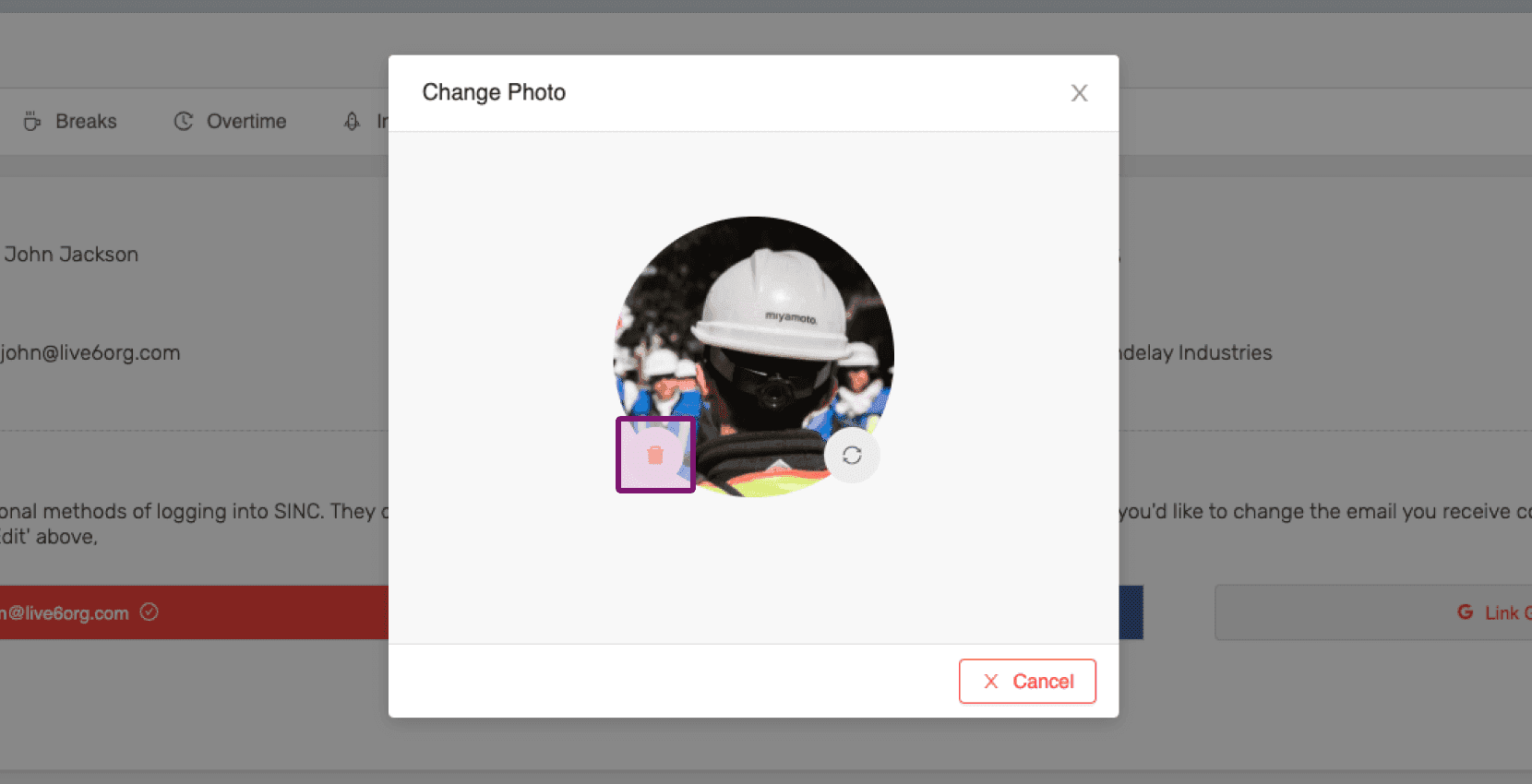
Change Photo dialog with the delete icon on the profile picture outlined in pink

Questa risposta ti è stata utile?