Richiedere una modifica al timesheet

In questa guida vedremo come richiedere modifiche ai tuoi turni in qualità di dipendente.

Sam Dolbel
Sam Dolbel
May 26th, 2023

Su dispositivo mobile: tocca Menu I miei turni
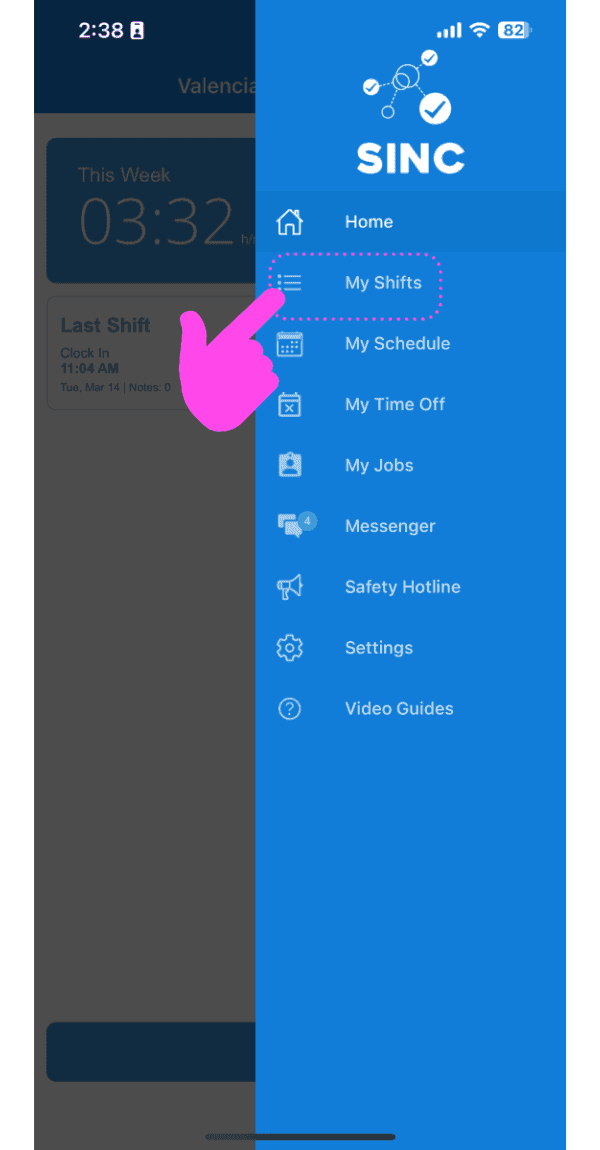
SINC mobile app side menu with a pink hand pointing to the My Shifts menu item

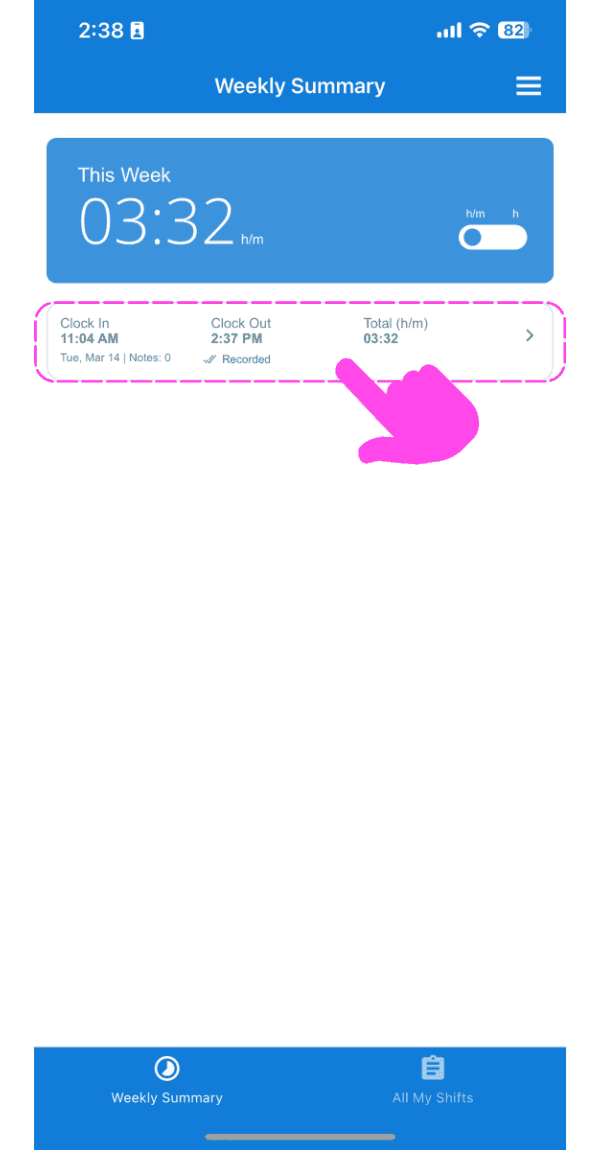
Tocca Il cambiamento in questione

Weekly Summary screen with a clock-in/clock-out shift entry outlined in pink

Nella scheda Info, tocca Modifica (accanto all’orario di entrata o di uscita che vuoi modificare)
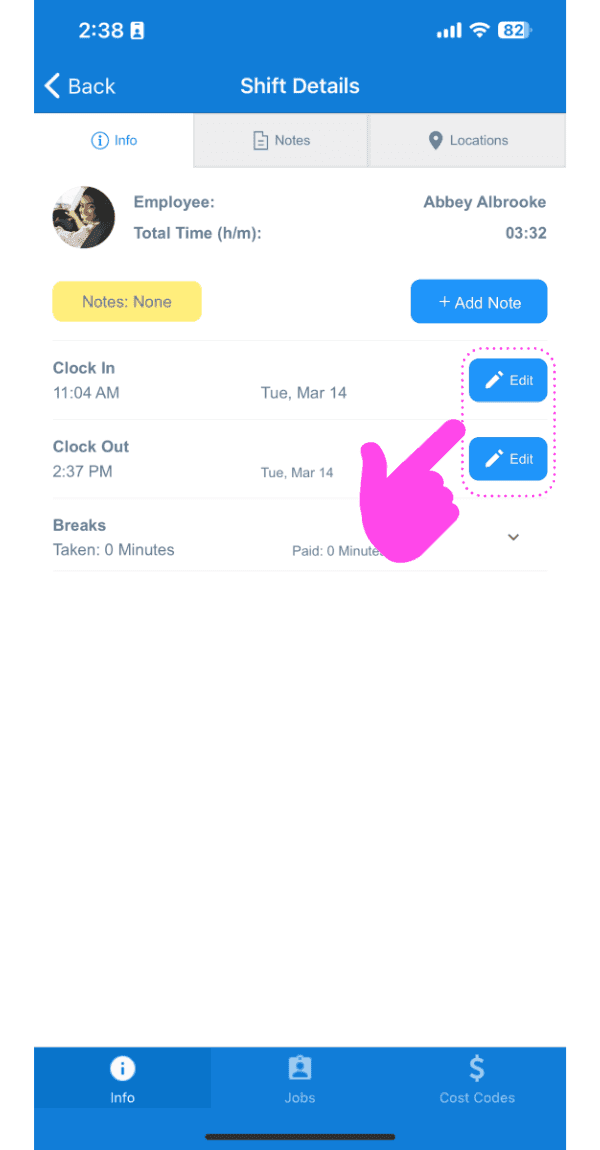
Shift Details screen showing Clock In and Clock Out times with their Edit buttons highlighted in pink

Inserisci un motivo per la richiesta di modifica.
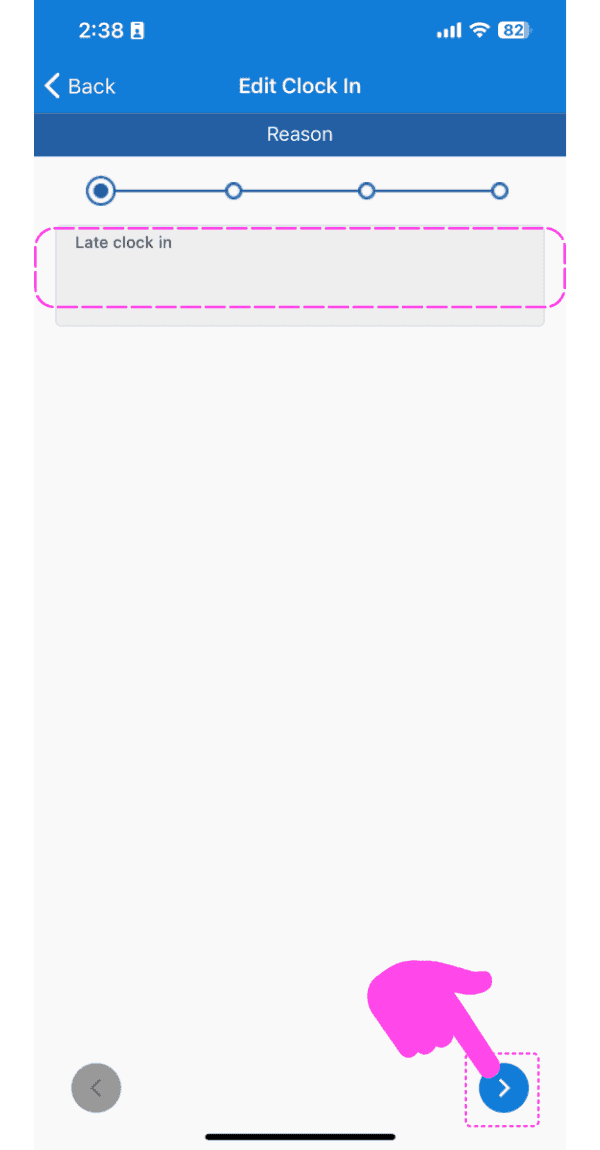
SINC mobile Edit Clock In reason screen with a pink hand pointing to the next arrow button

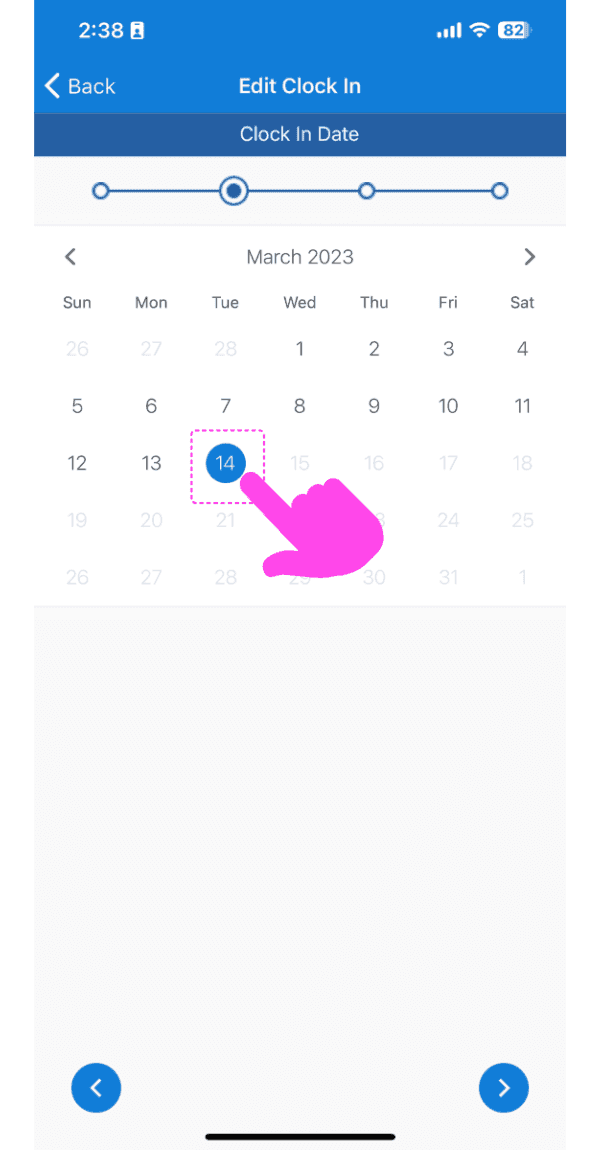
Seleziona la nuova data.

Edit Clock In date picker calendar with March 14 selected and highlighted by a pink arrow

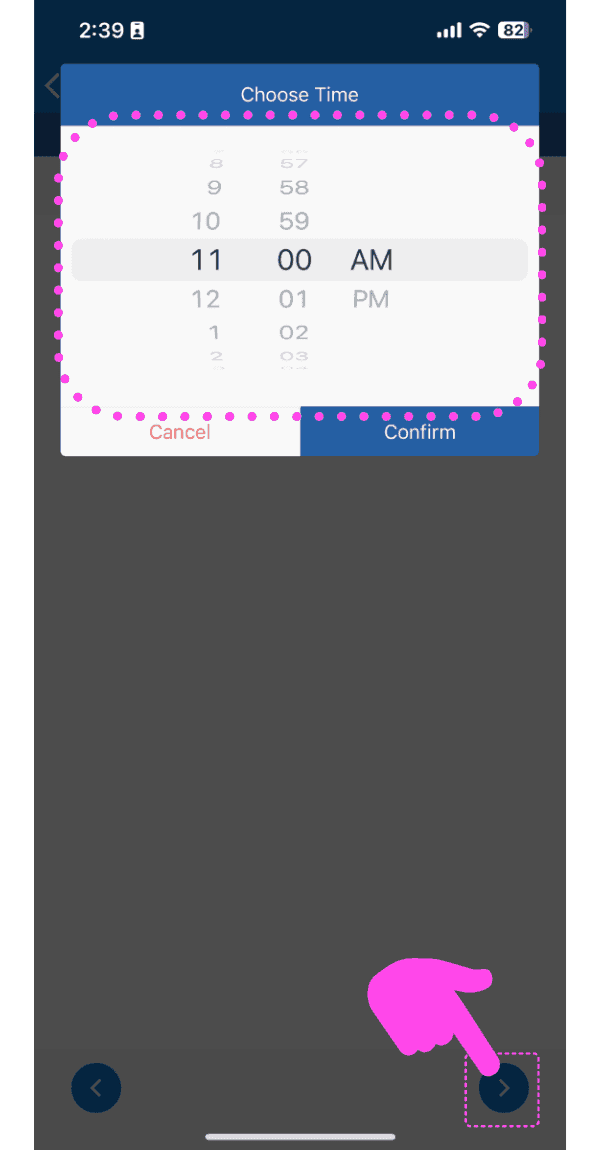
Seleziona il nuovo orario.

SINC mobile time picker wheel set to 11:00 AM with the next-step arrow highlighted in pink

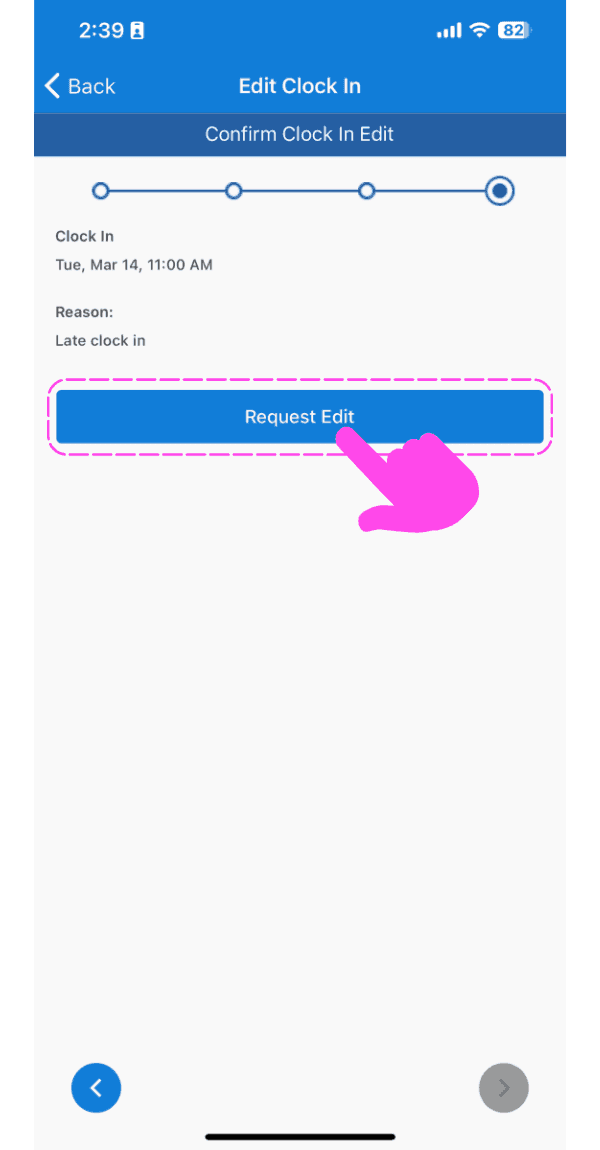
Tocca Richiedi modifica

Confirm Clock In Edit screen with a pink arrow pointing to the Request Edit button

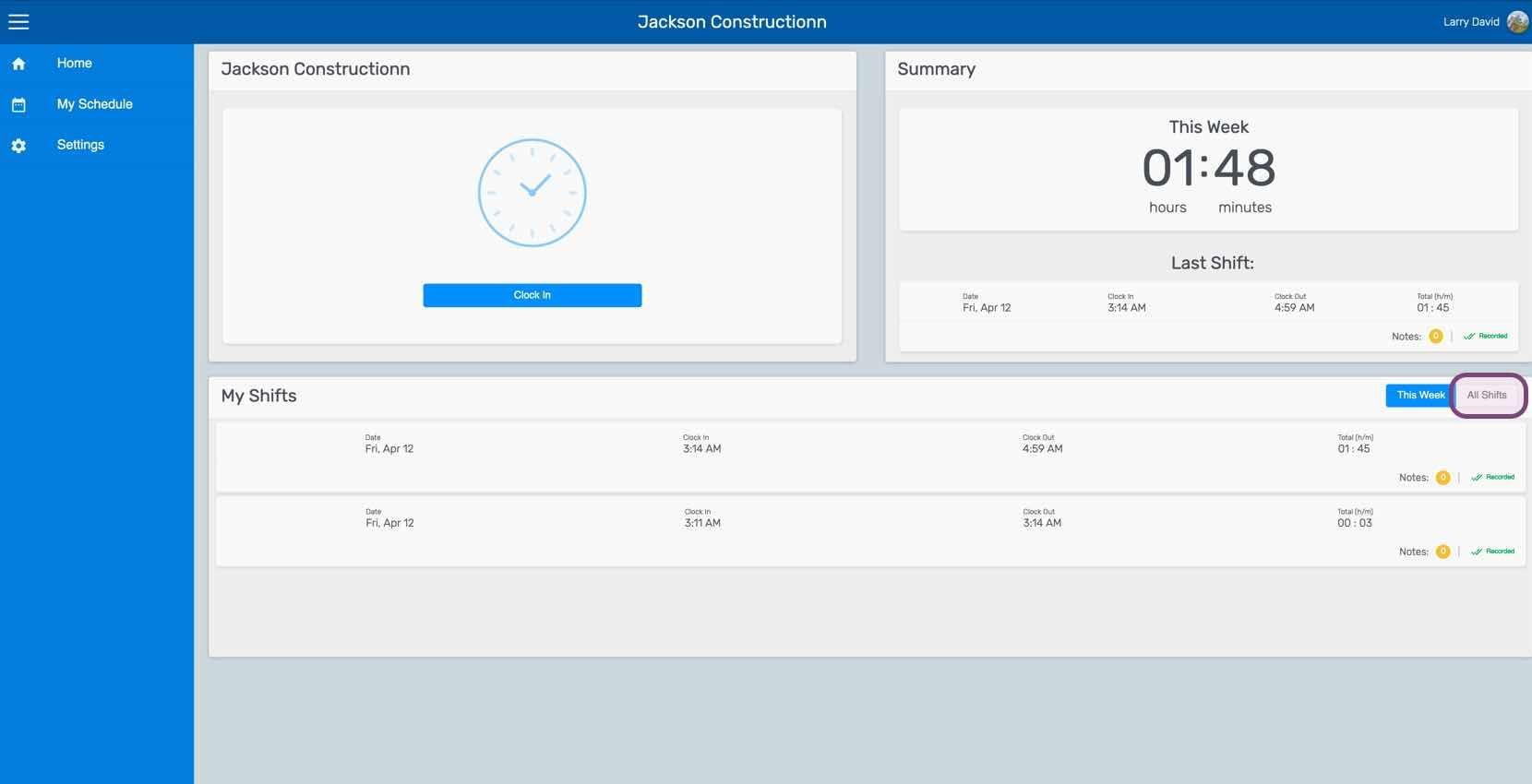
Sul web: clicca su I miei turni

SINC web dashboard with the All Shifts tab circled next to the My Shifts list

Fai clic su Il cambiamento in questione
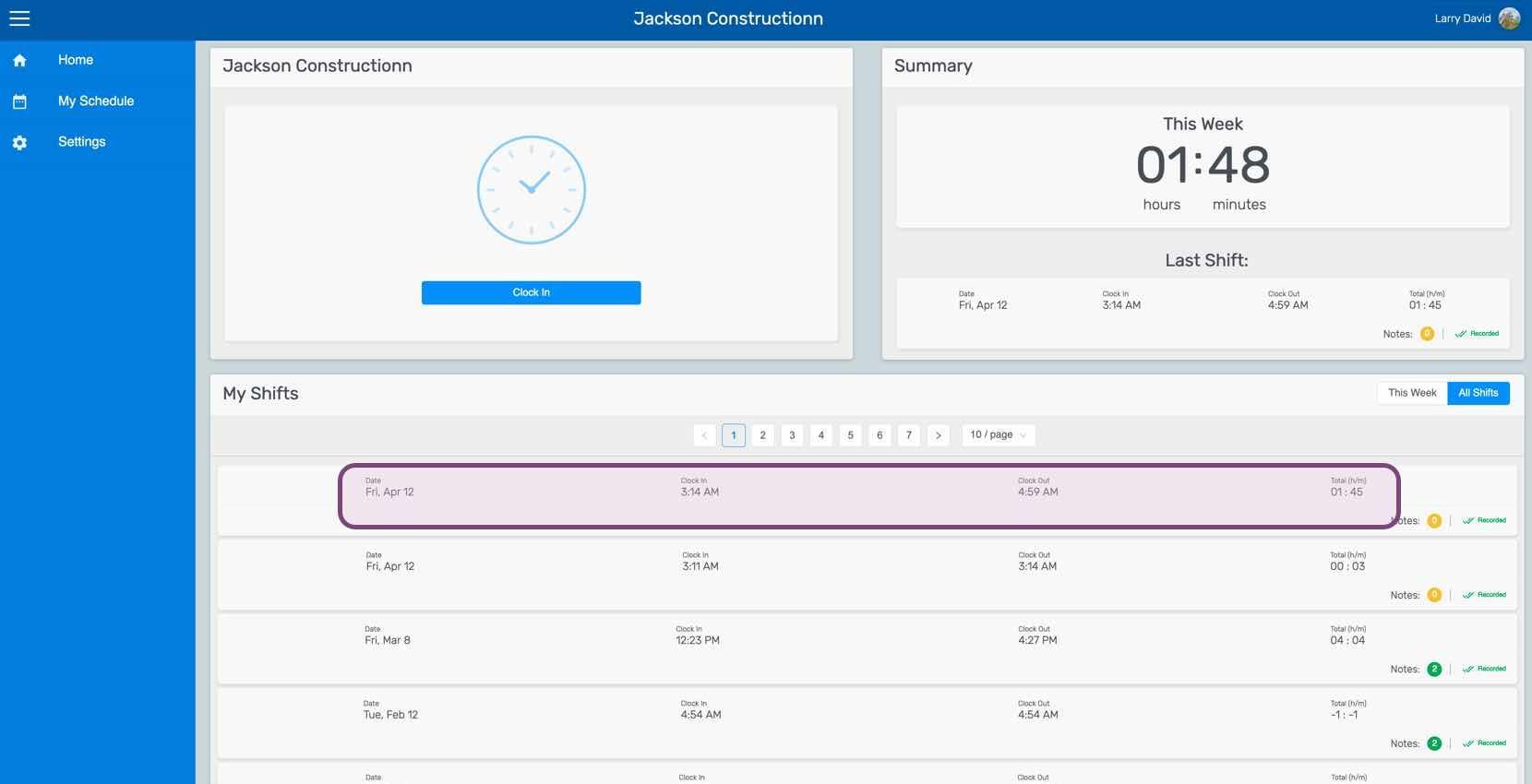
Web employee dashboard with a specific shift row in the My Shifts table outlined in pink

Nella scheda Turno, fai clic su Modifica (accanto all’orario di entrata o di uscita che desideri modificare)
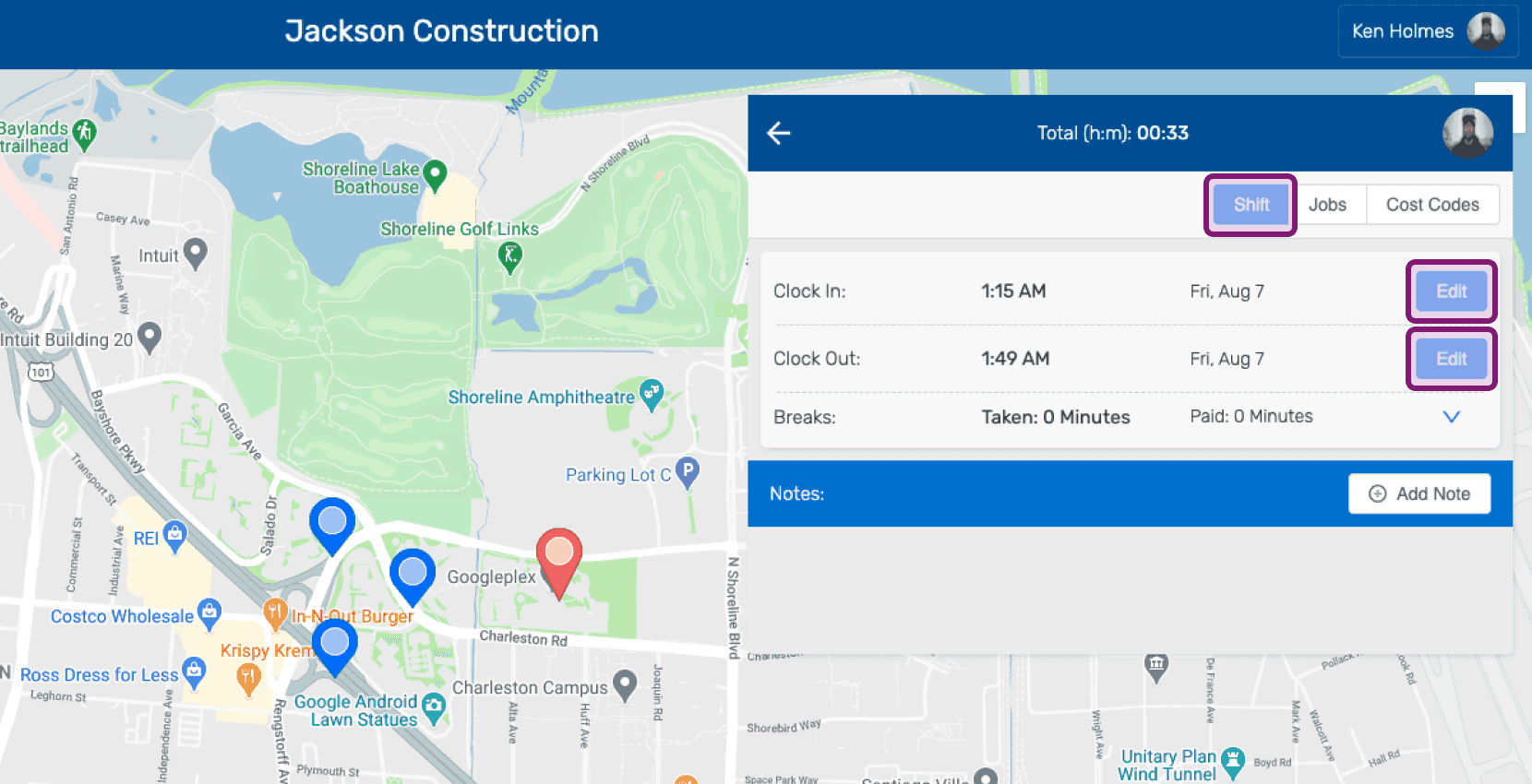
SINC web shift detail panel showing Clock In and Clock Out times with the Edit buttons circled

Aggiungi un motivo per la richiesta di modifica.
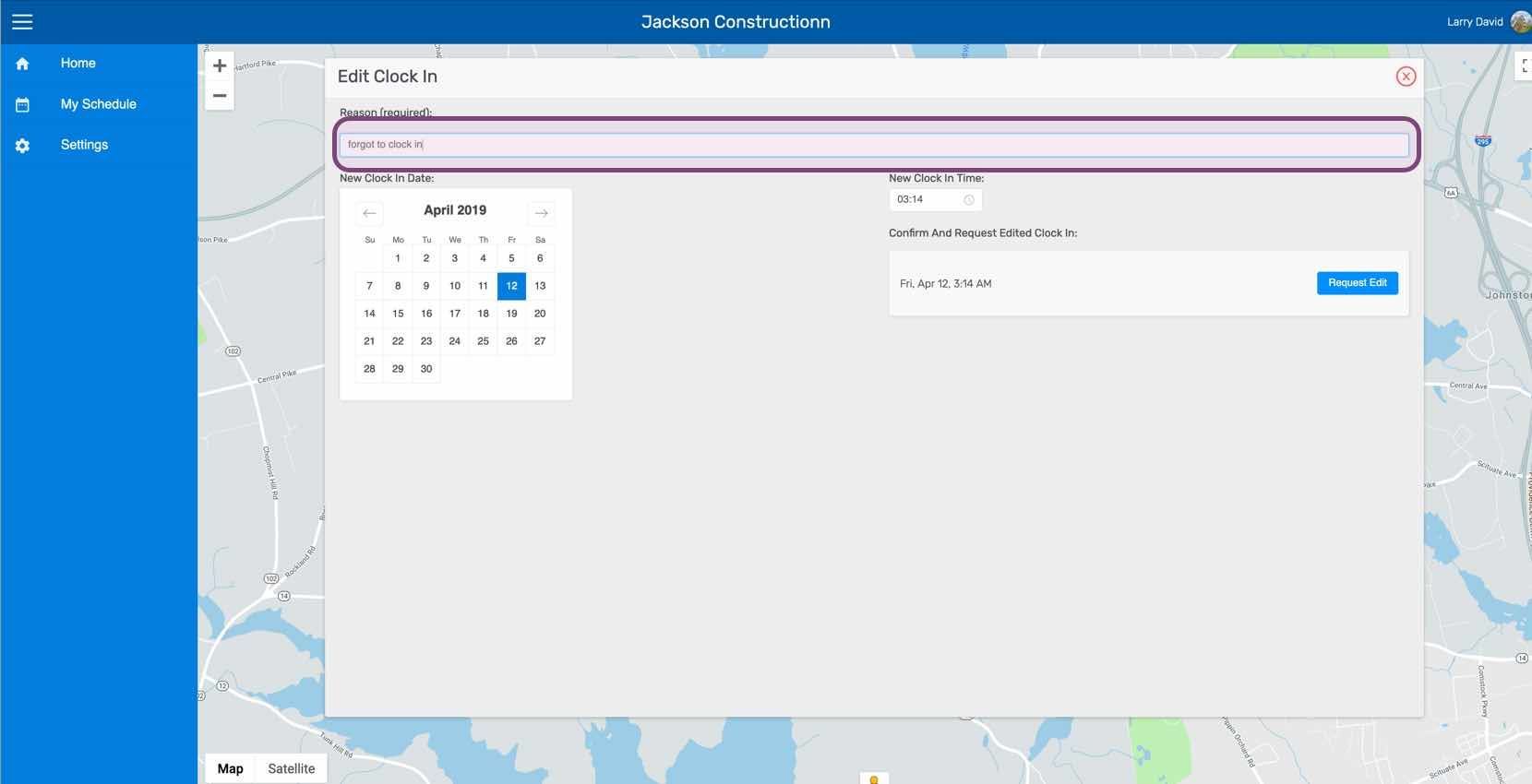
Edit Clock In screen with the reason text field highlighted above a map

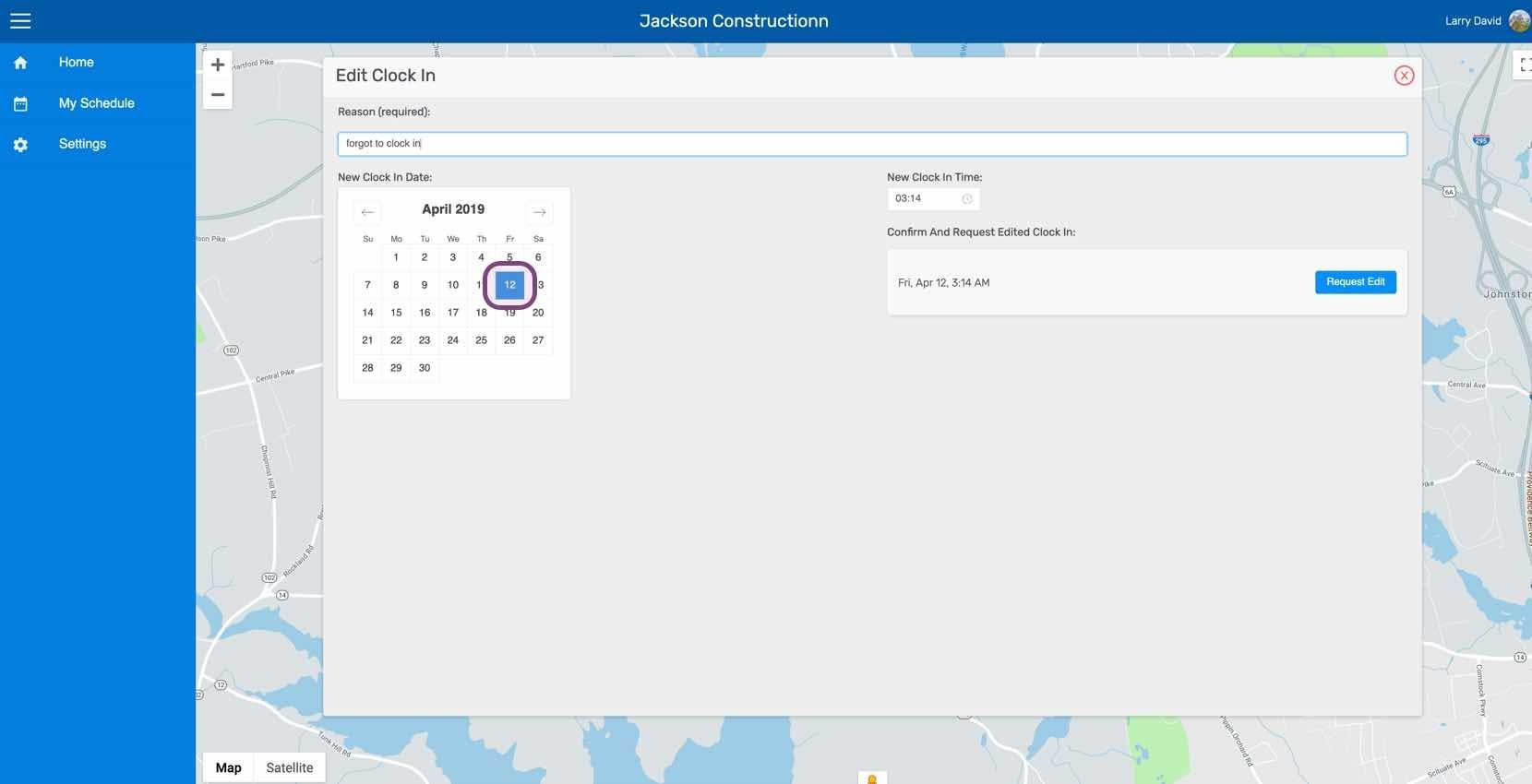
Seleziona la nuova data.

Web Edit Clock In screen with a date selected on the calendar and Request Edit button

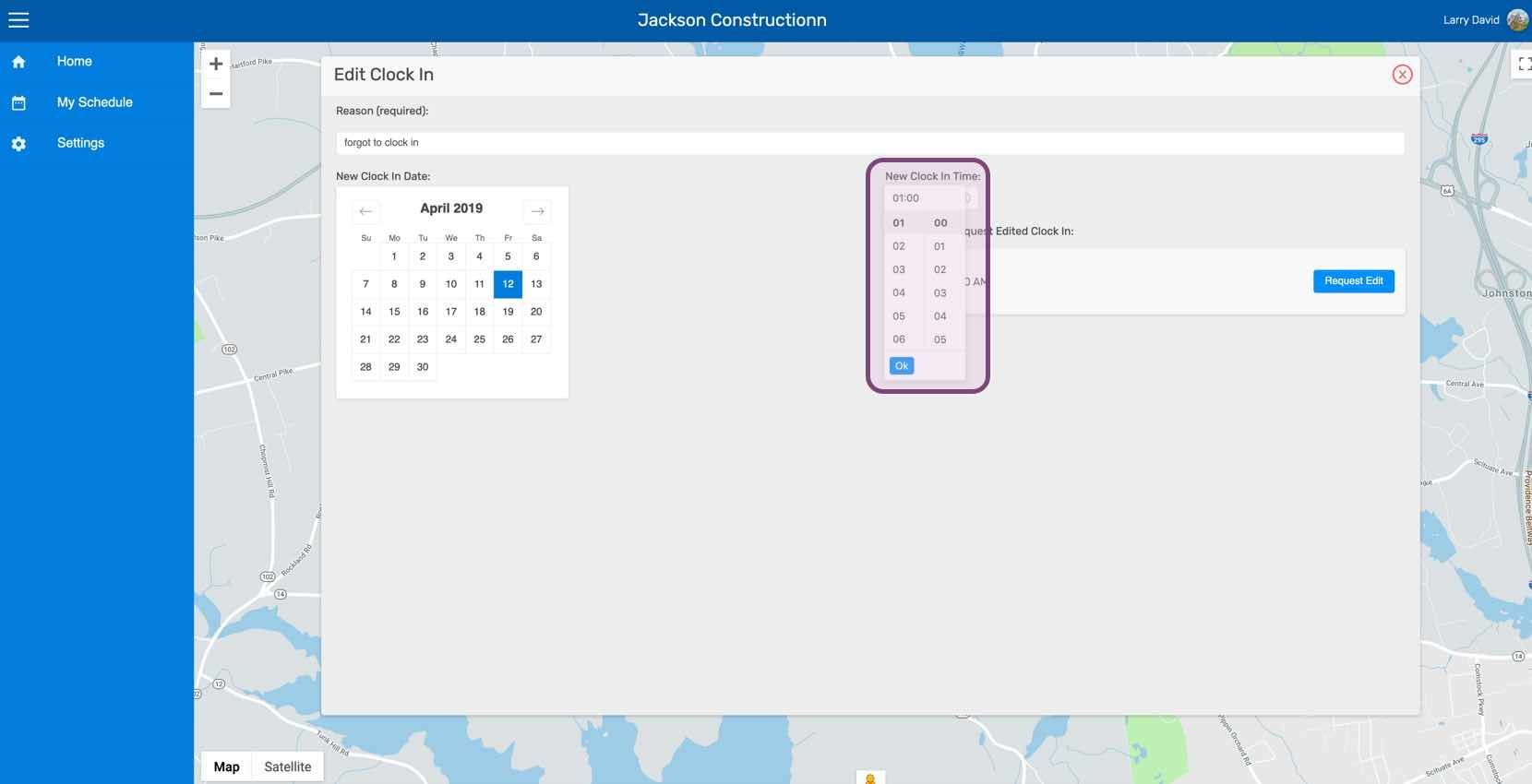
Seleziona il nuovo orario.

SINC web Edit Clock In screen with the New Clock In Time picker outlined in purple

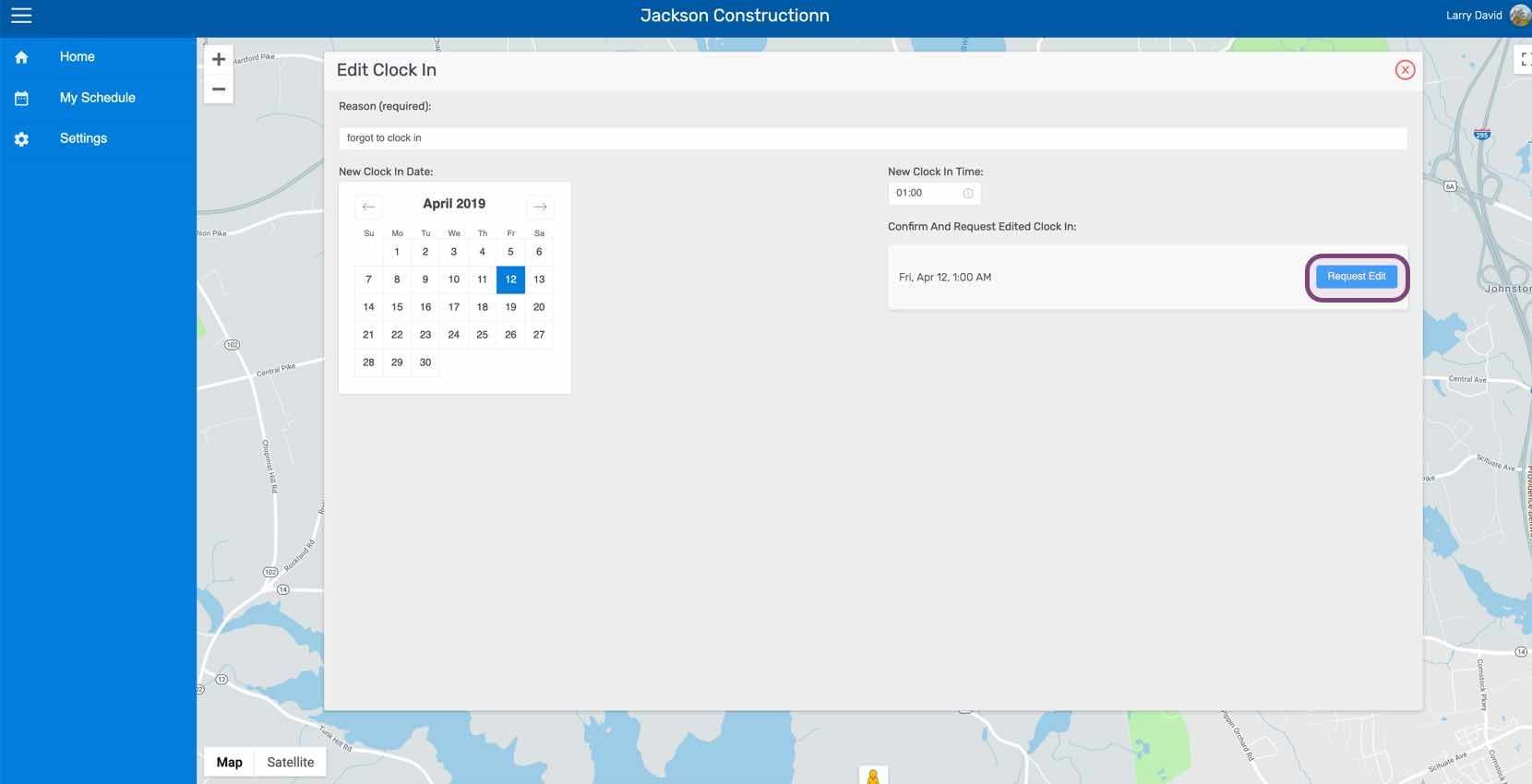
Clicca su Richiedi modifica

SINC web Edit Clock In screen with the Request Edit button outlined in purple

Questa risposta ti è stata utile?