Assegna i dipendenti ai lavori

Vediamo come gli amministratori possono assegnare i dipendenti a un’attività esistente o durante la creazione di una nuova attività.

SINC Support Team
SINC Support Team
Feb 24th, 2023

Per usare questa funzionalità, devi prima attivare l’assegnazione dei dipendenti alle attività. Una volta attivata, ogni dipendente potrà timbrare l’entrata e l’uscita solo per le attività a cui è stato assegnato. Per assegnare dei team a un’attività, crea prima il team.

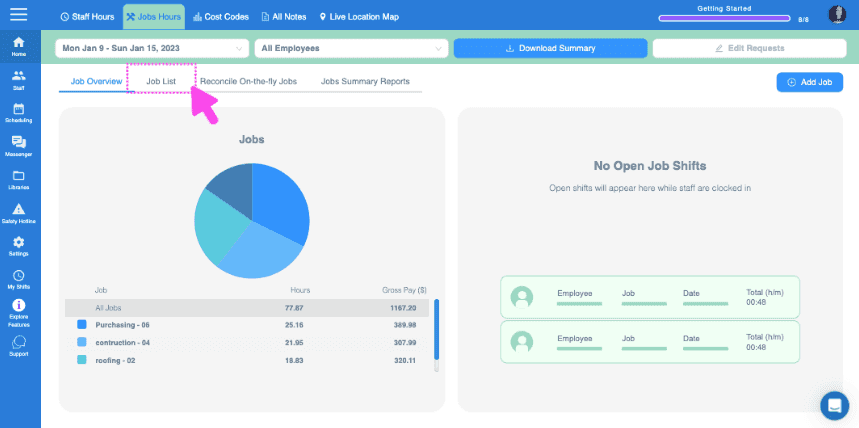
Per assegnare un dipendente o un team a un lavoro esistente. Sul web: fai clic su Home Ore di lavoro Elenco lavori
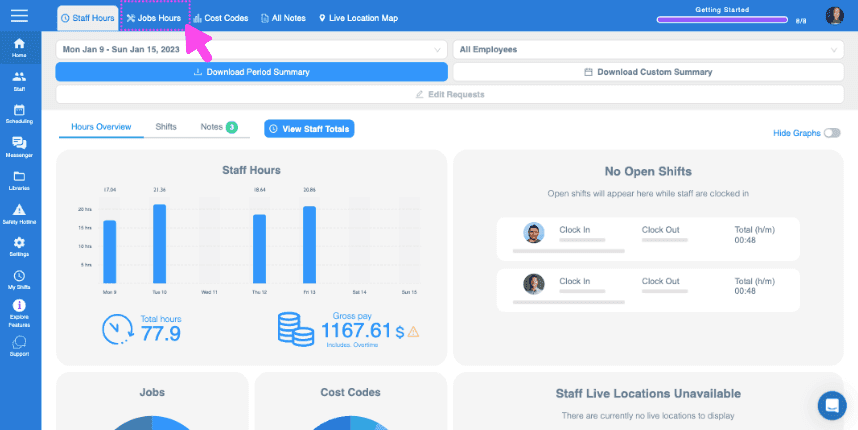
Web dashboard with the Jobs Hours tab highlighted in the top navigation bar
SINC web dashboard Job Hours menu with the Job List tab highlighted in pink

Clicca su Il lavoro da assegnare ai dipendenti
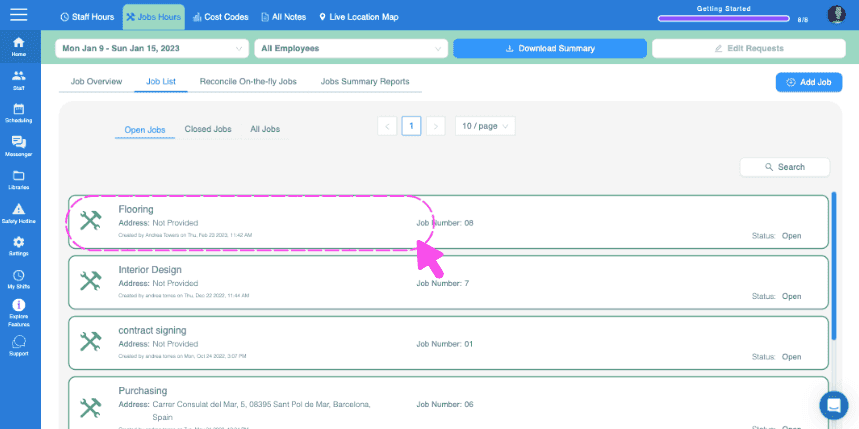
SINC web Job List screen with the 'Flooring' job entry circled in pink

Fai clic su Informazioni Modifica accanto a Dipendenti assegnati
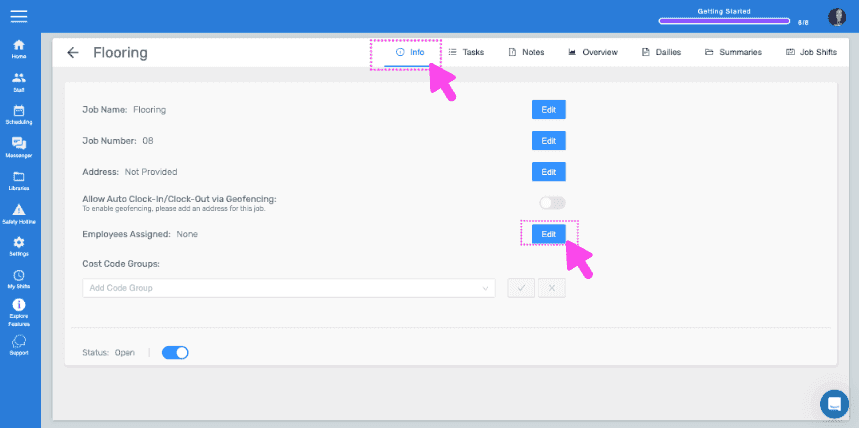
Job Info tab with pink arrows pointing to the Info tab and the Edit button next to Employees Assigned

Seleziona i dipendenti o i team da assegnare, quindi tocca Conferma
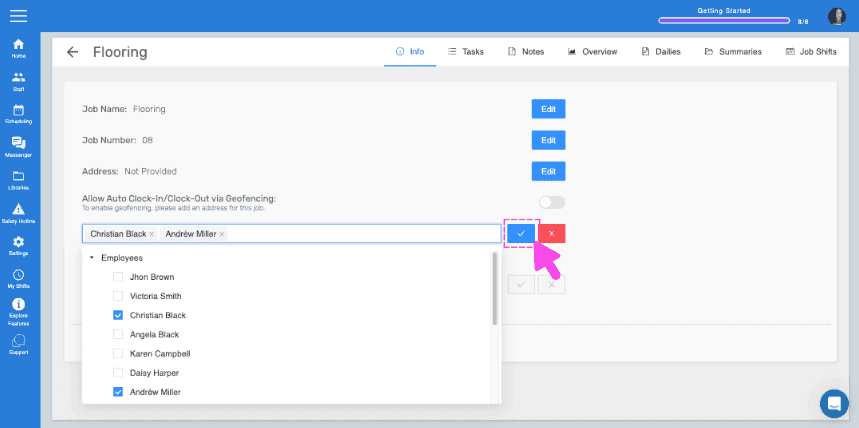
SINC web job Employees tab showing a staff checklist with selected names and a pink arrow pointing to the confirm button

Da mobile: tocca Menu Panoramica Lavori
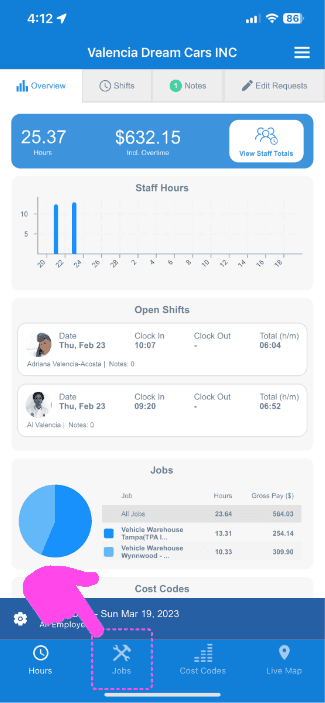
Web dashboard Overview screen with a pink arrow pointing to the Jobs tab in the bottom navigation

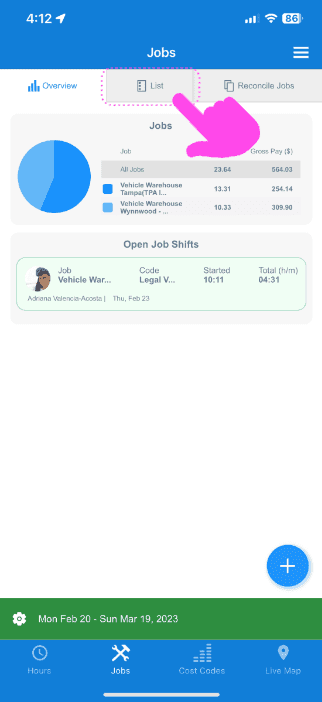
Tocca Elenco

SINC mobile Jobs screen with a pink arrow pointing to the List tab above the jobs pie chart

Tocca Il lavoro da assegnare ai dipendenti
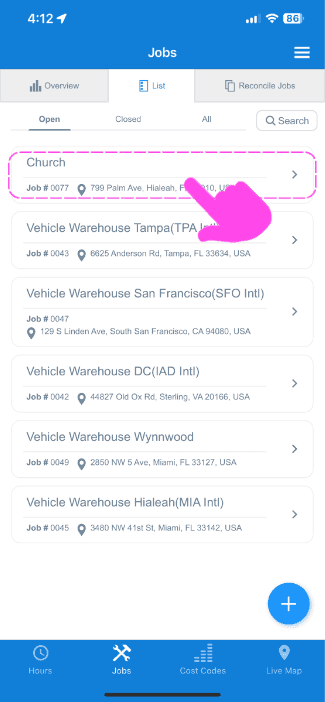
SINC mobile Jobs list with a pink arrow pointing to a highlighted job entry named Church

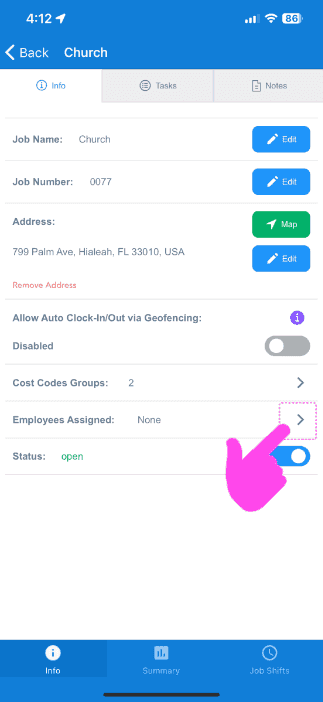
Tocca Info Info Dipendenti assegnati

Job Info screen for a Church job with the Employees Assigned row circled by a pink arrow

Seleziona i dipendenti/team da assegnare, quindi tocca Conferma
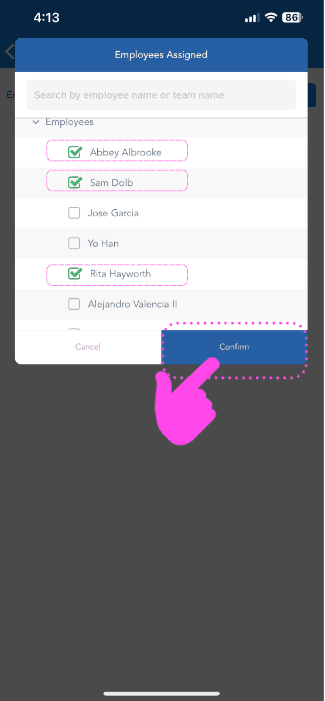
SINC mobile Employees Assigned screen with staff checkboxes selected and the Confirm button highlighted

Questa risposta ti è stata utile?