Conferma dell’infortunio

Questa guida spiega come il personale può chiudere il turno segnalando eventuali infortuni.

Sam Dolbel
Sam Dolbel
Feb 27th, 2023

Nota: questa funzionalità è attualmente disponibile solo per gli utenti dei piani Growth ed Enterprise. La schermata di conferma relativa agli infortuni viene visualizzata solo quando si timbra l’uscita da turni che includono turni di lavoro. Per registrare i turni di lavoro all’interno di un turno, attiva Monitoraggio del lavoro. Registra un turno con un turno di lavoro, quindi fai scorrere il pulsante verso destra per confermare l’uscita.
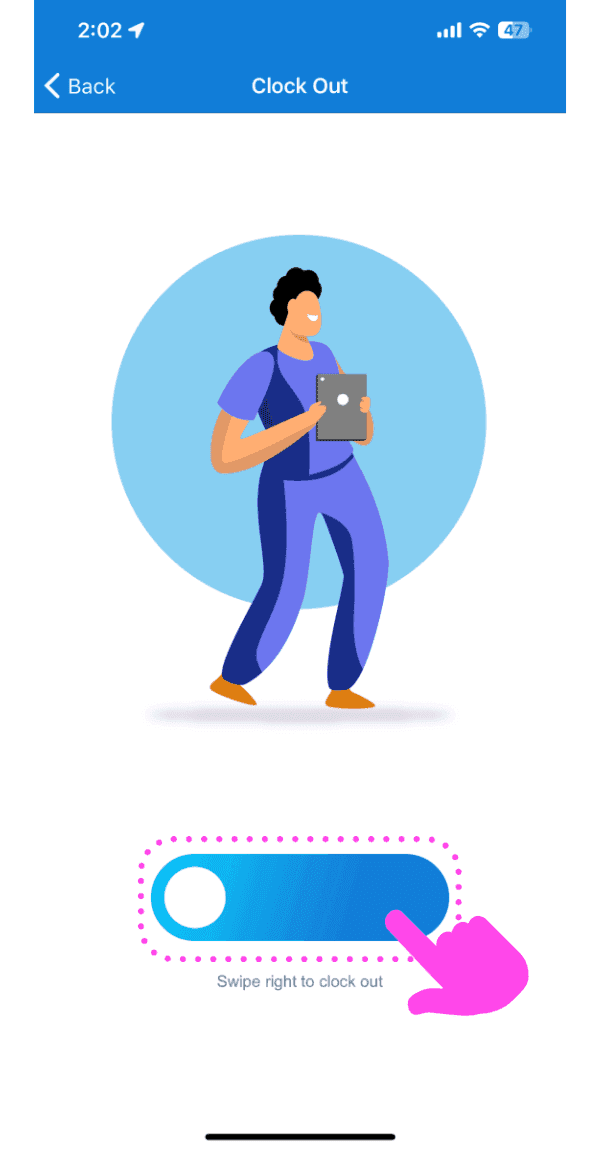
Mobile Clock Out screen with a worker illustration and the slide-to-confirm button outlined in pink

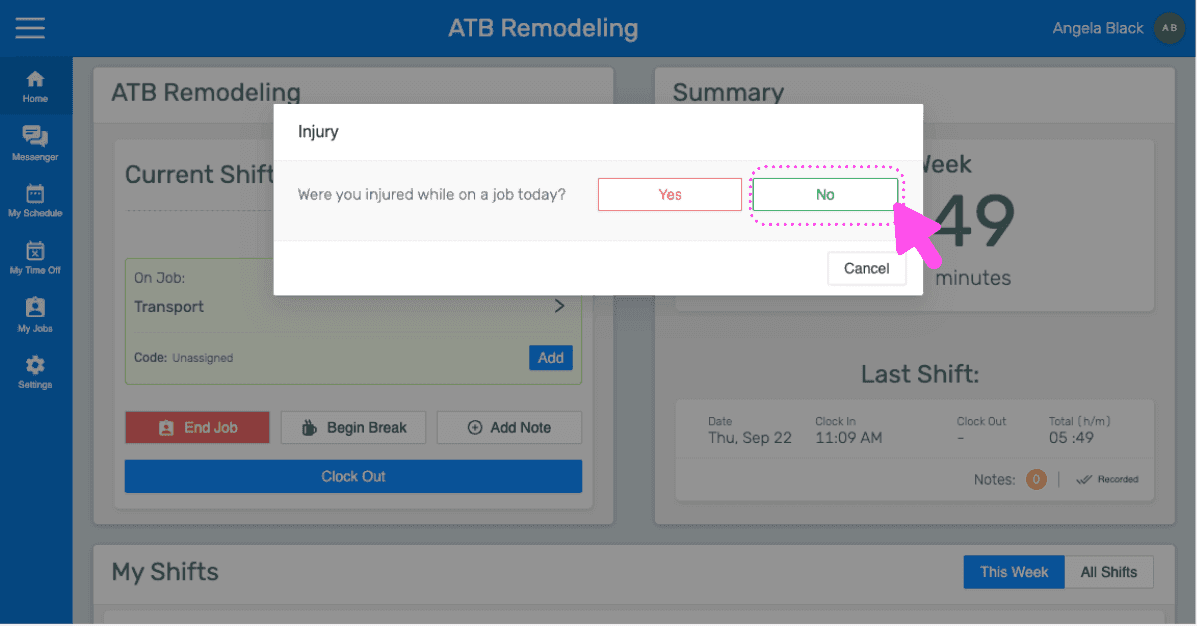
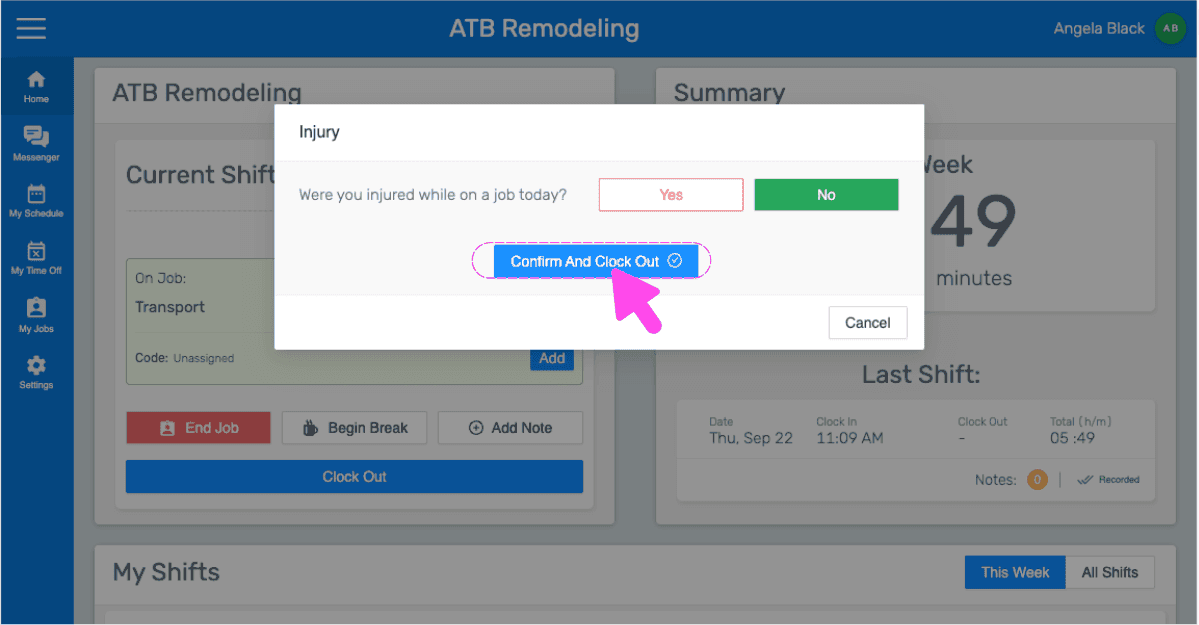
Rispondi: Ti sei infortunato mentre lavoravi oggi? Se non hai riportato infortuni, tocca No e poi Invia turno.
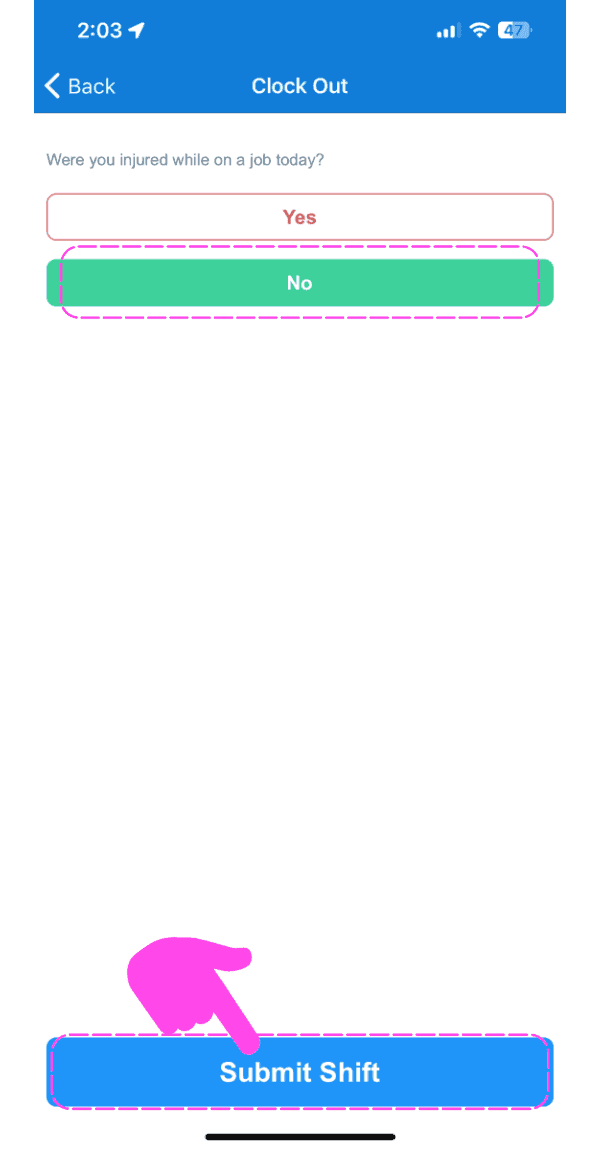
SINC mobile Clock Out screen asking about injury, with a pink hand pointing to the Submit Shift button

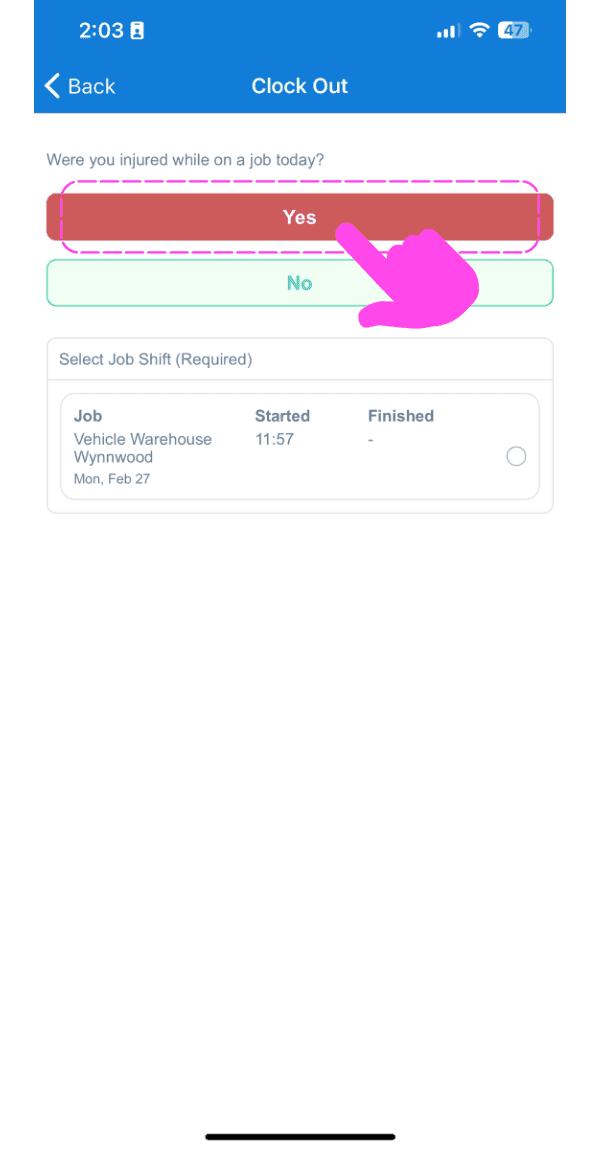
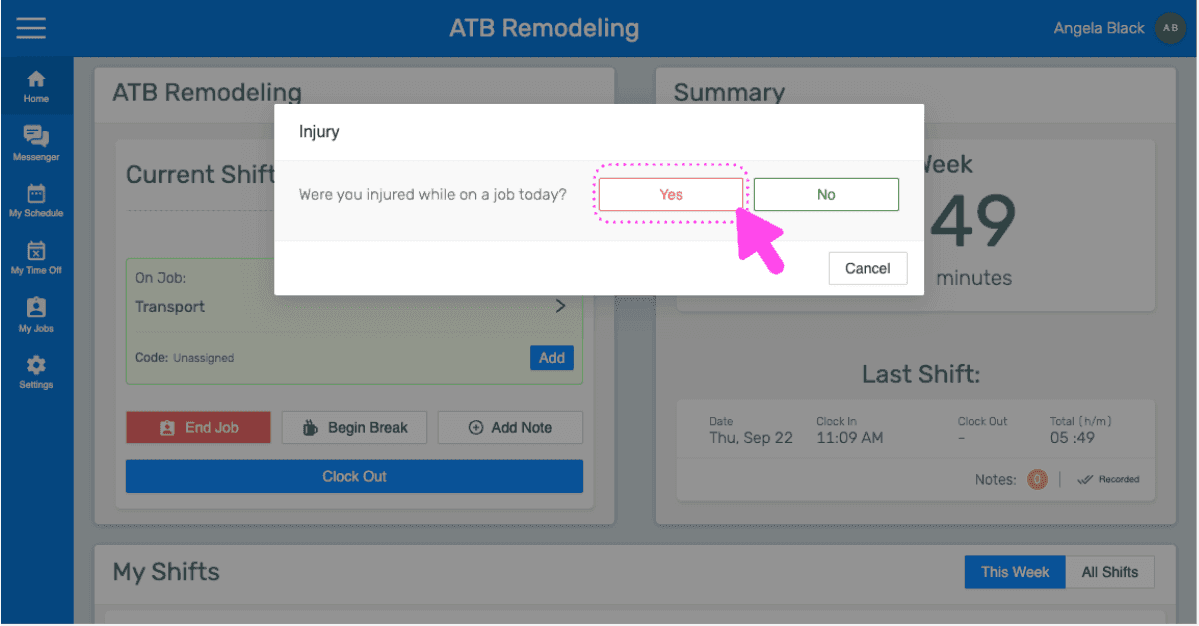
In caso di infortunio, tocca Sì

Clock Out screen asking if the employee was injured, with a pink arrow on the Yes button

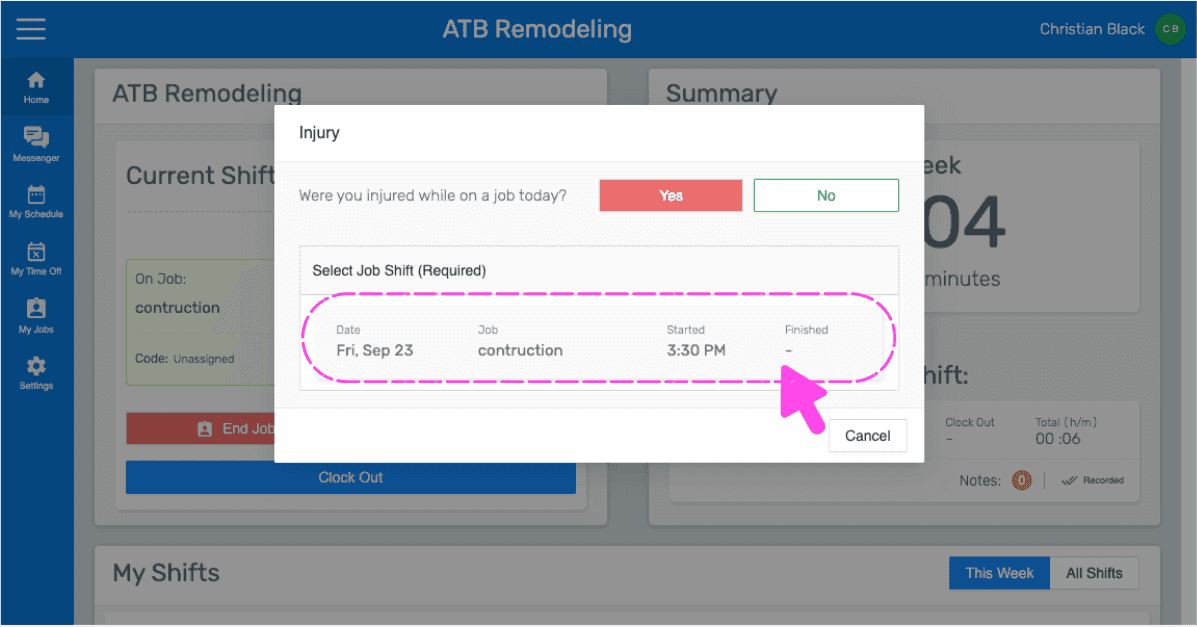
Tocca Turno di lavoro in cui ti sei infortunato
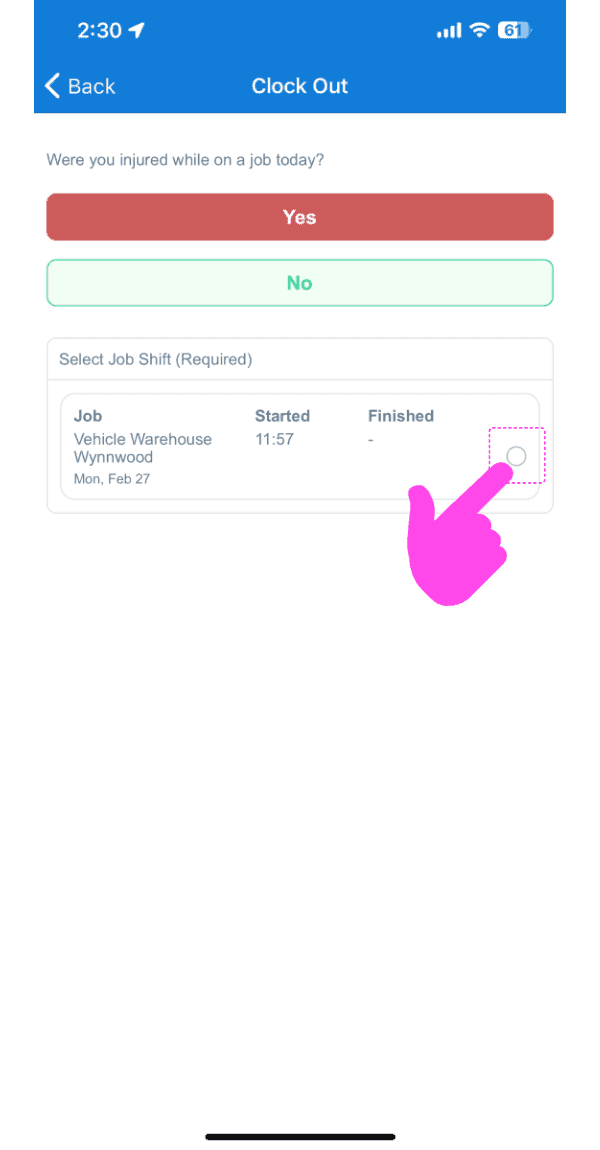
Mobile Clock Out screen asking if injured, with a pink arrow pointing to the job shift selection circle

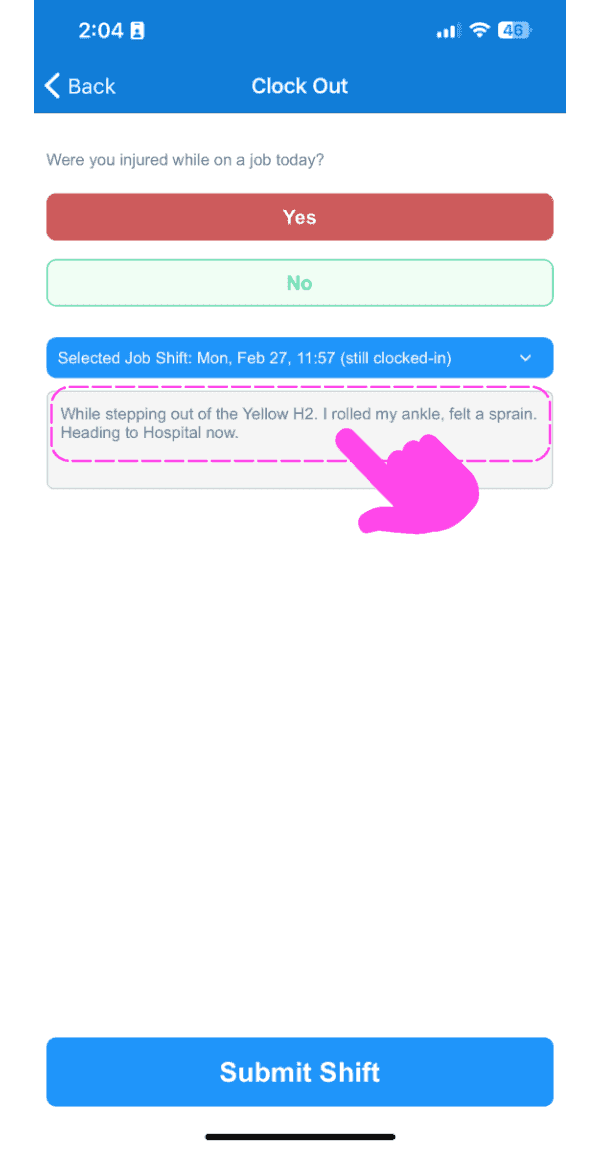
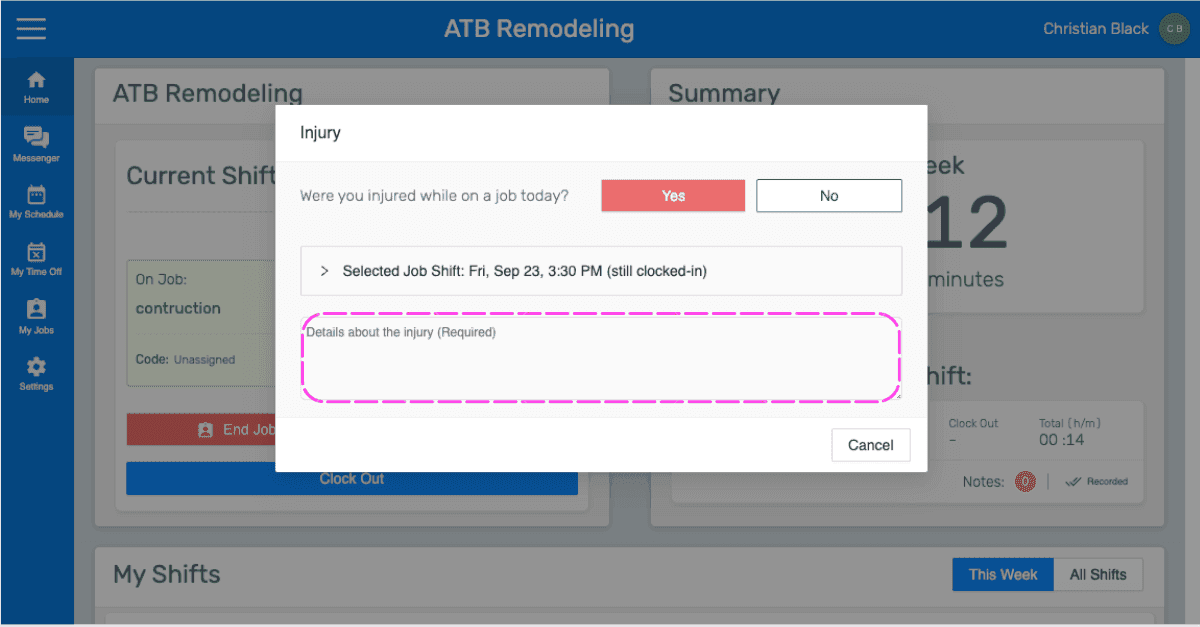
Inserisci Dettagli sull’infortunio

SINC mobile Clock Out screen with a pink arrow pointing to the injury details text box above the Submit Shift button

Tocca Invia turno. Se un turno viene convalidato indicando un infortunio, i dettagli dell’infortunio vengono inclusi nel report giornaliero del relativo lavoro a fine giornata.
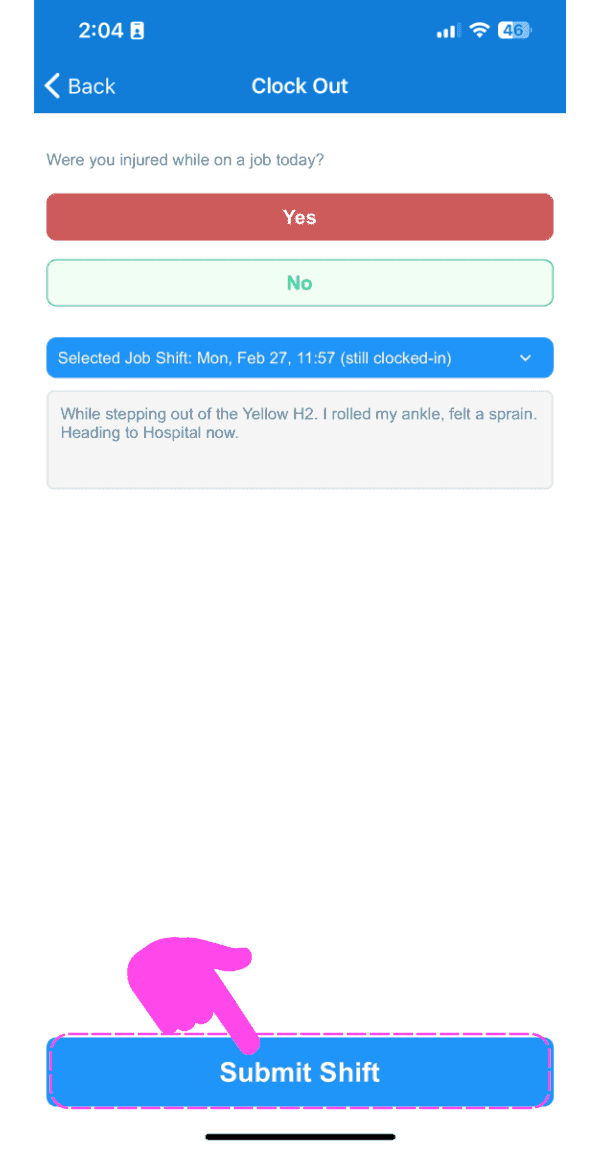
SINC mobile Clock Out screen with 'Yes' selected for the injury question and a pink arrow pointing to the Submit Shift button

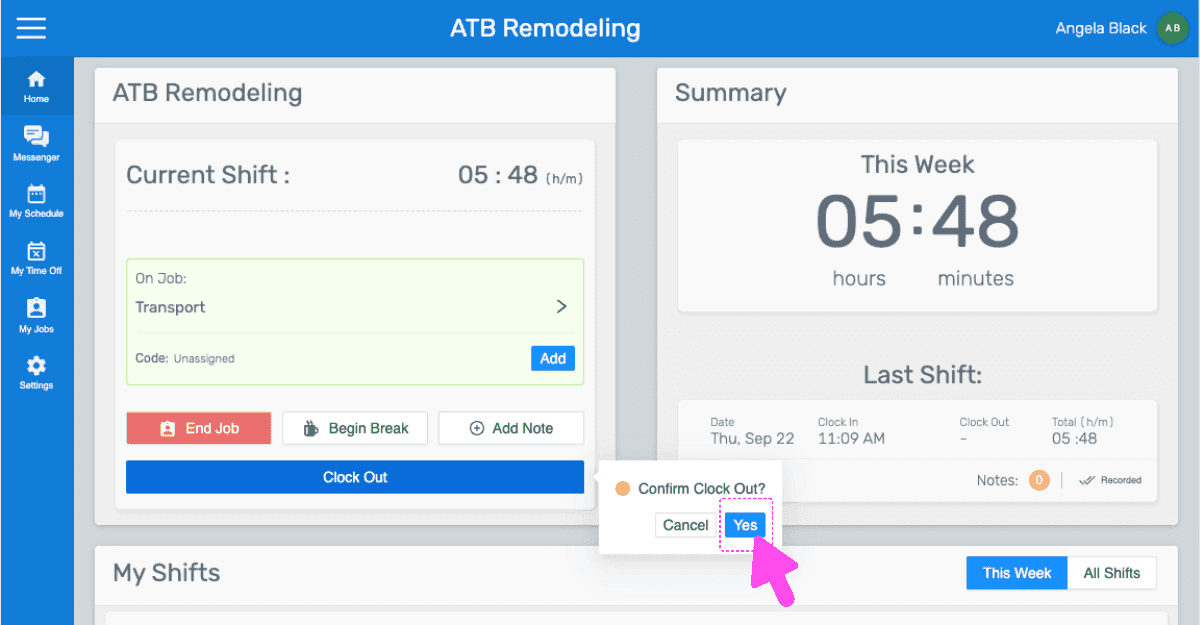
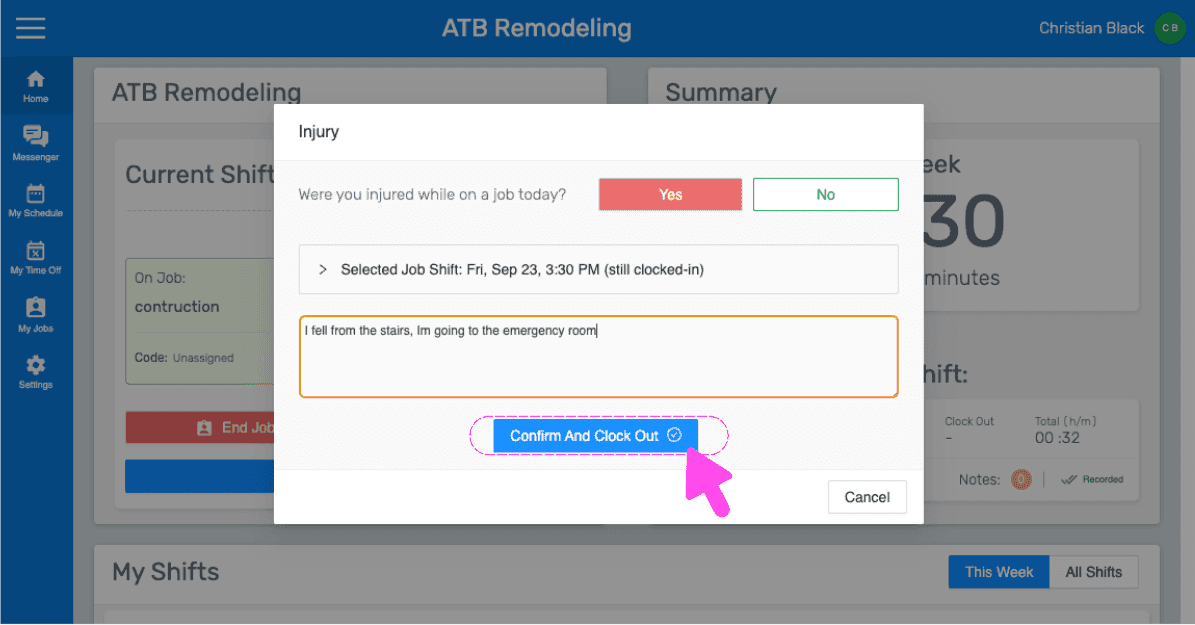
Se stai utilizzando la versione web, apparirà così:
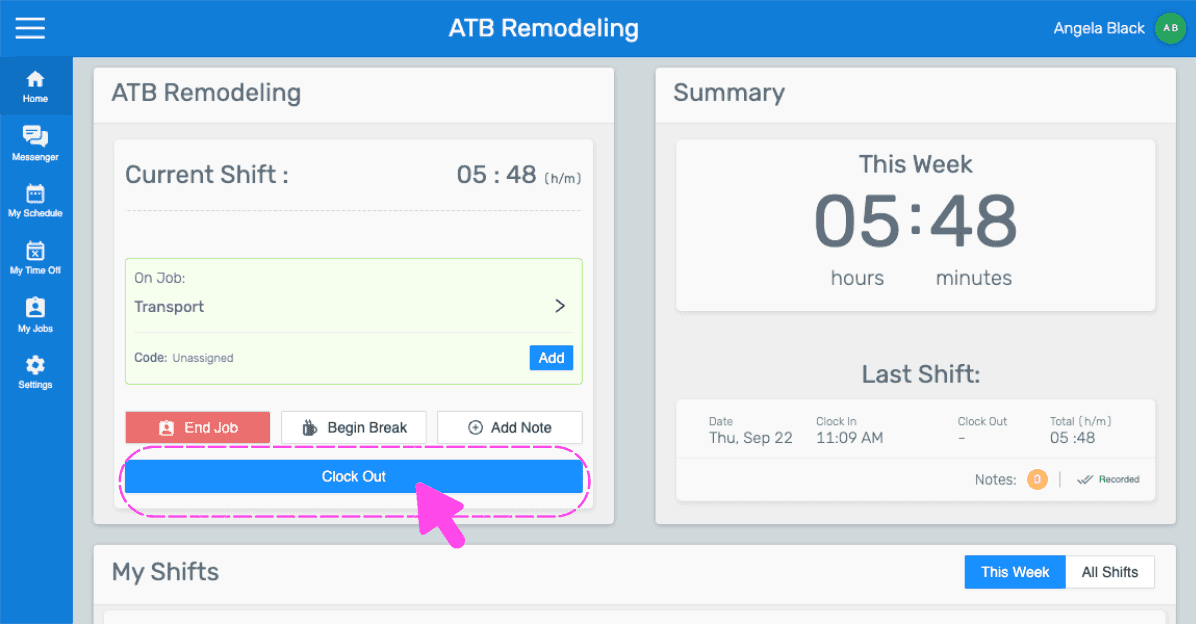
Mobile job shift screen showing hours worked with the Clock Out button outlined in pink
SINC web shift screen showing a Confirm Clock Out popup with the Yes button highlighted by a pink arrow
Mobile app injury sign-off popup asking if you were injured on the job, with the No button highlighted
SINC web dashboard injury popup asking if the employee was injured, with Confirm And Clock Out button highlighted
SINC mobile Injury popup asking whether you were injured on a job today, with the Yes button highlighted
Injury sign-off popup asking if injured on a job today, with the job shift selection row circled in pink
SINC web Injury modal asking if the employee was injured, with the details text field highlighted
Injury popup on the web dashboard asking if the employee was injured, with a pink arrow pointing to the Confirm And Clock Out button
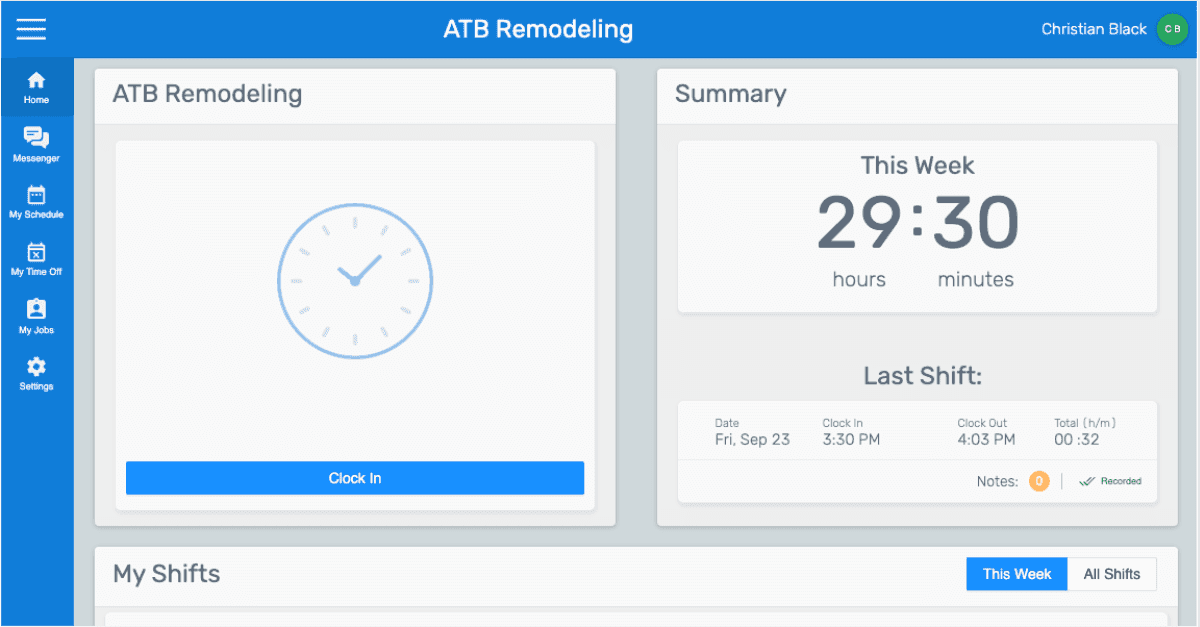
SINC web employee dashboard for ATB Remodeling showing the Clock In button and this week's hours summary

Questa risposta ti è stata utile?