Lavori: guida per i dipendenti

Questa guida illustra il flusso di lavoro delle attività di un dipendente.

Sam Dolbel
Sam Dolbel
Dec 15th, 2022

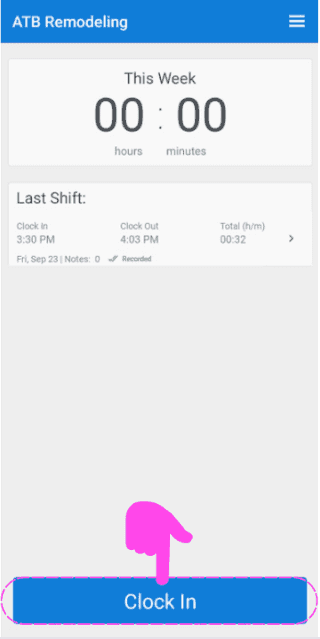
Tocca Timbratura entrata

SINC mobile app home screen with a pink hand icon pointing to the Clock In button

Scorri il pulsante verso destra per confermare la timbratura
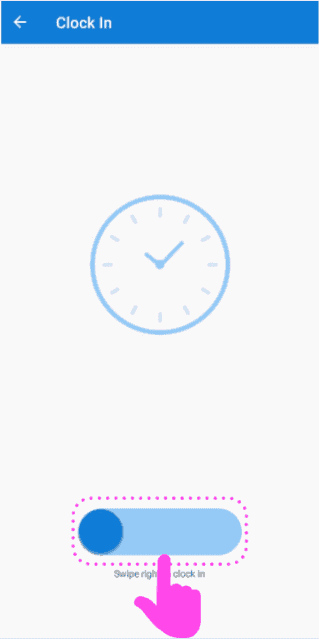
Clock In screen with a pink arrow showing how to swipe the slider right to clock in

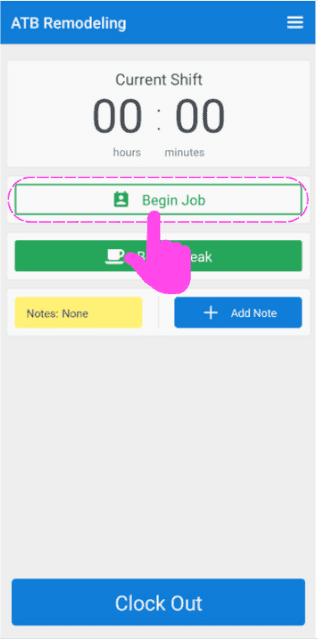
Tocca Avvia attività

SINC mobile Current Shift screen with the Begin Job button circled in pink

Qui trovi un elenco consultabile delle posizioni disponibili. Seleziona il nome corretto della posizione.
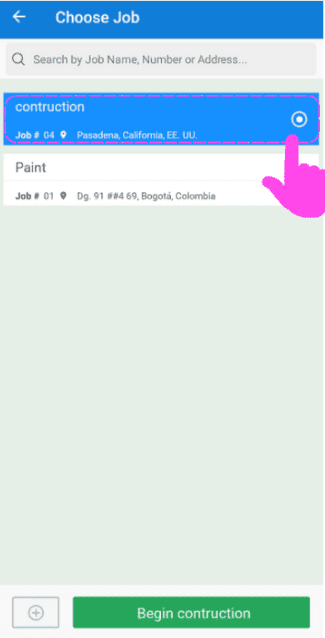
SINC mobile Choose Job screen with a pink hand pointing to a highlighted job in the searchable list

Ora, per iniziare a lavorare su un codice di costo, tocca Aggiungi (accanto a Codice: Non assegnato)
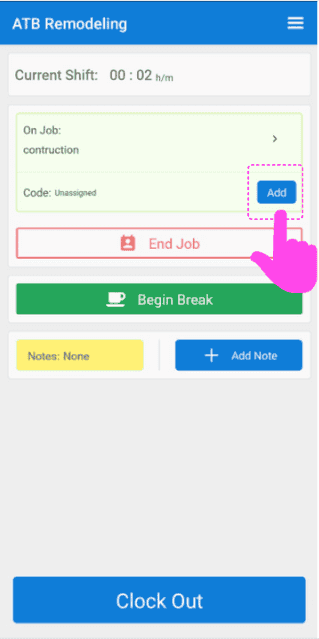
Mobile app Current Shift screen with the Add button next to the unassigned cost code highlighted by a pink arrow

Qui vedrai un elenco di tutti i codici di costo messi a disposizione dall’amministratore per questo lavoro. Seleziona quello pertinente.
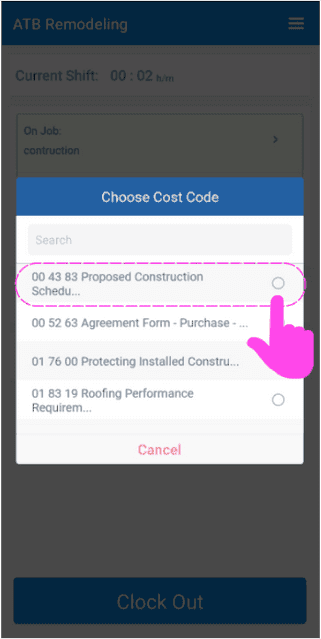
SINC mobile Choose Cost Code screen with the first cost code option highlighted in pink

Poi, una volta terminato di lavorare su quel codice, se vuoi passare a un altro, tocca semplicemente Modifica (accanto a Codice:)
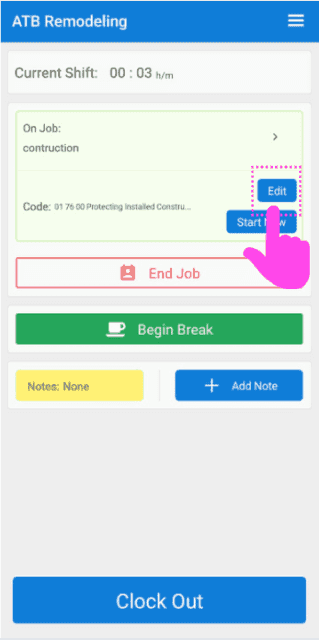
Job shift screen for ATB Remodeling with a pink hand pointing to the Edit button next to the job Code

E seleziona il codice appropriato dall’elenco
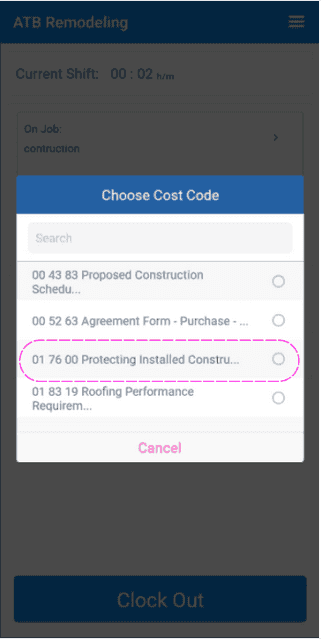
SINC mobile app Choose Cost Code list with one cost code option circled in pink

Per iniziare una pausa, tocca Inizia pausa
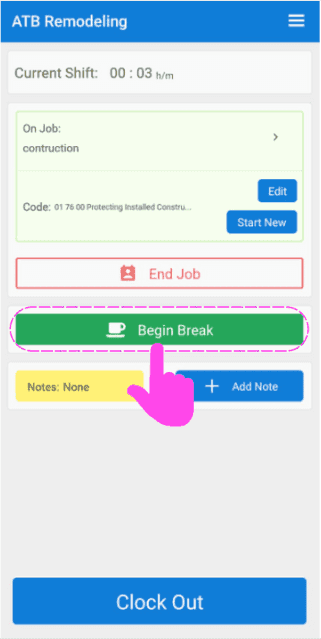
Mobile job clock-in screen with the green Begin Break button circled in pink and an arrow pointing to it

Seleziona la pausa che ti spetta in base alle ore lavorate durante questo turno
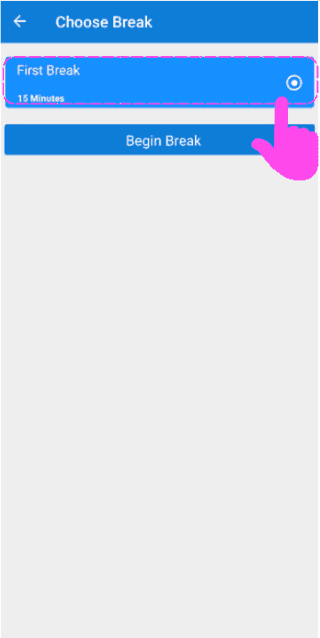
SINC mobile Choose Break screen with a pink hand pointing to the First Break option above the Begin Break button

Per terminare la pausa, tocca Termina pausa
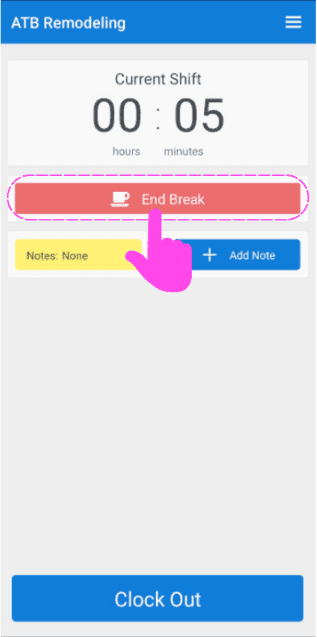
Mobile Current Shift screen during a break with a pink arrow pointing to the End Break button

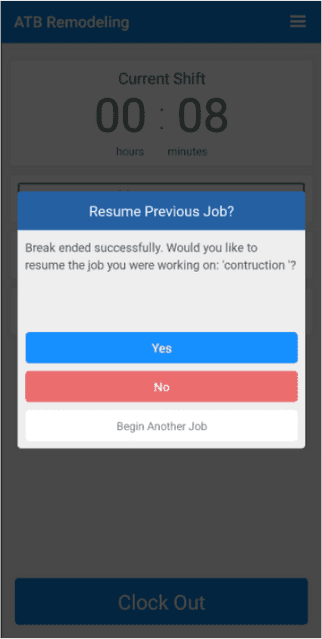
Ti verrà chiesto se desideri riprendere il lavoro a cui stavi lavorando prima della pausa oppure iniziarne un altro.
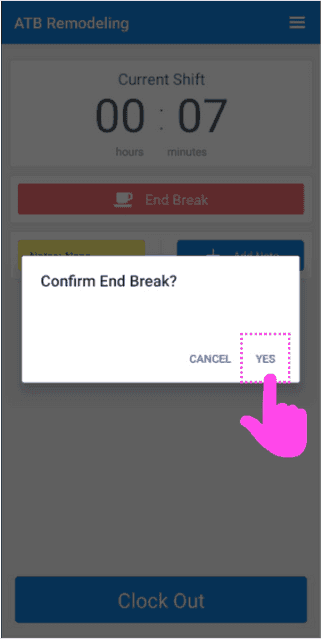
Mobile Confirm End Break popup with the Yes button circled in pink
SINC mobile app Resume Previous Job dialog with Yes, No, and Begin Another Job buttons

Per visualizzare i dettagli dell’incarico, tocca la freccia accanto a «Incarico».
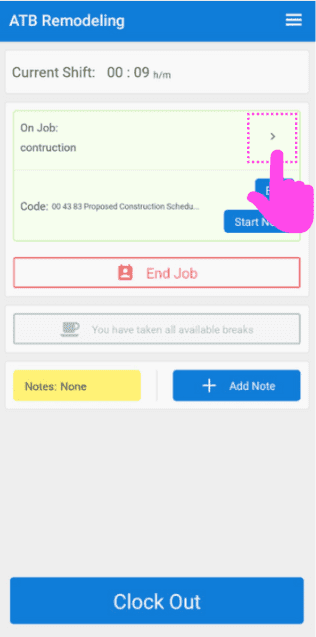
SINC mobile Current Shift screen with a pink arrow highlighting the expand arrow icon next to 'On Job'

Per ottenere rapidamente le indicazioni per andare al lavoro, tocca Mappa
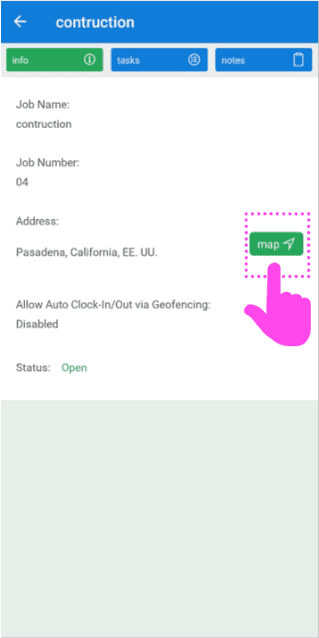
Mobile job info screen for a construction job with a pink arrow pointing to the green Map button

Per visualizzare l’elenco delle attività relative al lavoro, tocca Attività
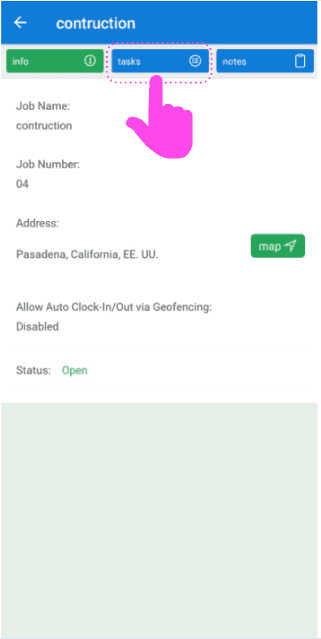
SINC mobile app job detail screen with a pink hand pointing to the Tasks tab

Qui vedrai l’elenco delle attività per questo lavoro. Per visualizzare le descrizioni delle attività, tocca Nome dell’attività
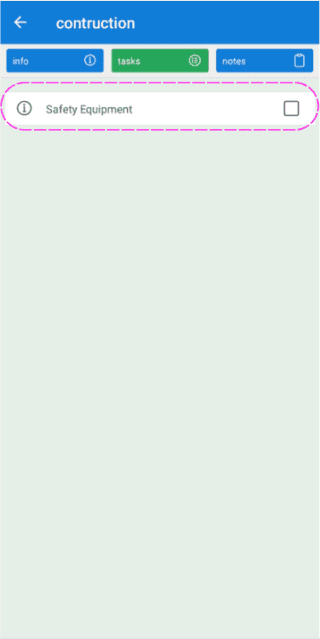
Job task list screen with the Safety Equipment task outlined in pink

Puoi contrassegnare un'attività come completata toccando la casella accanto all'attività
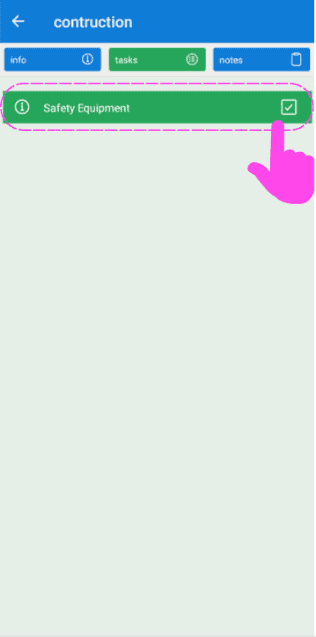
SINC mobile Job Tasks screen with the Safety Equipment task and its completion checkbox circled in pink

Per aggiungere una nota al lavoro, tocca Note
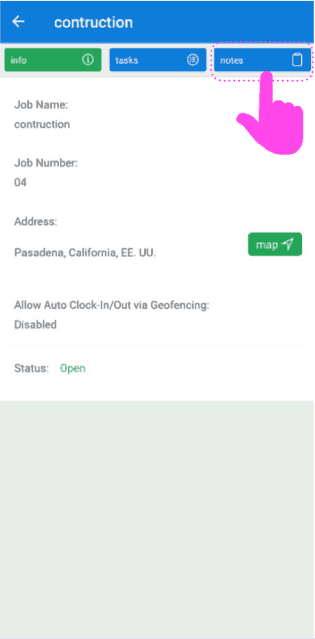
SINC mobile job detail screen with a pink arrow pointing to the Notes tab

Qui trovi l’elenco di tutte le note relative all’intervento. Per aggiungerne una nuova, tocca +Aggiungi nota
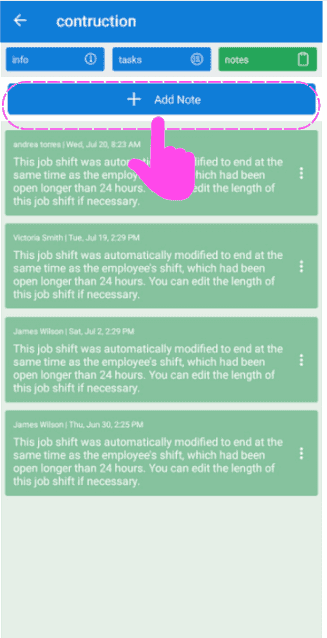
Job notes list screen with the +Add Note button outlined in pink at the top

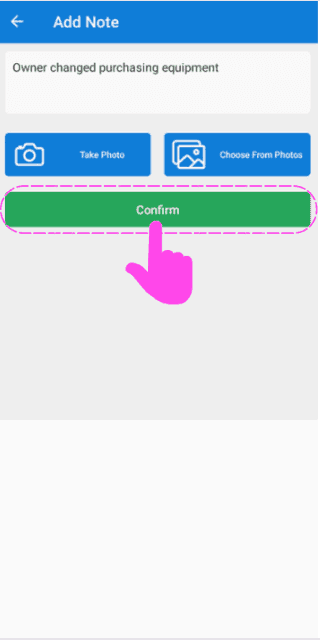
Qui puoi inserire una descrizione, scattare una foto da allegare alla nota oppure selezionare un’immagine dalla galleria fotografica del tuo dispositivo.
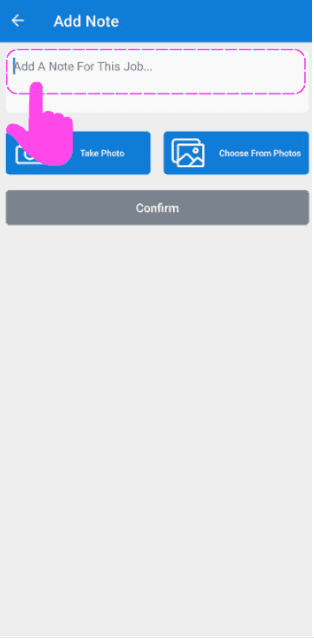
SINC mobile Add Note screen with the note text field highlighted and Take Photo and Choose From Photos buttons
Add Note screen with a typed description and a pink arrow pointing to the green Confirm button below the photo options

Quando hai finito il turno e vuoi timbrare l’uscita, tocca Timbra uscita
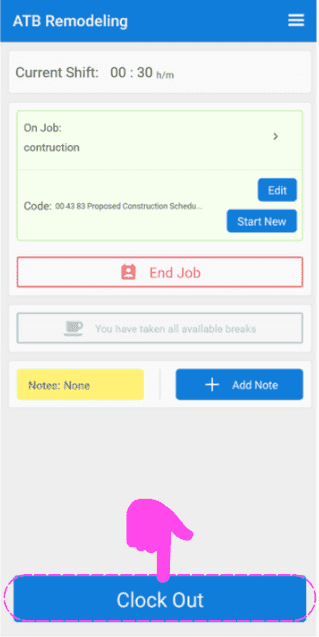
SINC mobile Current Shift screen for a job, with a pink arrow pointing to the Clock Out button

Fai scorrere il pulsante verso destra per confermare l’uscita dal turno
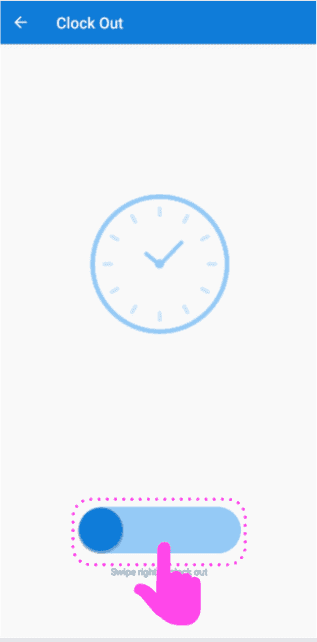
Mobile Clock Out screen with a clock icon and the slide-to-confirm button outlined in pink

Questa risposta ti è stata utile?