
Attività: riepiloghi ed esportazione dei report

Esistono due tipi di riepiloghi dei lavori che puoi esportare dalla sezione Jobs. Il primo è un riepilogo di tutti i lavori aperti, mentre il secondo offre una panoramica di ogni singolo lavoro. Iniziamo esaminando il riepilogo di tutti i lavori aperti. Fai clic su Home Jobs
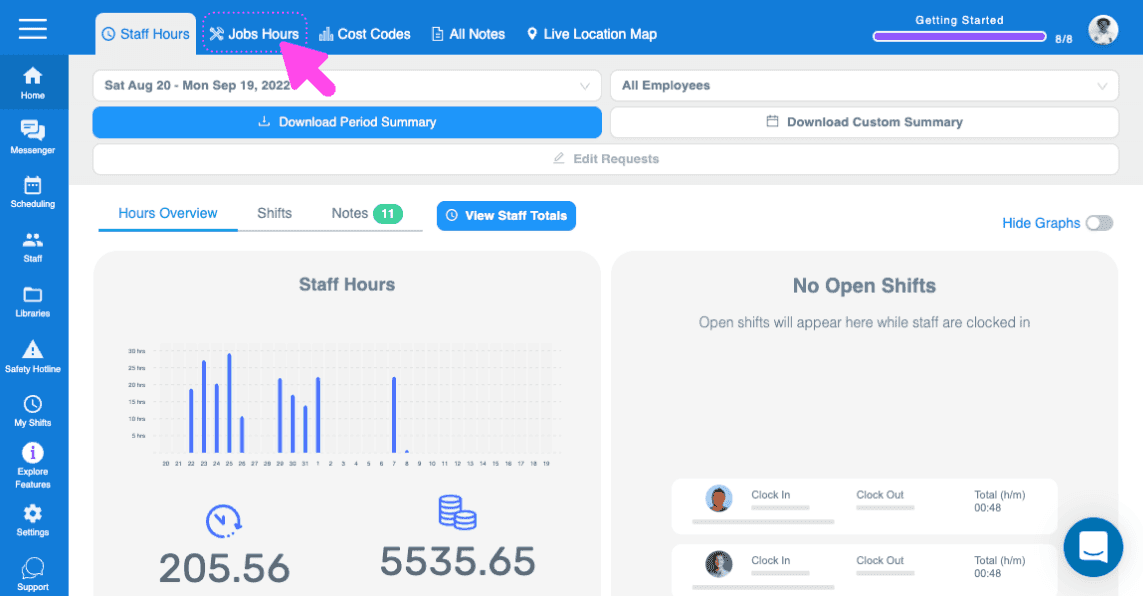
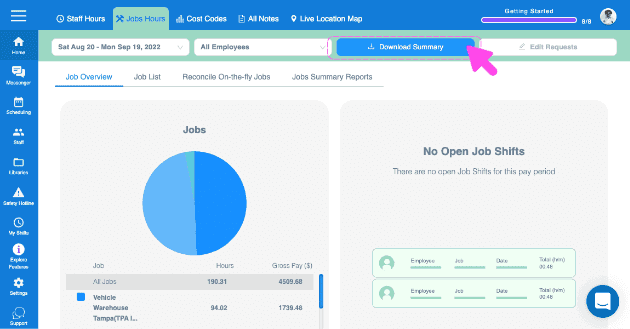
Qui puoi avere una rapida panoramica di tutti i lavori aperti, con il totale delle ore lavorate e i costi lordi associati a ciascun lavoro. Per esportare via e-mail un riepilogo dettagliato con tutti i dati relativi a ogni lavoro, fai clic su Scarica riepilogo.
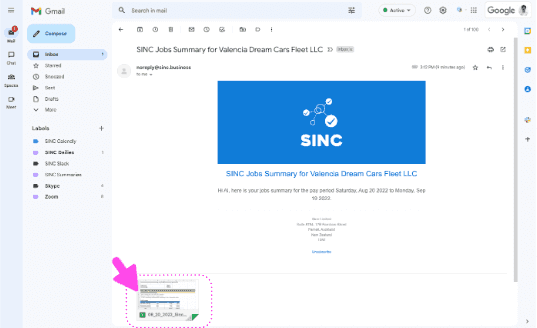
Quando ricevi l’e-mail da parte nostra, apri l’allegato.
La prima scheda è un riepilogo di tutti i lavori aperti
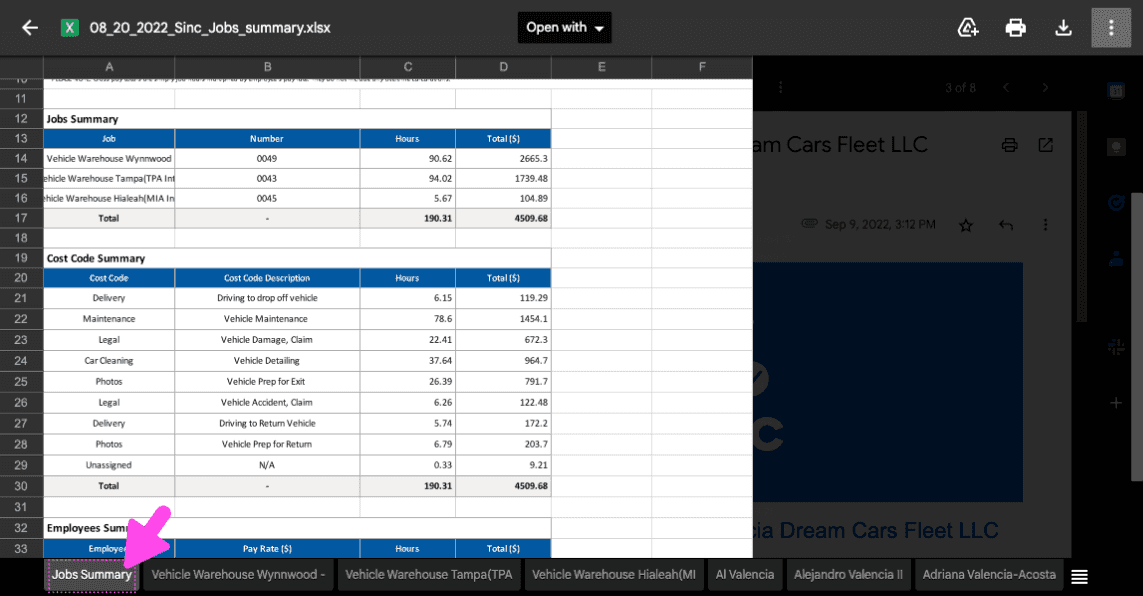
C’è una scheda dedicata a ciascun lavoro
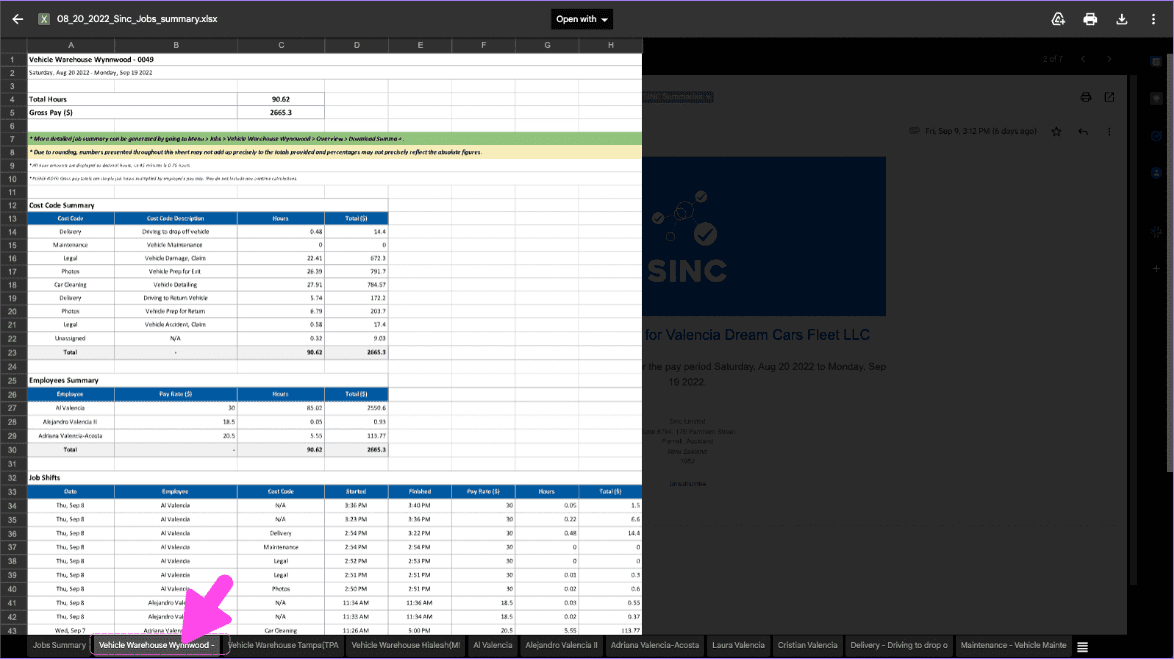
E un tag specifico per ogni codice di costo utilizzato
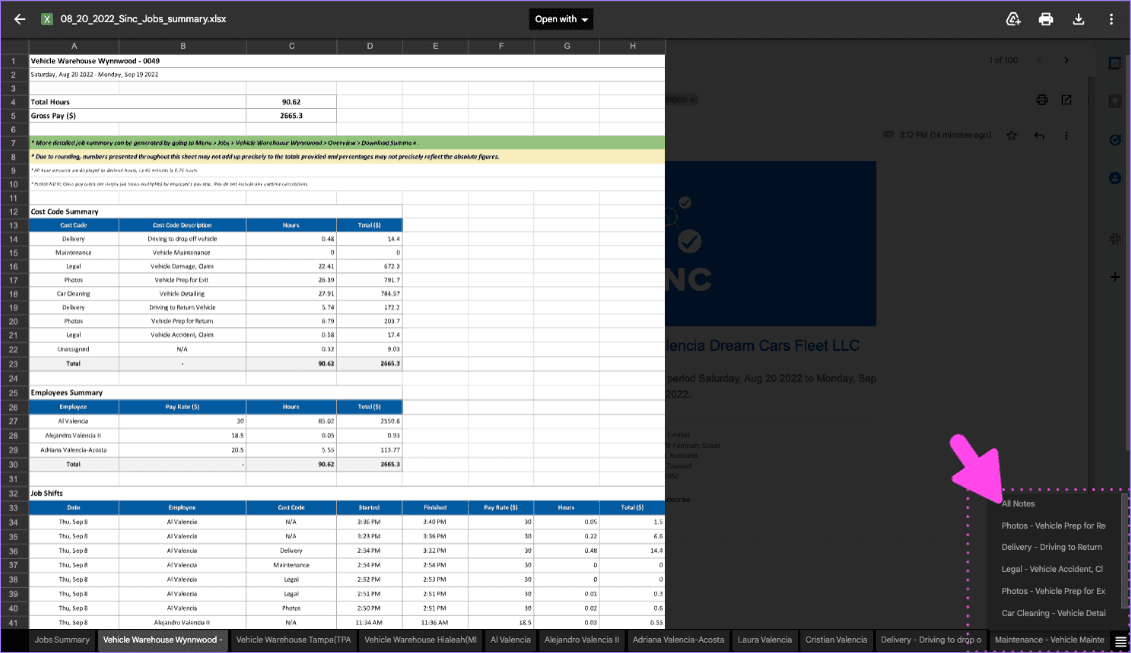
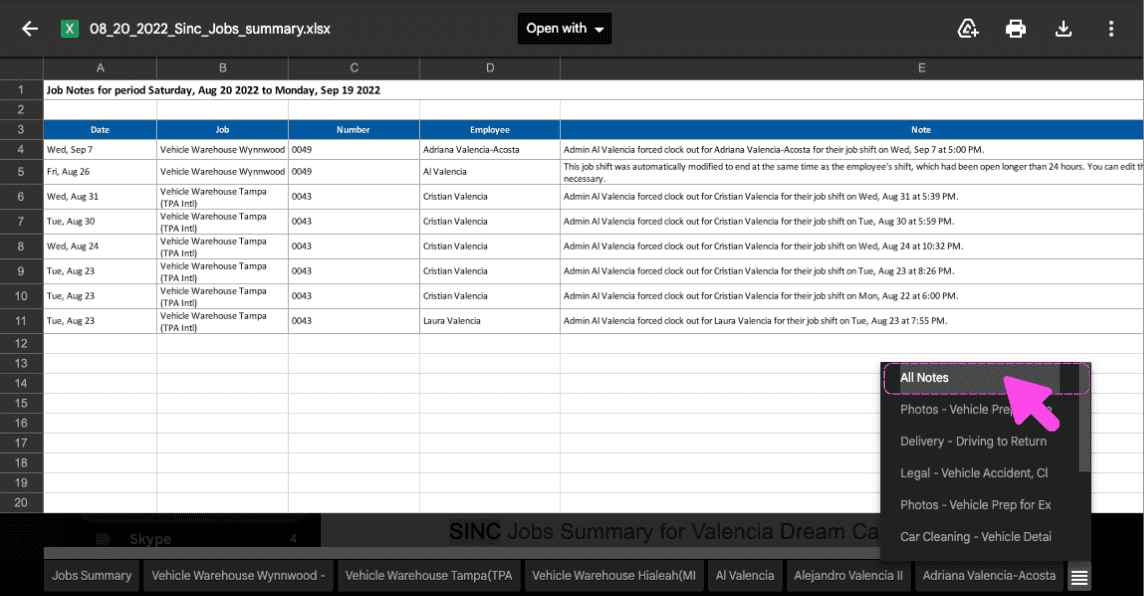
L’ultima scheda contiene tutte le note relative ai tuoi lavori.
Ora vediamo una panoramica di ciascun lavoro specifico. Fai clic su Home Ore di lavoro
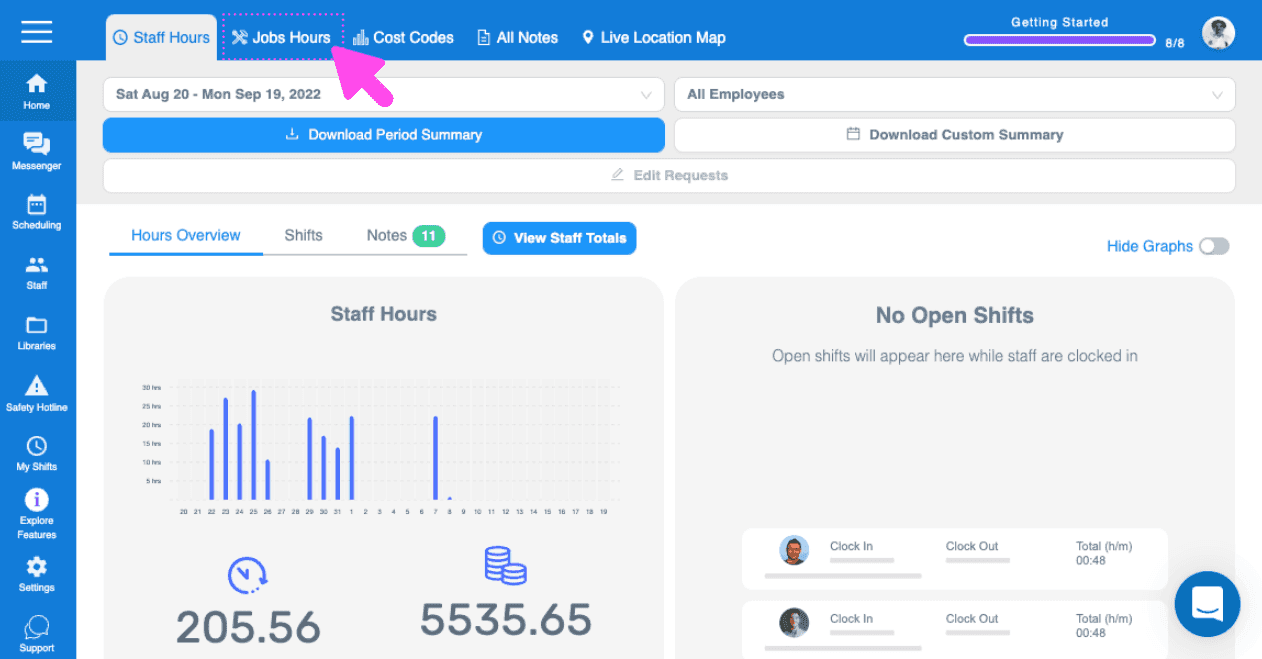
Fai clic su Elenco lavori
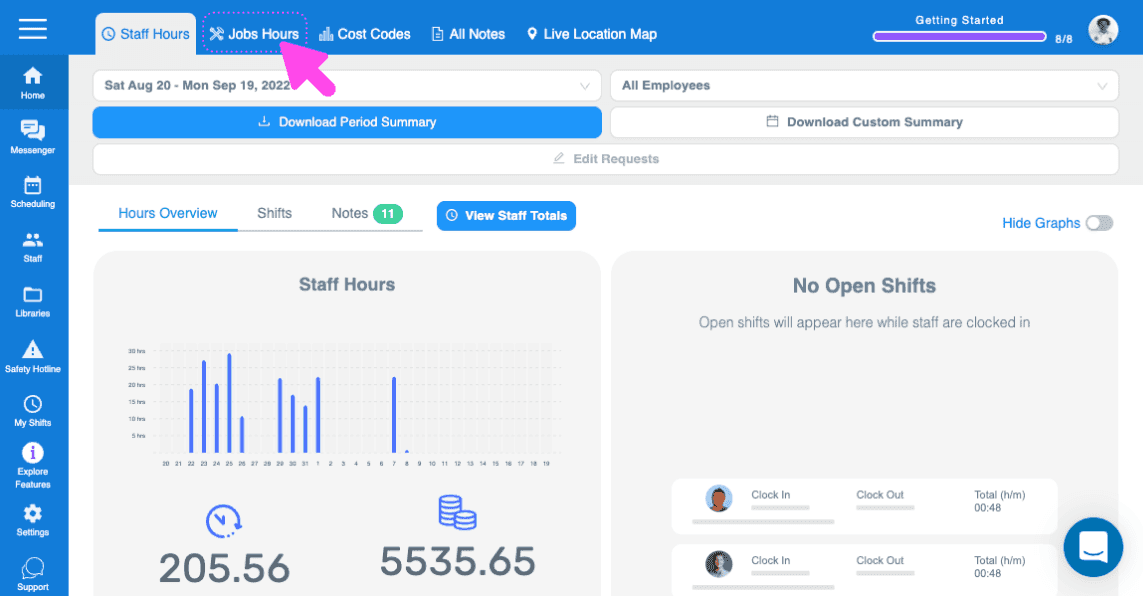
Fai clic su Il lavoro di cui vuoi esportare un riepilogo
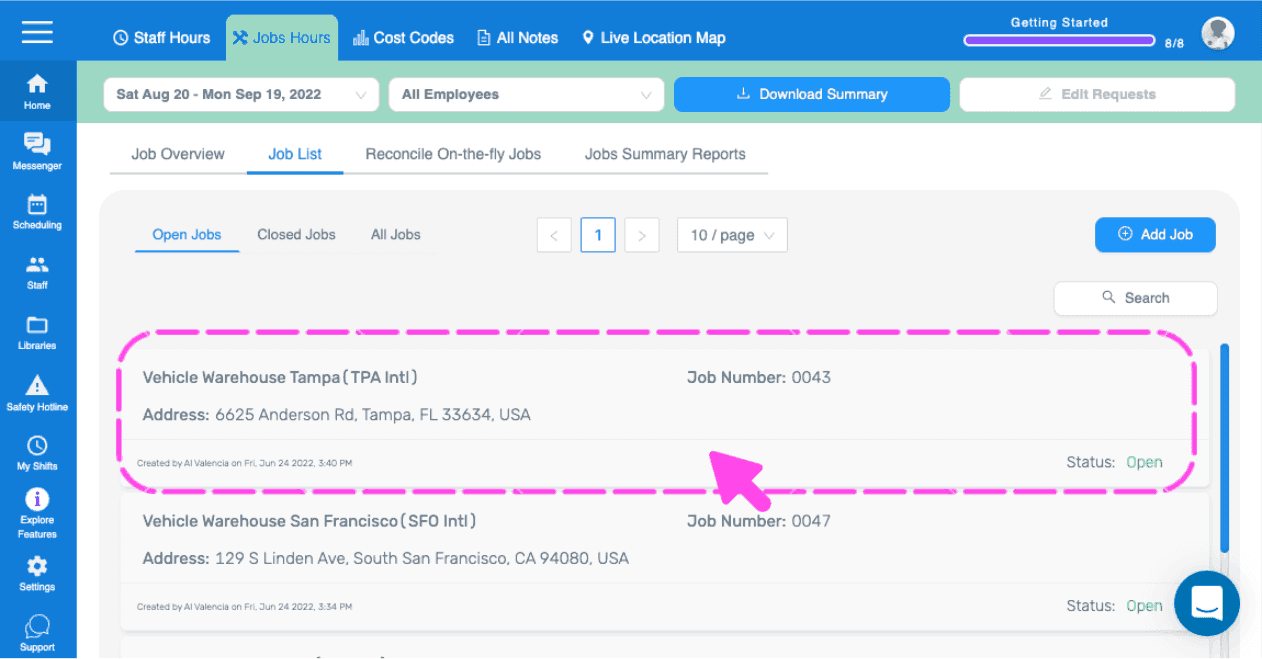
Fai clic su Panoramica
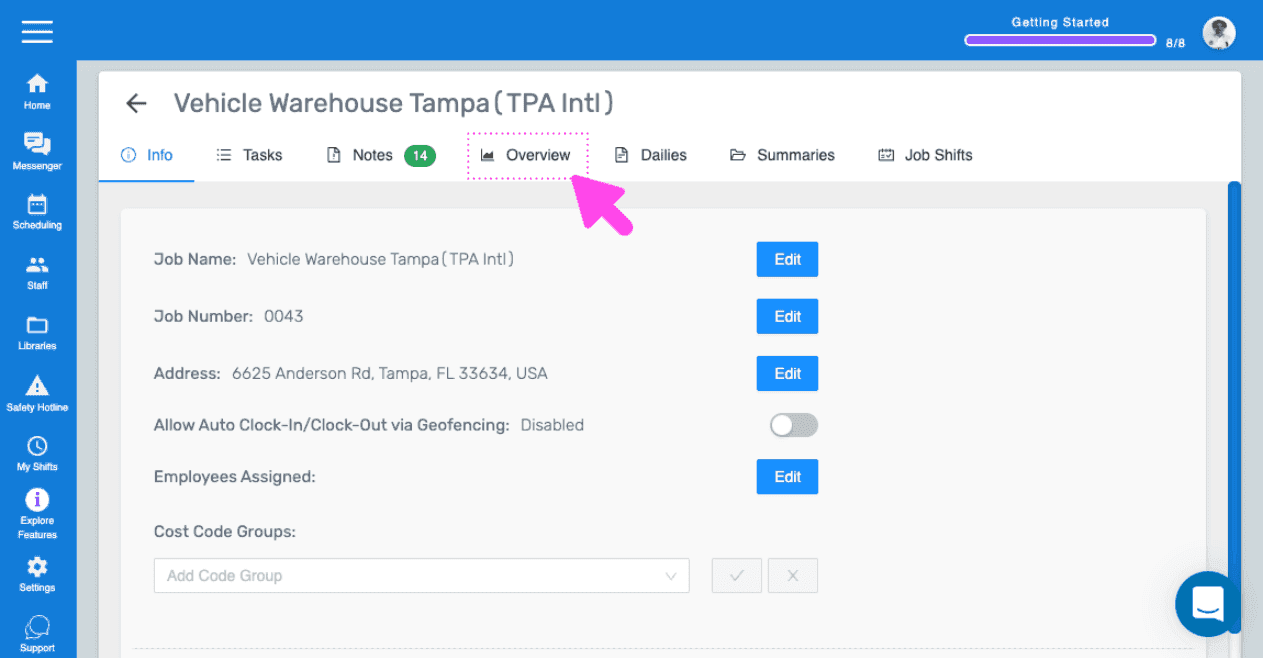
Qui trovi una panoramica di tutti i turni relativi a questo lavoro. Per esportare un report dettagliato con tutti i dati associati a questo lavoro, fai clic su Scarica riepilogo.
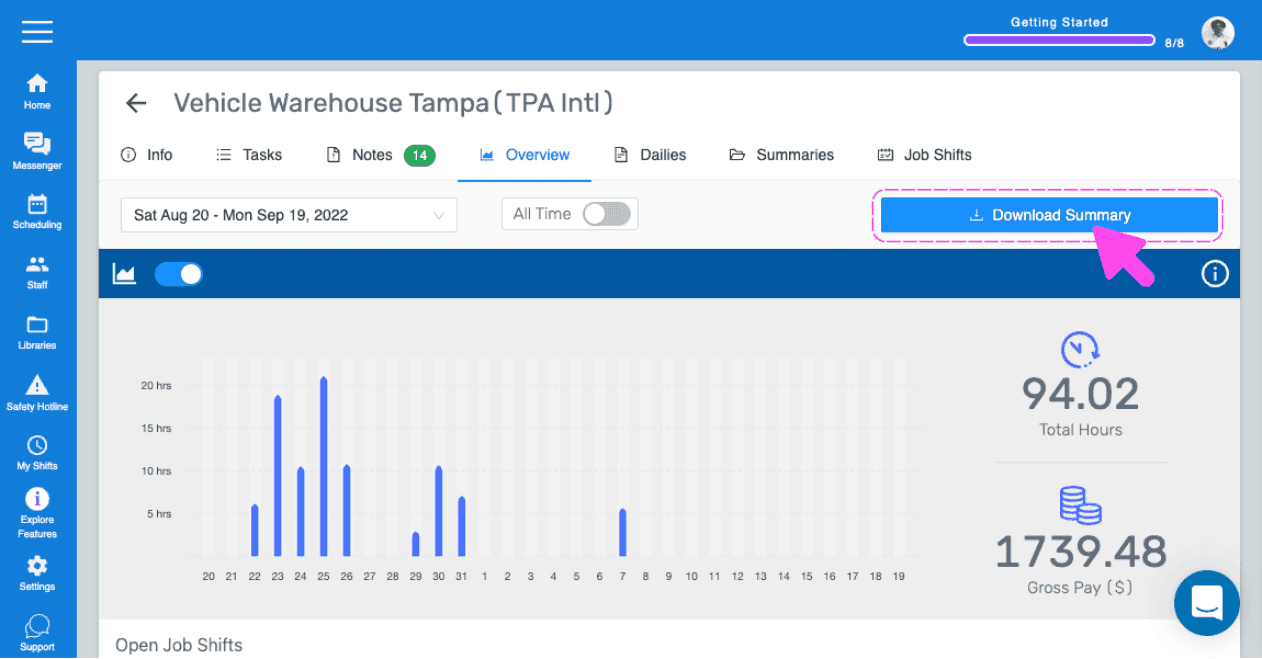
Quando ricevi la nostra email, apri l’allegato
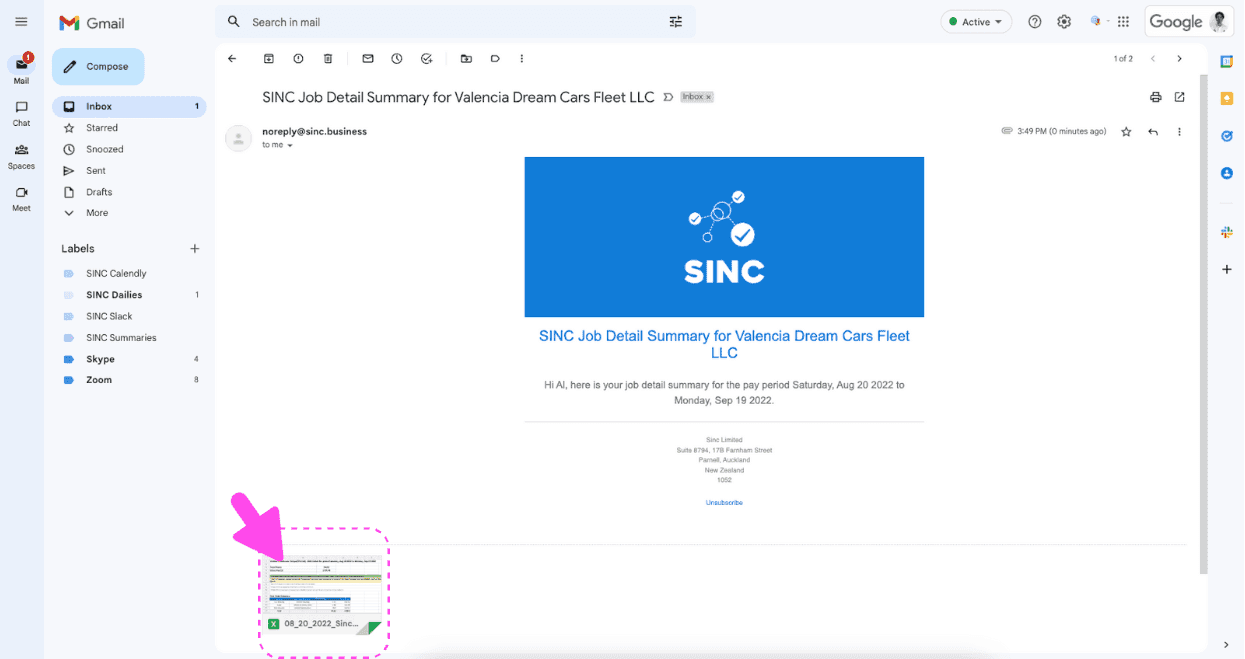
La prima scheda contiene un riepilogo del lavoro
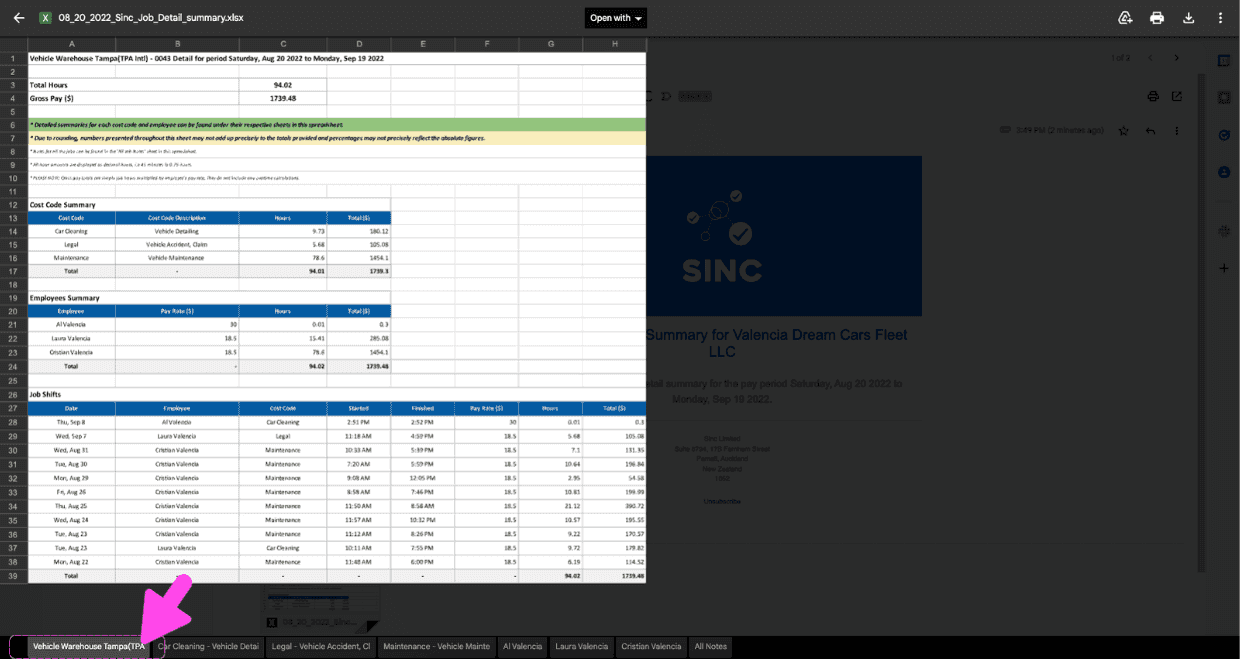
Per ogni codice di costo utilizzato nel progetto è presente una scheda dedicata
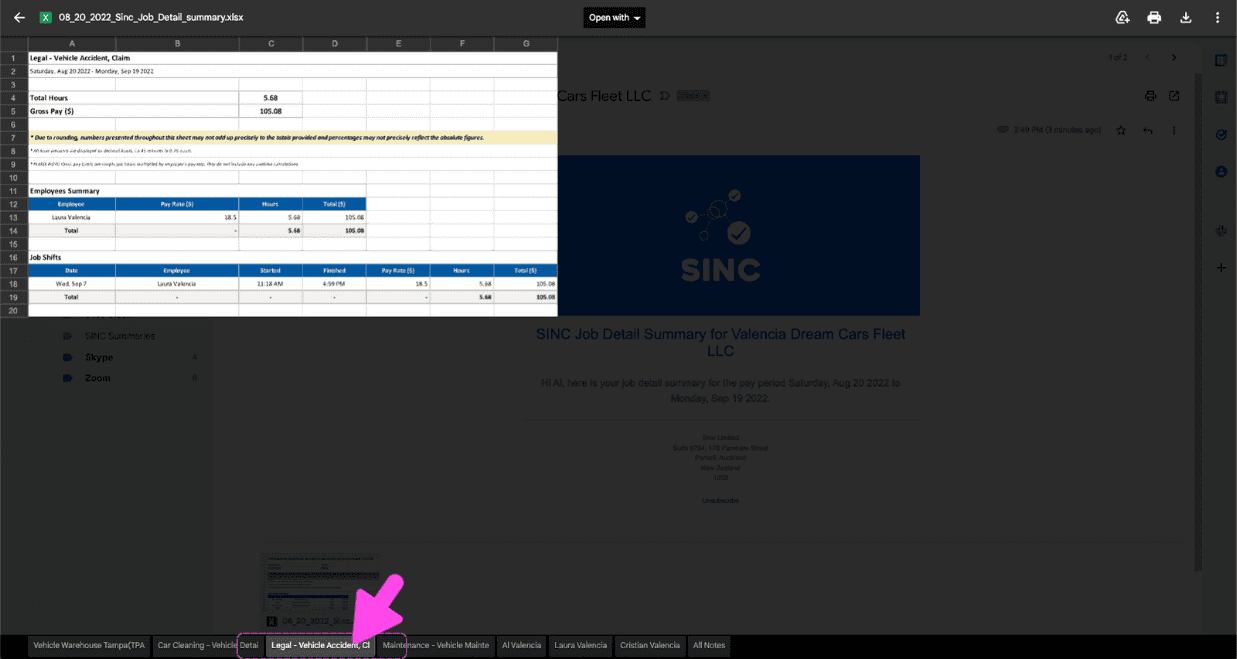
Per ogni dipendente che ha lavorato al progetto è presente una scheda dedicata
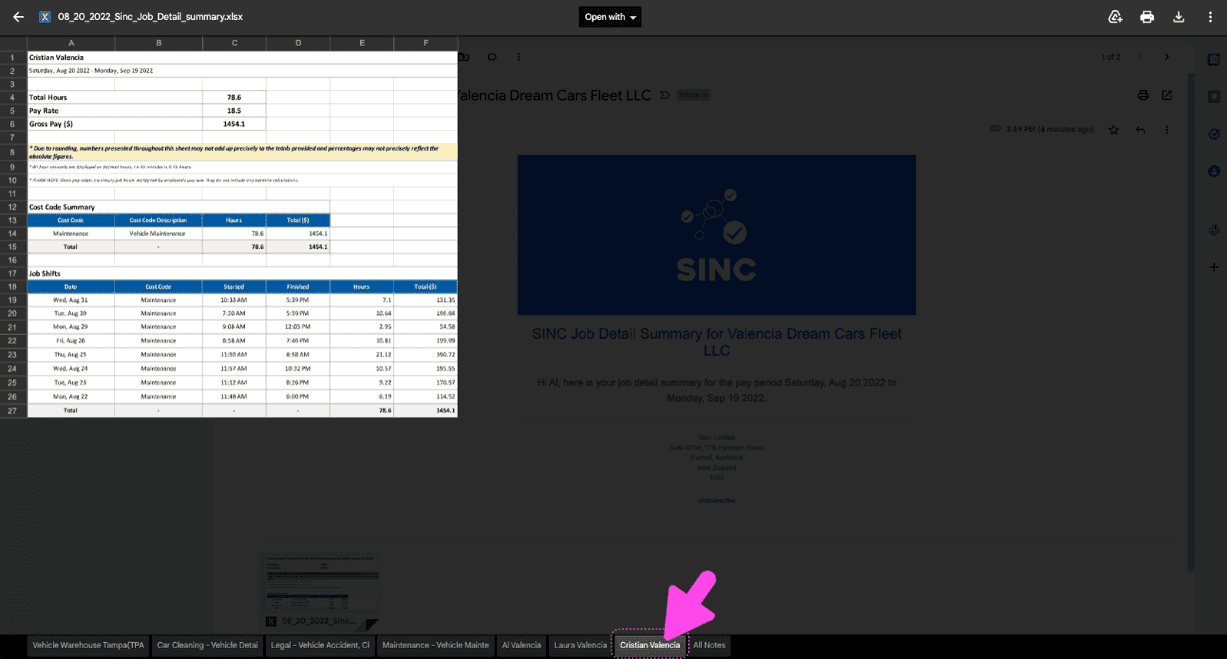
L’ultima scheda include tutte le note relative a questo lavoro
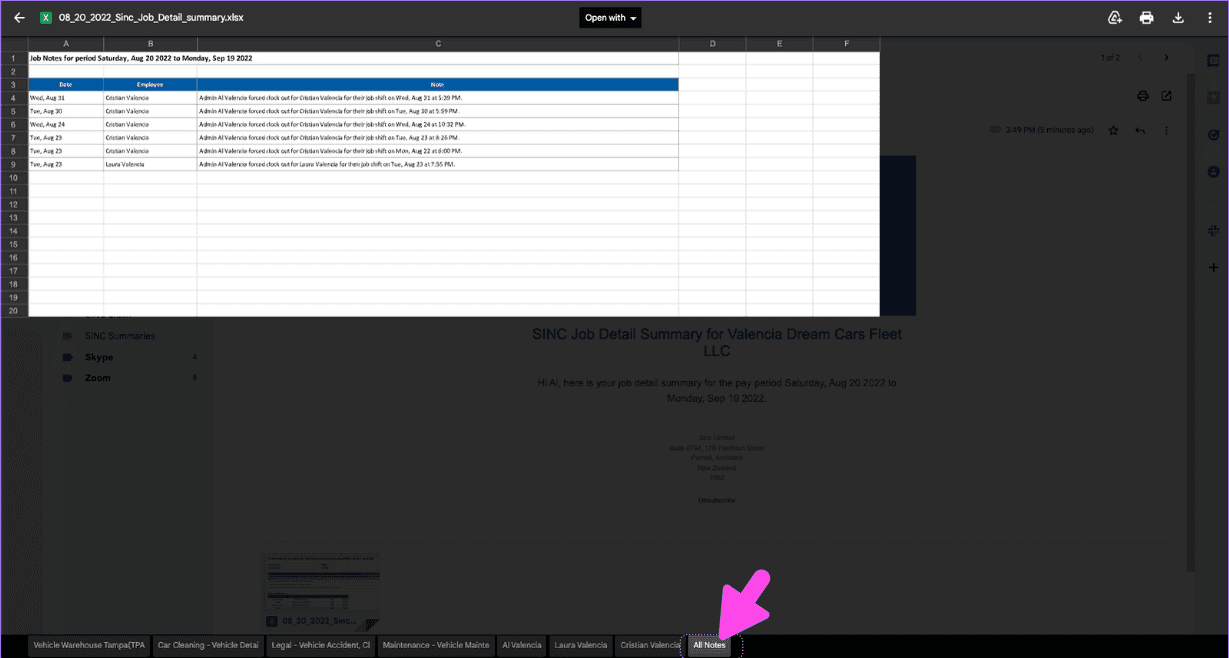
Come scaricare direttamente i tuoi riepiloghi Potrebbe capitare che tu non riesca ad accedere al tuo account e-mail o non riesca a trovare l’e-mail di SINC contenente i rapporti riepilogativi. Ora SINC ti permette di scaricare questi riepiloghi direttamente dall’app web di SINC. Fai clic su Home Ore di lavoro
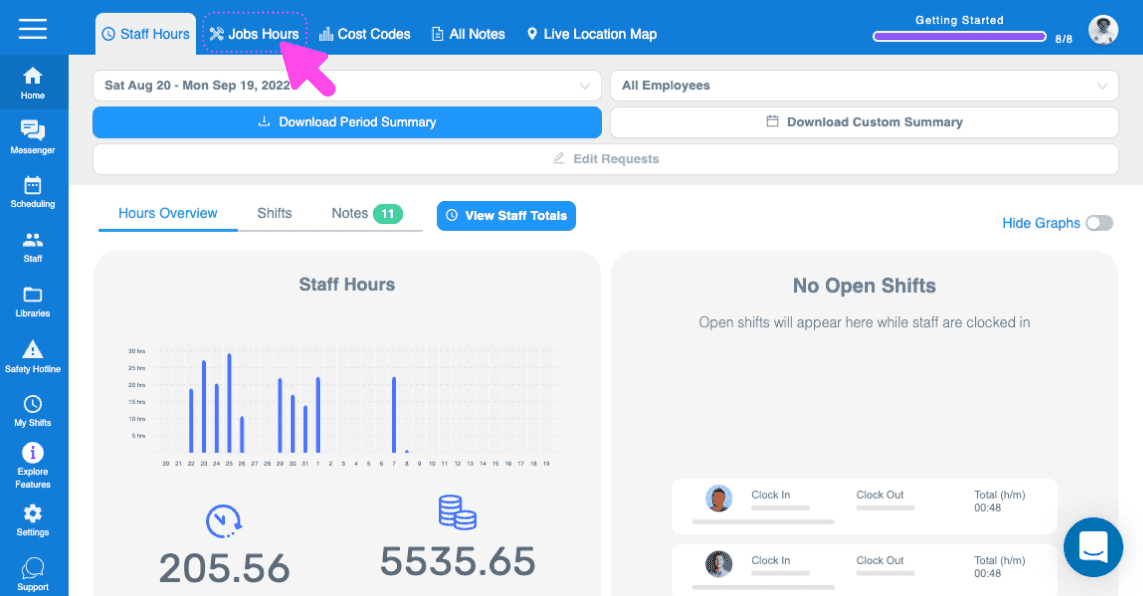
Fai clic su Report riepilogativi del lavoro
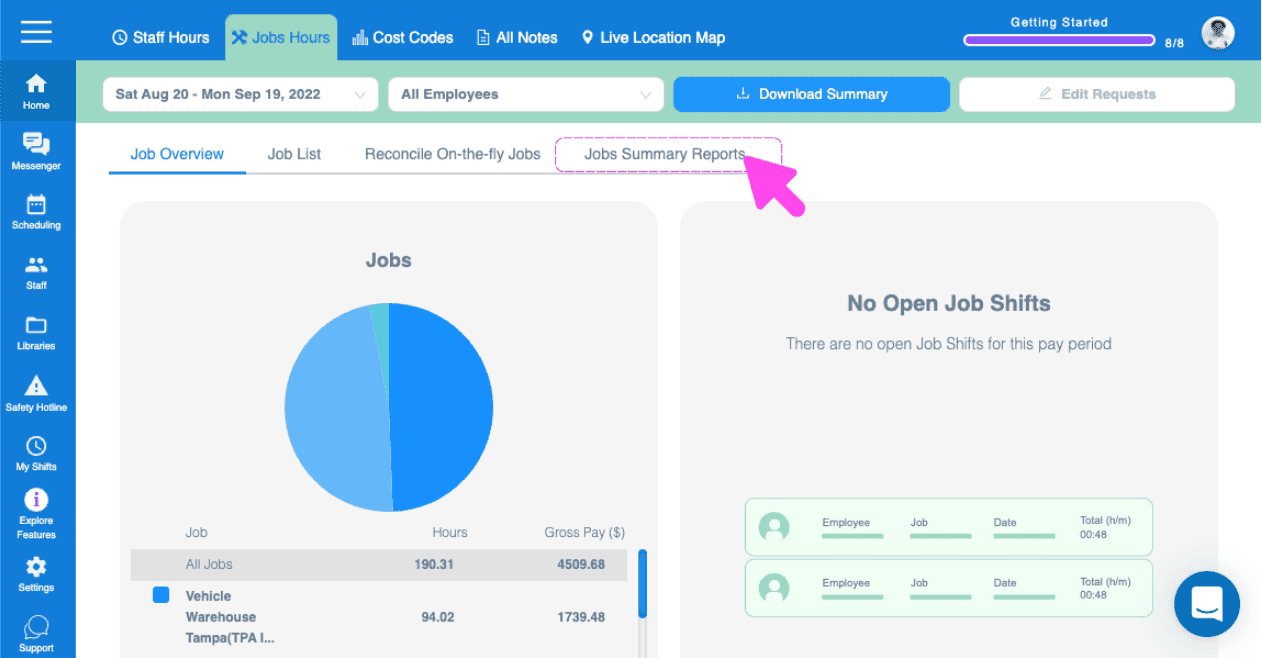
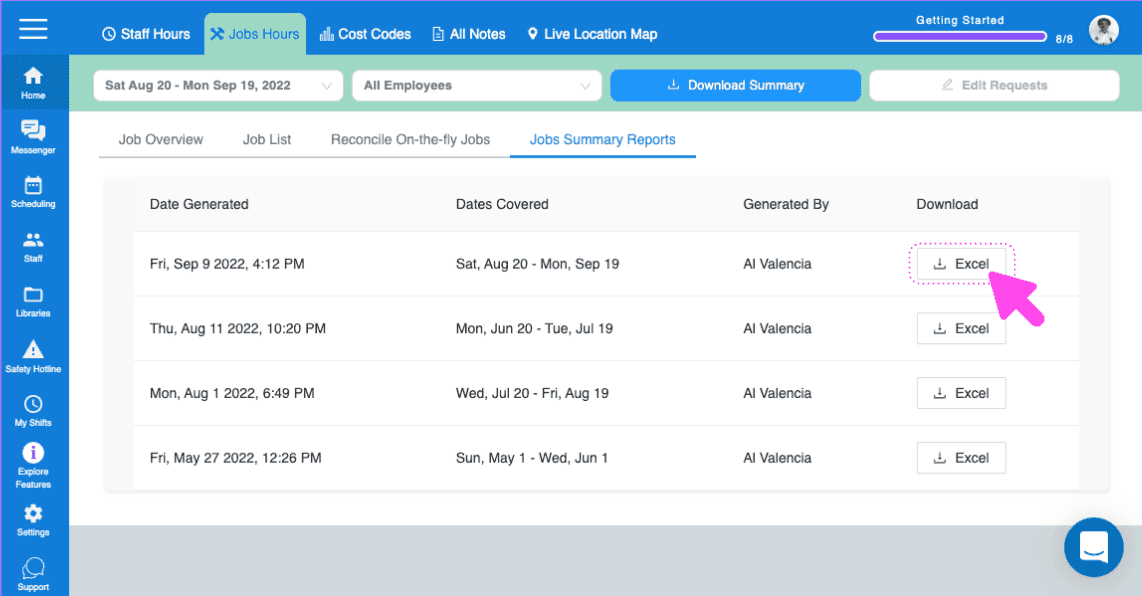
Qui troverai i report riepilogativi dei lavori generati. Potrai vedere quando sono stati generati, quale periodo coprono e chi li ha generati. Puoi quindi cliccare sul pulsante Excel per scaricare il riepilogo di tutti i lavori aperti.
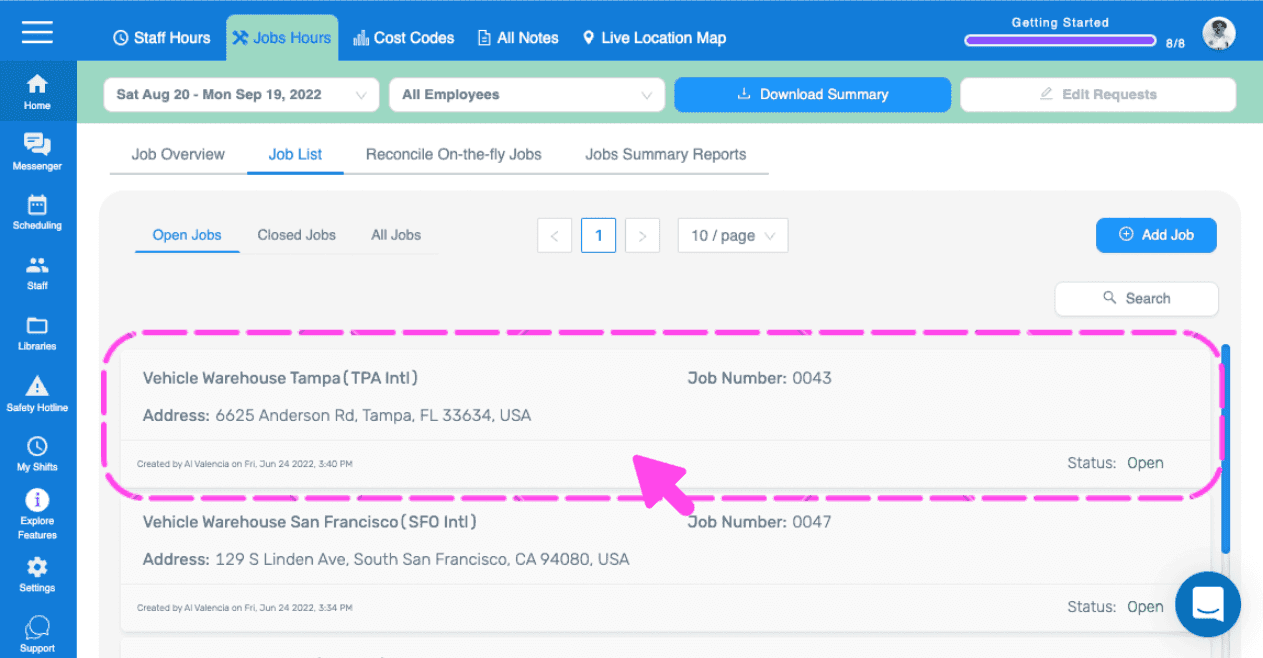
Per scaricare i riepiloghi dettagliati dei lavori, accedi alla schermata dei dettagli di un lavoro specifico facendo clic sul nome del lavoro.
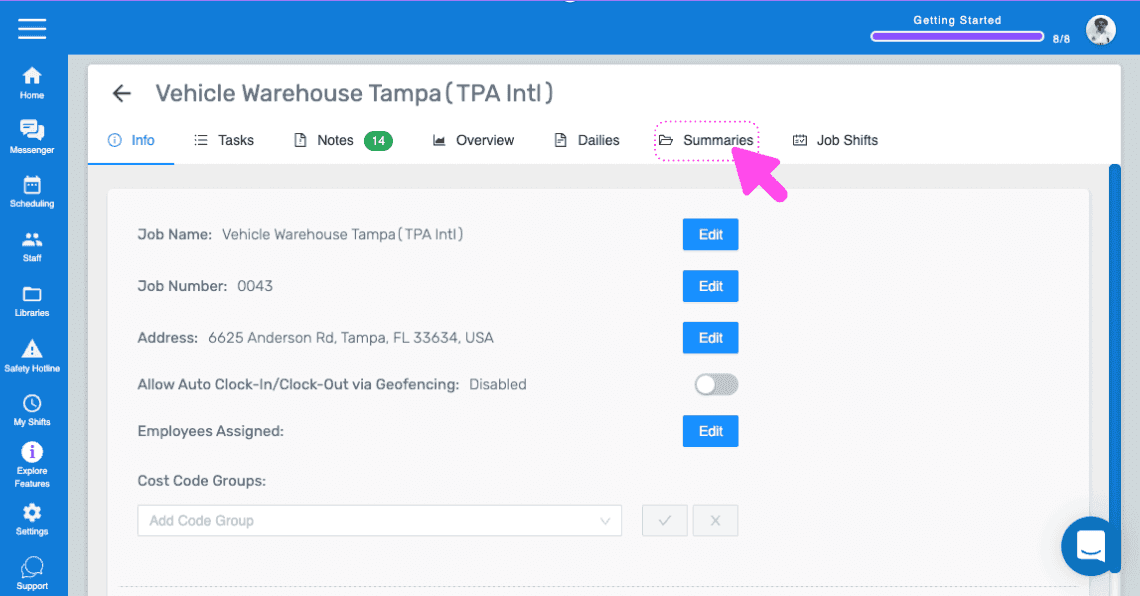
Quindi, vai su Riepiloghi
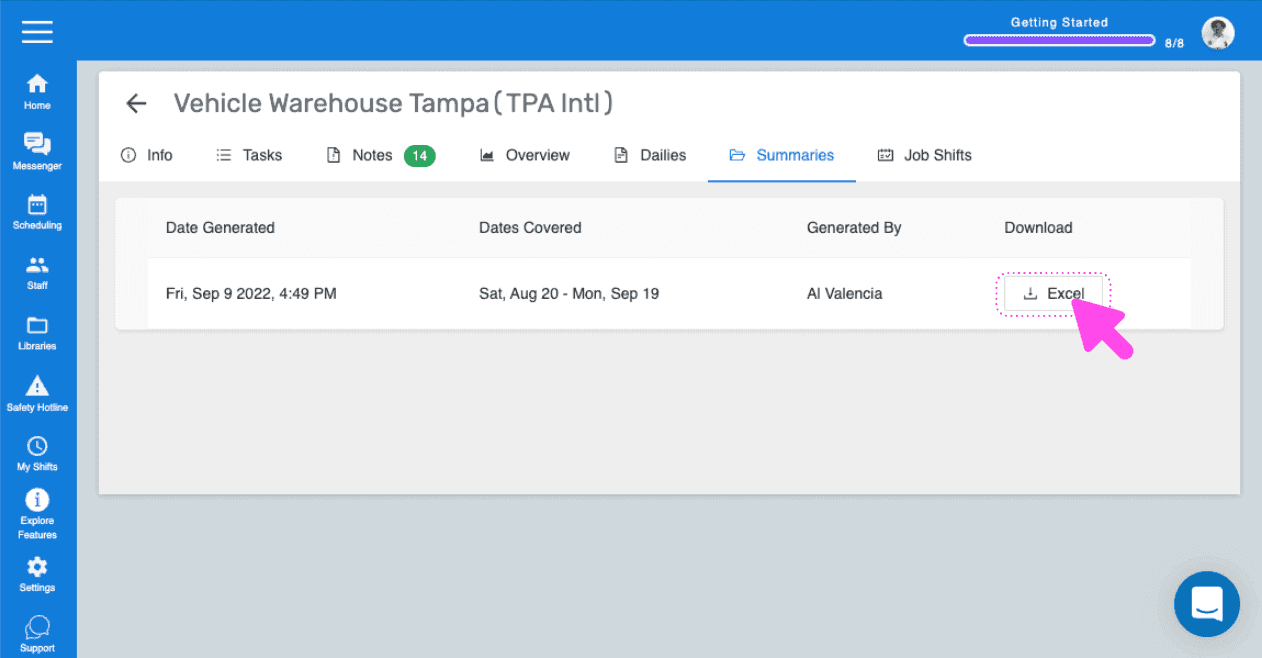
Qui vengono visualizzati i report riepilogativi dei dettagli del lavoro generati per questo incarico. Puoi quindi fare clic sul pulsante Excel per scaricare il riepilogo.
Questa risposta ti è stata utile?