Calcolo della retribuzione lorda

In questo tutorial vediamo come attivare la funzionalità di calcolo della retribuzione lorda all’interno di SINC.

Sam Dolbel
Sam Dolbel
Mar 9th, 2023

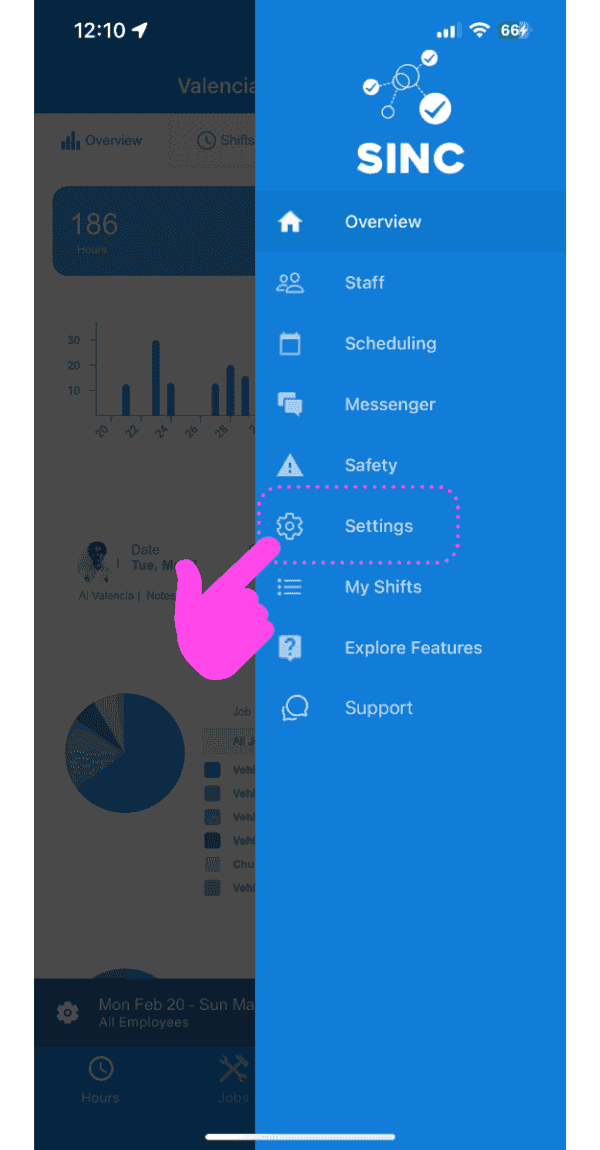
Tocca Impostazioni

SINC mobile app side menu with a pink hand pointing to the Settings option

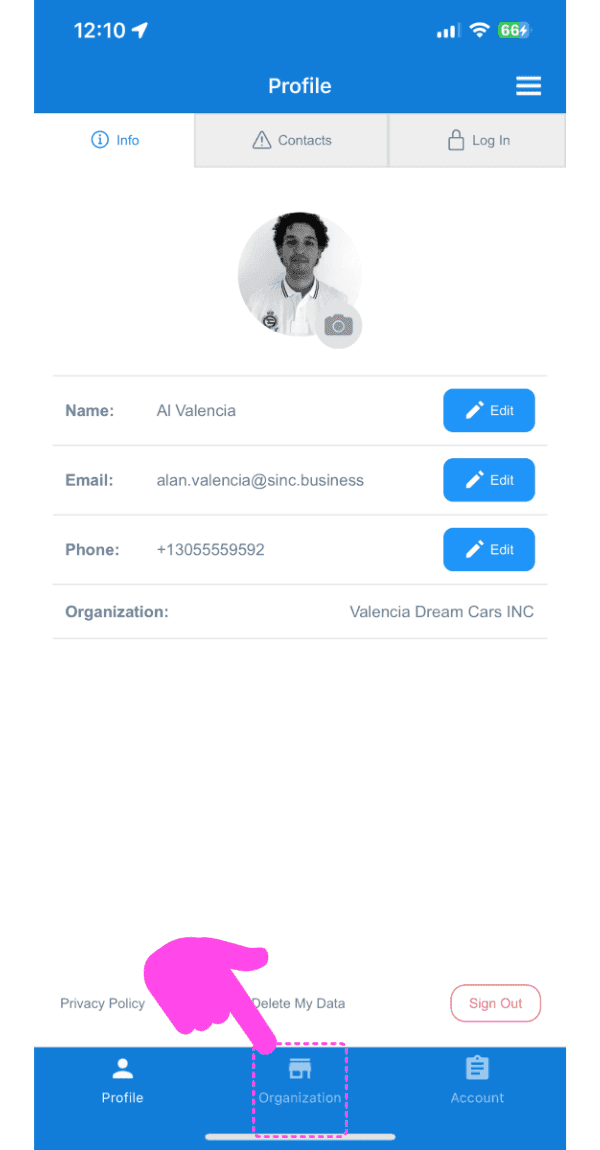
Tocca Organizzazione

SINC mobile Profile screen with a pink arrow pointing to the Organization tab at the bottom

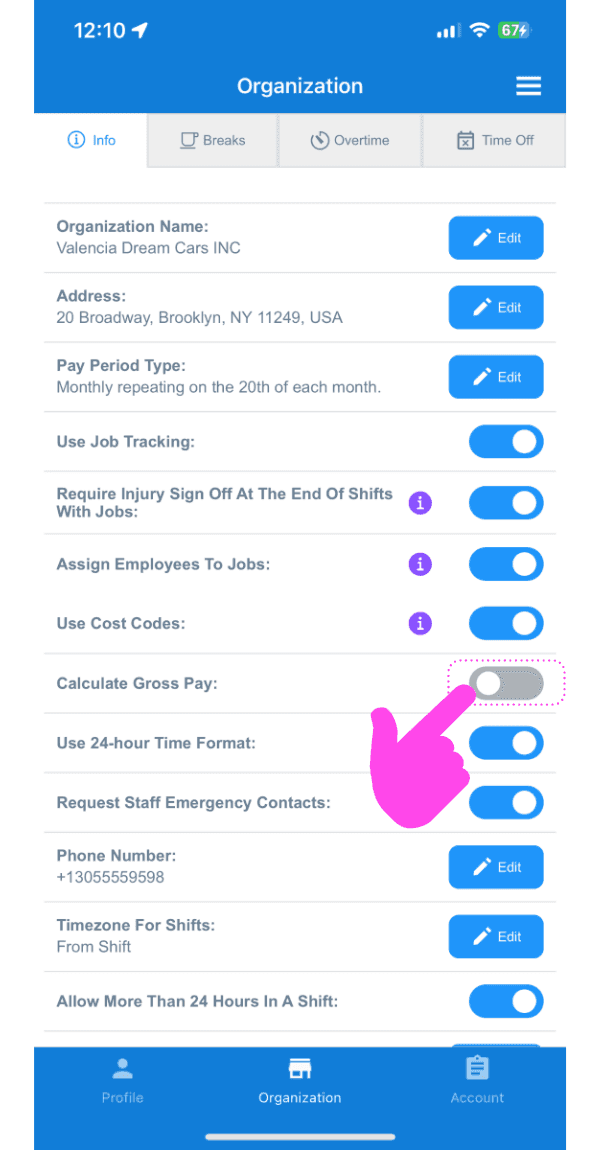
Tocca Calcola la retribuzione lorda

Organization Info screen with a pink arrow pointing to the Calculate Gross Pay toggle switch

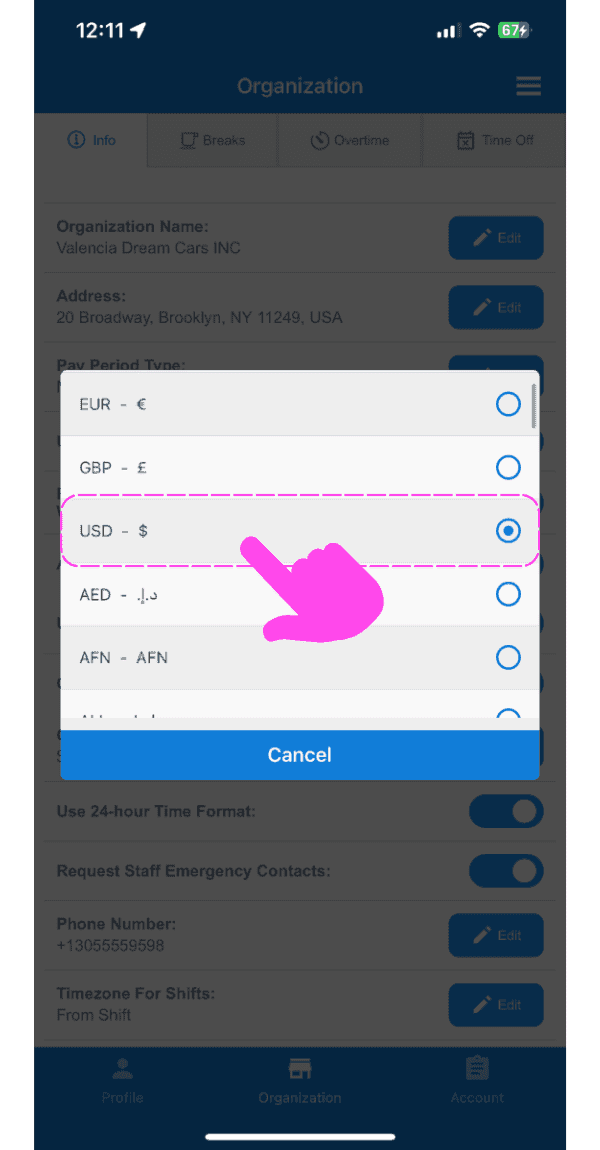
Tocca Valuta preferita

SINC mobile app currency selection popup with USD highlighted in a pink dashed box and arrow

Ora devi accedere alle impostazioni di ogni membro dello staff e selezionare una tariffa di pagamento. Tocca Staff
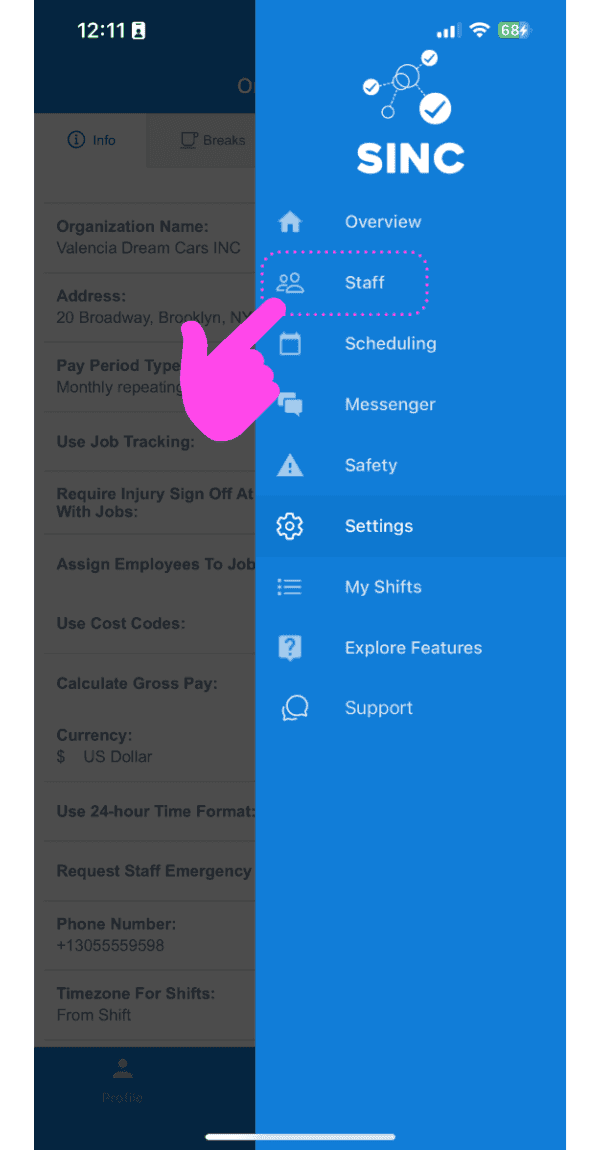
SINC mobile app menu with a pink arrow pointing to the Staff option

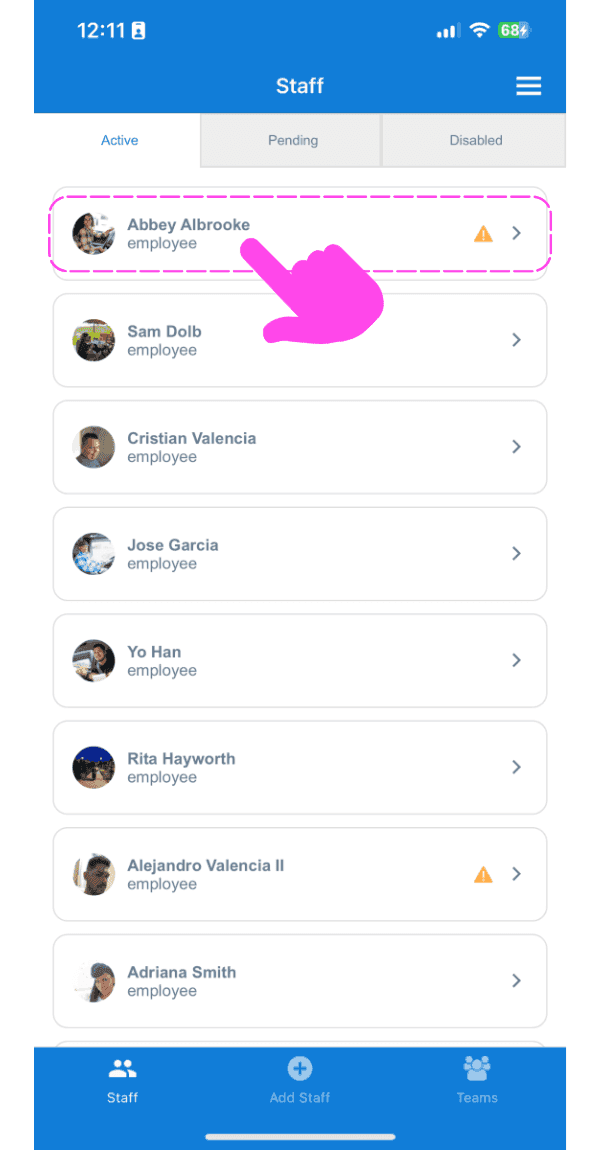
Tocca Nome del dipendente

SINC mobile Staff list with a pink arrow pointing to Abbey Albrooke's name at the top

Tocca Modifica (accanto a Tariffa di pagamento)
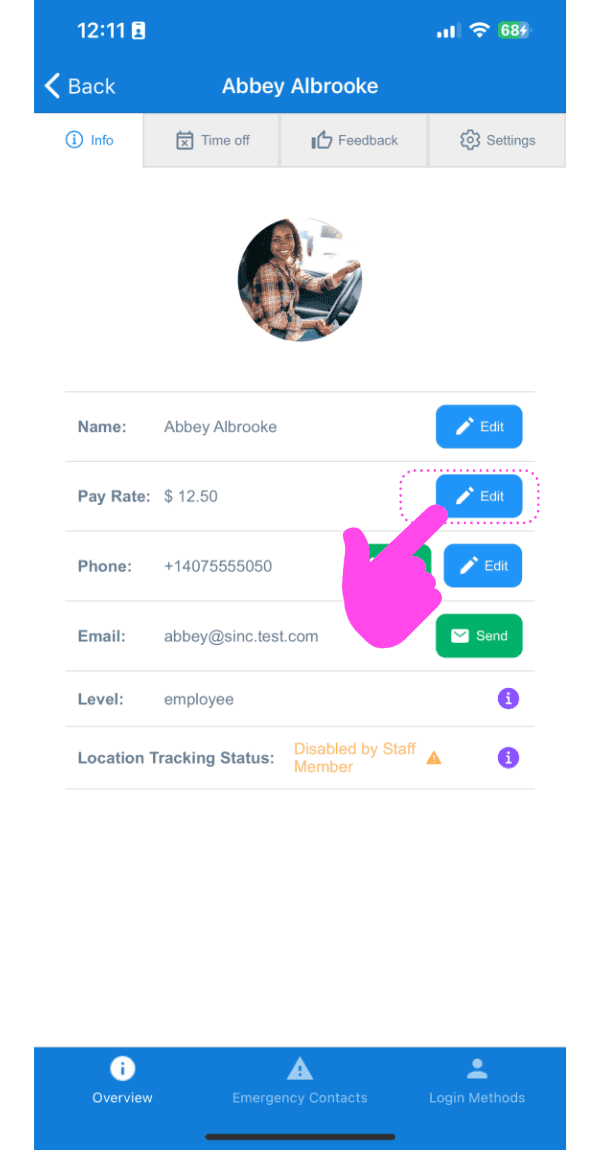
SINC mobile staff profile screen with a pink hand pointing to the Edit button next to Pay Rate

Seleziona la tariffa oraria corretta per questo dipendente e tocca Conferma. Ripeti quindi l’operazione per tutti gli altri dipendenti per i quali desideri calcolare la retribuzione lorda.
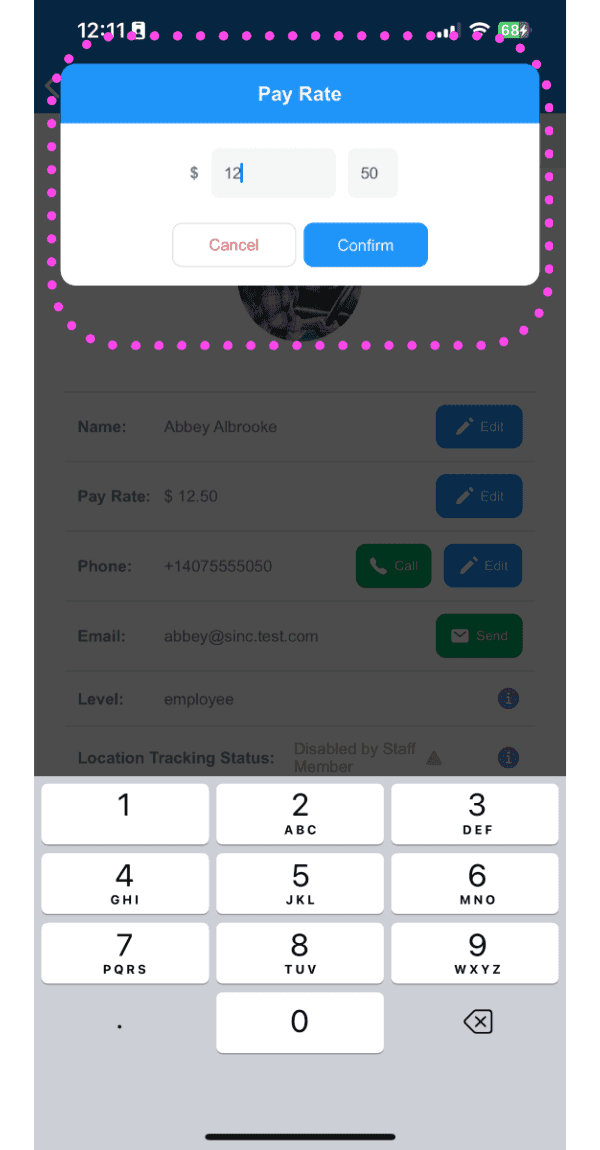
Pay Rate entry popup with a numeric keypad outlined in pink, showing the dollar amount field and Confirm button

Ora nella schermata principale dell’amministratore verrà visualizzato il totale lordo delle retribuzioni del periodo di paga.
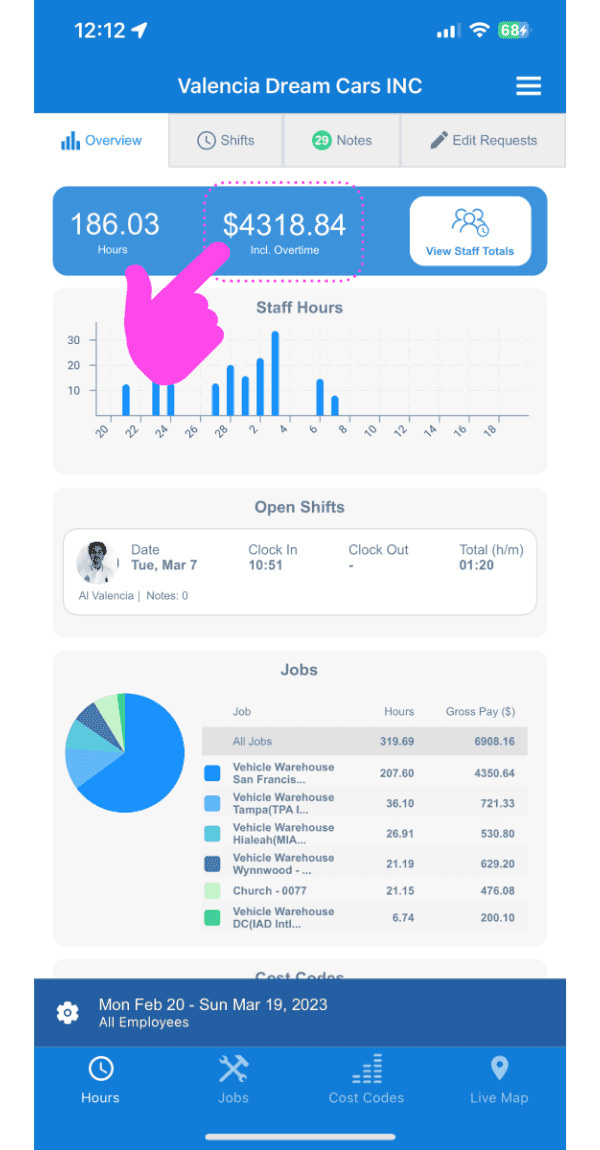
SINC mobile Overview dashboard with a pink arrow pointing to the total hours and gross pay figures

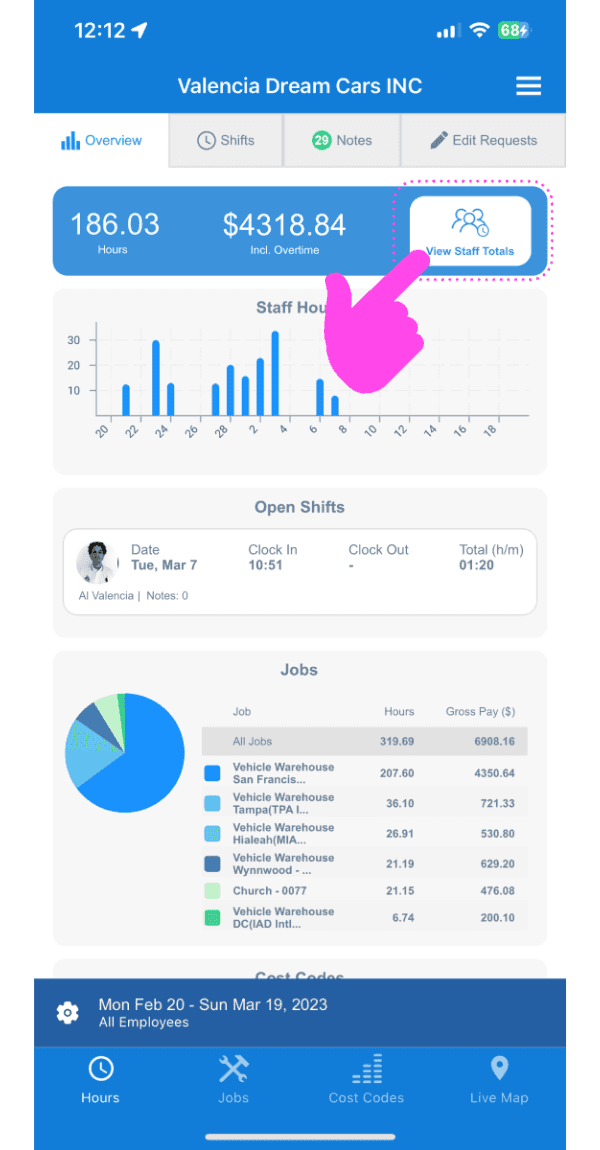
Tocca l’icona Info

SINC mobile app Overview screen with a pink arrow pointing to the View Staff Totals button

Ora visualizzerai i totali lordi delle retribuzioni di ciascun dipendente per il periodo di paga selezionato
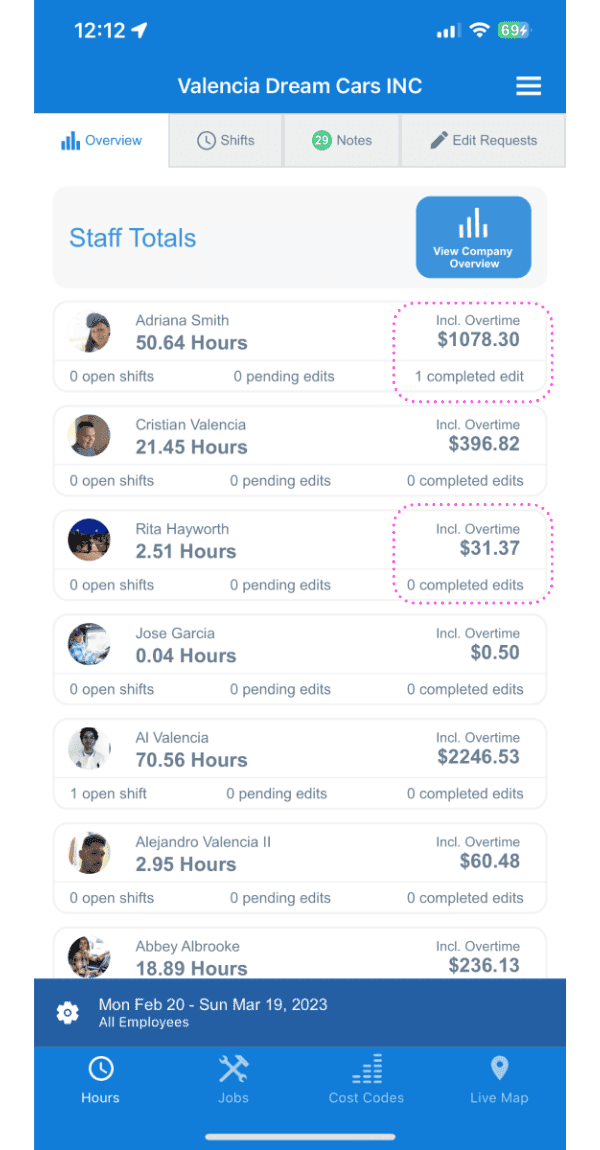
SINC mobile Staff Totals list showing hours and overtime pay, with some pay amounts circled

Se stai utilizzando la versione web, apparirà così:
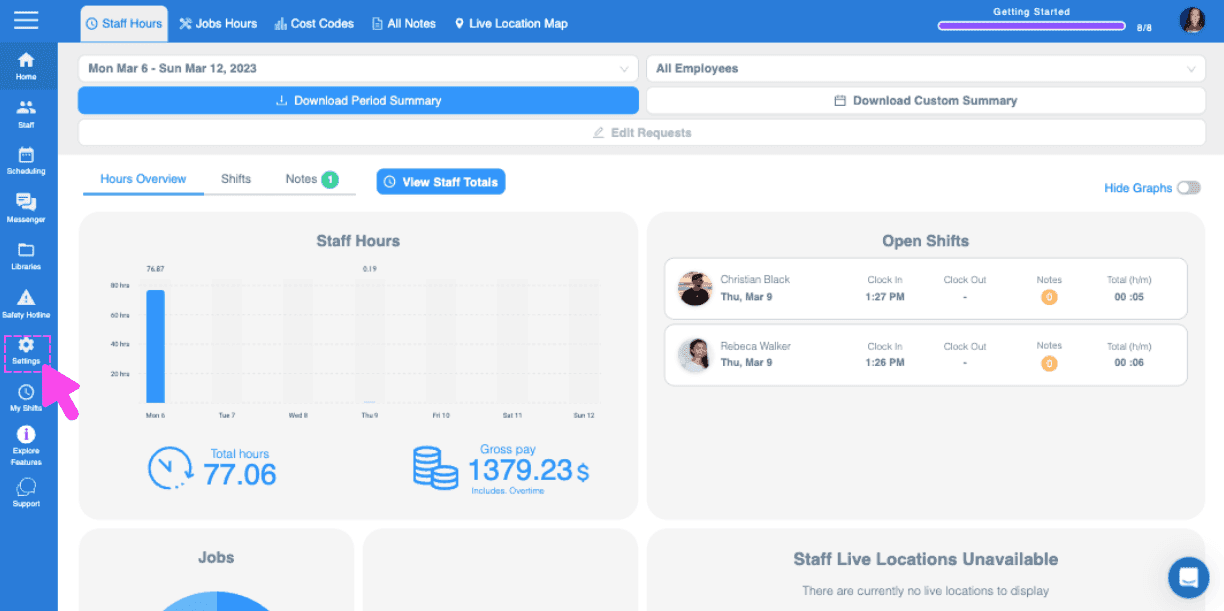
Web Staff Hours Overview dashboard with a pink arrow pointing to the side menu Settings icon
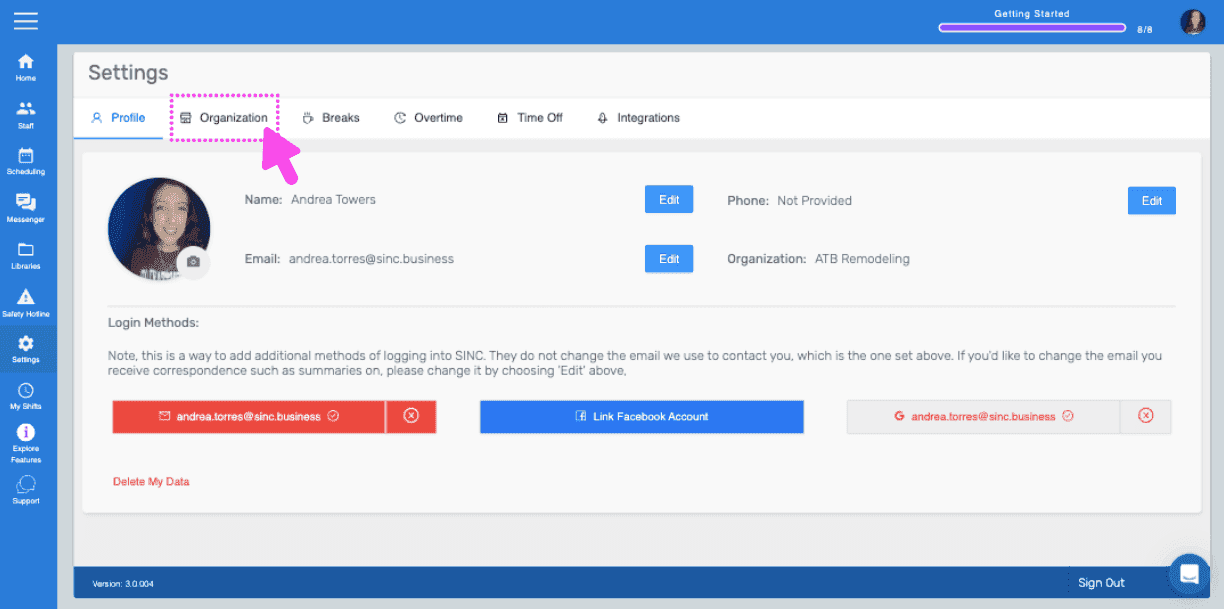
SINC web Settings Profile tab with a pink arrow pointing to the Organization tab
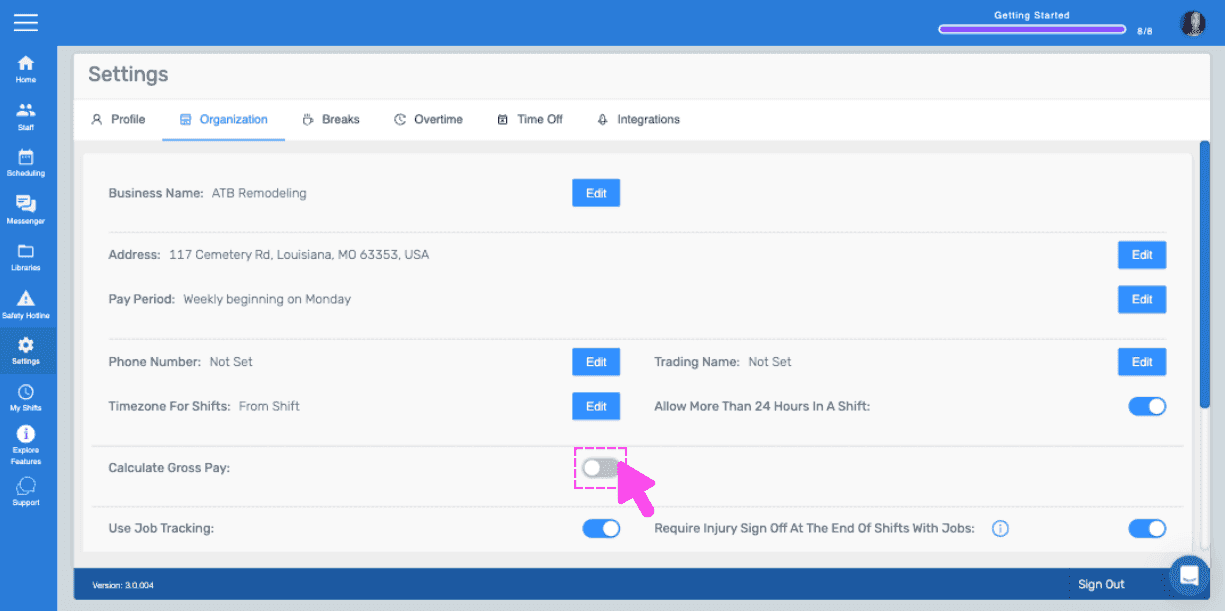
Organization settings screen with a pink arrow pointing to the Calculate Gross Pay toggle
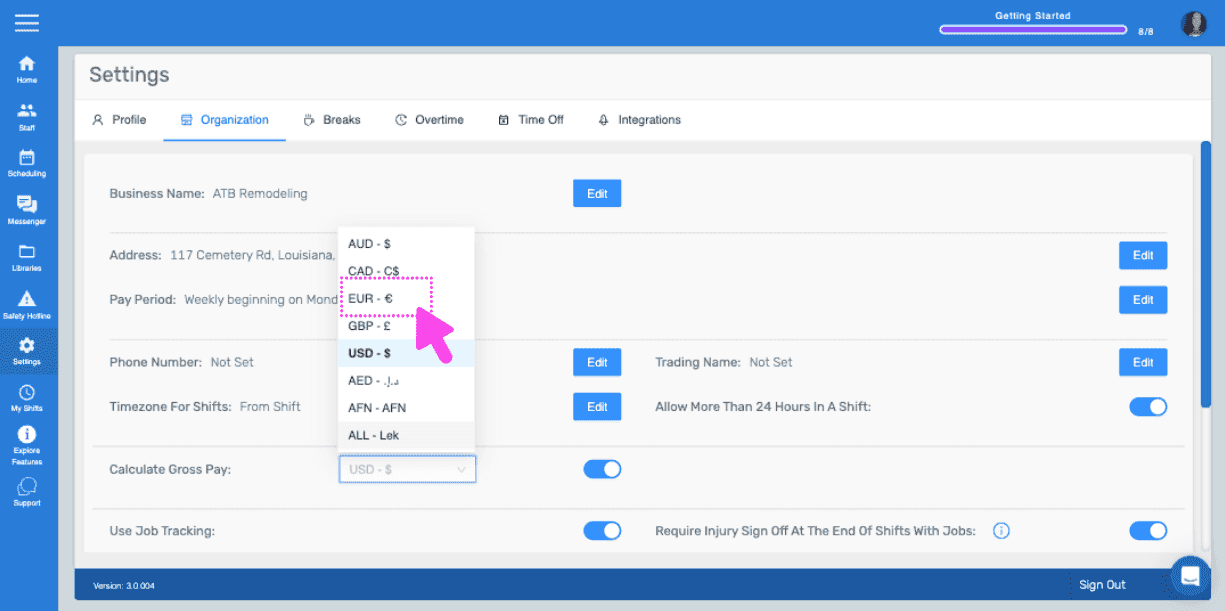
Web Organization settings screen with a pink arrow pointing to the currency dropdown for Calculate Gross Pay
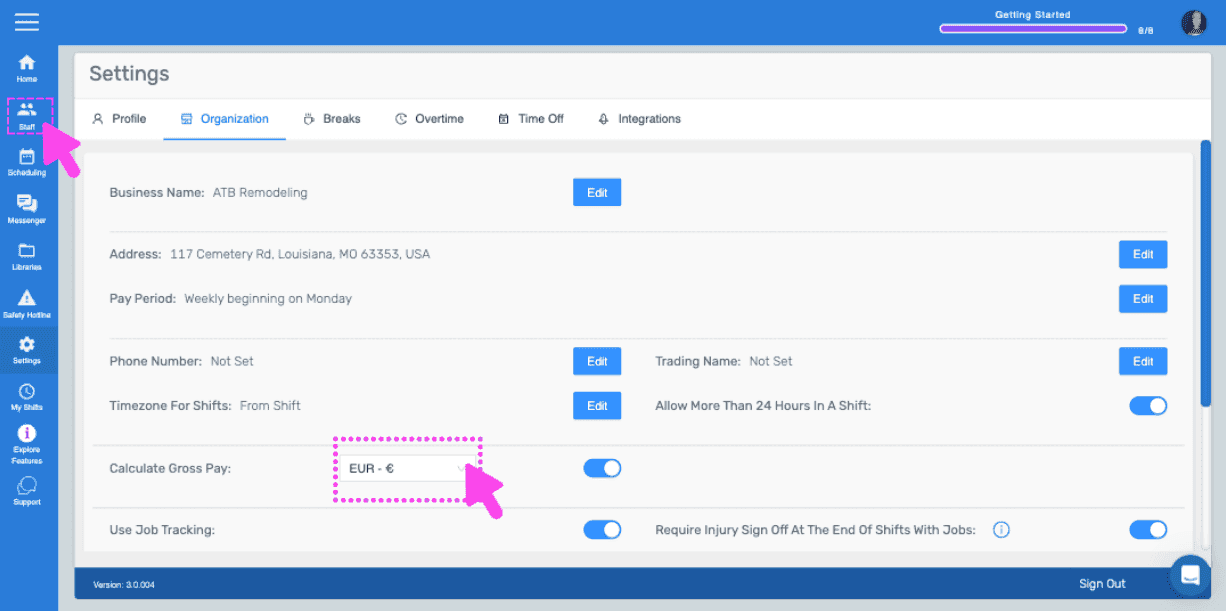
SINC web Settings Organization tab with a pink arrow pointing to the Calculate Gross Pay field
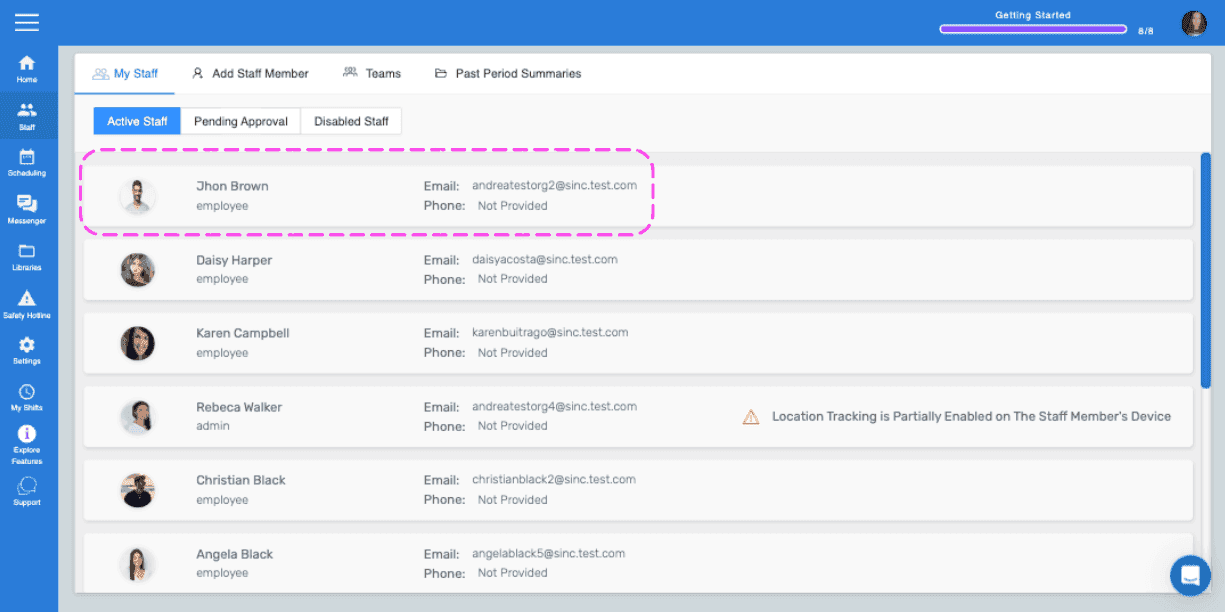
SINC web Staff list with an employee's row outlined in pink
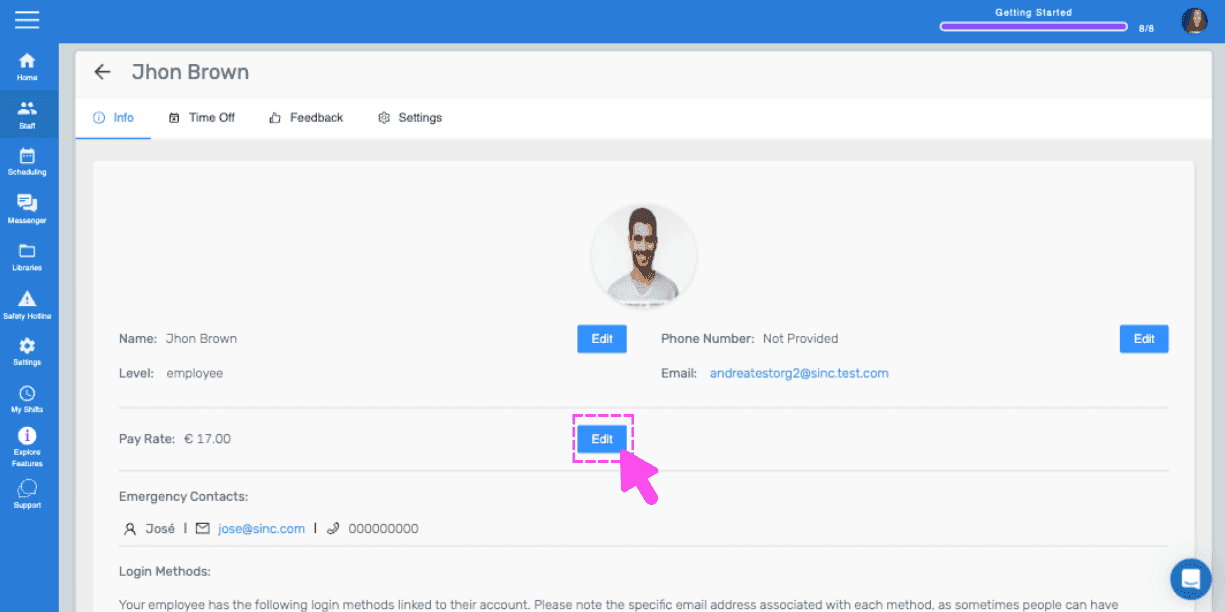
Employee profile screen with a pink arrow pointing to the Edit button next to Pay Rate
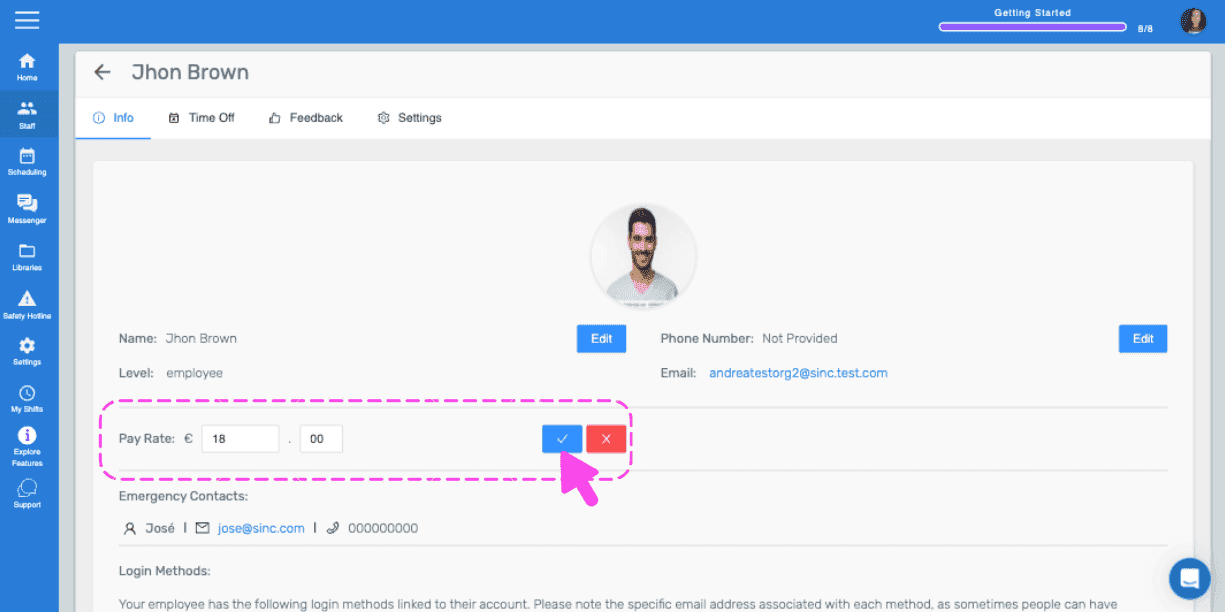
SINC web staff profile Info tab with the Pay Rate field outlined in pink and a hand pointing to the confirm checkmark
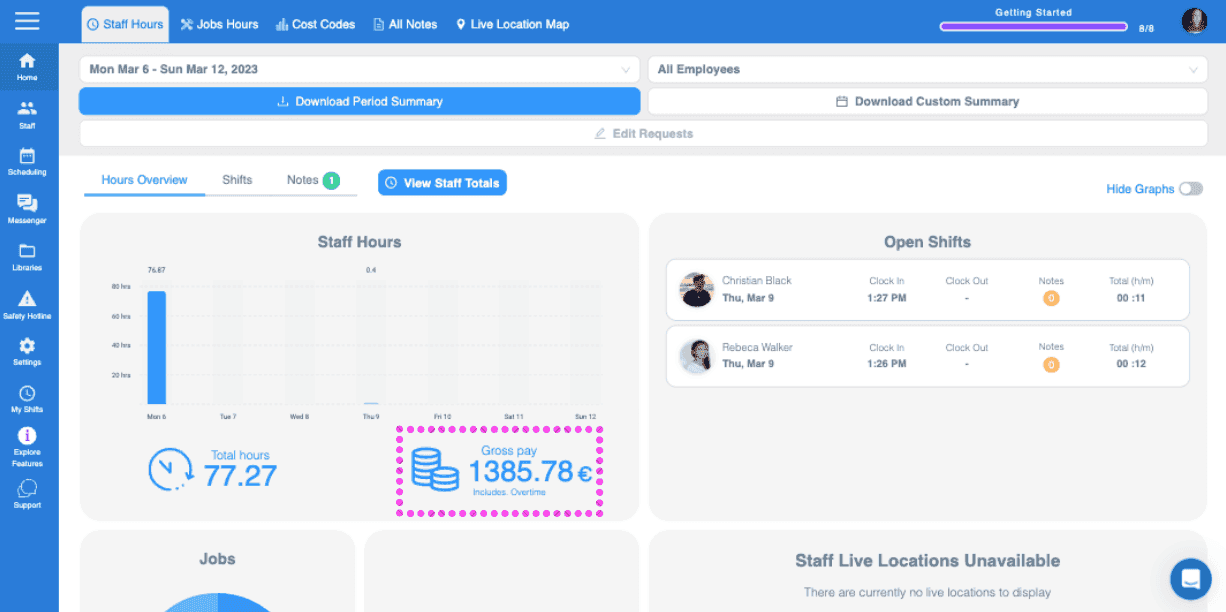
Web dashboard Staff Hours overview with the total gross pay figure outlined in pink
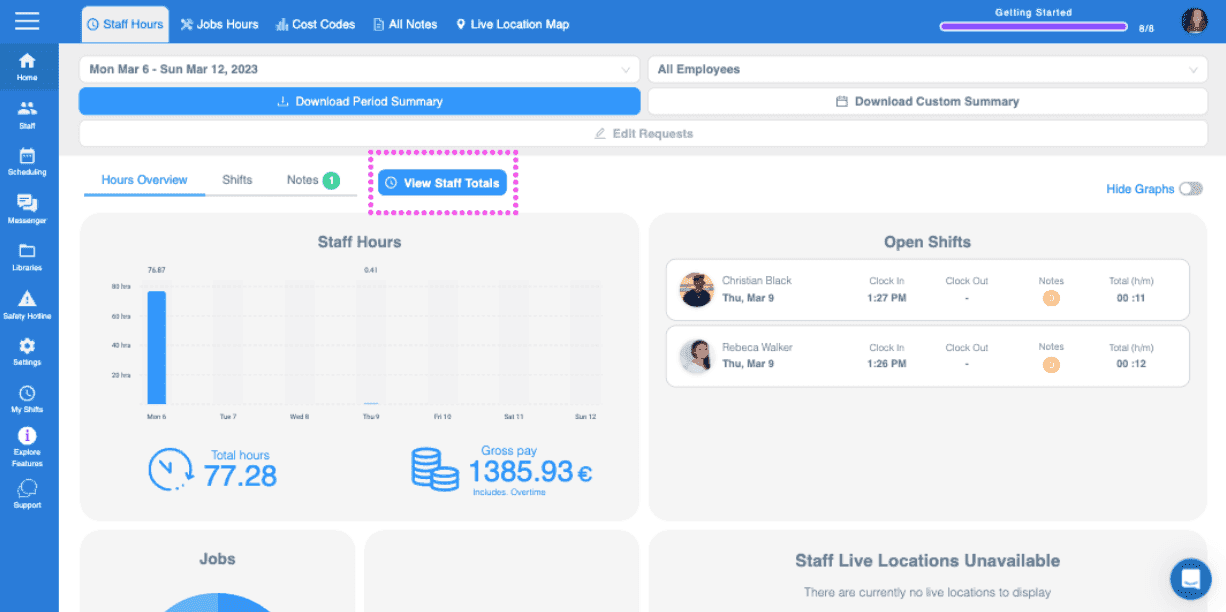
SINC web dashboard Overview tab with the View Staff Totals button circled in pink
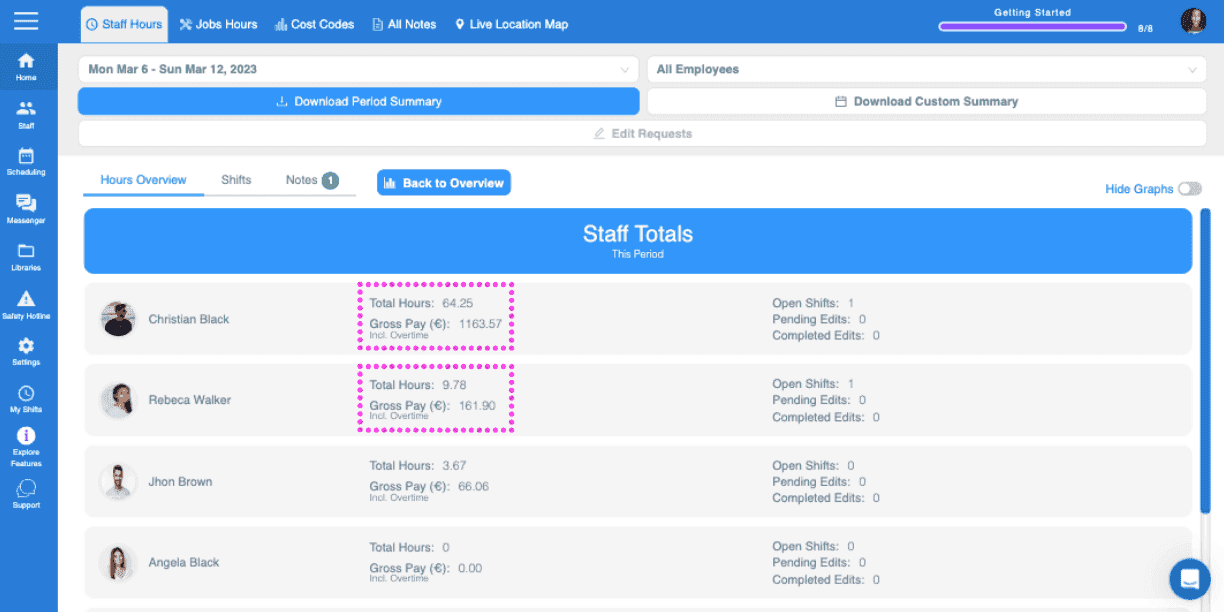
SINC web Staff Totals screen listing each employee's total hours and gross pay for the period

Questa risposta ti è stata utile?