
Aggiungere i turni ai programmi di lavoro dei dipendenti

Questo tutorial ti mostra come aggiungere i turni ai programmi di lavoro dei tuoi dipendenti.

SINC Support Team
SINC Support Team
Jun 13th, 2022

Sul Web: fai clic sull’icona circolare con il segno più in corrispondenza del dipendente e del giorno per cui vuoi aggiungere un turno.
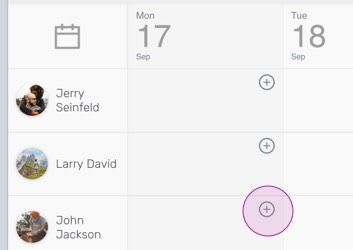
SINC web schedule grid with a pink circular plus icon highlighted for adding an employee shift

Scegli l’orario di inizio e fine del turno.
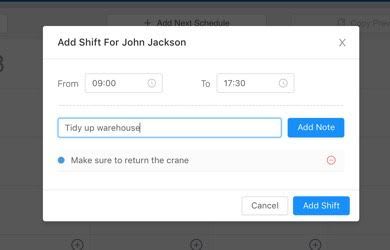
SINC web Add Shift popup showing start and end time fields with a note added below

Aggiungi eventuali note, quindi fai clic su Aggiungi turno.
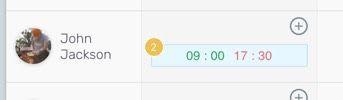
Scheduling grid row for an employee showing a shift block from 09:00 to 17:30

Ora puoi vedere il turno aggiunto nel calendario.
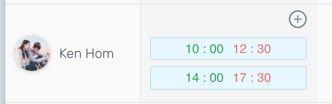
SINC web schedule grid row for an employee showing two scheduled shift time blocks

Su dispositivo mobile: tocca l’icona + per aggiungere un turno programmato.
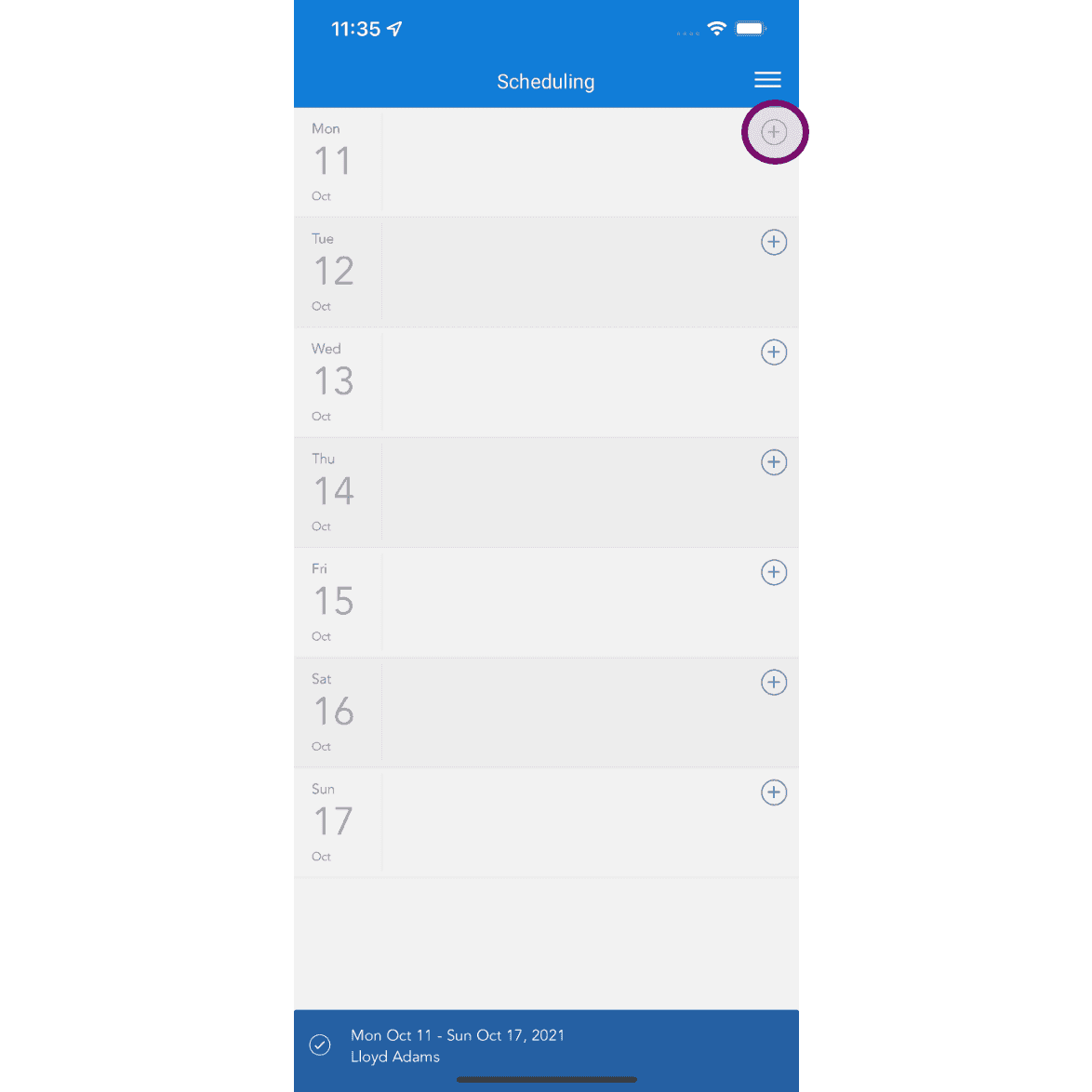
Scheduling calendar view for the week with the plus icon circled in the top right to add a shift

Scegli l’orario di inizio e di fine del turno programmato.
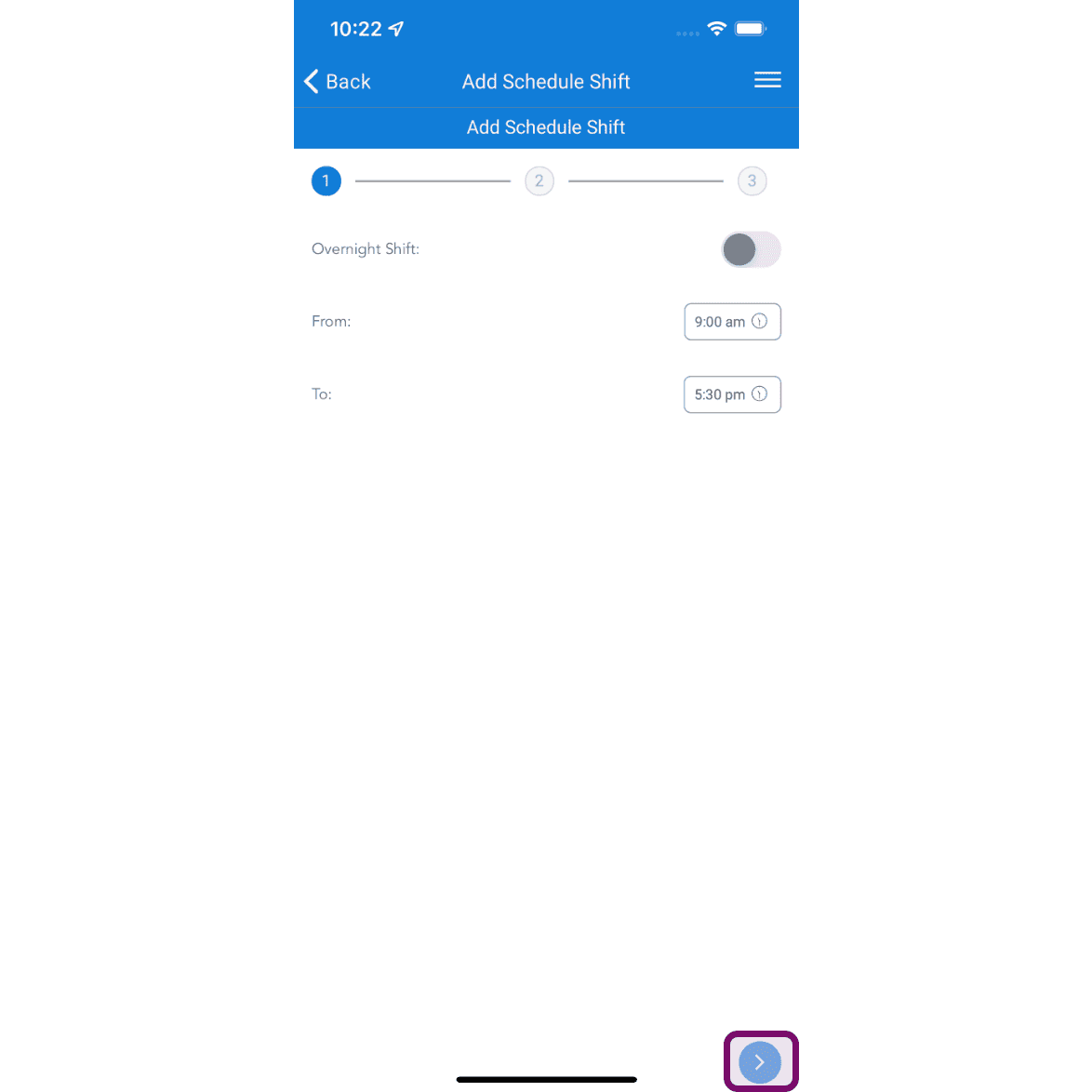
SINC mobile Add Schedule Shift wizard with From and To time fields and the next-step arrow highlighted

Aggiungi delle note, se necessario, quindi tocca il pulsante Avanti.
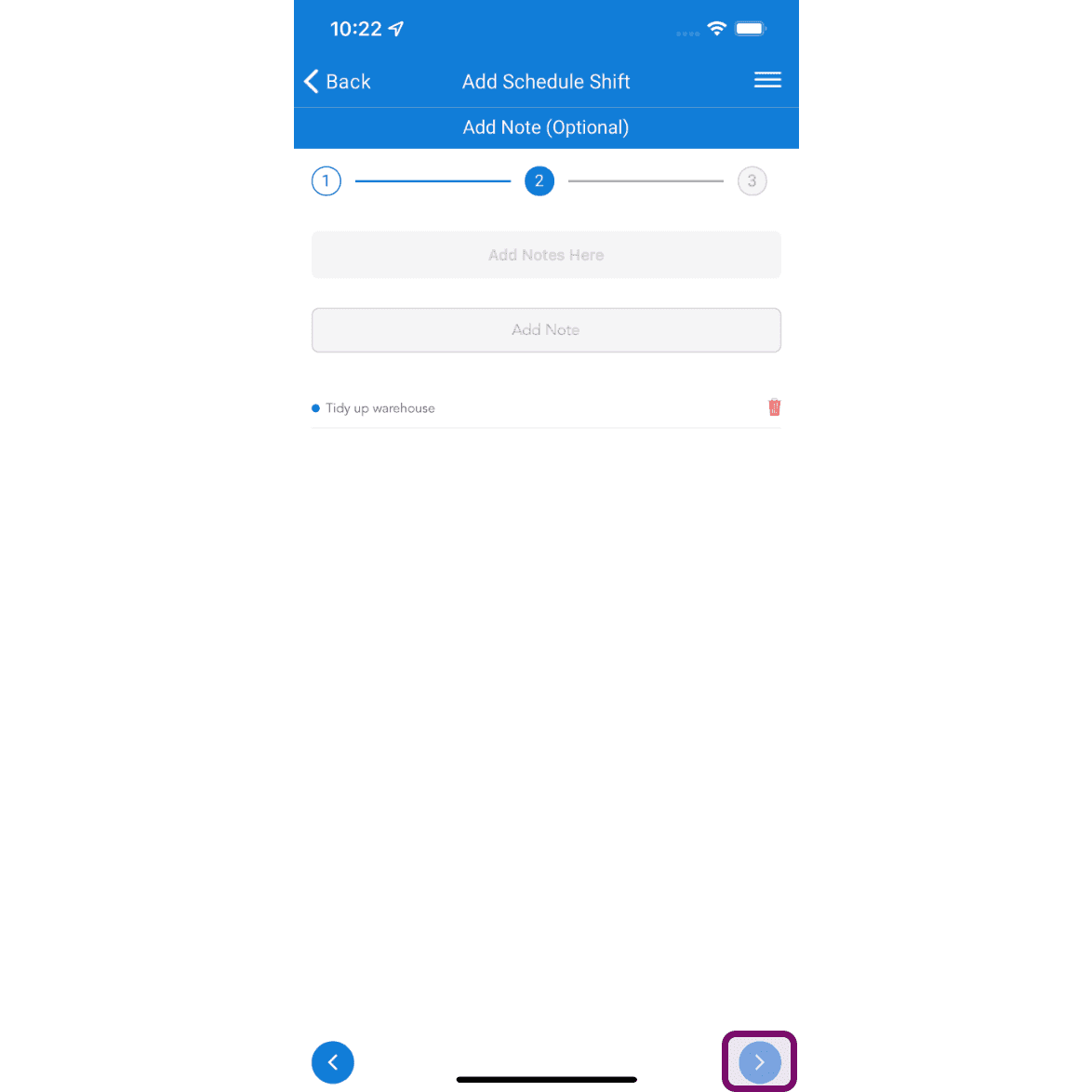
Mobile Add Schedule Shift screen showing the optional notes step with the Next arrow button outlined in pink

Tocca il pulsante Invia per aggiungere il turno.
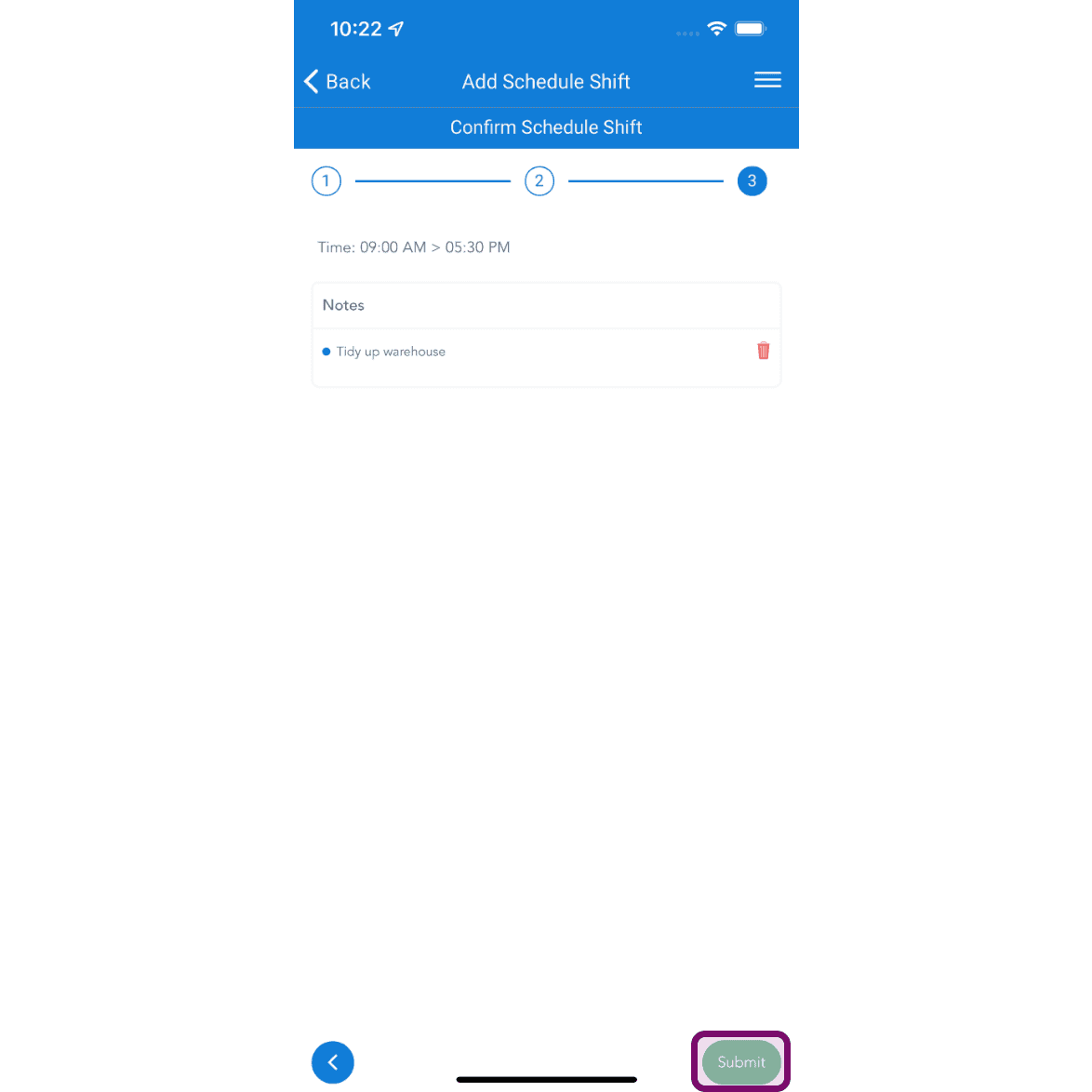
SINC mobile Confirm Schedule Shift step showing shift time and notes with the Submit button circled

Puoi aggiungere più turni al giorno e assegnare modelli predefiniti per velocizzare la programmazione dei dipendenti abituali.
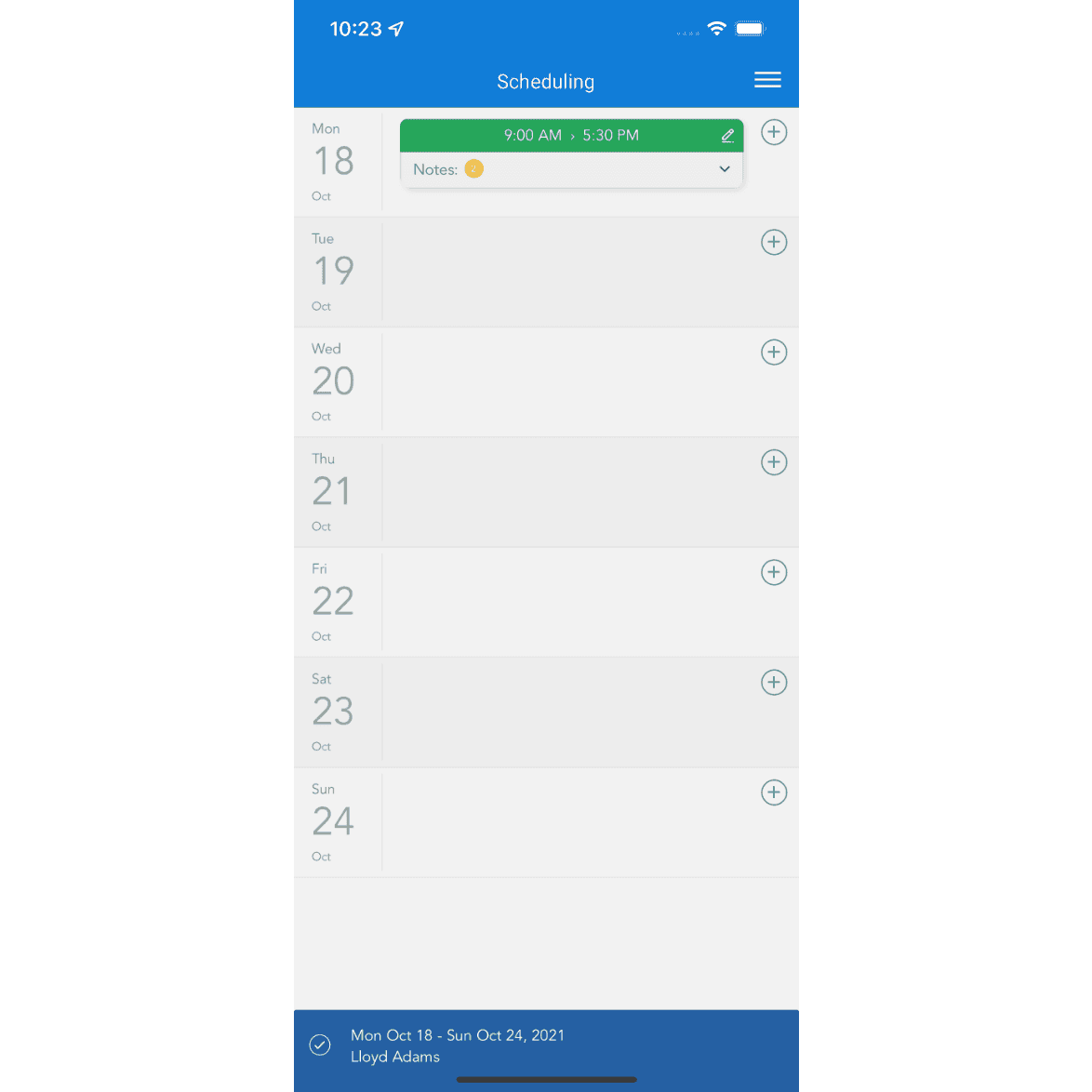
Weekly scheduling calendar showing a shift from 9:00 AM to 5:30 PM on Monday

Questa risposta ti è stata utile?