Aggiungi modello di turno

In questo tutorial ti mostriamo come aggiungere un modello di turno

SINC Support Team
SINC Support Team
May 7th, 2021

Sul Web: fai clic su Menu Librerie Modelli di turno scheda Modelli di turno
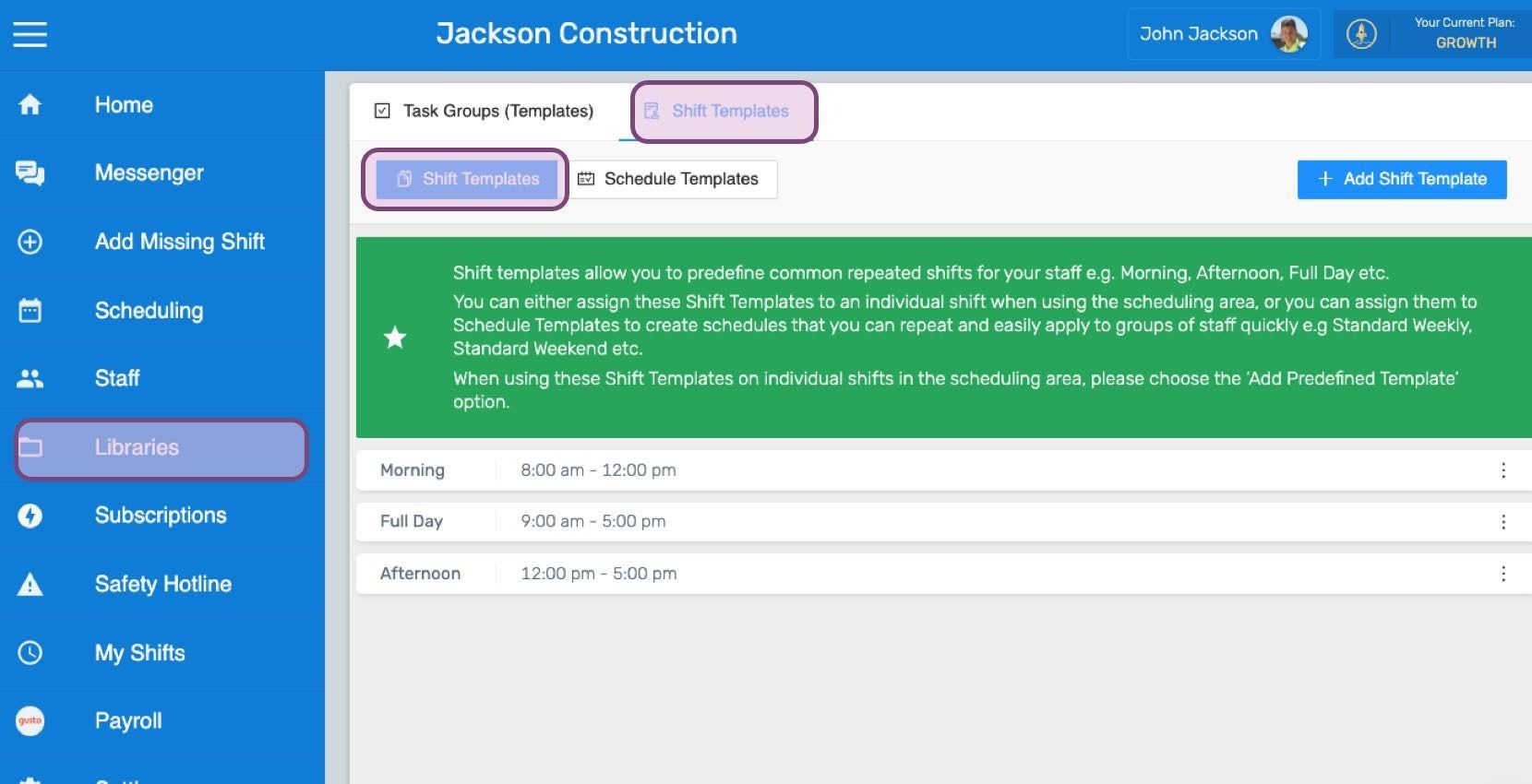
SINC web Libraries screen with the Shift Templates menu item and tab highlighted in purple

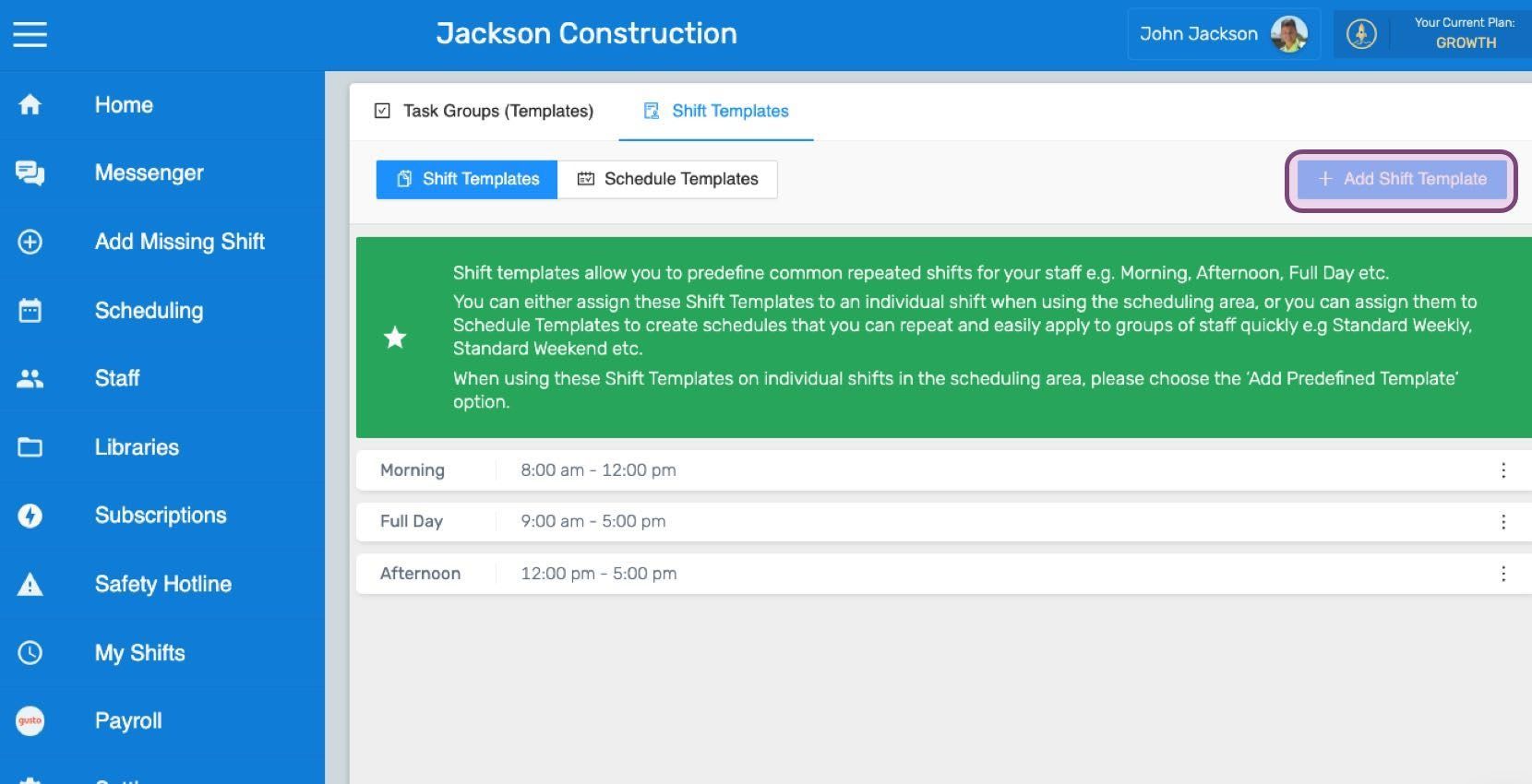
Clicca su Aggiungi modello di turno

Web Shift Templates list with the Add Shift Template button outlined in pink

Inserisci il nome da assegnare al modello di turno.
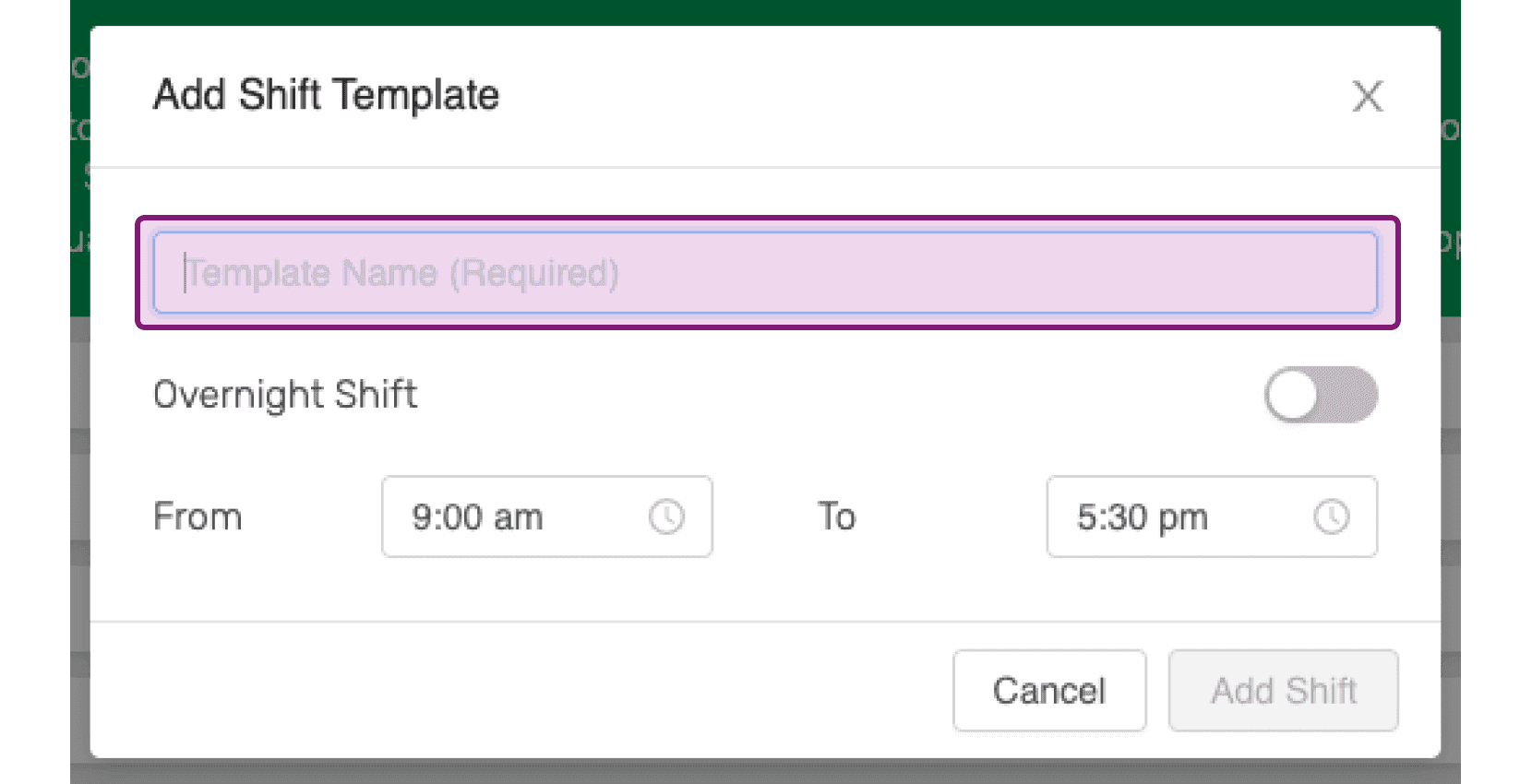
SINC web Add Shift Template dialog with the Template Name field outlined in pink

Attiva l’opzione turno notturno se si tratta di un modello di turno notturno.
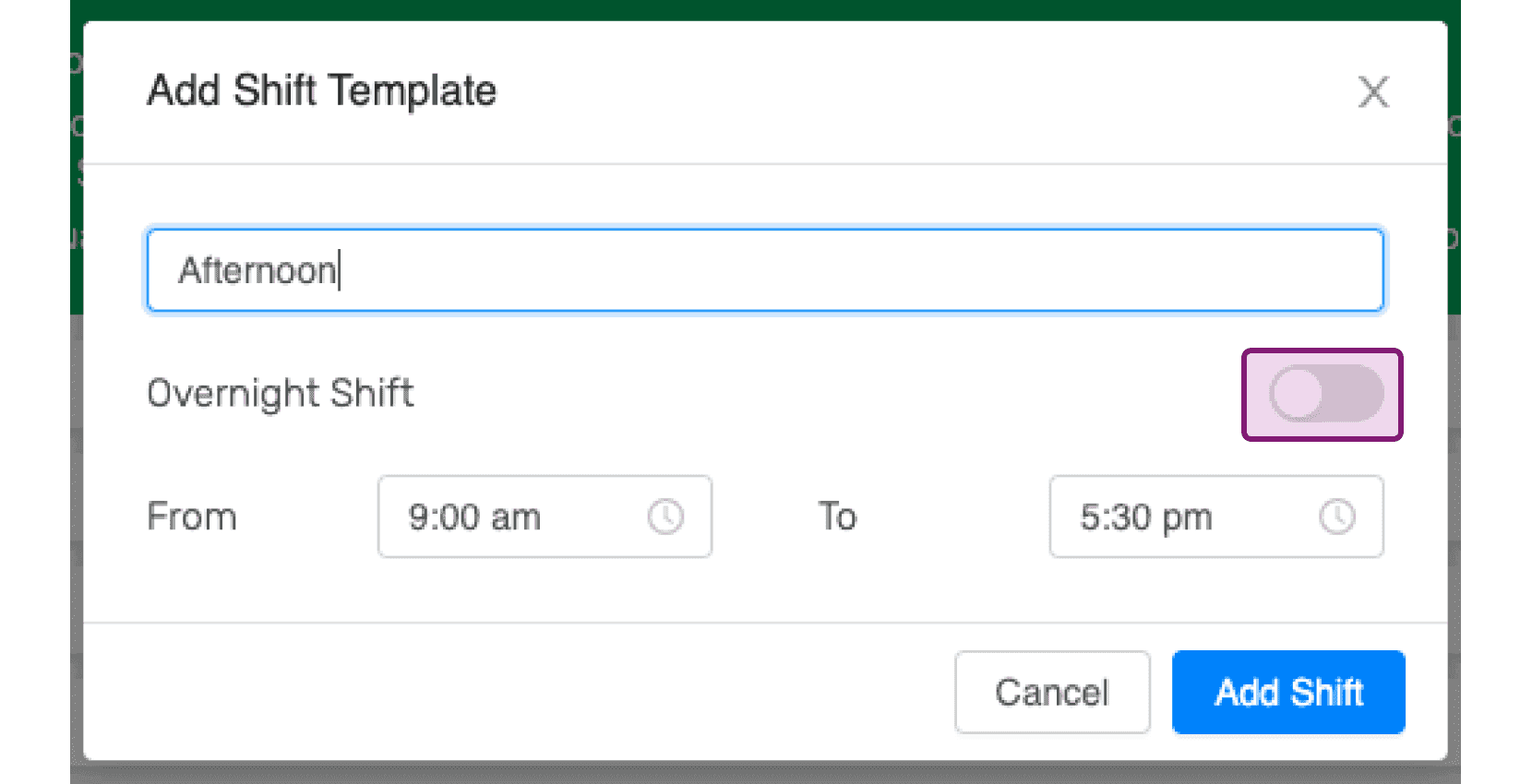
Add Shift Template popup named "Afternoon" from 9:00 am to 5:30 pm with the Overnight Shift toggle circled

Scegli gli orari di inizio e fine appropriati per il modello di turno. Potrai modificarli in seguito.
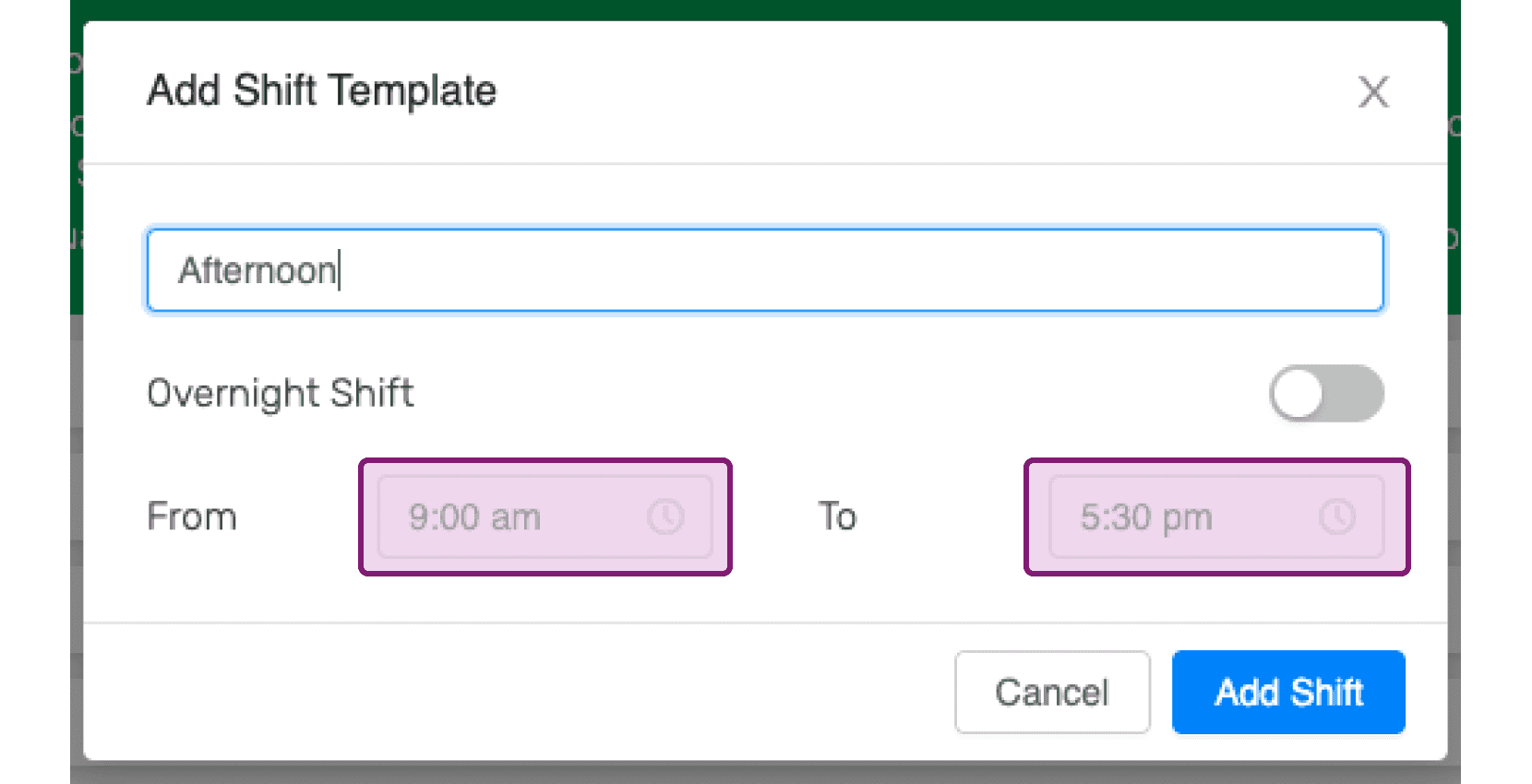
SINC web Add Shift Template modal with a template name and highlighted From and To time fields

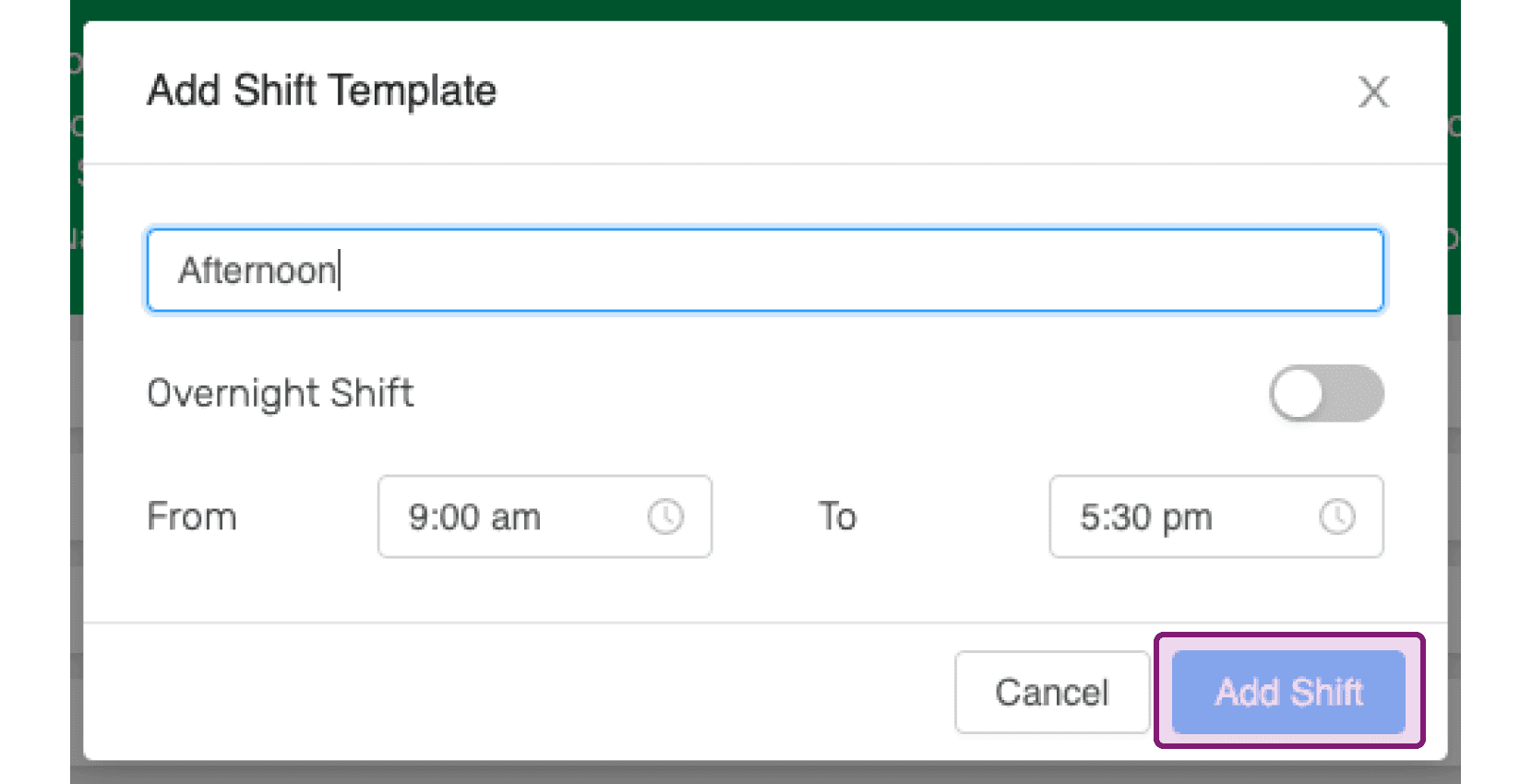
Fai clic su Aggiungi turno

Web Add Shift Template dialog with a shift name entered and the Add Shift button outlined in pink

Questa risposta ti è stata utile?