Modifica modello di pianificazione

In questo tutorial ti mostriamo come modificare un modello di pianificazione

SINC Support Team
SINC Support Team
May 7th, 2021

Sul Web: fai clic su Menu Librerie Modelli di turno scheda Modelli di pianificazione
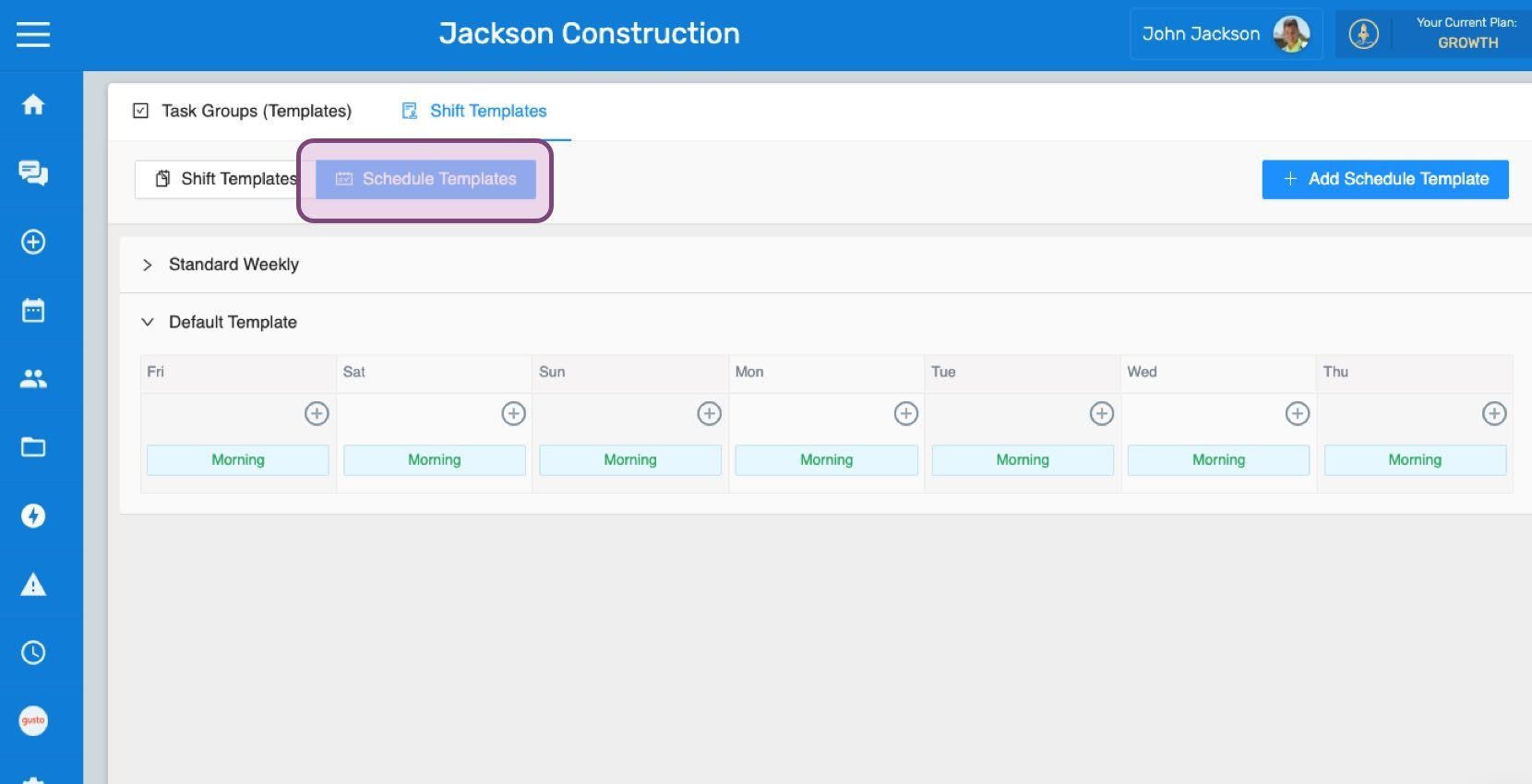
SINC web Shift Templates screen with the Schedule Templates tab outlined in pink above a weekly template grid

Fai clic sulla freccia per aprire il modello di pianificazione da modificare.
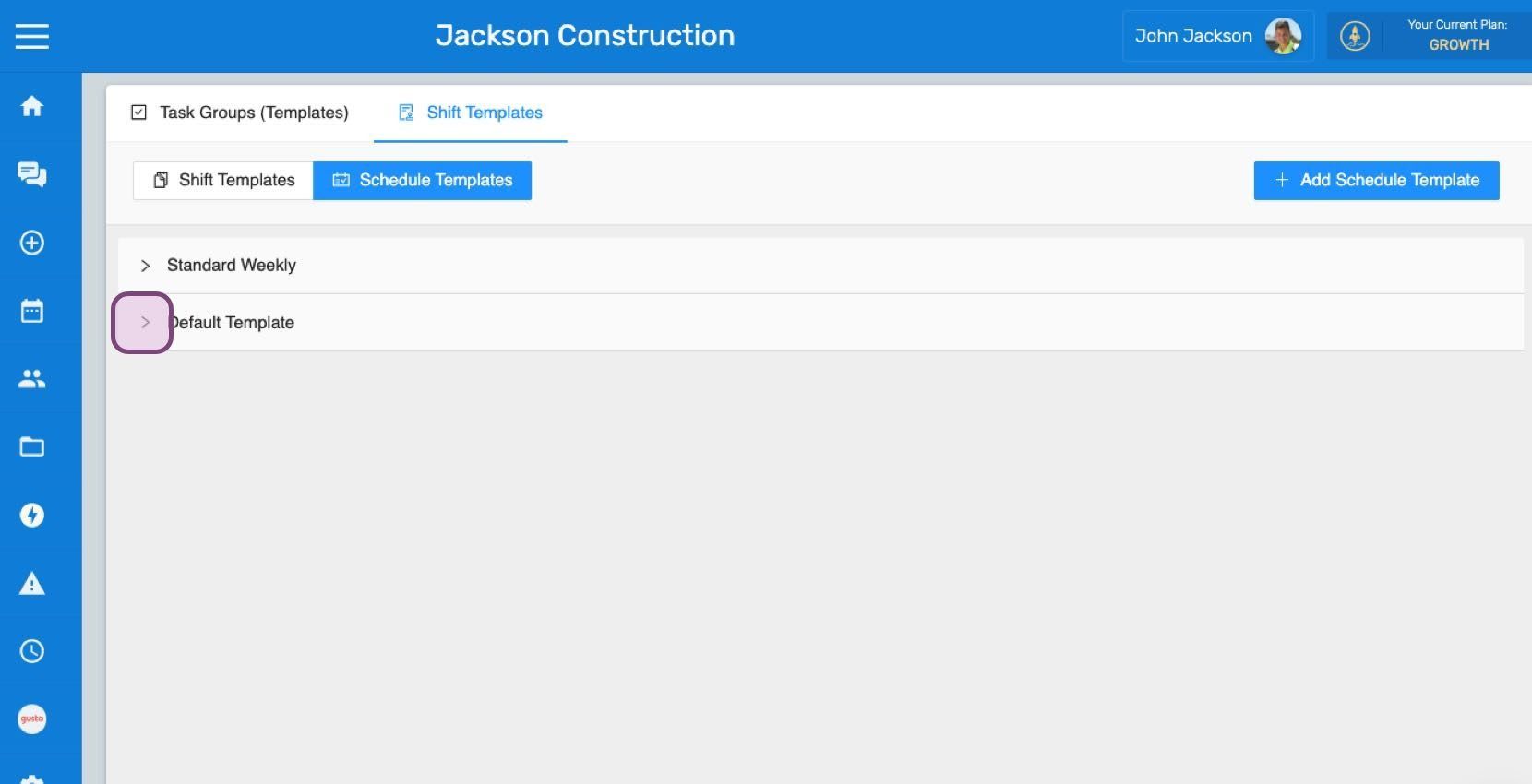
Web Shift Templates list showing Standard Weekly and Default Template with an expand arrow circled in purple

Fai clic sul turno predefinito da modificare.
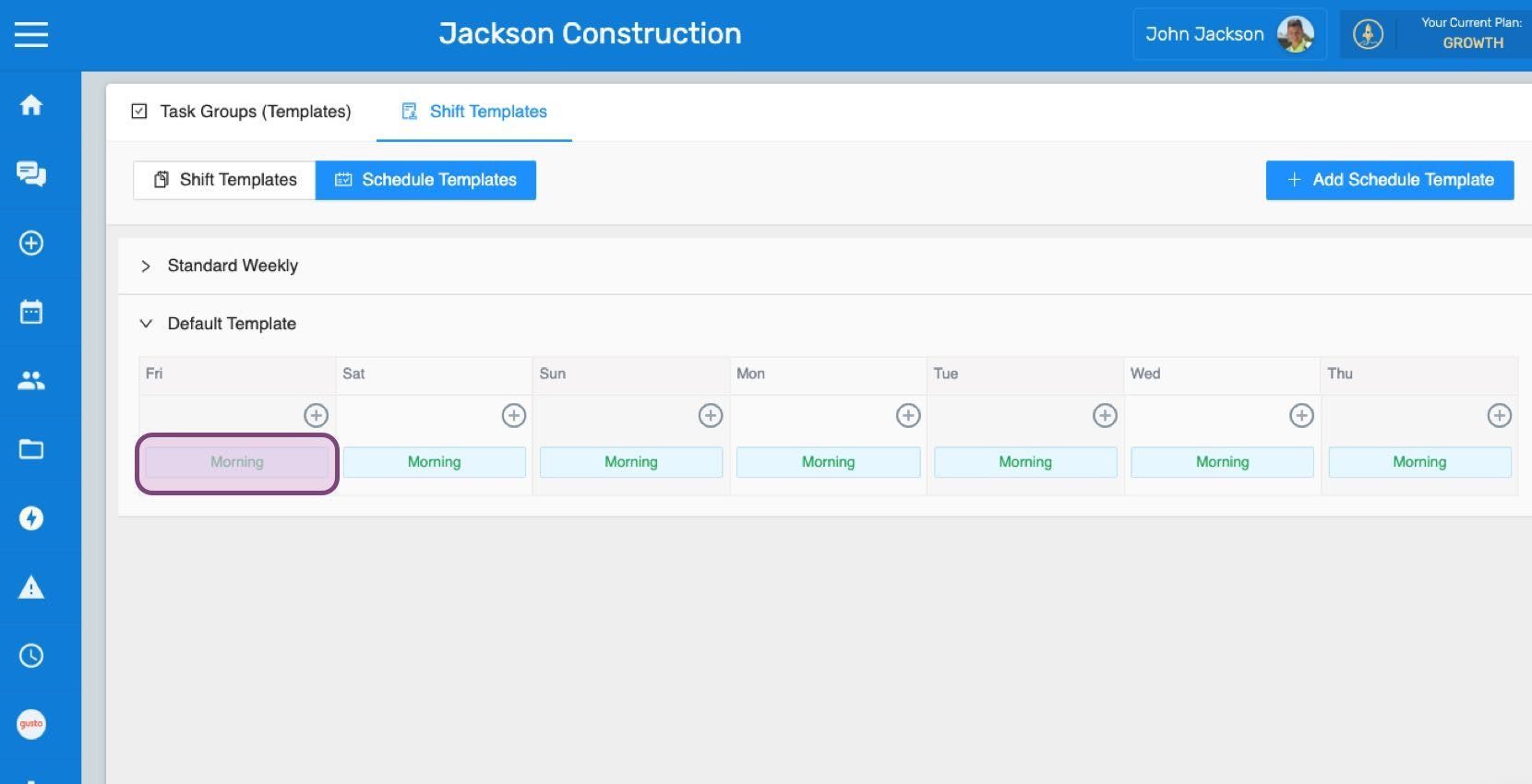
Schedule Templates weekly grid with the Morning shift template entry circled in purple

Seleziona un turno predefinito dal menu a tendina per sostituire il turno attuale con quello desiderato.
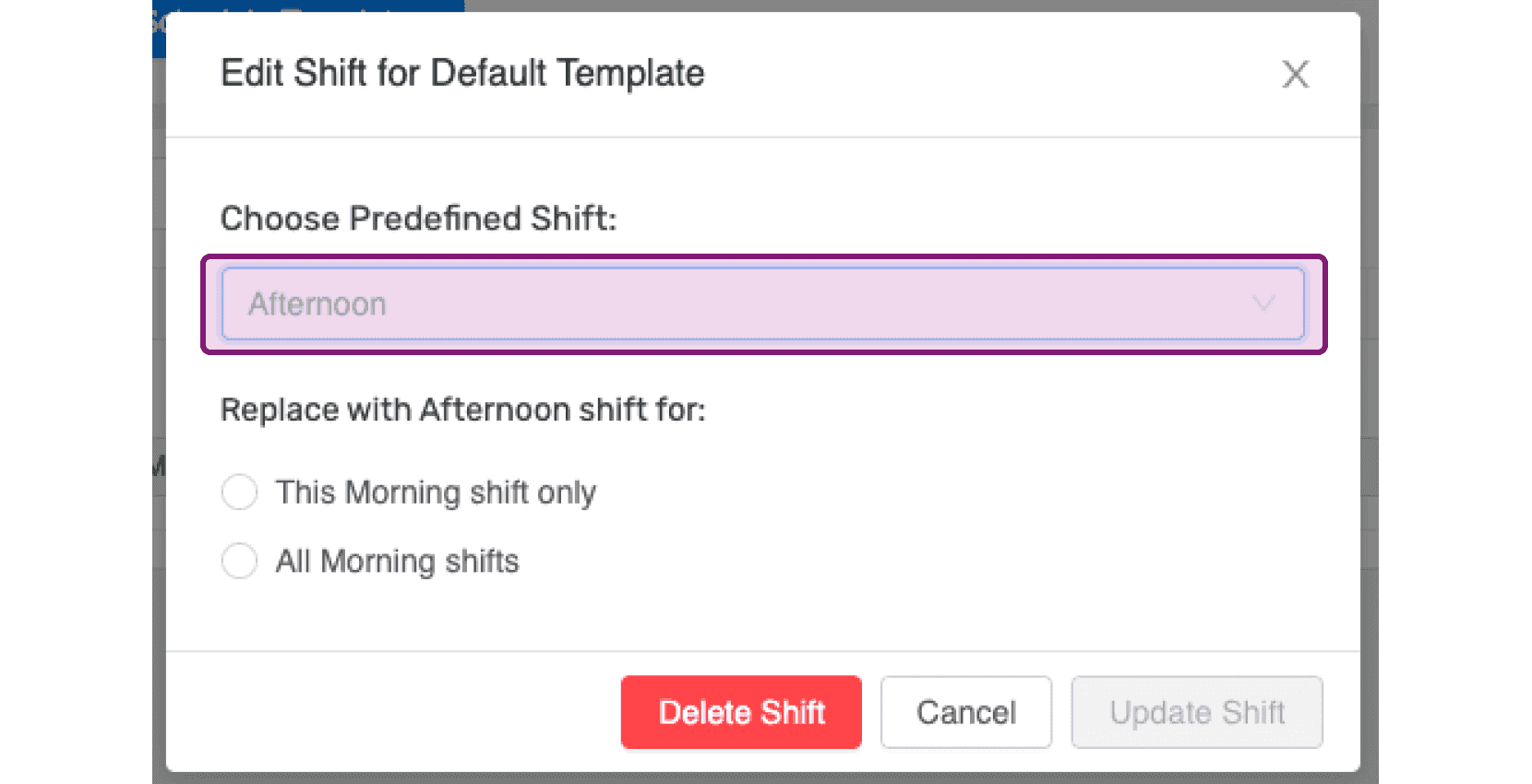
SINC web Edit Shift popup with the Choose Predefined Shift dropdown highlighted in purple

Puoi scegliere di sostituire il turno desiderato solo nel giorno specifico oppure in tutti i giorni in cui è presente il turno attuale.
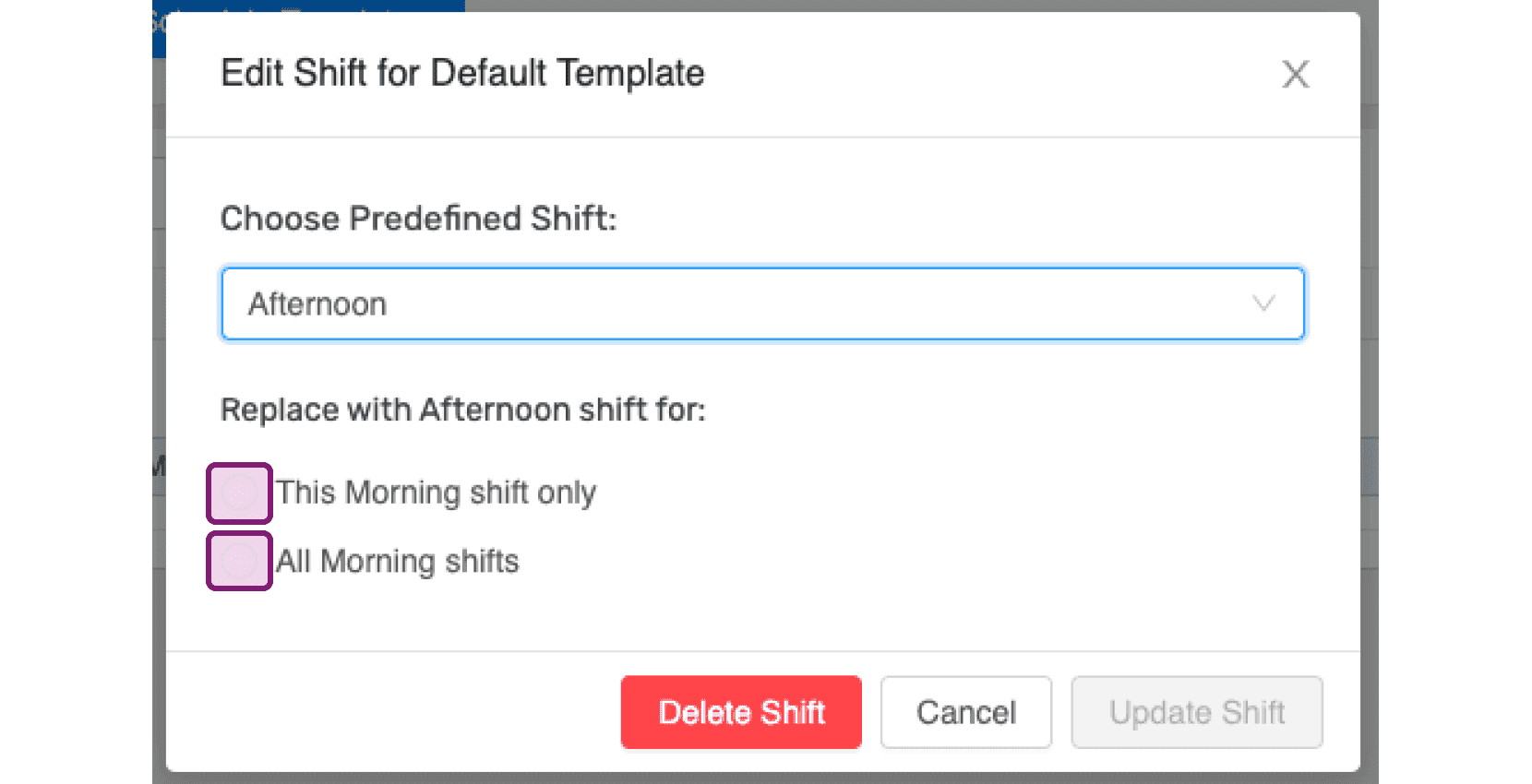
Edit Shift for Default Template popup with the Choose Predefined Shift dropdown and replace-shift checkboxes outlined in pink

Se desideri eliminare un turno predefinito da questo modello di pianificazione, fai clic su Elimina turno
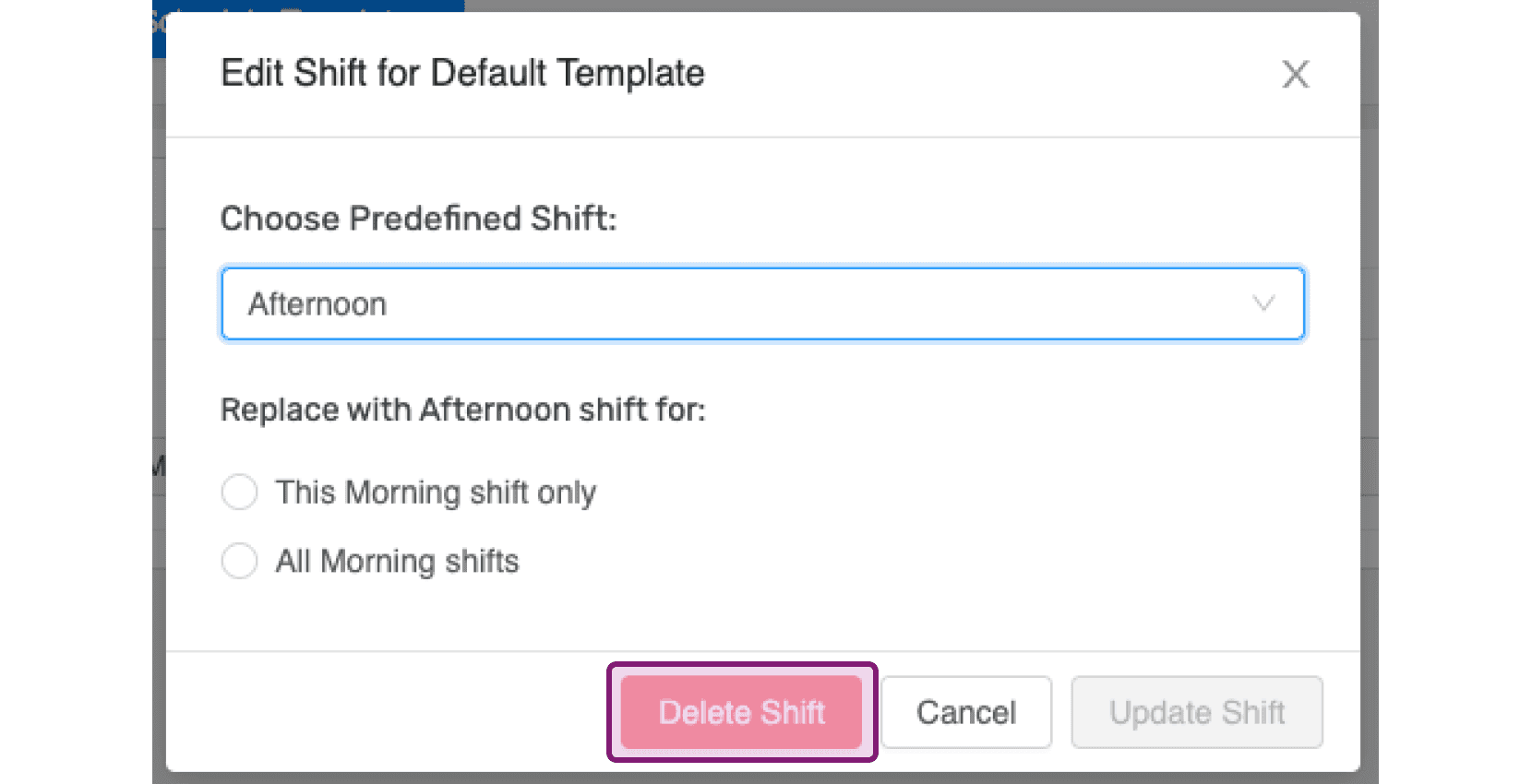
SINC web Edit Shift dialog with the Delete Shift button highlighted in pink

Per modificare il nome del modello di pianificazione, fai clic sul nome.
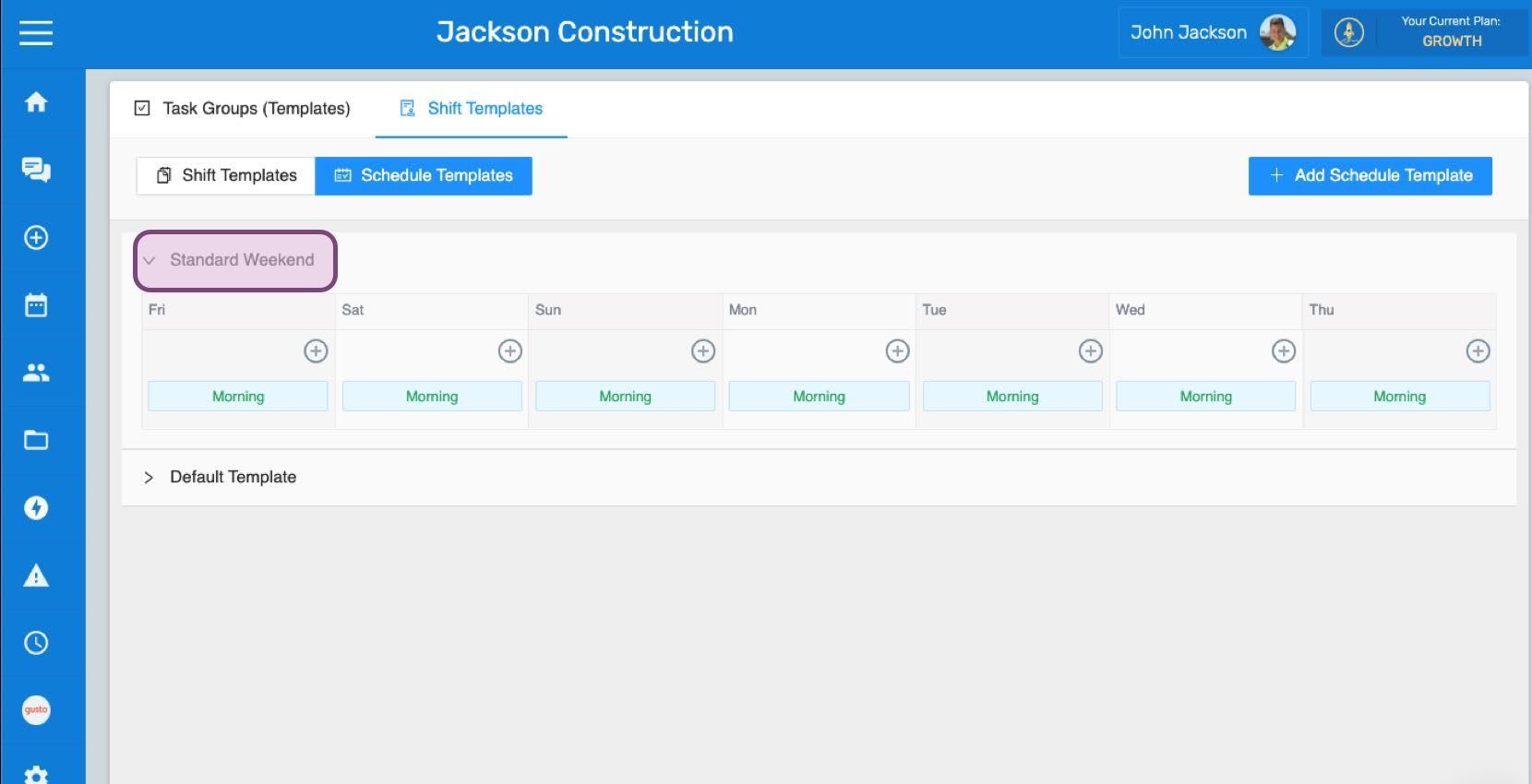
Schedule Templates screen with the "Standard Weekend" template name circled in pink

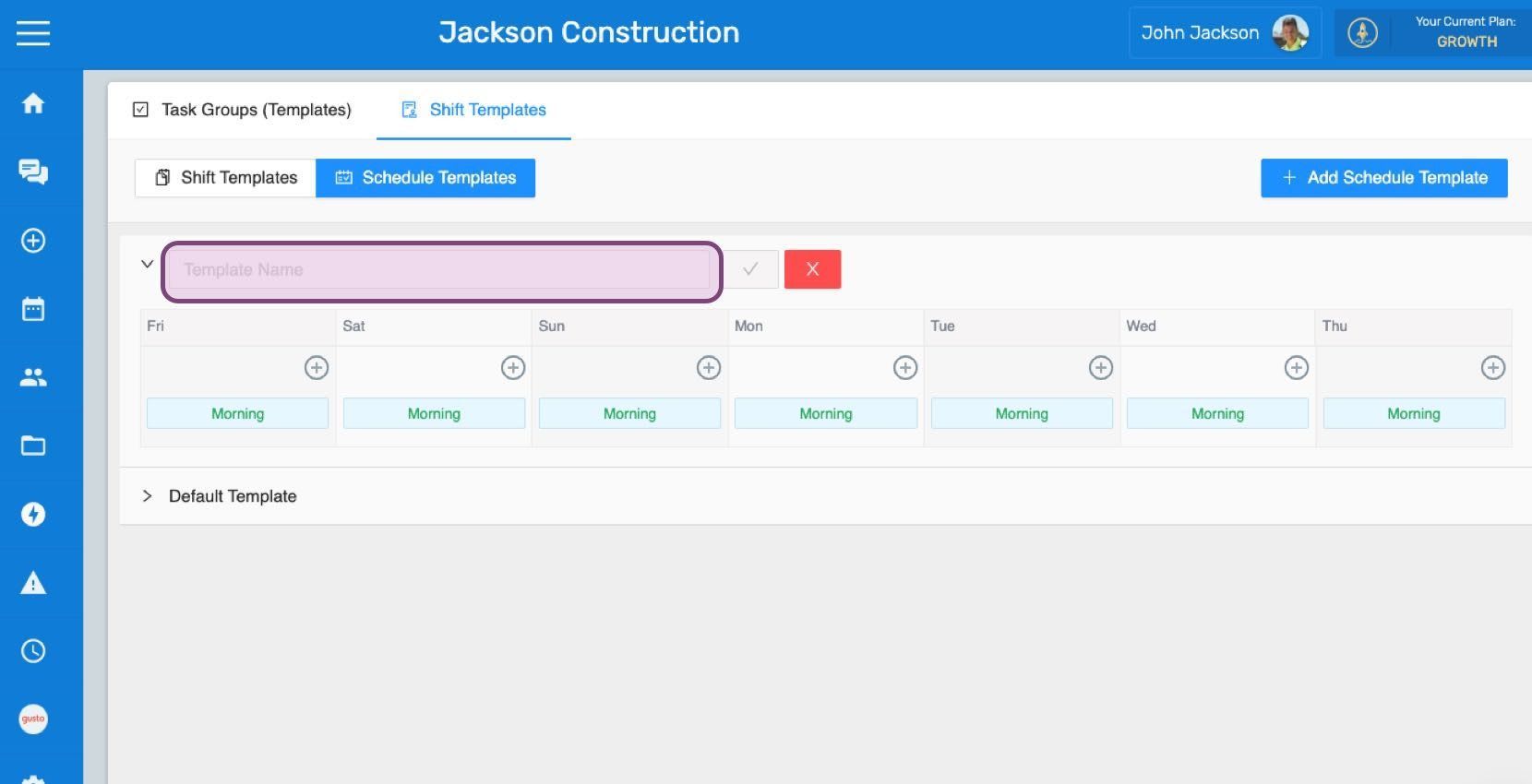
Inserisci il nuovo nome.

SINC web Schedule Templates screen with a template name field and a week of Morning shifts listed

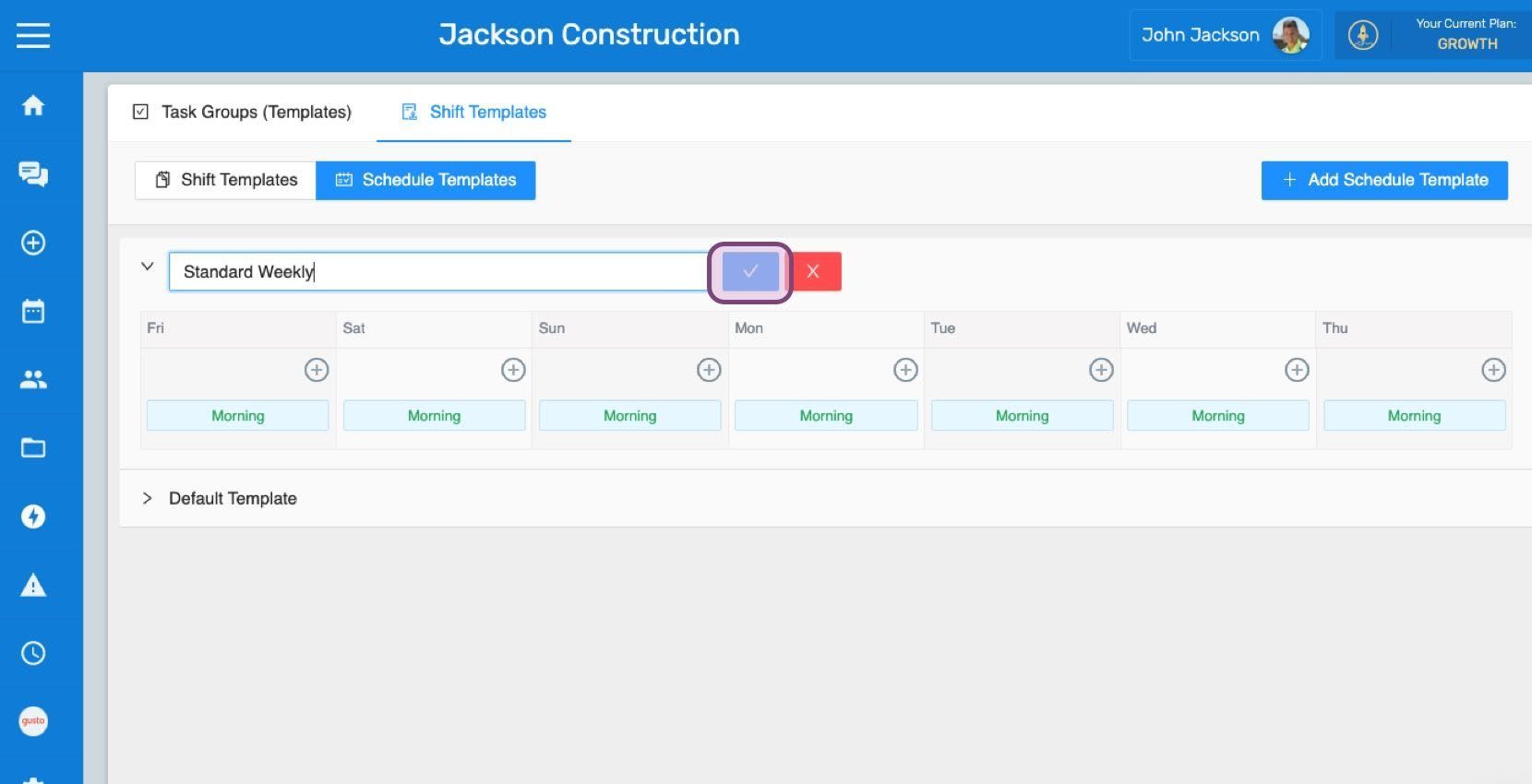
Fai clic su Conferma

Web Schedule Templates tab with a weekly template name field and the confirm checkmark button outlined in pink

Questa risposta ti è stata utile?