Come modificare un team

In questo tutorial ti mostriamo come modificare un team

SINC Support Team
SINC Support Team
Mar 1st, 2023

Sul web: clicca su Menu Staff Team.
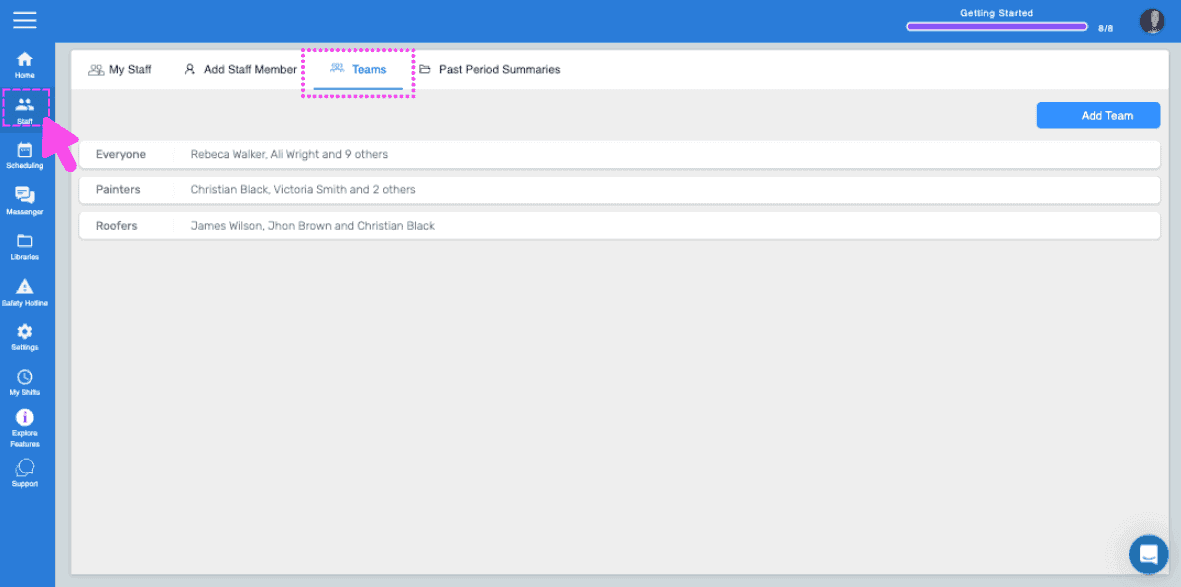
SINC web My Staff breadcrumb menu with the Teams tab highlighted in a pink dashed box

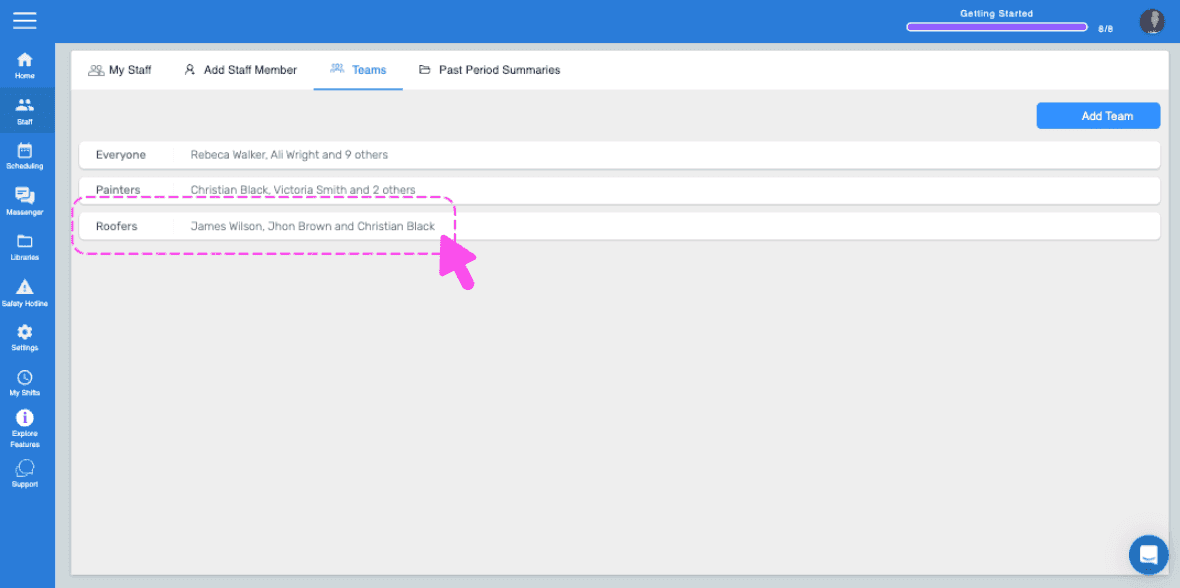
Fai clic sul team da modificare.

Web Teams list with the Painters team row outlined in pink and an arrow pointing to it

Per modificare il nome del team, clicca su Modifica accanto a Nome del team.
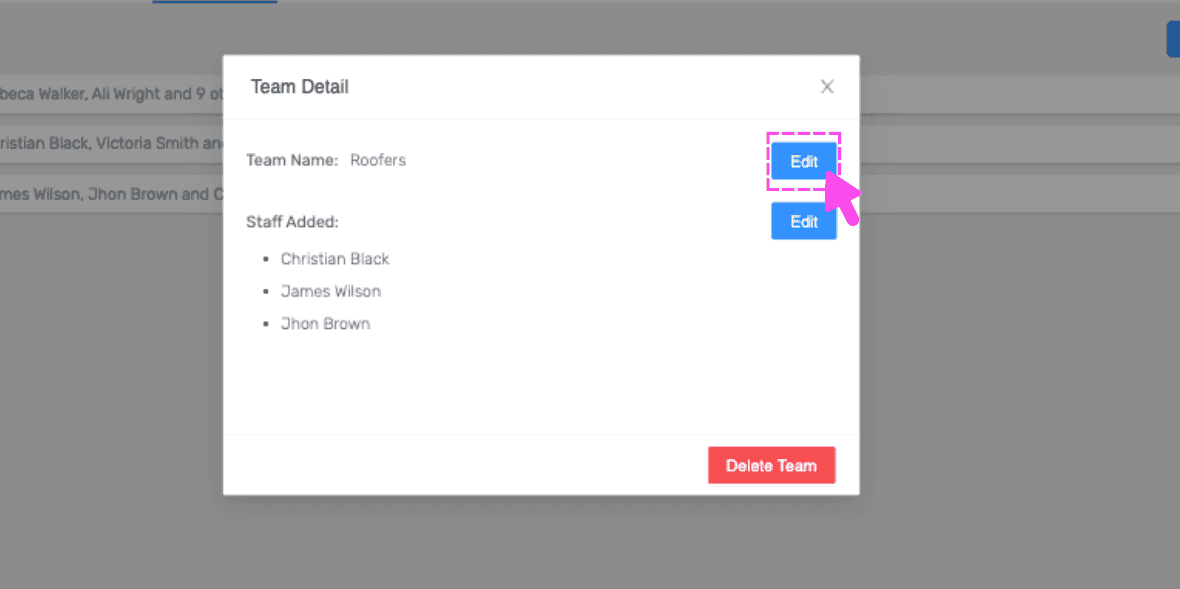
SINC web Team Detail popup listing team members with a pink arrow pointing to the Edit button next to Team Name

Per modificare i membri del team, fai clic su Modifica accanto a Personale aggiunto.
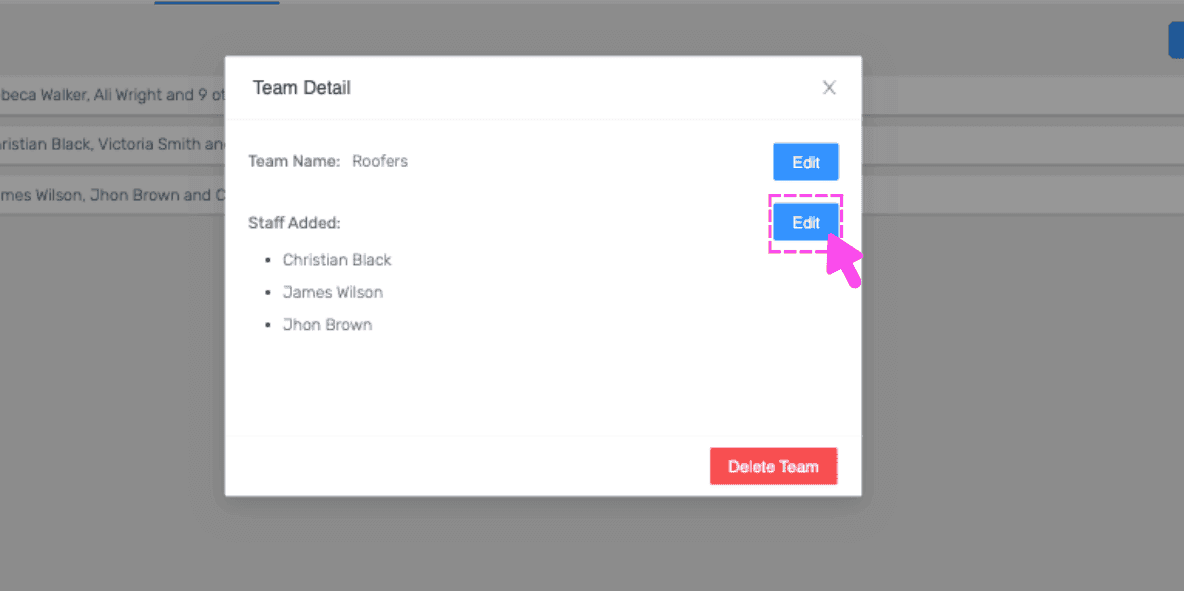
Team Detail popup with a pink arrow pointing to the Edit button next to Staff Added

Per eliminare un team, fai clic su Elimina team.
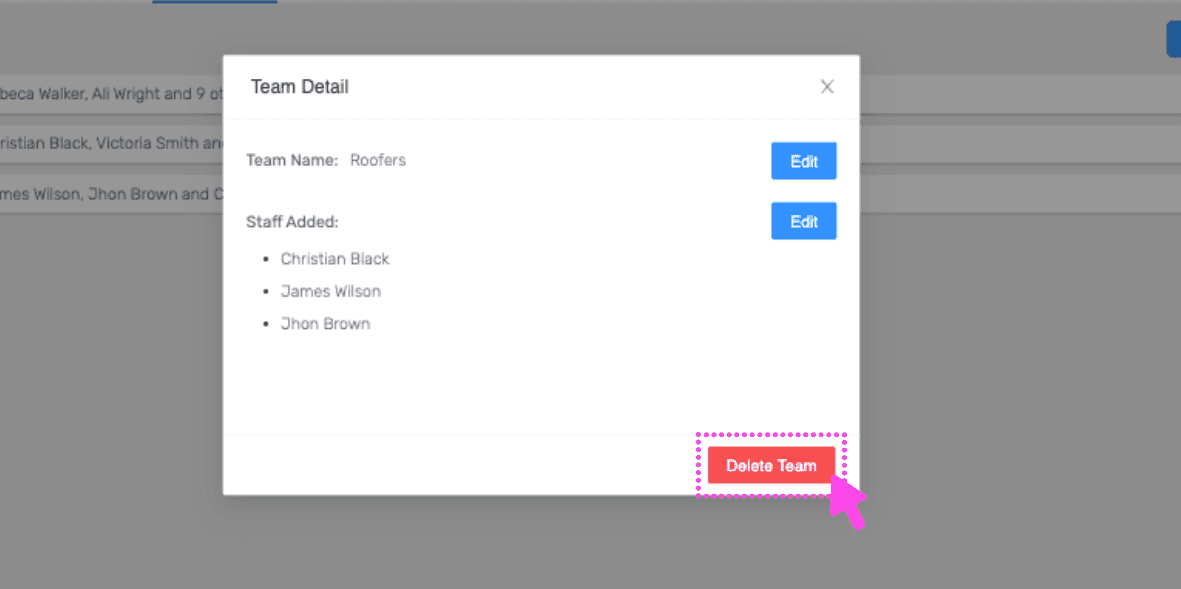
Web Team Detail popup listing team members with the Delete Team button circled in pink

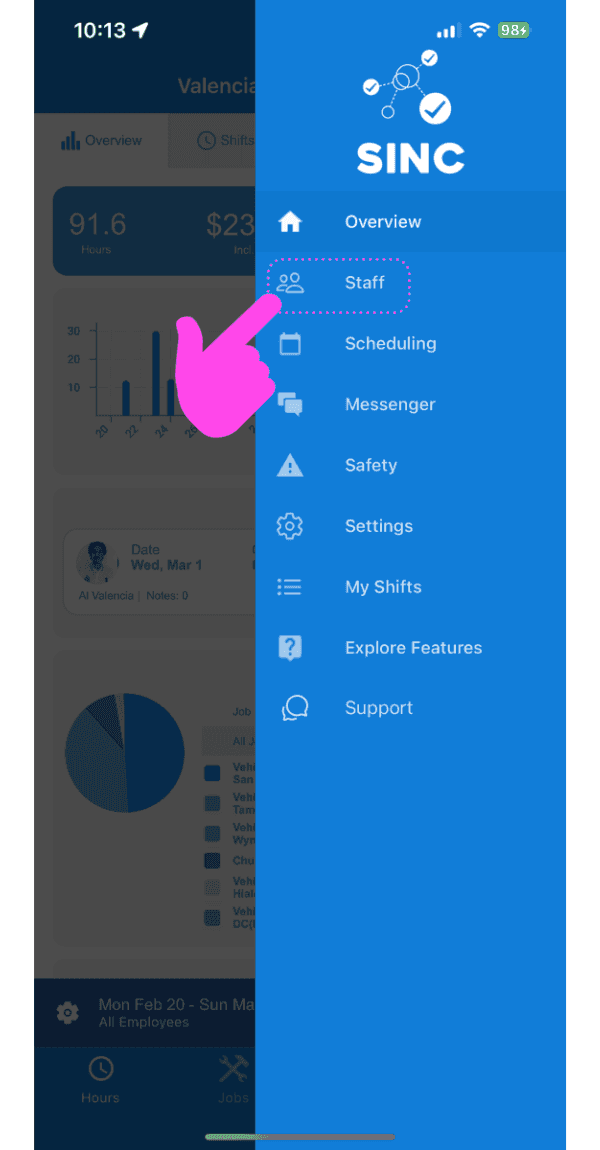
Da mobile: tocca Staff.

SINC mobile app side menu with a pink hand pointing to the Staff option

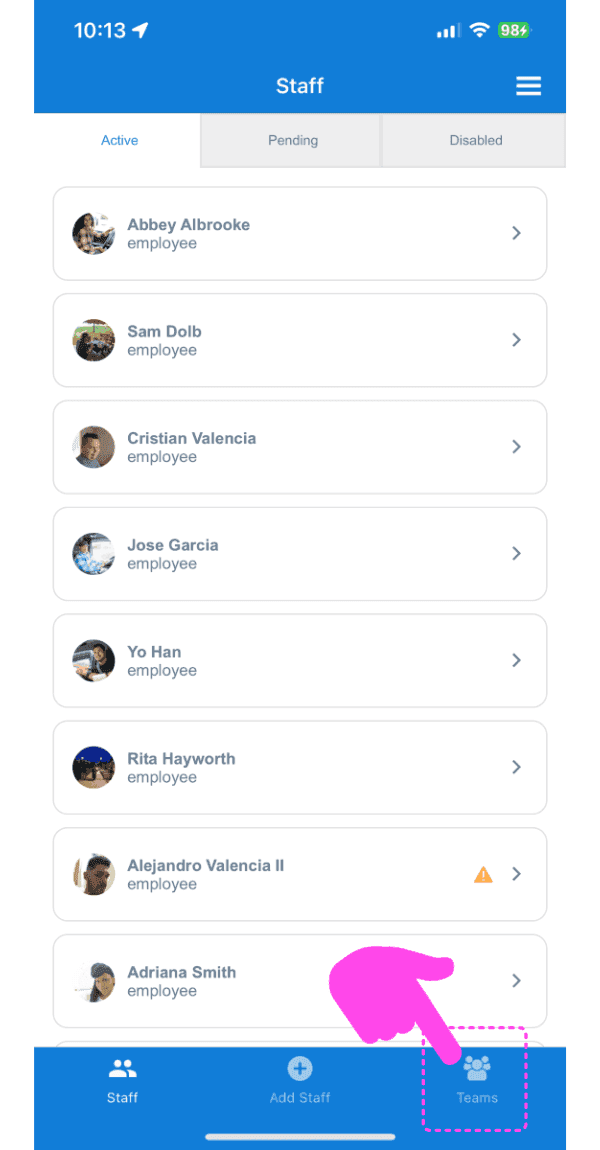
Tocca Teams.

SINC mobile Staff list on the Active tab with a pink arrow pointing to the Teams tab at the bottom

Per modificare il nome del team, tocca Modifica accanto a Nome del team.
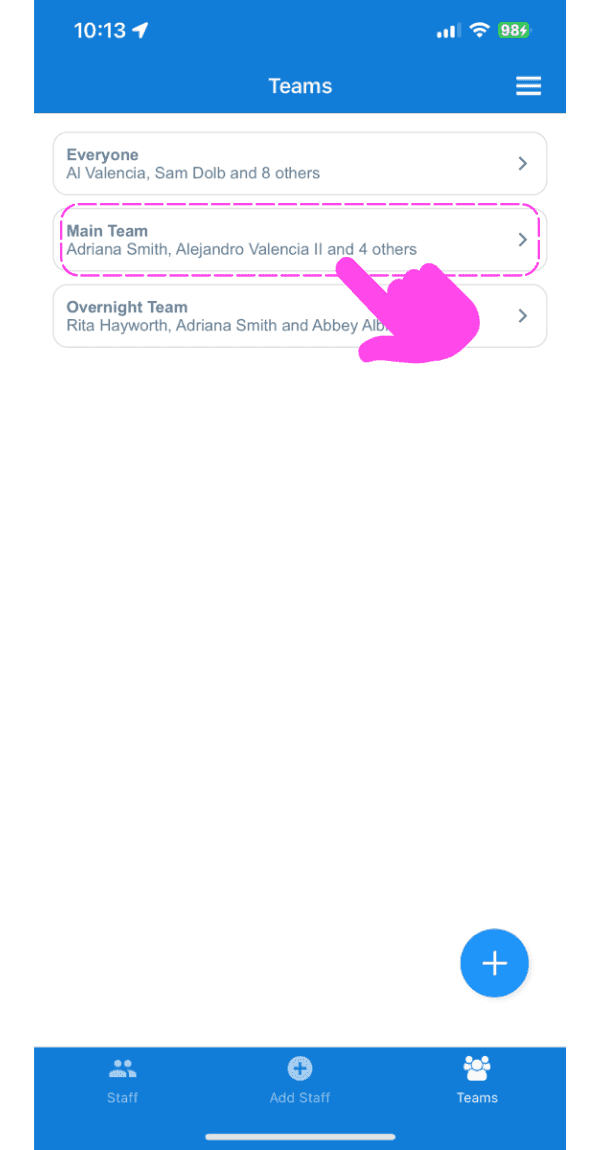
Teams list screen with a pink arrow pointing to the Main Team entry

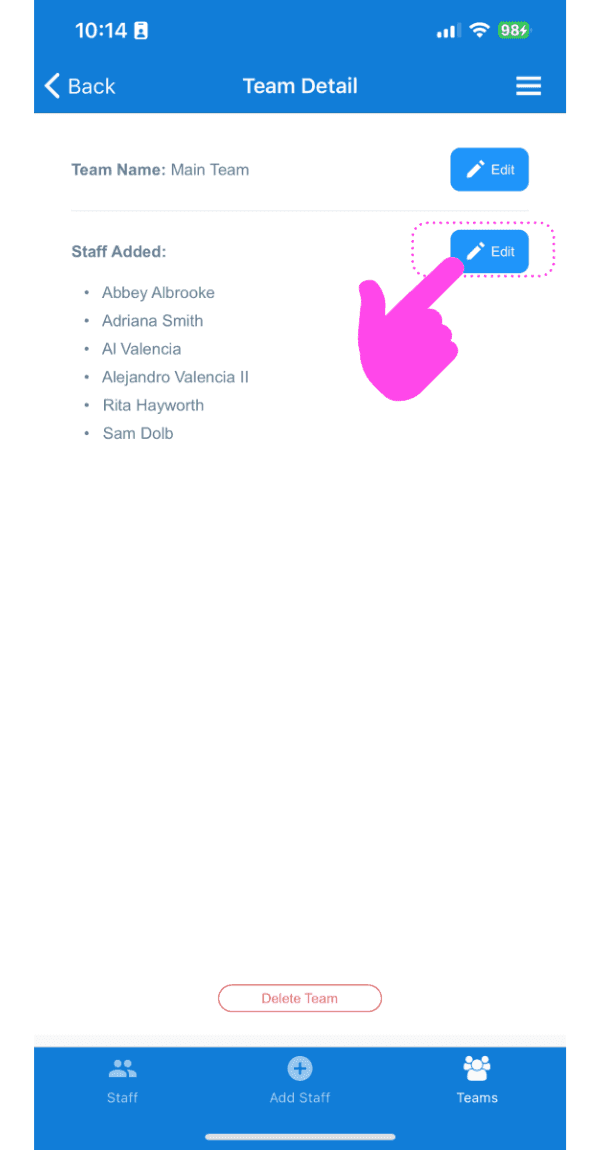
Per modificare i membri del team, tocca Modifica accanto a Personale aggiunto.
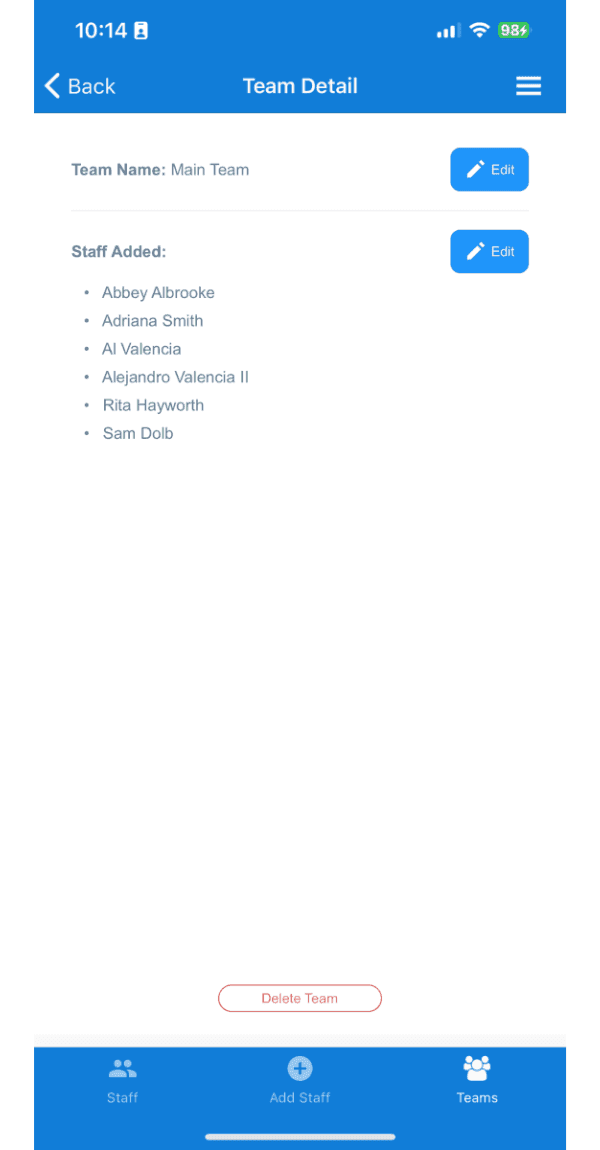
SINC mobile app Team Detail screen with the Edit button next to Staff Added outlined in pink

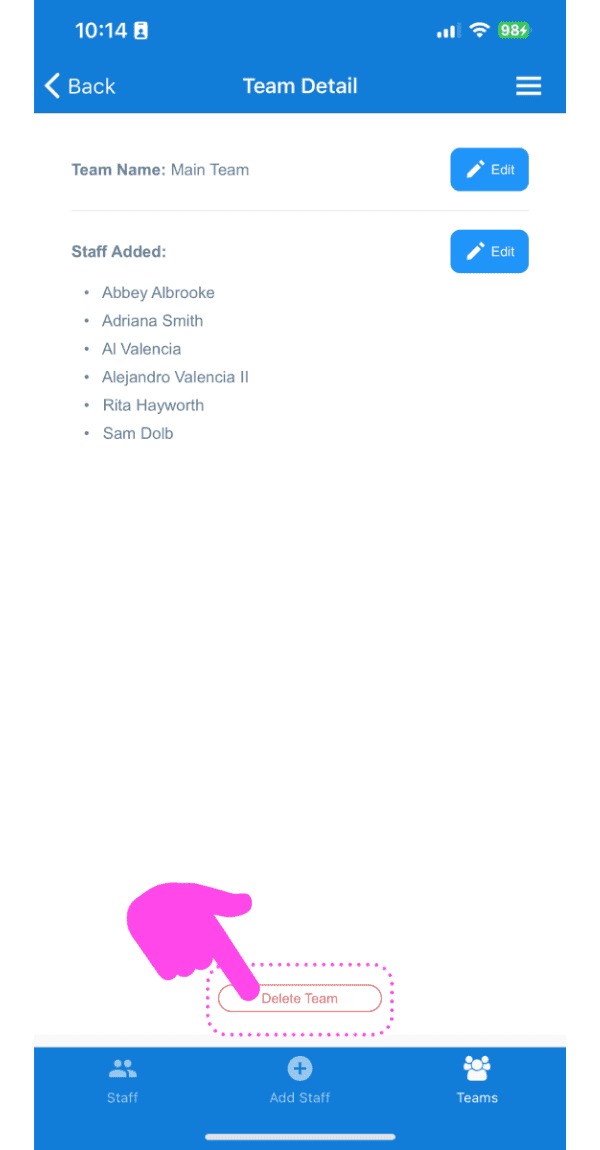
Per eliminare una squadra, tocca l’icona del cestino in basso a sinistra.
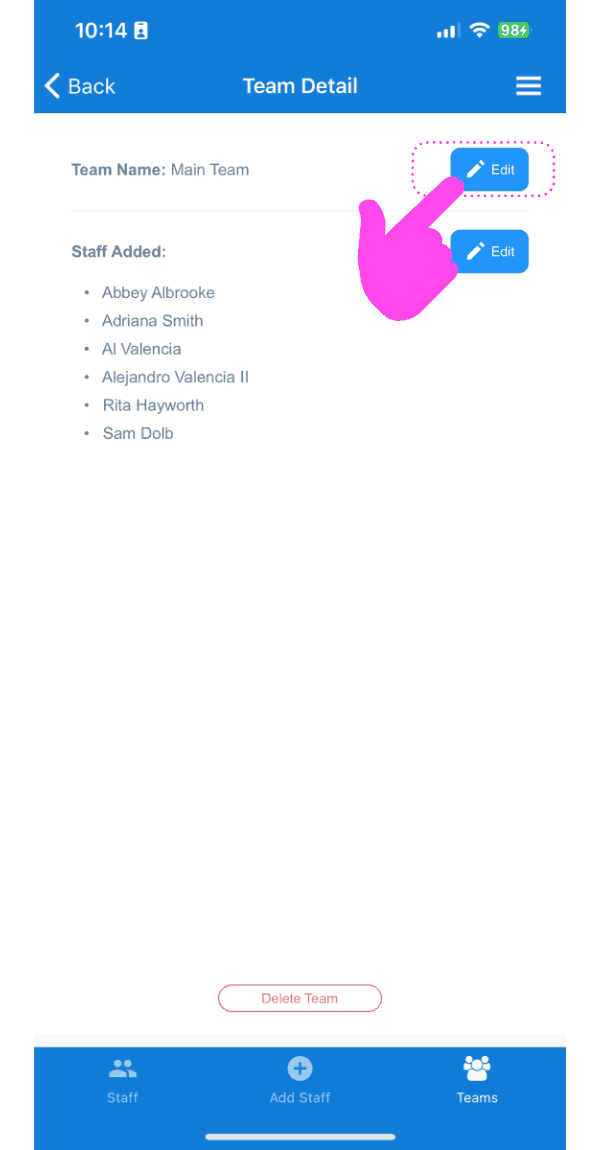
Team Detail screen showing the staff list with the Edit button highlighted by a pink arrow
Team Detail screen listing staff members added to the team, with a pink arrow pointing to the Edit button
SINC mobile Team Detail screen with a pink hand pointing to the Delete Team button

Questa risposta ti è stata utile?