
Come modificare il profilo di un membro dello staff
Questa guida spiega come modificare il profilo di un membro dello staff in qualità di amministratore.

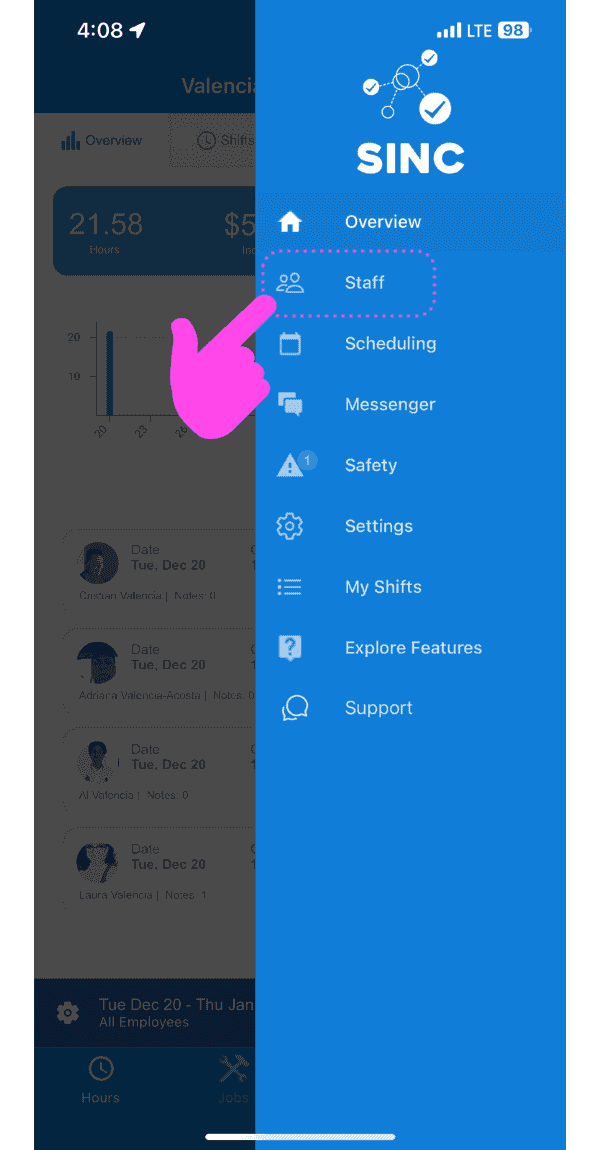
Nota che le modifiche apportate da un amministratore al profilo di un membro dello staff hanno la precedenza sulle modifiche apportate dal membro dello staff stesso. Su dispositivo mobile: tocca Menu Staff
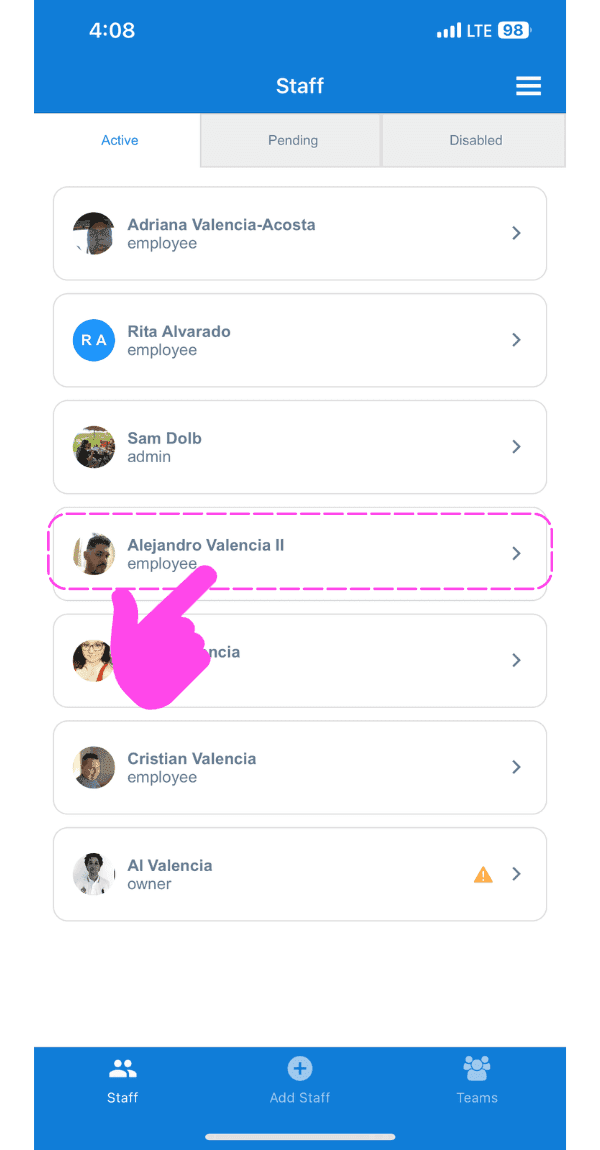
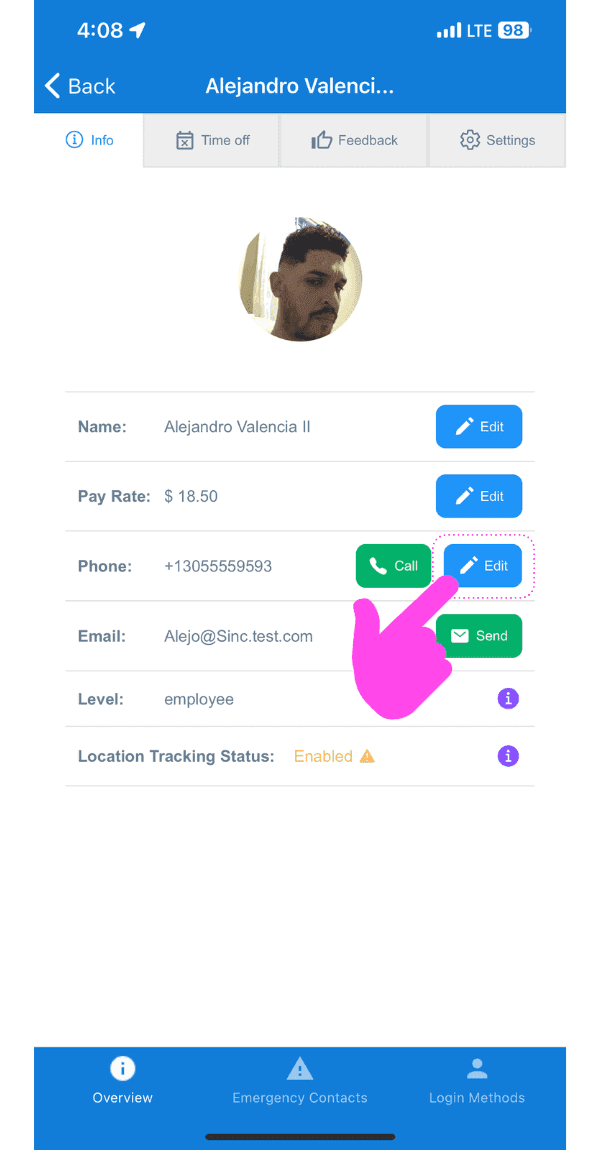
Tocca la freccia accanto al membro dello staff di cui vuoi modificare il profilo
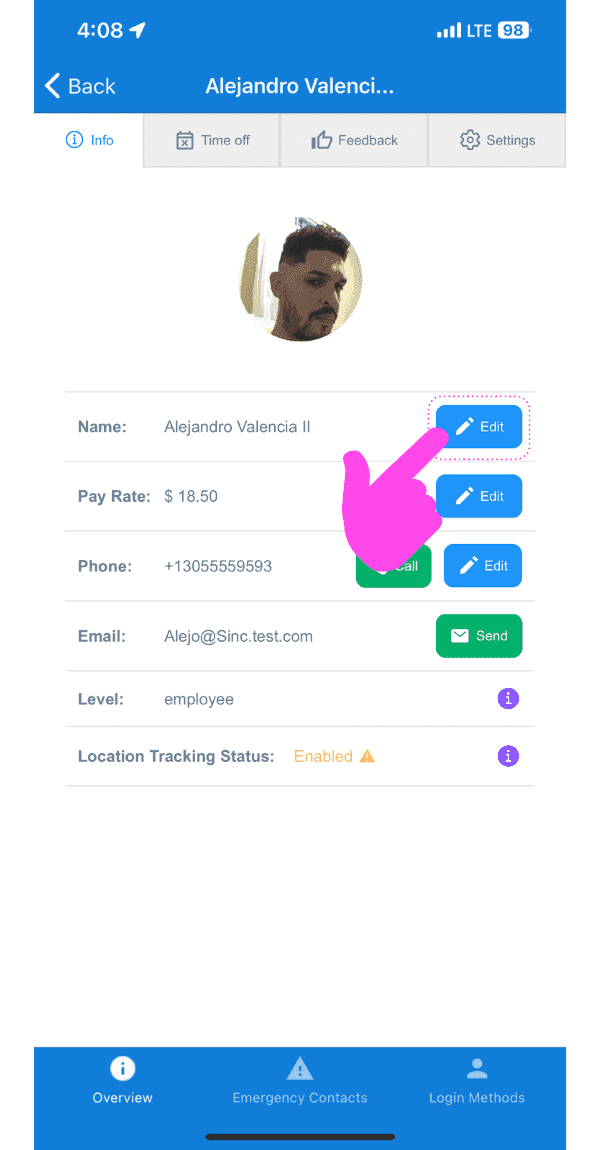
Per modificare il nome: tocca Modifica (accanto a Nome)
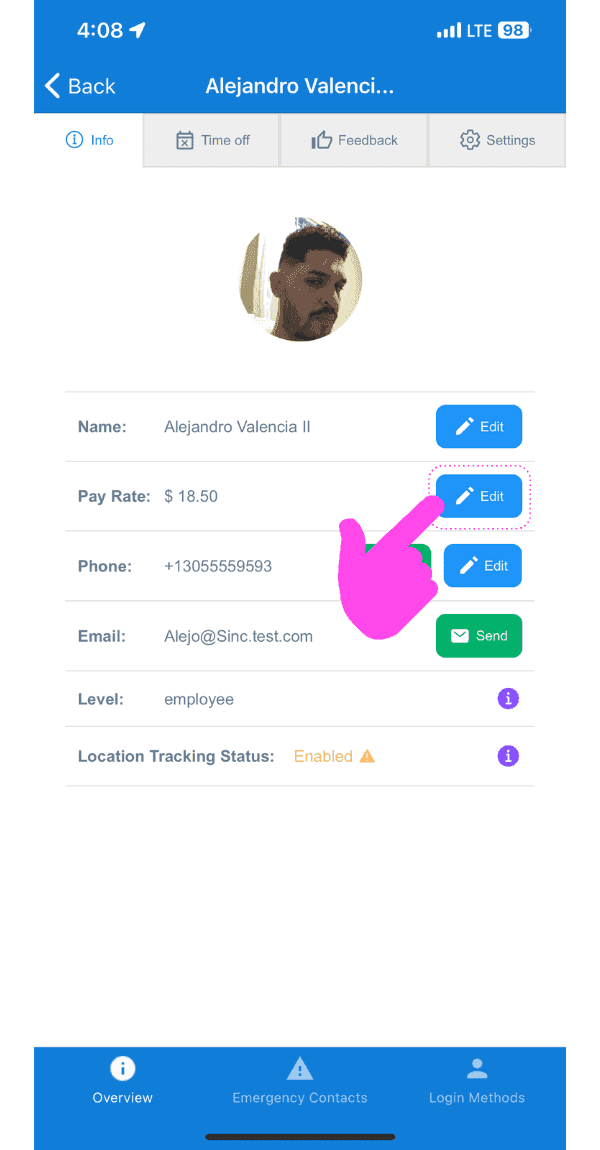
Per modificare la retribuzione: tocca Modifica (accanto a Retribuzione)
Per modificare il numero di telefono: tocca Modifica (accanto all’icona del telefono)
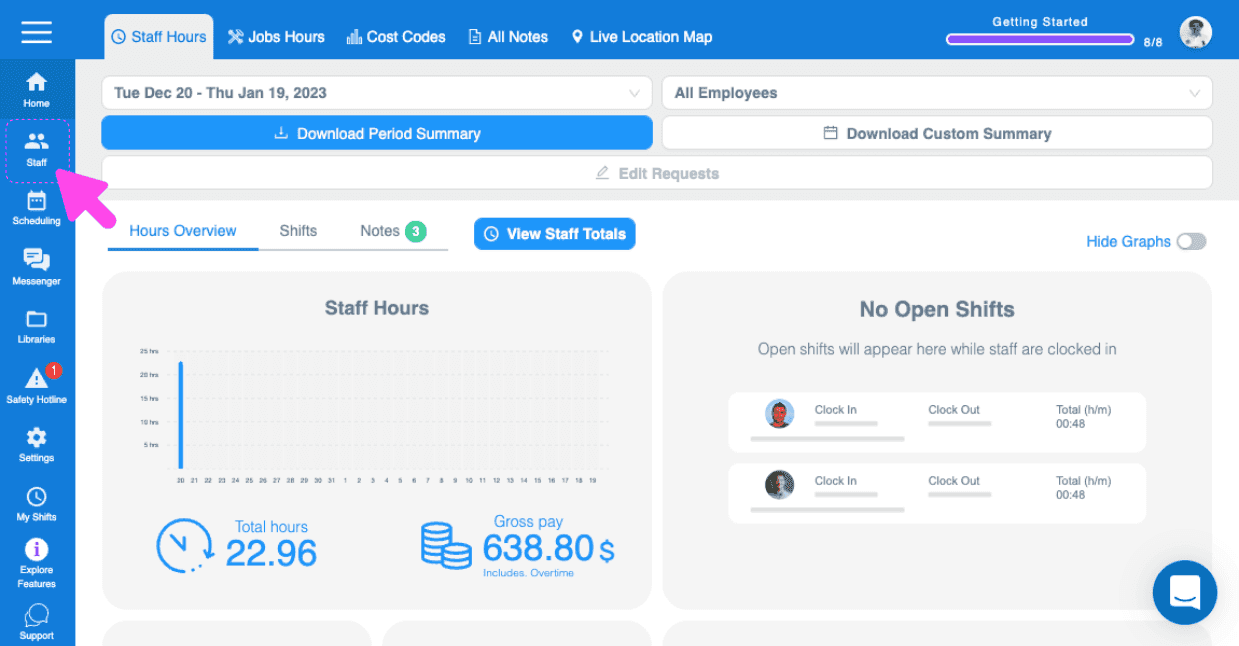
Sul Web: vai su Menu Staff
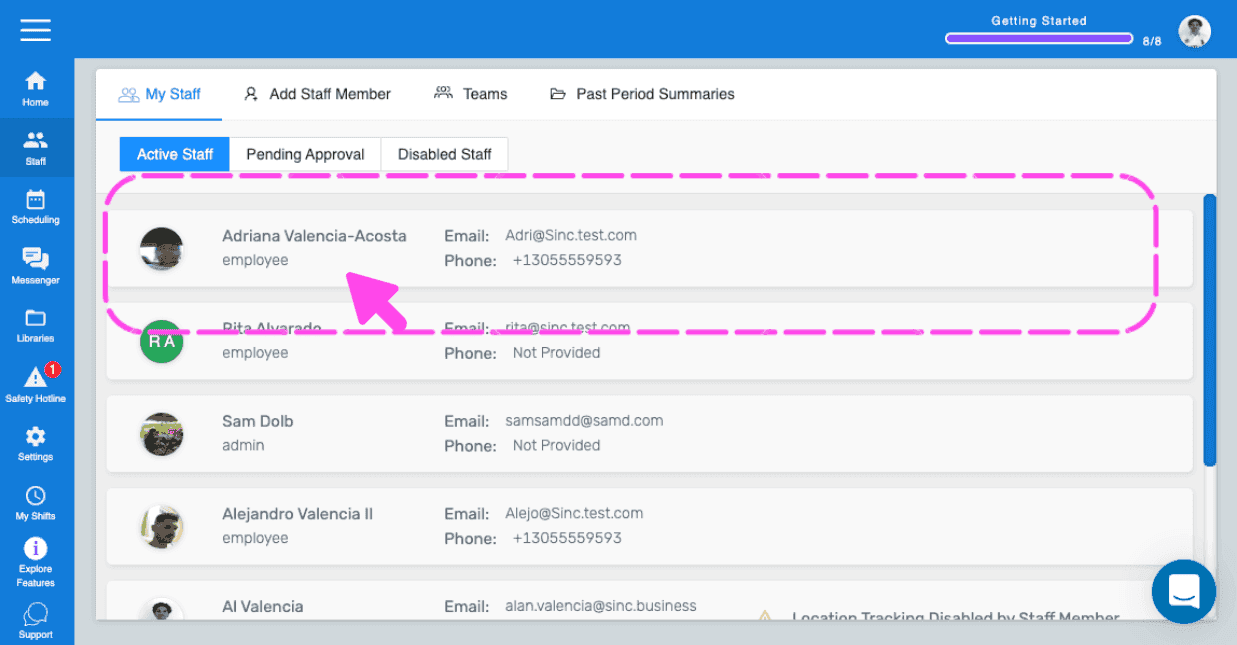
Fai clic sul membro dello staff di cui vuoi modificare il profilo
Per modificare il nome: fai clic su Modifica (accanto a Nome)
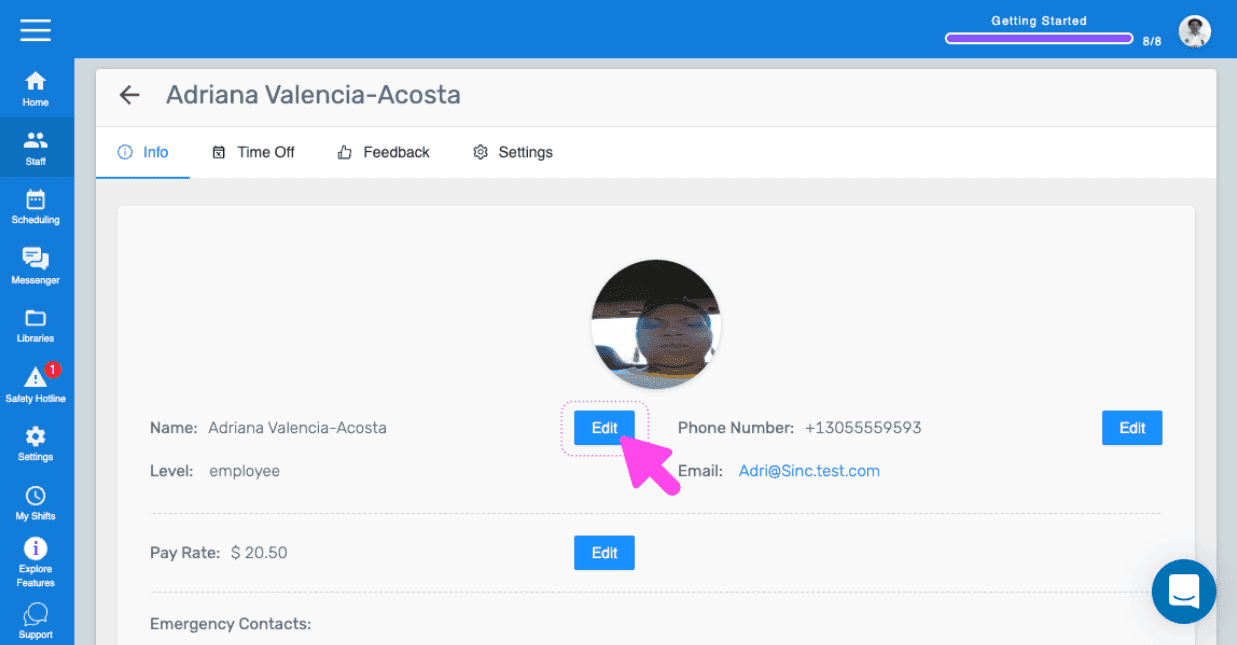
Per modificare il numero di telefono: tocca Modifica (accanto a Numero di telefono)
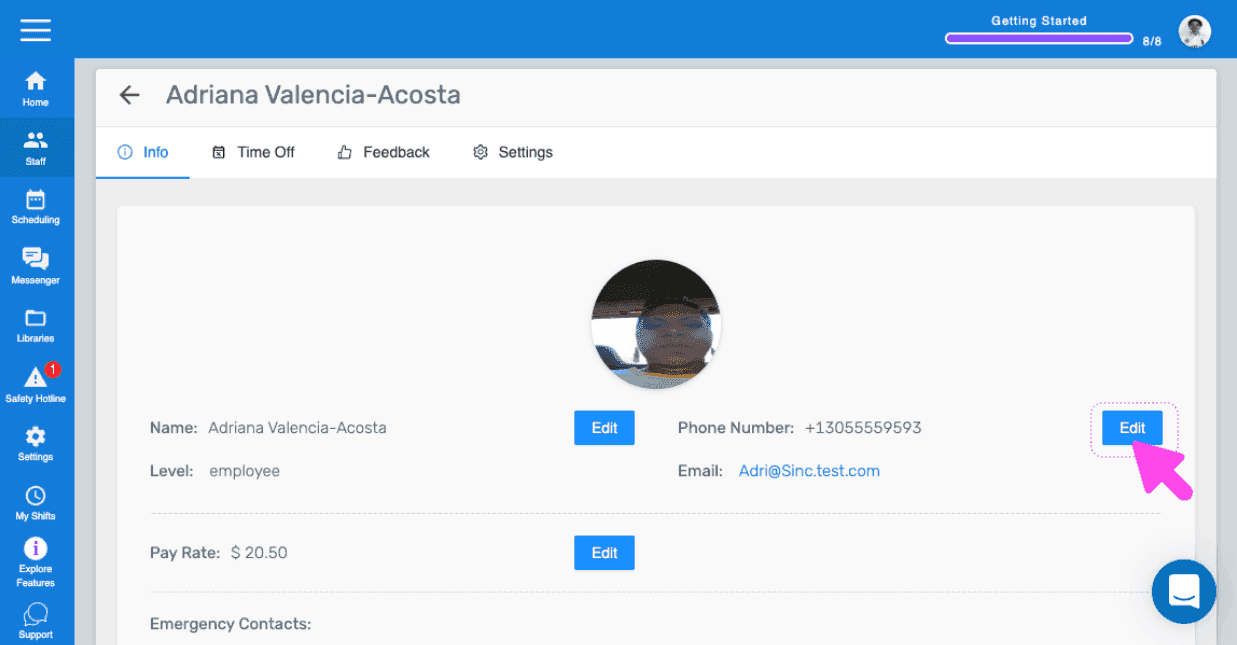
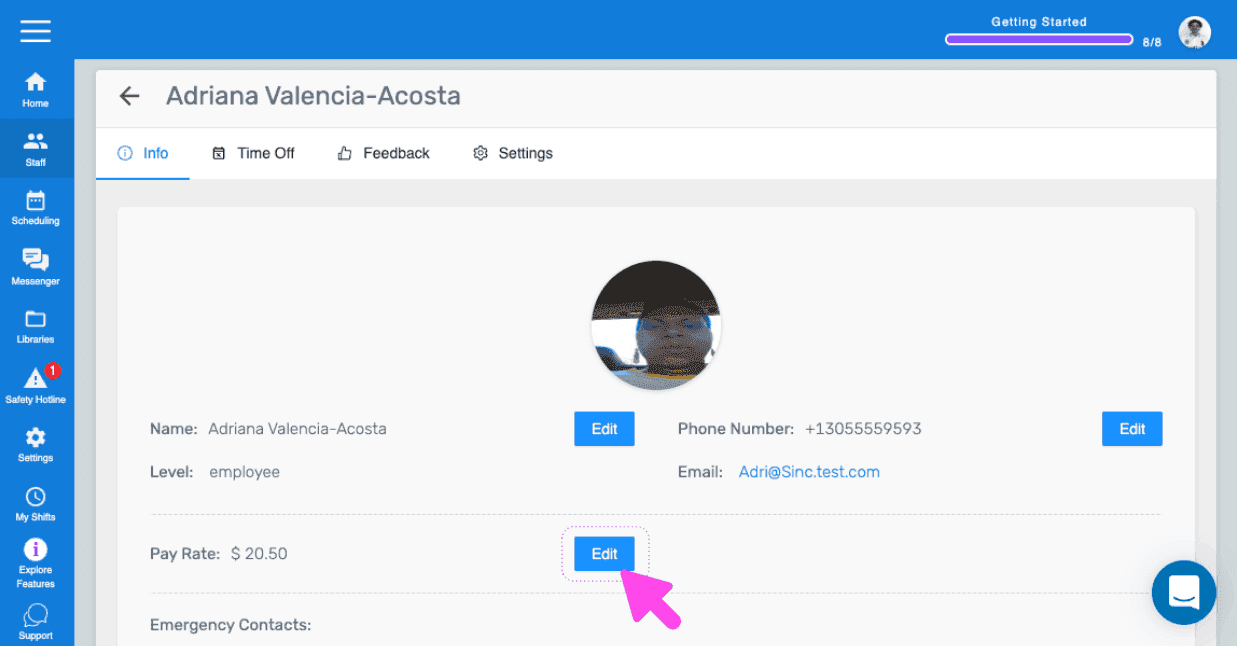
Per modificare la tariffa: tocca Modifica (accanto a Tariffa )
Questa risposta ti è stata utile?