Come disattivare un membro dello staff

Su SINC, non elimini i dipendenti: li disattivi. Non potranno più timbrare il cartellino e non verranno conteggiati nel numero di utenti.

Sam Dolbel
Sam Dolbel
Feb 28th, 2023

Tieni presente che, se il membro dello staff che desideri disattivare è un AMMINISTRATORE, devi seguire invece la guida per gli amministratori. Quando un membro dello staff lascia la tua organizzazione, ti basta impostarlo come inattivo. Tocca Staff
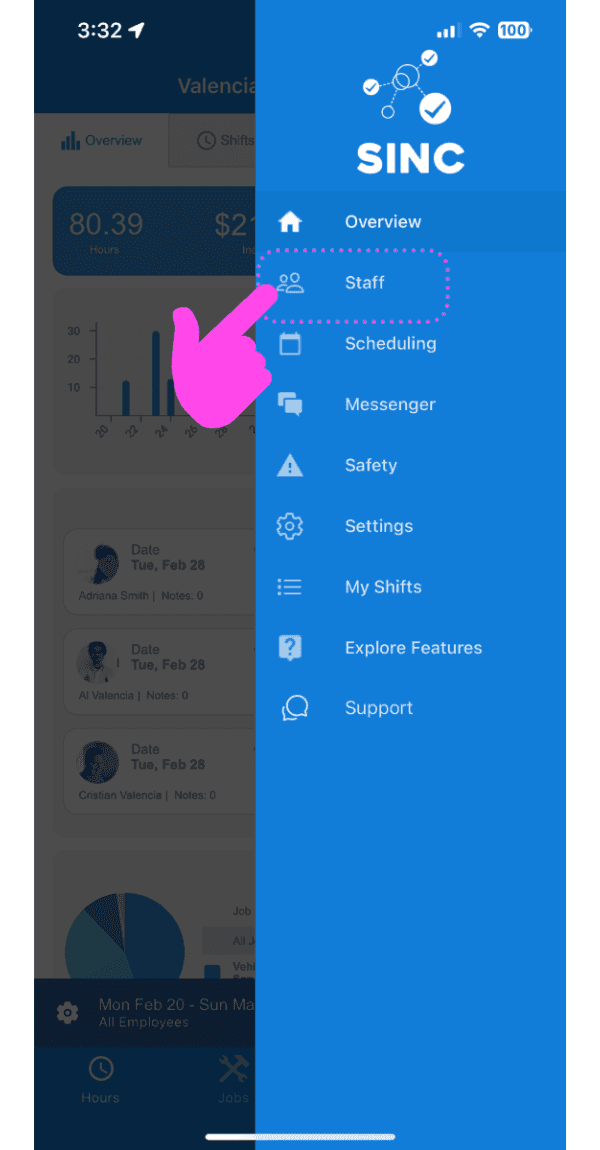
SINC mobile app side menu open with a pink arrow pointing to the Staff icon

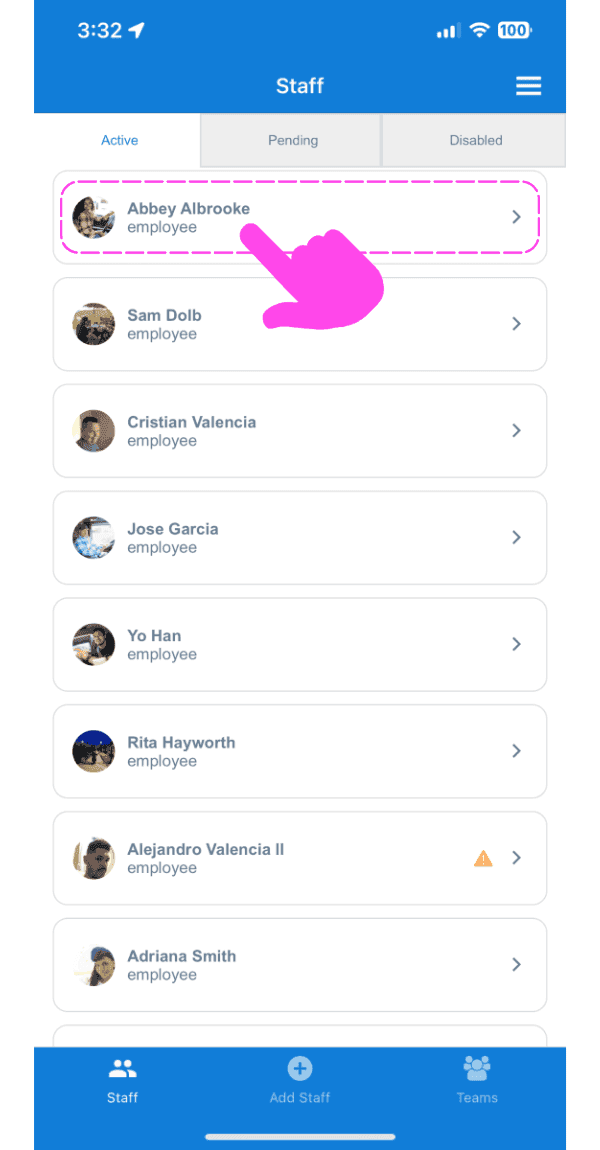
Tocca Il nome del membro dello staff

Mobile Staff list on the Active tab with a pink arrow pointing to a staff member's name

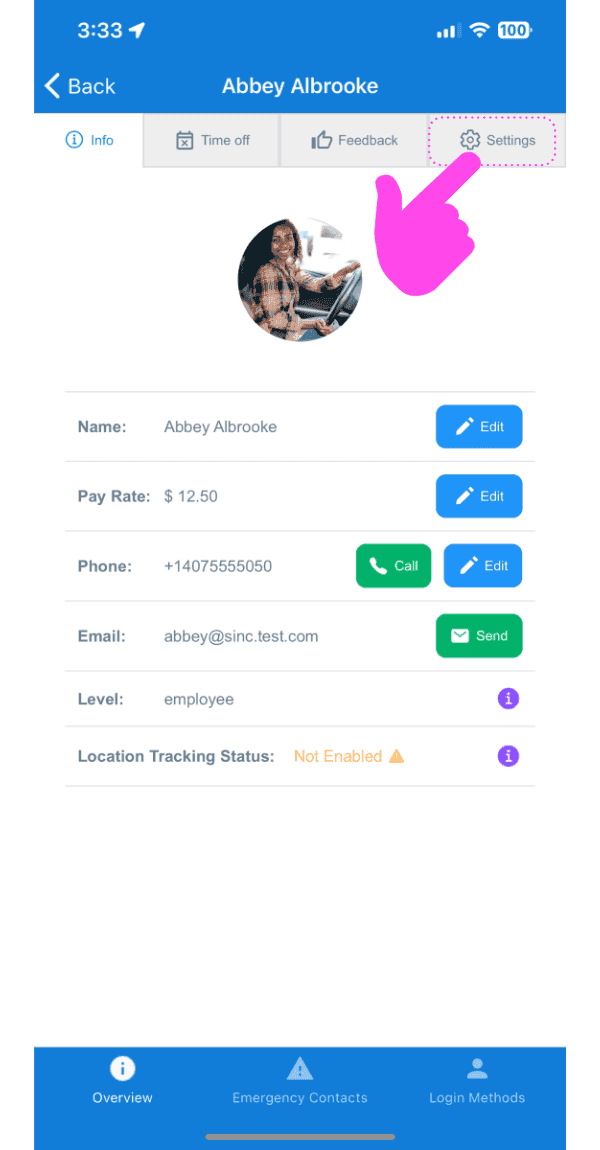
Tocca Impostazioni

SINC mobile staff profile screen with a pink arrow pointing to the Settings tab

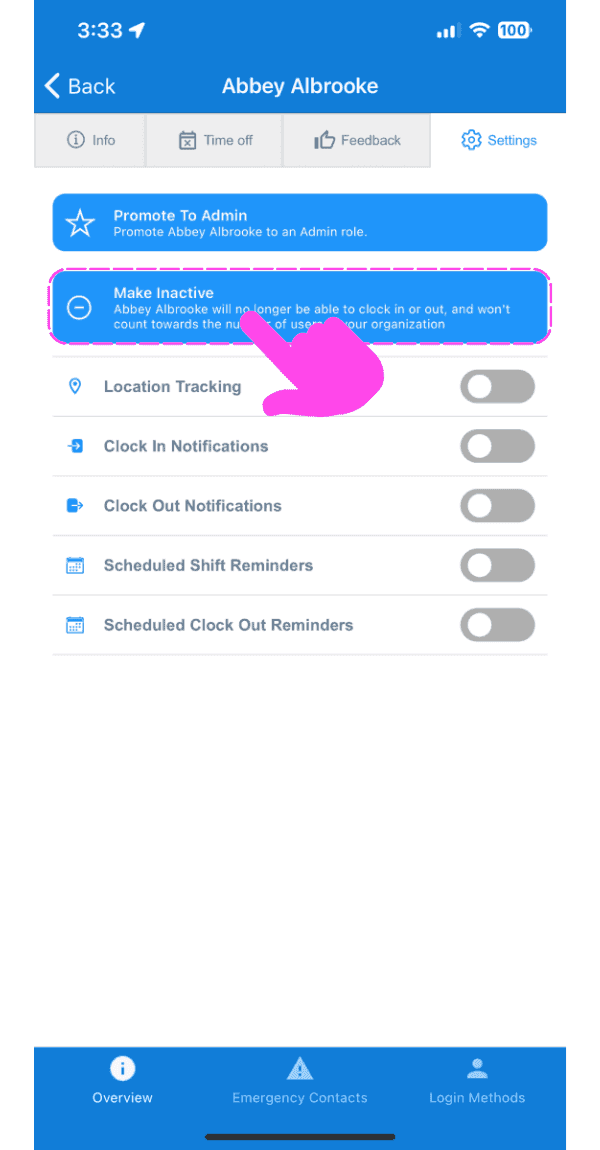
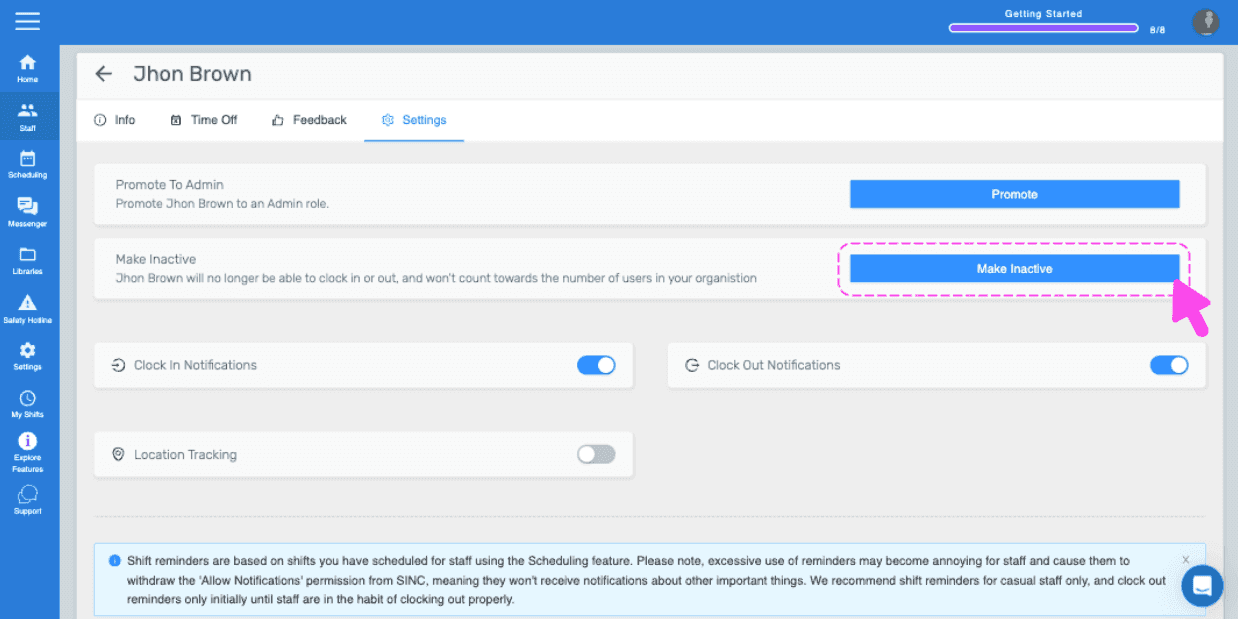
Tocca Disattiva

SINC mobile staff Settings screen with the Make Inactive option outlined in pink and a hand pointing to it

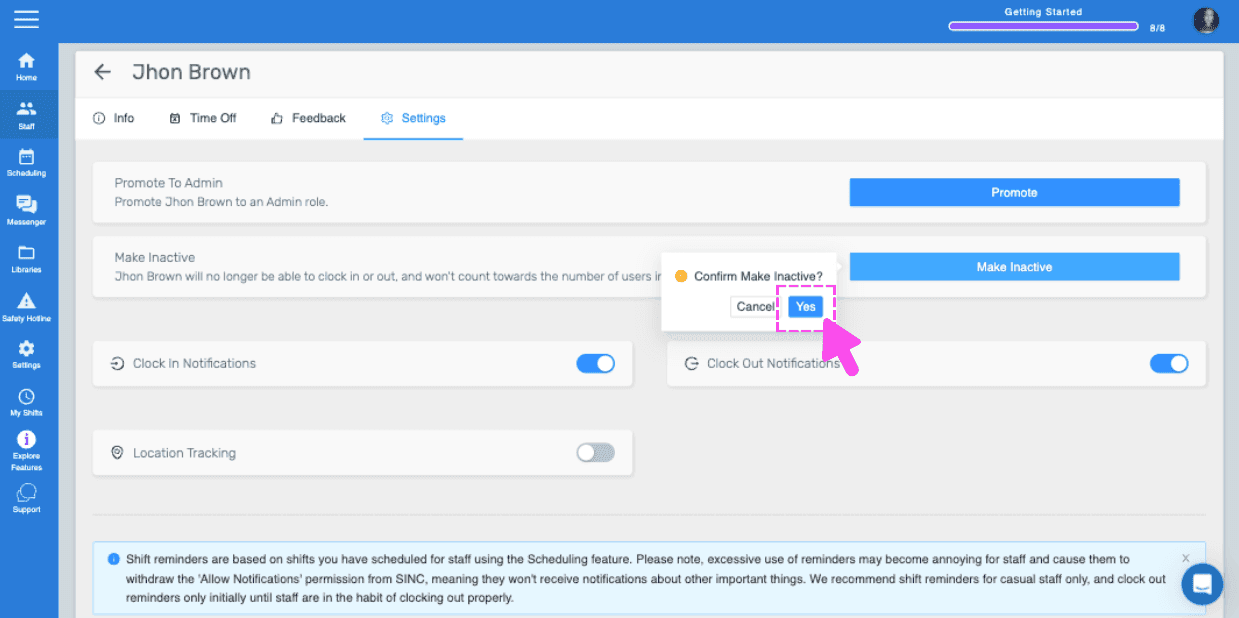
Tocca Conferma (versione web) Fai clic su Sì
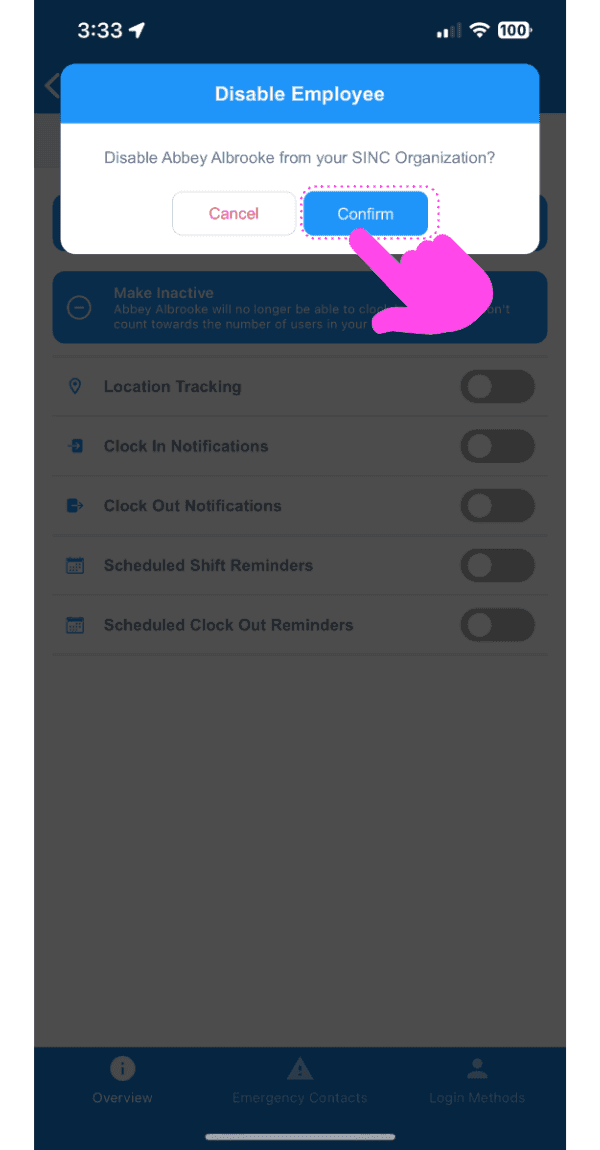
Disable Employee confirmation dialog with a pink arrow pointing to the Confirm button

Nota: se le modifiche non risultano visibili dal lato del dipendente, chiedigli di eliminare l’app SINC riavviare il telefono reinstallare SINC. Se utilizzi la versione web, apparirà così:
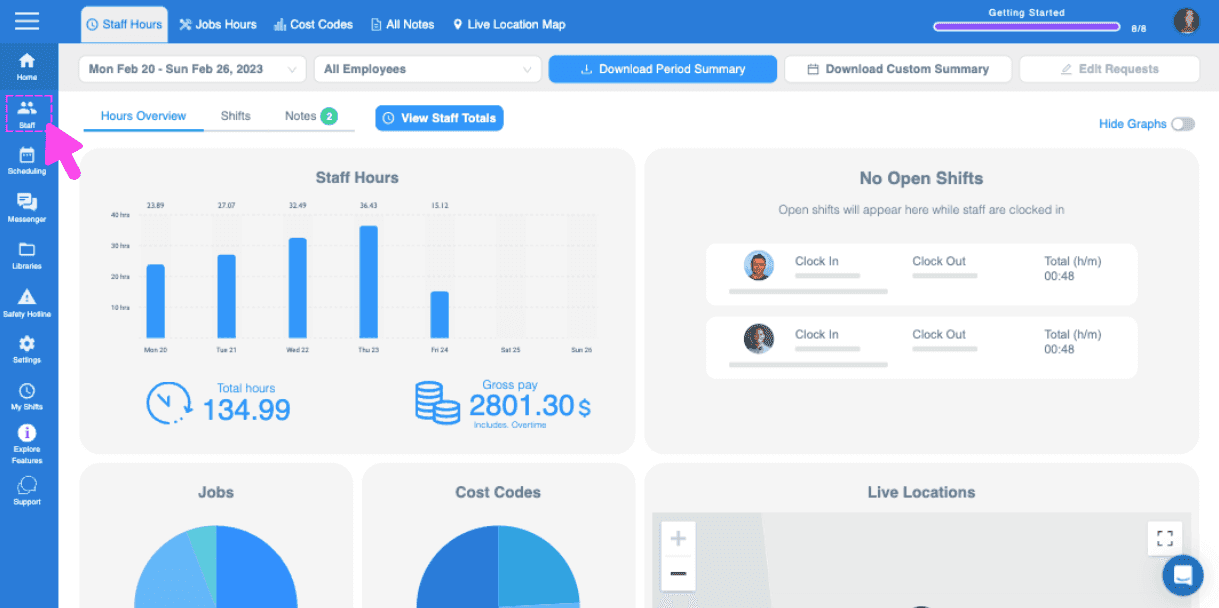
SINC web dashboard Staff Hours overview with a pink arrow pointing to a sidebar navigation icon
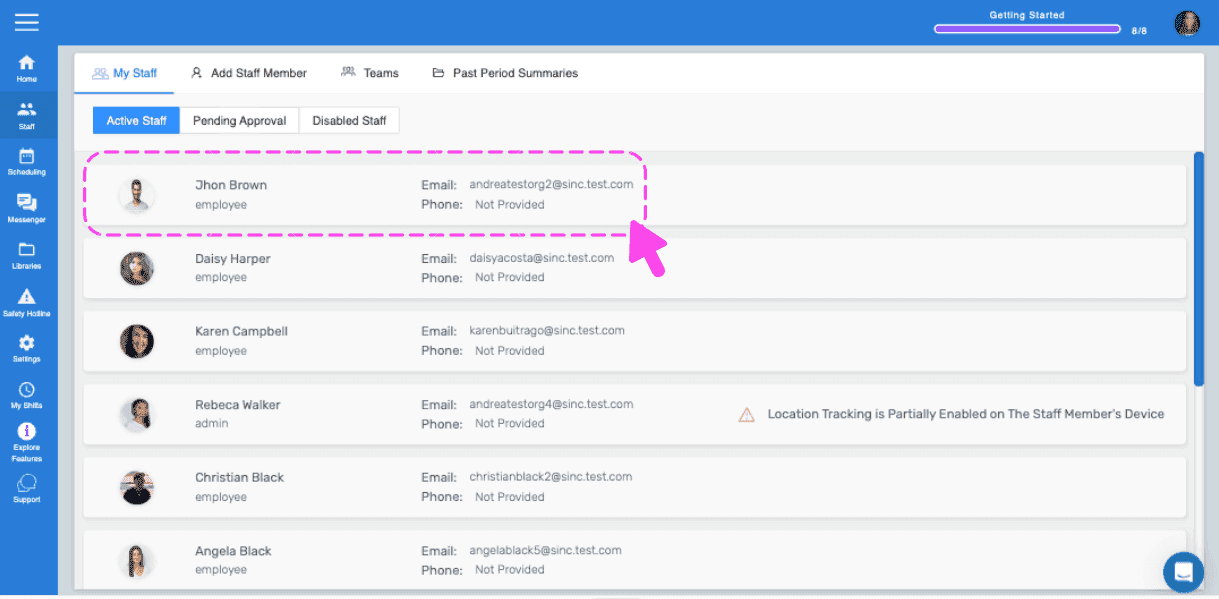
Web dashboard Staff list with a pink dashed outline and arrow highlighting an employee row
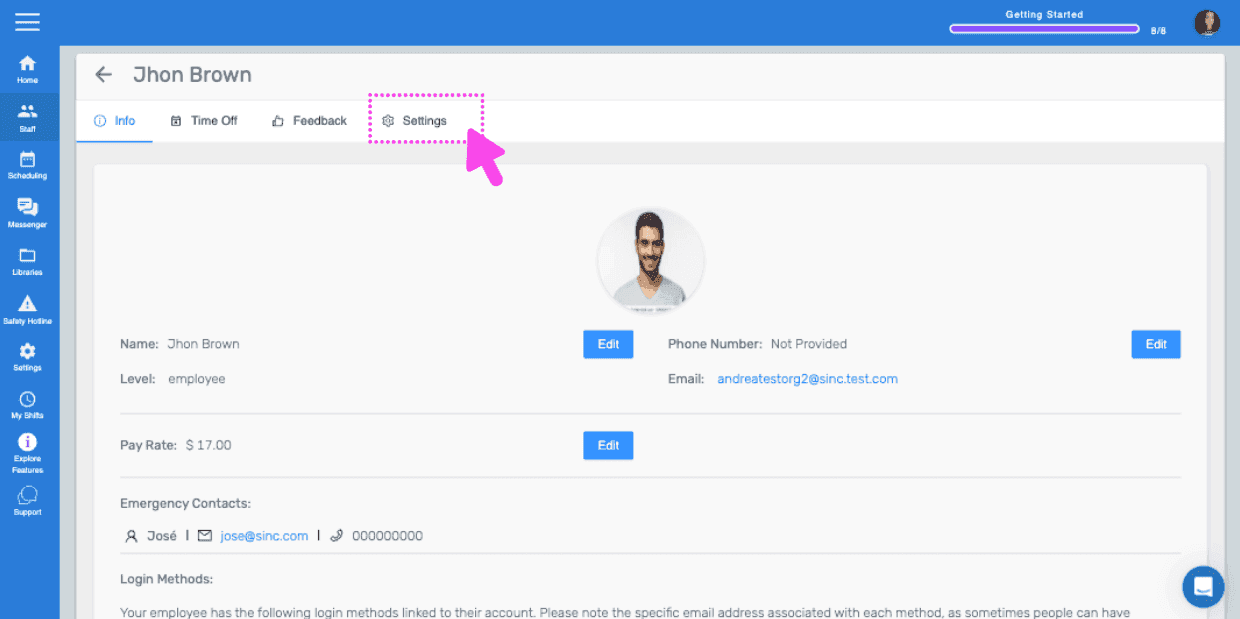
Staff member Info screen showing photo, name, pay rate, and phone, with a pink arrow pointing to the Settings tab
SINC web staff Settings tab with the Make Inactive button highlighted in pink
Staff member Settings tab with a Make Inactive confirmation popup and the Yes button highlighted by a pink arrow

Questa risposta ti è stata utile?