Come ripristinare un membro dello staff

Hai un dipendente che è tornato a lavorare per te? Non è necessario inviare un nuovo invito: segui semplicemente queste istruzioni.

Sam Dolbel
Sam Dolbel
Feb 28th, 2023

Tocca Menu Staff
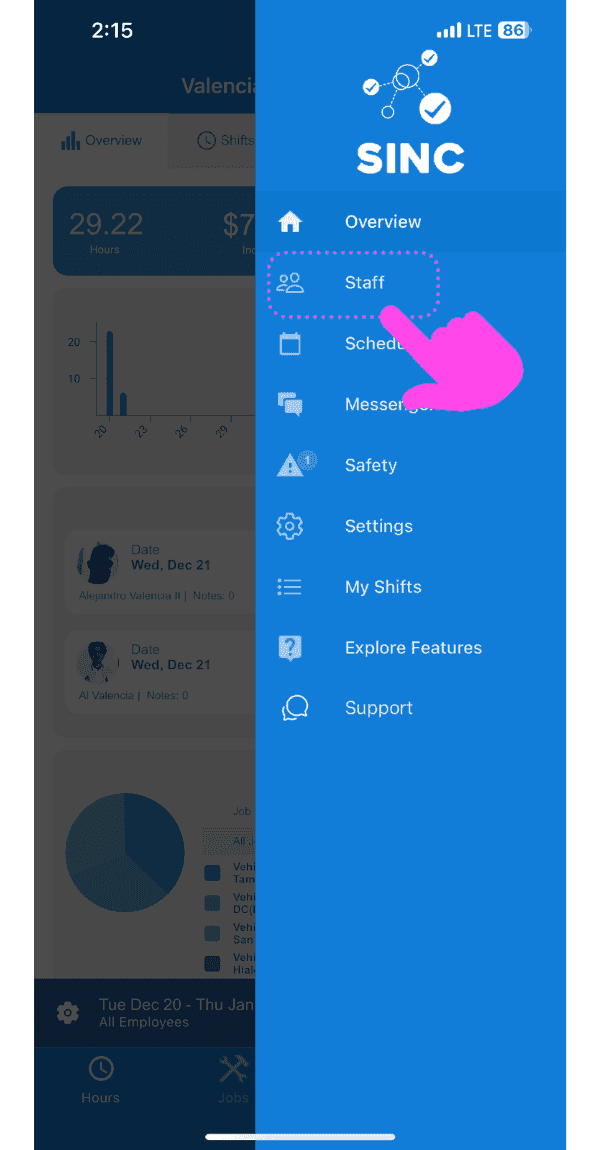
SINC mobile side menu with a pink arrow pointing to the Staff menu item

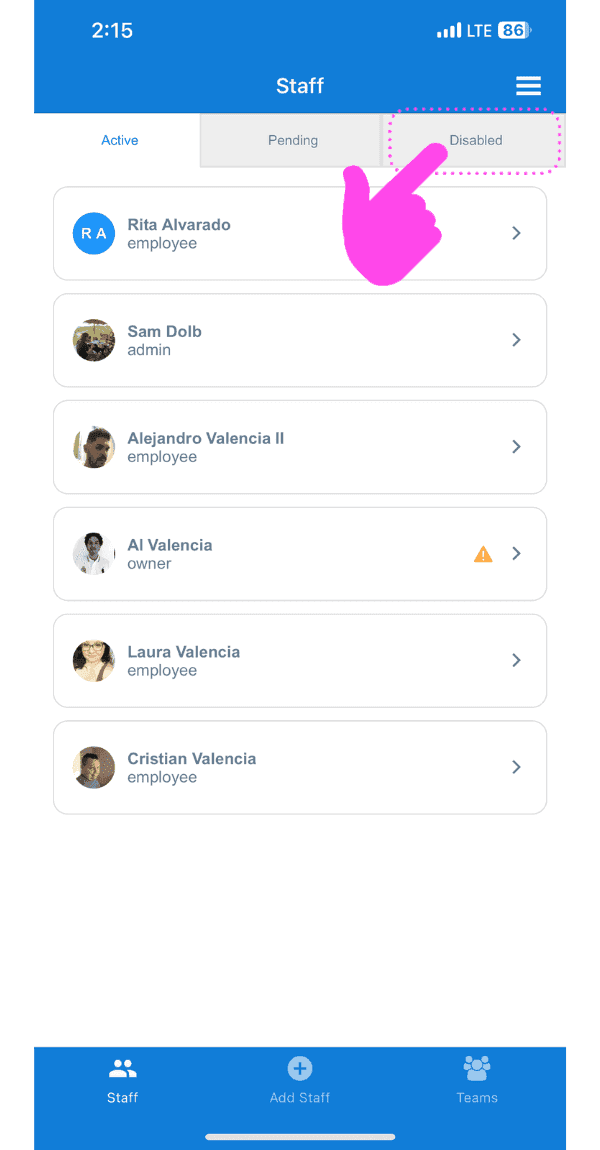
Tocca Personale disabilitato

SINC mobile Staff screen with a pink hand pointing to the Disabled tab

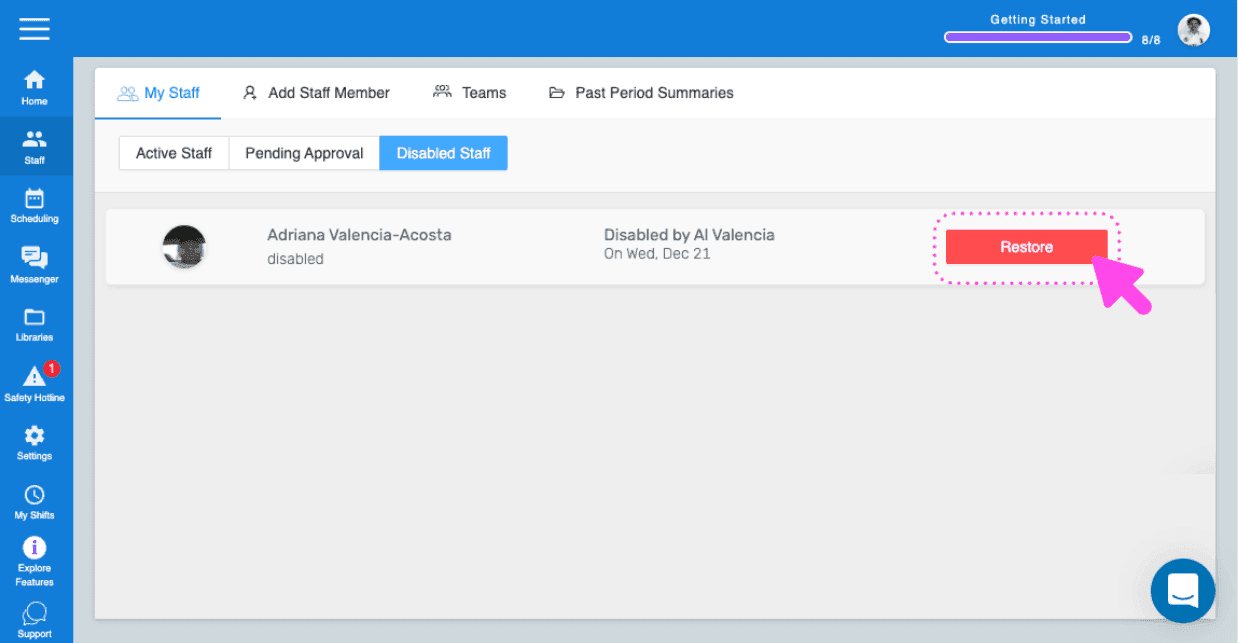
Tocca Ripristina (accanto al membro dello staff che desideri ripristinare)
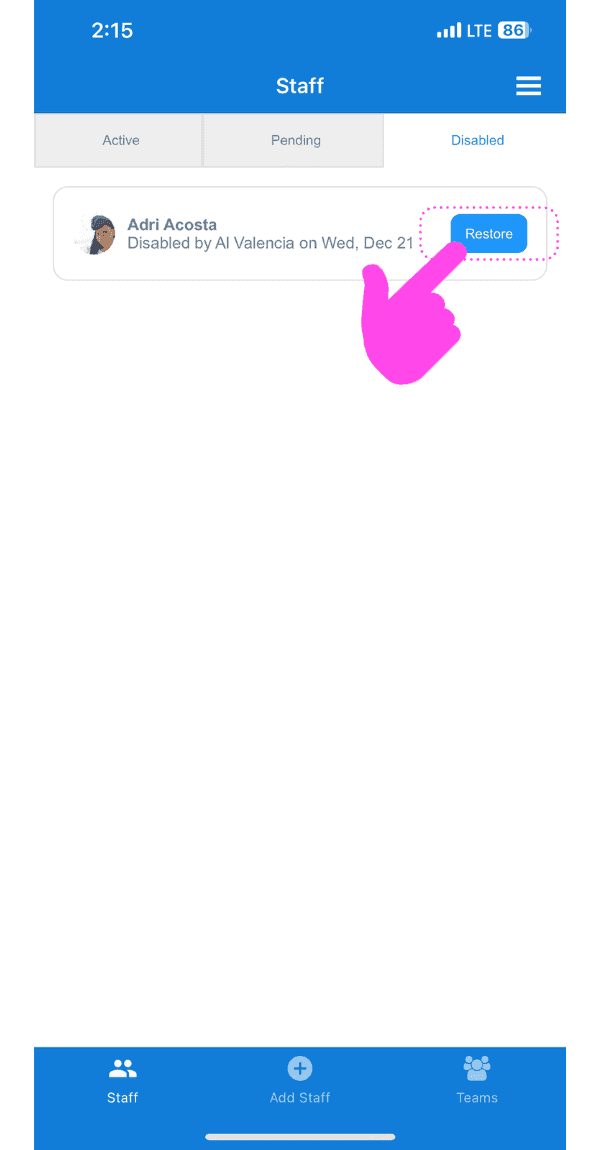
Staff Disabled tab showing a disabled employee with the Restore button highlighted by a pink arrow

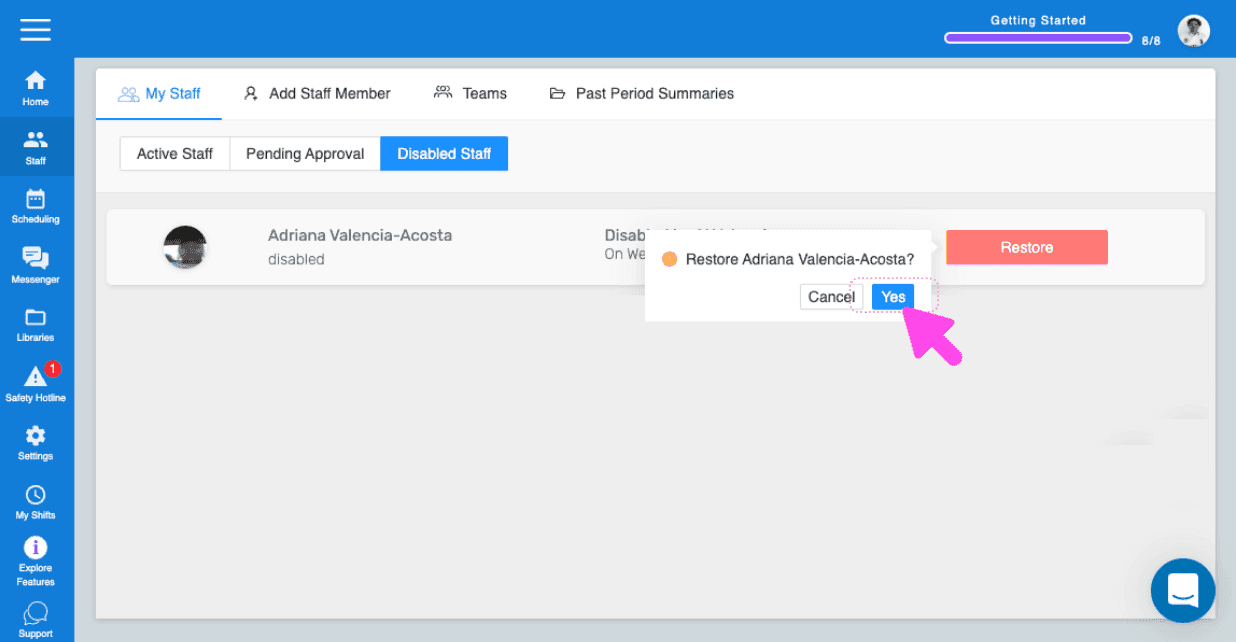
Tocca OK (versione web) Fai clic su Sì
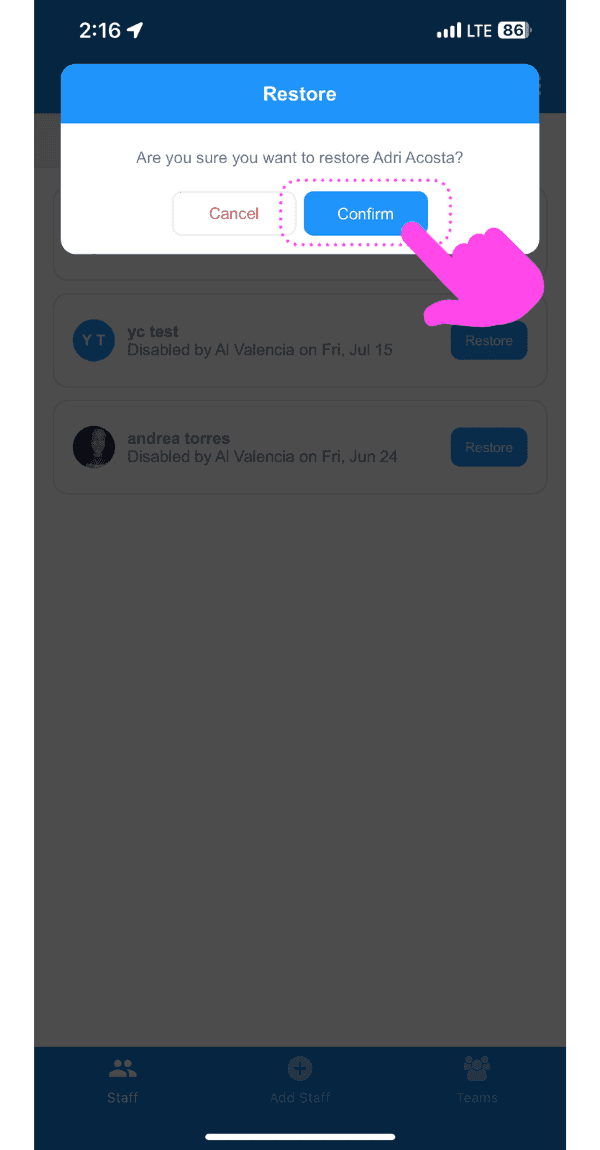
SINC mobile restore confirmation dialog with the Confirm button highlighted in pink

Nota bene: se le modifiche non vengono visualizzate sul dispositivo del dipendente, chiedigli di eliminare l’app SINC, riavviare il telefono e reinstallare SINC. Se stai utilizzando la versione web, apparirà così:
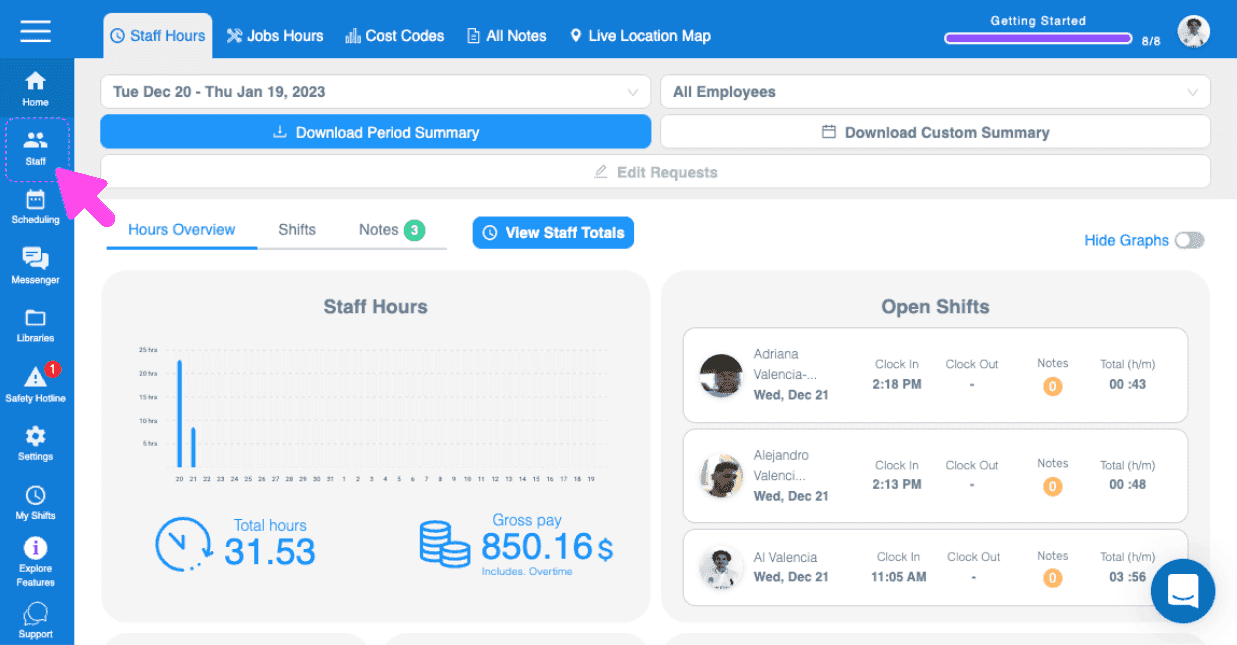
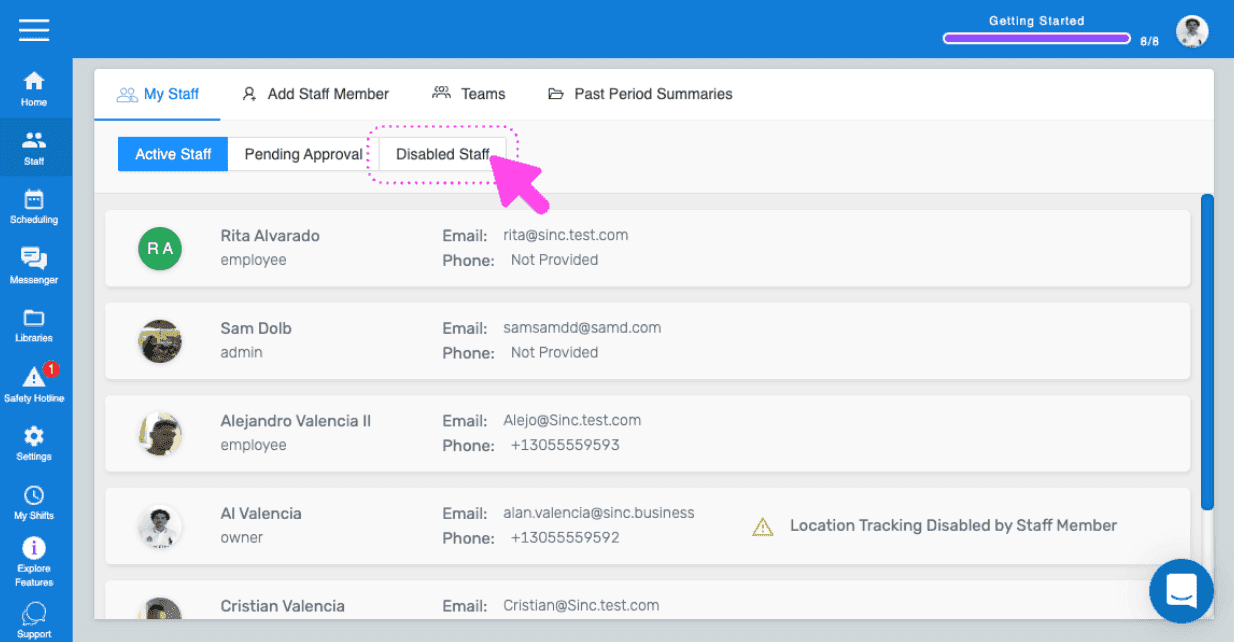
SINC web dashboard Overview page with a pink arrow pointing to the Staff icon in the left sidebar navigation
SINC web My Staff page with a pink arrow pointing to the Disabled Staff tab
Web My Staff Disabled Staff tab with a staff member's red Restore button outlined in pink
SINC web Disabled Staff tab showing a Restore confirmation dialog with a pink arrow pointing to the Yes button

Questa risposta ti è stata utile?