Come riportare un amministratore al ruolo di dipendente

In questa guida illustreremo la procedura per modificare il ruolo di un amministratore in quello di dipendente

SINC Support Team
SINC Support Team
Mar 27th, 2023

Se un membro dello staff è stato promosso ad amministratore e deve essere riportato al ruolo precedente, segui questi passaggi. Tocca Staff
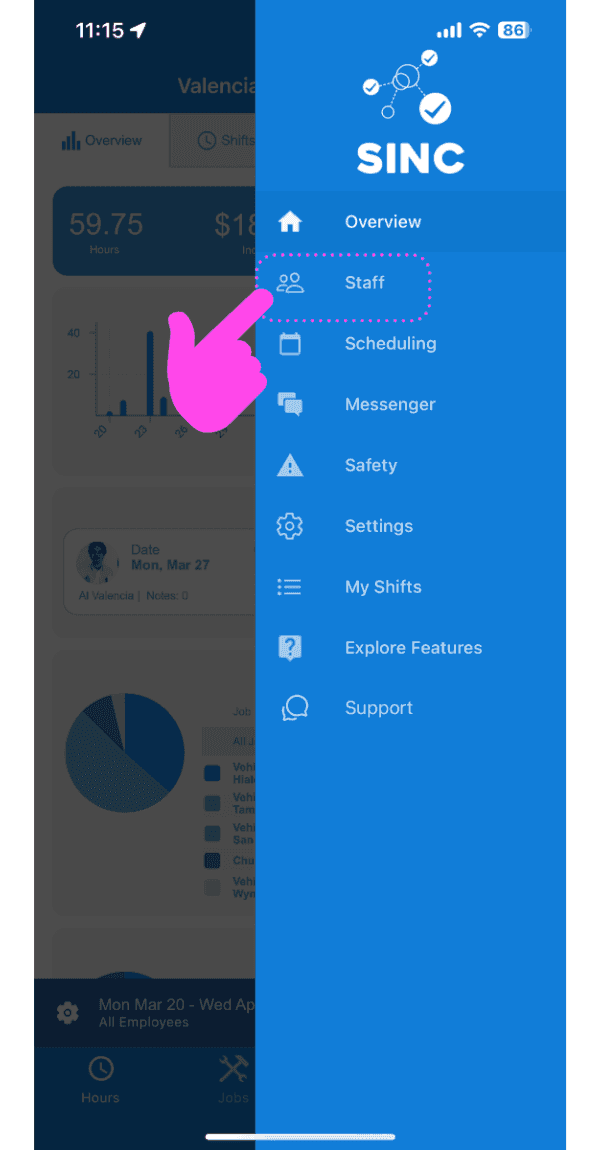
SINC mobile app side menu with a pink arrow pointing to the Staff menu item

Tocca il nome del membro del personale che vuoi riportare al ruolo di dipendente
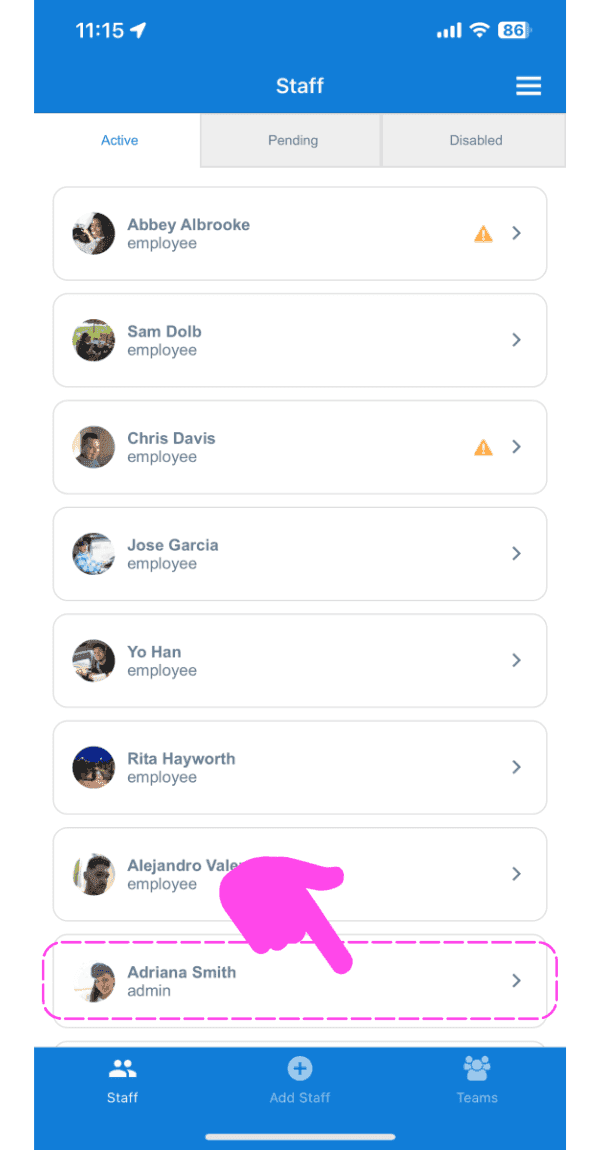
SINC mobile app Staff Active list with a pink arrow and dashed box highlighting an admin staff member's row

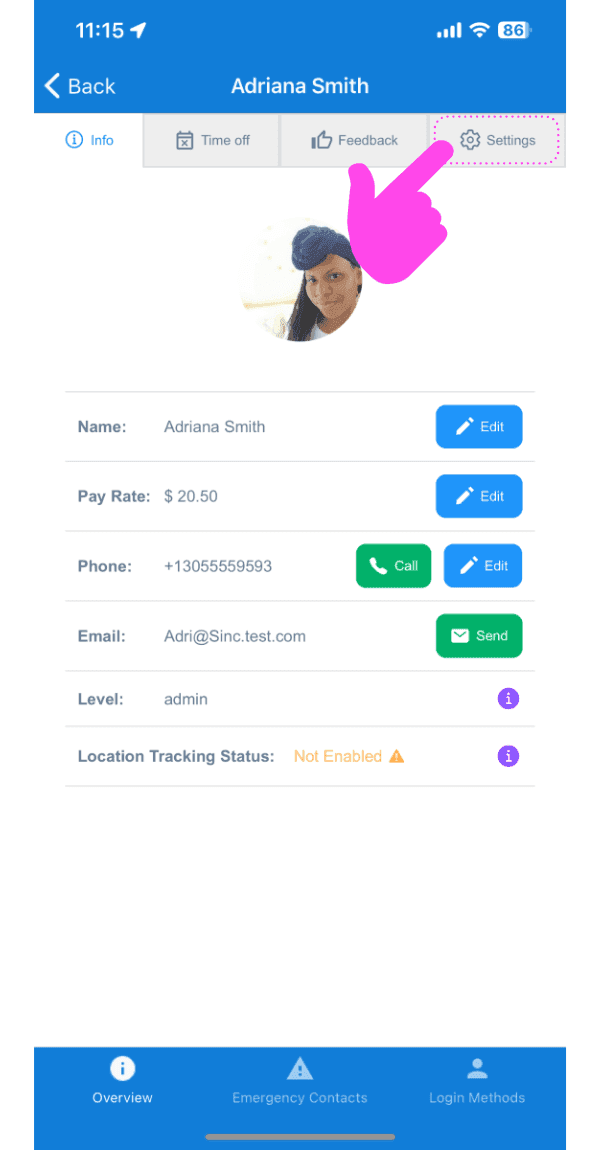
Tocca Impostazioni

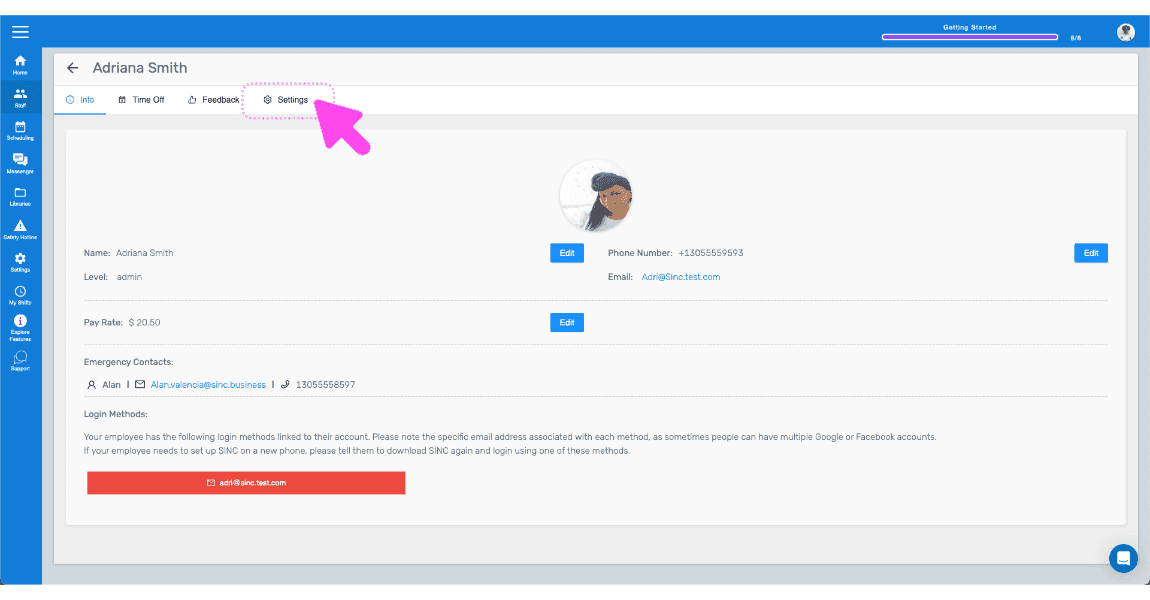
Staff profile screen with the Settings tab highlighted by a pink arrow

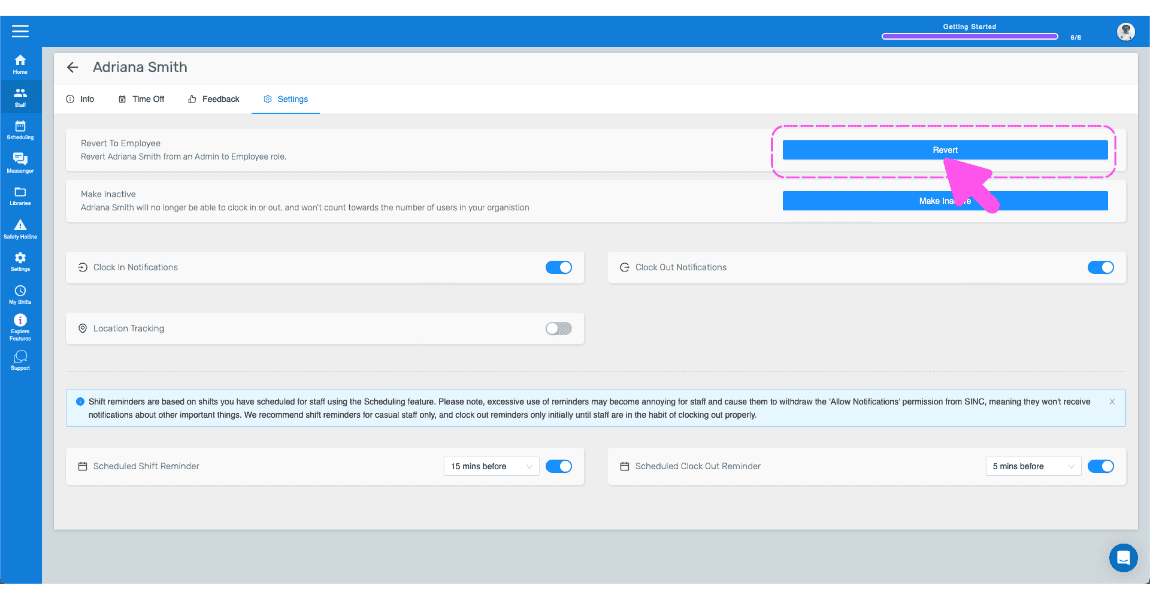
Fai clic su Torna al profilo dipendente (versione web) Fai clic su Ripristina
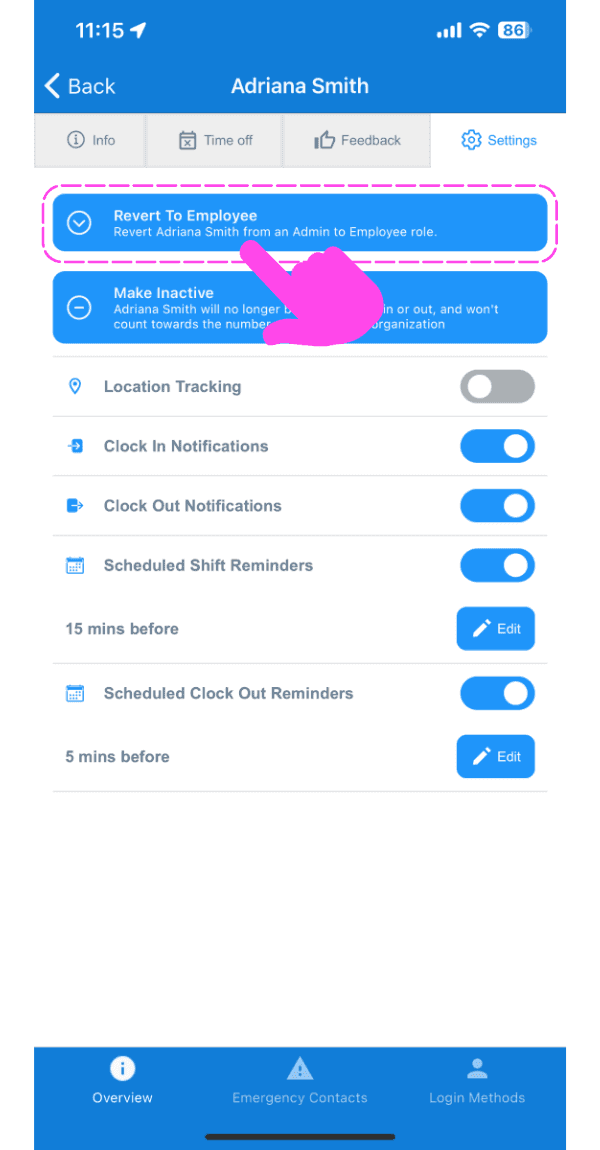
Staff member Settings screen with the Revert To Employee button highlighted by a pink dashed box and arrow

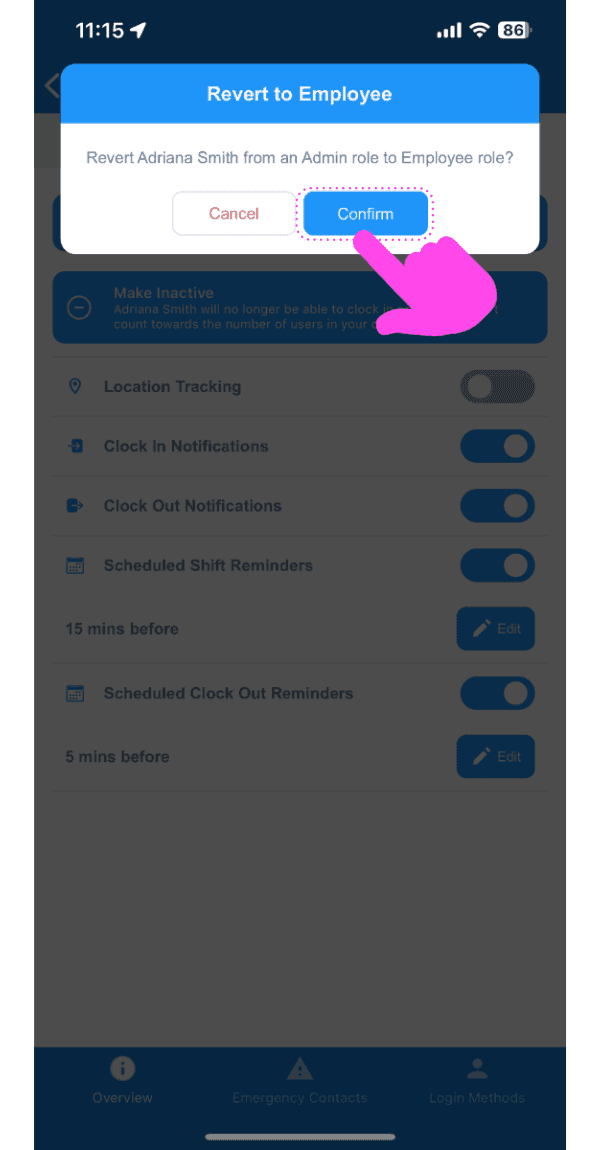
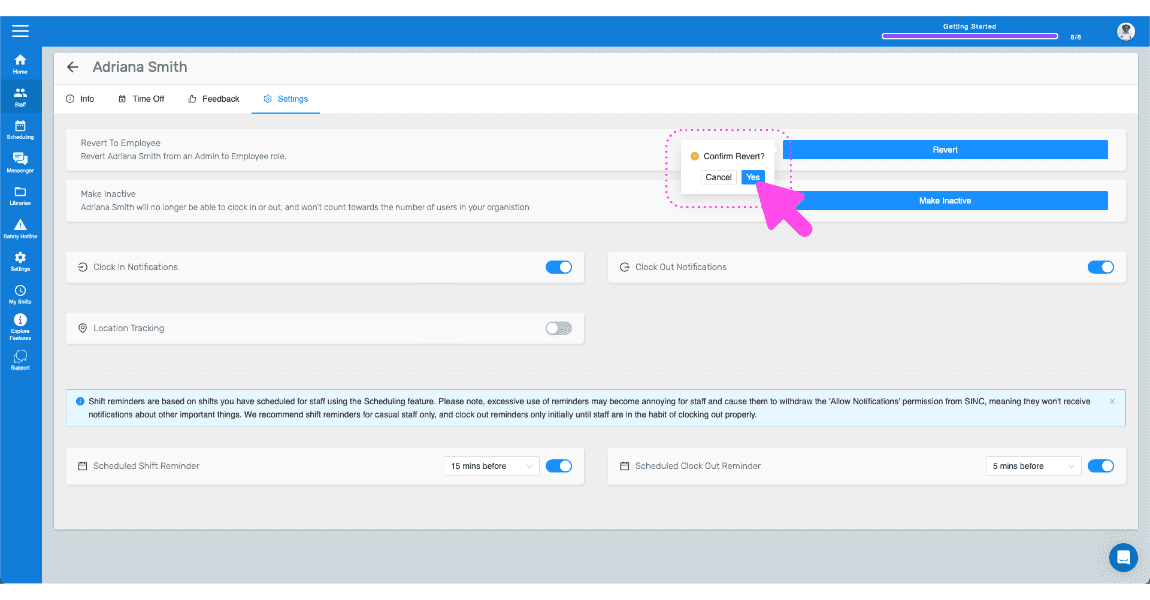
Tocca Conferma

SINC mobile confirmation popup for reverting an admin to employee role, with the Confirm button highlighted

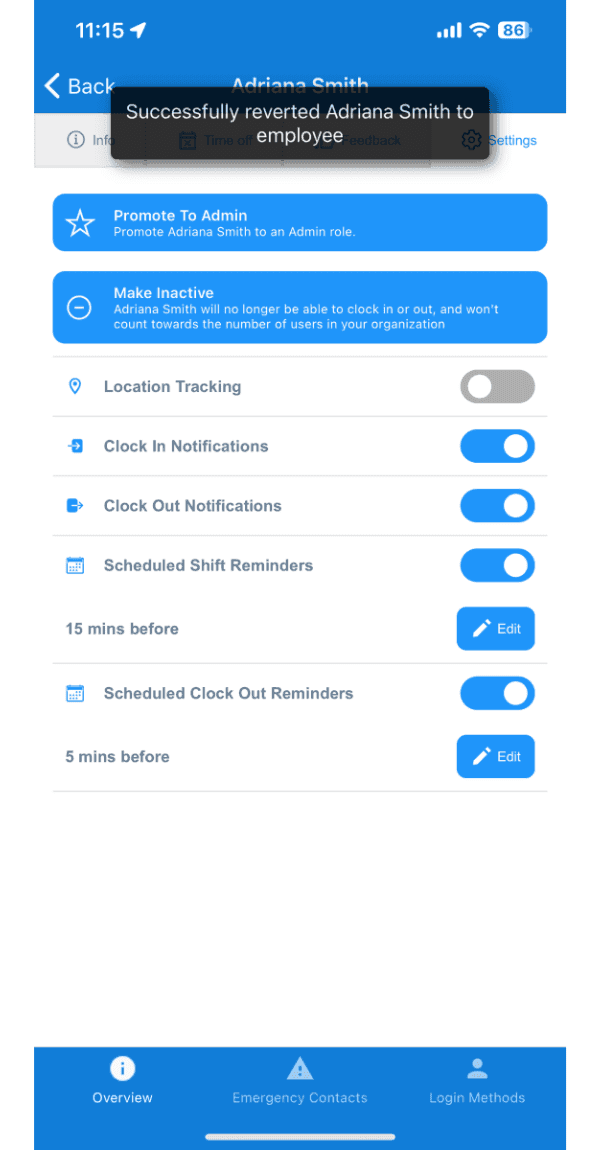
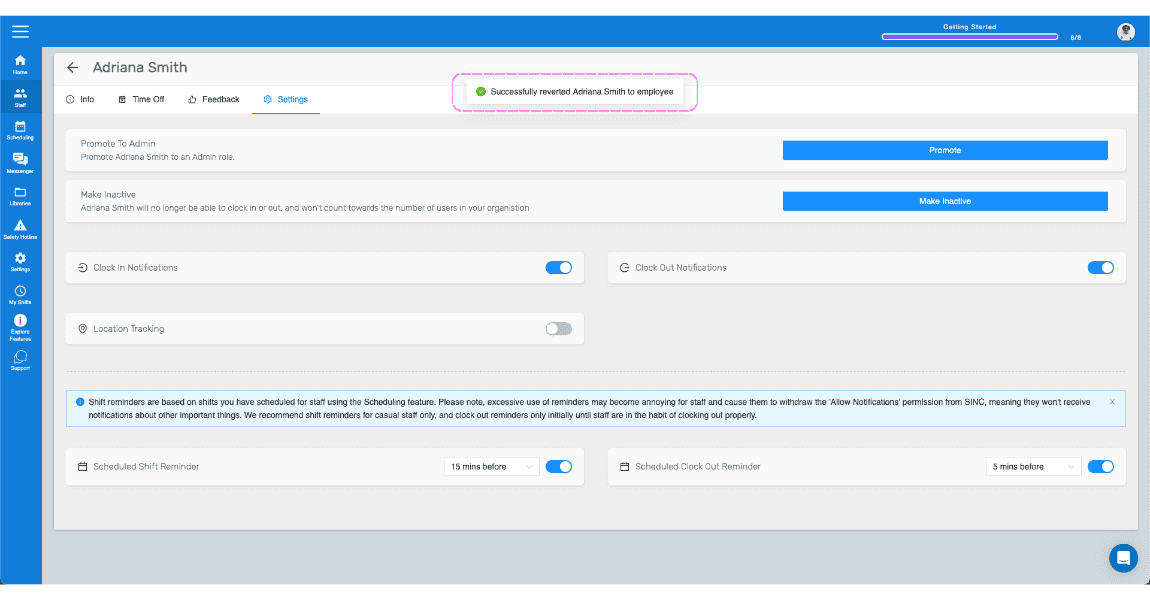
Qui riceverai una conferma

Staff member Overview screen showing a confirmation toast that the employee was reverted from admin

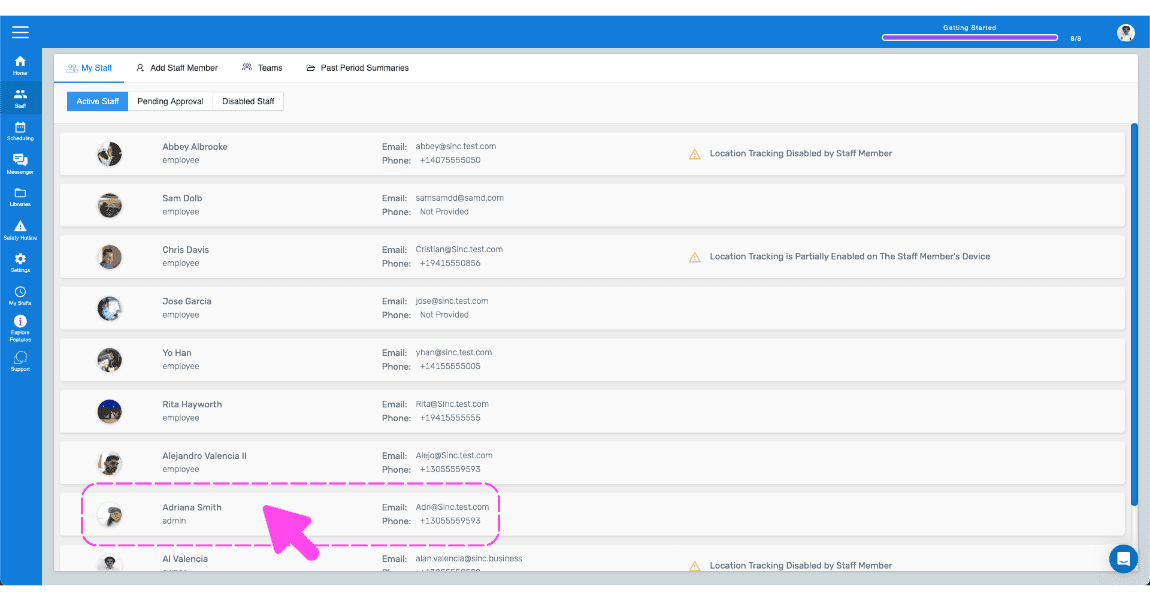
Se stai usando la versione web, apparirà così:
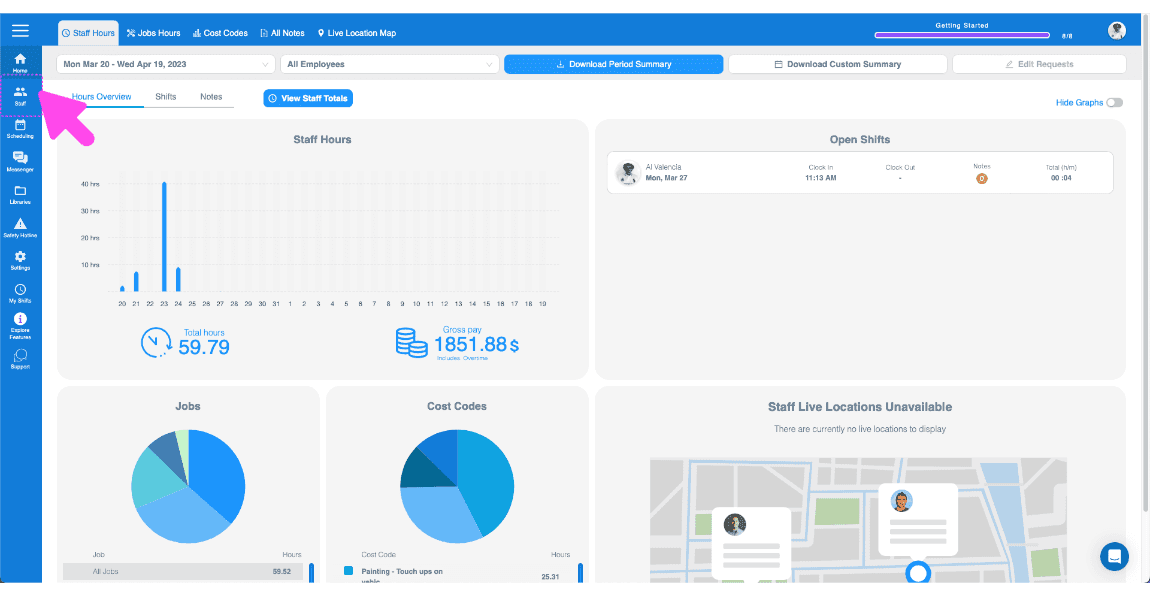
SINC web Staff Hours dashboard overview with a pink arrow pointing to a sidebar navigation icon
SINC web dashboard Staff list with a pink arrow pointing to a highlighted employee row
SINC web staff profile screen with a pink arrow pointing to the Settings tab
Web staff Settings tab with the blue Revert To Employee button outlined in pink and an arrow pointing to it
SINC mobile staff Settings tab showing a Confirm Revert dialog with a pink arrow pointing to the Yes button
Staff settings screen showing a confirmation banner that the staff member was reverted to employee

Questa risposta ti è stata utile?