Aggiungi un’assenza

Vediamo come aggiungere un periodo di assenza per un membro del team

SINC Support Team
SINC Support Team
Jun 13th, 2022

Questa sezione mostra come aggiungere un periodo di assenza per un membro dello staff. Sul web: clicca su Menu Staff Il mio staff Staff attivo
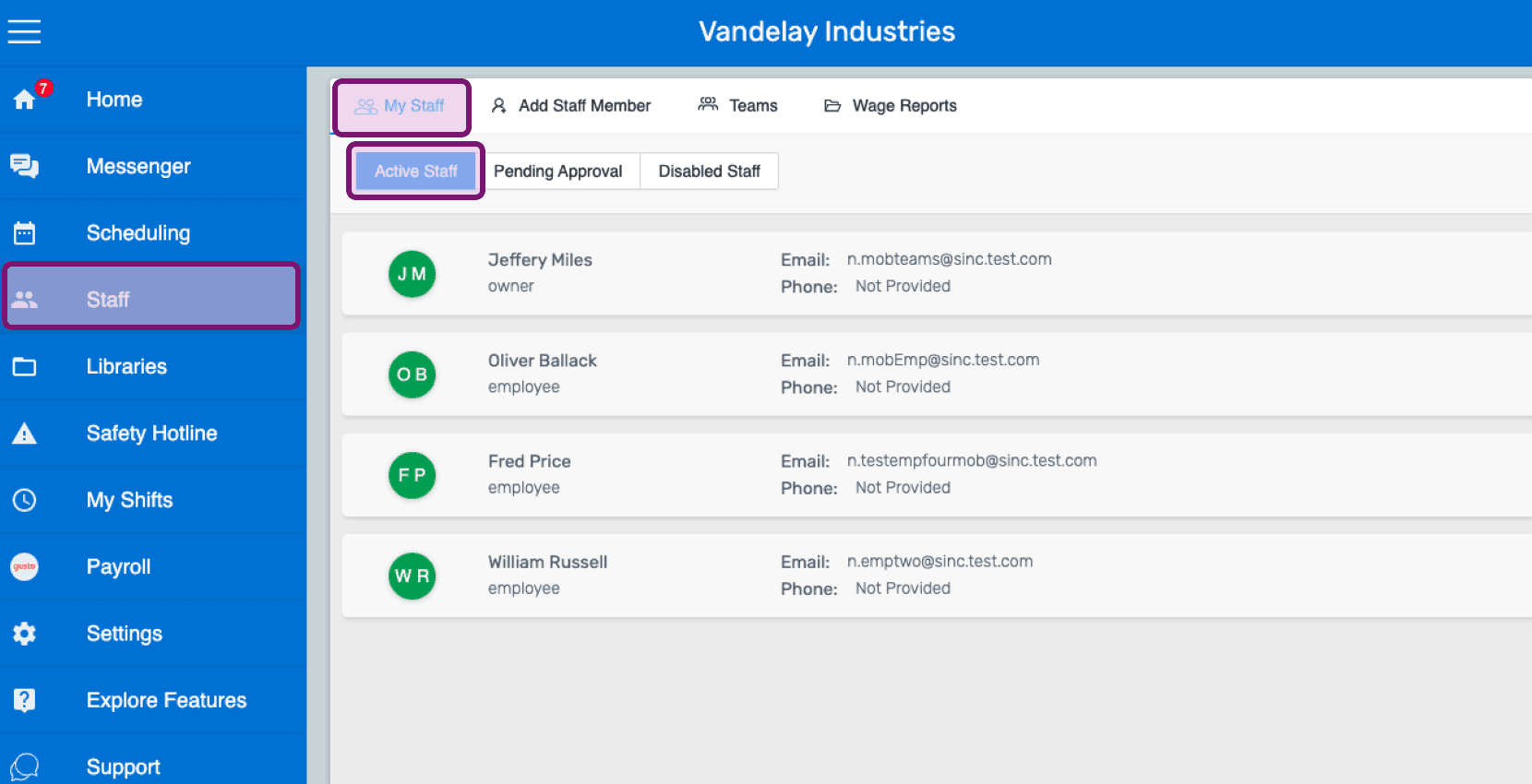
Staff list screen with the My Staff and Staff sidebar navigation options circled in pink

Clicca sul nome del membro dello staff
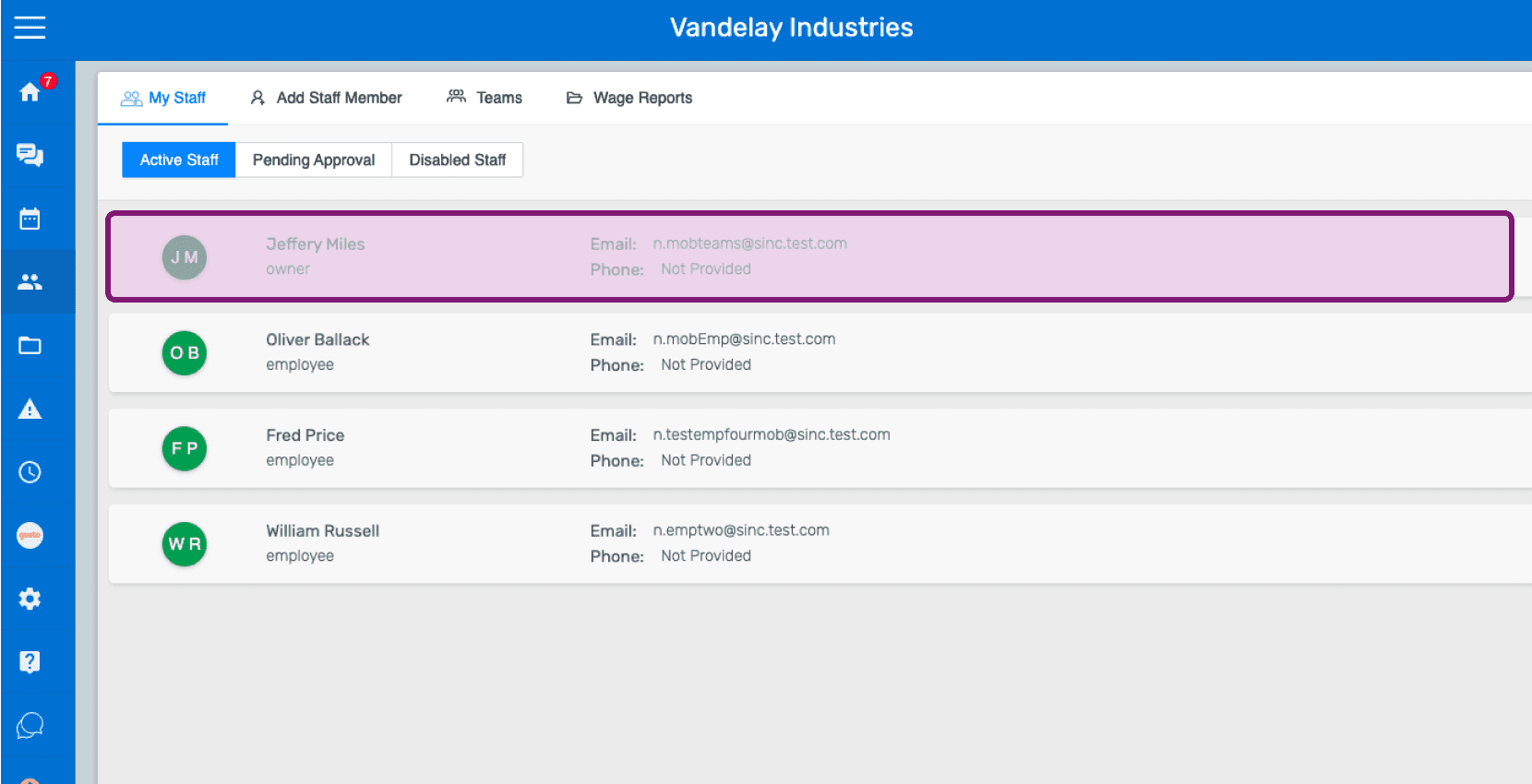
SINC web My Staff list with an employee's name highlighted to add time off for

Fai clic su Permessi Aggiungi permesso
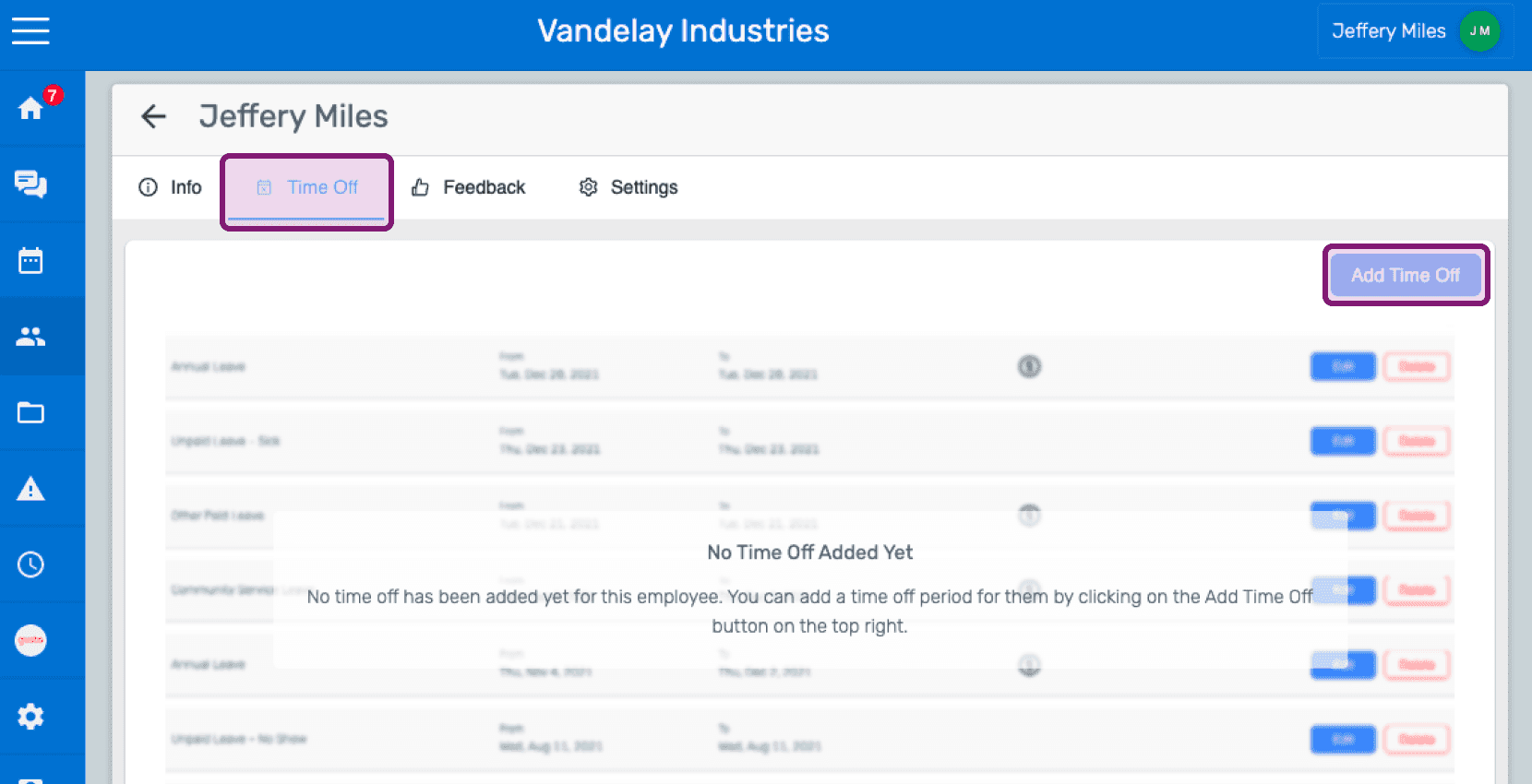
Web employee Time Off tab with no time off added yet and the Add Time Off button outlined in pink

Seleziona la categoria di assenza dal menu a tendina.
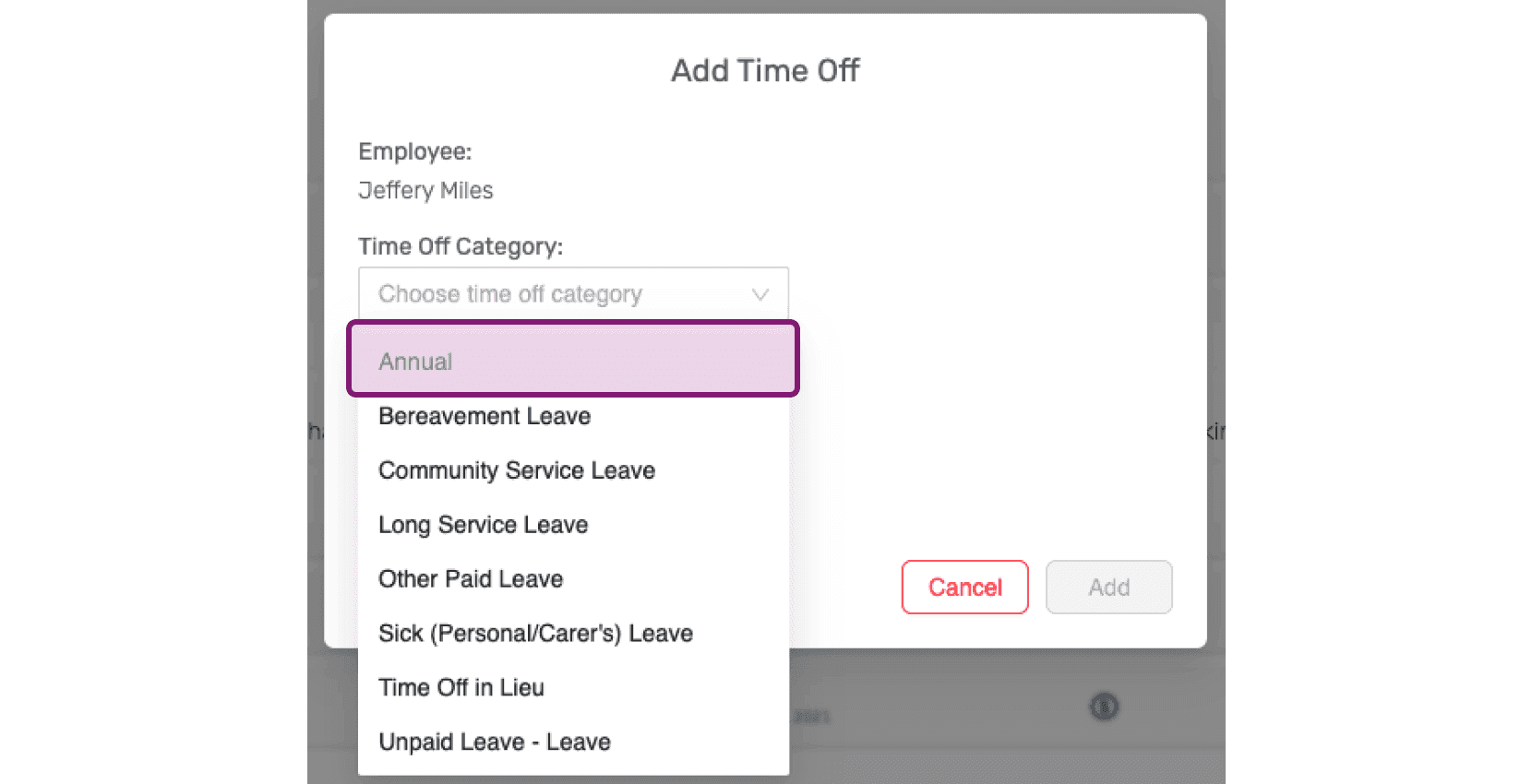
SINC web Add Time Off dialog with the Time Off Category dropdown open and Annual highlighted

Seleziona il periodo di assenza dal selettore della data.
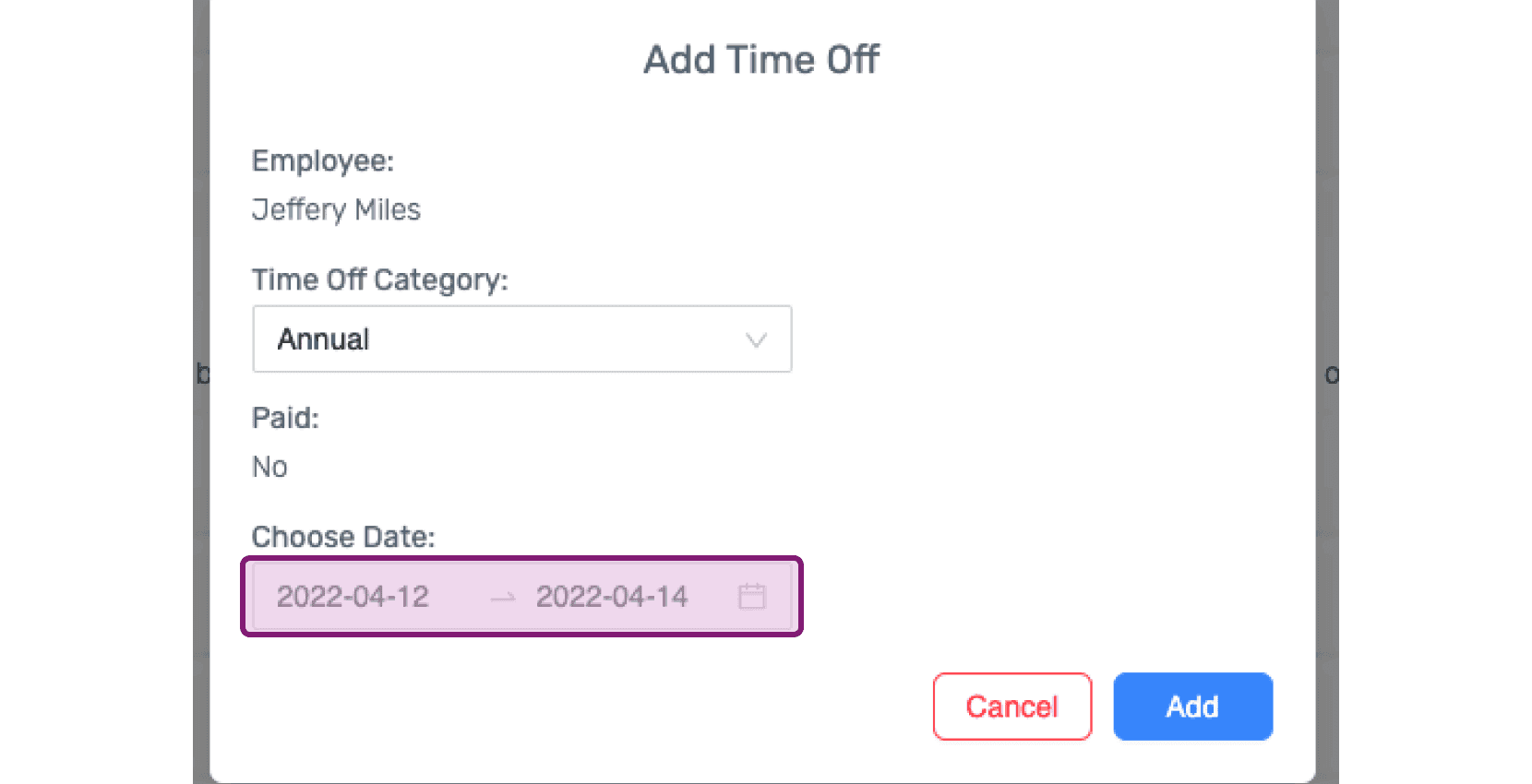
Add Time Off popup with the Choose Date range field highlighted

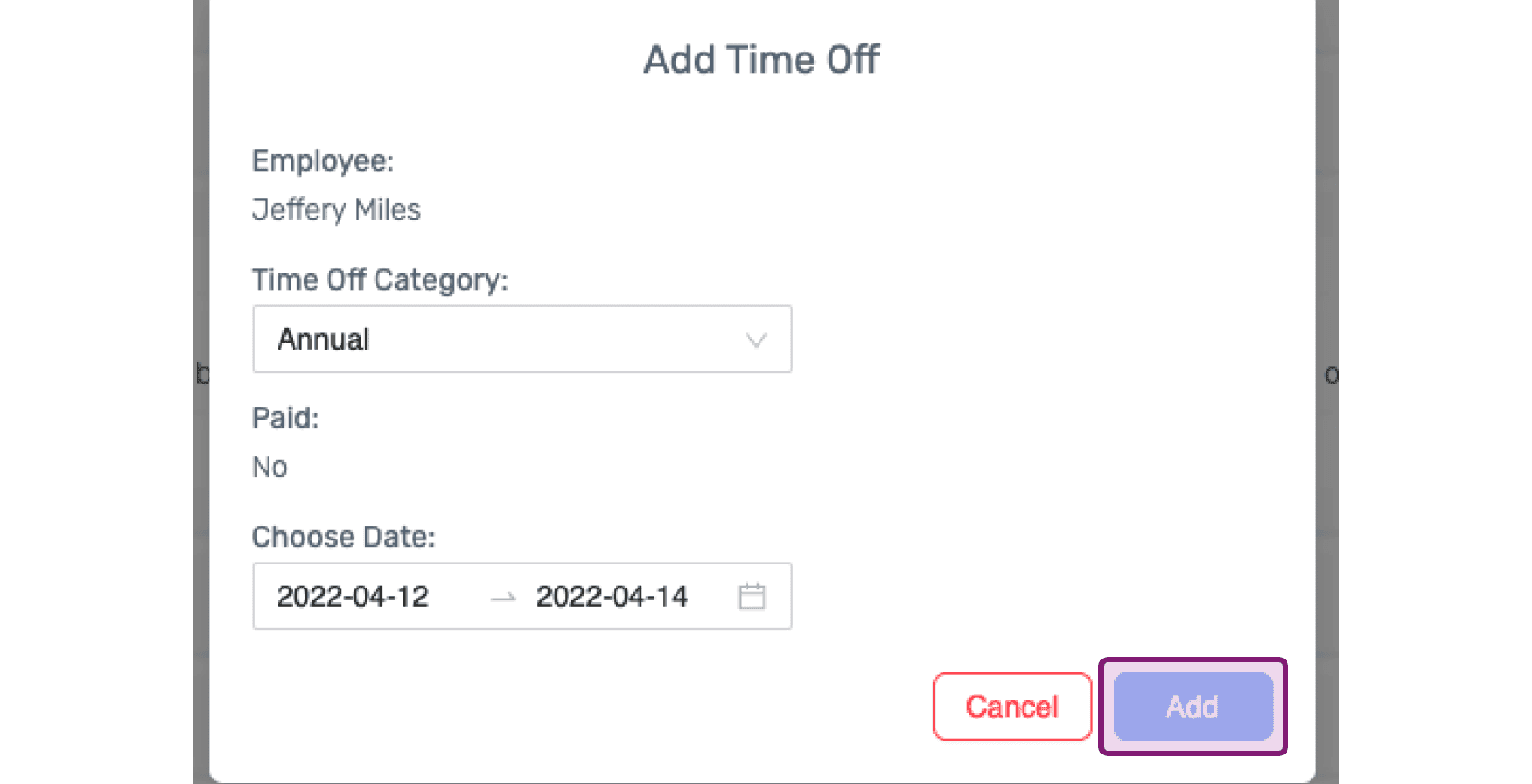
Fai clic su Aggiungi

Web Add Time Off popup with the Add button circled in pink

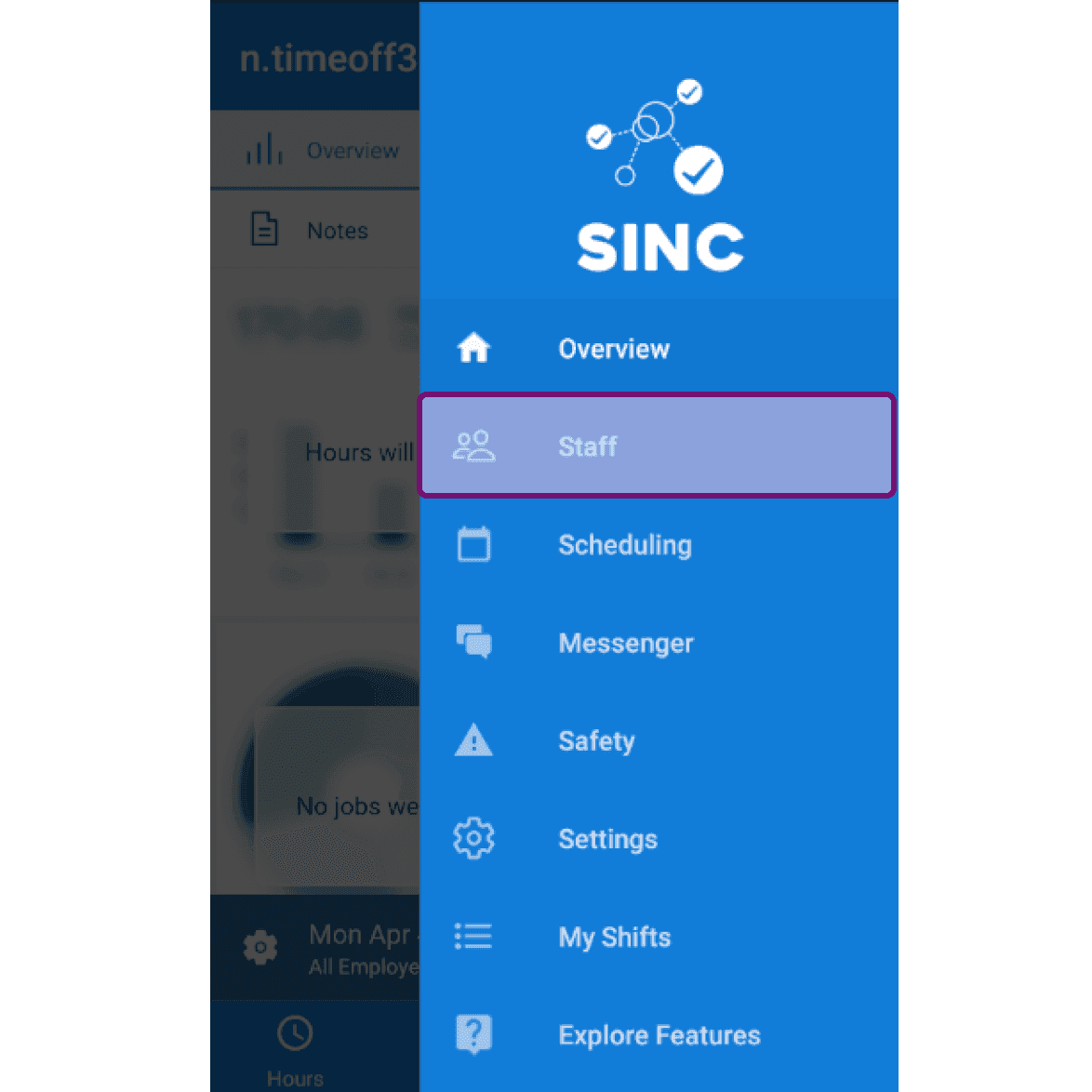
Da mobile: tocca Menu Staff

SINC mobile app side menu with the Staff option highlighted

Tocca Staff Attivi nome del membro dello staff
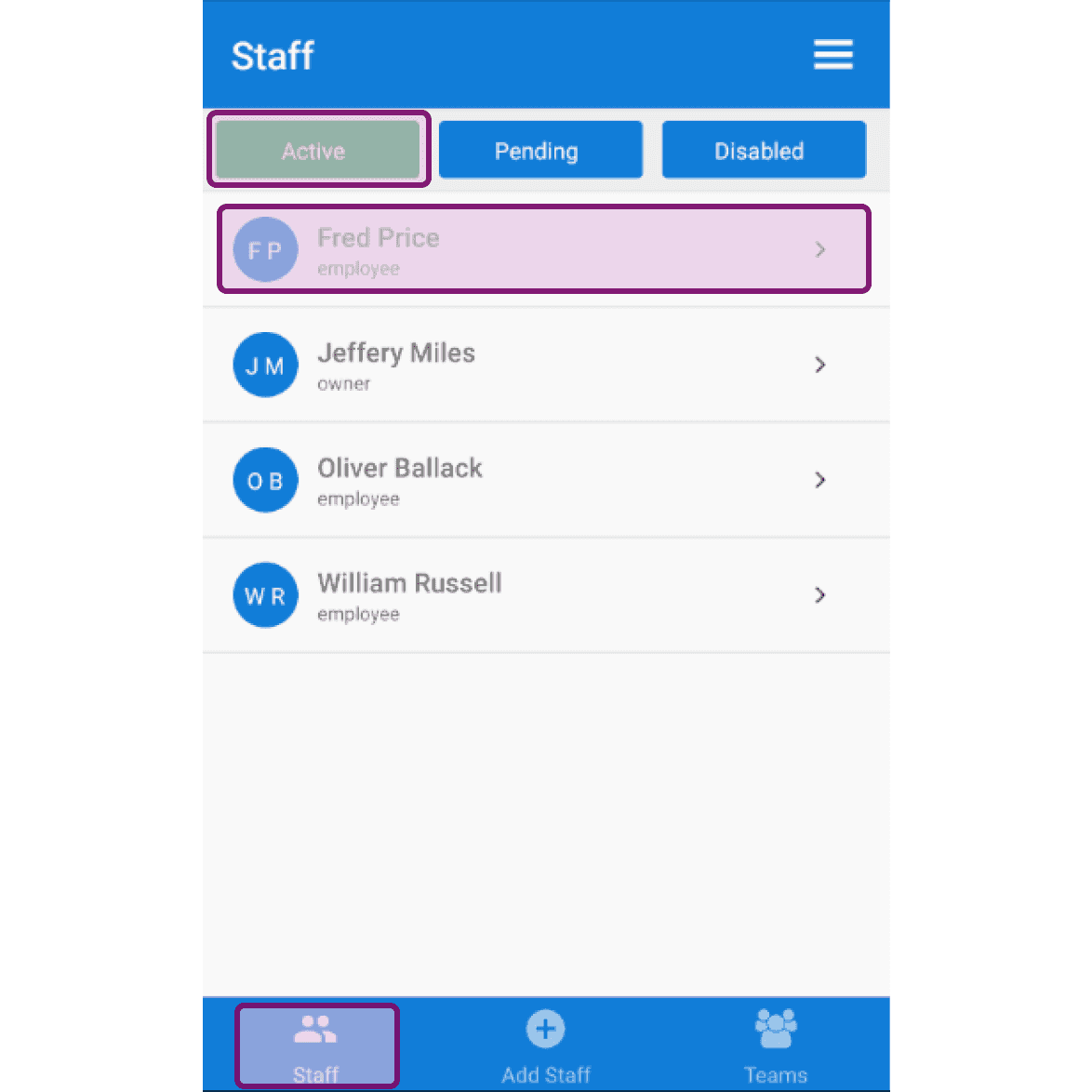
SINC mobile Staff screen on the Active tab with an employee's row outlined in purple

Tocca Ferie l’icona + in basso a destra
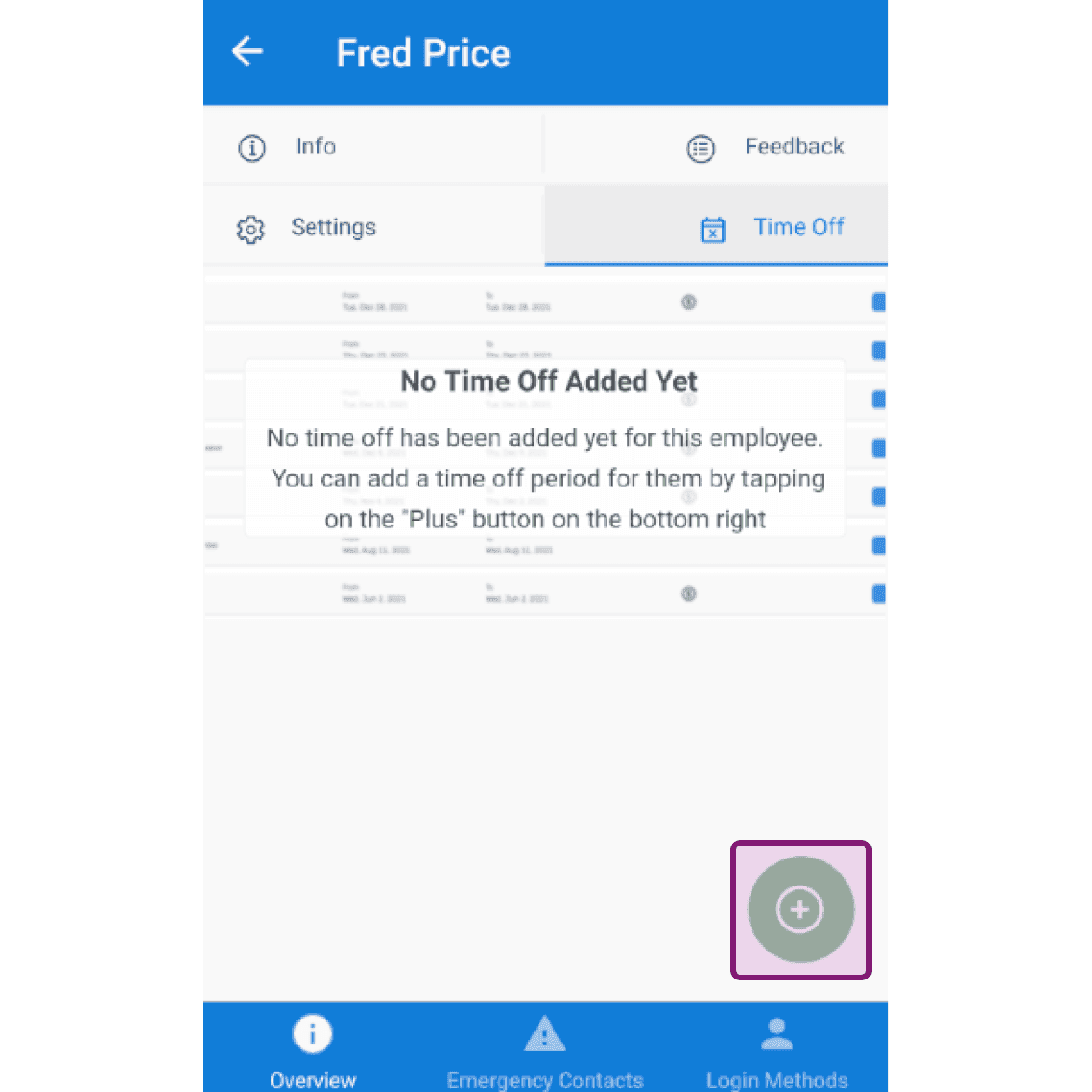
Employee Time Off tab showing "No Time Off Added Yet" message with the add button outlined

Tocca la categoria delle assenze nell’elenco.
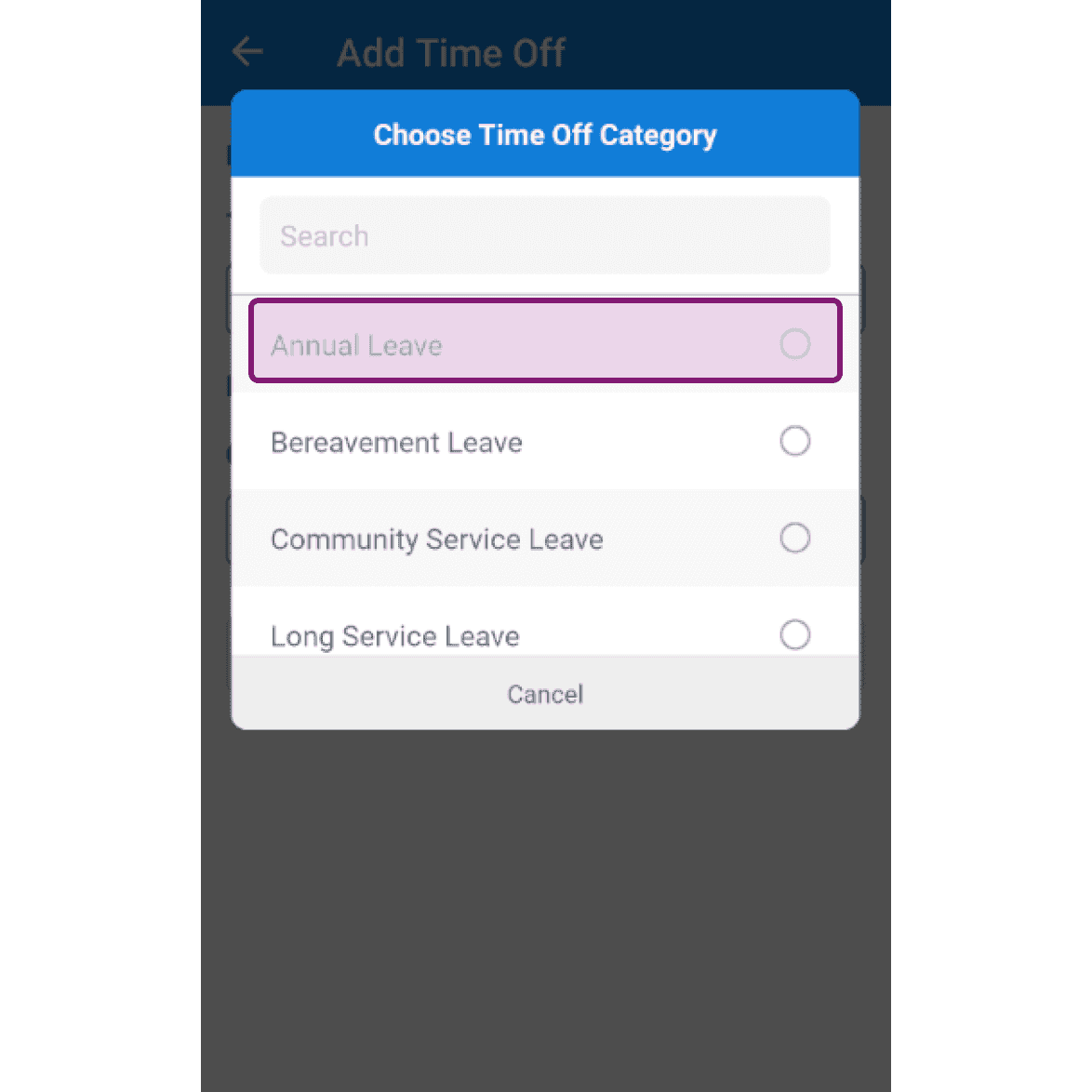
SINC mobile app Choose Time Off Category popup with the Annual Leave option outlined in pink

Tocca il pulsante Scegli data per selezionare il periodo di ferie.
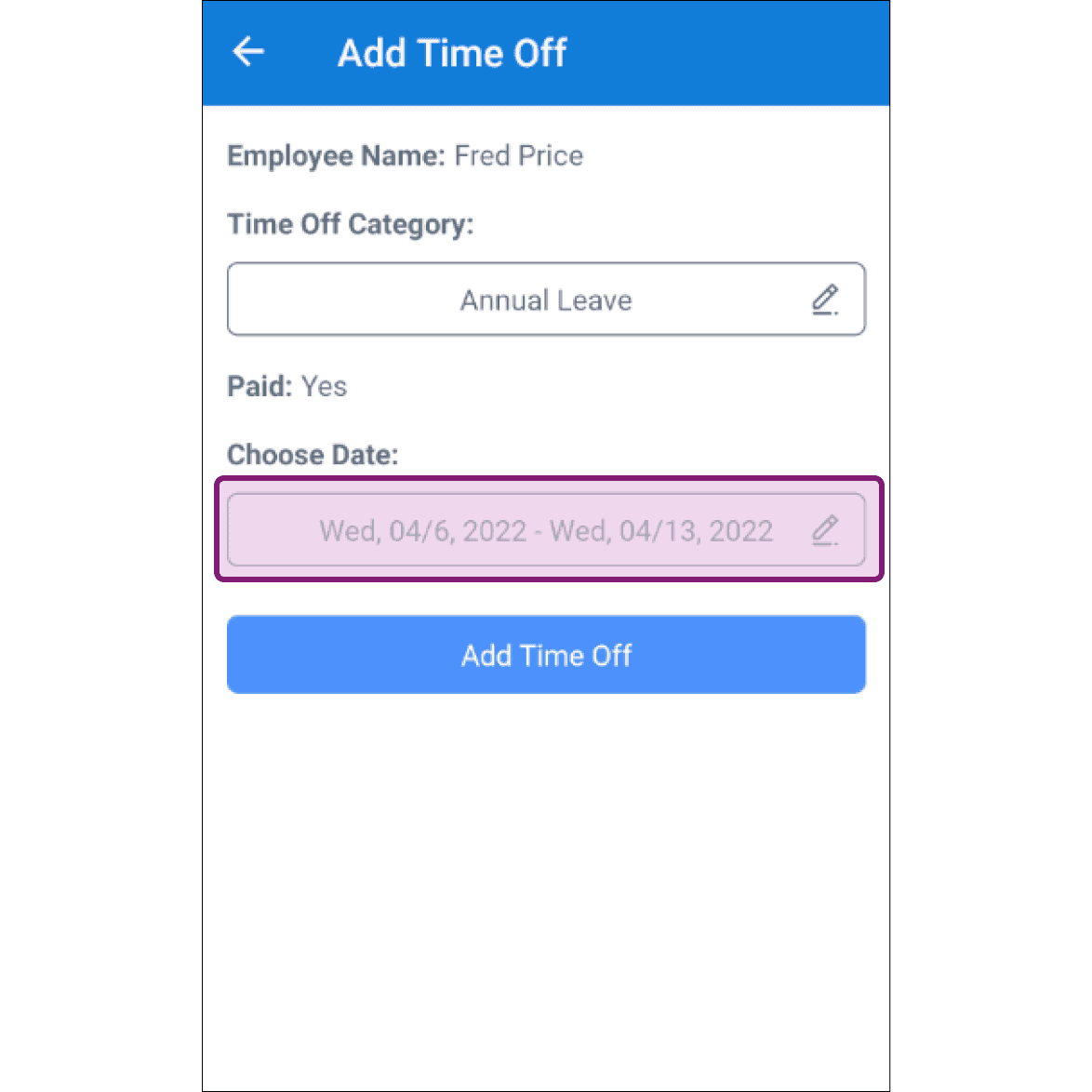
Add Time Off screen with the Choose Date field outlined in purple

Tocca Aggiungi assenza. Tieni presente che i dipendenti non potranno timbrare l’ingresso durante il periodo di assenza e che gli amministratori non potranno programmare turni per loro nello stesso periodo.
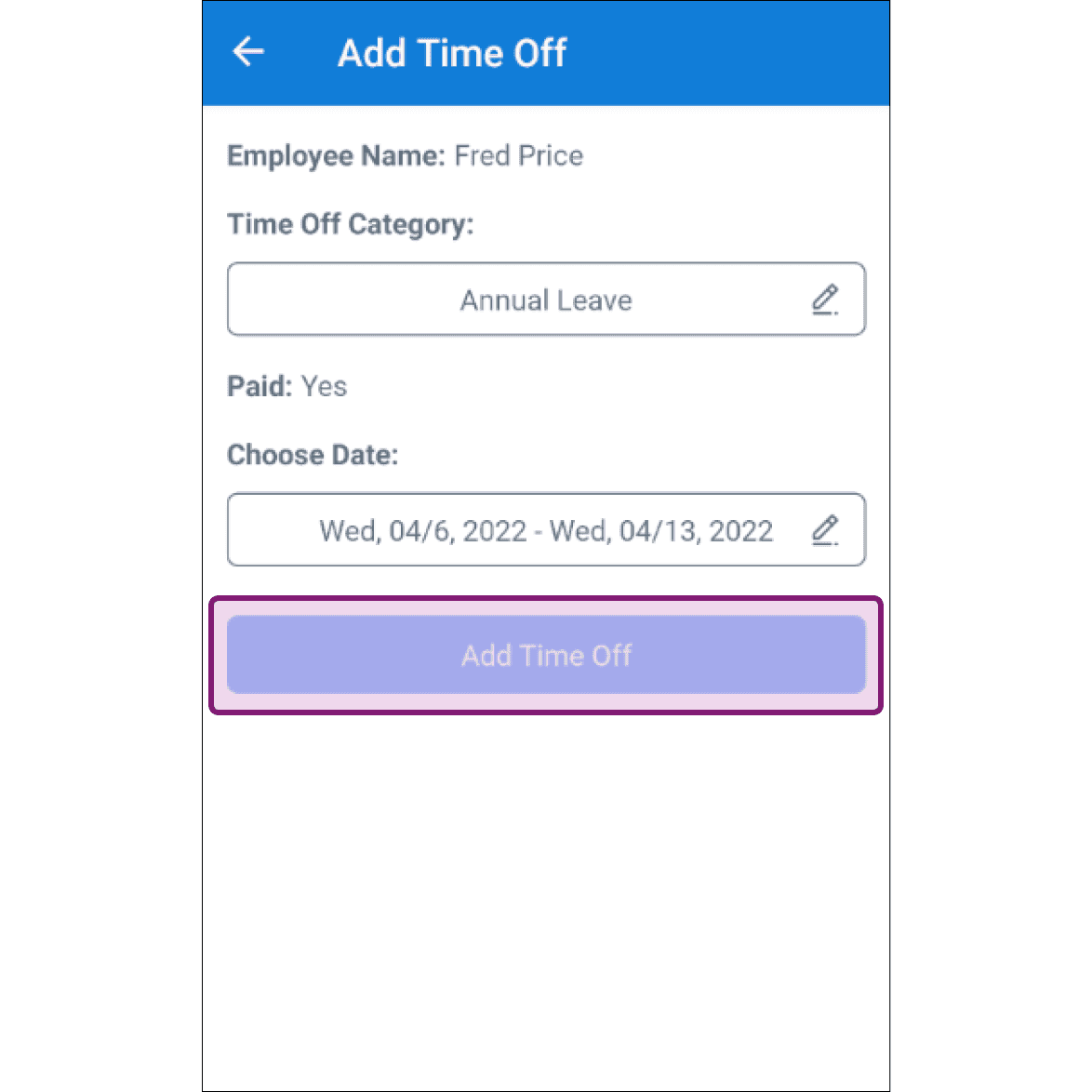
Add Time Off screen showing employee name, category, and dates with the Add Time Off button highlighted

Questa risposta ti è stata utile?