Eliminazione dei fogli presenze dei dipendenti

In questa guida vedremo come un amministratore può eliminare un turno.

Sam Dolbel
Sam Dolbel
Mar 3rd, 2023

Da mobile: tocca Panoramica Turni
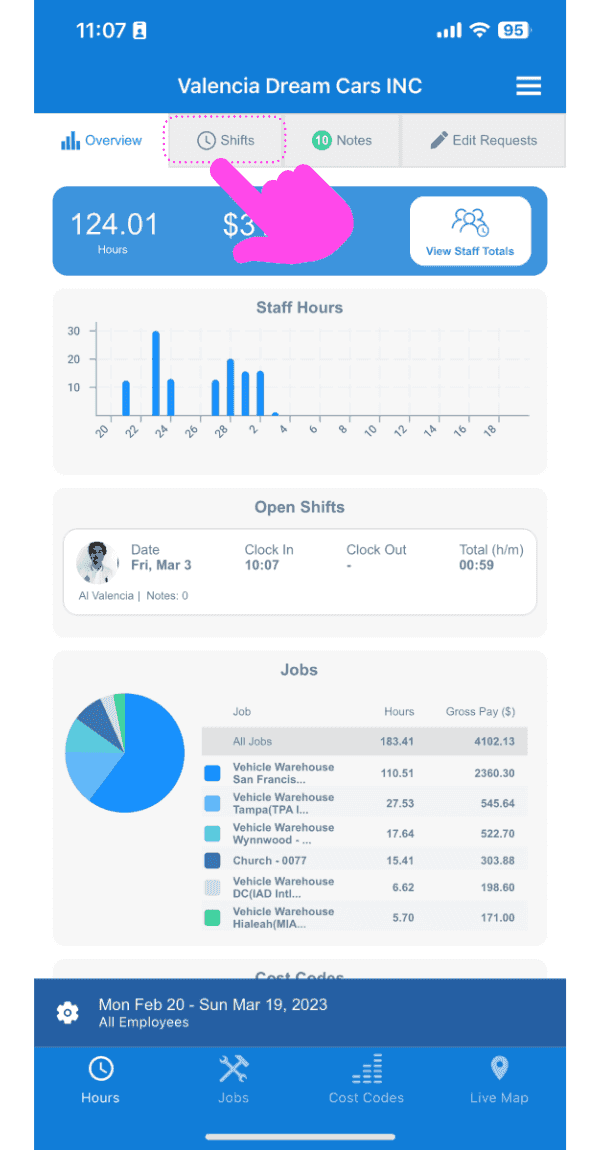
SINC mobile app Overview screen with a pink arrow pointing to the Shifts tab at the top

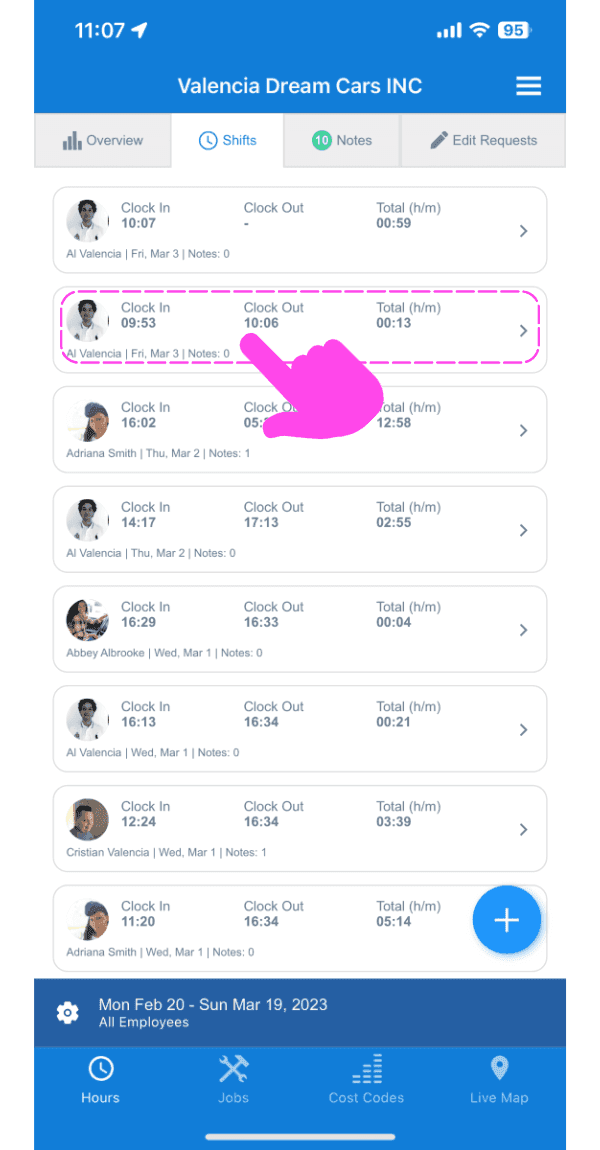
Tocca il turno che vuoi eliminare

SINC mobile Shifts list with a pink arrow pointing to the shift row to be deleted

Tocca il cestino in basso a sinistra dello schermo
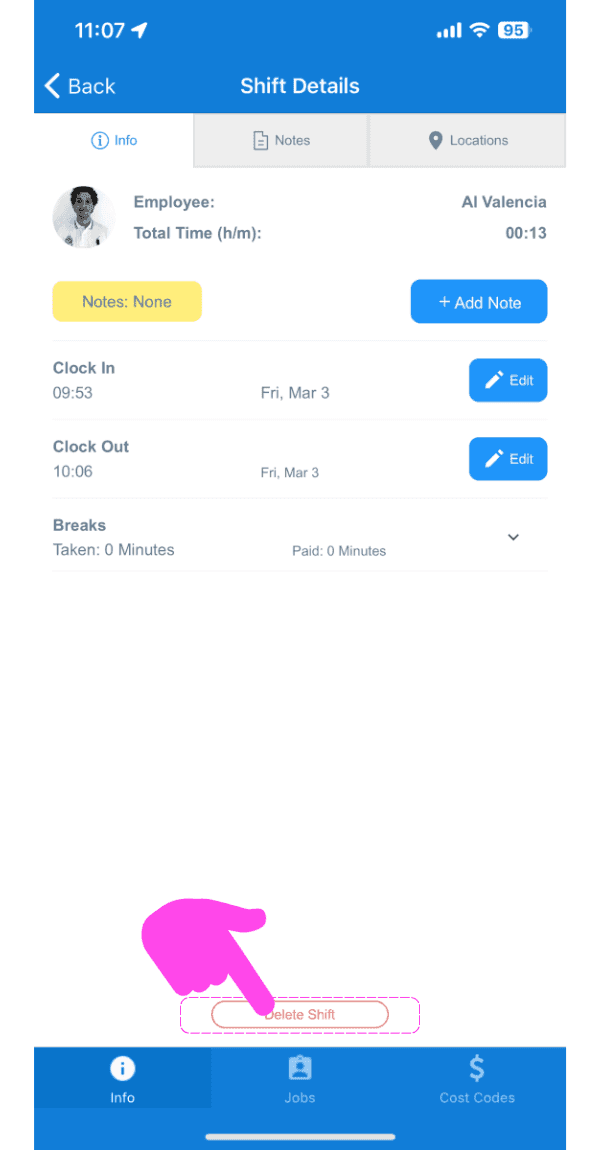
Mobile Shift Details screen with a pink arrow pointing to the trash can icon at the bottom left

Aggiungi un motivo per eliminare il turno e conferma
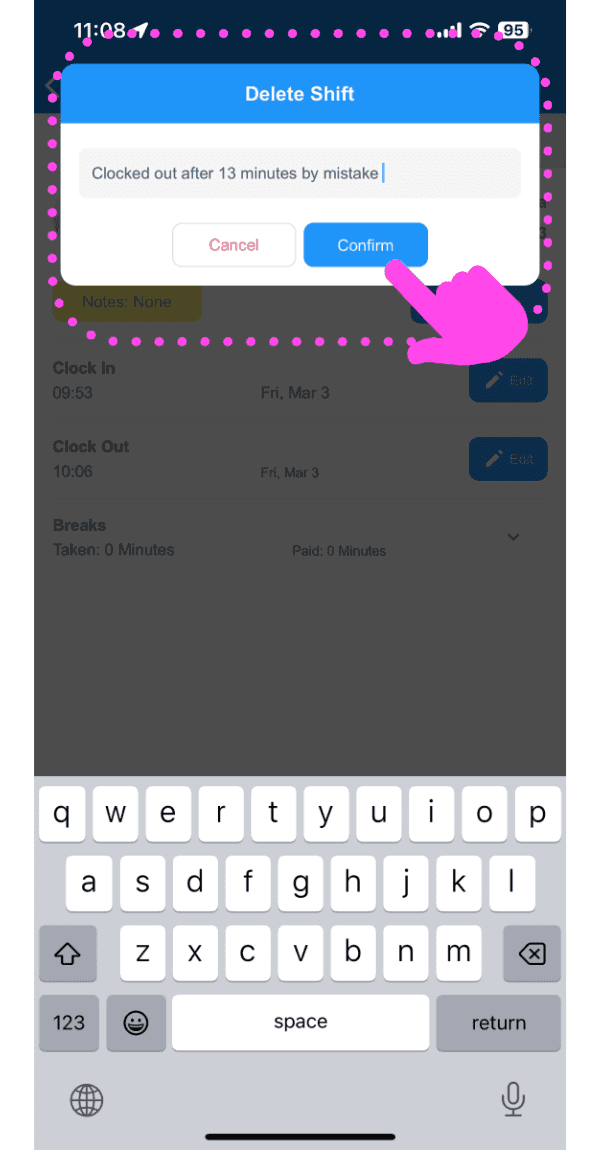
SINC mobile Delete Shift dialog with a typed reason and a pink hand pointing to the Confirm button

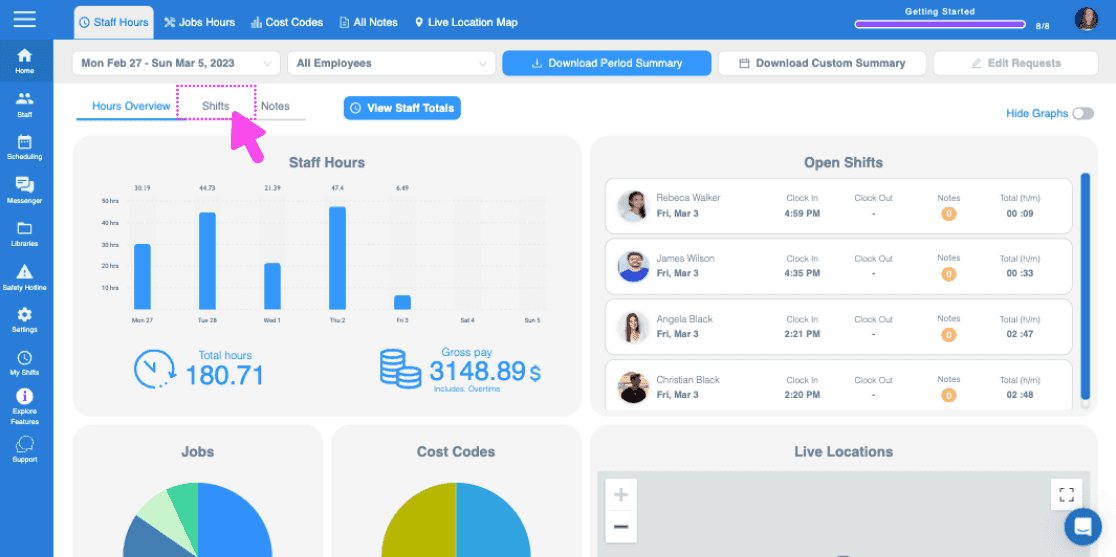
Sul Web: fai clic su Turni

Staff Hours dashboard with a pink arrow pointing to the Shifts tab above staff hours charts

Fai clic su Nome del membro dello staff
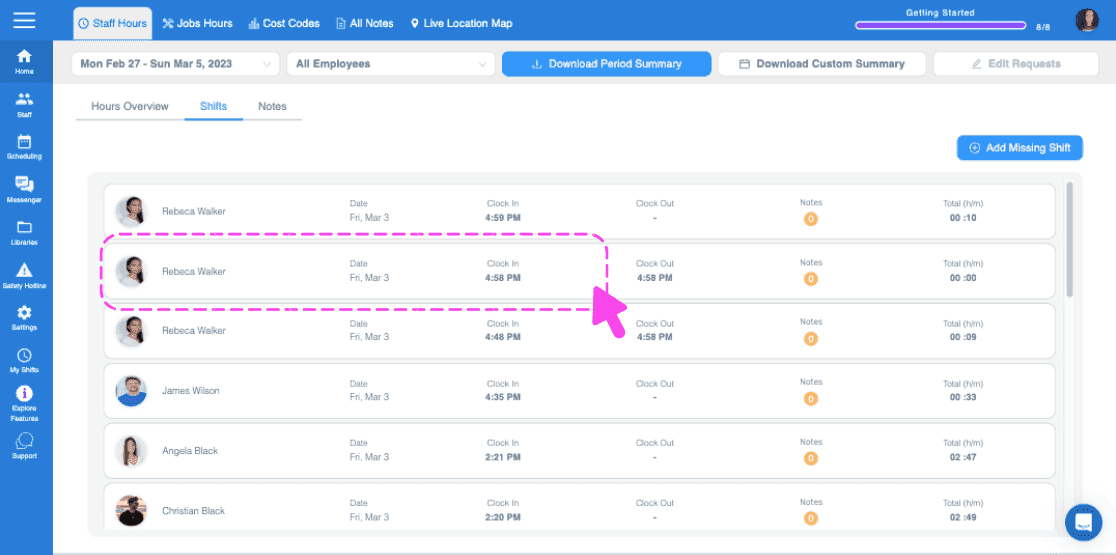
Web Shifts tab with a pink arrow pointing to a staff member's row showing clock in and out times

Nella scheda Turni, fai clic su Elimina turno
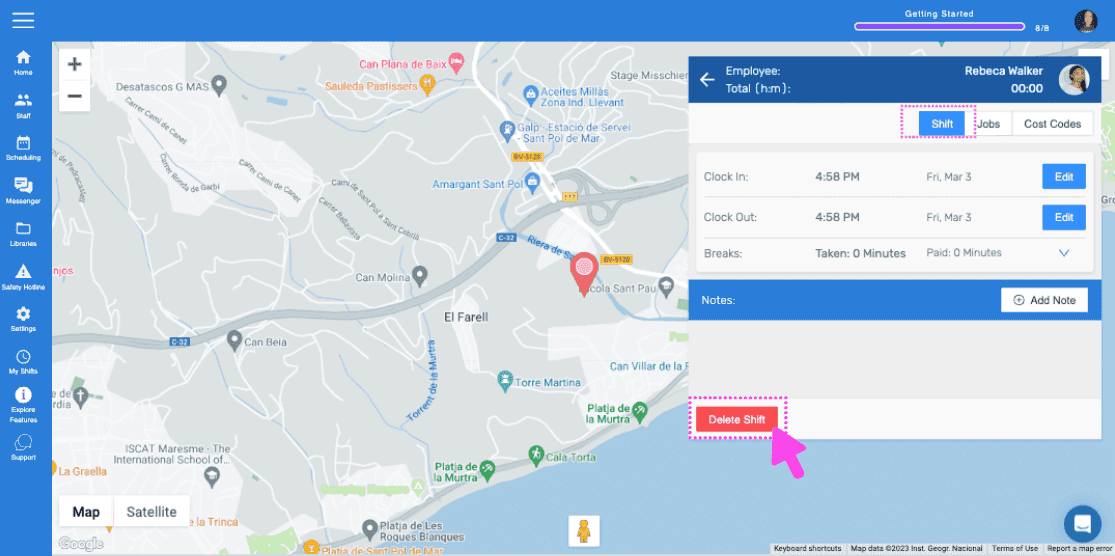
SINC web employee shift detail screen with a pink arrow pointing to the Delete Shift button

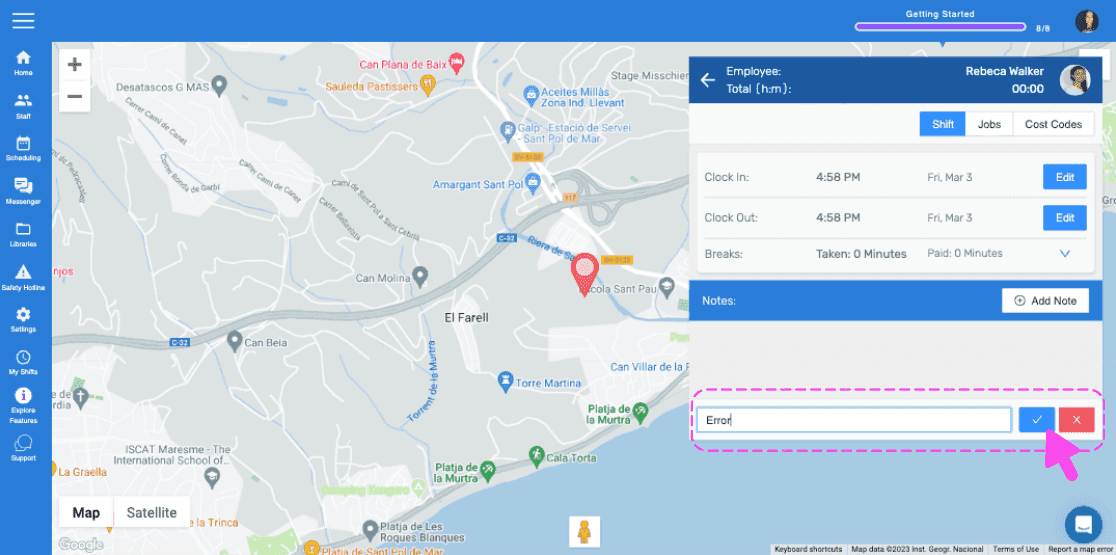
Inserisci il motivo dell’eliminazione del turno (verrà inviato al dipendente come notifica)
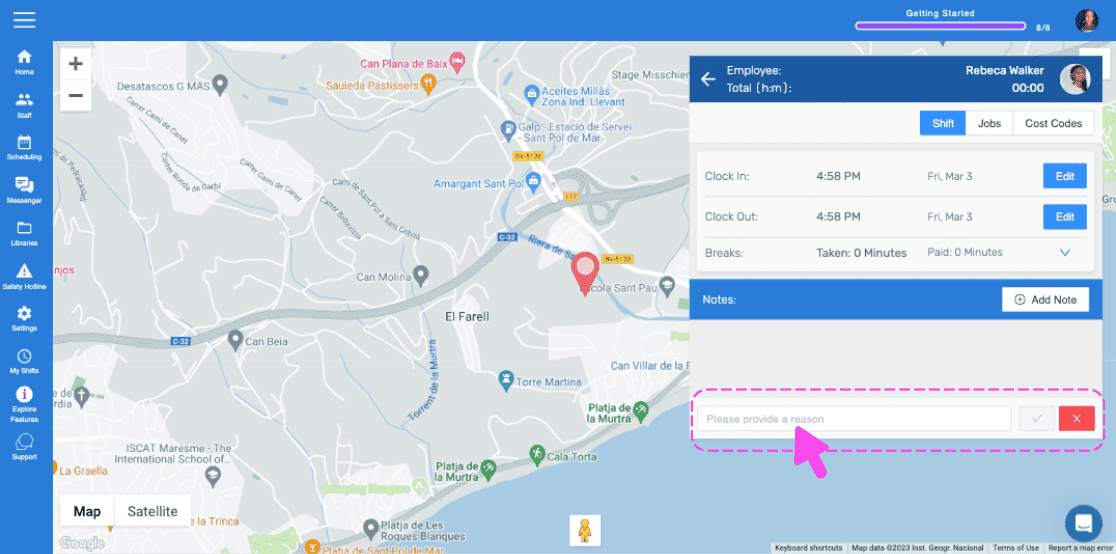
SINC web employee shift detail screen with a map and a pink arrow pointing to the reason text field for deleting a shift

Tocca Conferma

Live location map with an employee shift details panel and an editable timesheet notes field outlined in pink

Questa risposta ti è stata utile?