Modifica i fogli presenze in SINC

In questa guida vedremo come modificare un turno in qualità di amministratore.

Sam Dolbel
Sam Dolbel
Mar 3rd, 2023

Su dispositivo mobile: tocca Menu Panoramica Turni
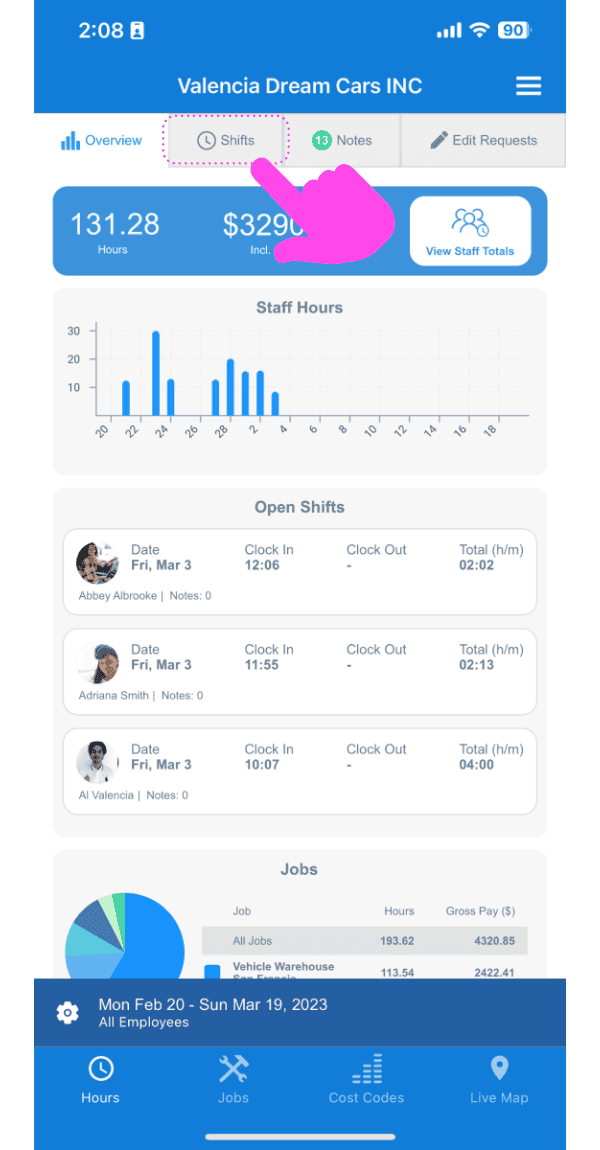
SINC web dashboard with a pink arrow pointing to the Shifts tab above the open shifts list

Tocca il turno che desideri modificare
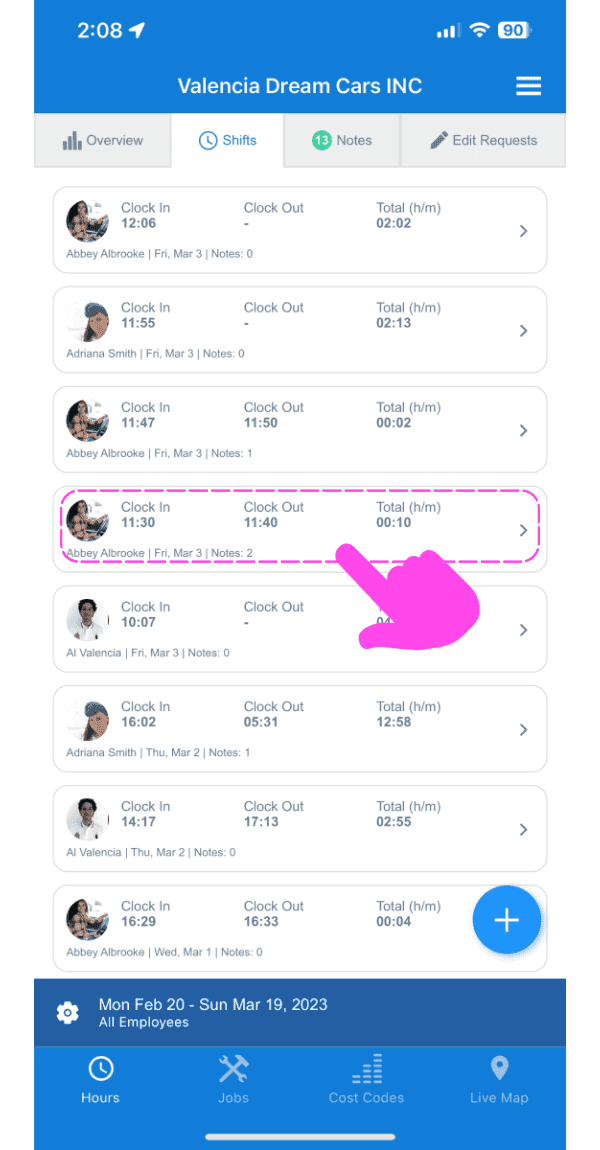
SINC mobile Shifts list with a pink arrow pointing to a specific shift entry outlined in pink

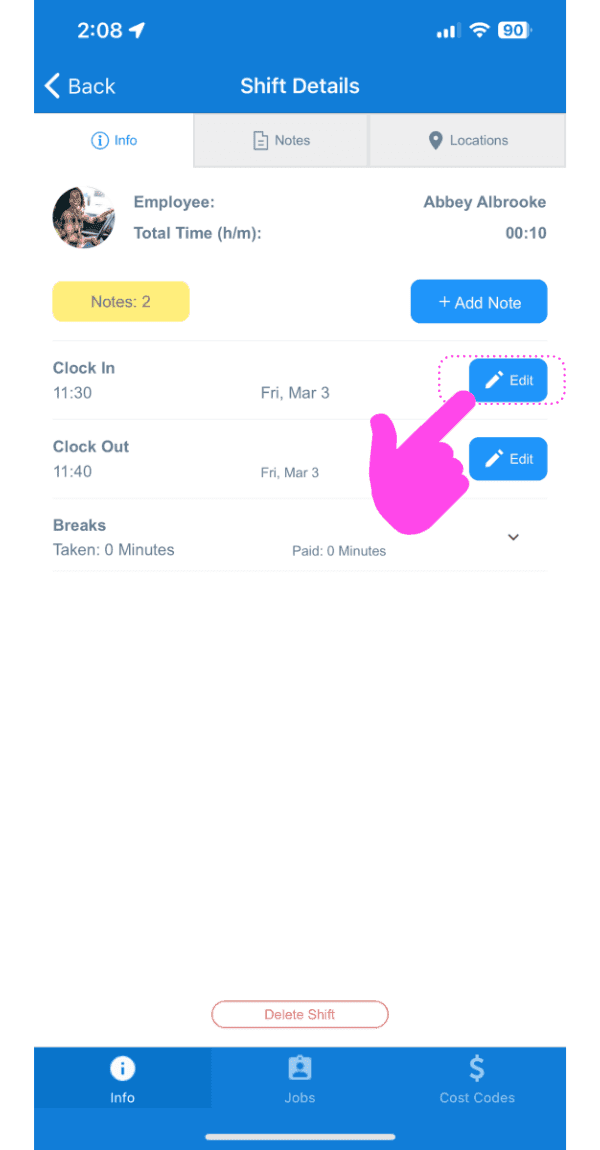
Tocca Modifica

Shift Details screen with a pink arrow pointing to the Edit button next to Clock In

Inserisci il motivo della modifica. Si tratta di una misura di trasparenza che verrà comunicata al membro del personale tramite una notifica push.
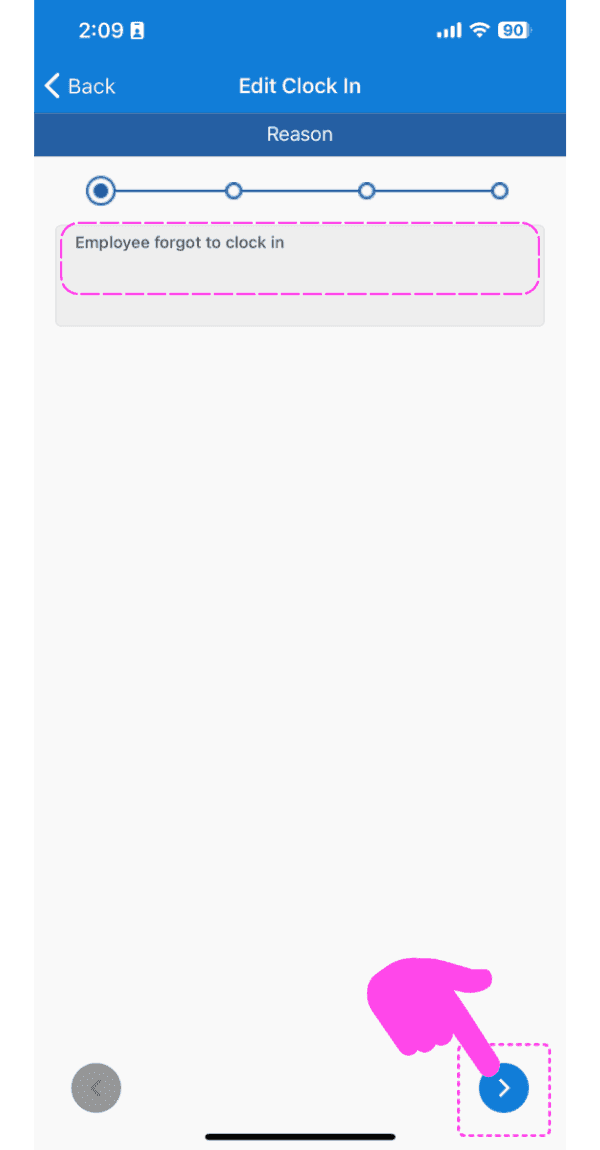
SINC mobile app Edit Clock In screen with the reason text field outlined in pink and an arrow pointing to the next button

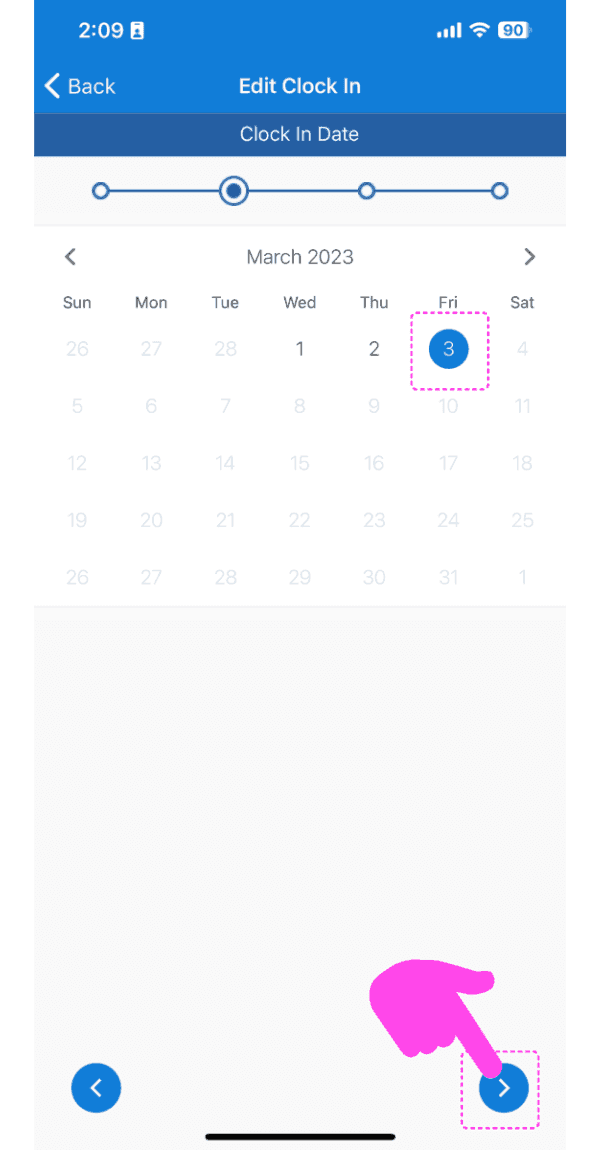
Seleziona la data

Edit Clock In calendar screen with a selected date and the next-arrow button highlighted in pink

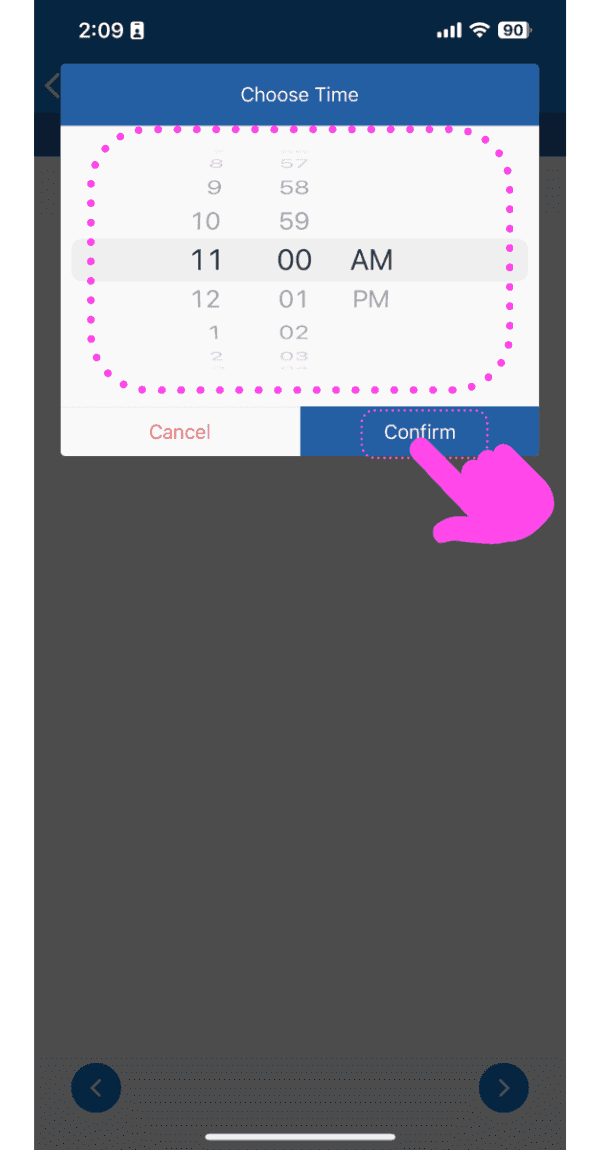
Seleziona il nuovo orario

Choose Time picker set to 11:00 AM with the Confirm button highlighted by a pink arrow

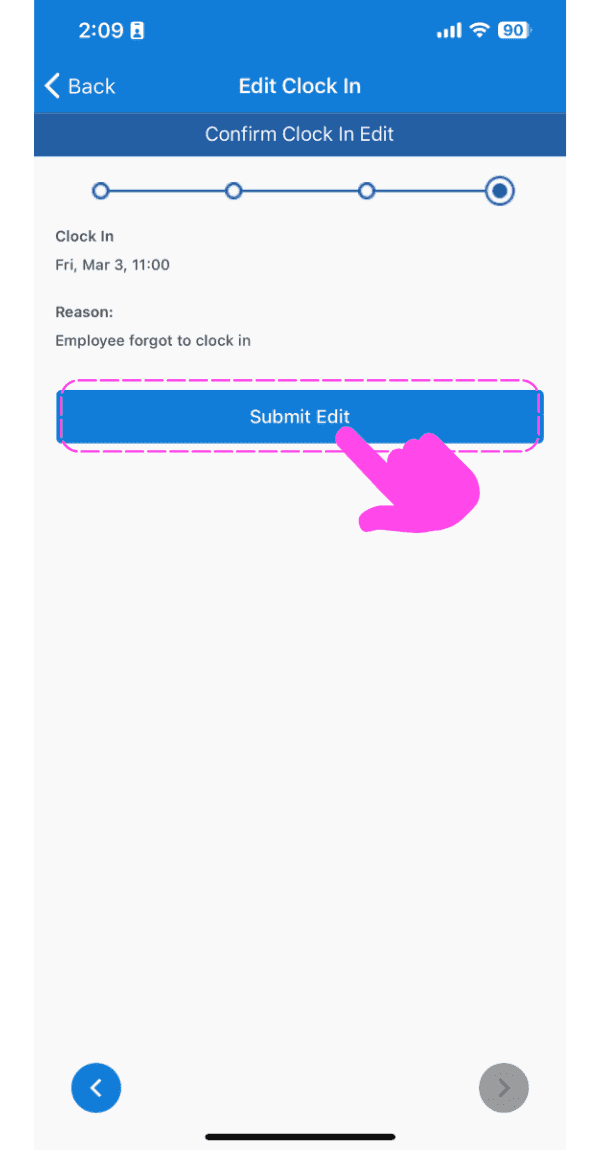
Invia la modifica

SINC mobile Edit Clock In confirmation screen with the Submit Edit button highlighted in pink

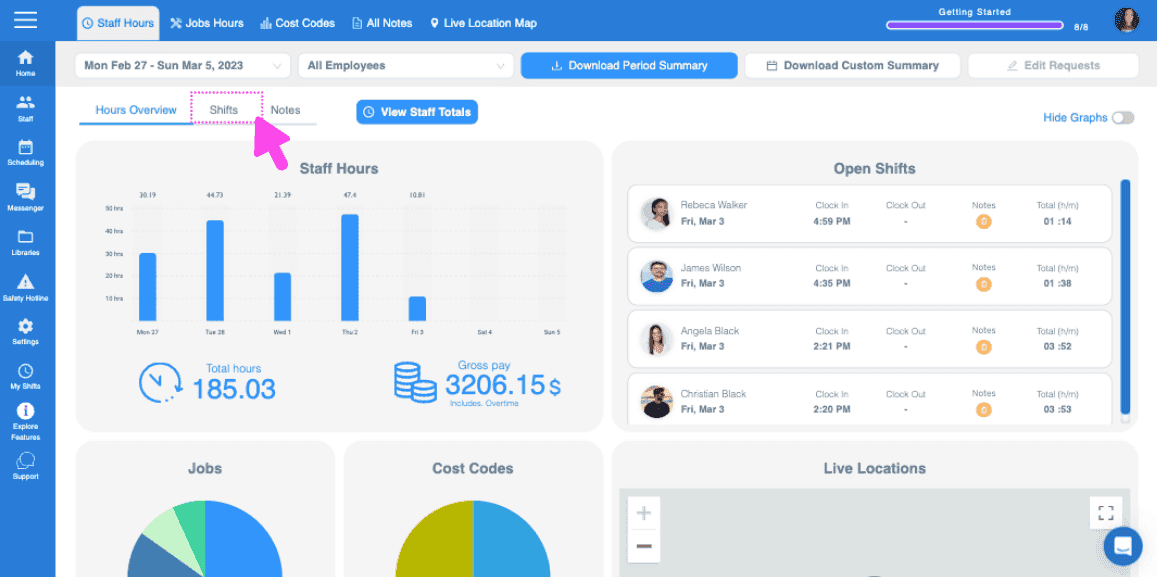
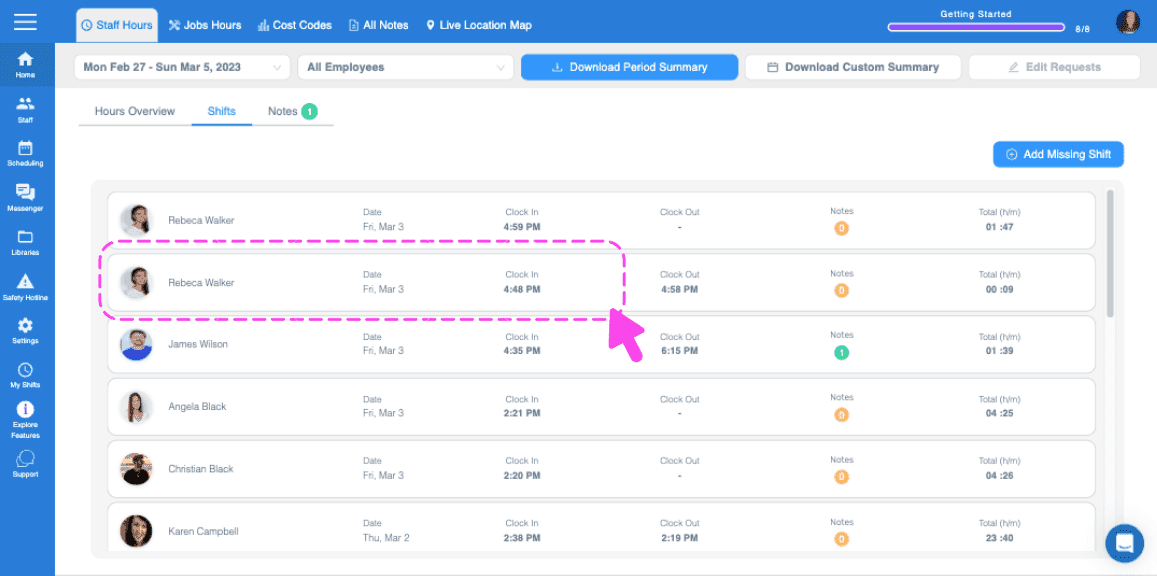
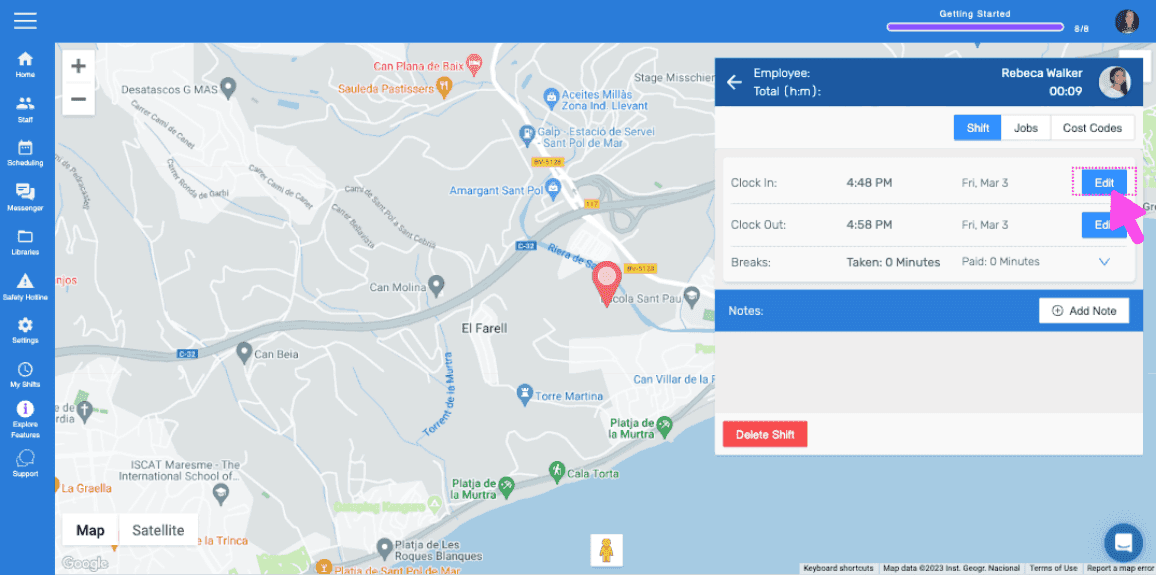
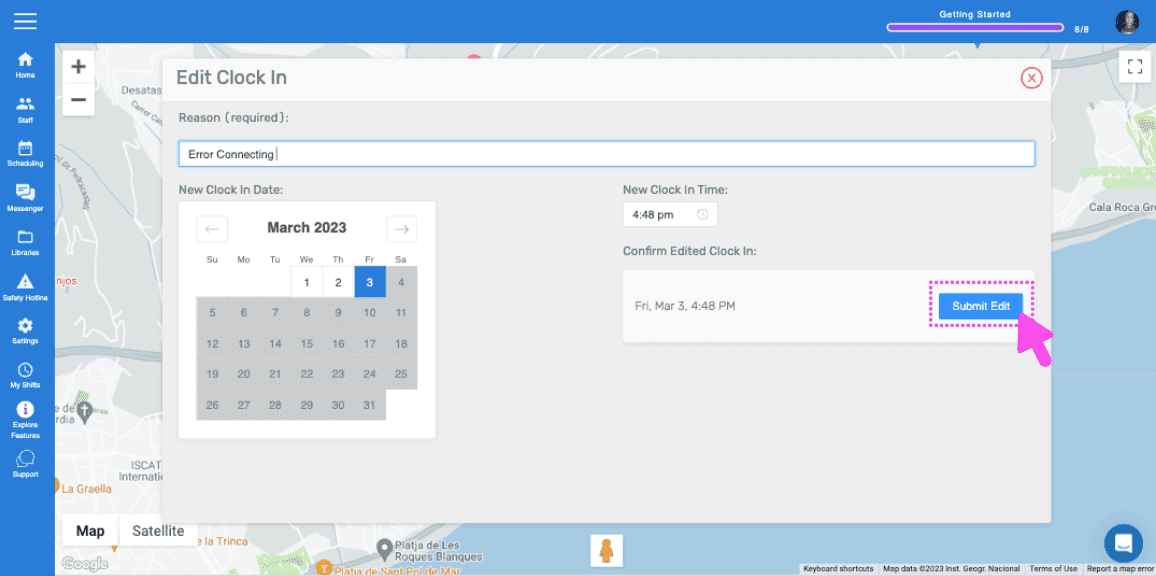
Nella versione web appare così:

Web dashboard Hours Overview screen with the Shifts tab highlighted by a pink arrow
SINC web Shifts list with two employee shift rows outlined in pink
Web dashboard map view of an employee's shift location with a pink arrow pointing to the Edit button next to Clock In
SINC web Edit Clock In screen with a date picker and the Submit Edit button

Questa risposta ti è stata utile?