Forza la timbratura d’uscita per un turno aperto

Usa questa funzione con cautela! È pensata come ultima risorsa quando un dipendente non dispone di una connessione Internet per sincronizzare i propri turni.

Sam Dolbel
Sam Dolbel
Mar 3rd, 2023

Se un dipendente non riesce a connettersi a Internet in tempo perché tu possa generare un riepilogo, oppure non è ancora riuscito a timbrare l’uscita, puoi forzare la chiusura del suo turno. Questa opzione va utilizzata solo come ultima risorsa: è più corretto e affidabile che sia il dipendente stesso a timbrare l’uscita.

Su dispositivo mobile: tocca il turno aperto in questione
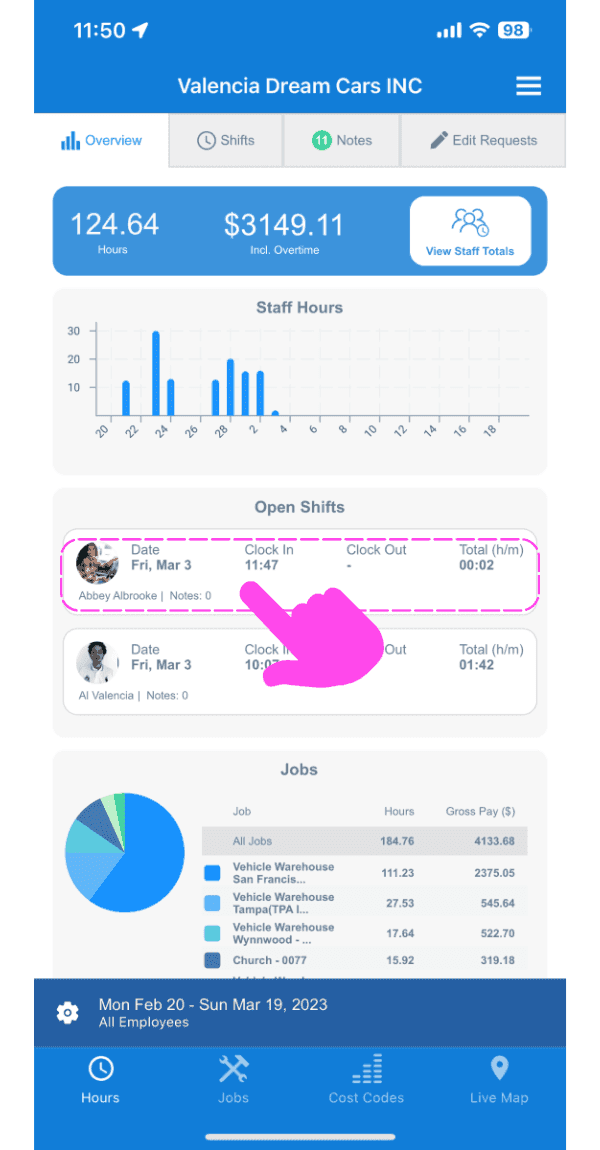
SINC web dashboard Open Shifts section with a pink hand pointing to a specific open shift entry

Nella scheda Info, tocca Forza timbratura di uscita
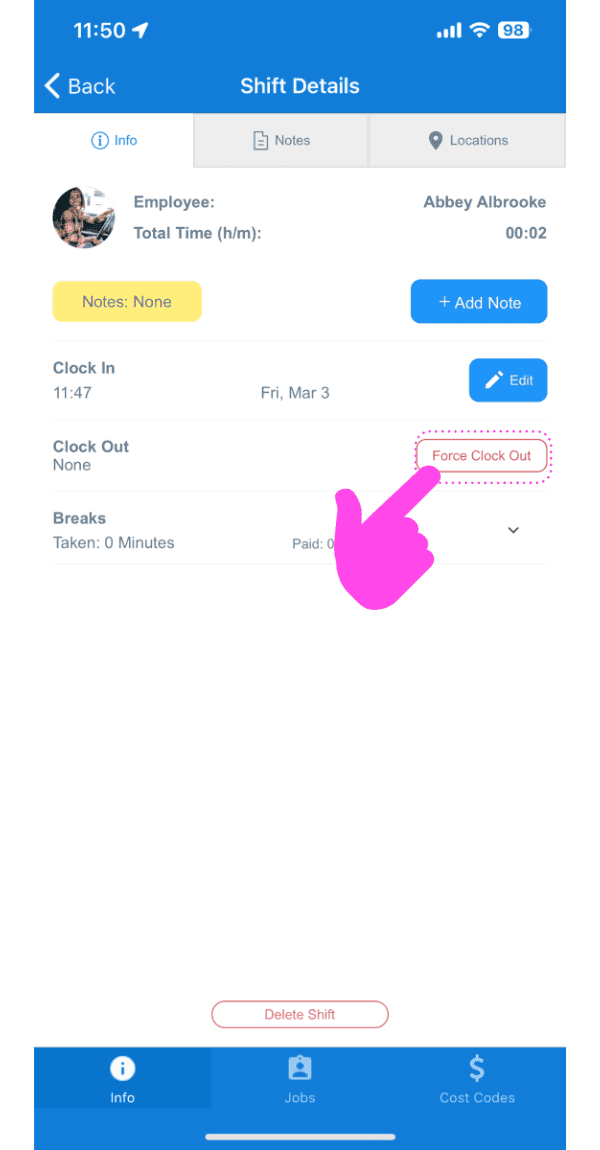
Shift Details screen with the Force Clock Out button highlighted by a pink arrow

Seleziona la data per la nuova timbratura in uscita
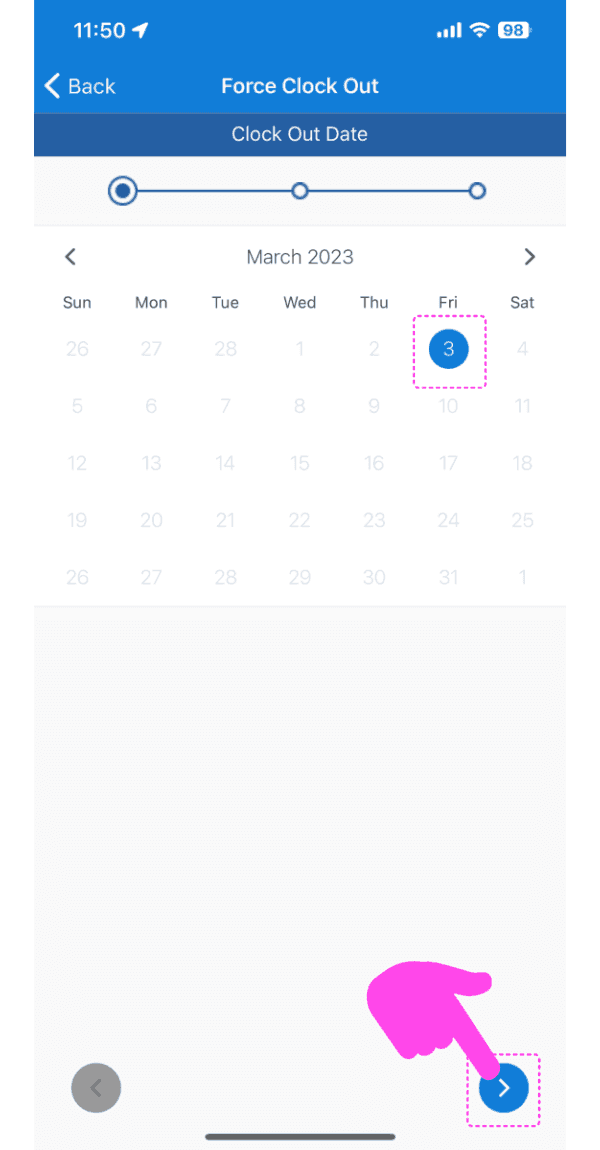
Force Clock Out screen showing a March calendar with the 3rd selected and a pink arrow pointing to the next-step button

Seleziona l’orario della nuova timbratura in uscita
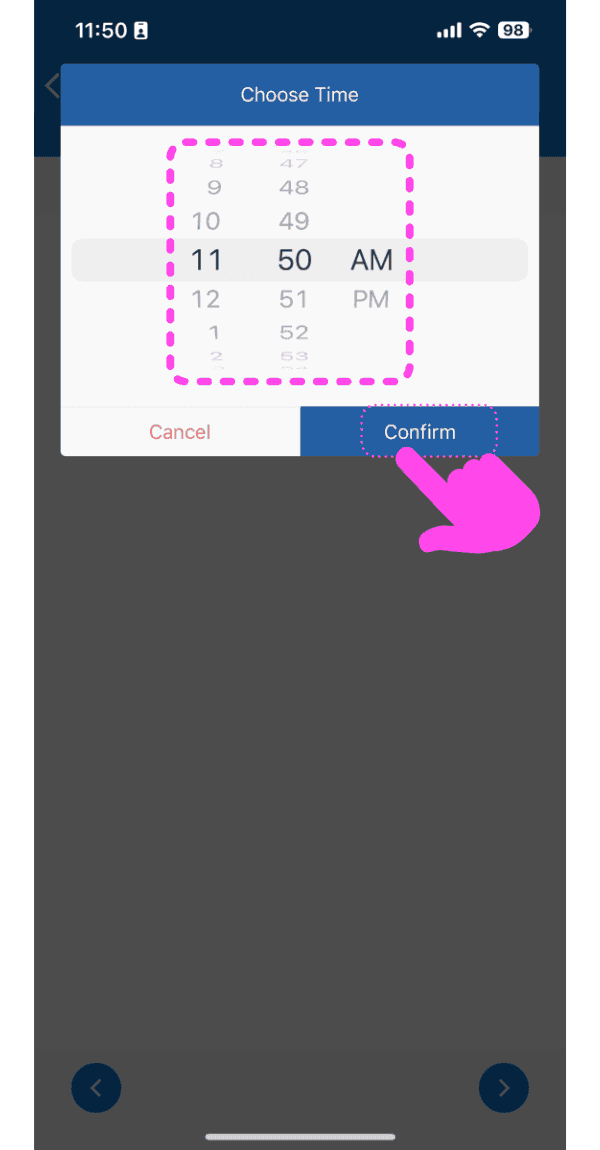
SINC mobile Choose Time picker with a pink hand pointing to the Confirm button

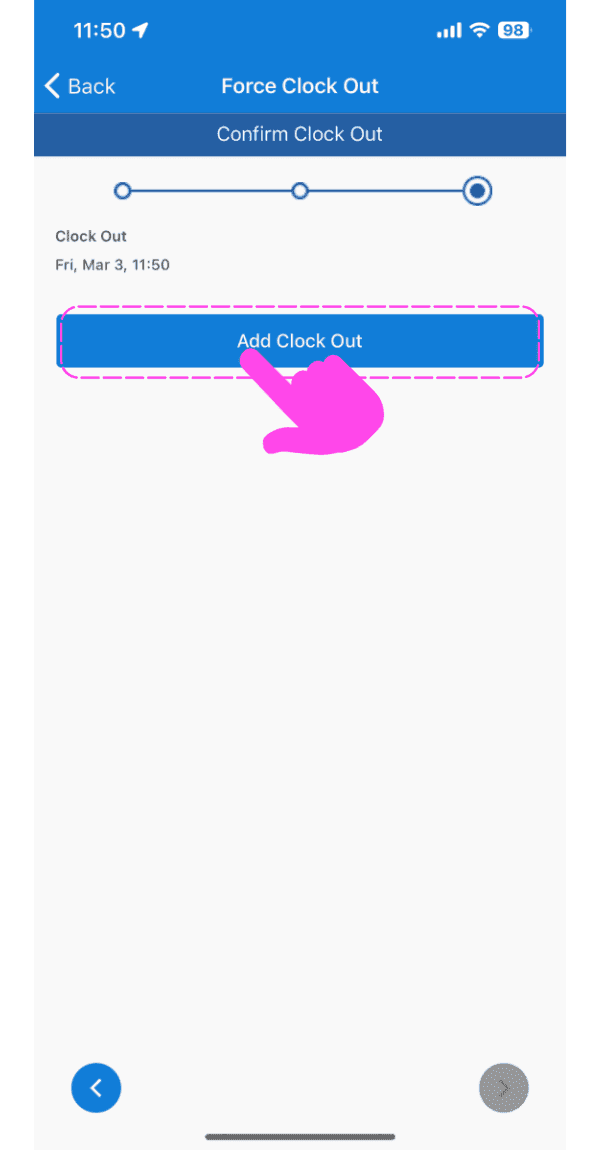
Tocca Aggiungi timbratura d’uscita

Force Clock Out Confirm Clock Out screen with the Add Clock Out button highlighted by a pink arrow

Ora vedrai una nuova nota con i dettagli della timbratura d’uscita forzata.
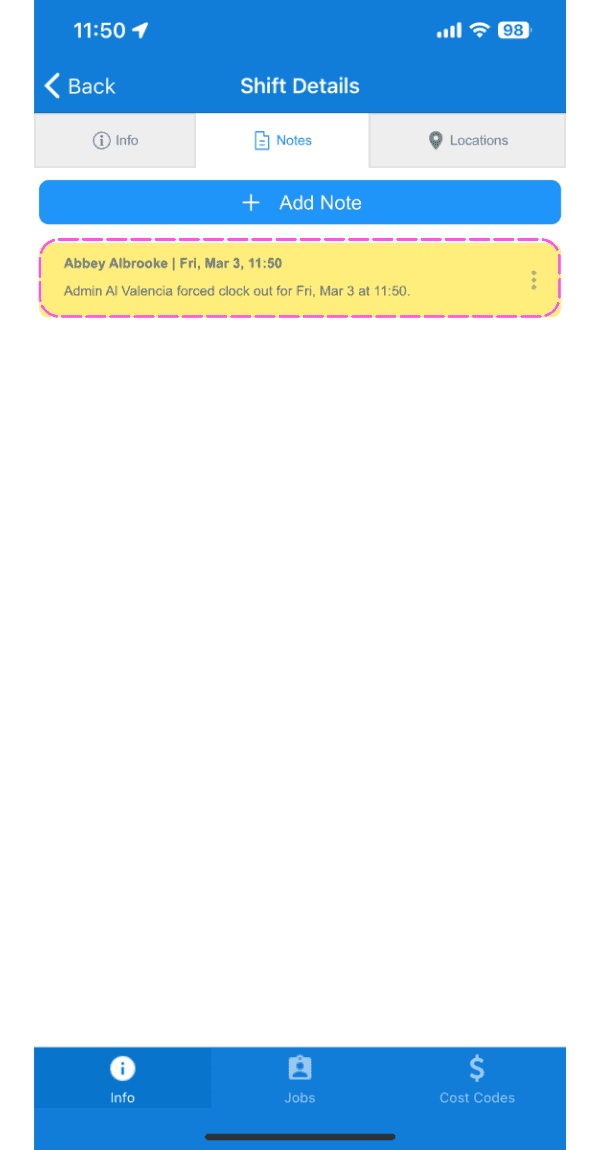
SINC mobile Shift Details Notes tab showing a highlighted note about a forced clock out

Sul Web: fai clic su Il turno aperto in questione
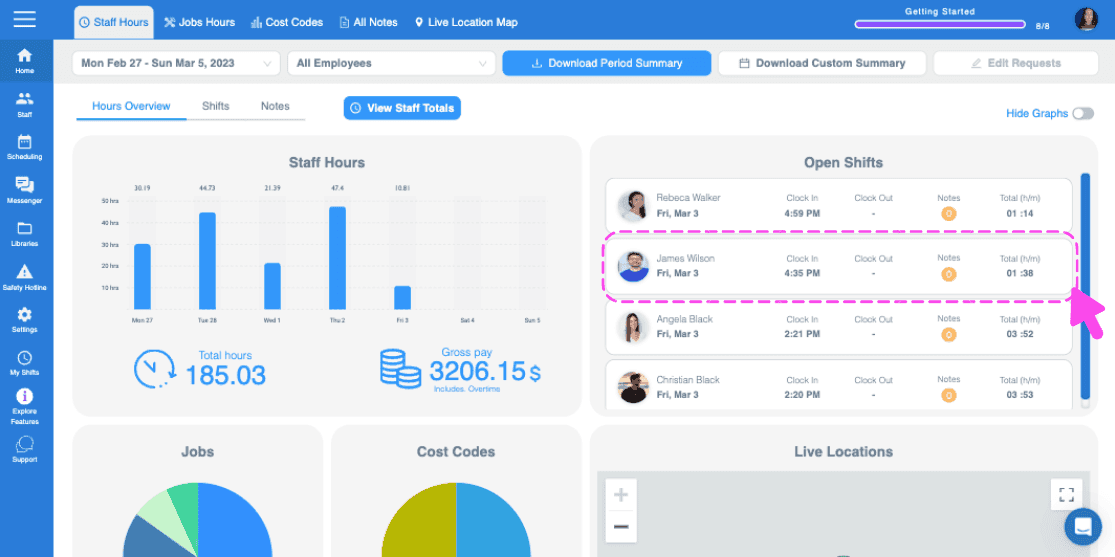
Web dashboard Open Shifts panel with a pink arrow pointing to a highlighted open shift row in the list

Nella scheda Turno, fai clic su Forza timbratura di uscita
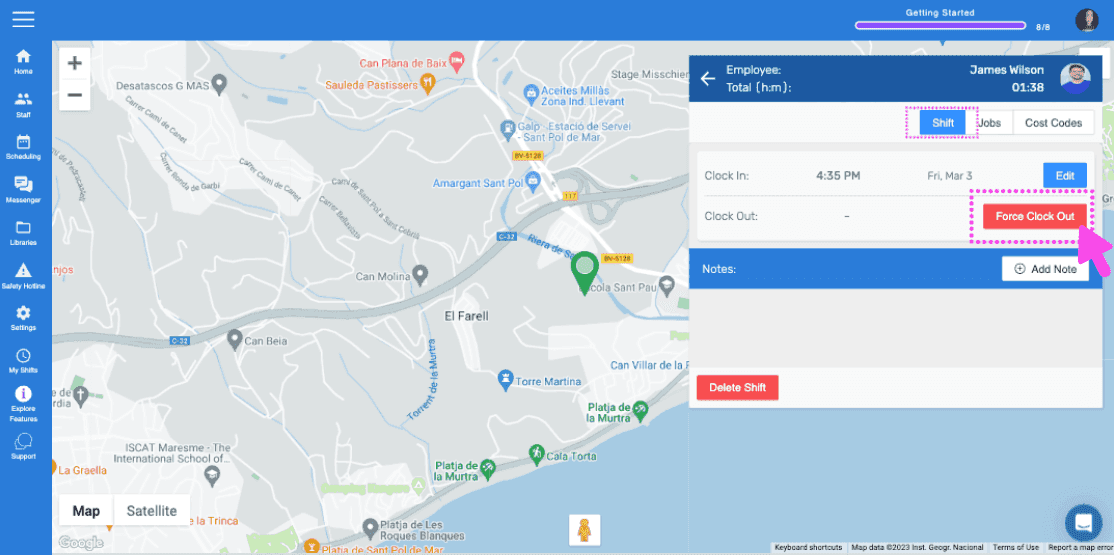
SINC web map view of an employee's location with the Force Clock Out button highlighted

Seleziona la data per la nuova timbratura in uscita
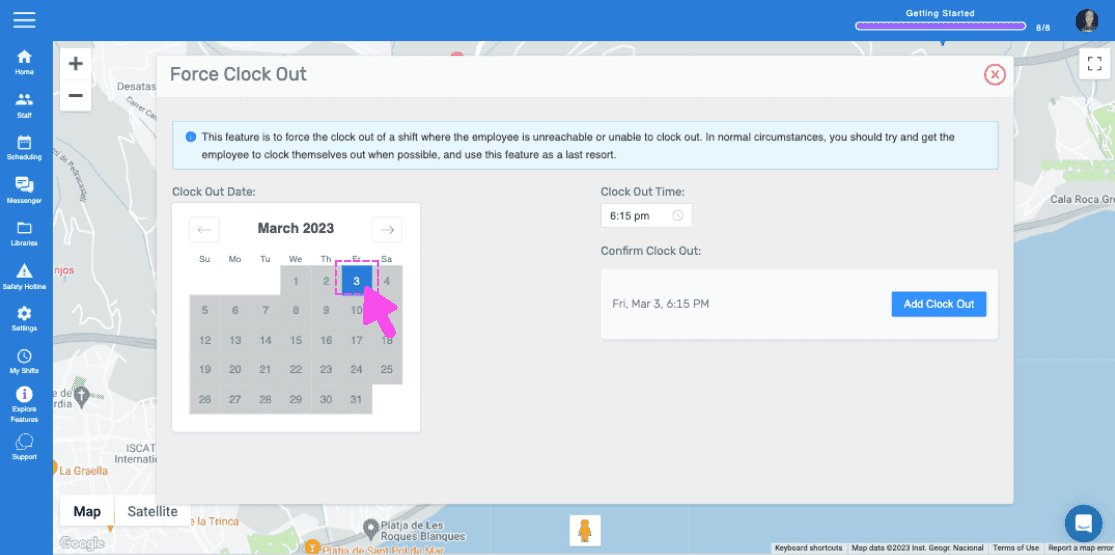
Web Force Clock Out panel with a calendar date circled in pink and an arrow pointing to the selected day

Seleziona l’orario della nuova timbratura in uscita
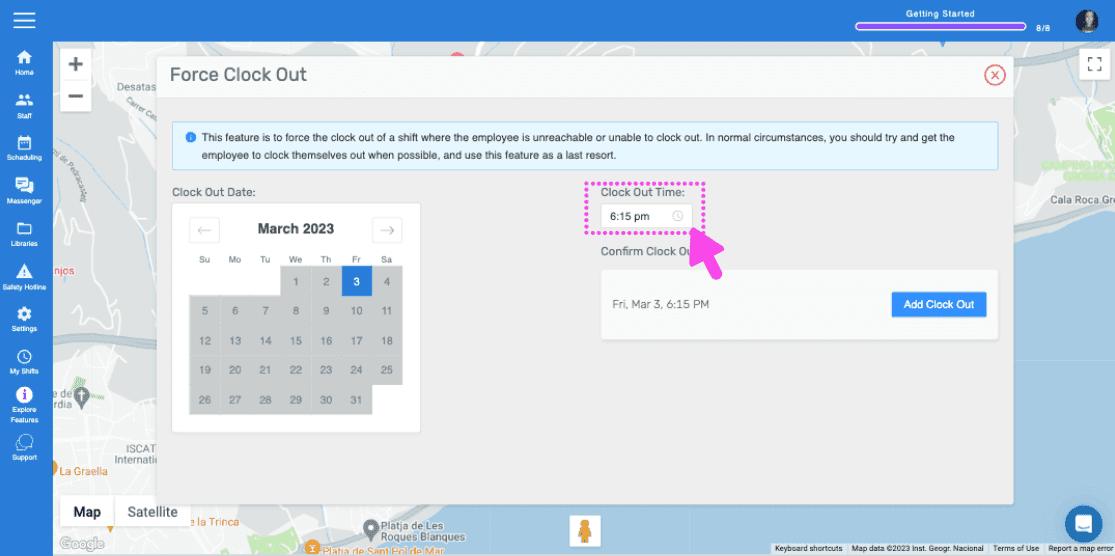
SINC web Force Clock Out panel with a pink arrow pointing to the Clock Out Time field and Add Clock Out button

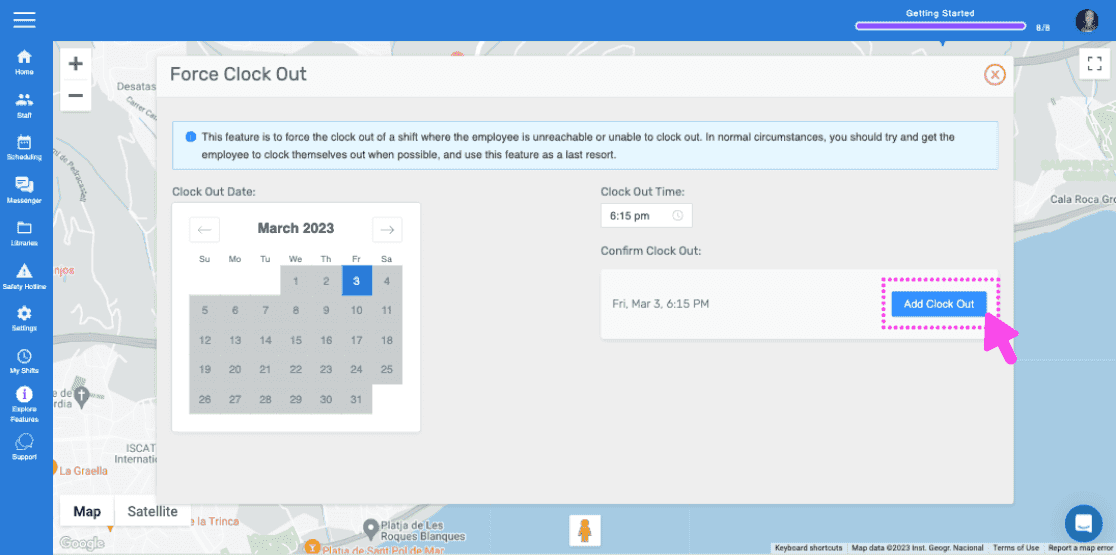
Tocca Aggiungi uscita

Force Clock Out screen with a map and a pink arrow pointing to the Add Clock Out button

Ora vedrai una nuova nota con i dettagli dell’uscita forzata.
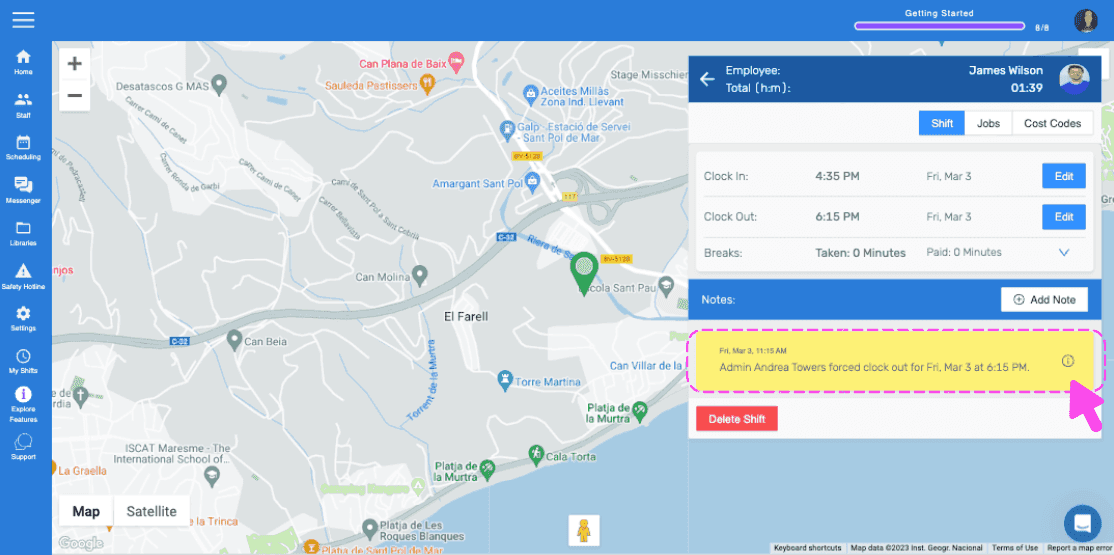
Web staff map view showing clock in/out details with a highlighted note about the forced clock-out

Questa risposta ti è stata utile?