Come aggiungere un turno di lavoro mancante

Questa guida spiega come un amministratore può aggiungere un turno di lavoro per un membro dello staff o per sé stesso in SINC.

SINC Support Team
SINC Support Team
Oct 19th, 2021

A volte dovrai aggiungere manualmente un turno di lavoro. Vai su Menu Panoramica e tocca Turni
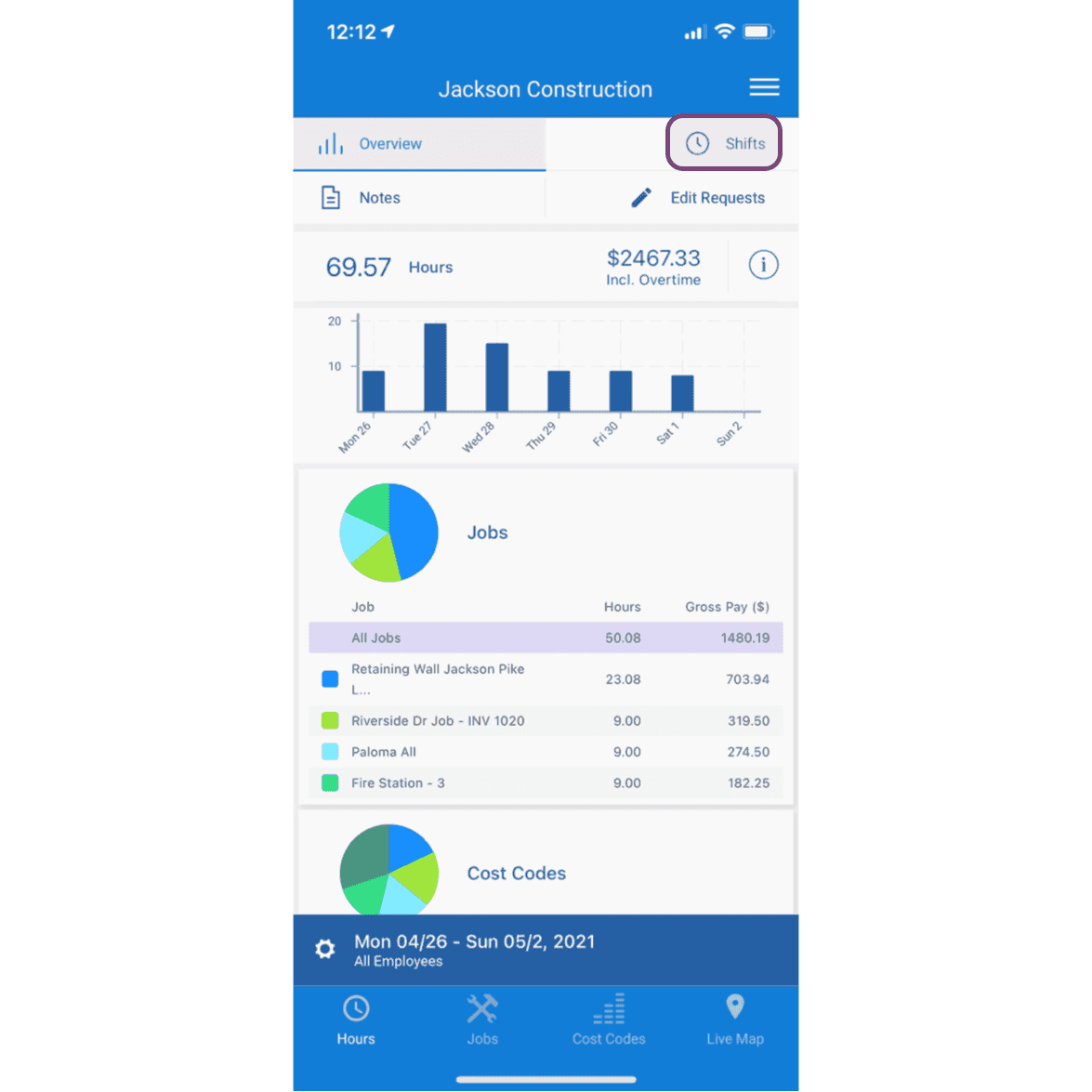
SINC mobile app Overview screen with the Shifts tab circled at the top of the page

Tocca il turno a cui vuoi aggiungere un turno di lavoro
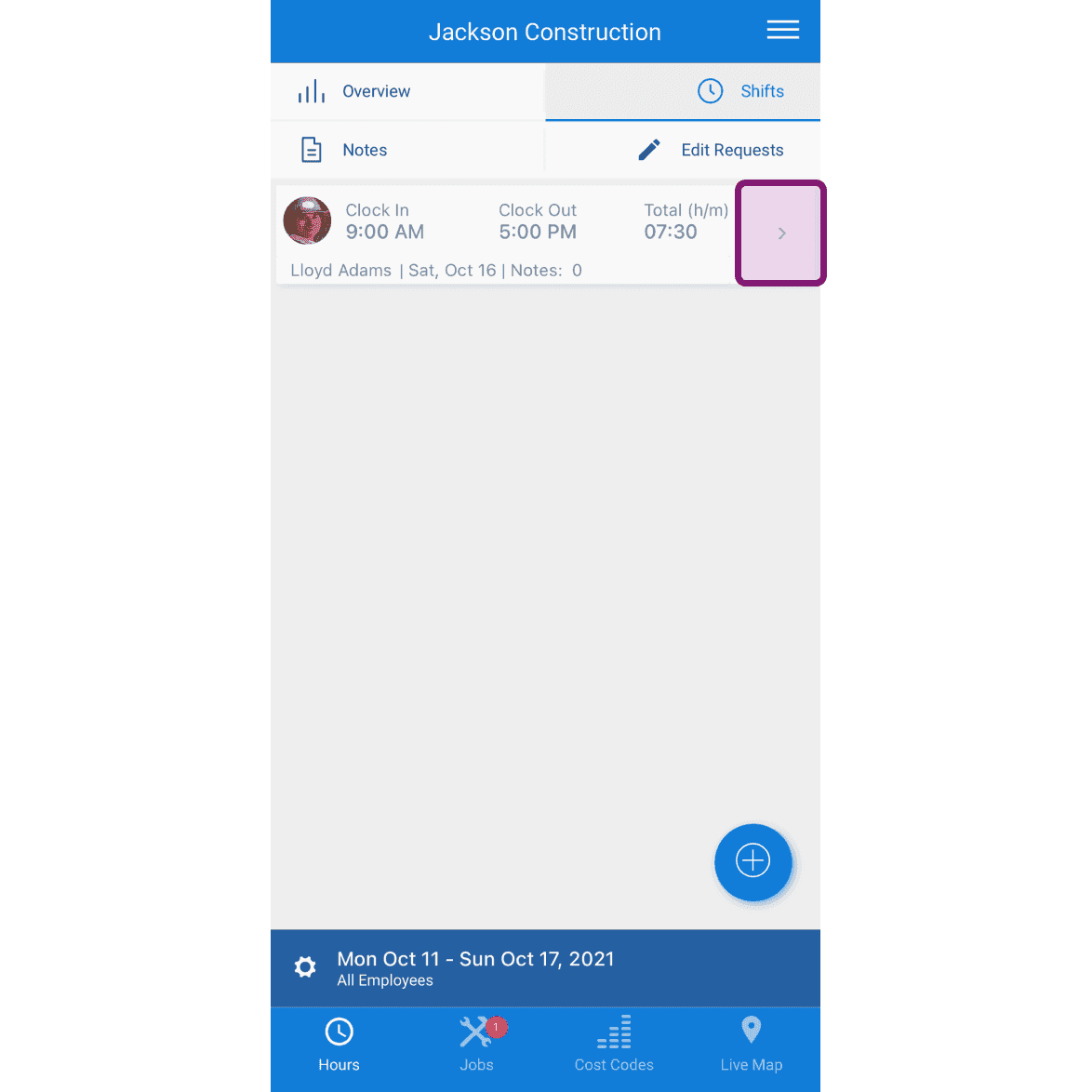
SINC mobile Shifts list with a pink-highlighted row showing the shift to add a job shift to

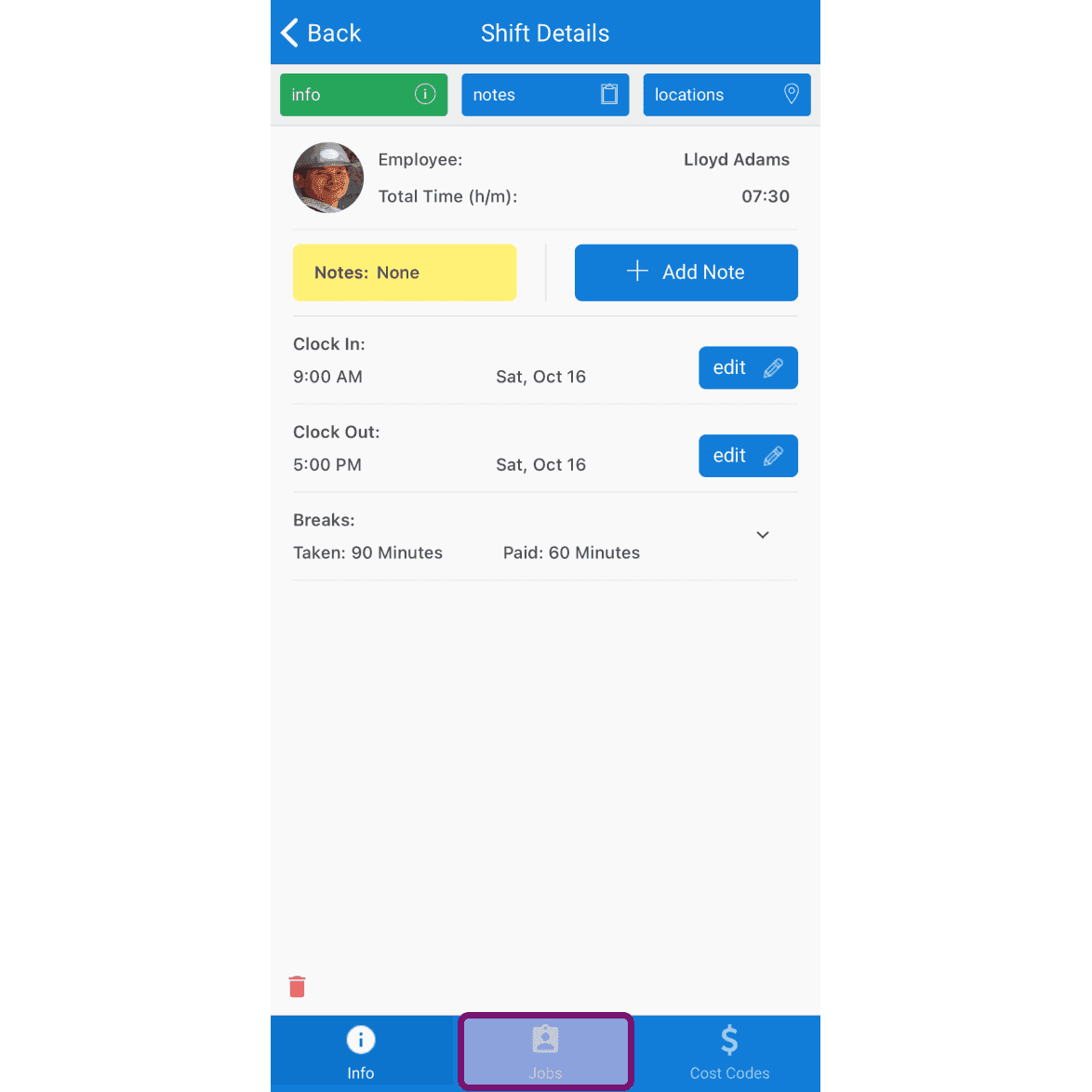
Tocca la scheda «Lavori»

Mobile Shift Details screen with the Jobs tab at the bottom outlined in pink

Tocca il pulsante + in basso a destra dello schermo
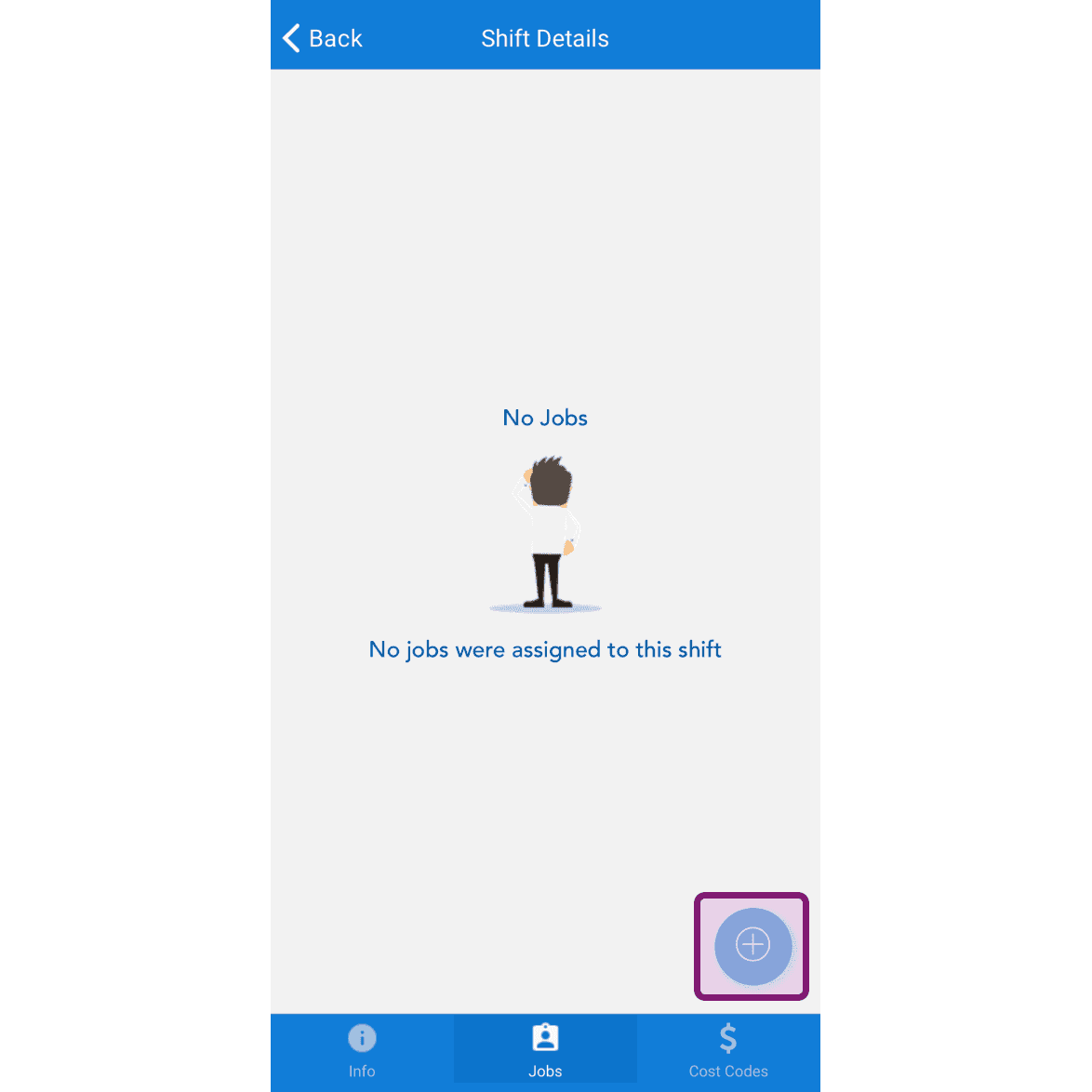
SINC mobile Shift Details Jobs tab showing a No Jobs message with the plus button circled in the bottom right

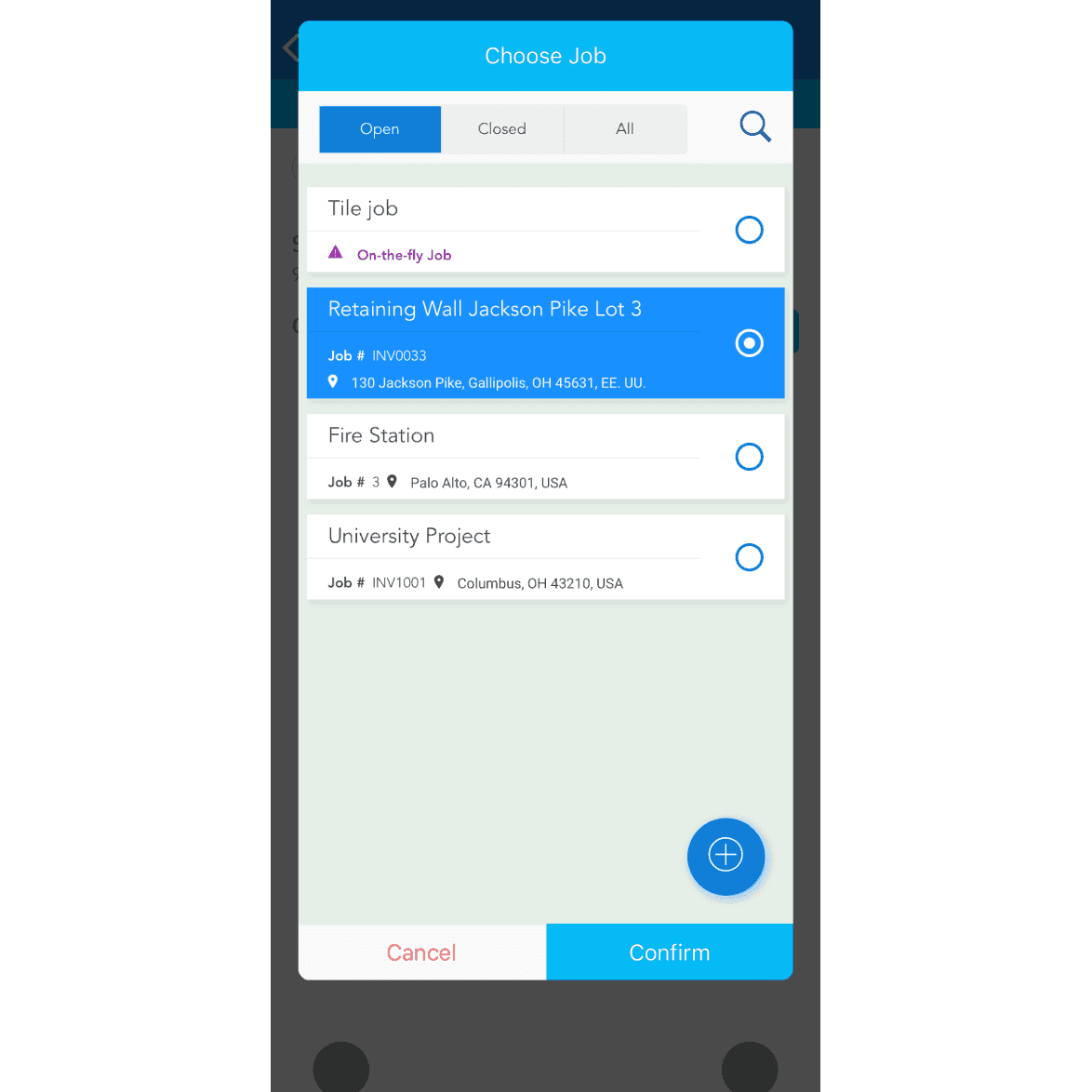
Seleziona il lavoro e tocca Conferma

Choose Job screen listing open jobs with the Retaining Wall job selected and a Confirm button

Se il lavoro non esiste, tocca il pulsante + in basso a destra dello schermo.
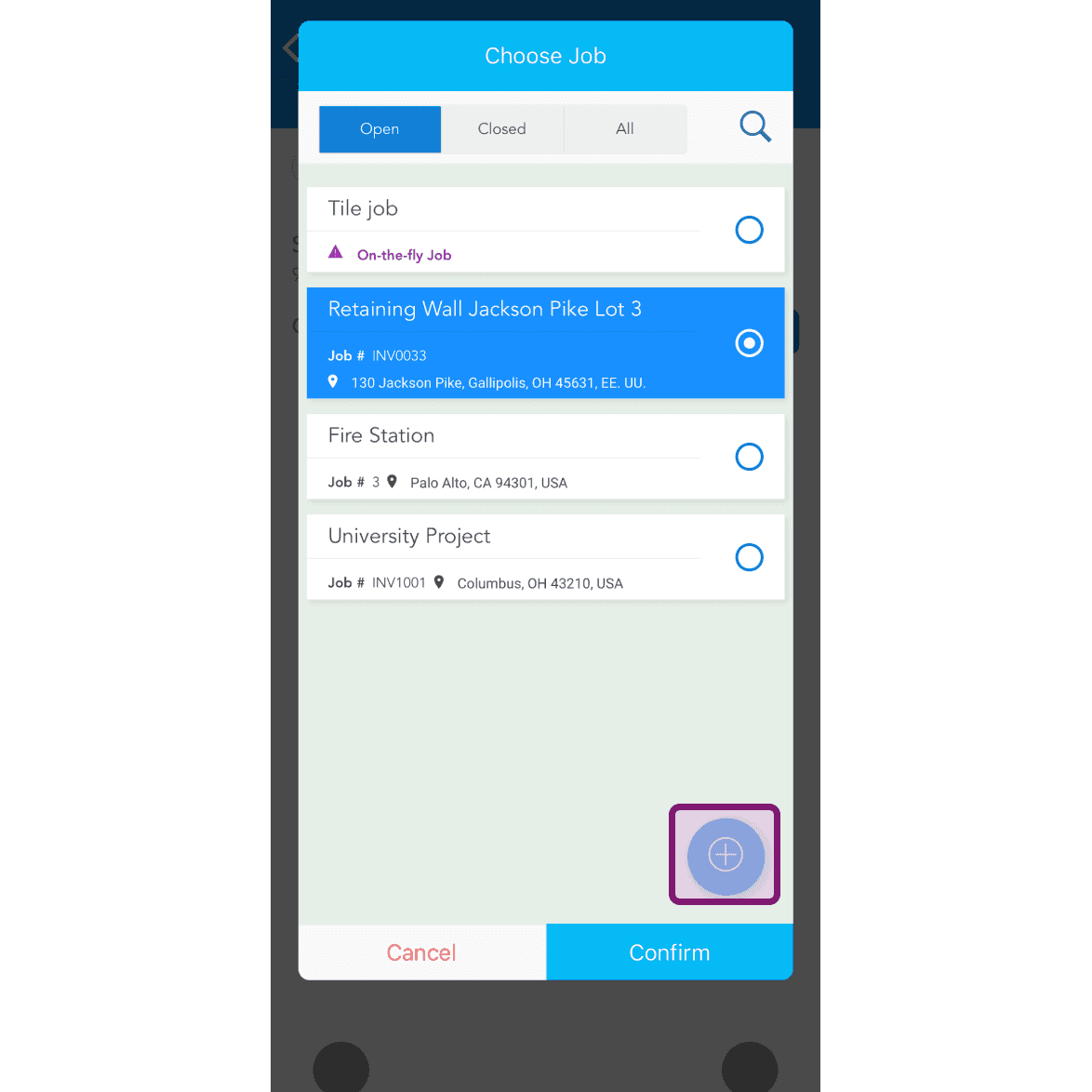
Mobile Choose Job popup listing open jobs with the add button circled in purple in the bottom right

L’orario di lavoro predefinito verrà selezionato in base all’orario del turno. Per modificarlo, tocca Selettore dell’ora
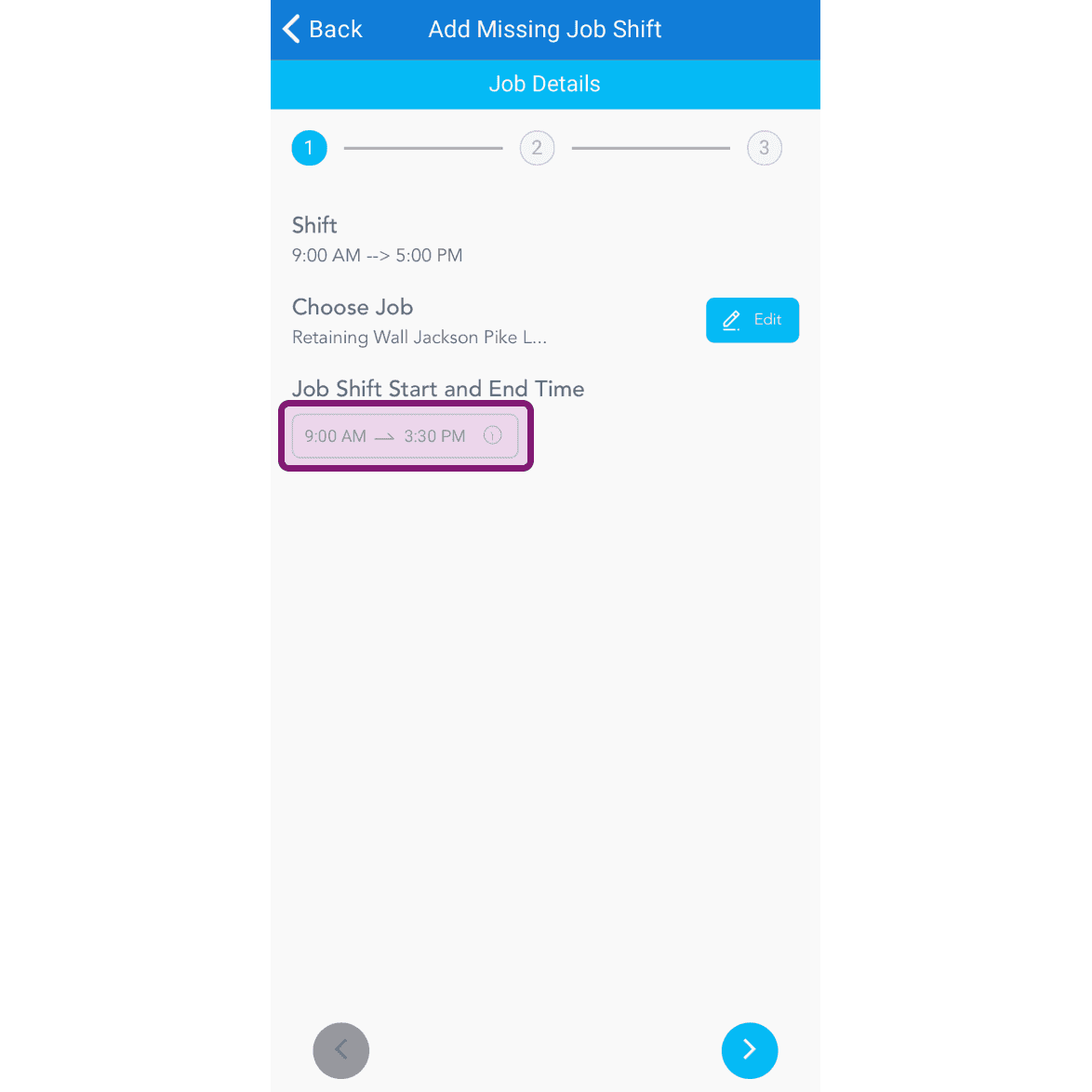
SINC mobile Add Missing Job Shift screen with the Job Shift Start and End Time field outlined in purple

Il turno di lavoro non aveva un codice di costo.
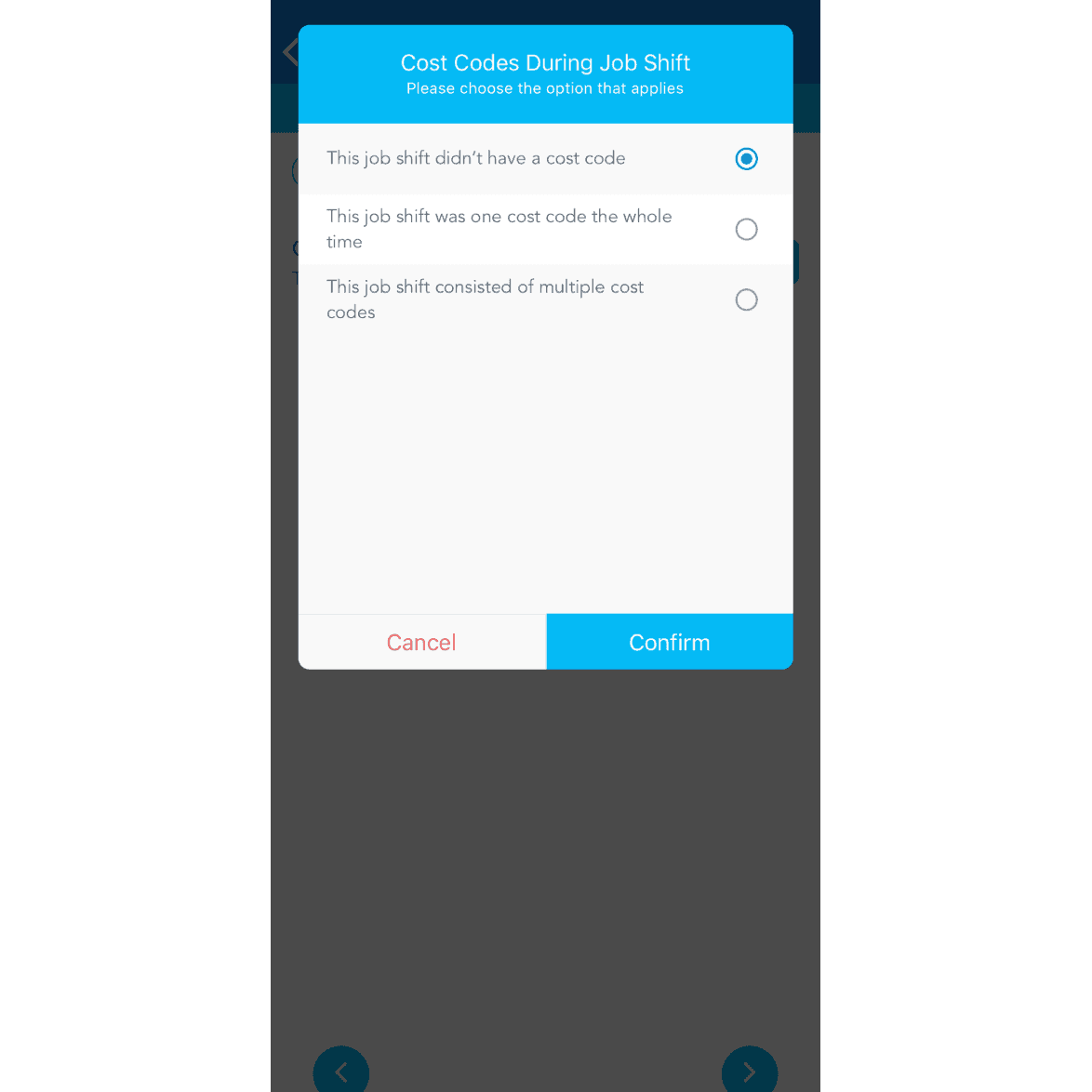
SINC mobile dialog asking about cost codes during a job shift, with 'This job shift didn't have a cost code' selected

Il turno di lavoro ha avuto lo stesso codice di costo per tutta la durata.
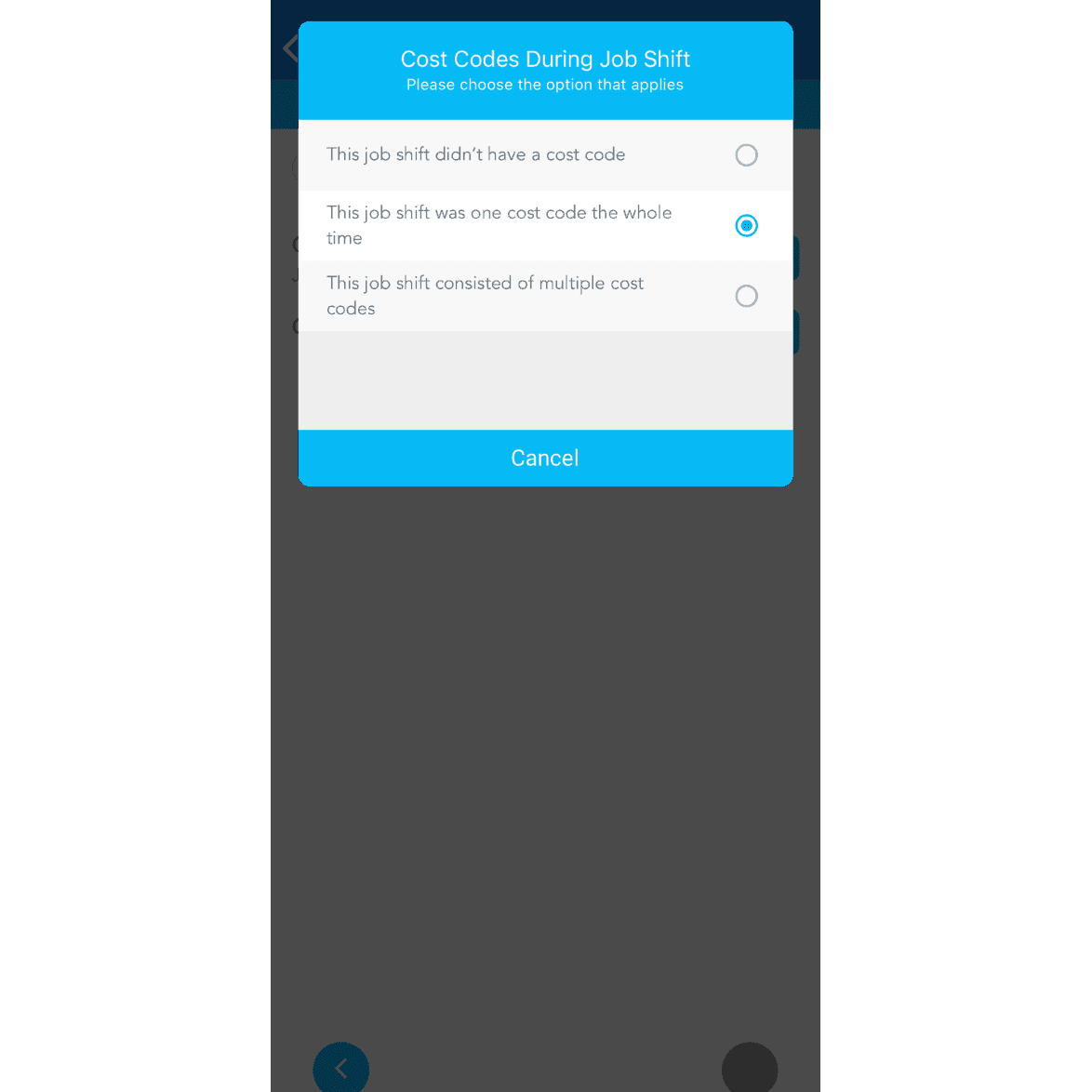
Cost Codes During Job Shift dialog with the option "This job shift was one cost code the whole time" selected

Se al lavoro sono stati assegnati più codici di costo, tocca Il lavoro comprendeva più codici di costo
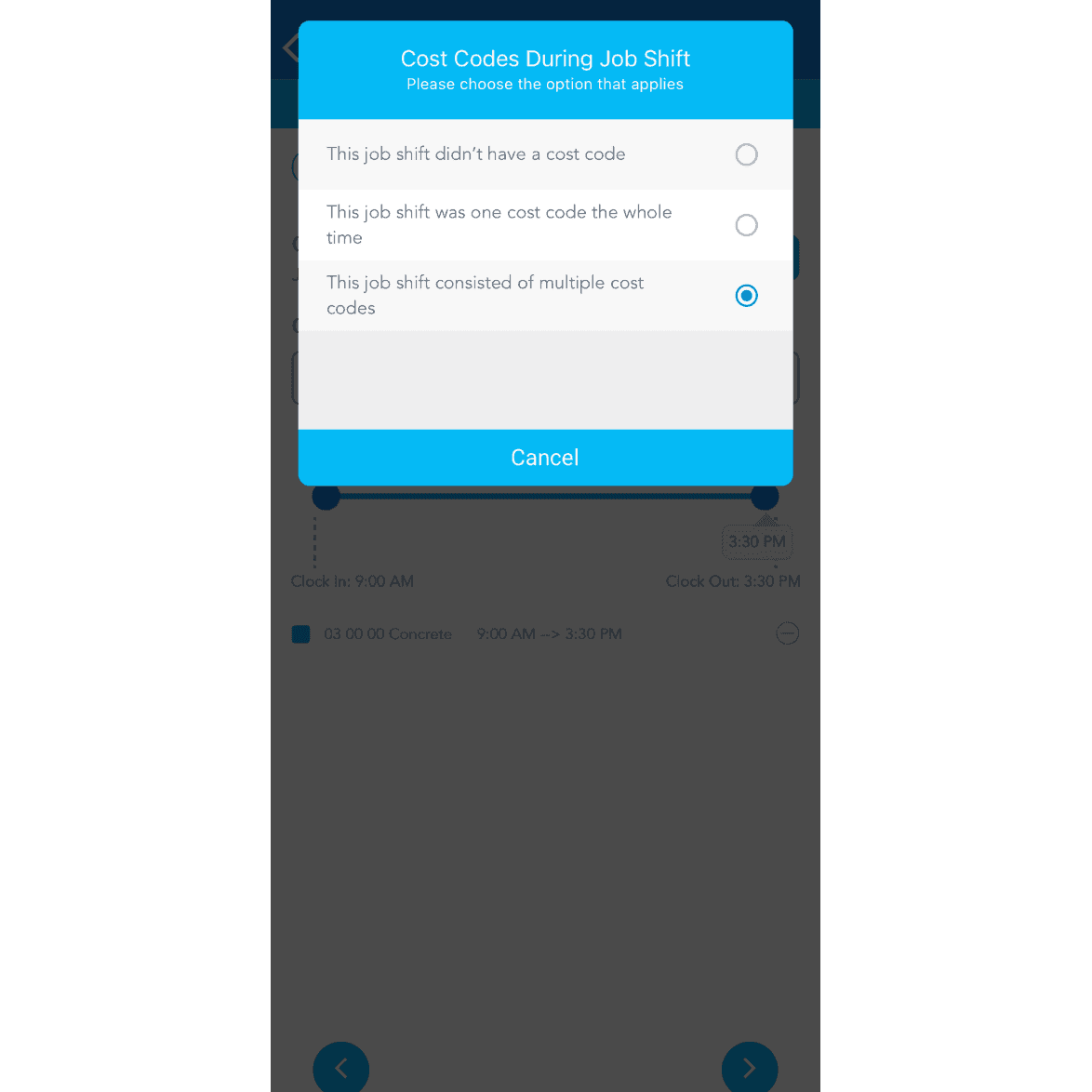
SINC mobile app popup asking which cost code option applies to a job shift, with 'consisted of multiple cost codes' selected

Per aggiungere altri codici di costo, tocca Aggiungi un altro codice
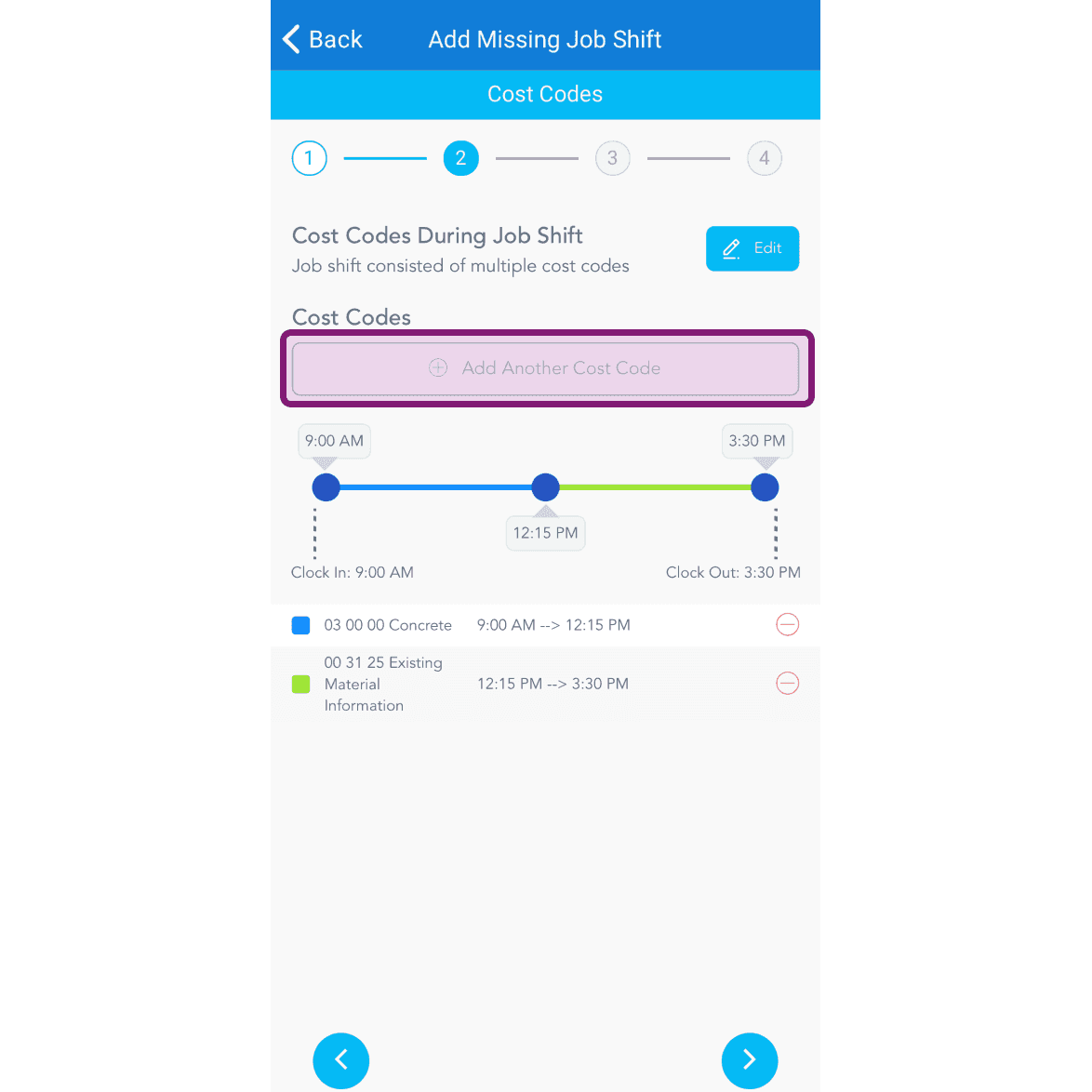
Add Missing Job Shift screen, Cost Codes step, with the Add Another Cost Code button outlined in pink

Per regolare l’orario, sposta il cursore.
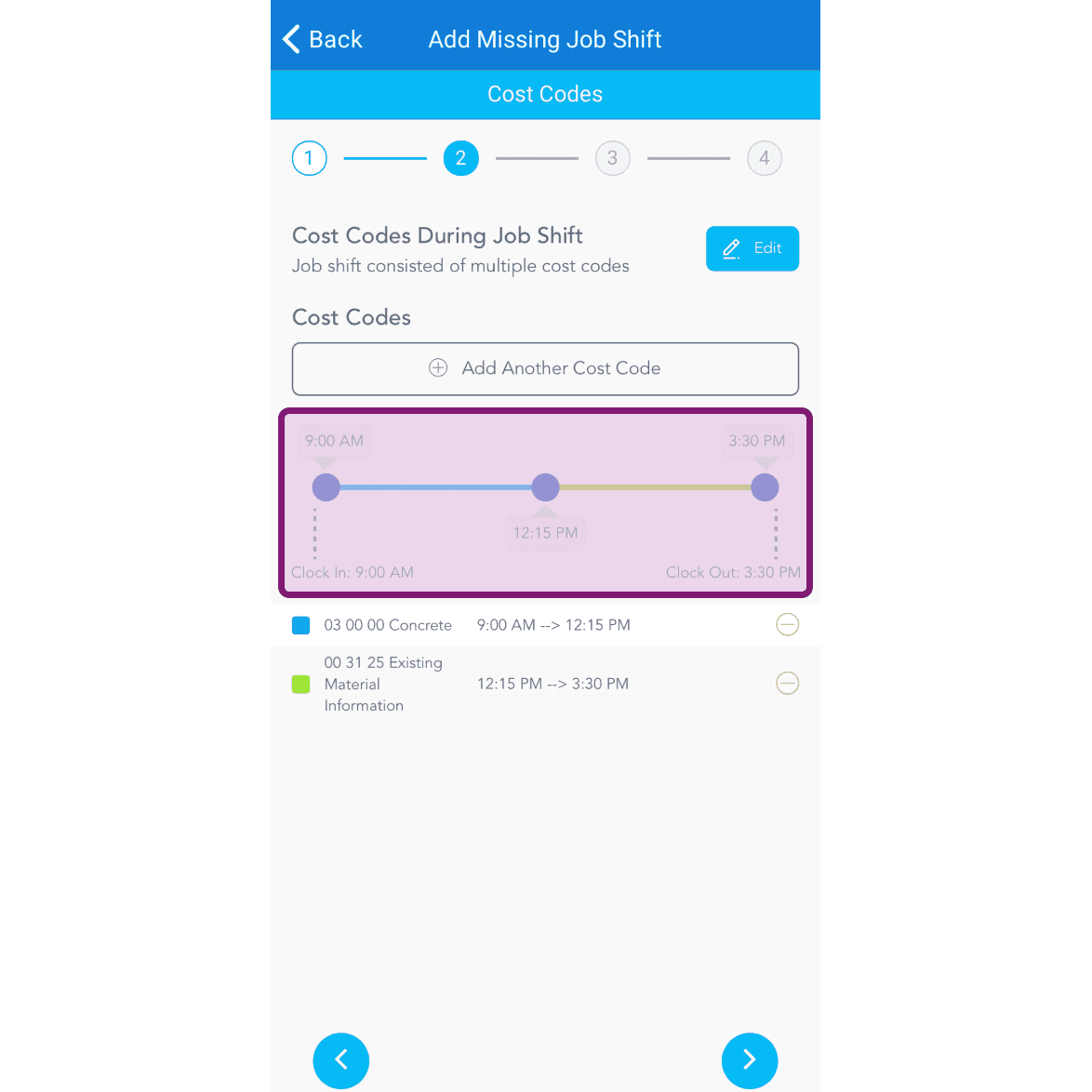
Add Missing Job Shift Cost Codes screen with a purple-highlighted time slider showing two cost code segments

Se il lavoro non contiene note, tocca la freccia Avanti; altrimenti inserisci la nota. Per aggiungere un’immagine (facoltativo), tocca Scatta foto oppure Scegli dalle foto.
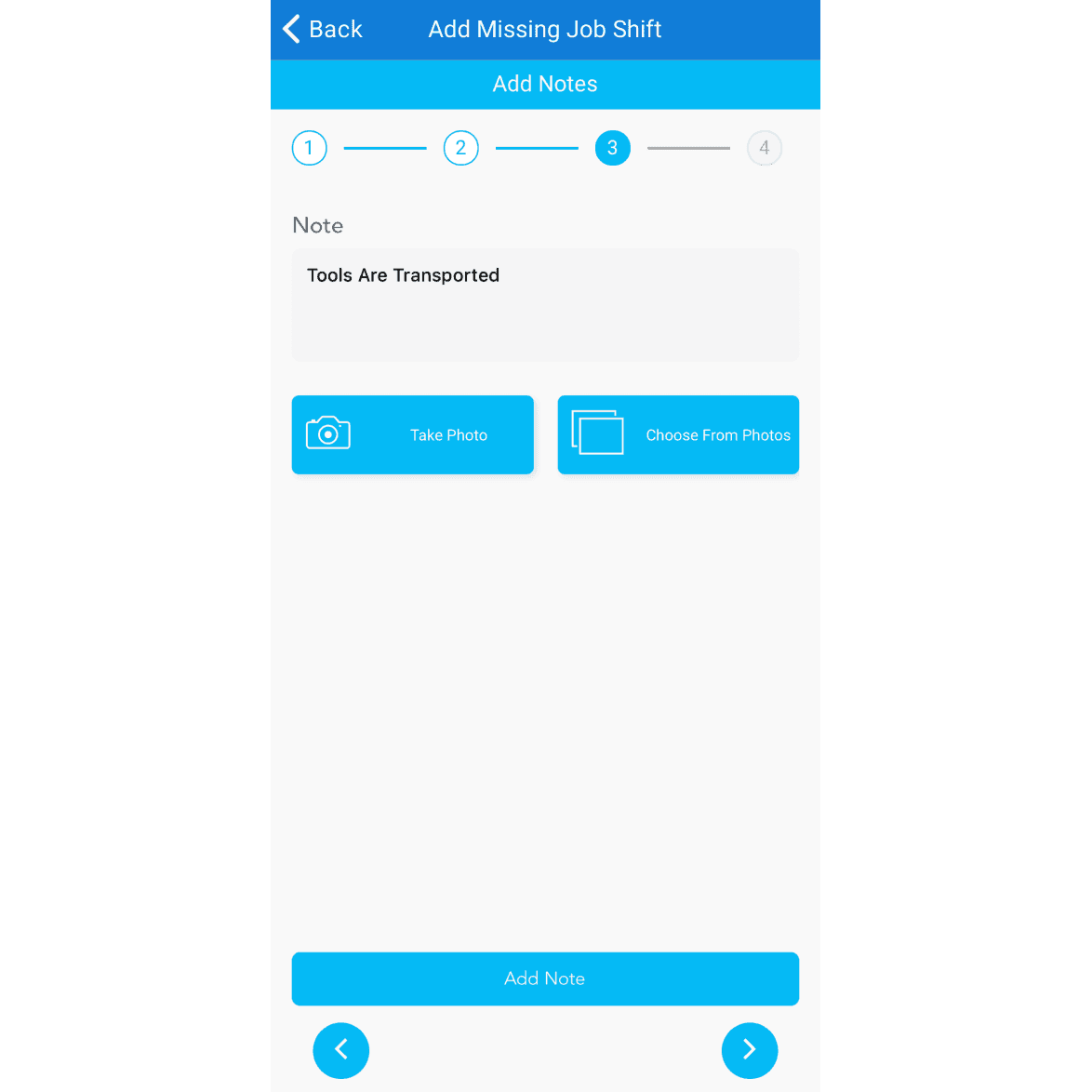
SINC mobile Add Missing Job Shift notes step showing a note field with Take Photo and Choose From Photos buttons

Per aggiungere un’altra nota, tocca Aggiungi un’altra nota
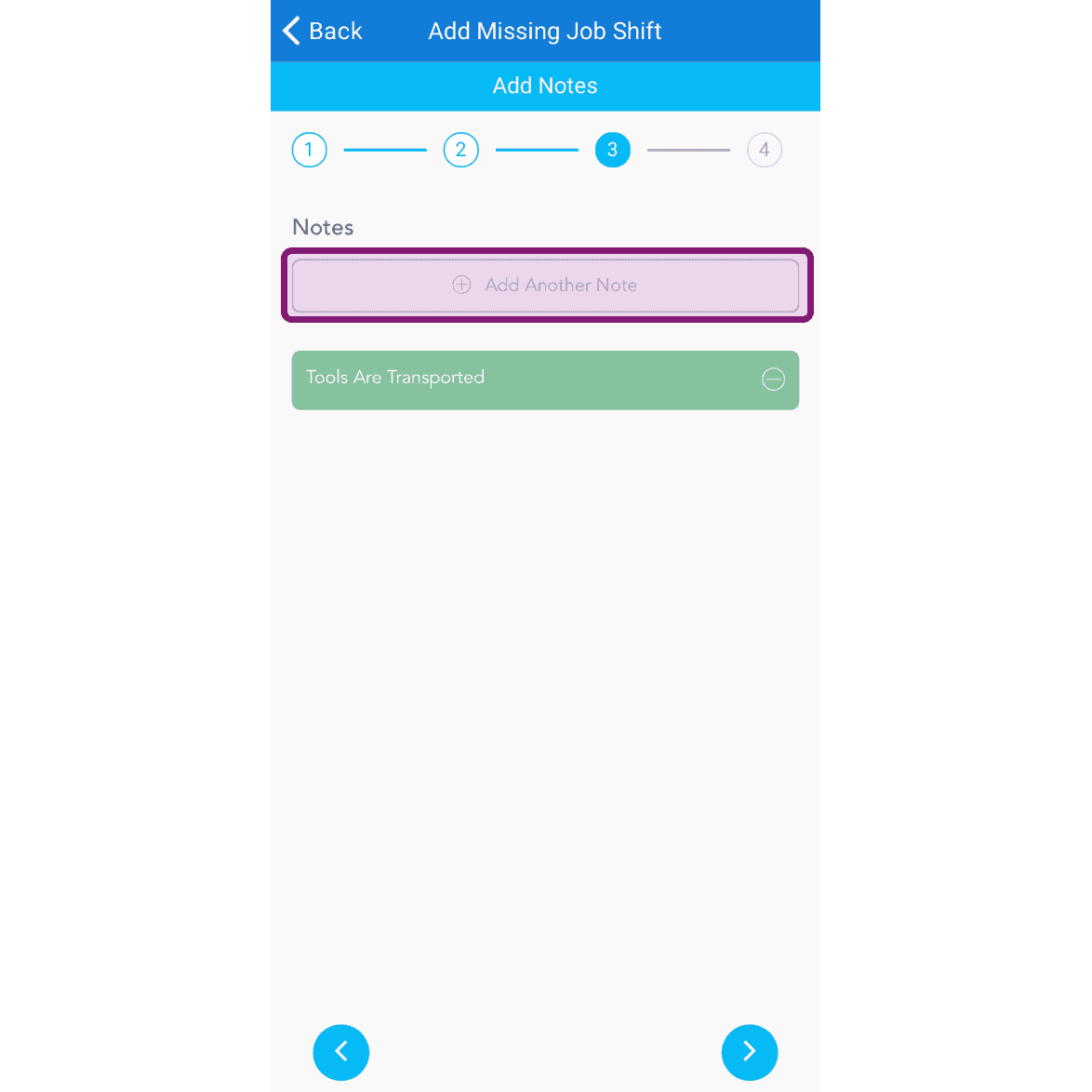
Add Missing Job Shift Notes step with the Add Another Note field outlined in purple

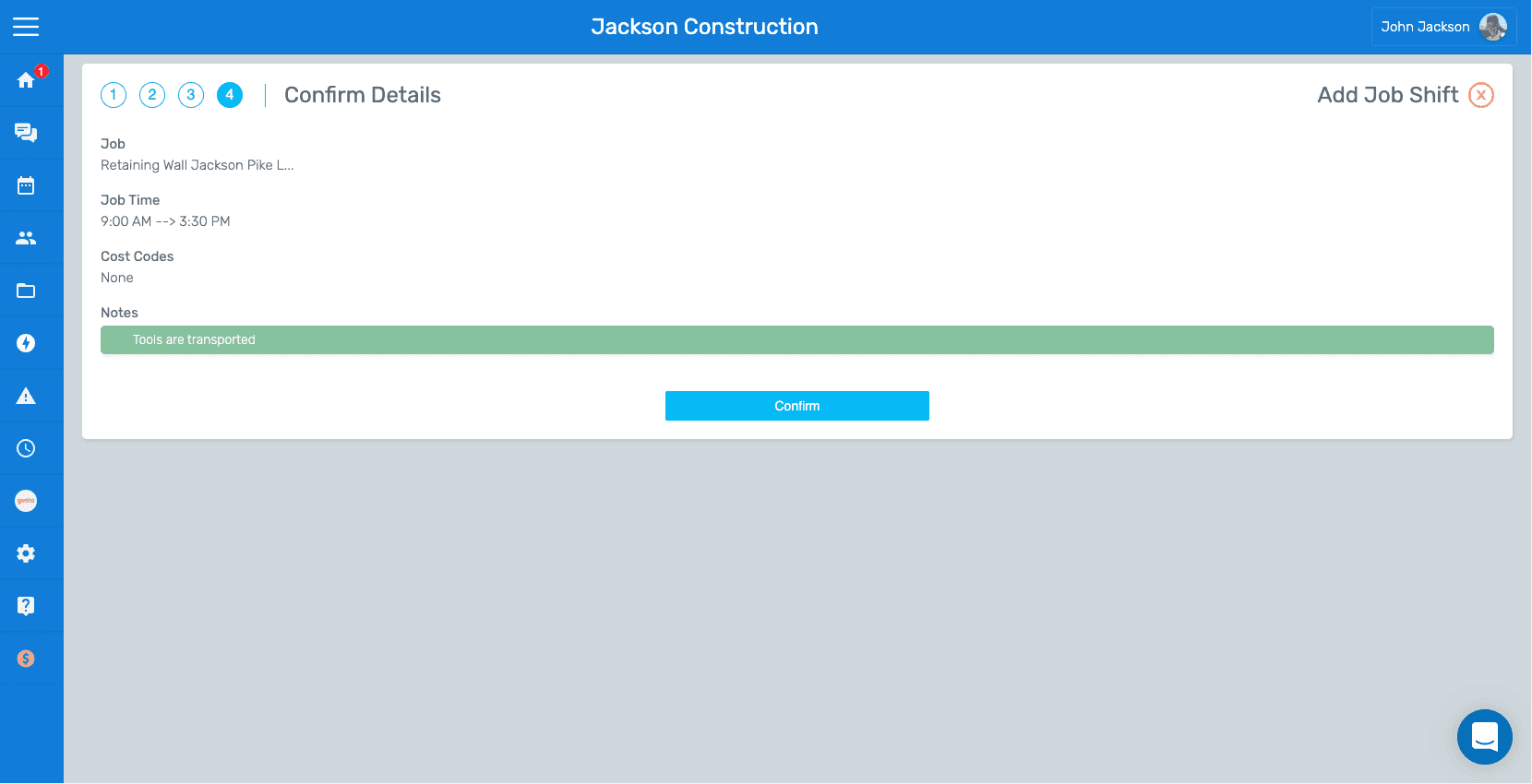
Controlla i dettagli del lavoro mancante e tocca Conferma
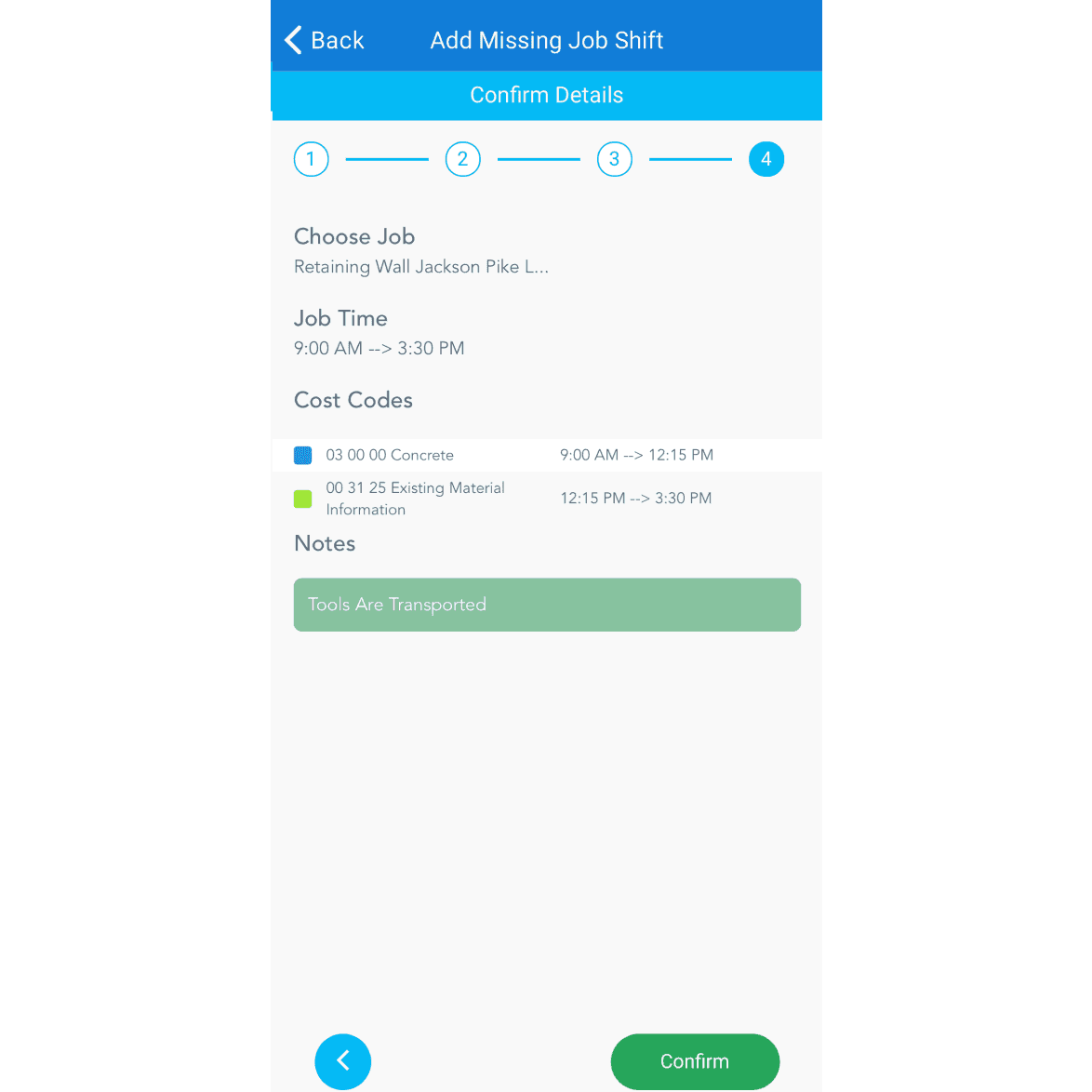
SINC mobile Add Missing Job Shift confirmation screen showing job, time, cost codes, and notes

Se utilizzi la versione web, apparirà così:
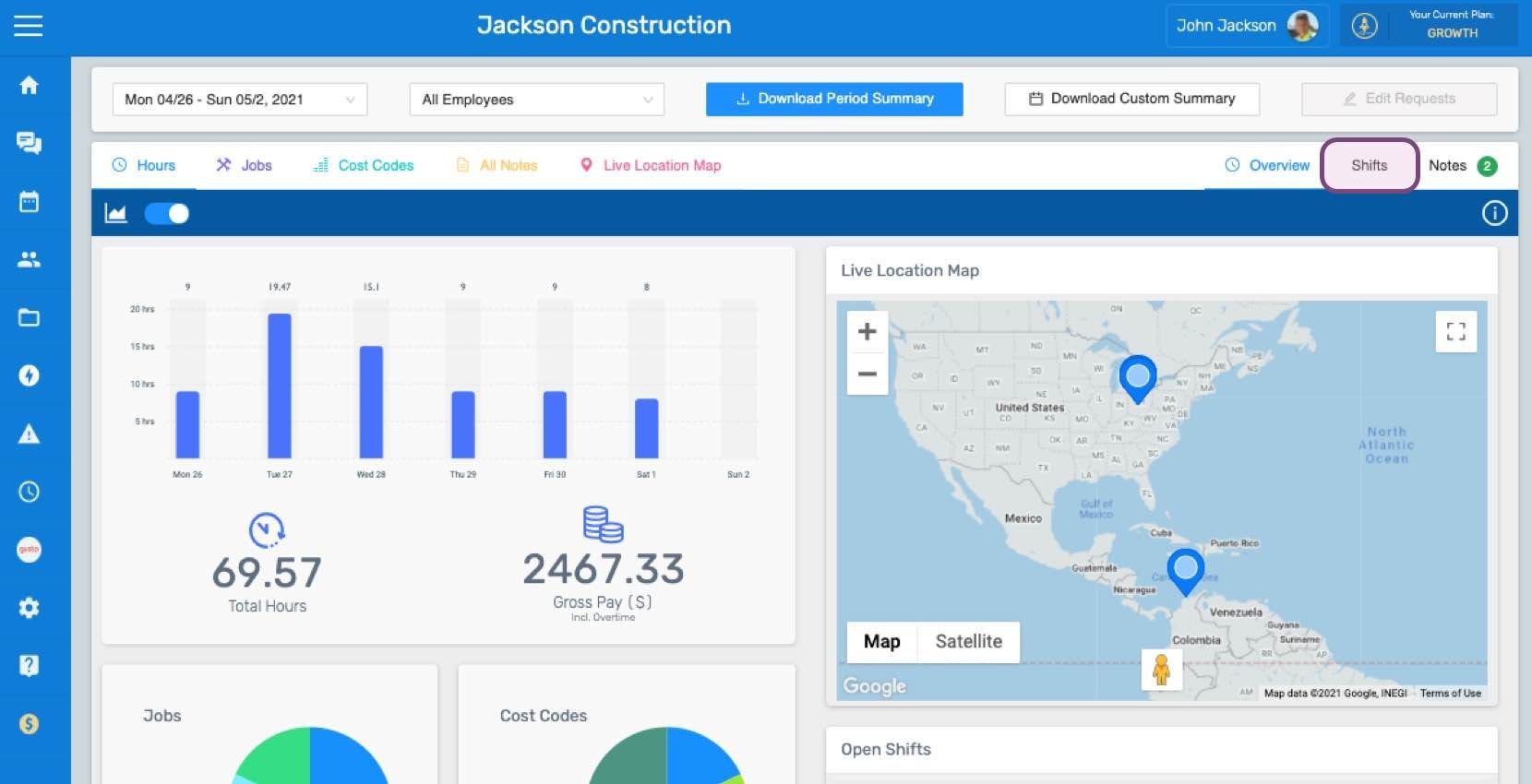
SINC web dashboard Overview page showing a staff hours bar chart and a Live Location Map with staff location pins
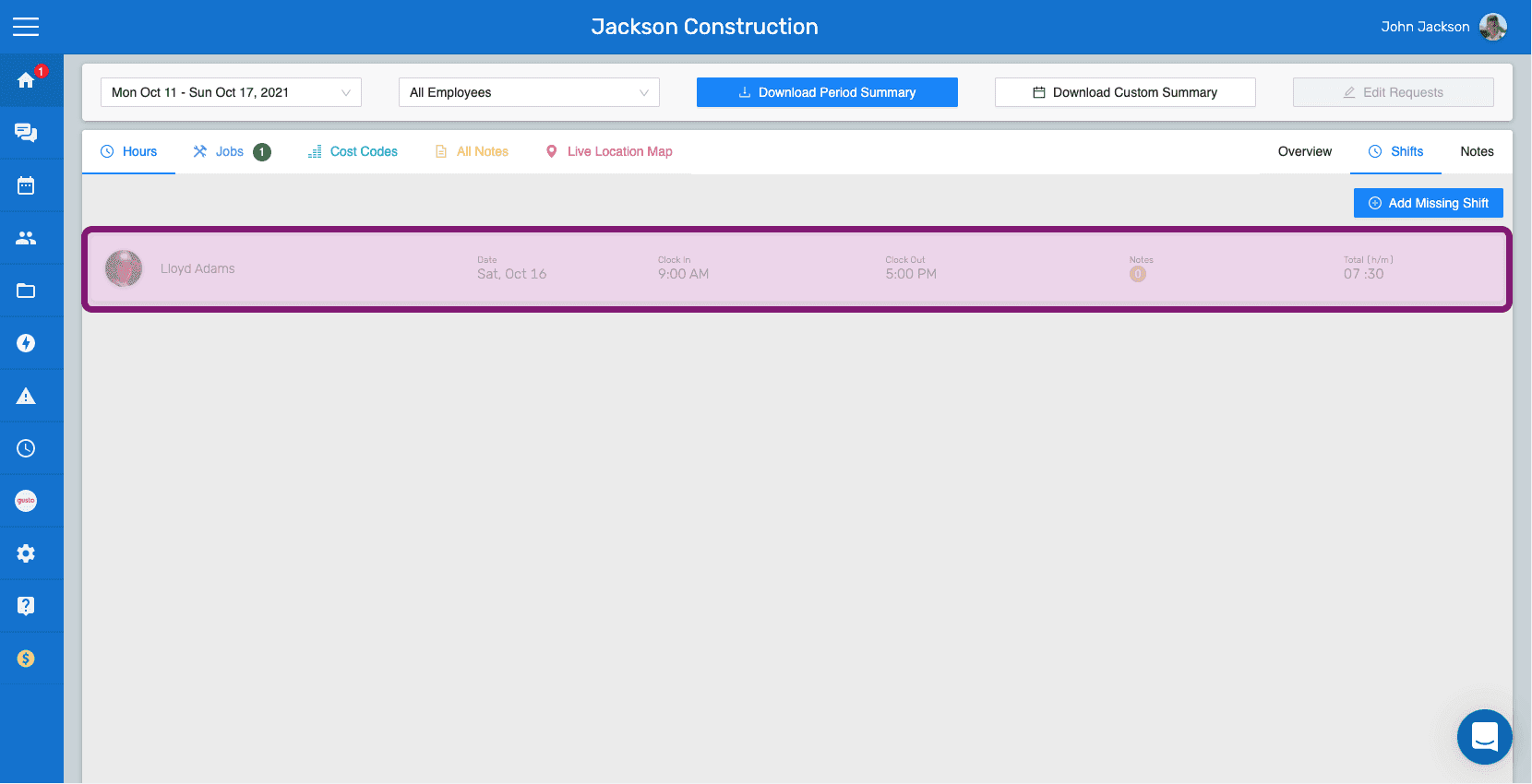
SINC web Shifts tab with the Add Missing Shift button and a highlighted shift row
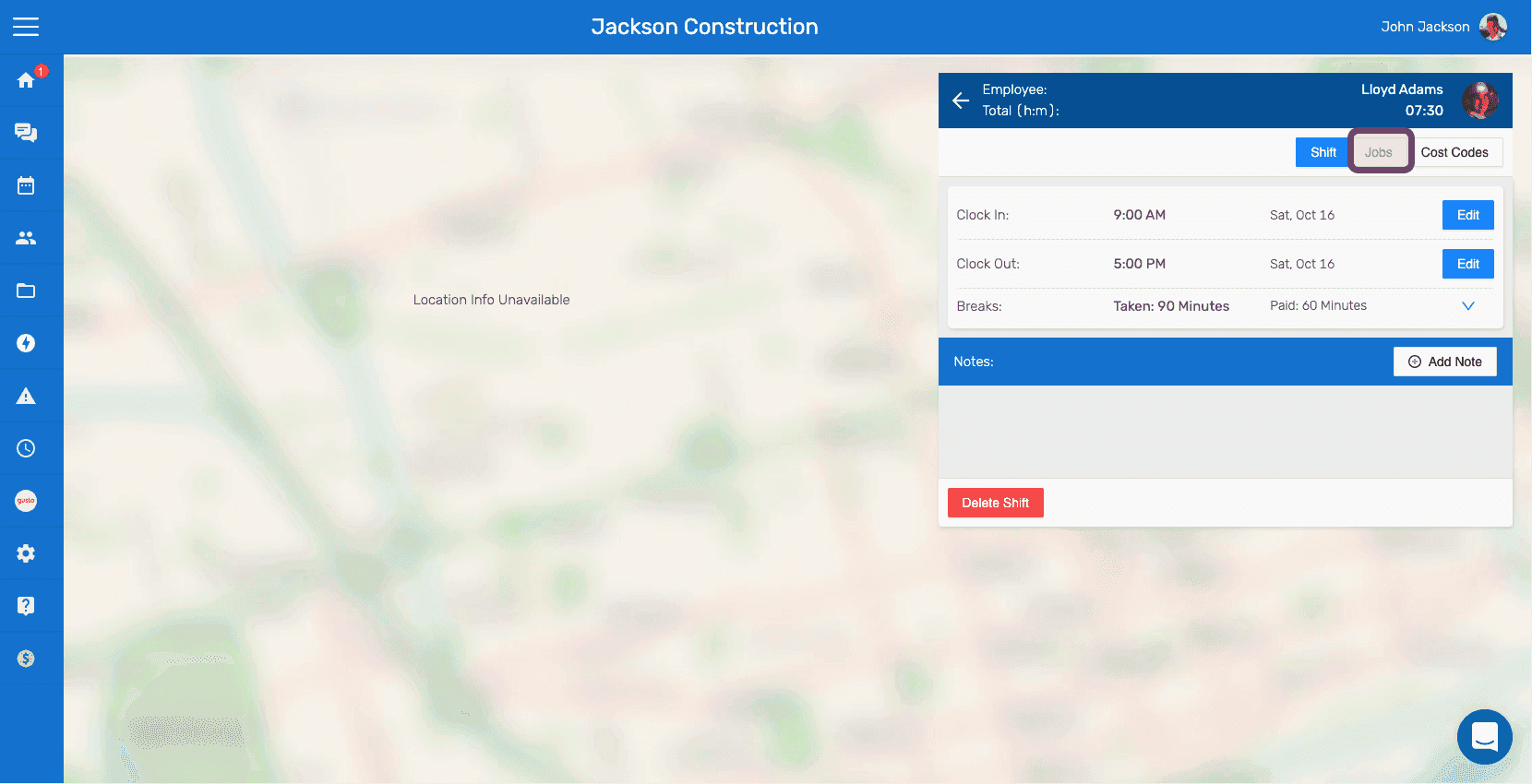
Web shift details panel next to a map with the Jobs tab outlined in pink
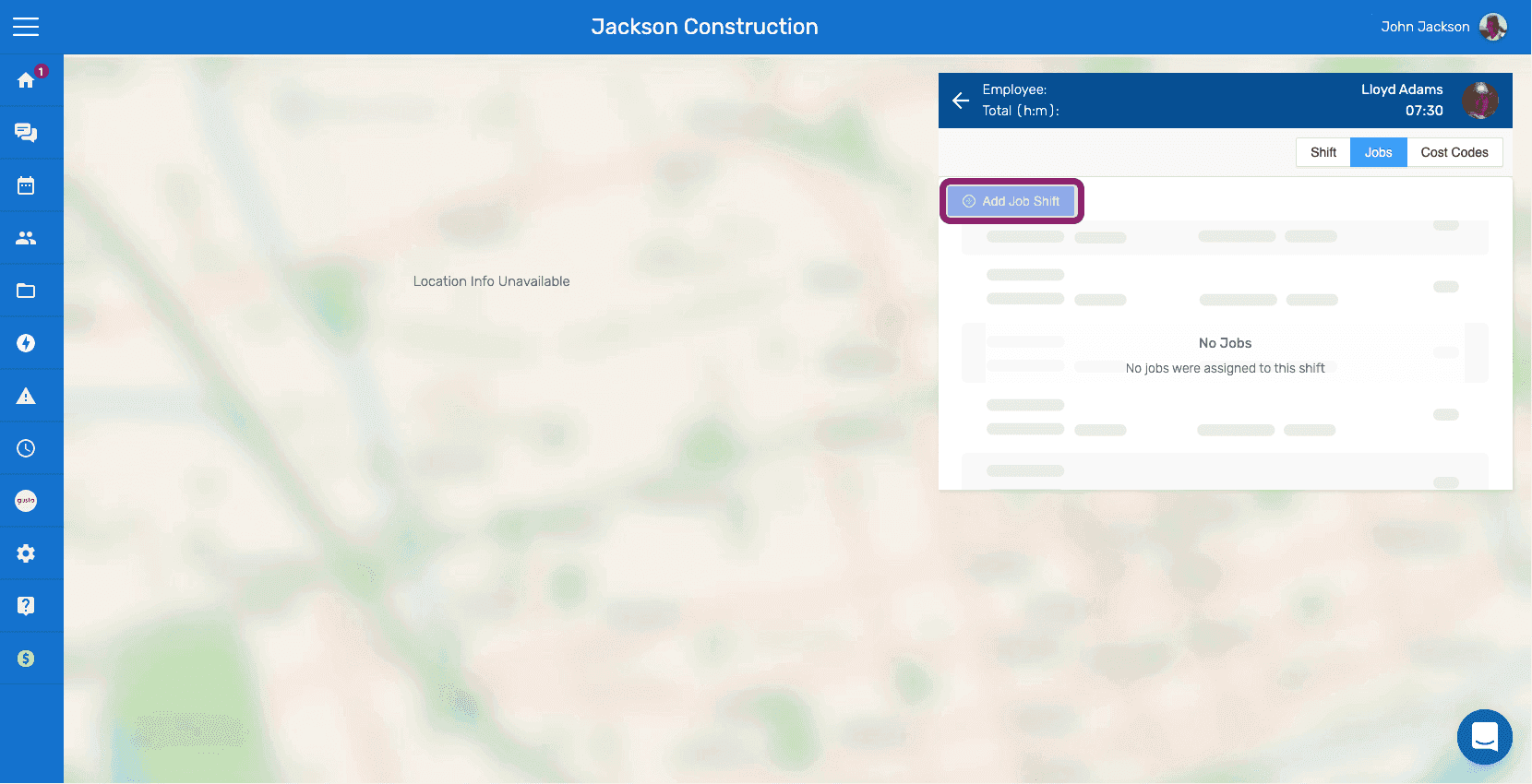
SINC web employee shift detail panel with the Add Job Shift button circled under the Jobs tab
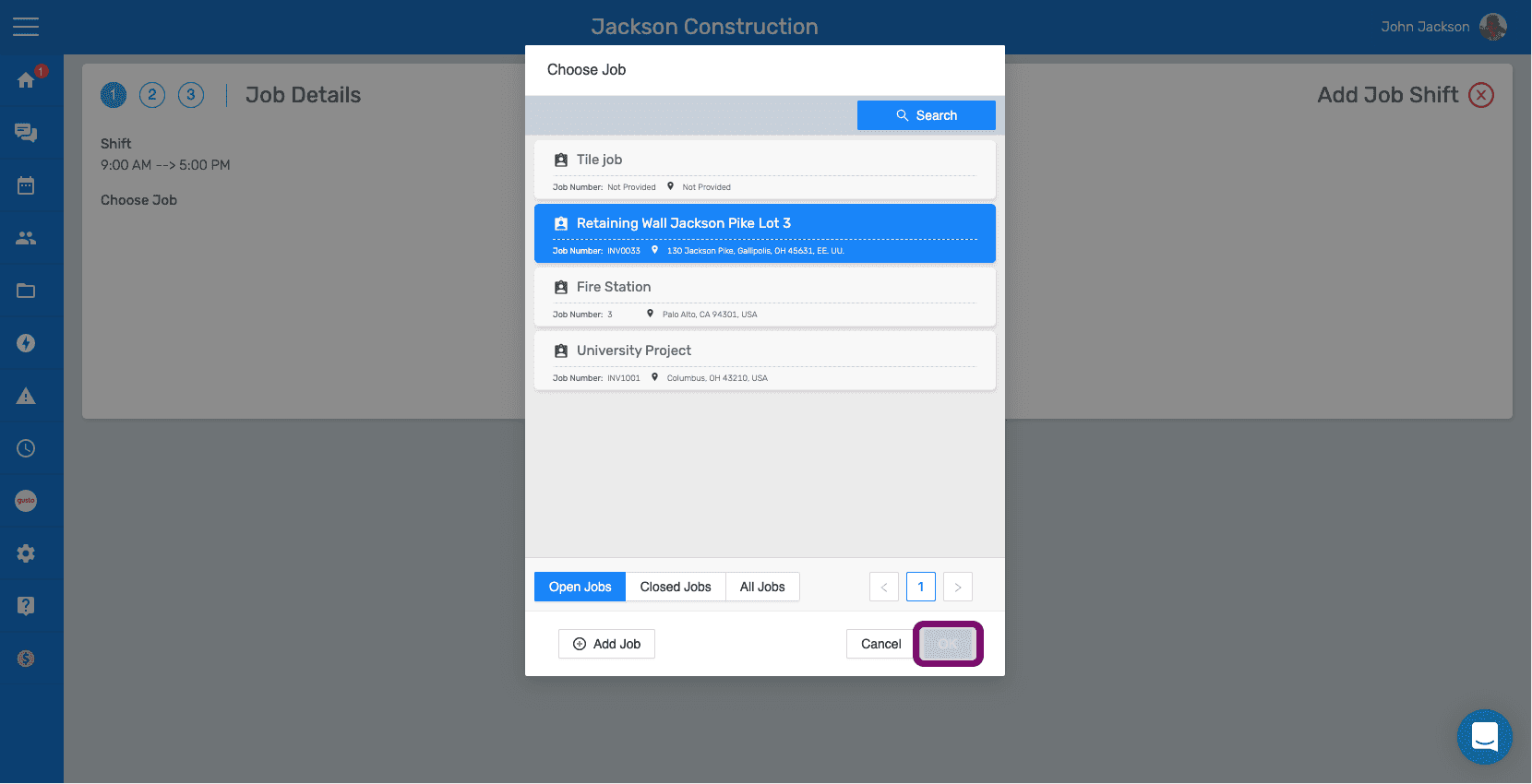
Job Details Choose Job popup with the Retaining Wall job selected and the Confirm button highlighted
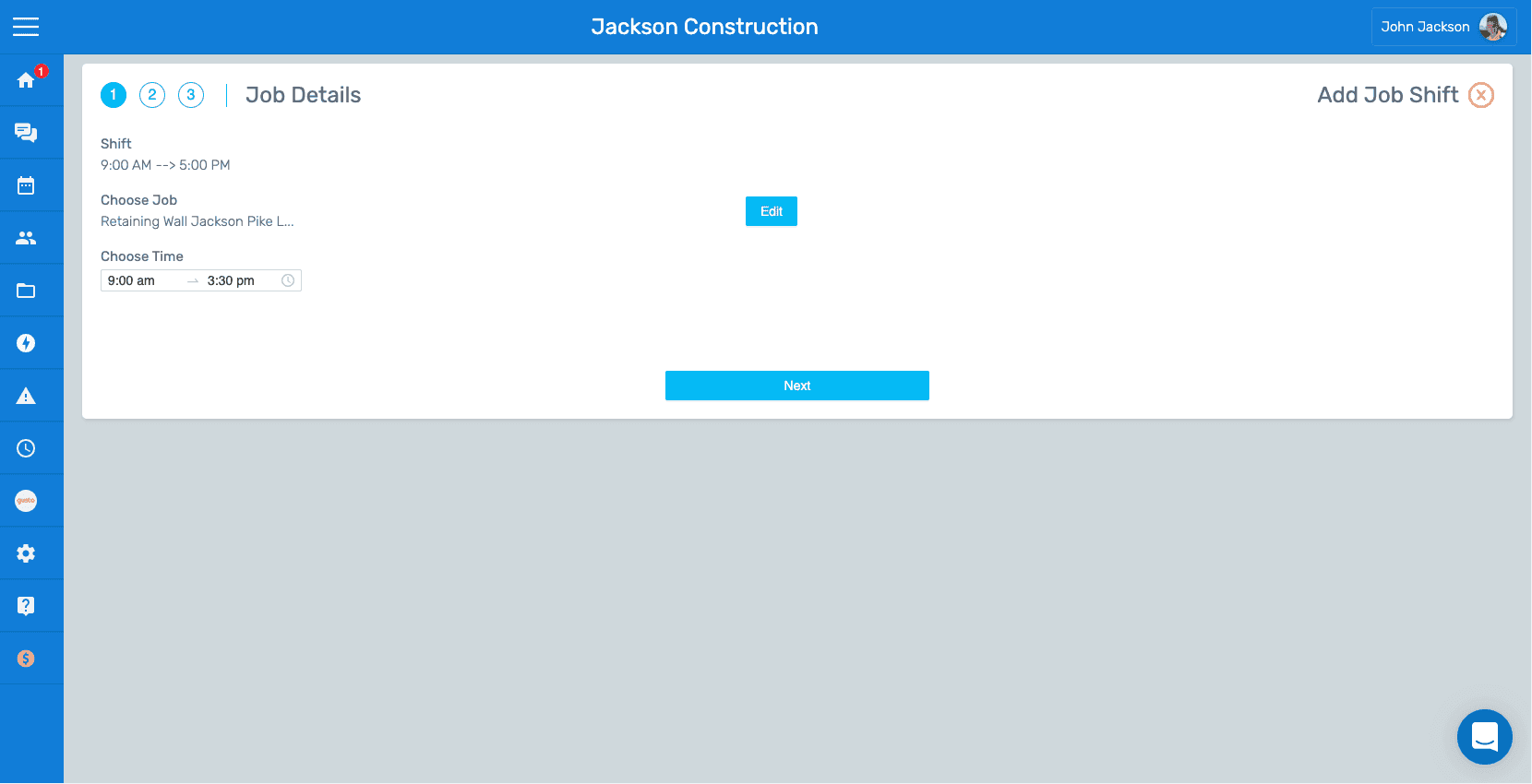
SINC app Job Details step showing the selected job and time range with an Edit button
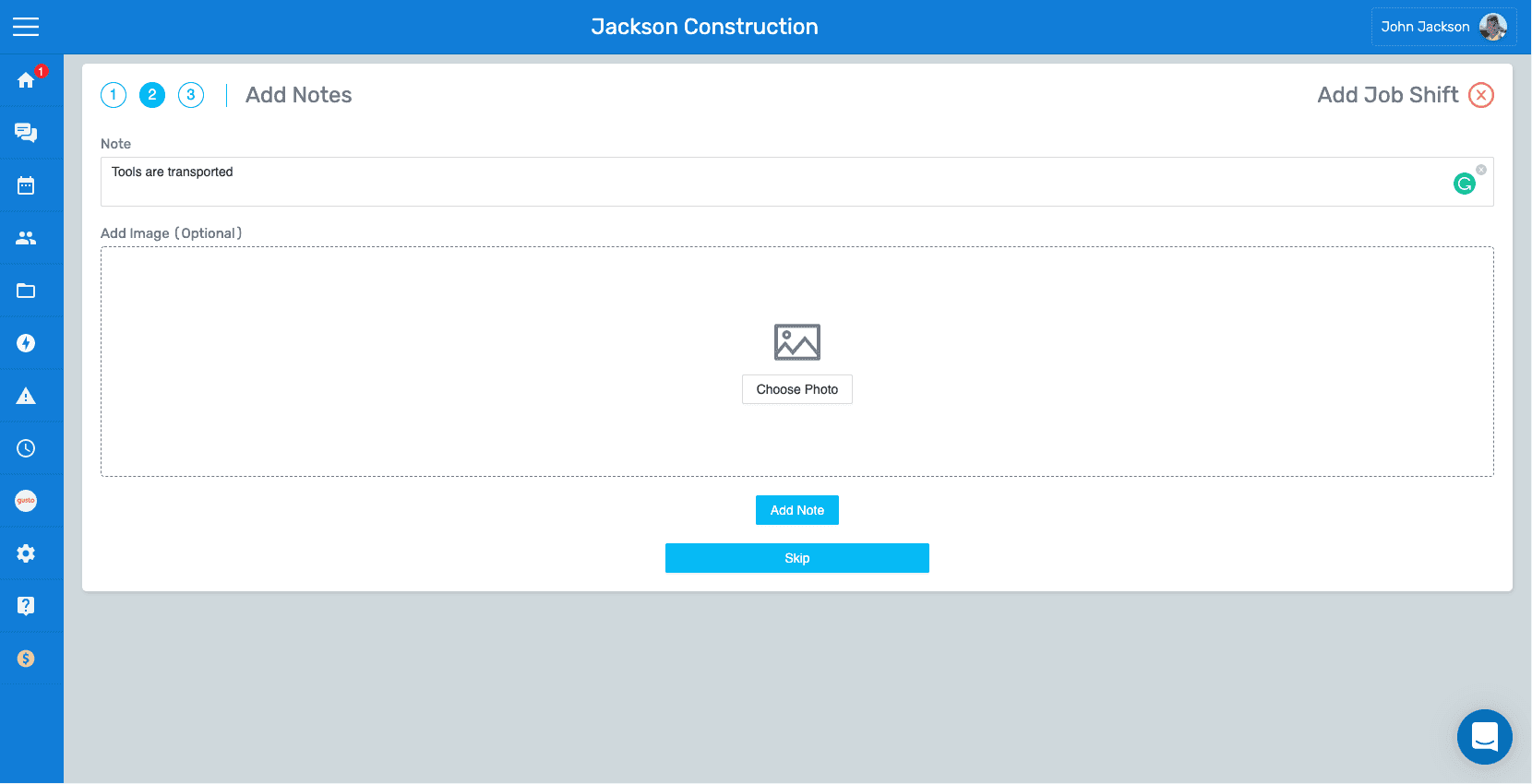
SINC web Add Notes screen showing a note text field and Choose Photo image upload area
SINC web Add Job Shift wizard on the Confirm Details step showing job time and notes with the Confirm button

Questa risposta ti è stata utile?