Come aggiungere un turno mancante

Questa guida spiega come un amministratore può aggiungere un turno per un membro dello staff o per sé stesso in SINC.

Sam Dolbel
Sam Dolbel
Mar 6th, 2023

A volte potrebbe essere necessario aggiungere manualmente il foglio presenze di un membro dello staff. Vai su Menu Panoramica e tocca Turni
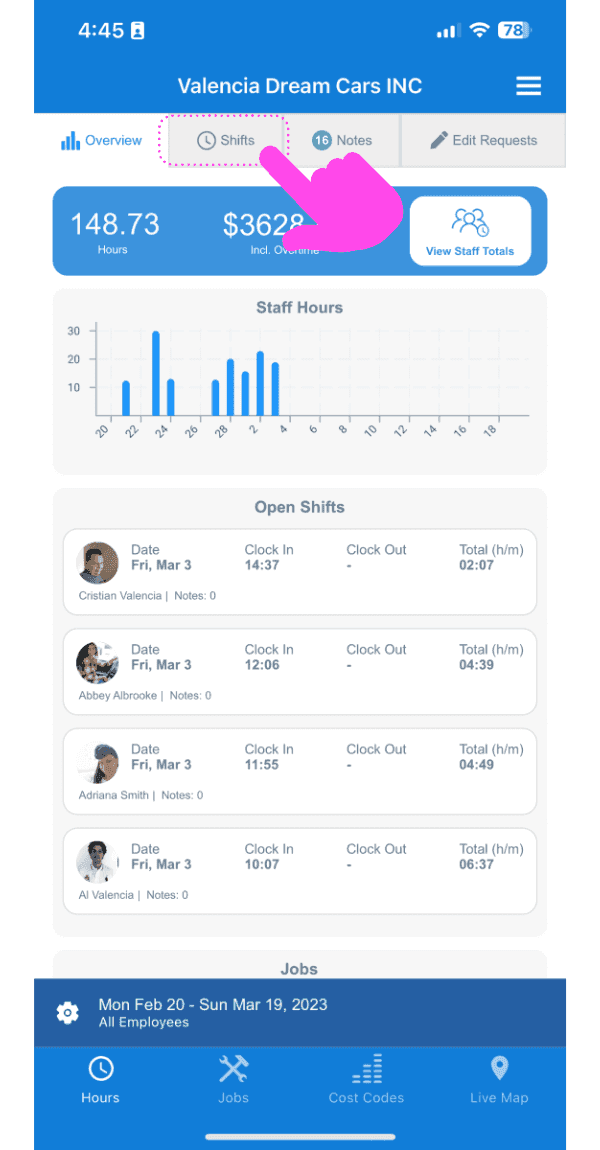
SINC web dashboard with a pink arrow pointing to the Shifts tab showing staff hours and open shifts

Tocca il pulsante + in basso a destra dello schermo
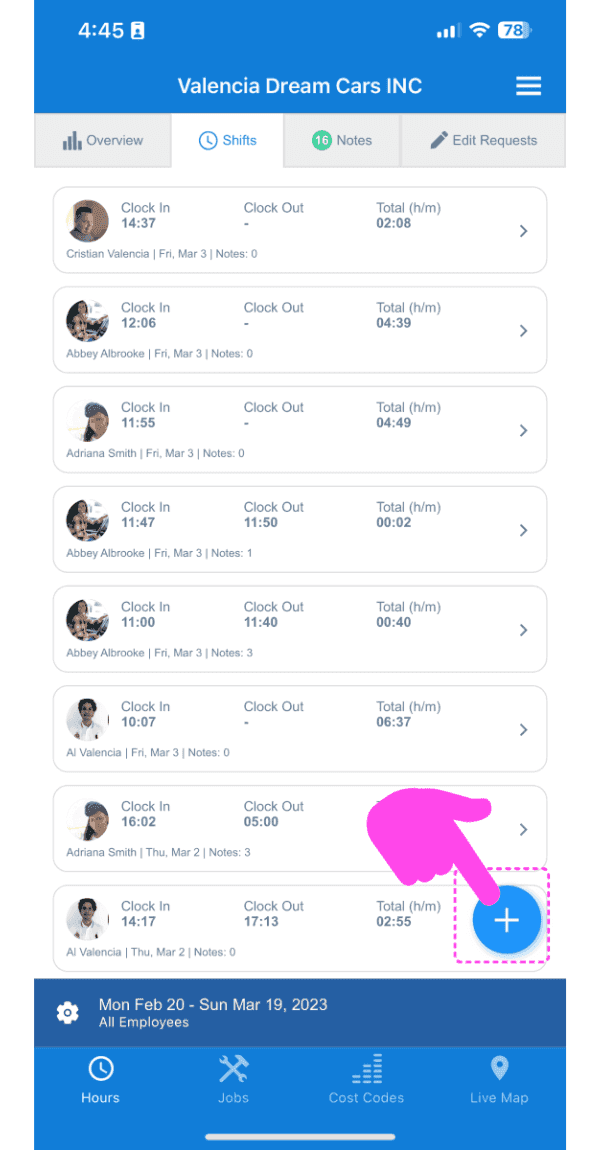
SINC mobile Shifts list with a pink arrow pointing to the plus button in the bottom right corner

Seleziona il dipendente per cui vuoi aggiungere un foglio presenze e tocca Conferma
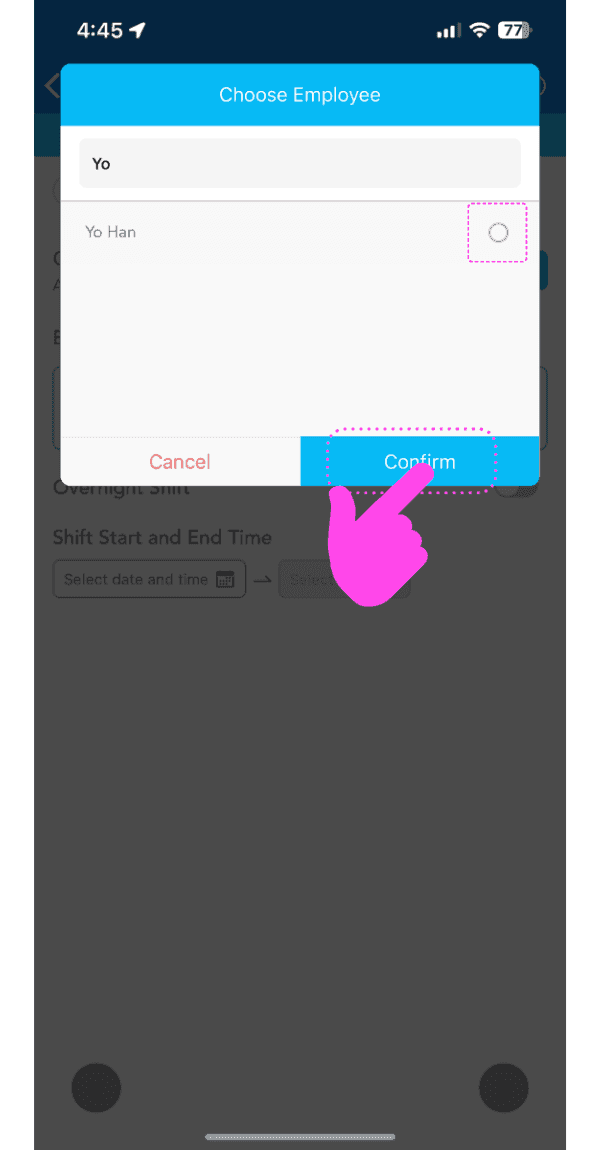
Choose Employee popup with an employee selected and a pink arrow pointing to the Confirm button

Segui la procedura guidata per aggiungere la data e l’orario del turno mancante. Nota: la data e l’ora predefinite saranno già selezionate in base all’ultimo turno del dipendente.
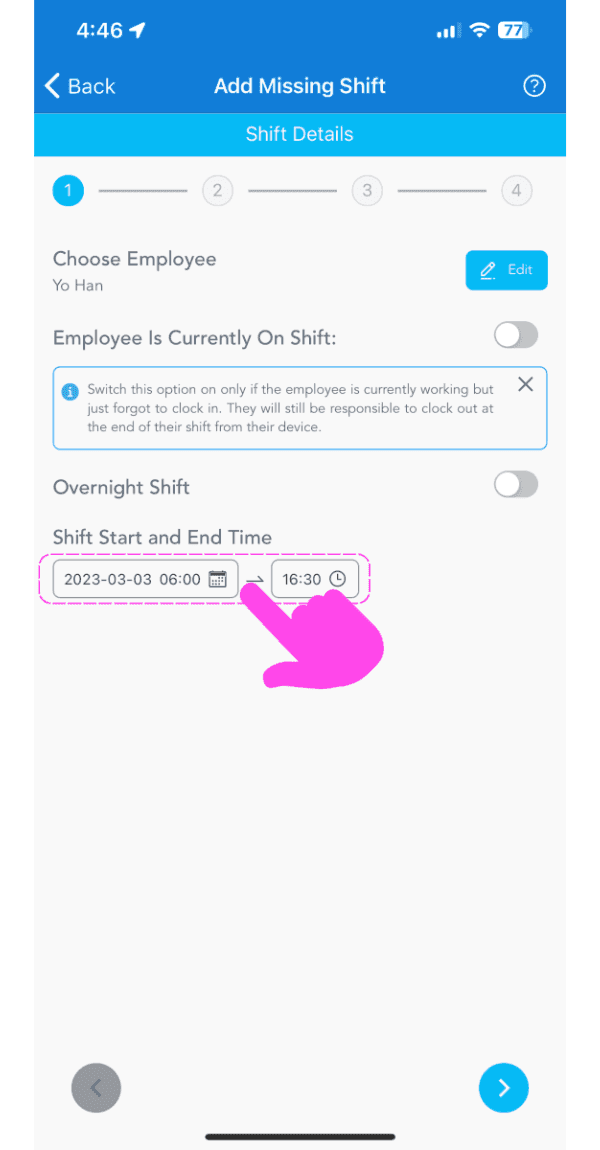
SINC mobile app Add Missing Shift wizard with the shift start and end time fields highlighted in pink

Se un dipendente è già in turno e non ha ancora timbrato l’uscita, attiva l’opzione Il dipendente è attualmente in turno. Una volta attivata, dovrai selezionare solo l’orario di inizio del turno.
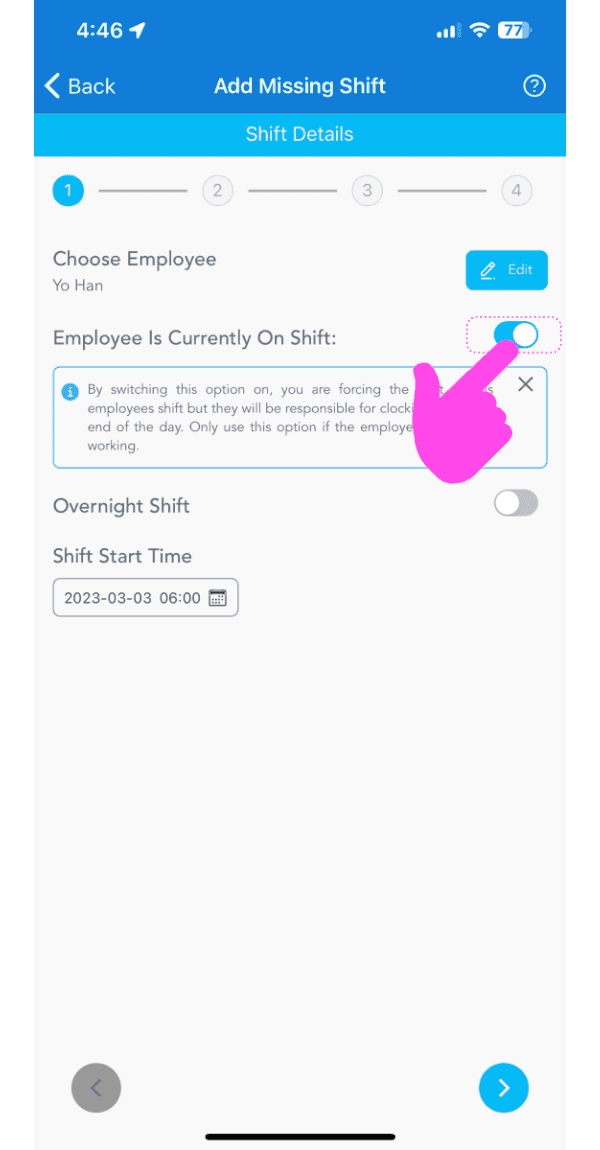
Add Missing Shift screen with the Employee Is Currently On Shift toggle highlighted by a pink arrow

Aggiungi tutte le pause a cui avevano diritto: in base alle impostazioni delle pause dell’organizzazione, verrà preselezionato un orario predefinito. Se il dipendente non ha usufruito della pausa prevista, tocca Nessuna pausa. Per modificare l’orario di inizio della pausa, tocca il selettore dell’ora; per modificarne la durata, tocca il pulsante della durata.
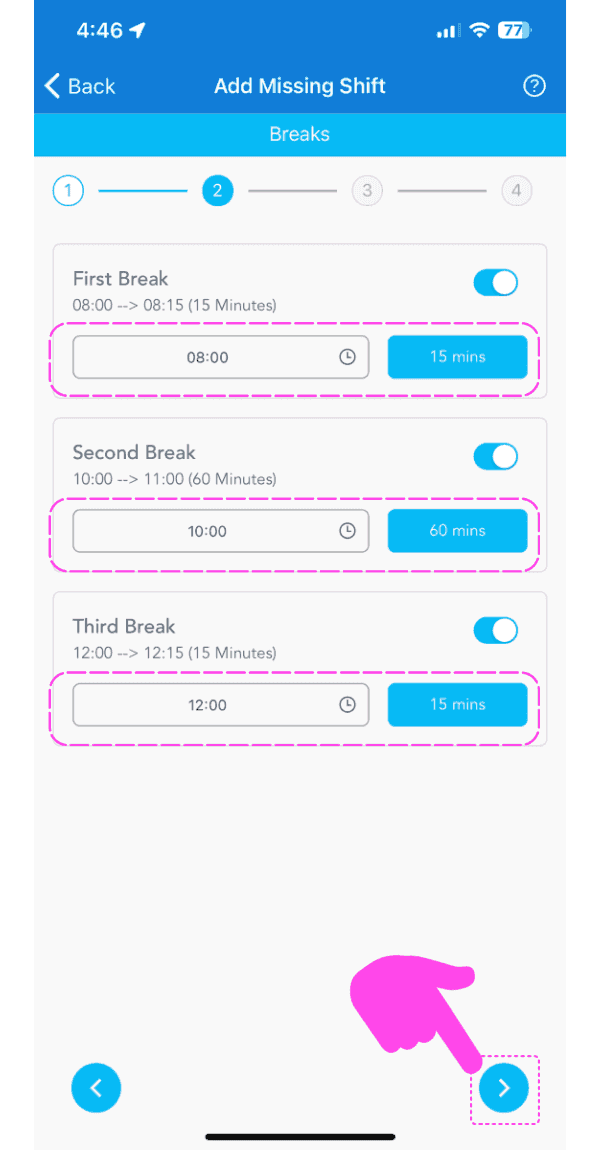
Add Missing Shift Breaks screen showing three break toggles and times highlighted in pink dashed boxes

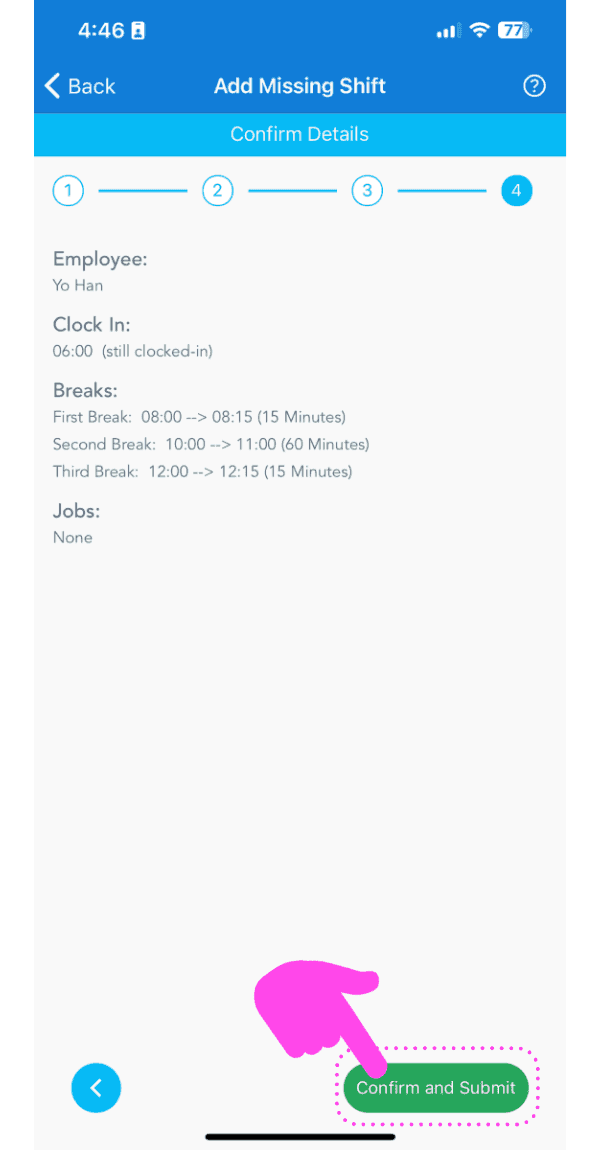
Controlla i dettagli del turno mancante e tocca Conferma
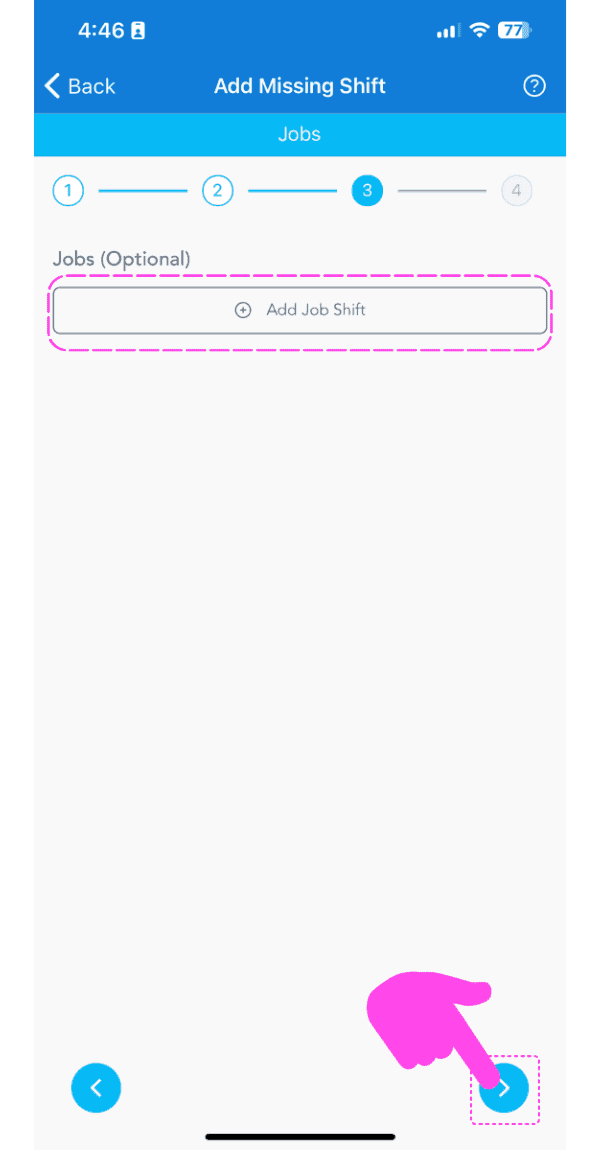
SINC mobile Add Missing Shift wizard on the optional Jobs step, with a pink hand pointing to the next arrow button
Add Missing Shift Confirm Details screen with the Confirm and Submit button highlighted by a pink arrow

Se stai utilizzando la versione web, avrà questo aspetto:
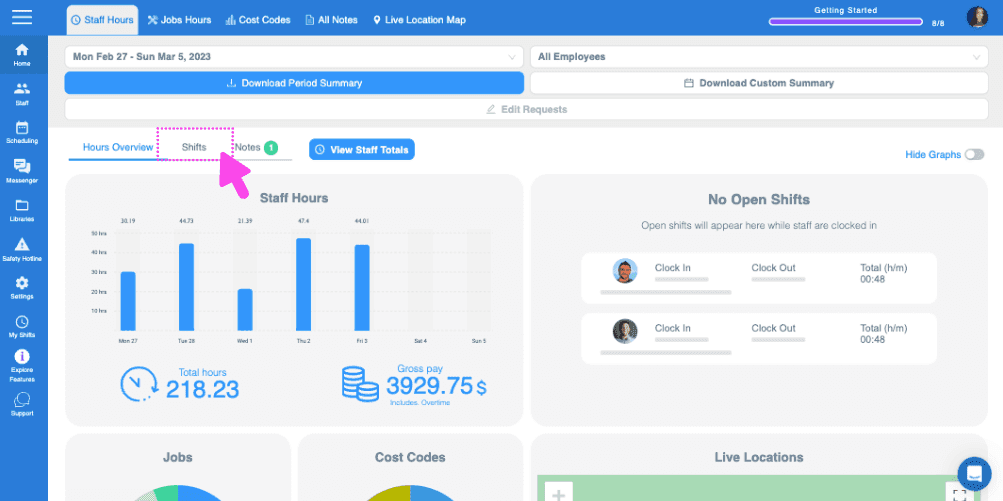
SINC web timekeeping dashboard with the Hours Overview tab highlighted above the staff hours graph
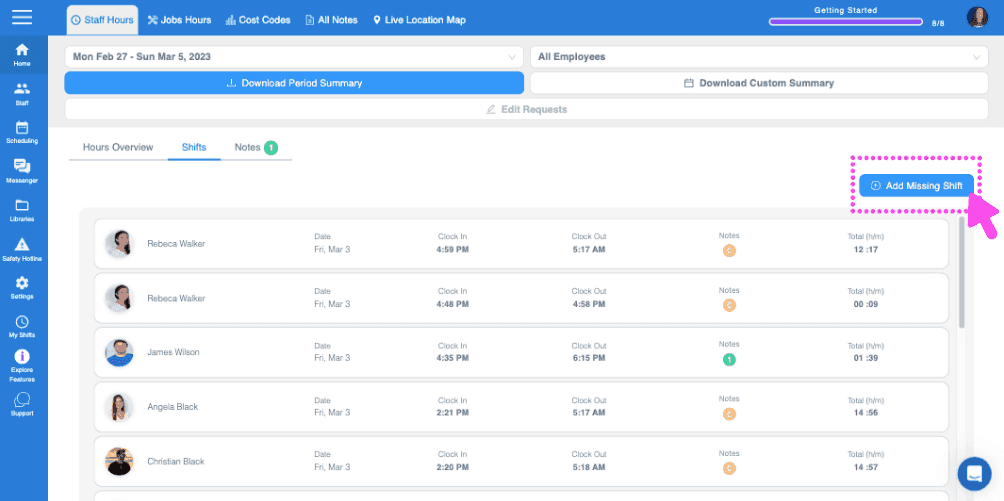
Web dashboard Shifts tab with a pink arrow pointing to the Add Missing Shift button in the top right
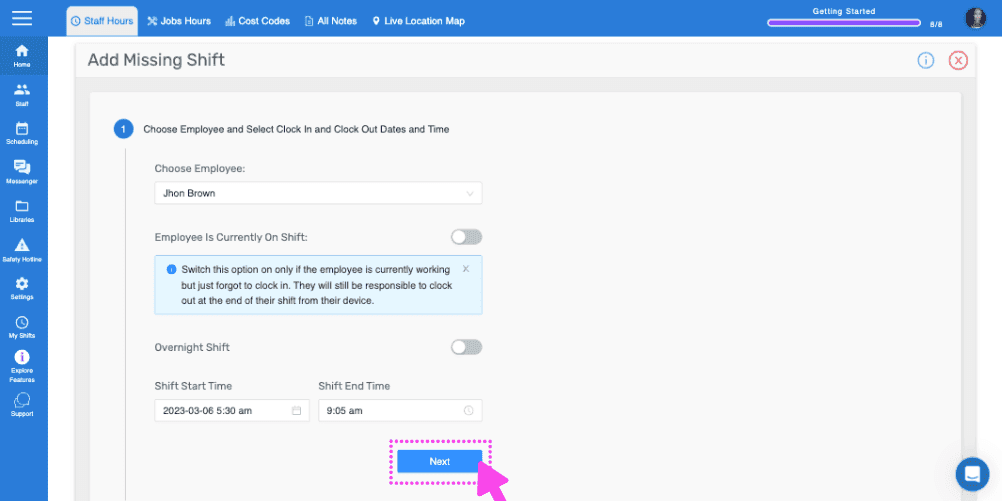
SINC web Add Missing Shift wizard with the Choose Employee field and the Next button highlighted
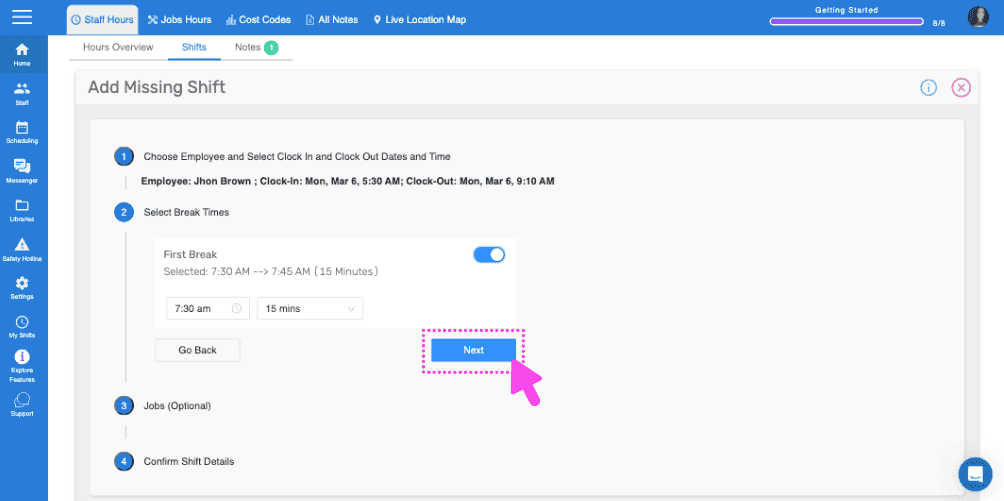
Web Add Missing Shift wizard showing break time selection with the Next button outlined in pink
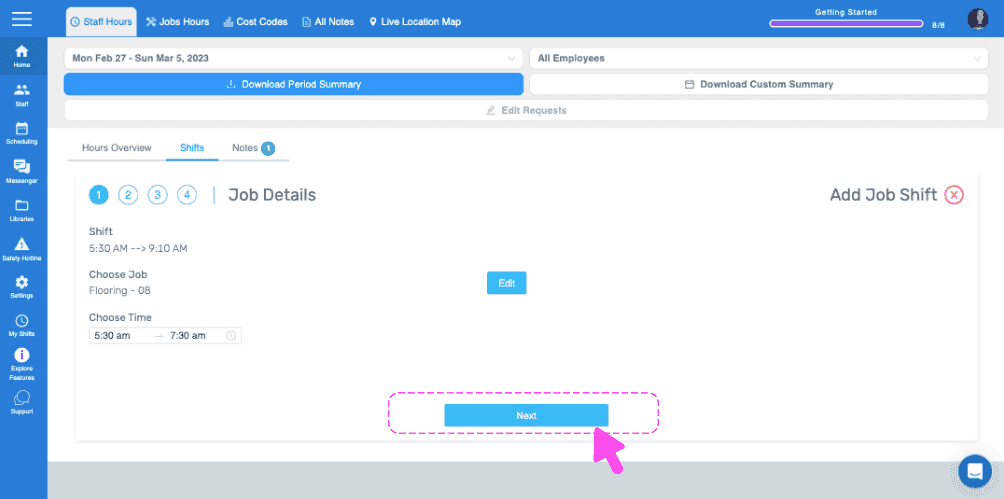
SINC web Job Details wizard showing the chosen job and time with a pink arrow pointing to the Next button
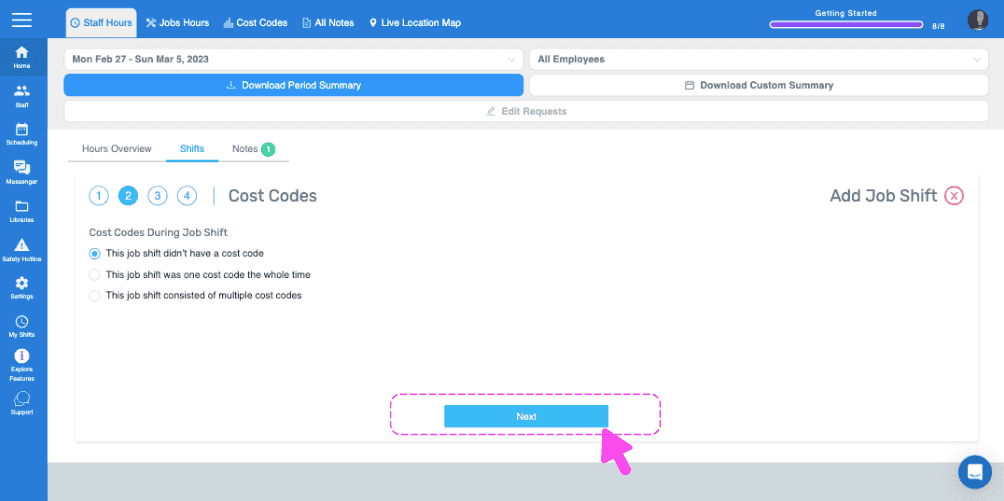
Add Job Shift wizard Cost Codes step with a pink arrow pointing to the Next button
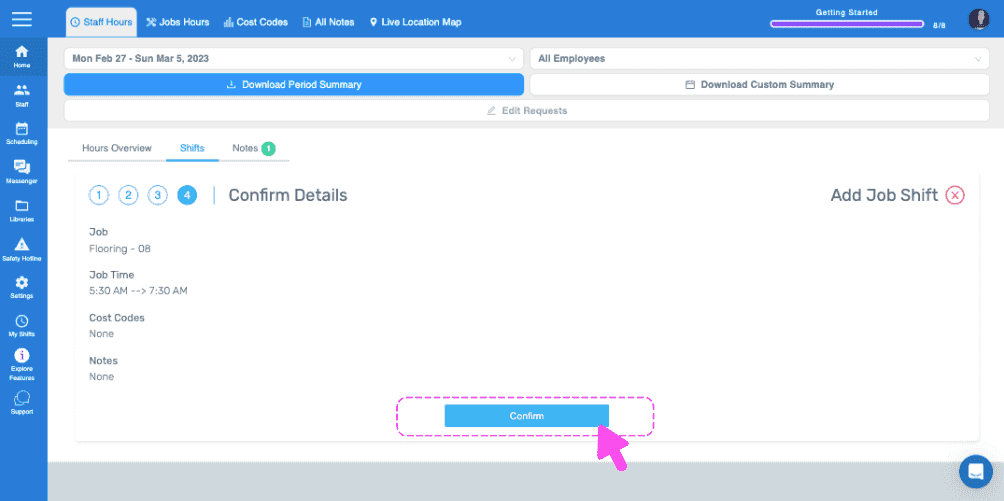
Web Confirm Details step for a job shift with the Confirm button circled in pink
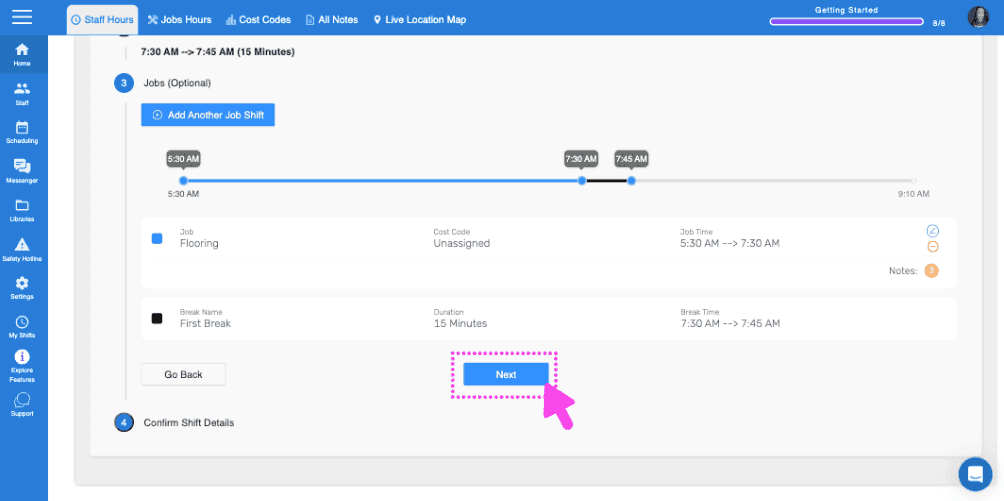
SINC web Add Job Shift wizard with a pink arrow pointing to the Next button on the shift timeline step
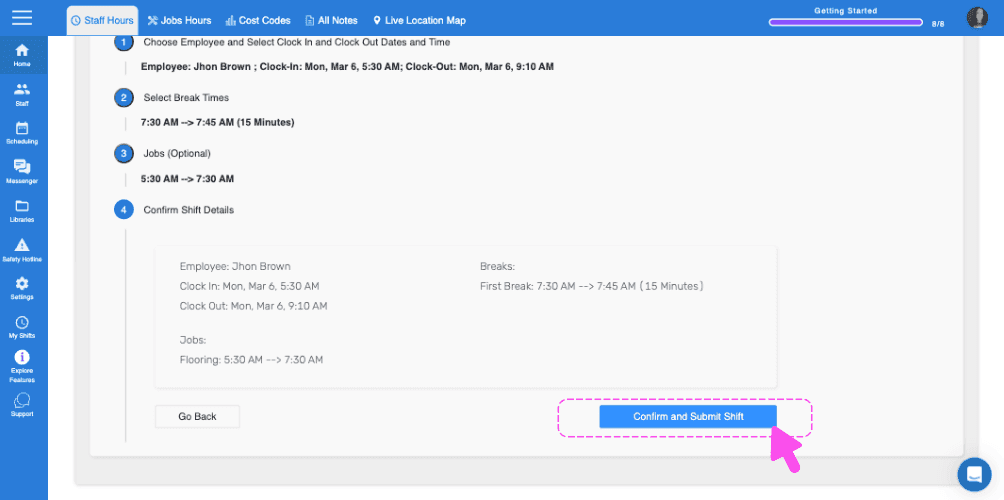
SINC web Add Missing Shift wizard Confirm Shift Details step with a pink arrow pointing to the Confirm and Submit Shift button
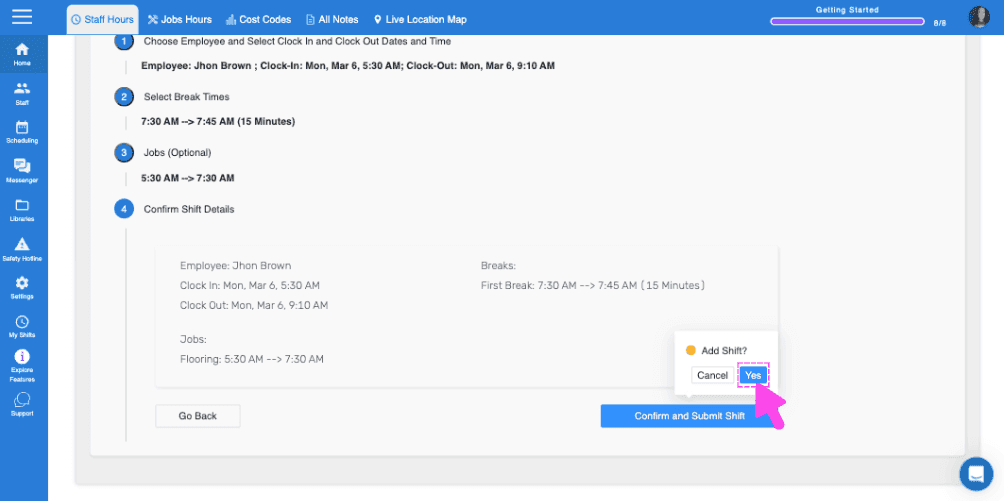
Web add-shift confirmation screen showing shift and break details with a pink arrow pointing to the Yes button

Questa risposta ti è stata utile?