Comment créer une équipe

Dans ce tutoriel, nous vous montrerons comment créer une équipe.

SINC Support Team
SINC Support Team
Mar 1st, 2023

Sur le Web : cliquez sur Menu Personnel Équipes.
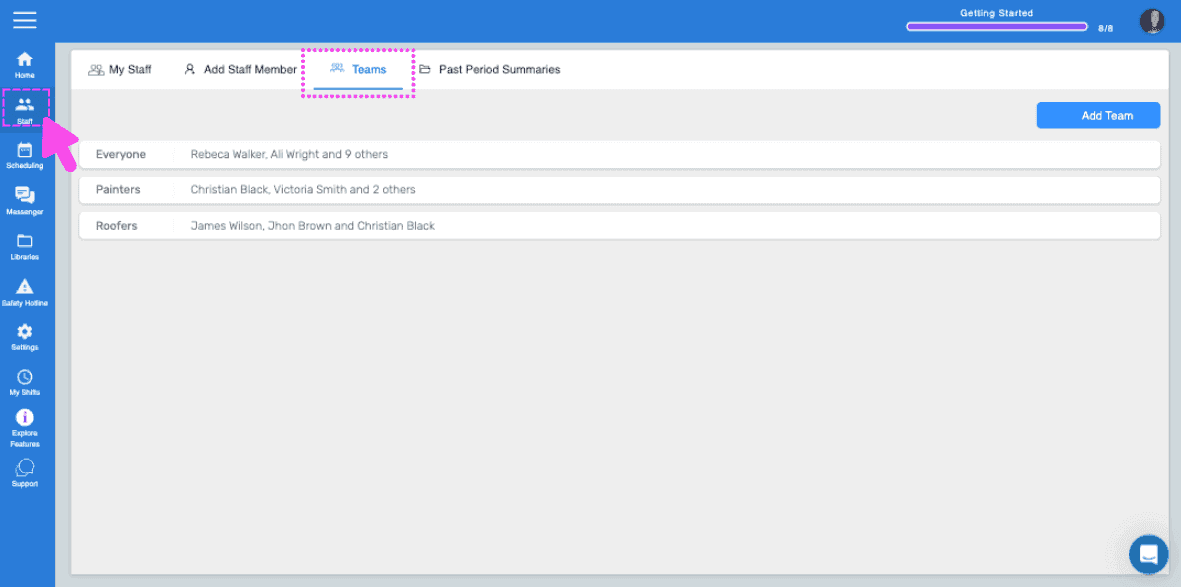
SINC web Staff screen with the Teams tab highlighted by a pink arrow showing a list of teams

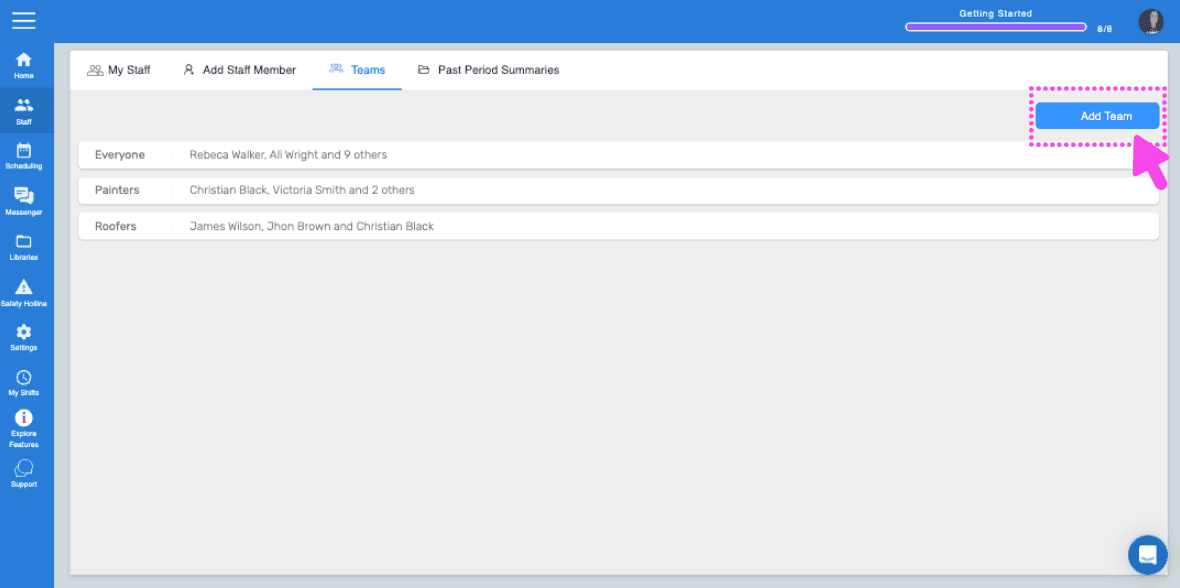
Cliquez sur Ajouter une équipe.

SINC web Teams tab with the Add Team button highlighted in the top right

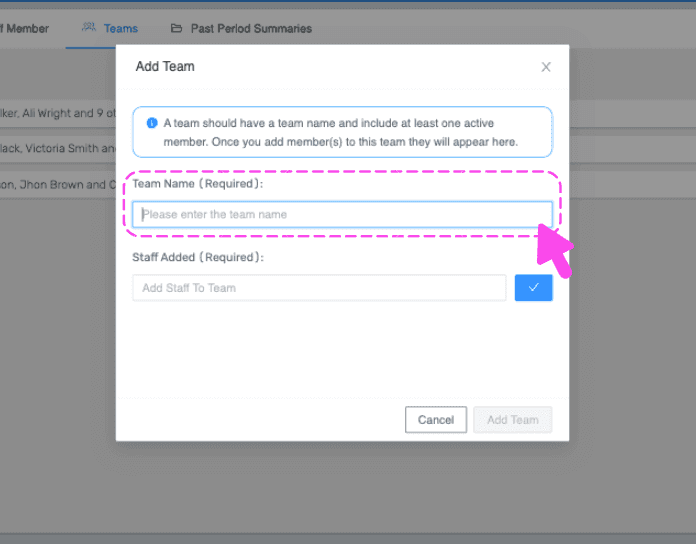
Saisissez un nom pour l’équipe

Add Team popup with a pink arrow pointing to the empty required Team Name field

Sélectionnez un ou plusieurs employés dans la liste déroulante pour les ajouter à cette équipe, puis cliquez sur Confirmer.
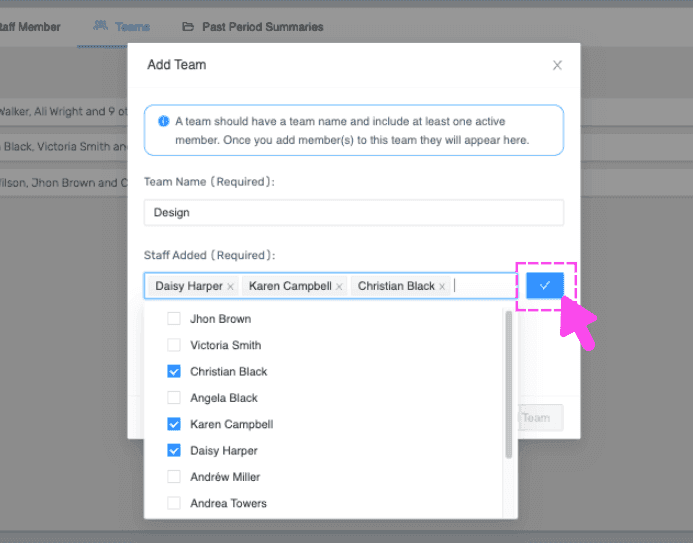
SINC web Add Team modal with a team name, selected staff checkboxes, and the confirm checkmark button highlighted

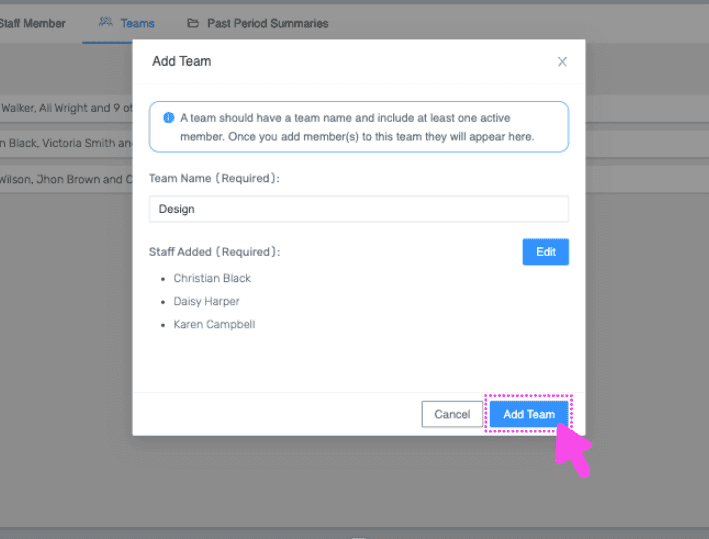
Cliquez sur Ajouter une équipe.

Web Add Team dialog with Team Name field filled in and the Add Team button outlined in pink

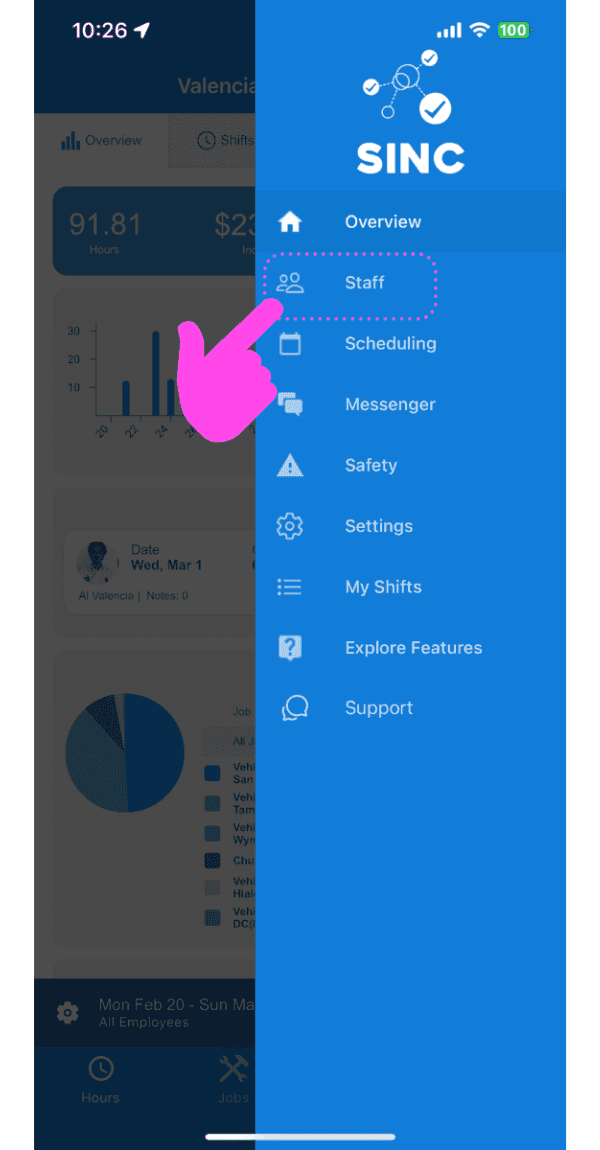
Sur mobile : appuyez sur Équipe.

SINC mobile navigation menu with a pink hand pointing to the Staff option

Appuyez sur Équipes.

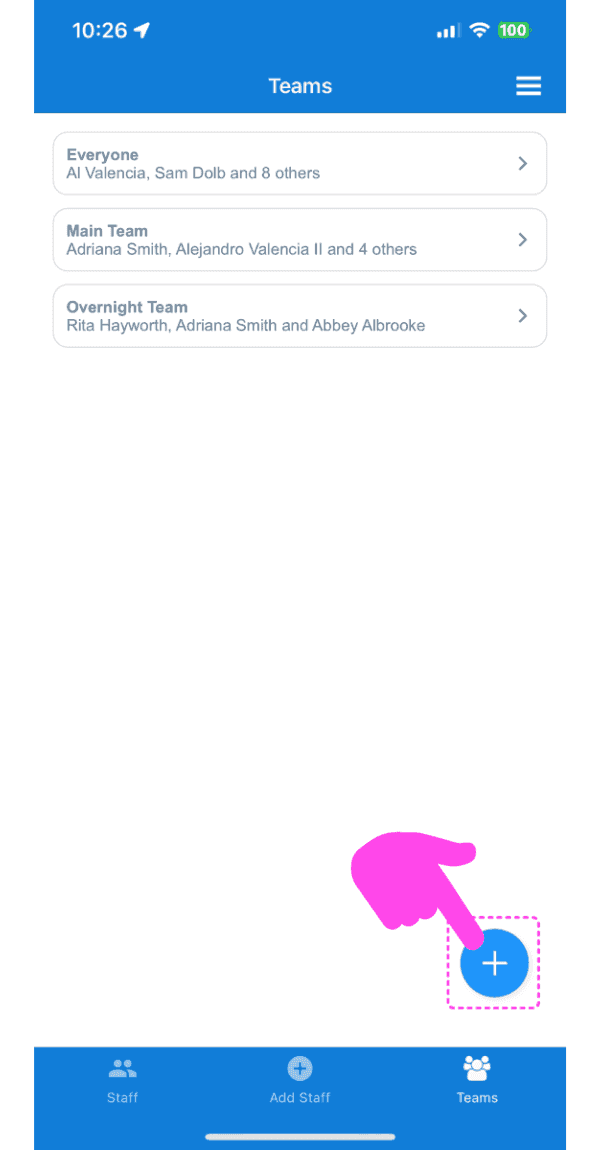
Teams list screen with a pink arrow pointing to the Add Team button in the bottom navigation

Appuyez sur le bouton plus (+) en bas à droite de l’écran.
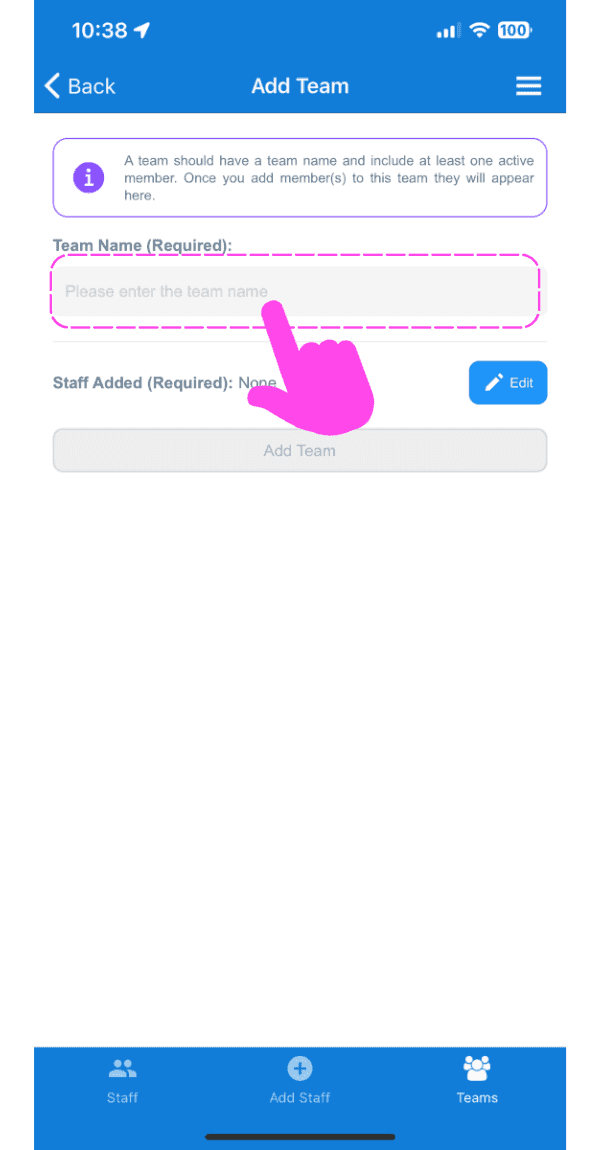
Mobile Add Team screen with a pink arrow pointing to the empty Team Name field

Saisissez le nom que vous souhaitez donner à l’équipe
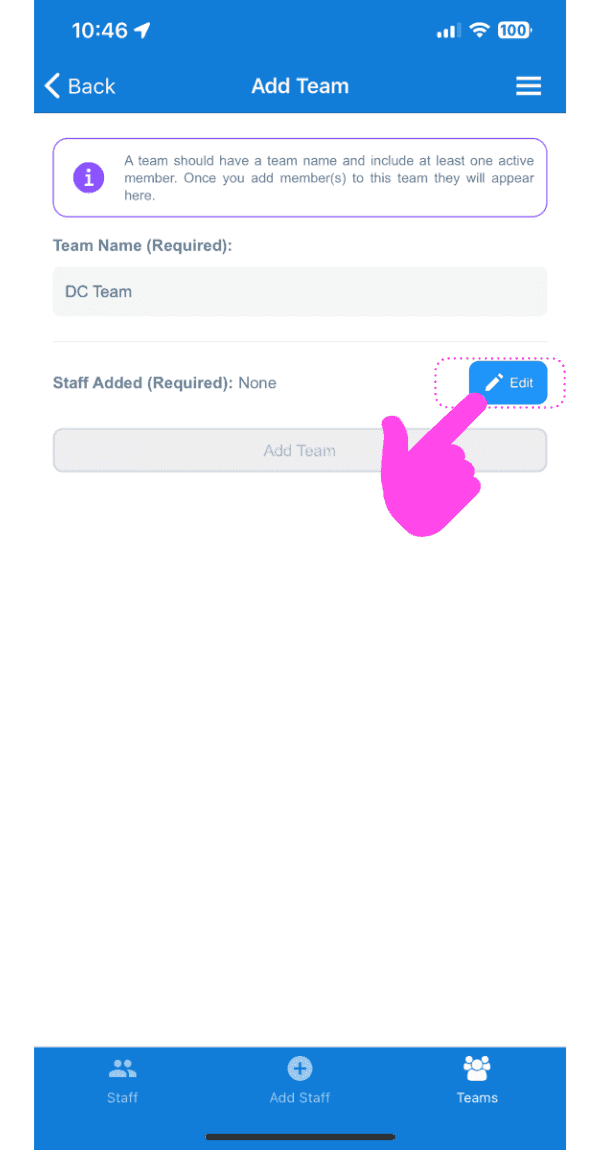
SINC mobile Add Team screen with a pink hand pointing to the Edit button next to Staff Added

Appuyez sur le bouton Modifier à côté de Personnel ajouté (obligatoire).
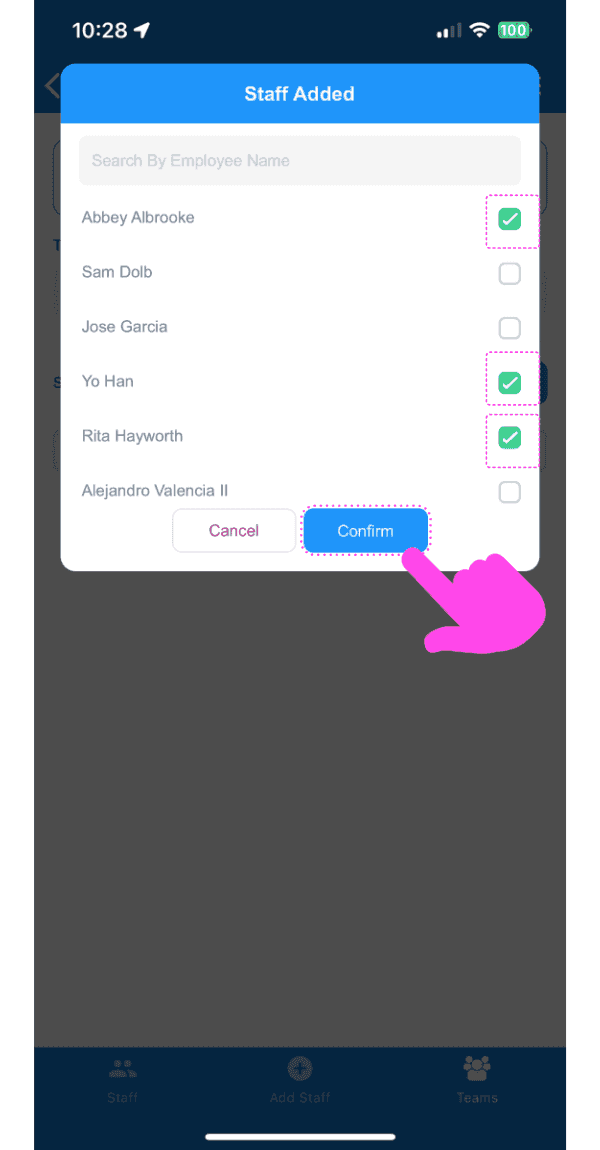
SINC mobile Staff Added dialog with employee checkboxes selected and a pink arrow pointing to the Confirm button

Sélectionnez le ou les employés à ajouter à cette équipe dans la liste déroulante, puis appuyez sur Confirmer.
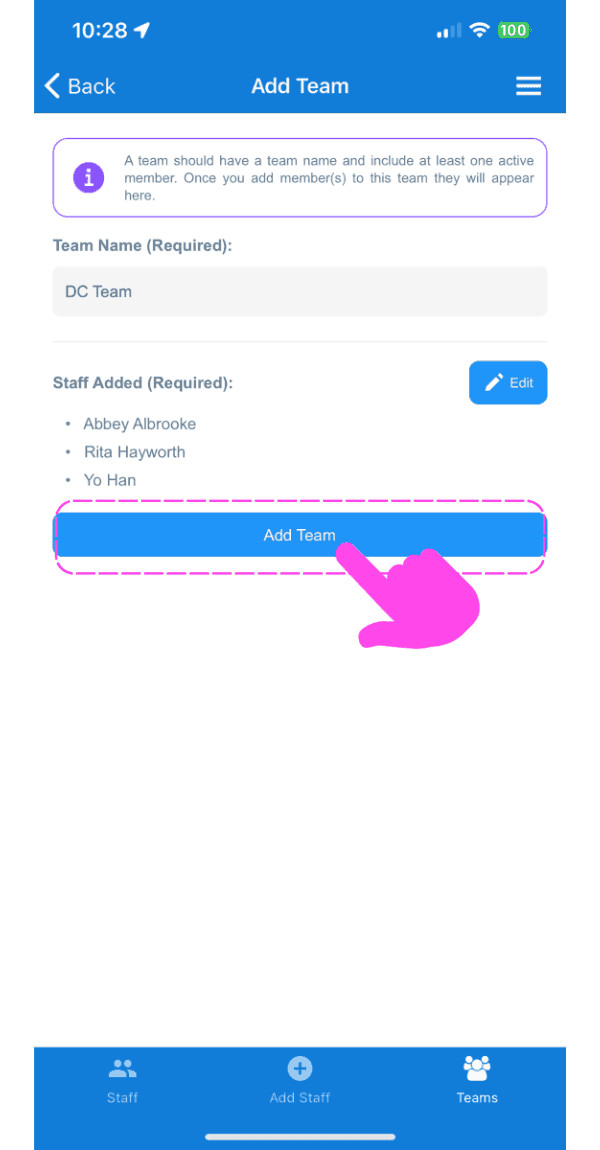
Add Team form showing team name and staff added list with a pink arrow pointing to the Add Team button

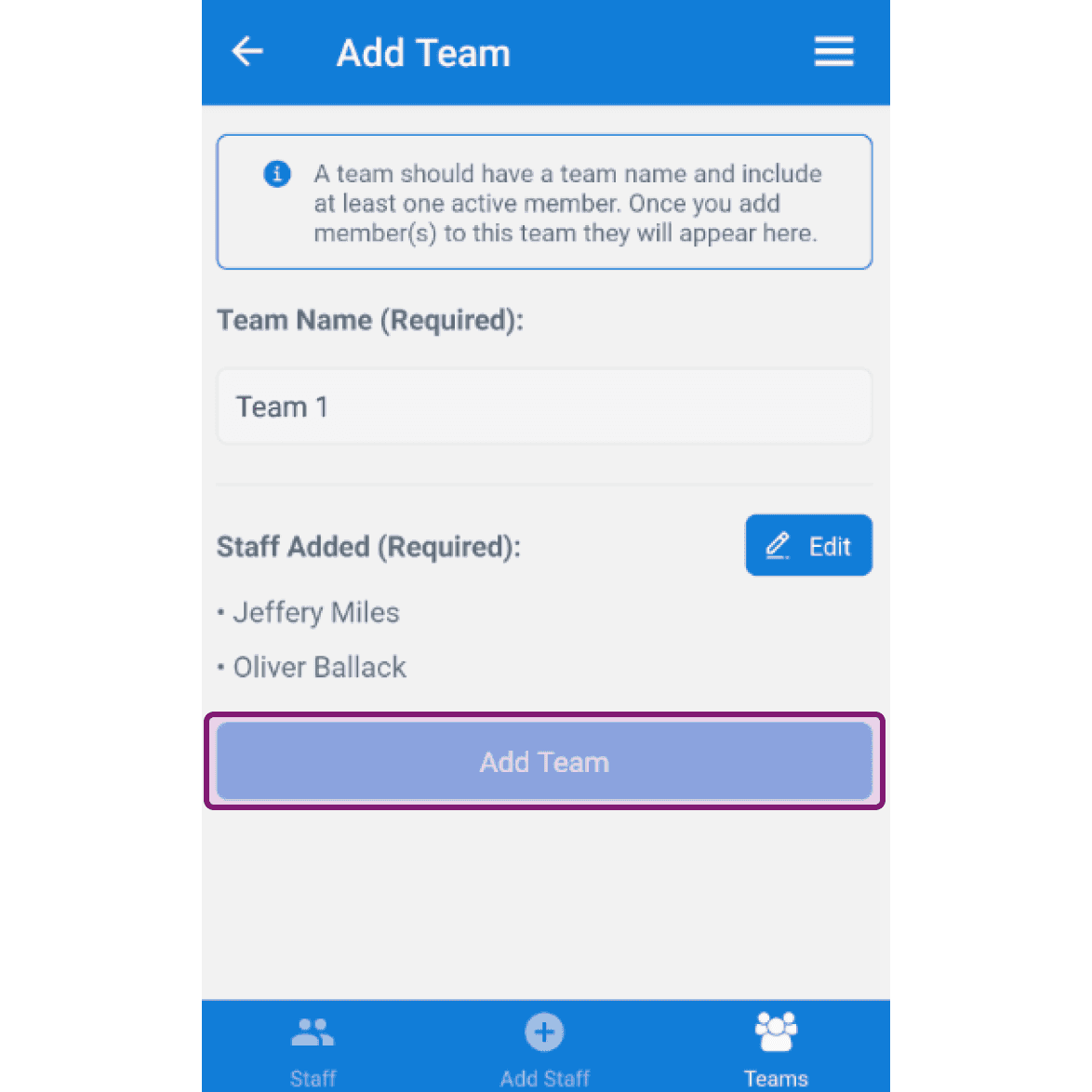
Appuyez sur Ajouter une équipe.

SINC mobile app Add Team screen with the Add Team button outlined in purple after entering a team name and staff

Cela a-t-il répondu à votre question ?