Comment modifier une équipe

Dans ce tutoriel, nous vous montrons comment modifier une équipe.

SINC Support Team
SINC Support Team
Mar 1st, 2023

Sur le Web : cliquez sur Menu Personnel Équipes.
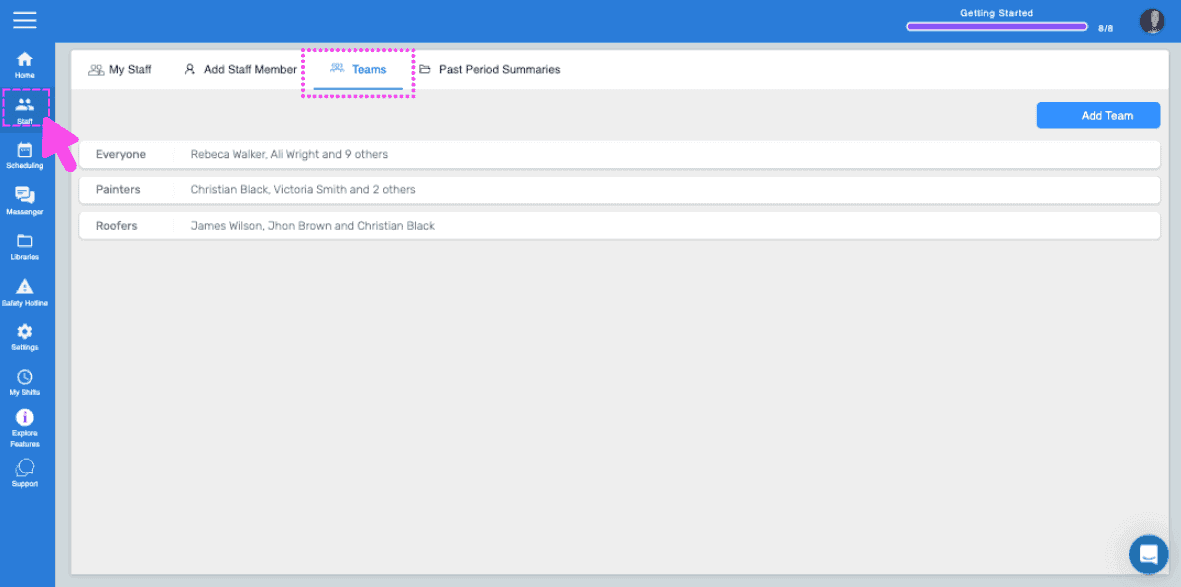
SINC web My Staff breadcrumb menu with the Teams tab highlighted in a pink dashed box

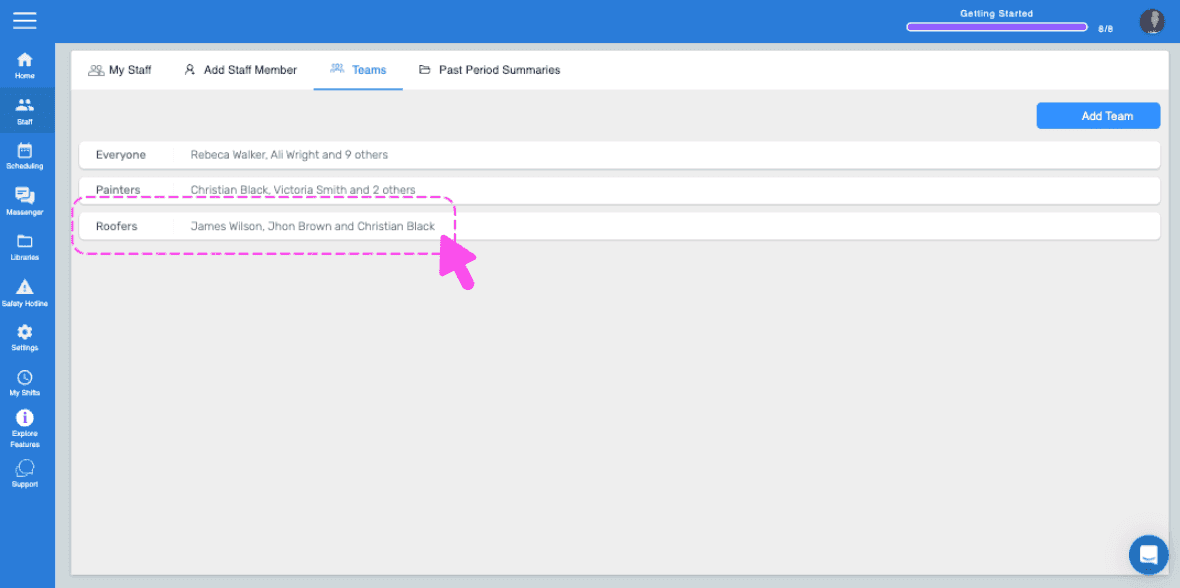
Cliquez sur l’équipe à modifier.

Web Teams list with the Painters team row outlined in pink and an arrow pointing to it

Pour modifier le nom de l’équipe, cliquez sur Modifier à côté de Nom de l’équipe.
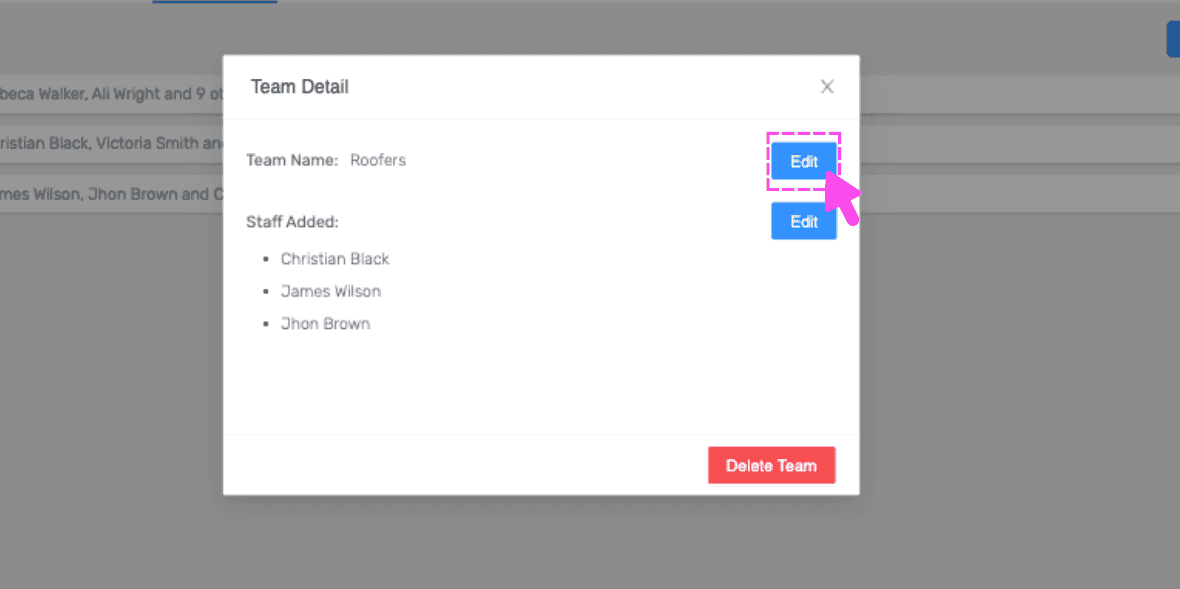
SINC web Team Detail popup listing team members with a pink arrow pointing to the Edit button next to Team Name

Pour modifier les membres de l’équipe, cliquez sur Modifier à côté de Membres ajoutés.
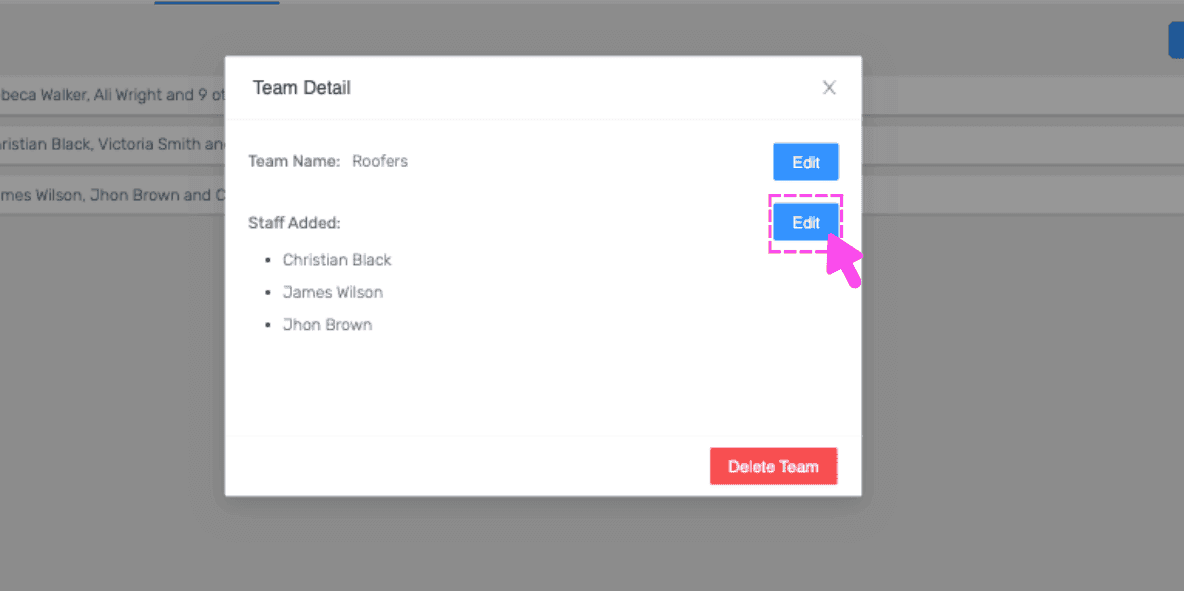
Team Detail popup with a pink arrow pointing to the Edit button next to Staff Added

Pour supprimer une équipe, cliquez sur Supprimer l’équipe.
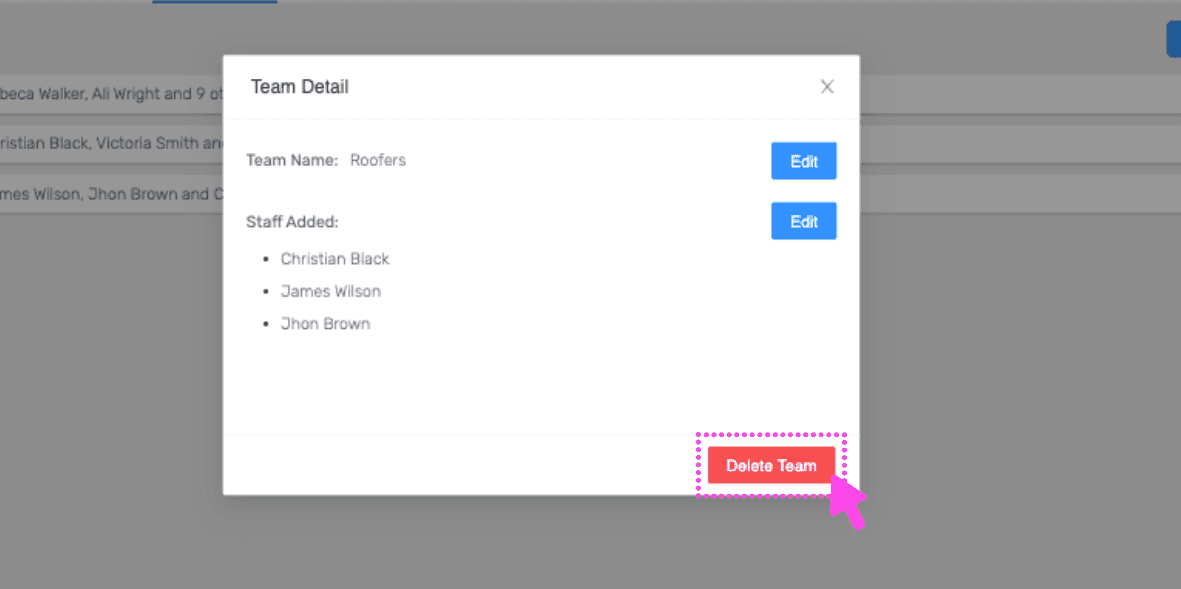
Web Team Detail popup listing team members with the Delete Team button circled in pink

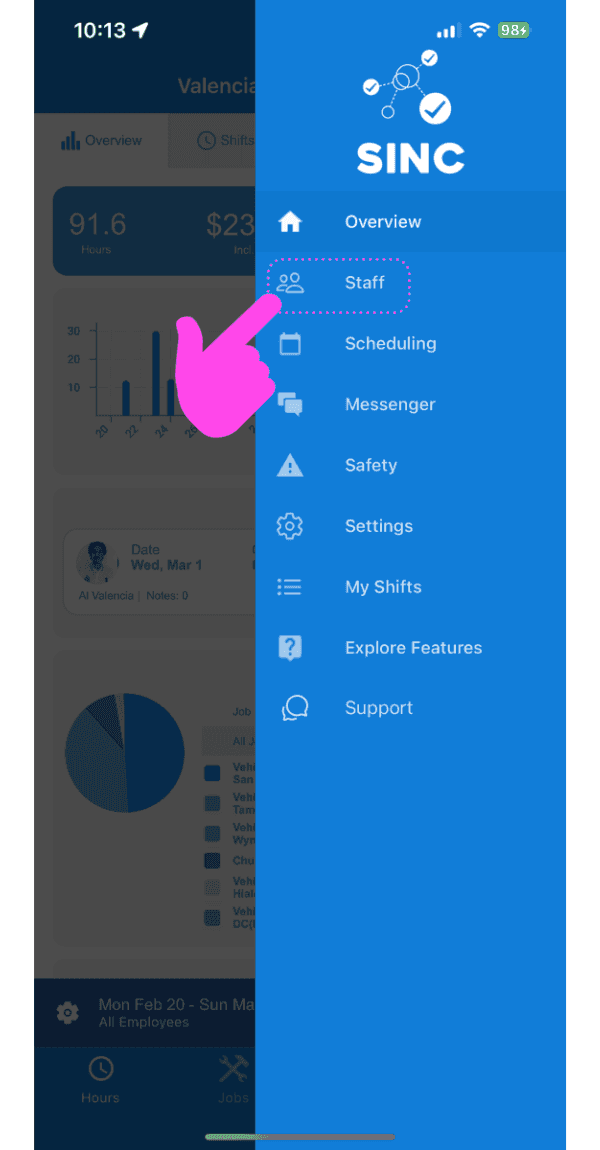
Sur mobile : appuyez sur Personnel.

SINC mobile app side menu with a pink hand pointing to the Staff option

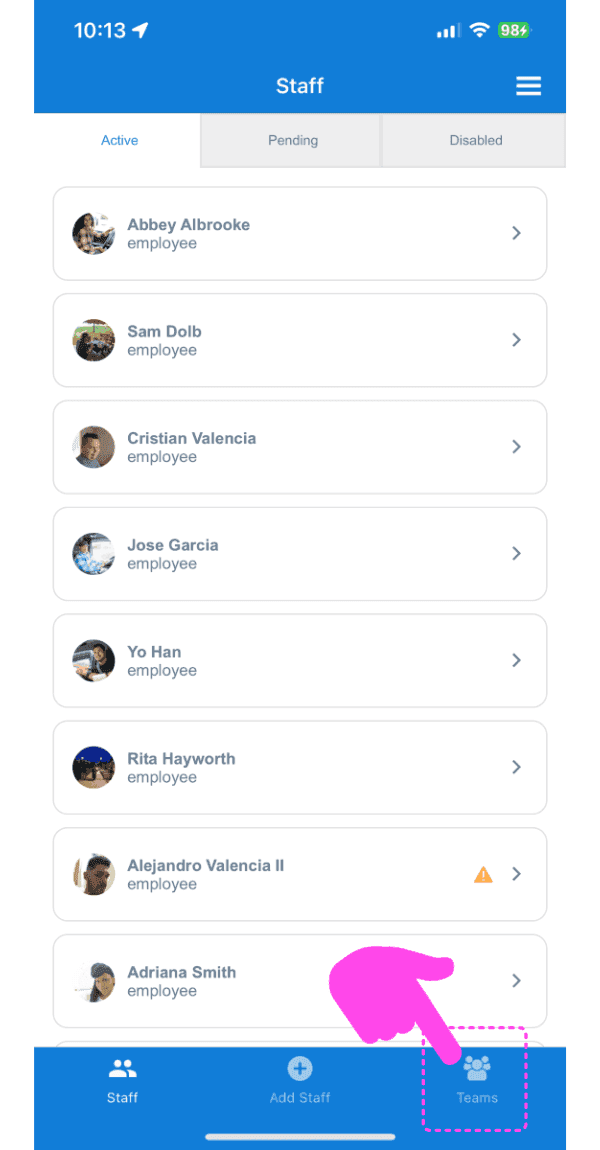
Appuyez sur Équipes.

SINC mobile Staff list on the Active tab with a pink arrow pointing to the Teams tab at the bottom

Pour modifier le nom de l’équipe, appuyez sur Modifier à côté de Nom de l’équipe.
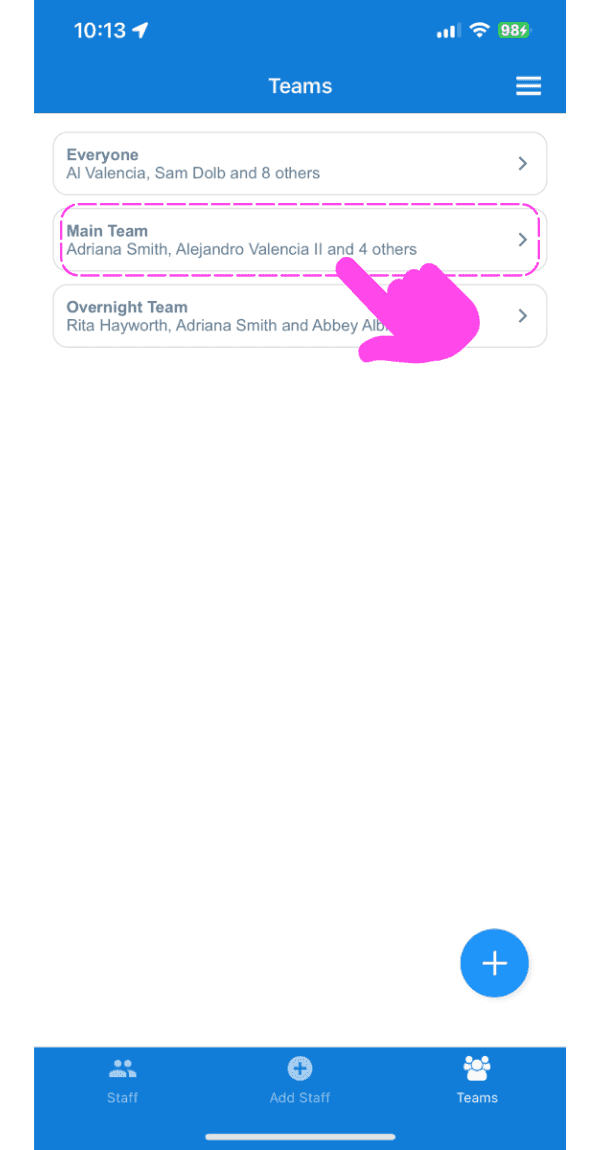
Teams list screen with a pink arrow pointing to the Main Team entry

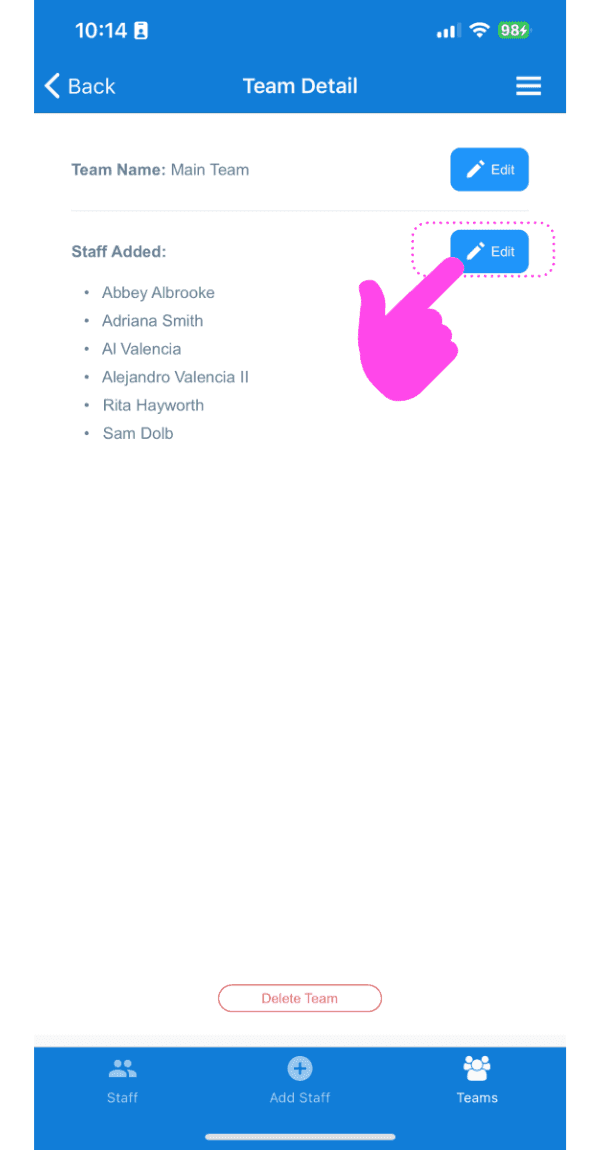
Pour modifier les membres de l’équipe, appuyez sur Modifier à côté de Personnel ajouté.
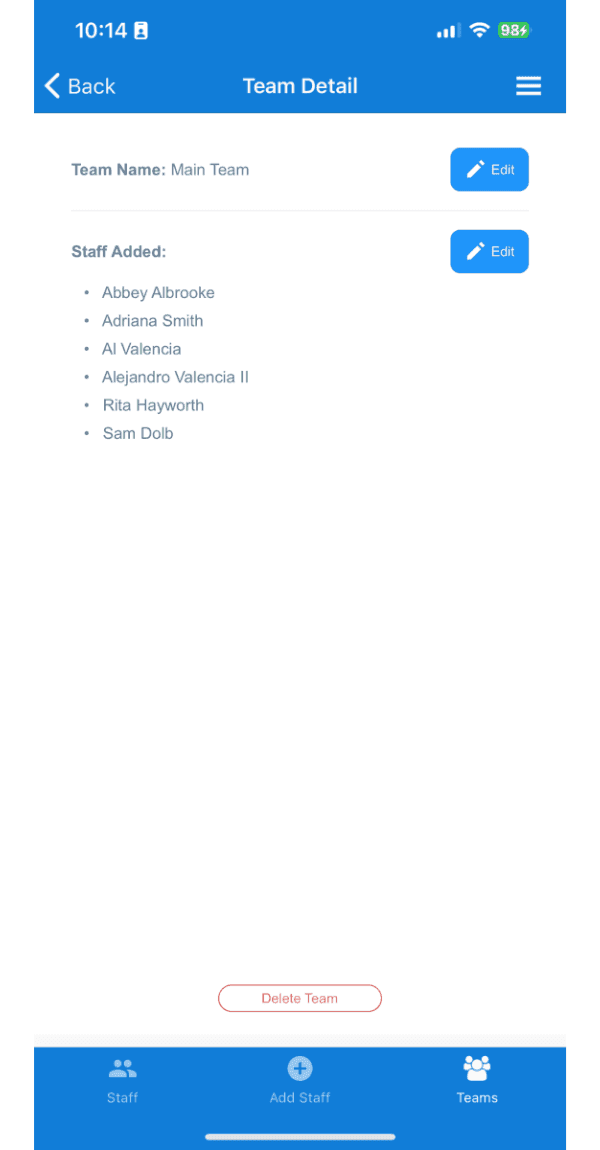
SINC mobile app Team Detail screen with the Edit button next to Staff Added outlined in pink

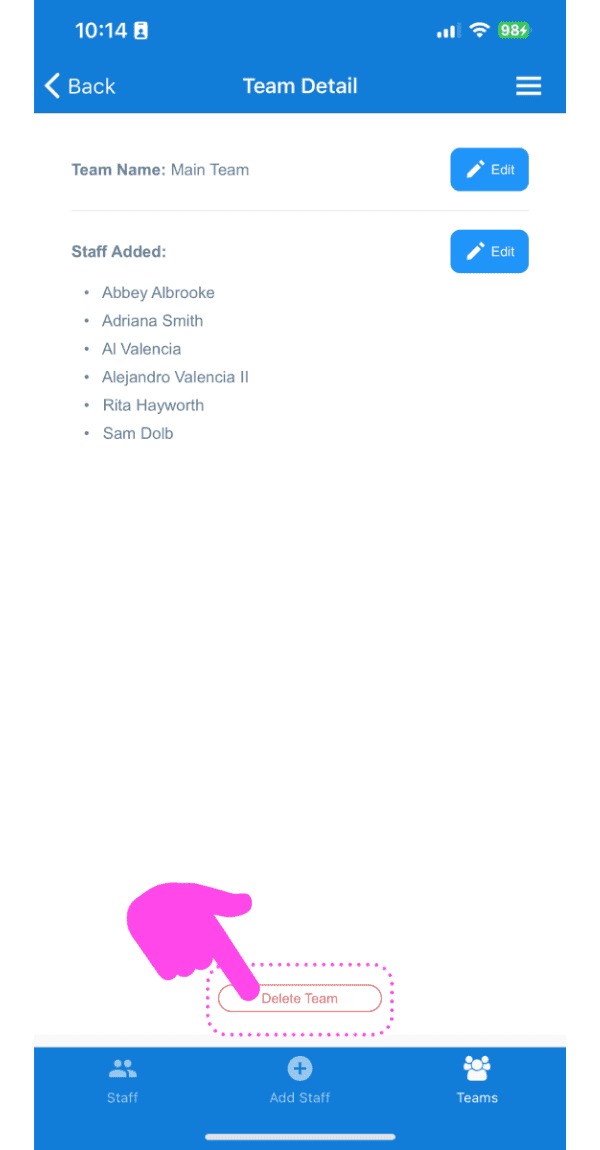
Pour supprimer une équipe, appuyez sur l’icône de corbeille en bas à gauche.
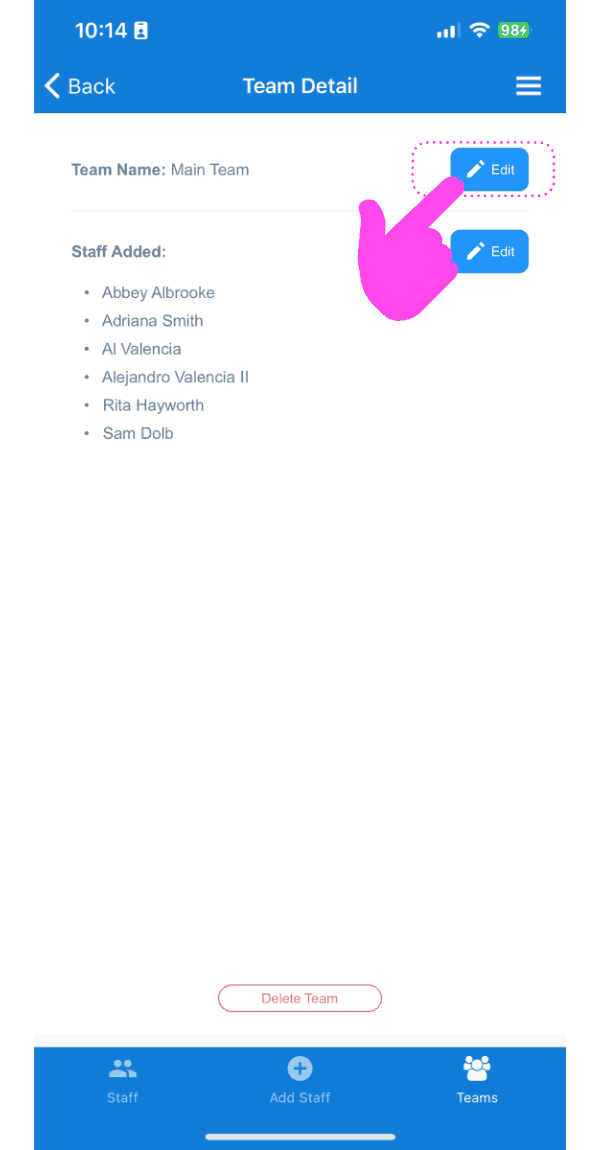
Team Detail screen showing the staff list with the Edit button highlighted by a pink arrow
Team Detail screen listing staff members added to the team, with a pink arrow pointing to the Edit button
SINC mobile Team Detail screen with a pink hand pointing to the Delete Team button

Cela a-t-il répondu à votre question ?