Comment activer les notifications de pointage

Si vous souhaitez être informé lorsqu’un employé pointe à son arrivée ou à son départ, ce tutoriel vous expliquera comment faire.

Sam Dolbel
Sam Dolbel
Mar 1st, 2023

Appuyez sur Menu Personnel
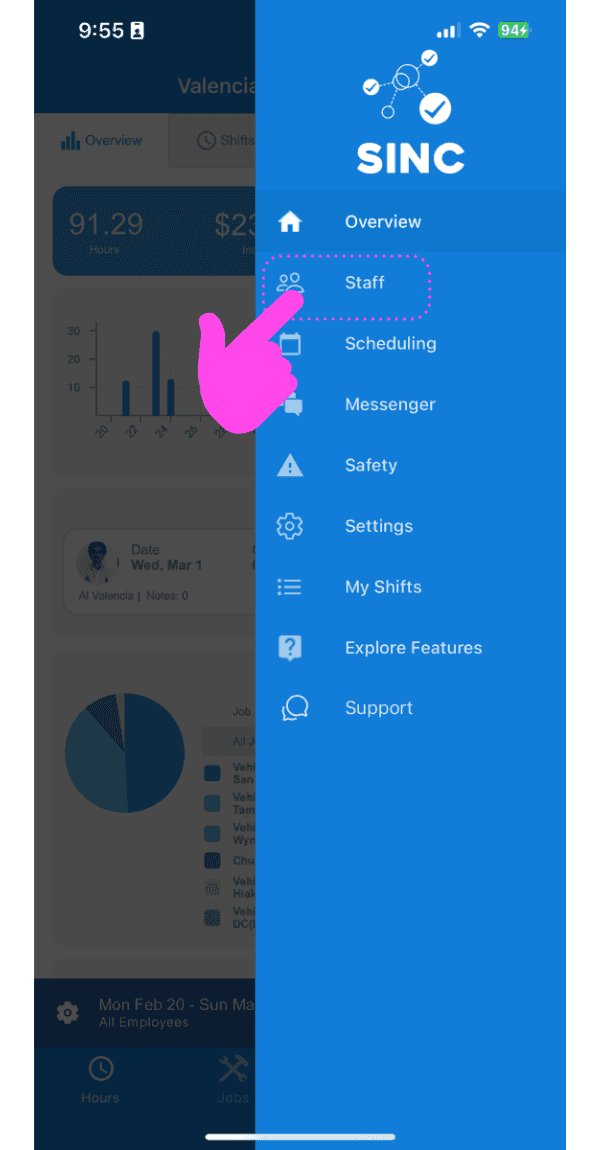
SINC mobile app side menu with a pink hand pointing to the Staff menu item

Appuyez sur Nom du membre du personnel
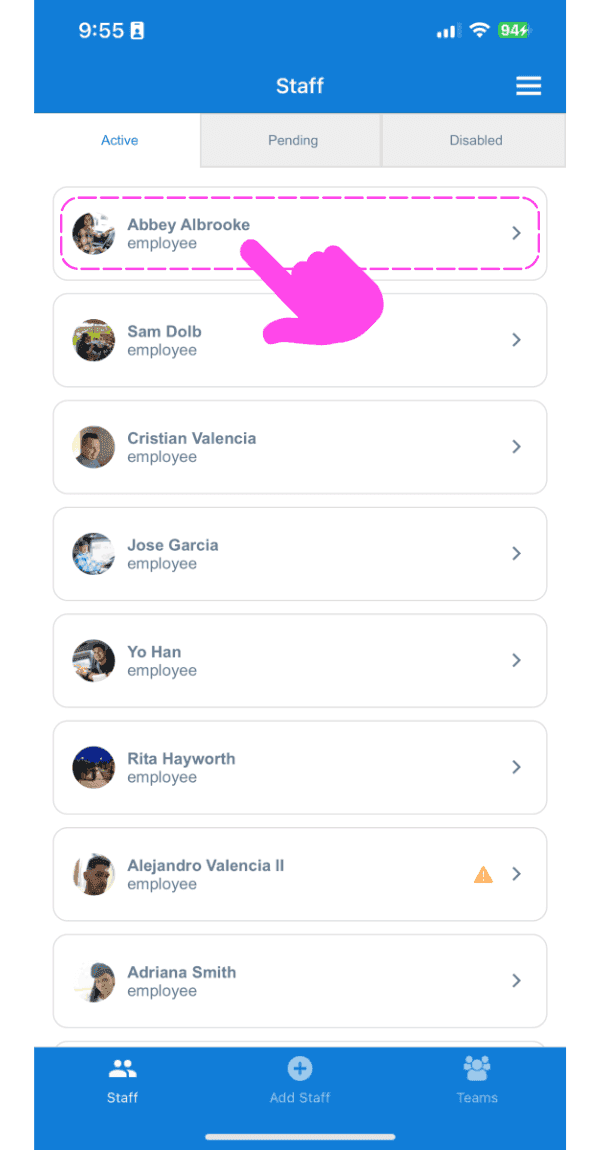
Staff list screen with a pink arrow pointing to an employee's name

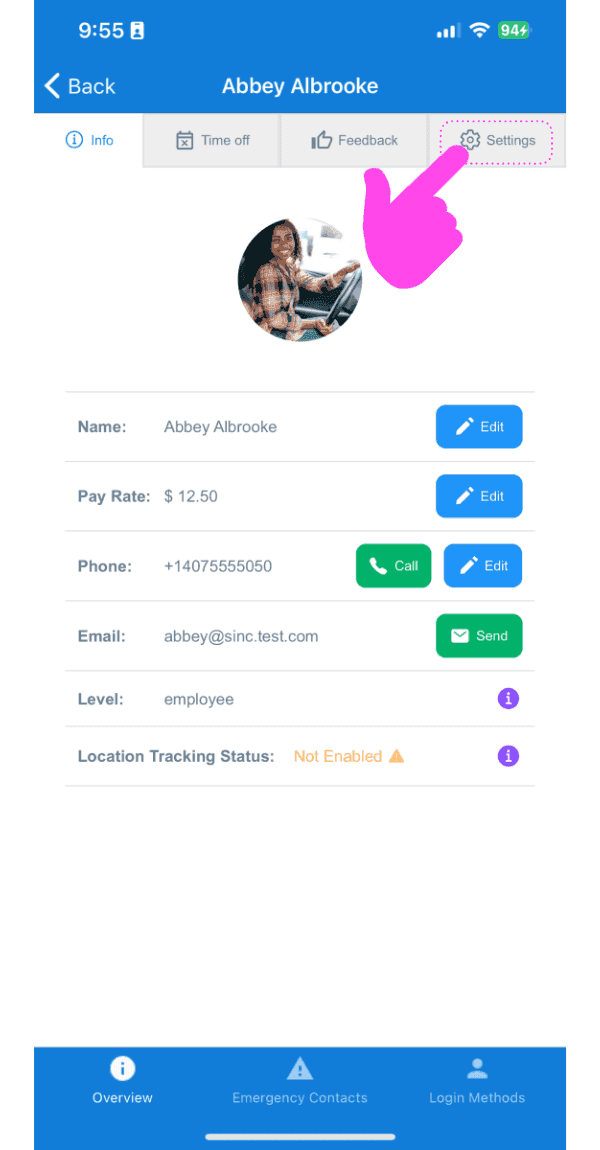
Appuyez sur Paramètres

Staff member Info screen showing profile photo and contact fields, with a pink arrow pointing to the Settings tab

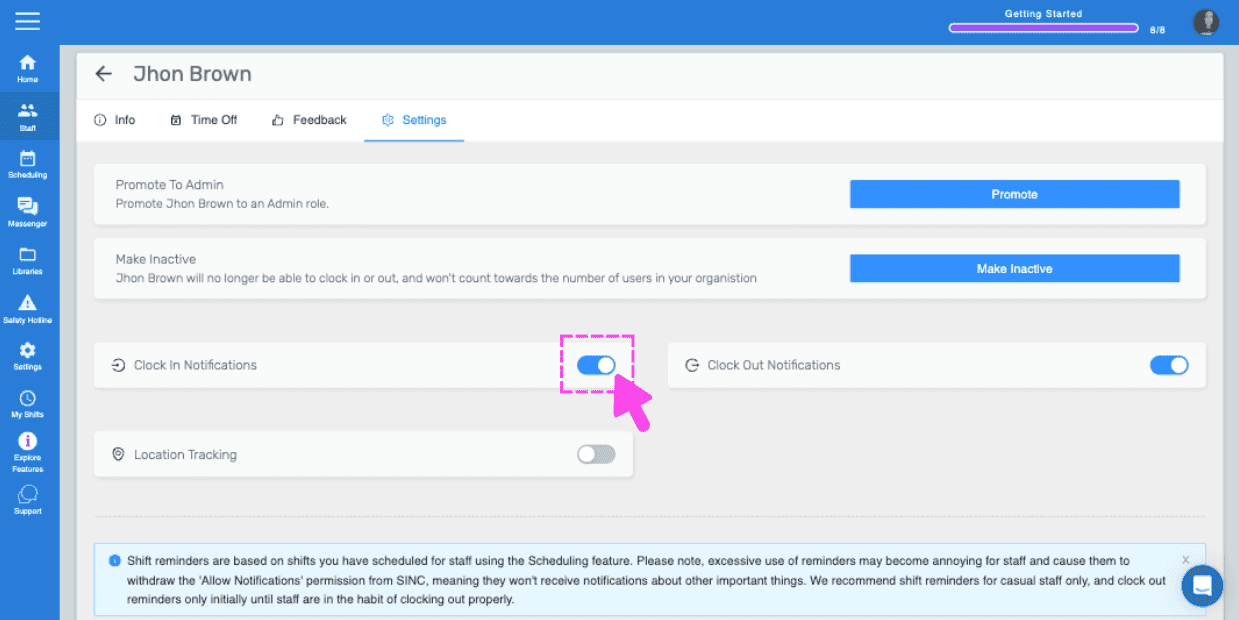
Appuyez sur Notifications de pointage
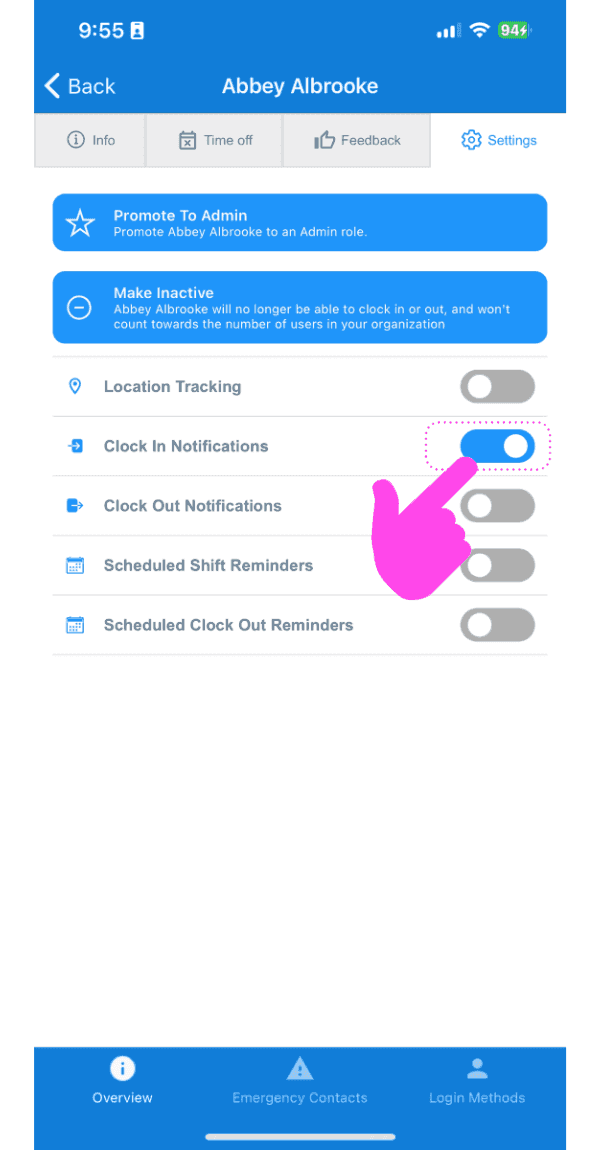
SINC mobile staff Settings screen with a pink hand pointing to the Clock In Notifications toggle

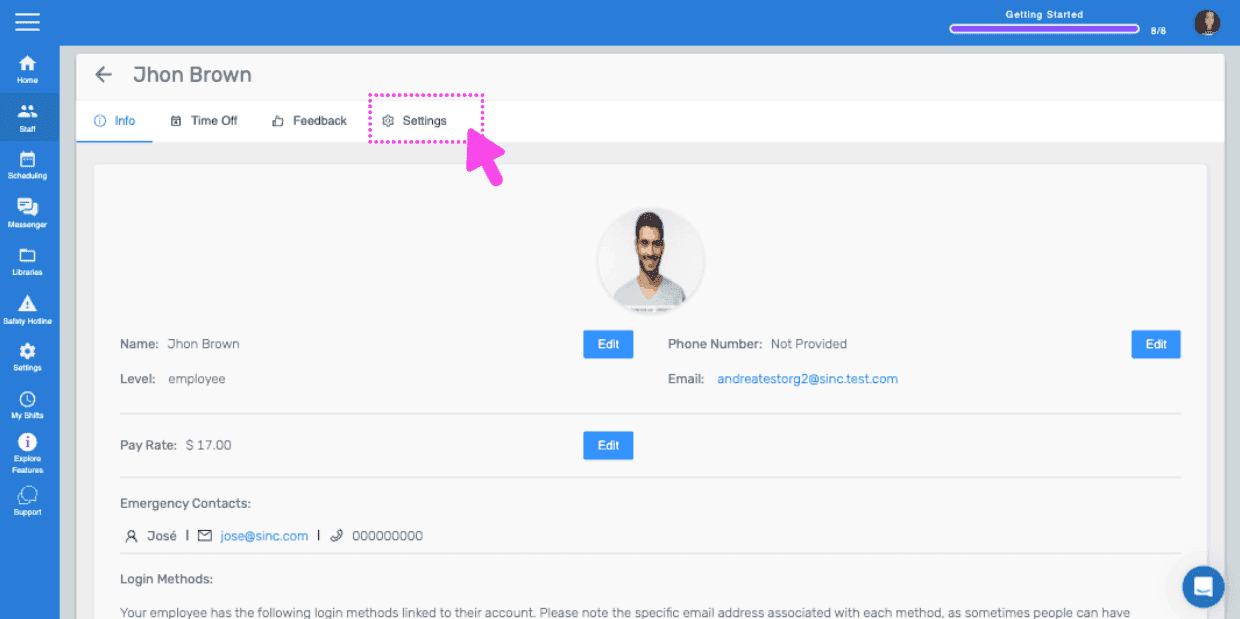
Si vous utilisez la version web, voici à quoi elle ressemble :
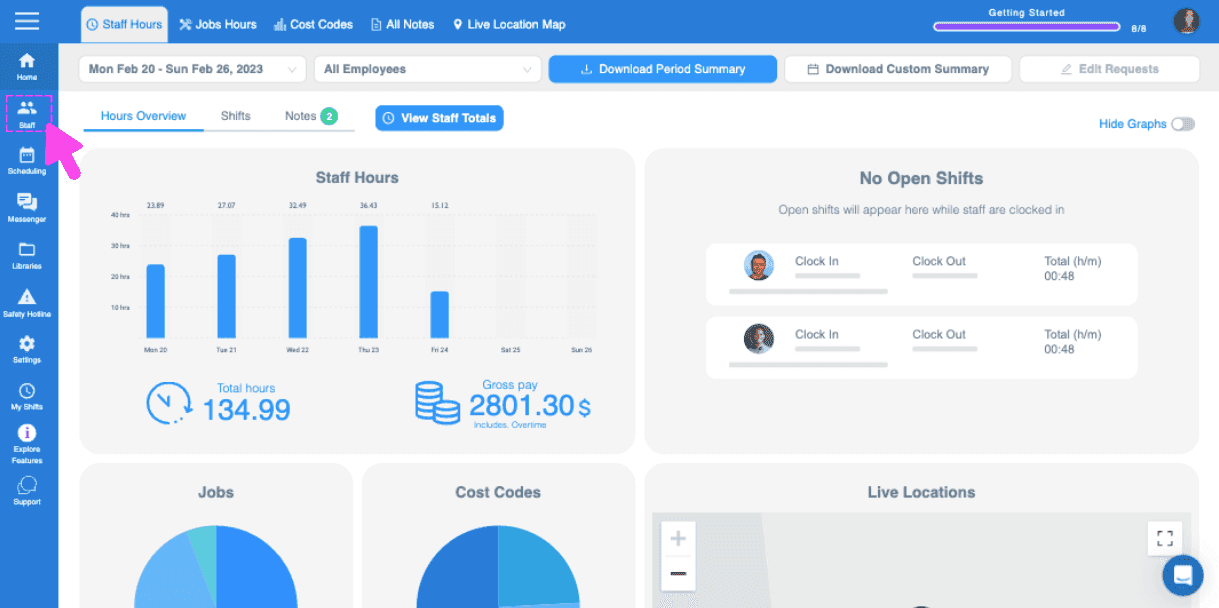
Web dashboard Hours Overview screen with a pink arrow pointing to the sidebar menu icon
SINC web staff profile screen with the Settings tab highlighted in pink
Staff settings screen for an employee with a pink arrow pointing to the Clock In Notifications toggle switch

Cela a-t-il répondu à votre question ?