Comment désactiver un membre de l’équipe

Sur SINC, vous ne supprimez pas les employés : vous les désactivez. Ils ne pourront plus pointer et ne seront plus comptabilisés dans votre nombre d’utilisateurs.

Sam Dolbel
Sam Dolbel
Feb 28th, 2023

Veuillez noter que si le membre du personnel que vous souhaitez désactiver est un ADMIN, consultez plutôt le guide administrateur. Lorsqu’un membre du personnel quitte votre organisation, il vous suffit de le rendre inactif. Appuyez sur Personnel
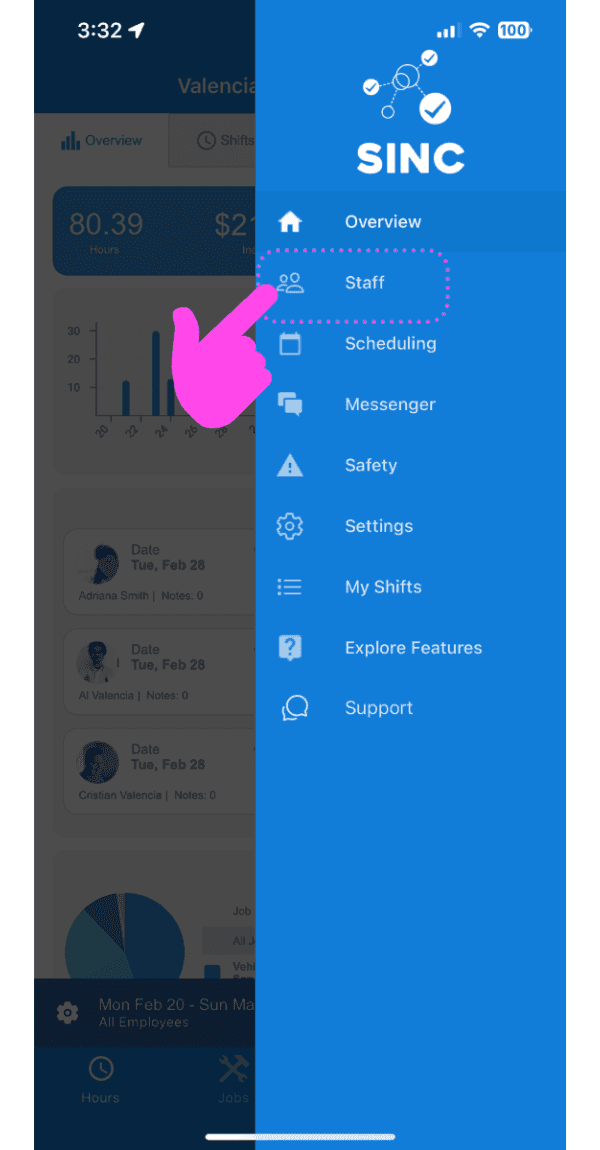
SINC mobile app side menu open with a pink arrow pointing to the Staff icon

Appuyez sur le nom du membre du personnel
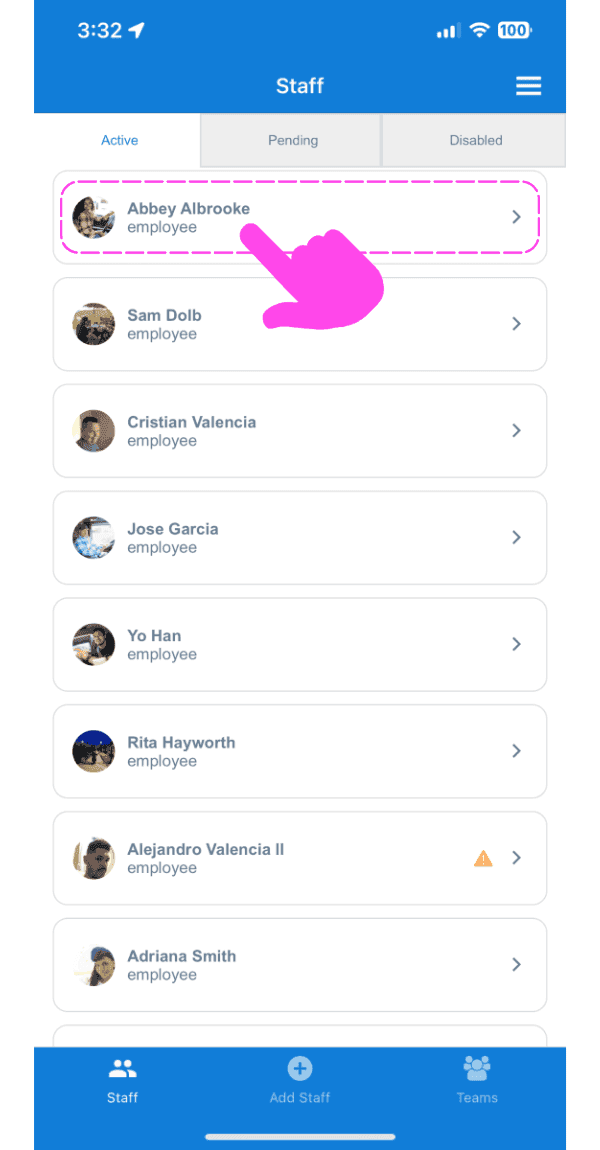
Mobile Staff list on the Active tab with a pink arrow pointing to a staff member's name

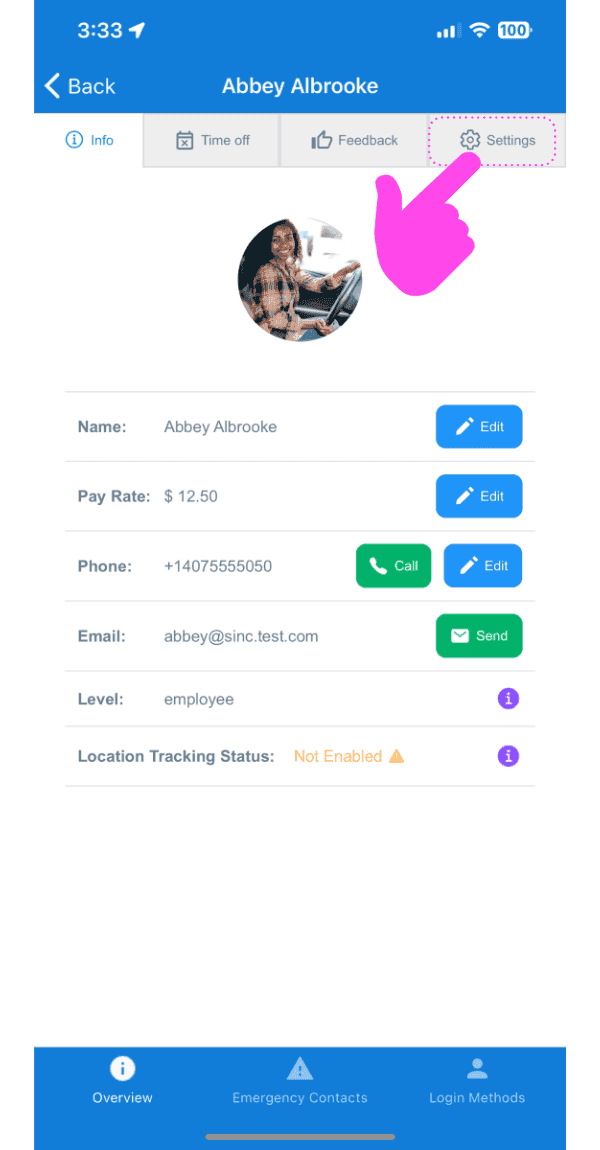
Appuyez sur Paramètres

SINC mobile staff profile screen with a pink arrow pointing to the Settings tab

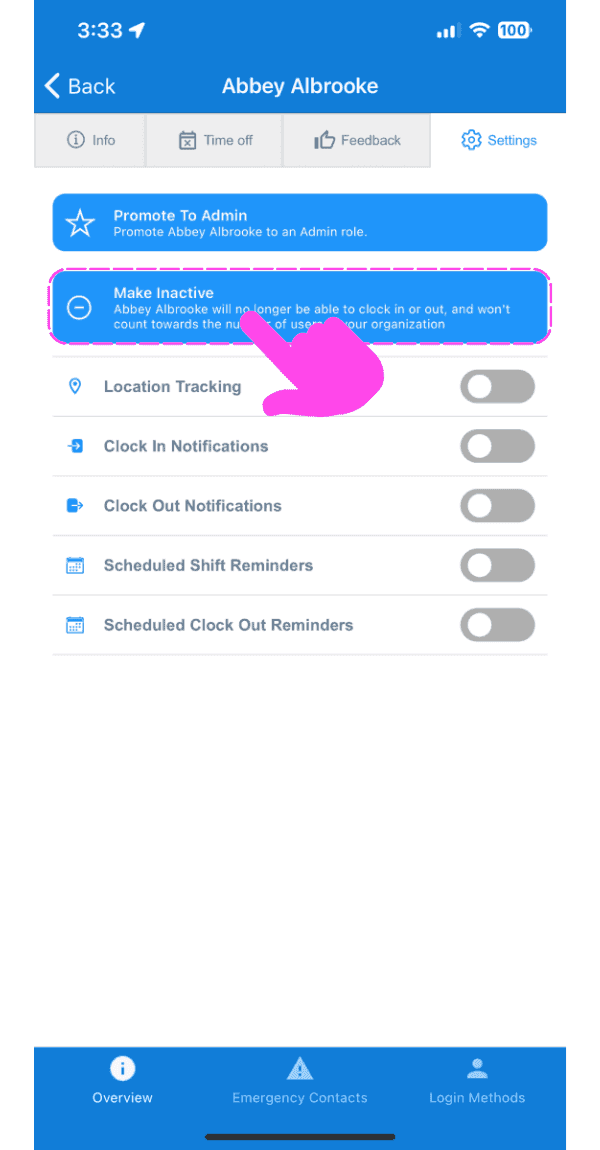
Appuyez sur Désactiver

SINC mobile staff Settings screen with the Make Inactive option outlined in pink and a hand pointing to it

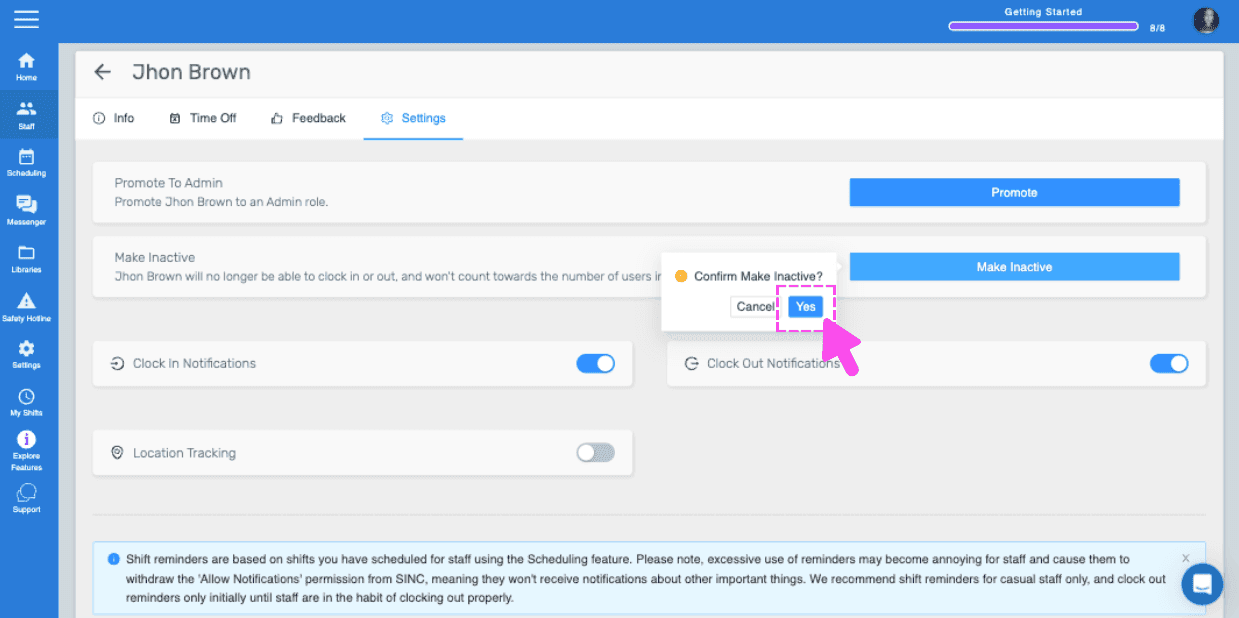
Appuyez sur Confirmer (version web) Cliquez sur Oui
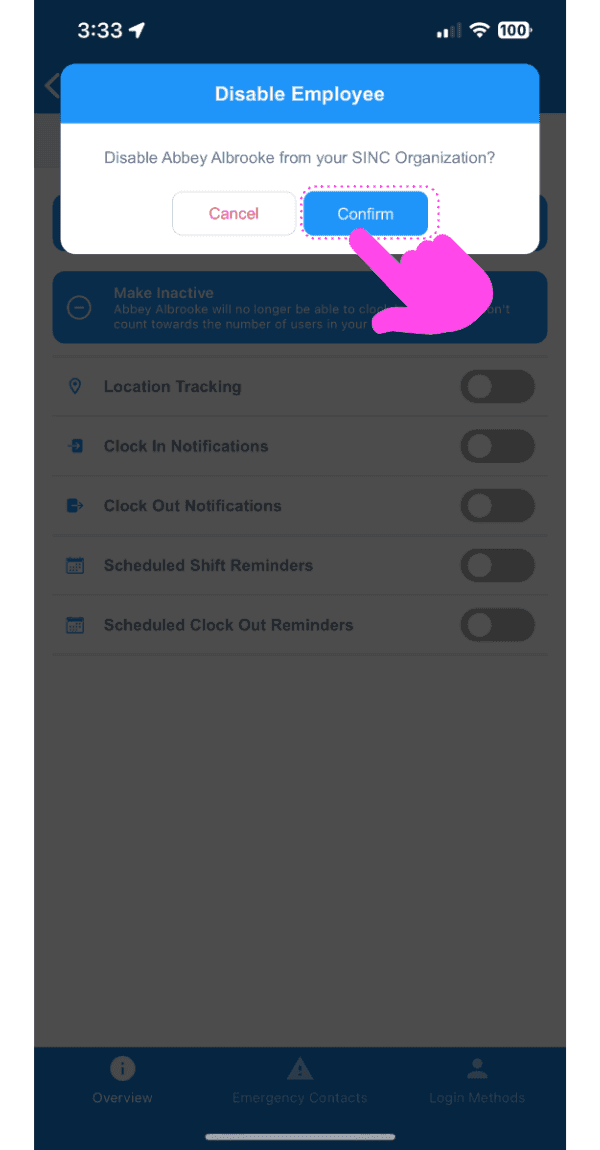
Disable Employee confirmation dialog with a pink arrow pointing to the Confirm button

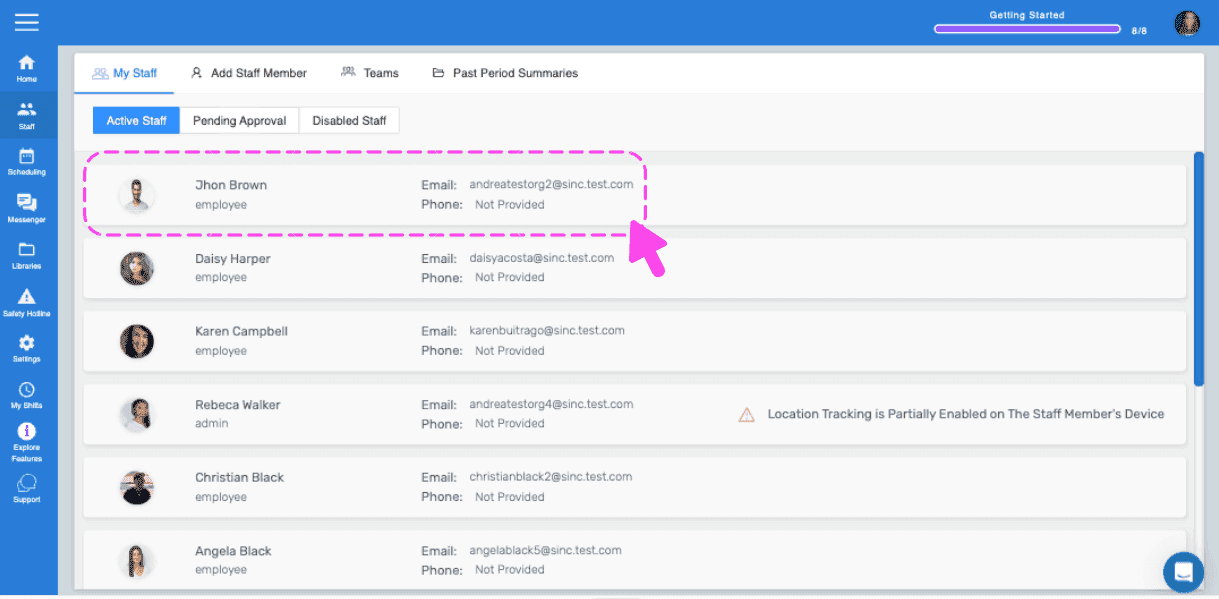
Veuillez noter : si les modifications ne s’affichent pas du côté de l’employé, demandez-lui de supprimer l’application SINC, de redémarrer son téléphone, puis de réinstaller SINC. Si vous utilisez la version web, voici à quoi cela ressemble :
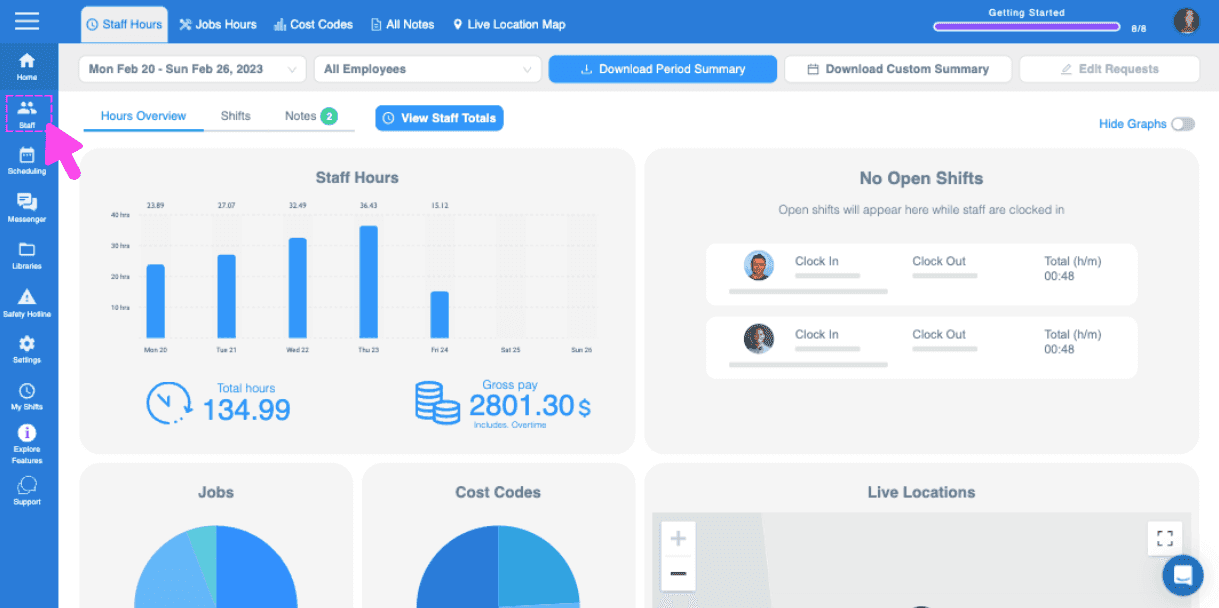
SINC web dashboard Staff Hours overview with a pink arrow pointing to a sidebar navigation icon
Web dashboard Staff list with a pink dashed outline and arrow highlighting an employee row
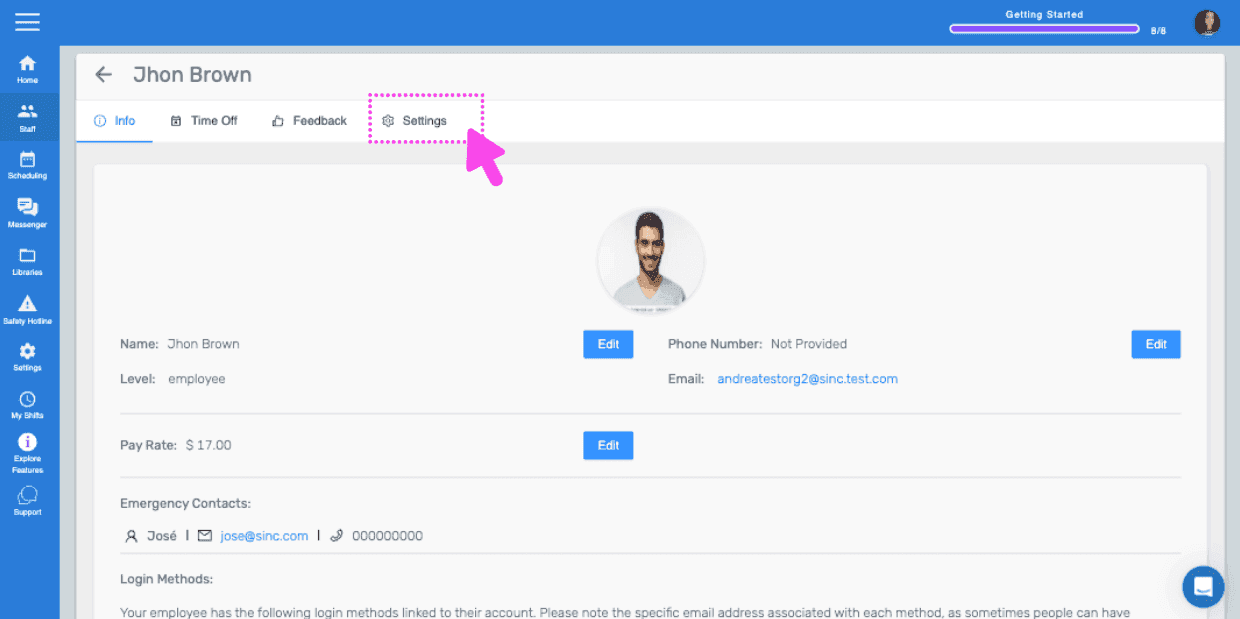
Staff member Info screen showing photo, name, pay rate, and phone, with a pink arrow pointing to the Settings tab
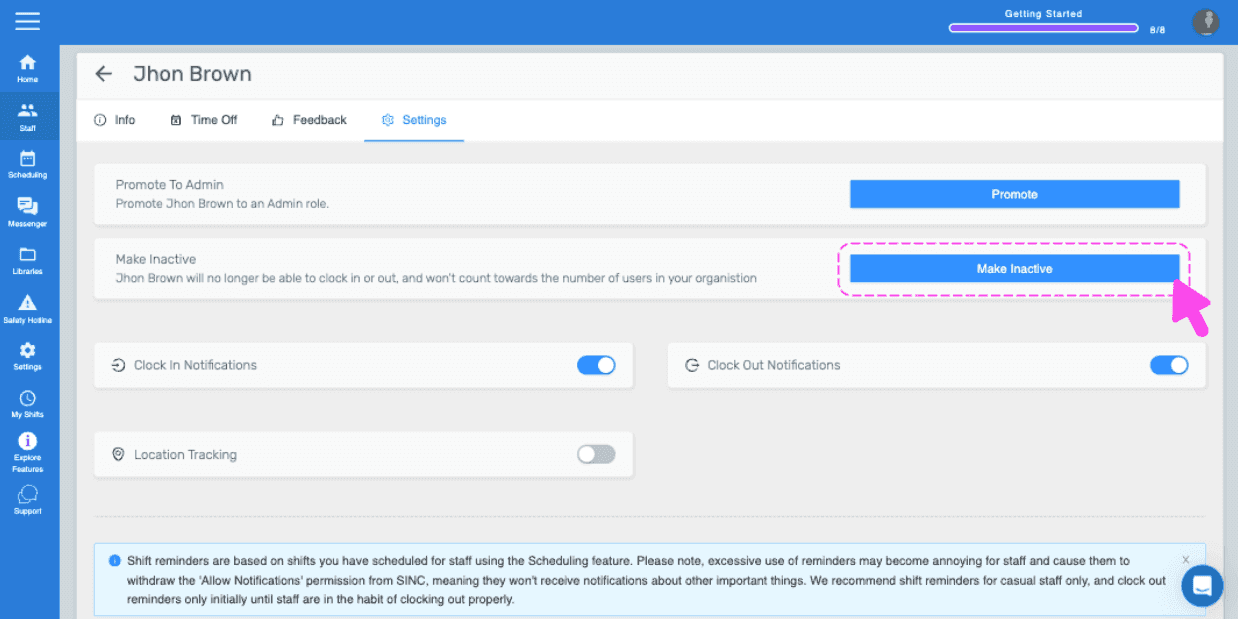
SINC web staff Settings tab with the Make Inactive button highlighted in pink
Staff member Settings tab with a Make Inactive confirmation popup and the Yes button highlighted by a pink arrow

Cela a-t-il répondu à votre question ?