Comment recueillir les retours du personnel

Dans ce guide, nous verrons comment ajouter des retours pour les membres de votre équipe dans Sinc, afin de conserver une trace permanente de leurs performances.

Sam Dolbel
Sam Dolbel
Mar 1st, 2023

Appuyez sur Menu Personnel
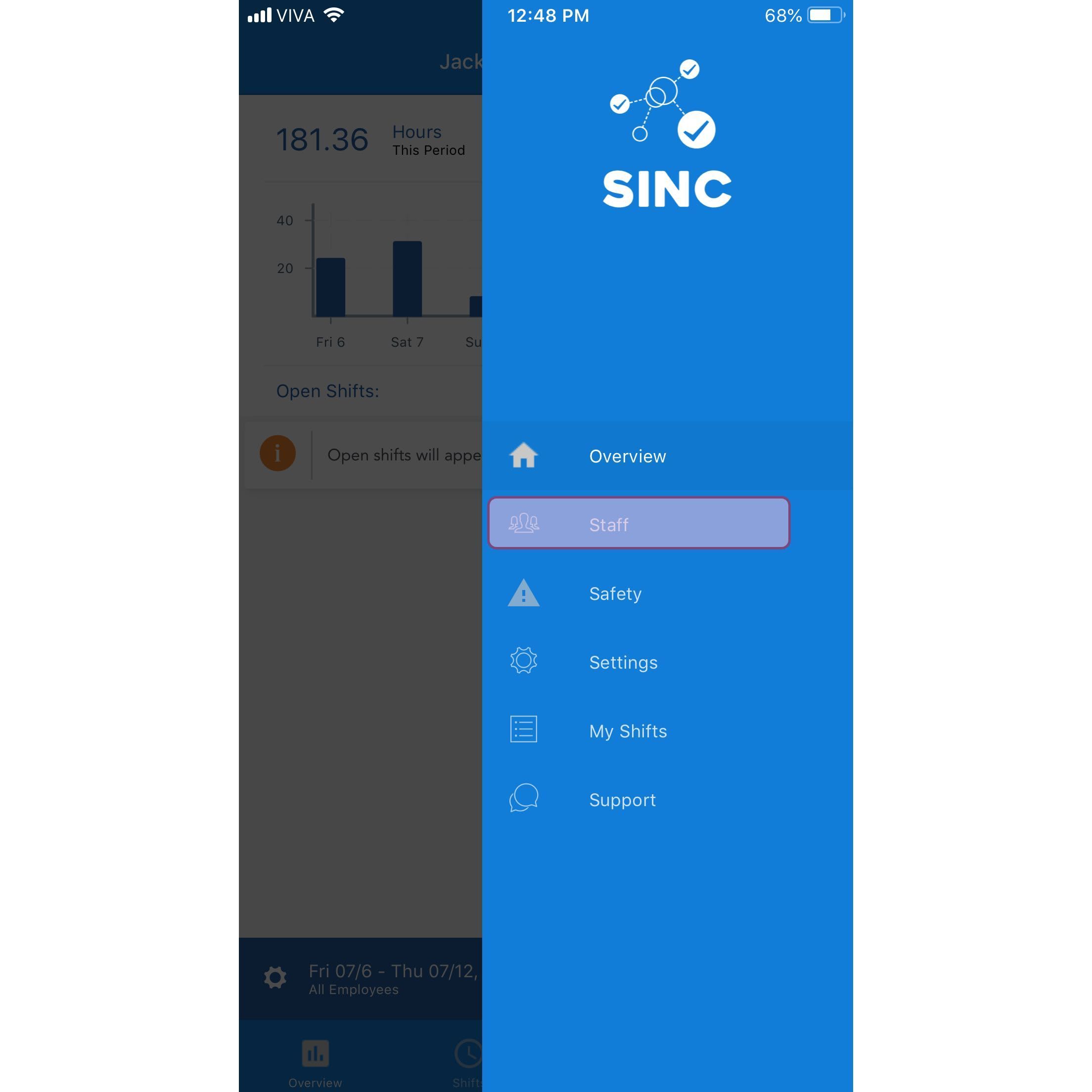
SINC mobile app menu with the Staff option highlighted

Appuyez sur le nom du membre du personnel
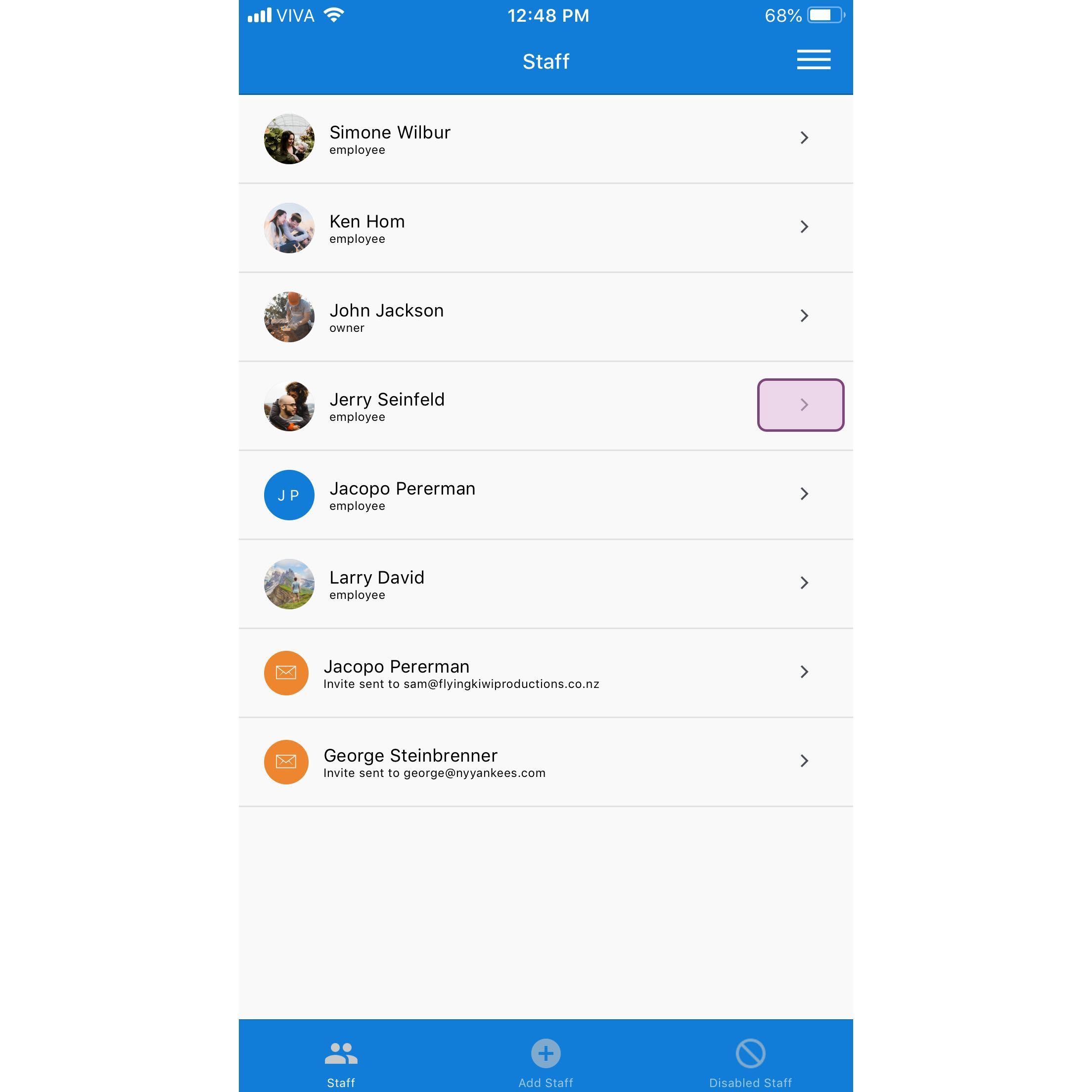
SINC mobile Staff list with the Jerry Seinfeld row highlighted in a pink box

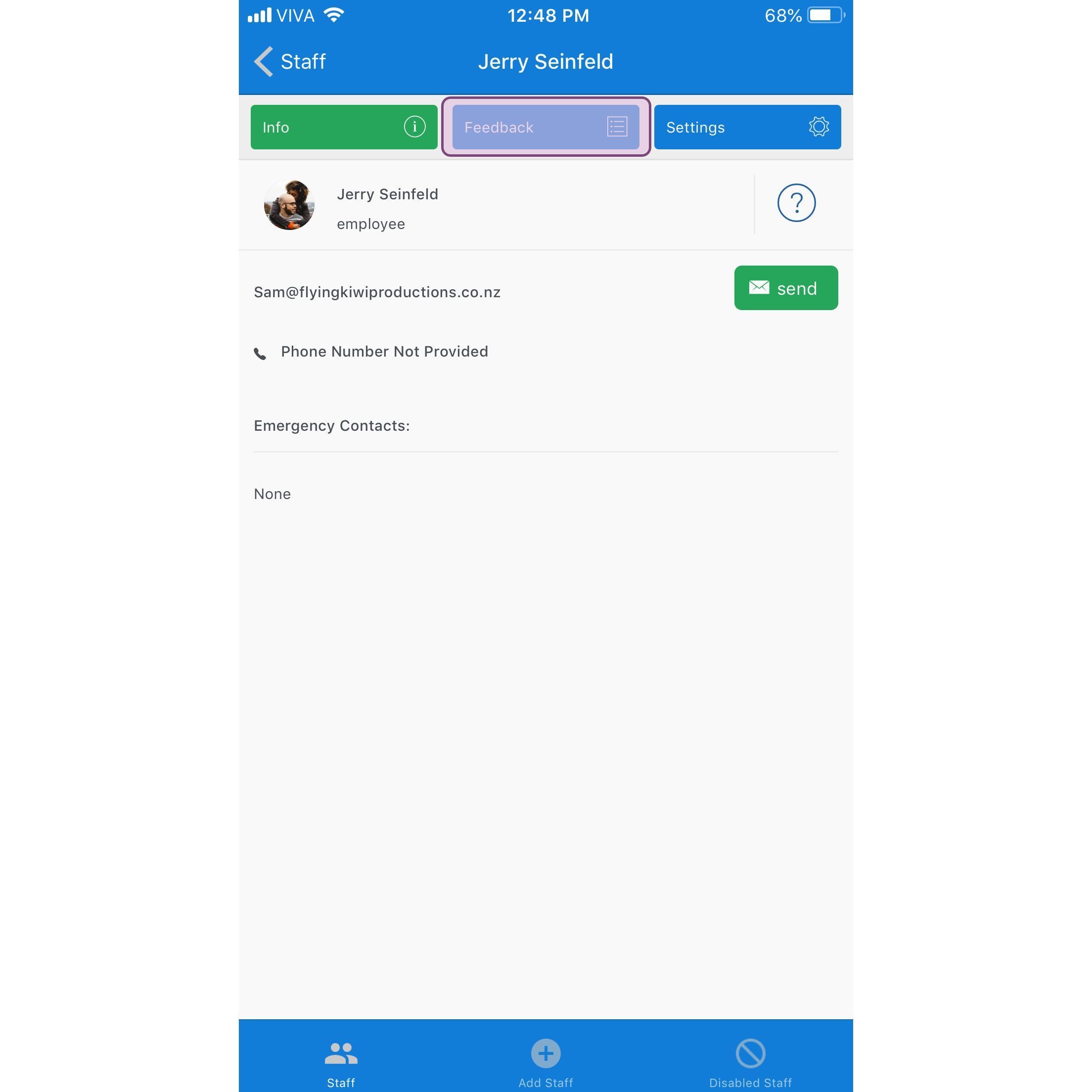
Appuyez sur Commentaires

SINC mobile staff profile screen with the Feedback tab highlighted in purple

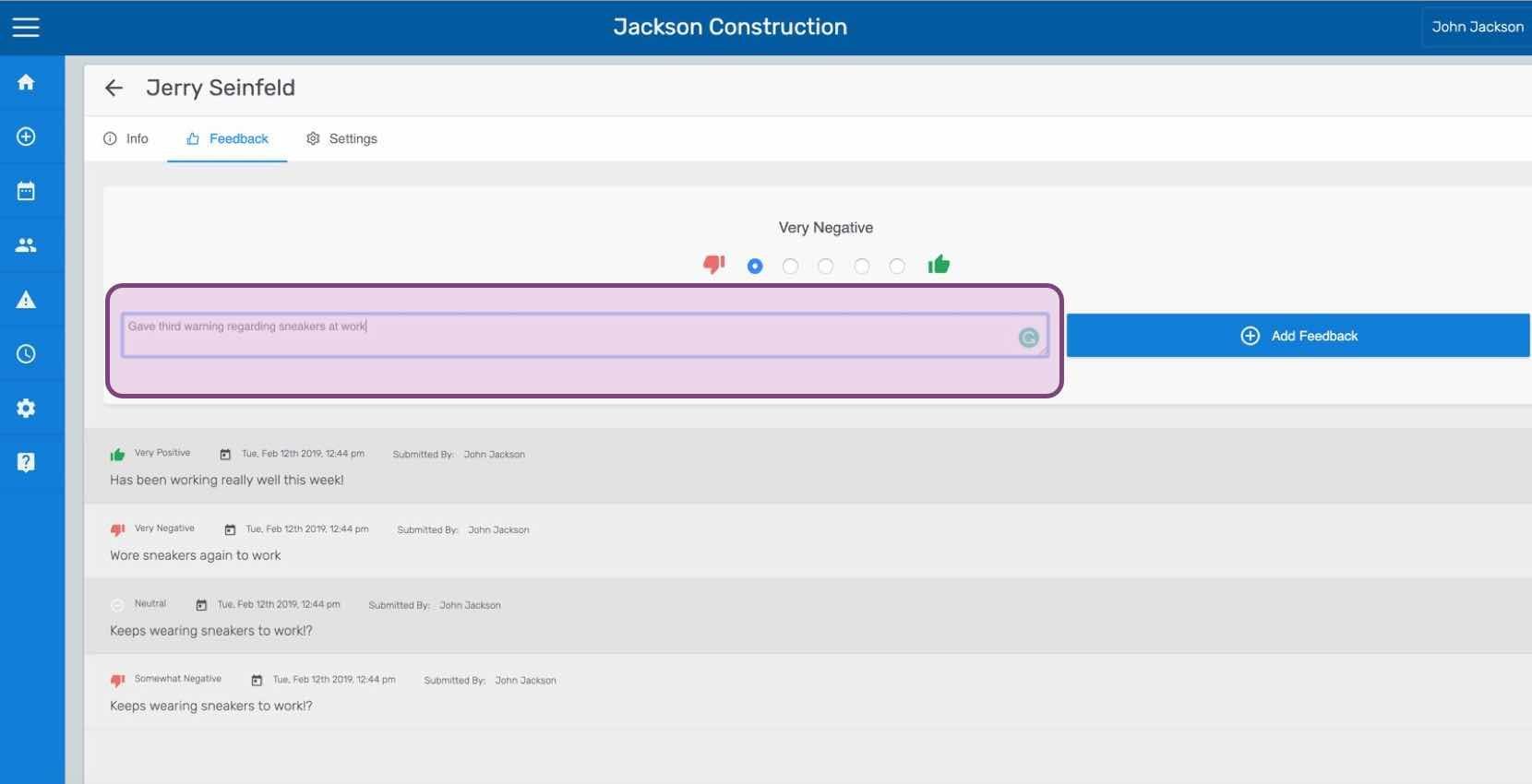
Saisissez vos commentaires, puis appuyez sur Envoyer les commentaires (version Web). Cliquez sur Ajouter un commentaire.
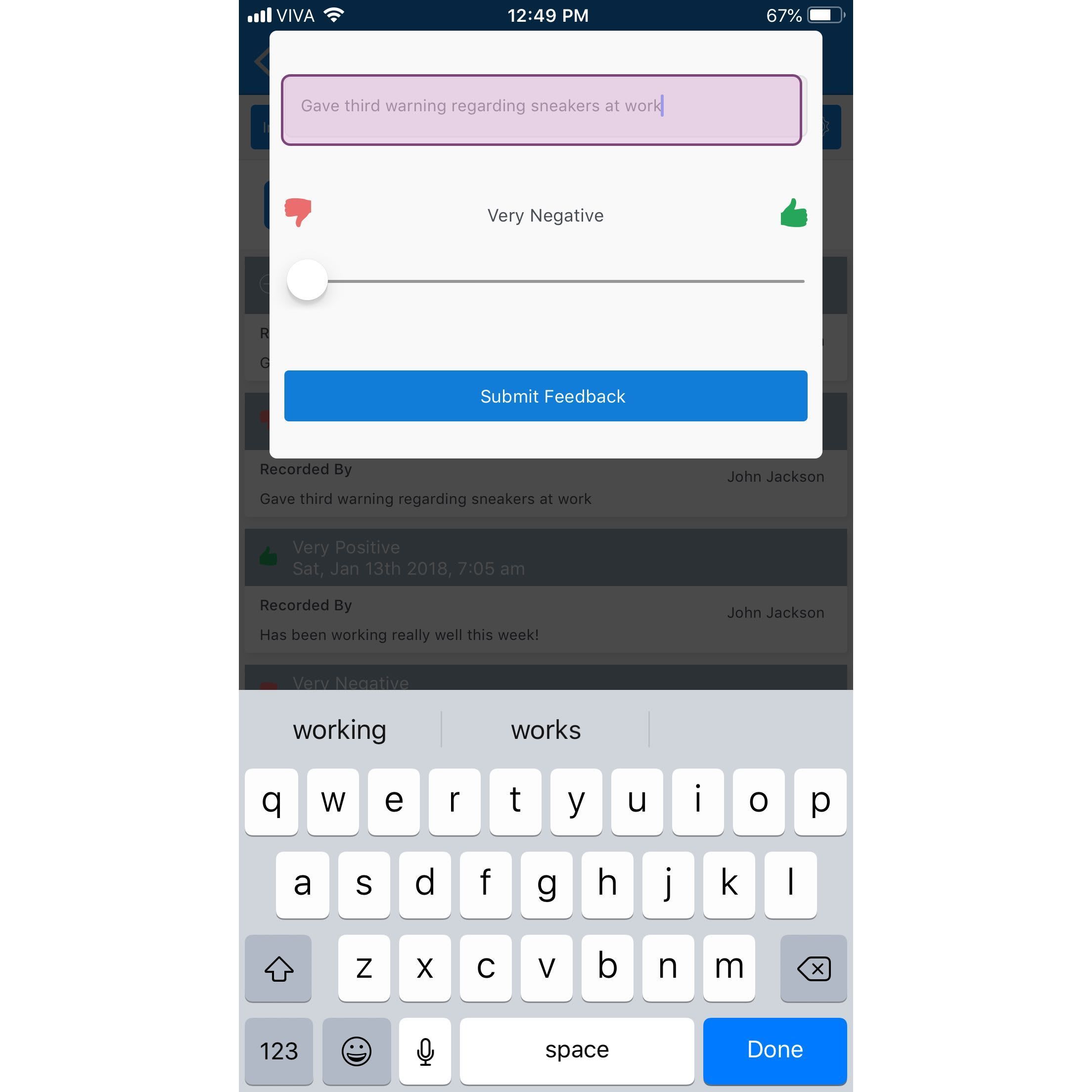
Mobile app feedback entry screen with a typed note, a Very Negative to Very Positive slider, and Submit Feedback button

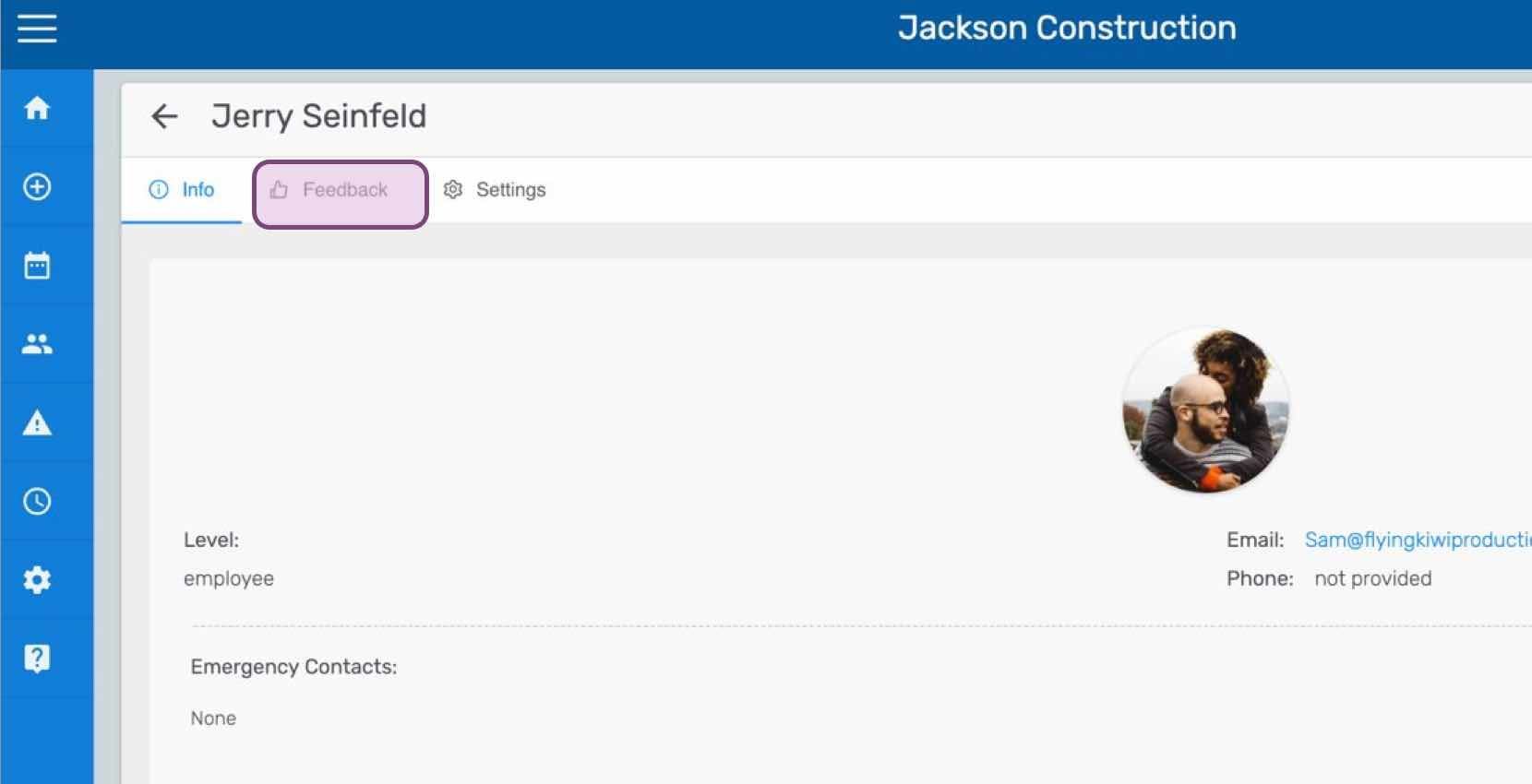
Si vous utilisez la version web, voici à quoi cela ressemble :
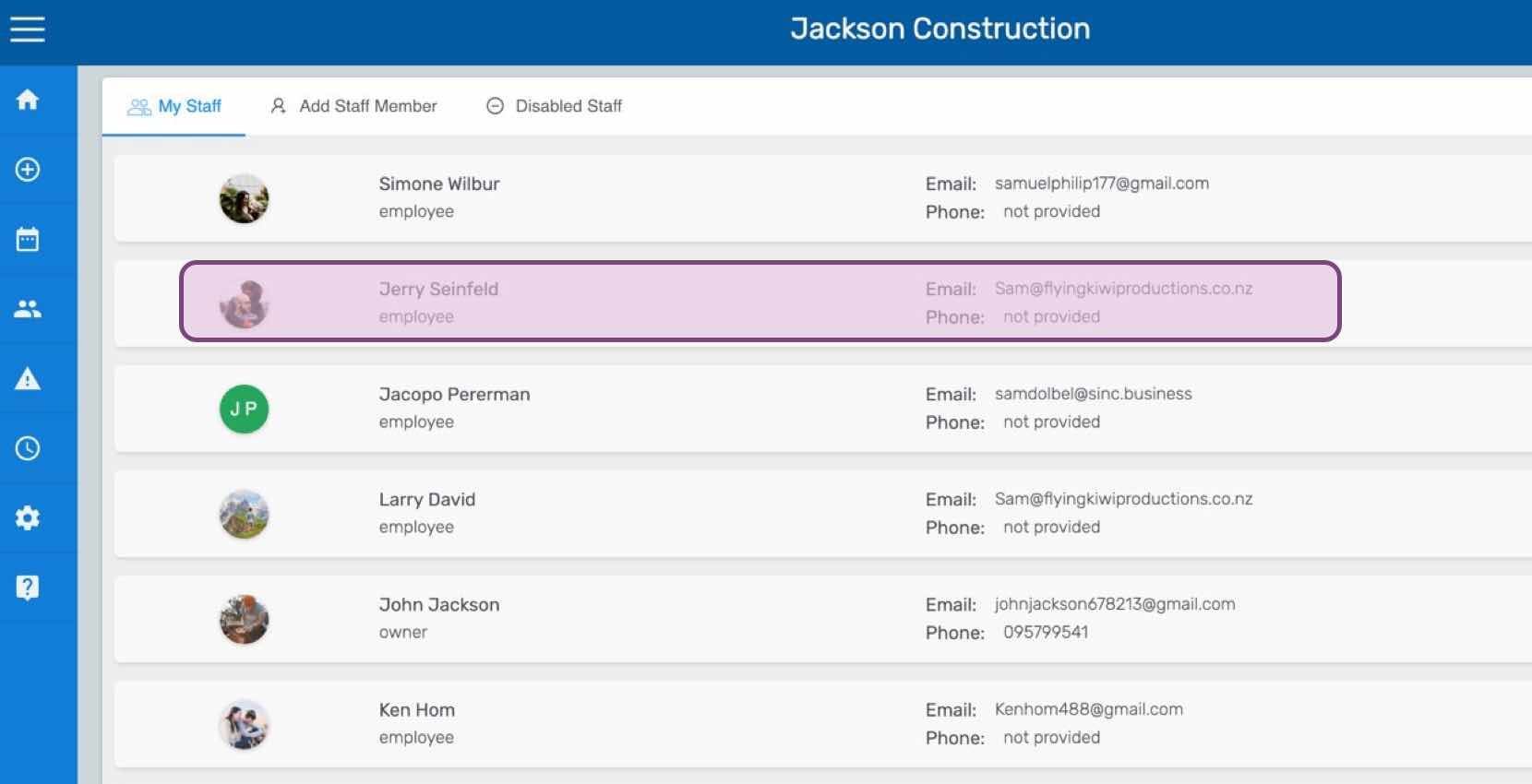
SINC web My Staff list with one employee row highlighted in pink
Staff profile screen for an employee with the Feedback tab circled at the top of the page
SINC web staff Feedback tab showing a rating scale and comment field with the Add Feedback button

Cela a-t-il répondu à votre question ?