Comment restaurer un membre de l’équipe

Un de vos employés est-il revenu travailler pour vous ? Il n’est pas nécessaire de lui envoyer une nouvelle invitation : il vous suffit de suivre ces instructions.

Sam Dolbel
Sam Dolbel
Feb 28th, 2023

Appuyez sur Menu Personnel
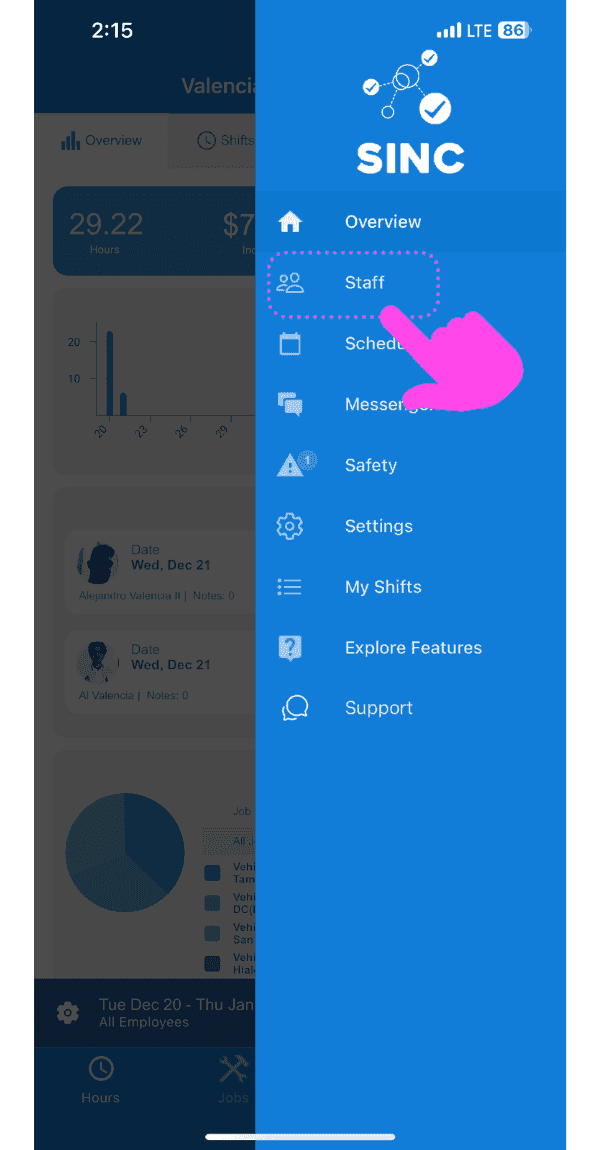
SINC mobile side menu with a pink arrow pointing to the Staff menu item

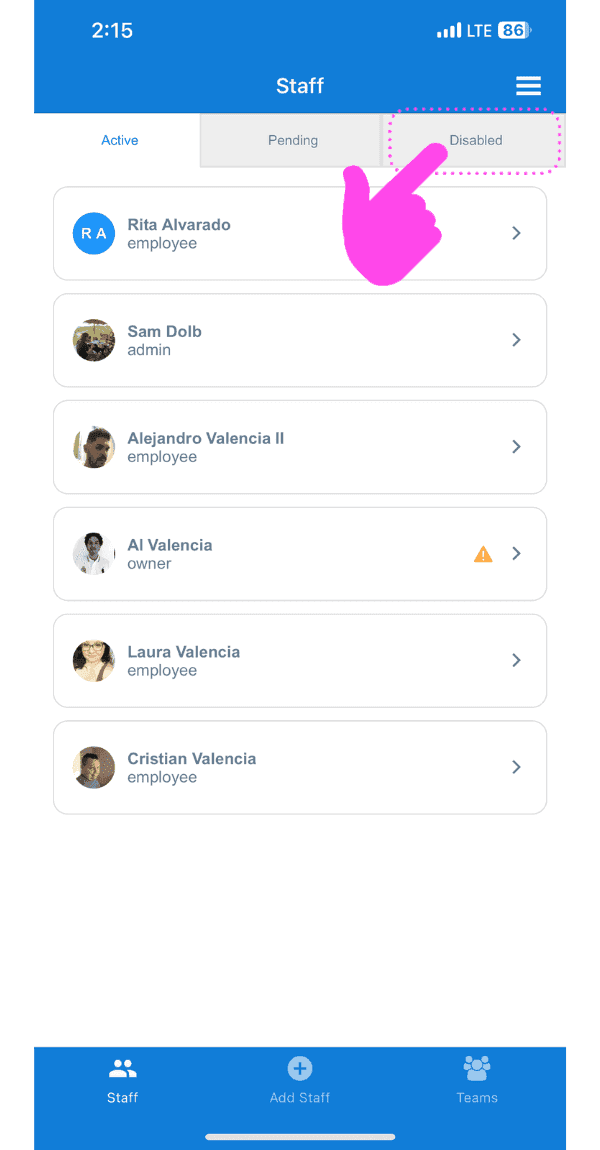
Appuyez sur Personnel désactivé

SINC mobile Staff screen with a pink hand pointing to the Disabled tab

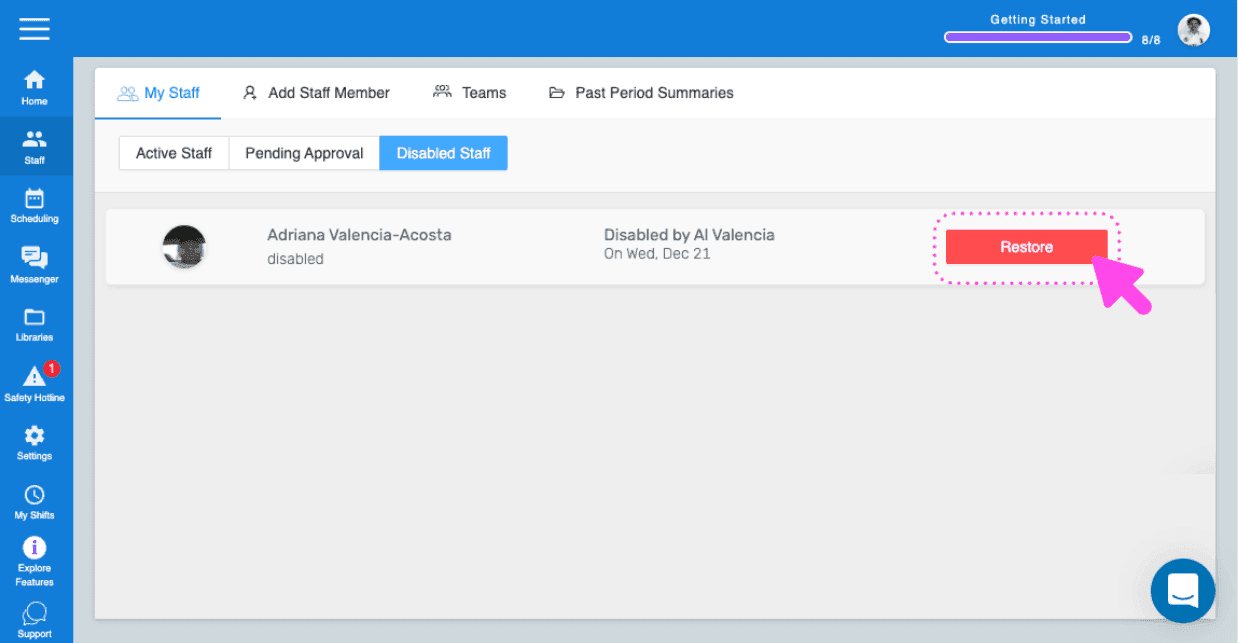
Appuyez sur Restaurer (à côté du membre du personnel que vous souhaitez restaurer)
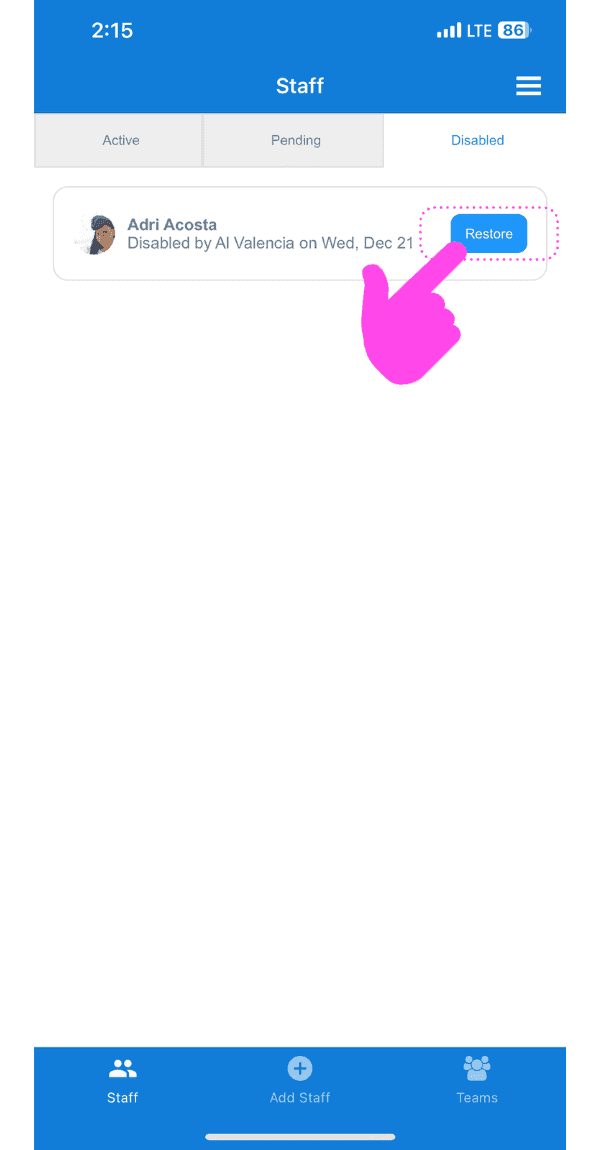
Staff Disabled tab showing a disabled employee with the Restore button highlighted by a pink arrow

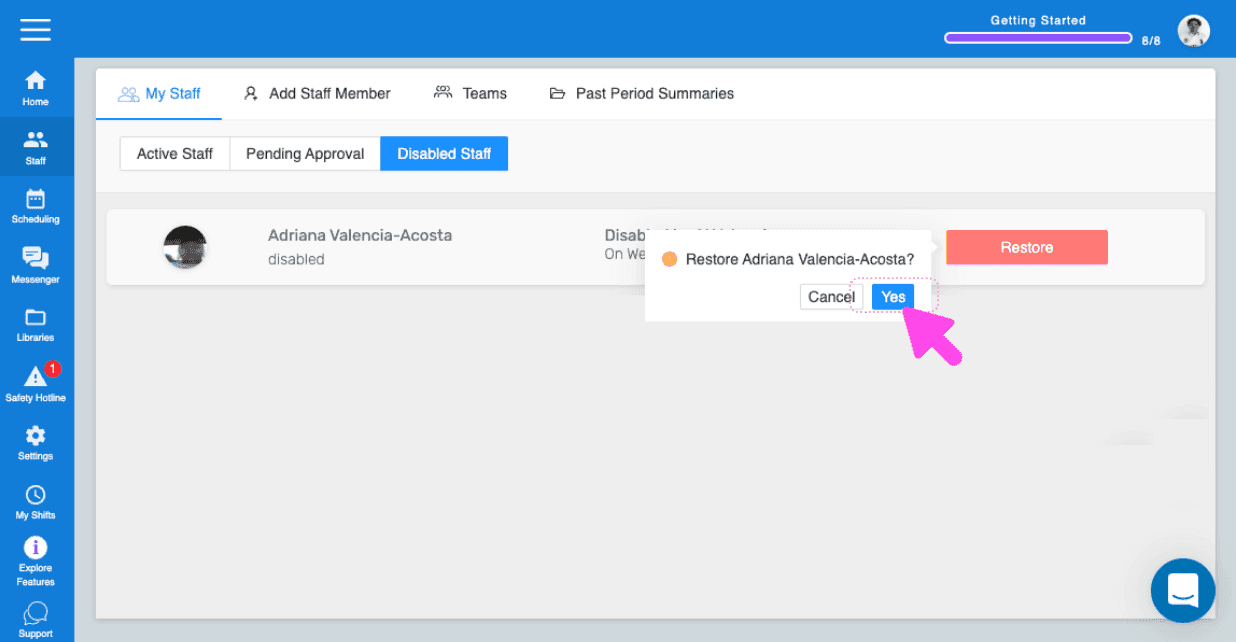
Appuyez sur OK (version Web) Cliquez sur Oui
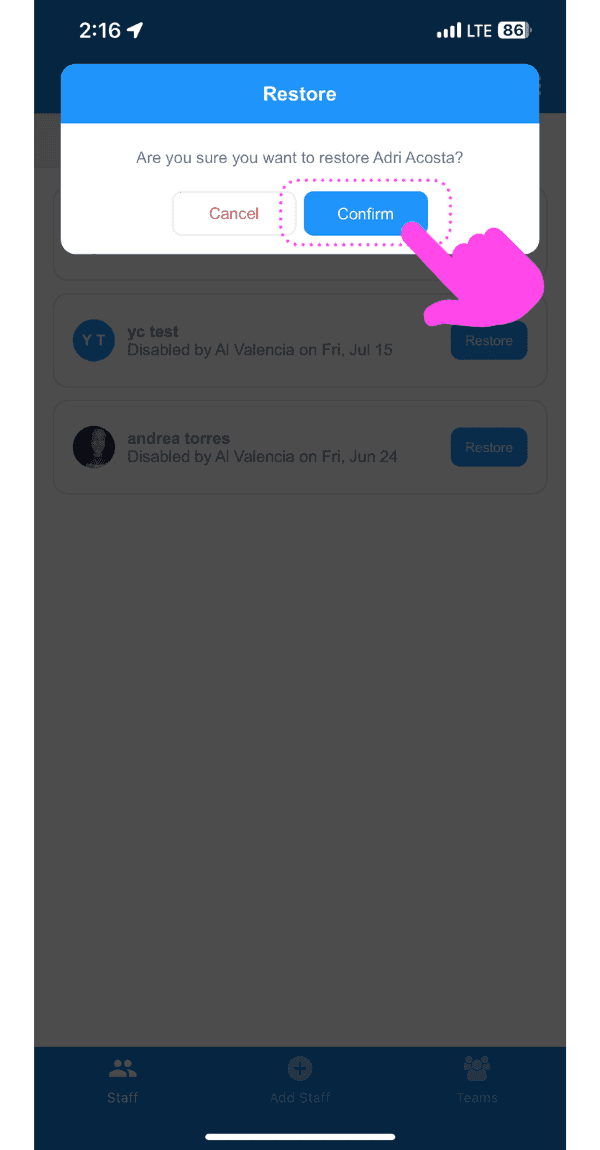
SINC mobile restore confirmation dialog with the Confirm button highlighted in pink

Veuillez noter : si les modifications ne s’affichent pas du côté du salarié, demandez-lui de supprimer l’application SINC de redémarrer son téléphone puis de réinstaller SINC. Si vous utilisez la version Web, cela ressemblera à ceci :
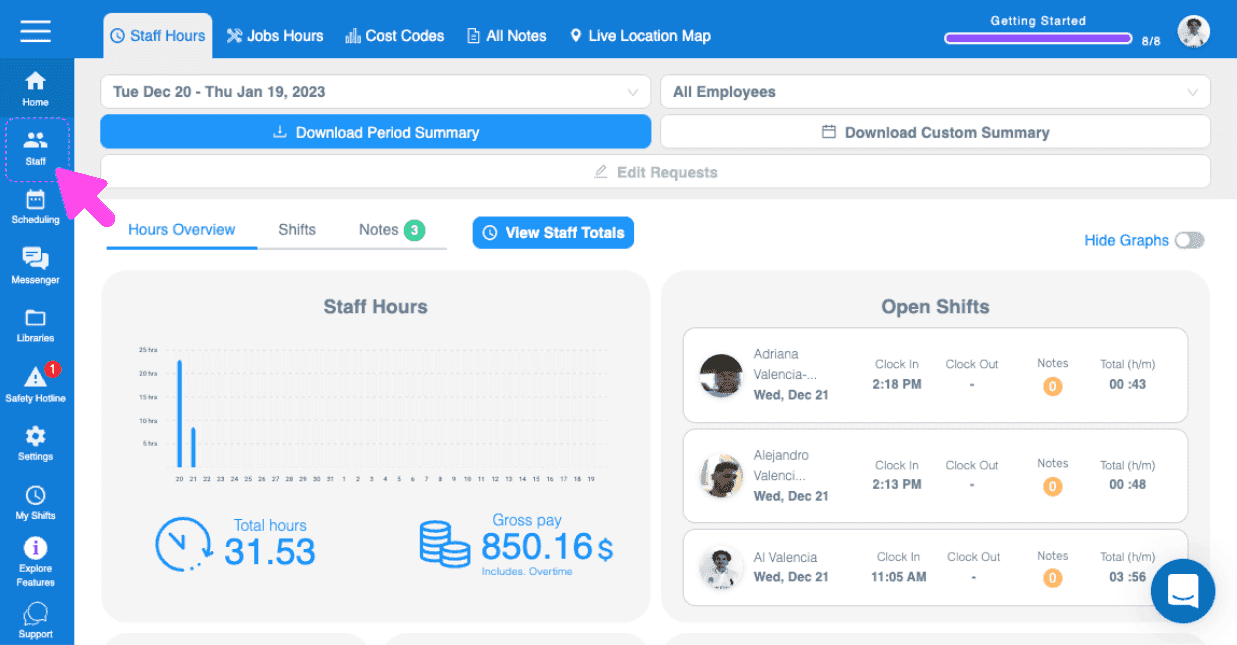
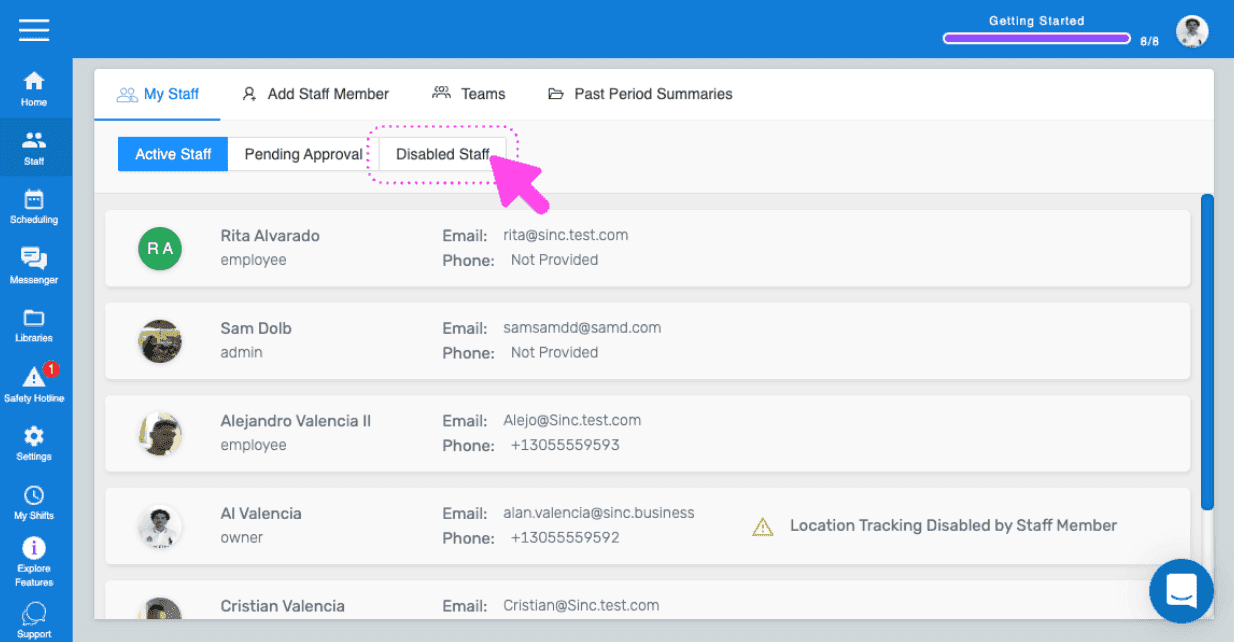
SINC web dashboard Overview page with a pink arrow pointing to the Staff icon in the left sidebar navigation
SINC web My Staff page with a pink arrow pointing to the Disabled Staff tab
Web My Staff Disabled Staff tab with a staff member's red Restore button outlined in pink
SINC web Disabled Staff tab showing a Restore confirmation dialog with a pink arrow pointing to the Yes button

Cela a-t-il répondu à votre question ?