Comment repasser un administrateur au statut d’employé

Dans ce guide, nous vous expliquons comment repasser du rôle d’administrateur à celui d’employé.

SINC Support Team
SINC Support Team
Mar 27th, 2023

Si un membre du personnel a été promu administrateur et doit être rétrogradé, veuillez suivre ces étapes. Appuyez sur Personnel
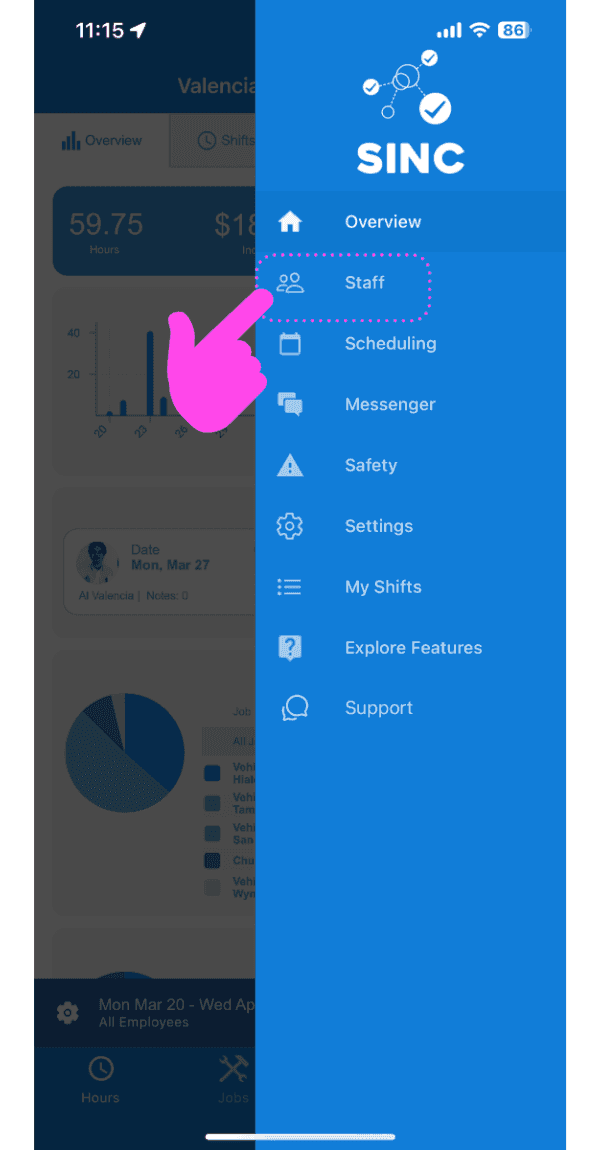
SINC mobile app side menu with a pink arrow pointing to the Staff menu item

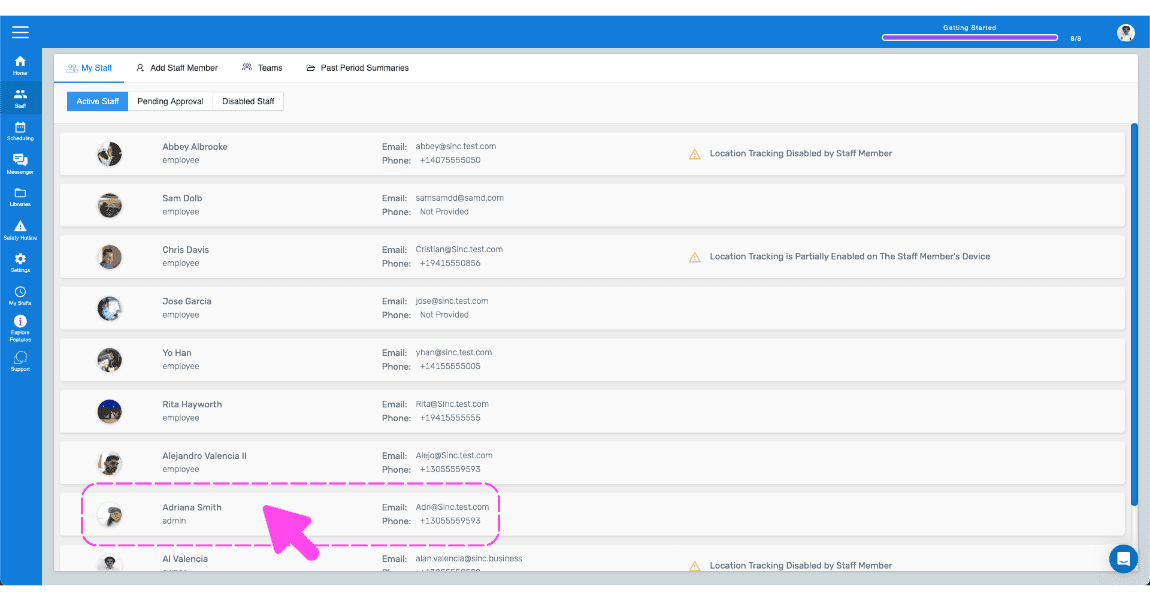
Appuyez sur le nom du membre du personnel que vous souhaitez reconvertir en employé
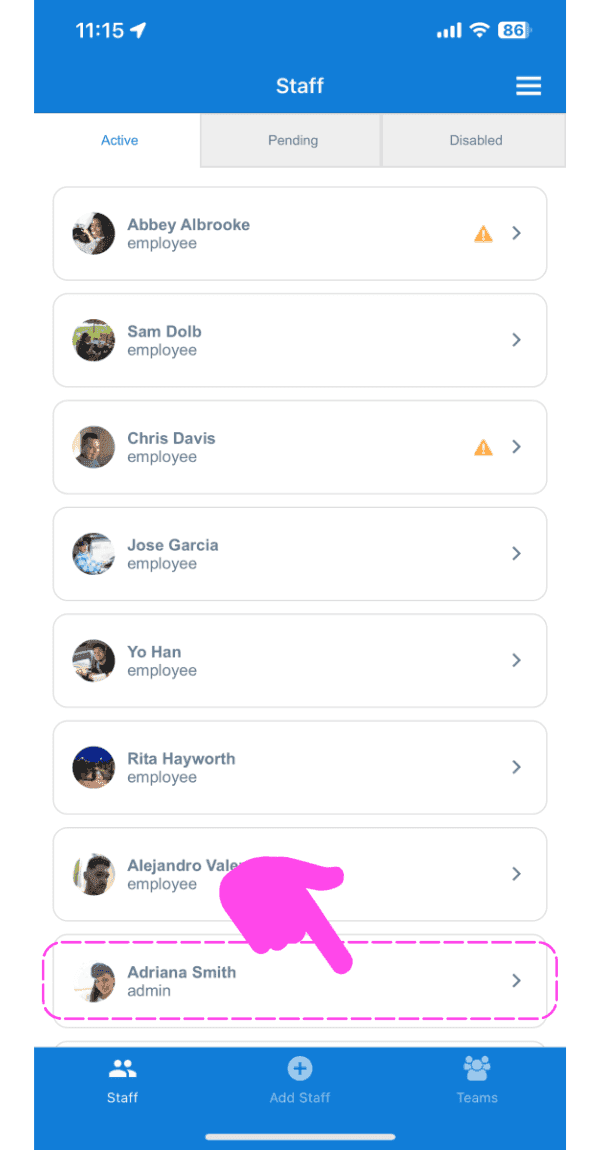
SINC mobile app Staff Active list with a pink arrow and dashed box highlighting an admin staff member's row

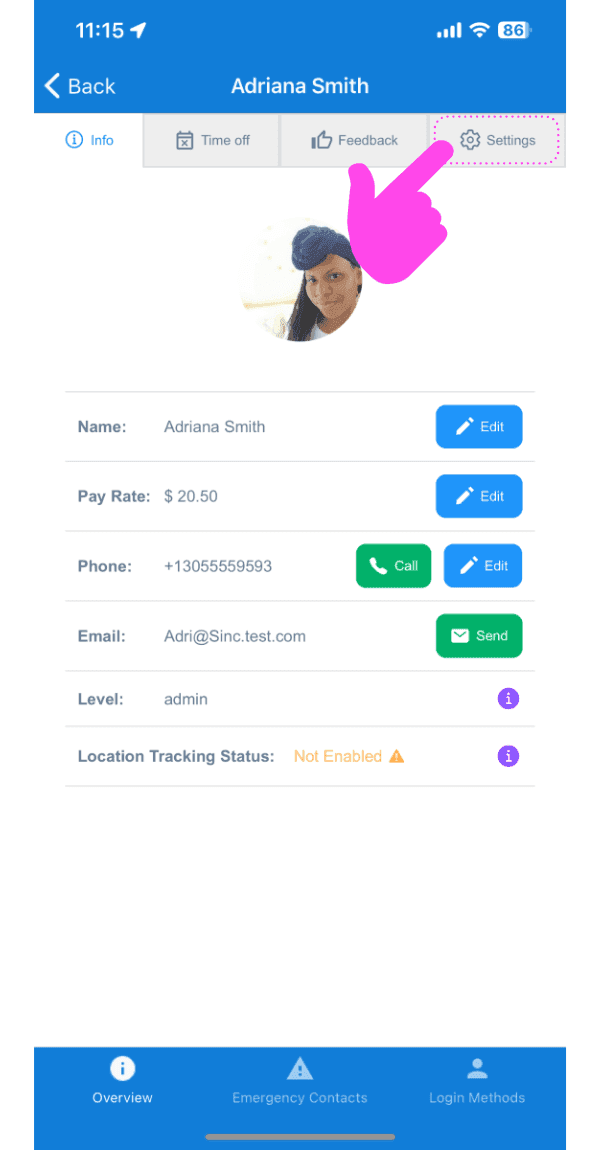
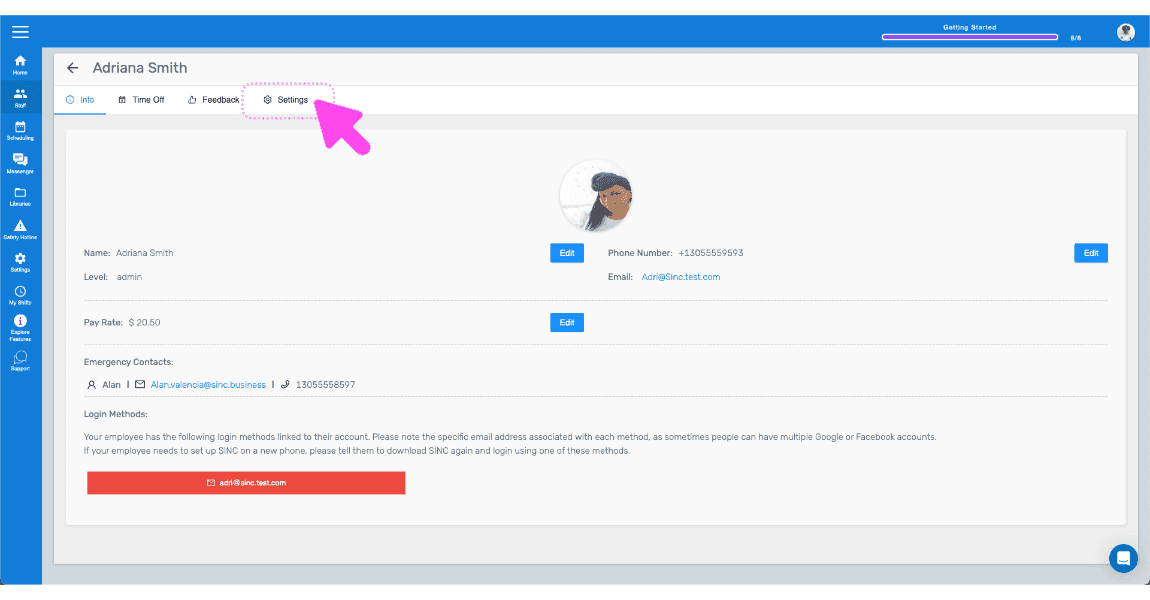
Appuyez sur Paramètres

Staff profile screen with the Settings tab highlighted by a pink arrow

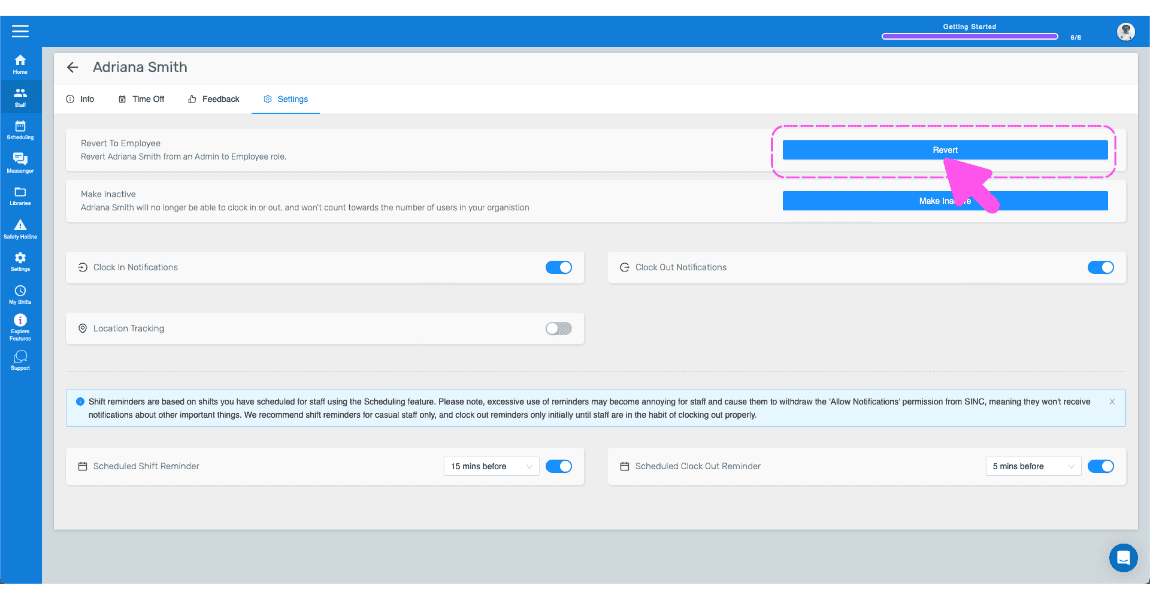
Appuyez sur Revenir au statut d’employé (version web), puis cliquez sur Revenir
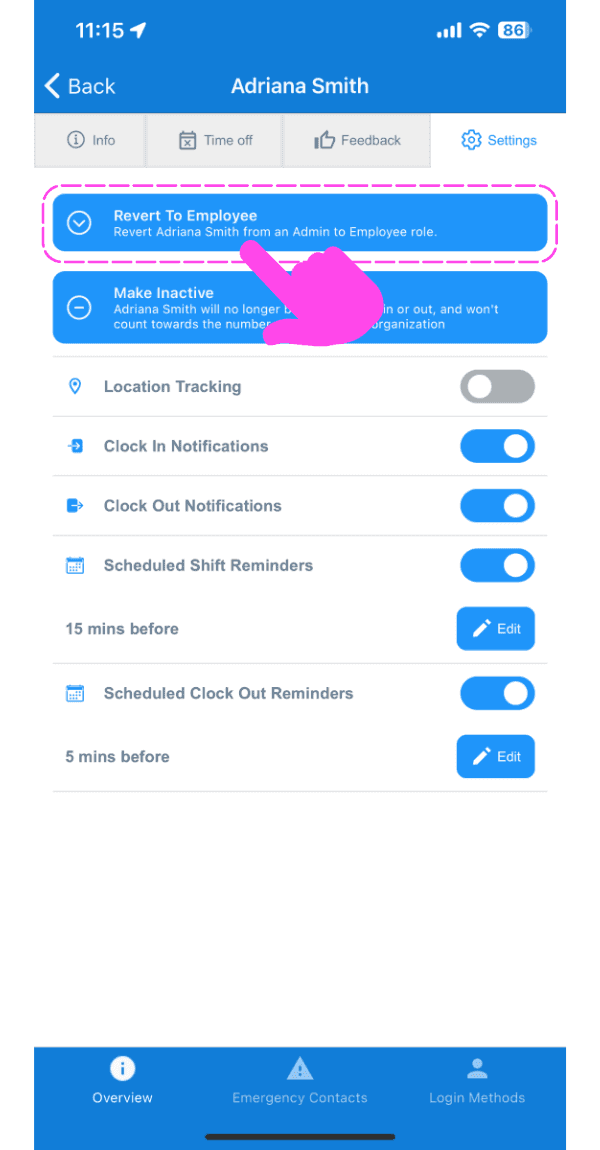
Staff member Settings screen with the Revert To Employee button highlighted by a pink dashed box and arrow

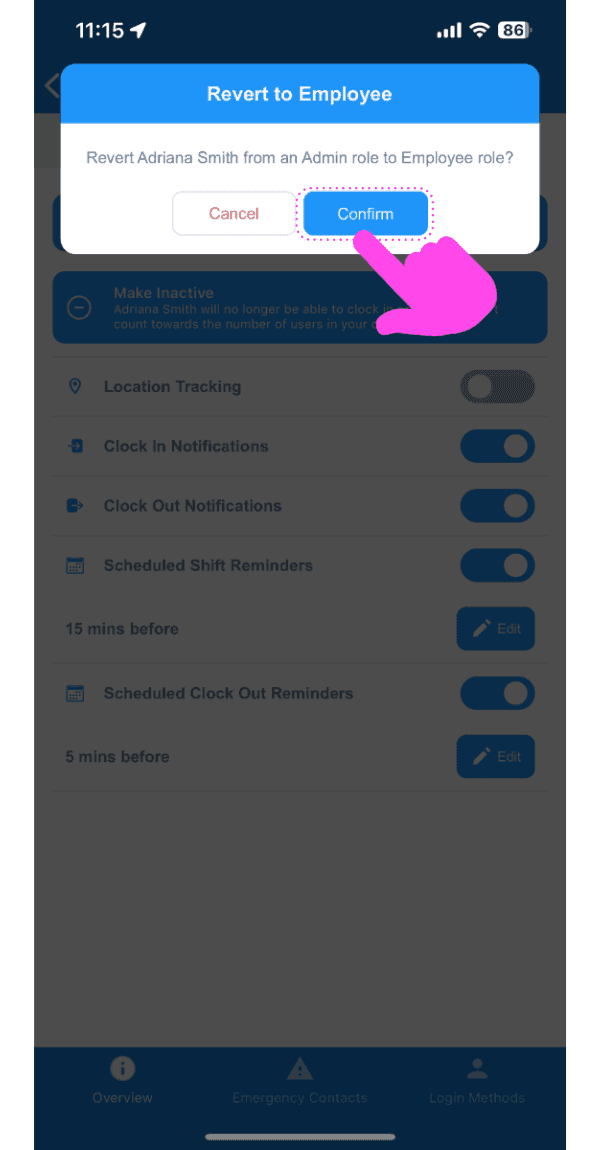
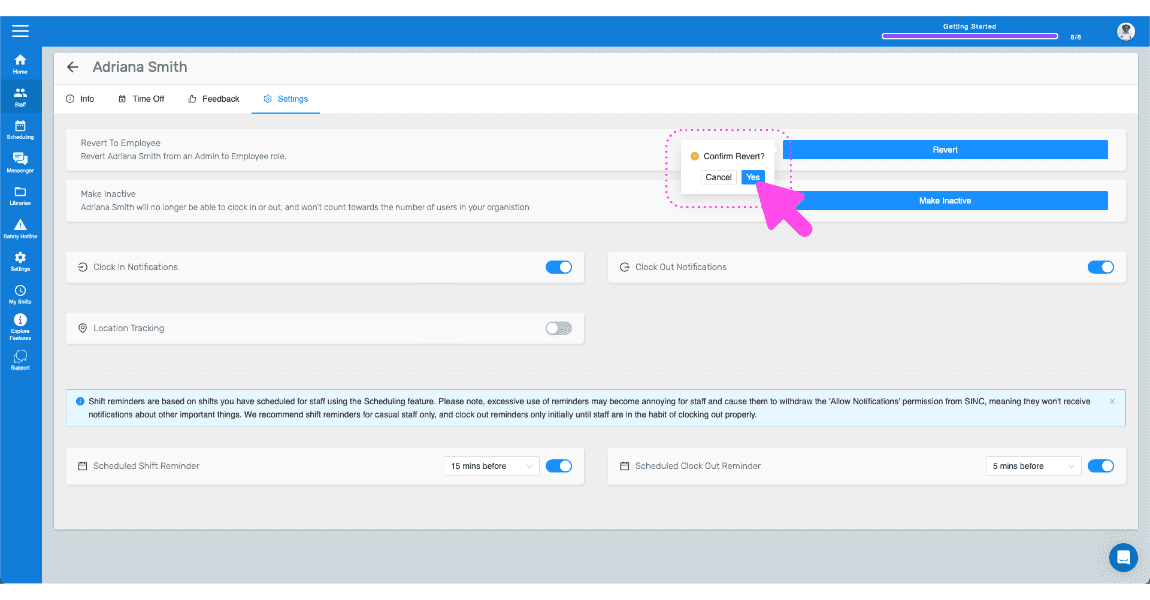
Appuyez sur Confirmer

SINC mobile confirmation popup for reverting an admin to employee role, with the Confirm button highlighted

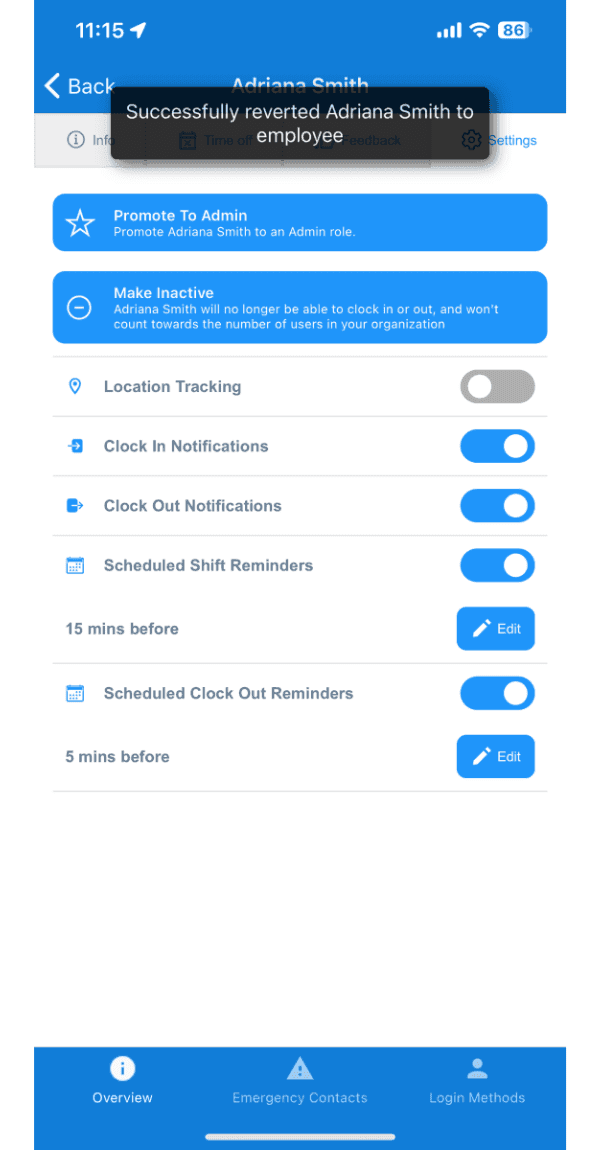
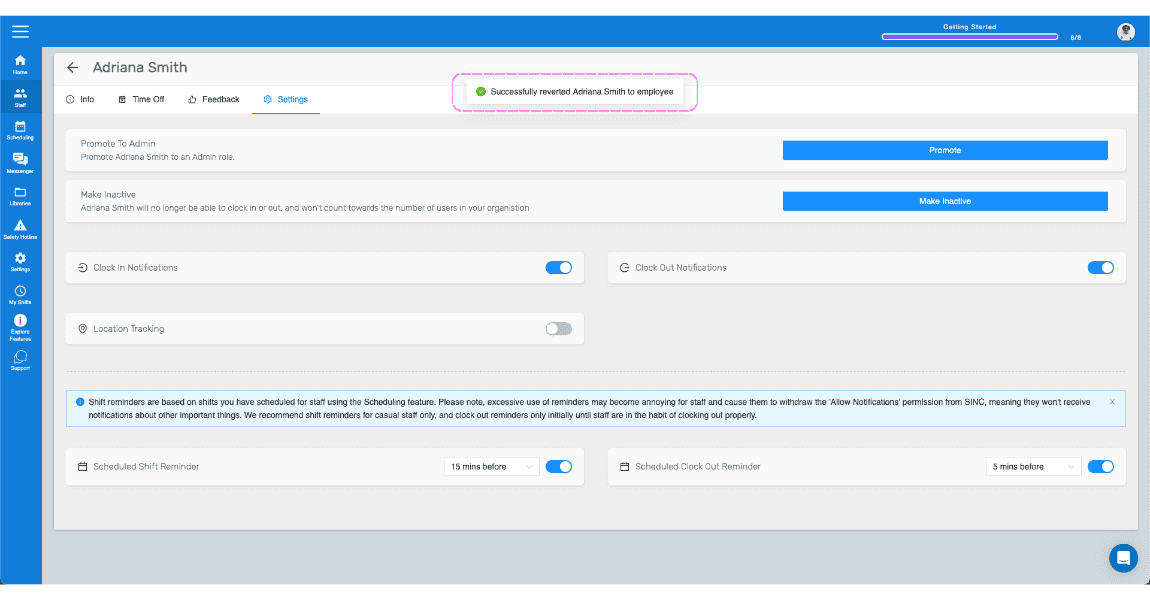
Vous recevrez ici une confirmation

Staff member Overview screen showing a confirmation toast that the employee was reverted from admin

Si vous utilisez la version web, voici à quoi elle ressemble :
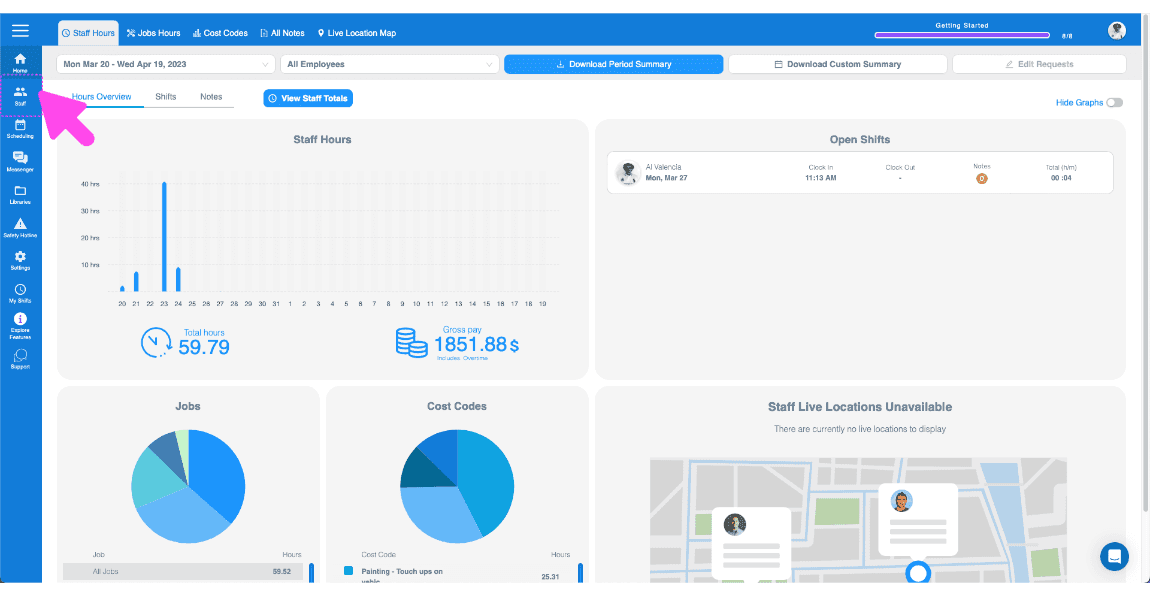
SINC web Staff Hours dashboard overview with a pink arrow pointing to a sidebar navigation icon
SINC web dashboard Staff list with a pink arrow pointing to a highlighted employee row
SINC web staff profile screen with a pink arrow pointing to the Settings tab
Web staff Settings tab with the blue Revert To Employee button outlined in pink and an arrow pointing to it
SINC mobile staff Settings tab showing a Confirm Revert dialog with a pink arrow pointing to the Yes button
Staff settings screen showing a confirmation banner that the staff member was reverted to employee

Cela a-t-il répondu à votre question ?